Brief Overview
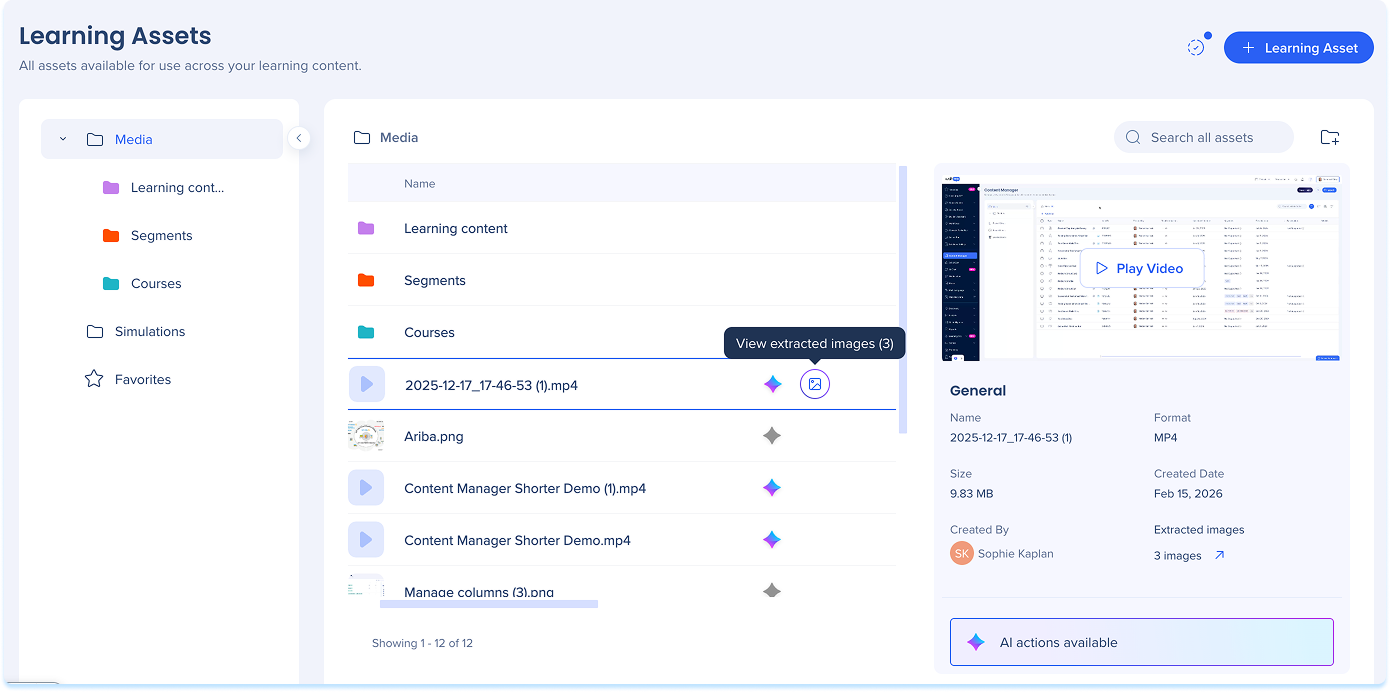
Image extraction lets content authors extract images from existing assets, such as PDFs and videos, and reuse them when building learning content in WalkMe Learning Arc. WalkMe extracts available images from supported assets and surfaces them in the learning content builder and the asset library, based on how the asset is used. This guide explains how image extraction works and how content authors can access and reuse extracted images while creating and managing learning content.
How It Works
Overview
Image extraction identifies and extracts images from supported assets so content authors can reuse them when creating learning content. How and when images are extracted depends on the asset type.
Supported assets
Image extraction applies to the following asset types:
Extraction behavior for PDFs and videos
Image extraction behaves differently for PDF files and video files.
PDF files
- When a PDF is uploaded and analyzed, images are automatically extracted
- Extracted images are available for reuse in the asset library and learning content builder
Video files
- Images are extracted only after the video is used as a source in a lesson
- Extracted images are saved under the original video asset
Note
Images are not extracted when a video is uploaded or analyzed in the asset library. Images become available only after the video is used during lesson creation.
Content authors can use extracted images directly during course creation.
Replace an image
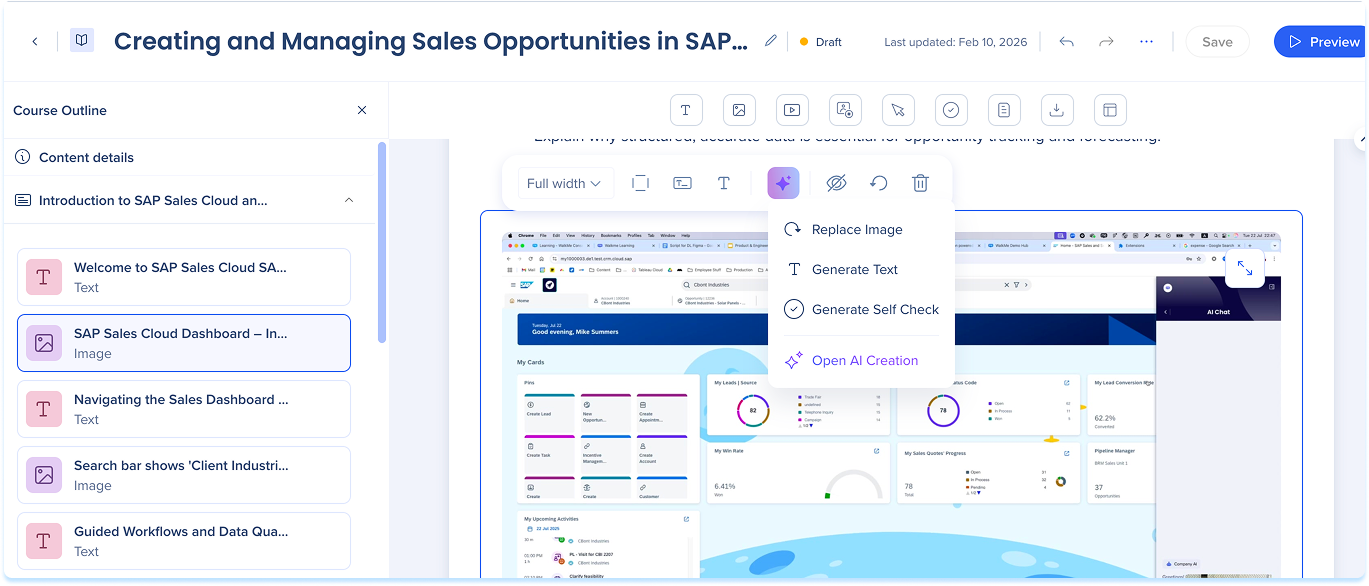
When working with a PDF or video in a course, you can replace the image shown in the lesson with an extracted image from the same source asset.
- In the lesson, select the asset
- Select the AI menu button
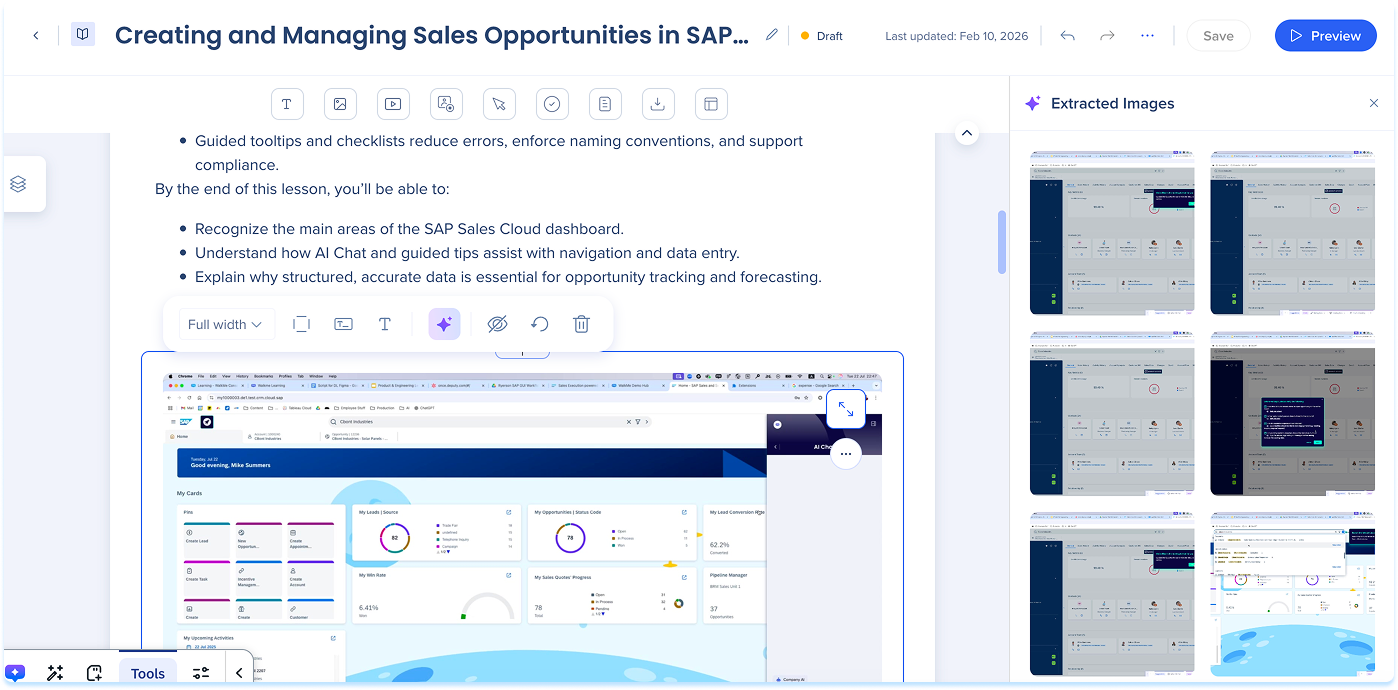
- Select Replace image
- In the Extracted Images panel, hover over a suggested image and select Replace image
- The selected image replaces the current image in the lesson
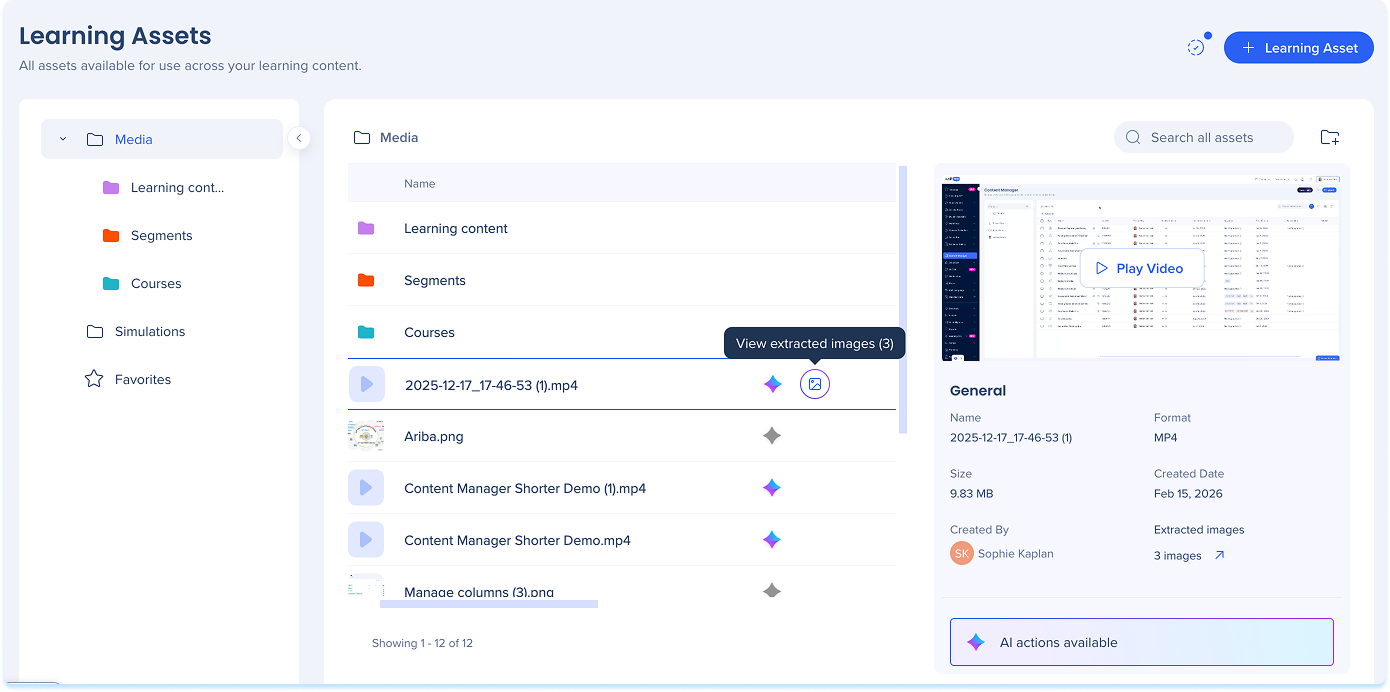
The asset library gives you full visibility into the images extracted from a source asset.
- Go to the Asset library
- Next to a PDF or video asset, select View extracted images
- Review the available extracted images and other file assets