Brief Overview
The SAP Signavio integration links WalkMe Learning Arc content to the steps of your business processes. You import Business Process Model and Notation (BPMN) diagrams from SAP Signavio, and Learning Arc mirrors each process as a set of folders you can add learning content to.
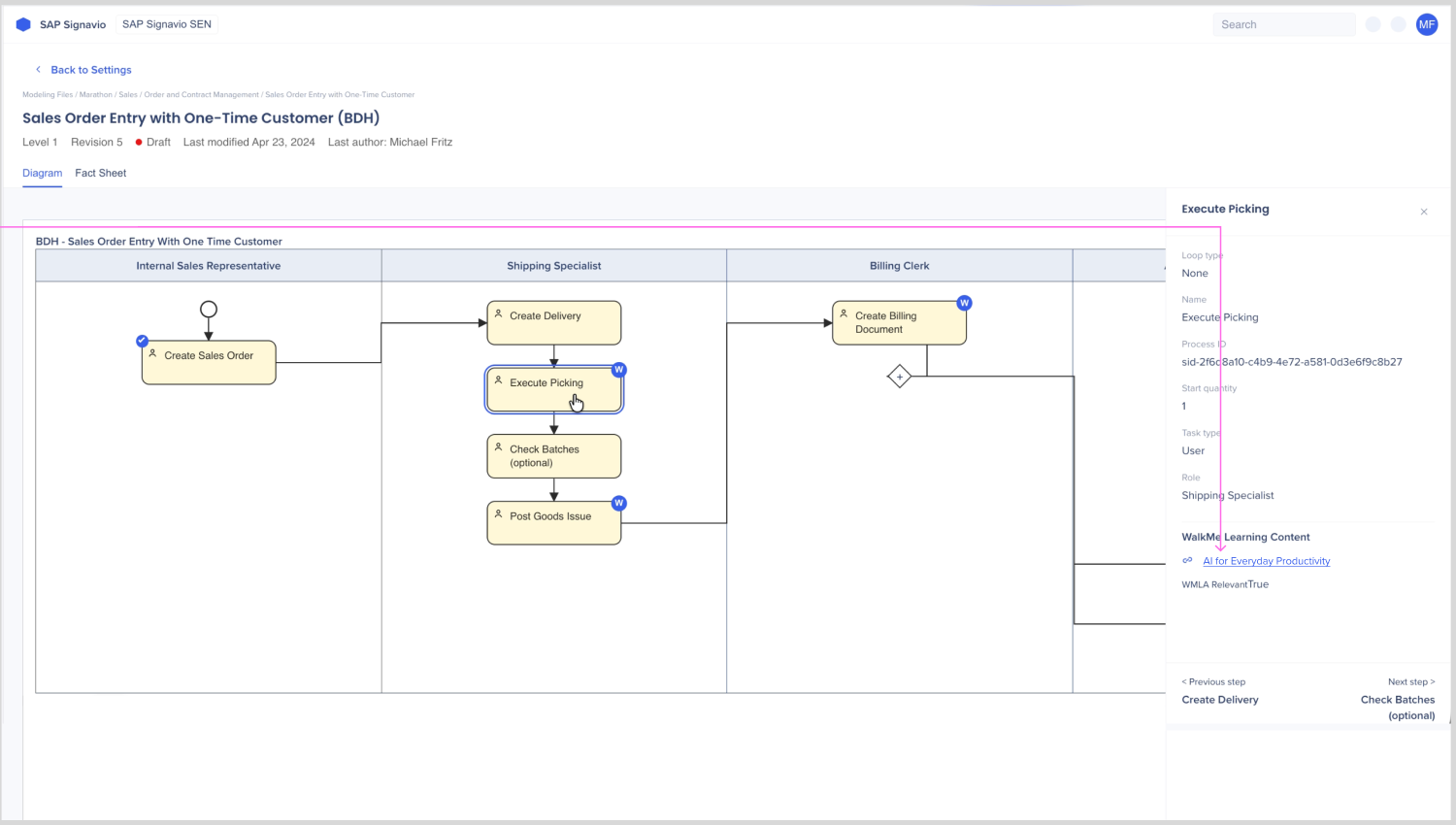
When you publish content in these folders, a link to it appears on the matching step in SAP Signavio Process Collaboration Hub. Users who read the process can open the training for that step right there.
Use Cases
- Give employees training at the step of the process where they need it
- Organize learning content by business process instead of by topic
- Show process owners which steps have training
Access
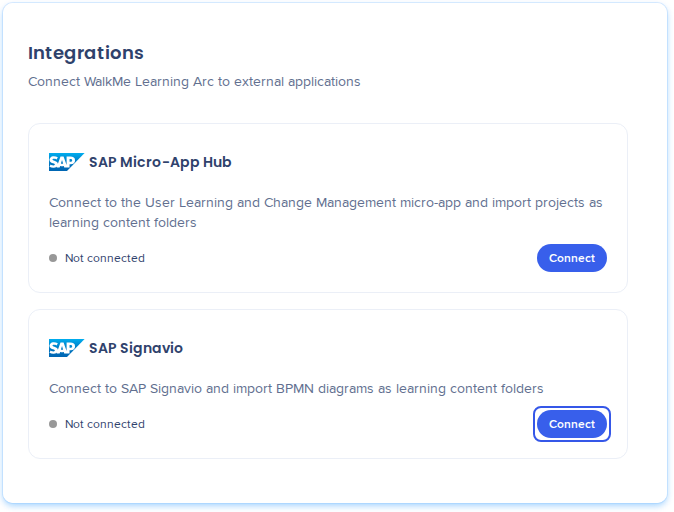
Access the SAP Signavio integration in Learning Arc:
- Open WalkMe Learning Arc:
- Select Settings and then Integrations
- Find the SAP Signavio card
Setup
Before you start
Have the following ready:
- The API URL of your SAP Signavio region
- An SAP Signavio username and password. The account needs permission to manage custom attributes, because Learning Arc adds a WalkMe Learning Arc custom attribute in SAP Signavio when you connect
- Your SAP Signavio workspace ID, if you have more than 1 workspace
Connect SAP Signavio
- On the SAP Signavio card, select Connect
- In the Connect to SAP Signavio popup, fill out the fields:
- API URL: Choose your SAP Signavio region. If your address isn't in the list, choose Custom URL and type it in Custom API URL. The address must be an https address on signavio.cloud.sap or signavio.com
- Workspace ID (optional): Your SAP Signavio workspace ID
- Username: Your SAP Signavio username, for example user@example.com
- Password: Your SAP Signavio password
- Select Connect
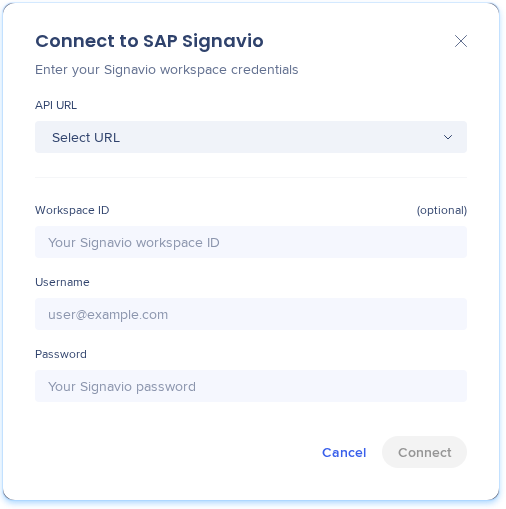
You see "Signavio connected," the card shows Connected, and the SAP Signavio content folder appears on the Learning content page.
To change the connection details later, select Edit on the card.
Disconnect SAP Signavio
- On the SAP Signavio card, select Disconnect.
Learning Arc deletes the stored credentials. The imported folders and their content stay, but you can't add content to them or publish to SAP Signavio until you connect again.
How It Works
When you import a process, Learning Arc builds folders that mirror your SAP Signavio structure. Everything sits under the SAP Signavio content folder, followed by any SAP Signavio folders above the process, then 1 folder per process with 1 folder per step inside it.
Import BPMN diagrams
- On the Learning content page, open the SAP Signavio content folder
- Select Import BPMN diagram
- In the Browse Signavio popup, select the processes to import. To find a process, expand a folder or use Search BPMN diagrams
- Select Import
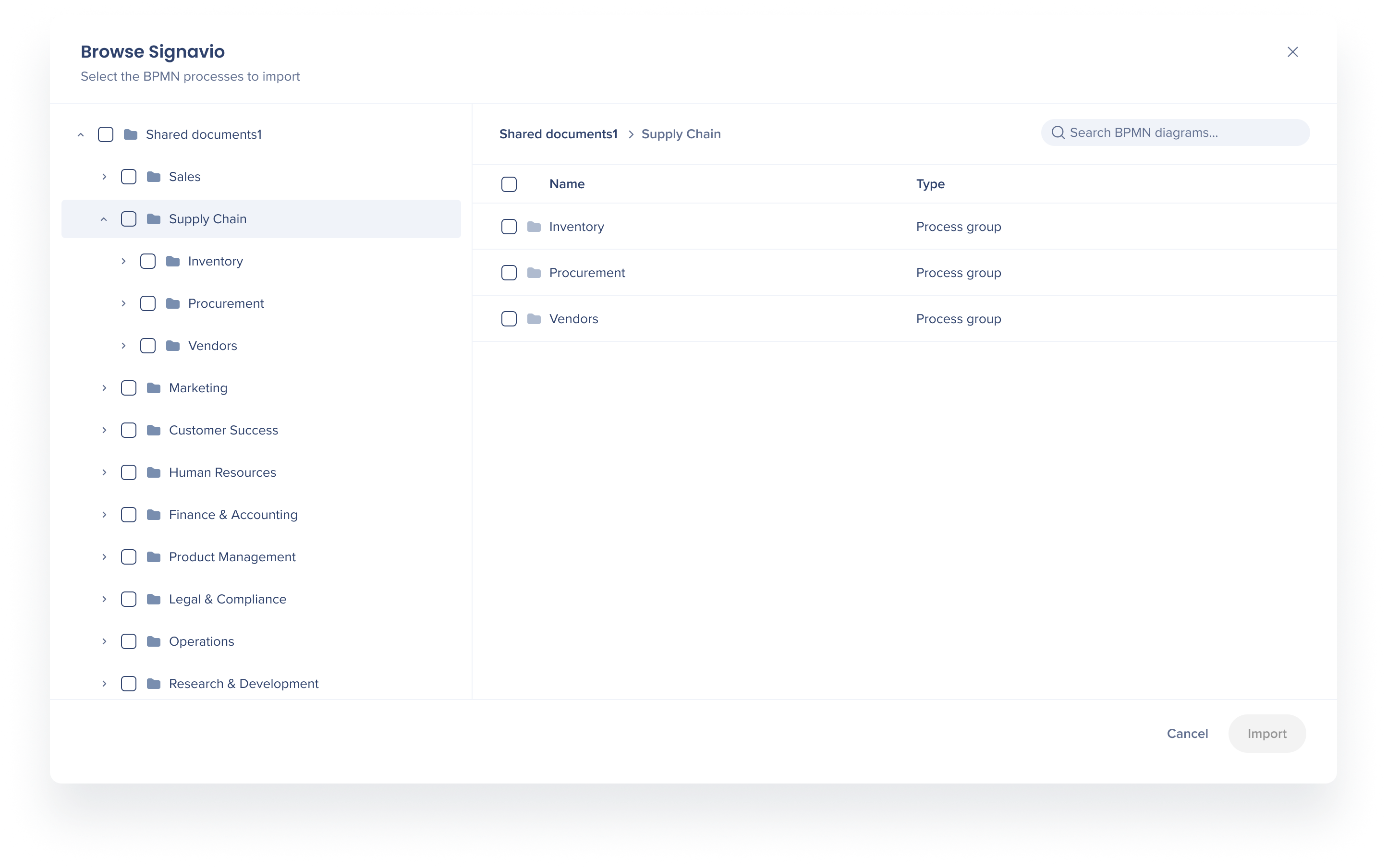
You can select several processes, or a whole folder, in 1 import. Each search result shows its folder path, so you can tell apart processes with the same name. Your selection stays when you clear the search. Learning Arc creates one folder per process, with one folder per step inside it.
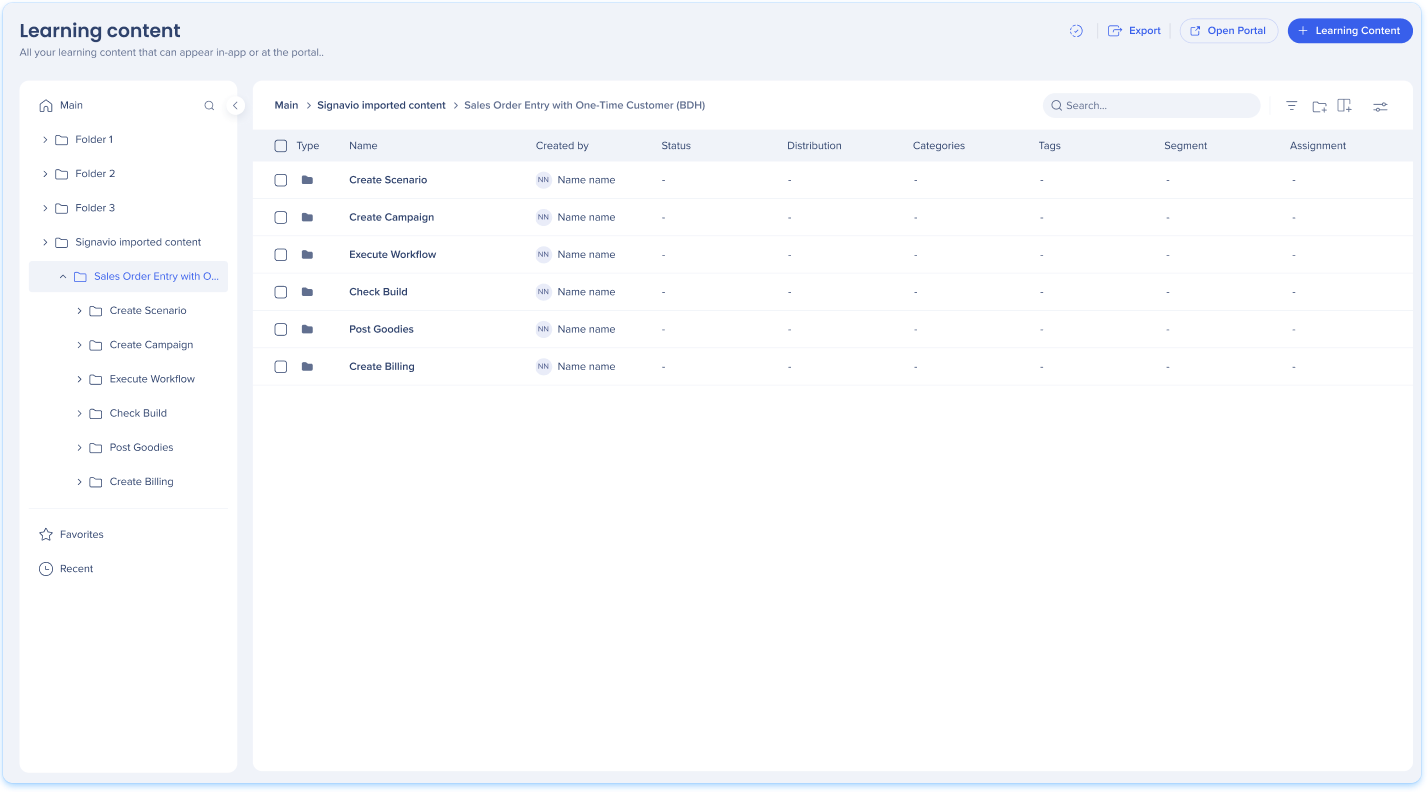
Create content in a step
- Open a step folder
- Select Create content and build the content as usual
Move existing content to a step
- Open a step folder
- Select Move content to folder
- In the Select content to move popup, search or browse for the content and select it. You can select single items, not a whole folder
- Select Move to Folder
The content leaves its old folder and shows only in the step folder, because an item lives in 1 folder at a time. Its ID, learner progress, analytics, and translations stay the same, and it keeps working in distributions and portal categories.
Publish to SAP Signavio
Publish content in a process or step folder as usual.
Manage and Publish Learning Content
Learning Arc adds a link to the content on the matching SAP Signavio step. In SAP Signavio Process Collaboration Hub, each step with published content shows a WalkMe Learning Content section with a link to each item.
When you unpublish the content, Learning Arc removes the link from SAP Signavio too.
Update an imported process
When a process changes in SAP Signavio, import it again from the Browse Signavio popup. Learning Arc updates the folders in place:
- Renamed steps keep their folder and content
- New steps get new folders
- Content in a removed step moves to your main folder, and a message tells you how many items moved
Importing again doesn't delete any content.
Technical Notes
Requirements
- To connect SAP Signavio, you need permission to edit settings in Learning Arc
WalkMe Learning Arc Roles & Permissions
Limitations
-
You can connect one SAP Signavio account and workspace at a time. To work with diagrams from another workspace, go to the Integrations tab, edit the SAP Signavio connection, and select the new workspace. After you switch workspaces:
-
Imported diagrams stop syncing with their original workspace
-
Imported diagrams stay in SAP Signavio content, along with their courses
-
Course links added in SAP Signavio keep working
- Large imports can take longer
- You can't rename or move imported folders, because they follow the diagram
- You can't create new folders in SAP Signavio content
- You can add learning content only in process and step folders
- Publish to SuccessFactors isn't available for SAP Signavio content