Surveys are a new campaign type (available fromWalkMe Mobile SDK version 1.14.0+) that let you enable your customers to share their opinions in numerous ways. Like all WalkMe Mobile campaigns, Surveys require no coding or 3rd-party integrations.
Steps For Building a Survey
Follow these steps to build a WalkMe Mobile Survey for your app:
Open the WalkMe Mobile Console;
Navigate to the MY CAMPAIGNS tab;
Click + NEW in the upper right-hand side of the screen;
Click on Surveys in the left sidebar;
Choose the Survey template that best suits the style/type of survey you wish to appear in the app (see below for available templates);
Enter a title for the Survey and click OK;
See the specific object-type sections below to learn to add and customize the different question types.
Adding Questions to Your Survey
There are currently four Survey objects (question types) you can drag from the OBJECTS inventory into your Survey campaign:
Rate (available in Star, Smiley and Number style);
Free-Text;
Checkbox; and
Radio-Button.
Simply drag the survey-type of your choice onto the device screen preview. Currently, you may only include one survey per campaign.
IMPORTANT: You must add at least one button of action-type Submit in order for your customers to be able to submit their survey responses.
Customizing Your Survey Questions
The following process applies to all Survey Question widgets, but the example shows the configuration of a Rate-type question:
Main (Question) widget configuration
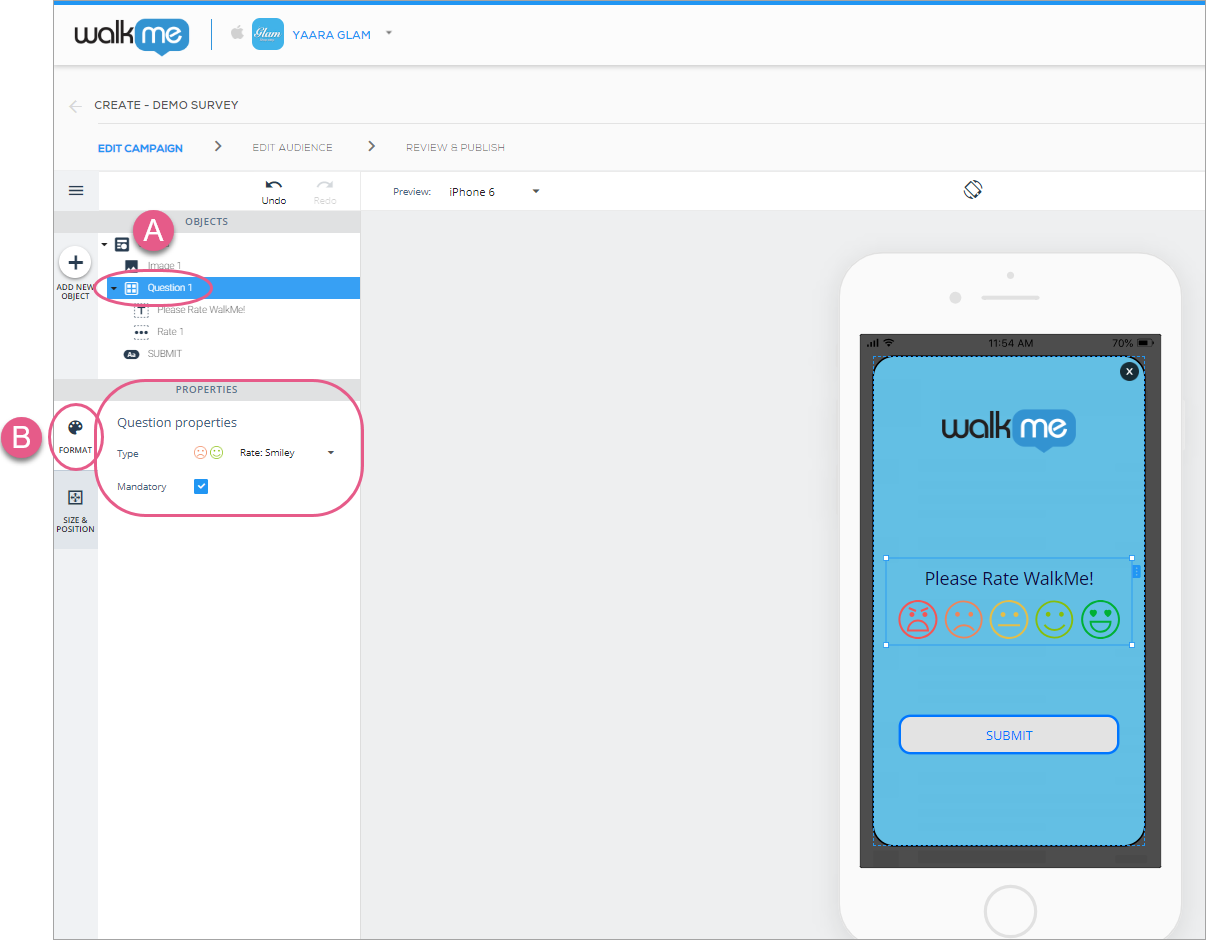
Upon adding or clicking the Rate-type survey object, the default object in your OBJECT tree will be the main (Question) widget, and the default tab will be the FORMAT tab, where you can configure the following settings:
Choose which type of Rate-type question you want; and
Choose whether you want this survey question answer to be mandatory (a question that the end-user must answer prior to submitting the survey) or optional:
Steps 1-3: Add / Click the Question icon and select the Rate-type and whether question will be mandatory. In this case I've selected the Smiley-type of Rate question and made it mandatory.
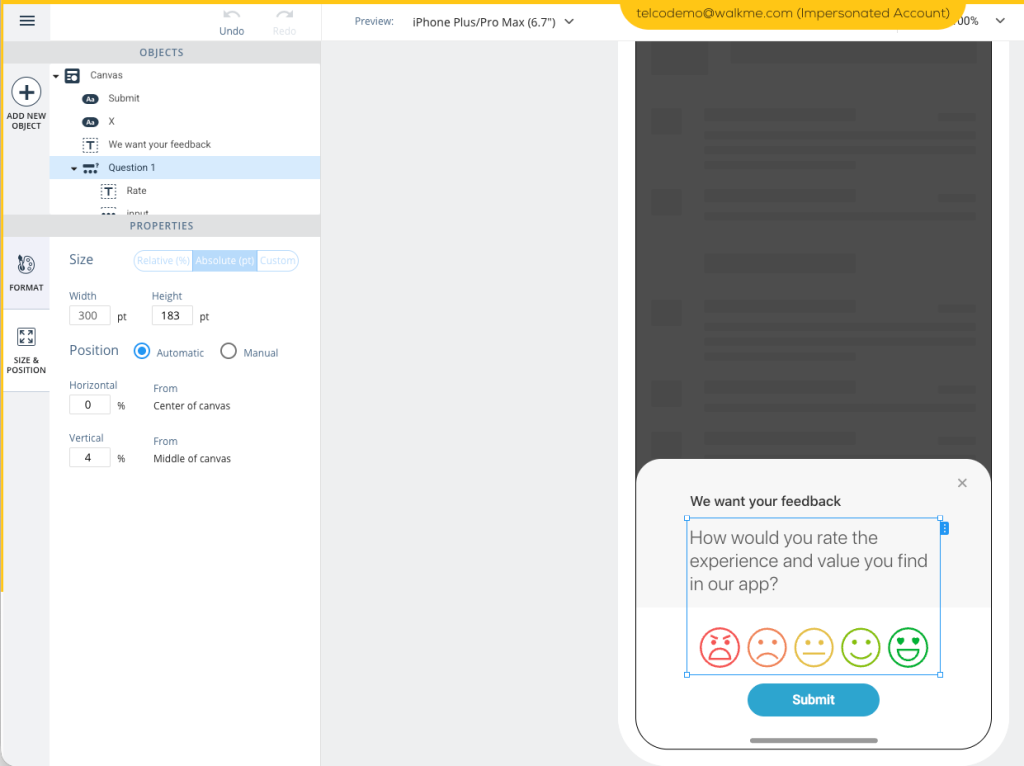
Next, click the SIZE & POSITION tab, where you can configure the Question widget's size and units, and positioning relative to the Canvas object:
Note - Sizing is not supported for Star, Smiley, Number question types
See the below sections to learn to customize the various survey sub-objects (Rate, Free Text, Checkbox / Checkbox-Item, and Radio-Button / Radio-Button-Item.
Rate-type questions
There are three variants of Rate-type questions:
Rate: Star;
Rate: Smiley; and
Rate: Number.
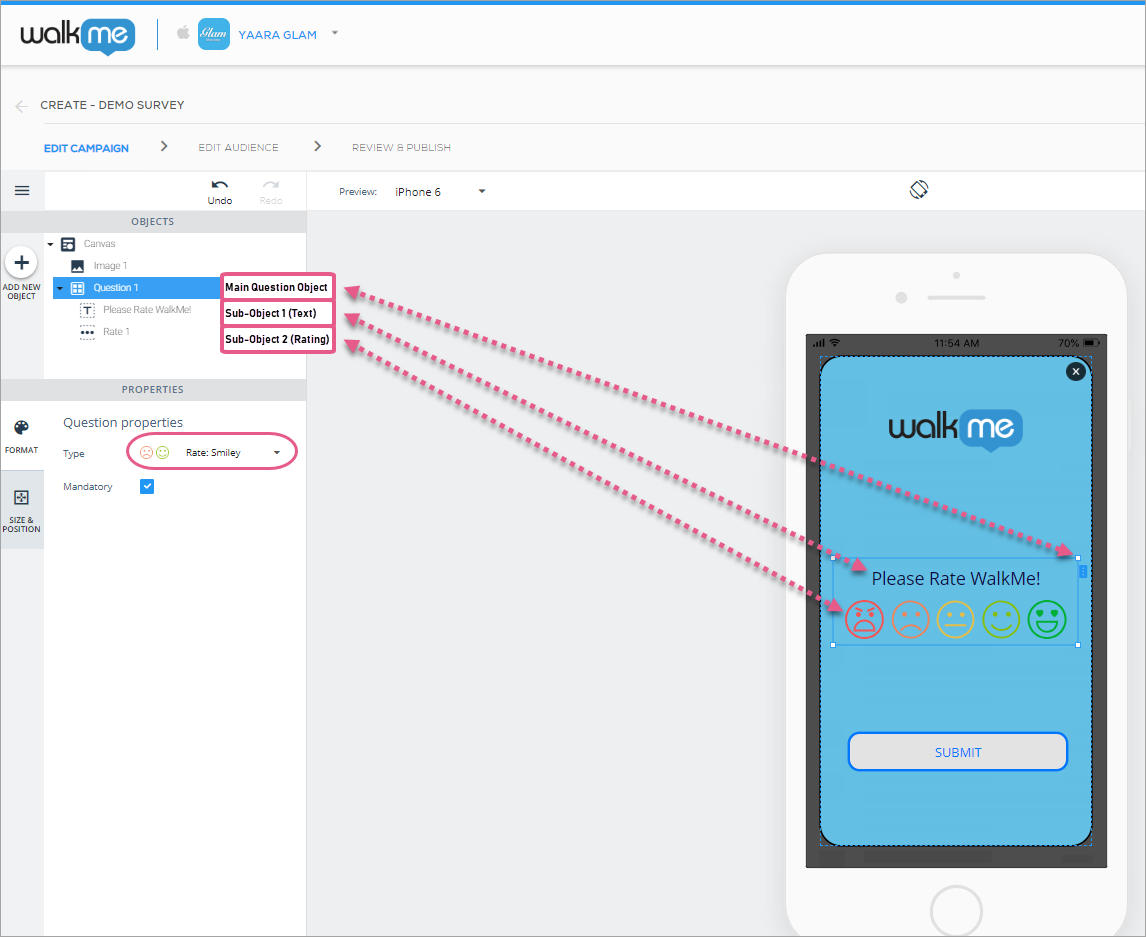
Rate-type questions are widgets, or complex objects comprised of other simple objects, each of which can be configured. Additionally, you can add any other objects you want to the Survey canvas:
I've also added a picture of the WalkMe logo and a button with Action-type Submit to this Survey.
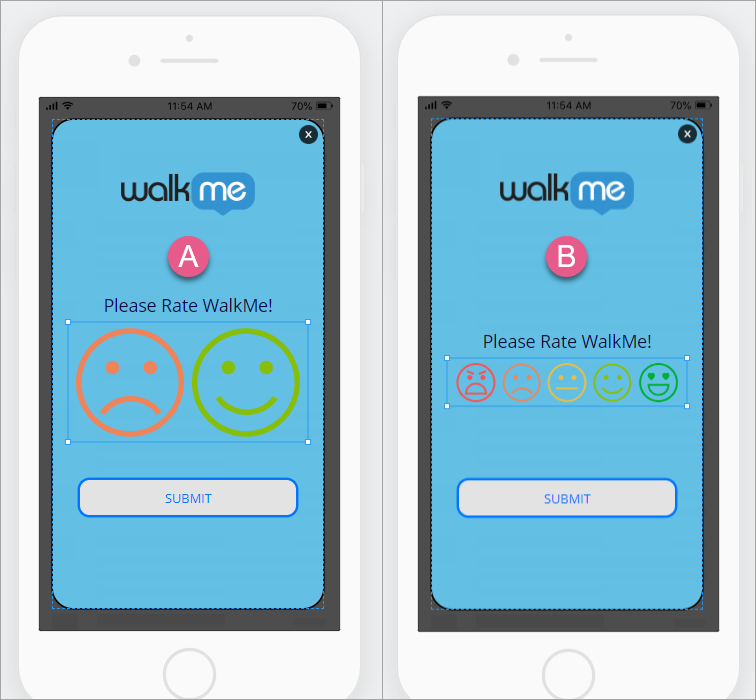
Rate: Smiley
For this Rate-type question, you can configure how many smileys you want to appear. The options are "2," or "5:"
Rate: Star
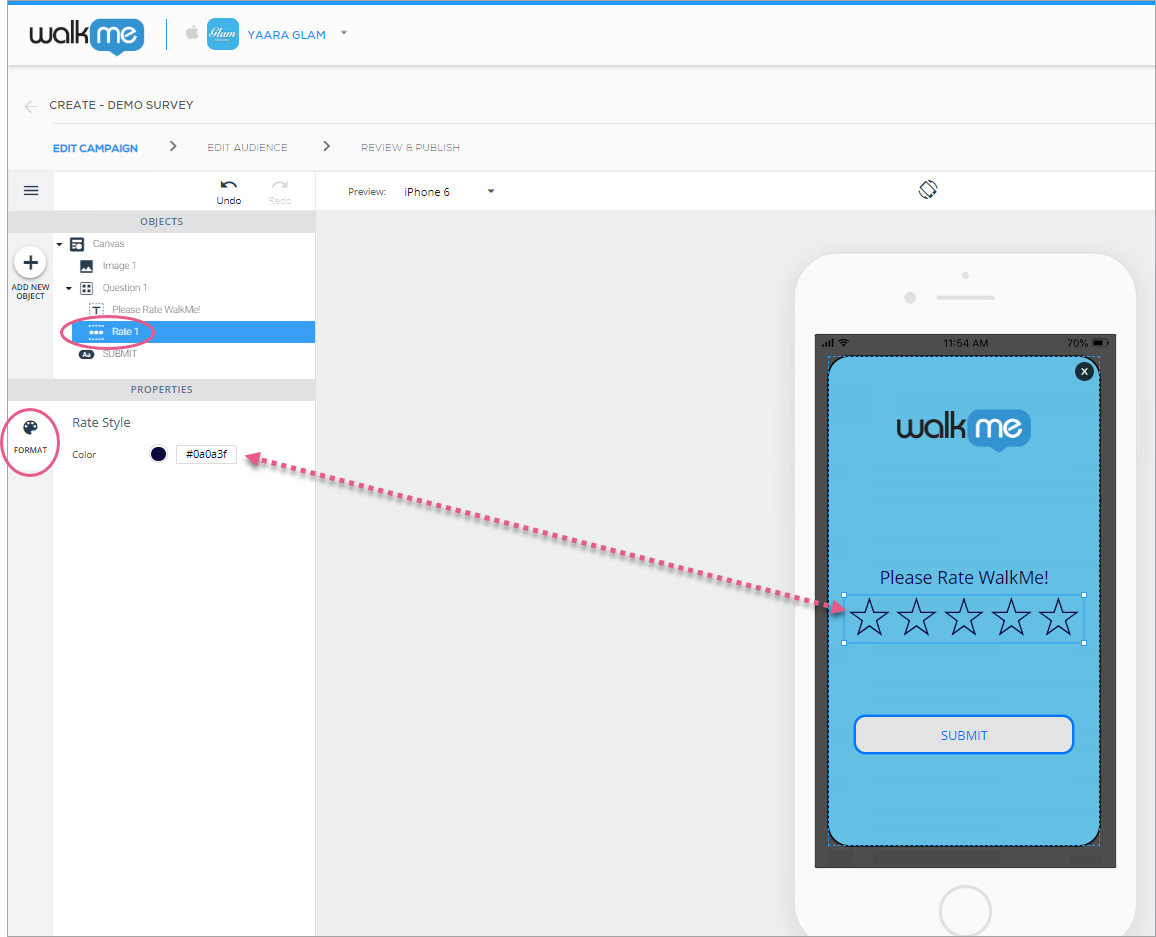
For this Rate-type question, you can configure the color of your stars. Unlike with Smiley, you cannot configure the number of stars; there are always five:
Rate: Number
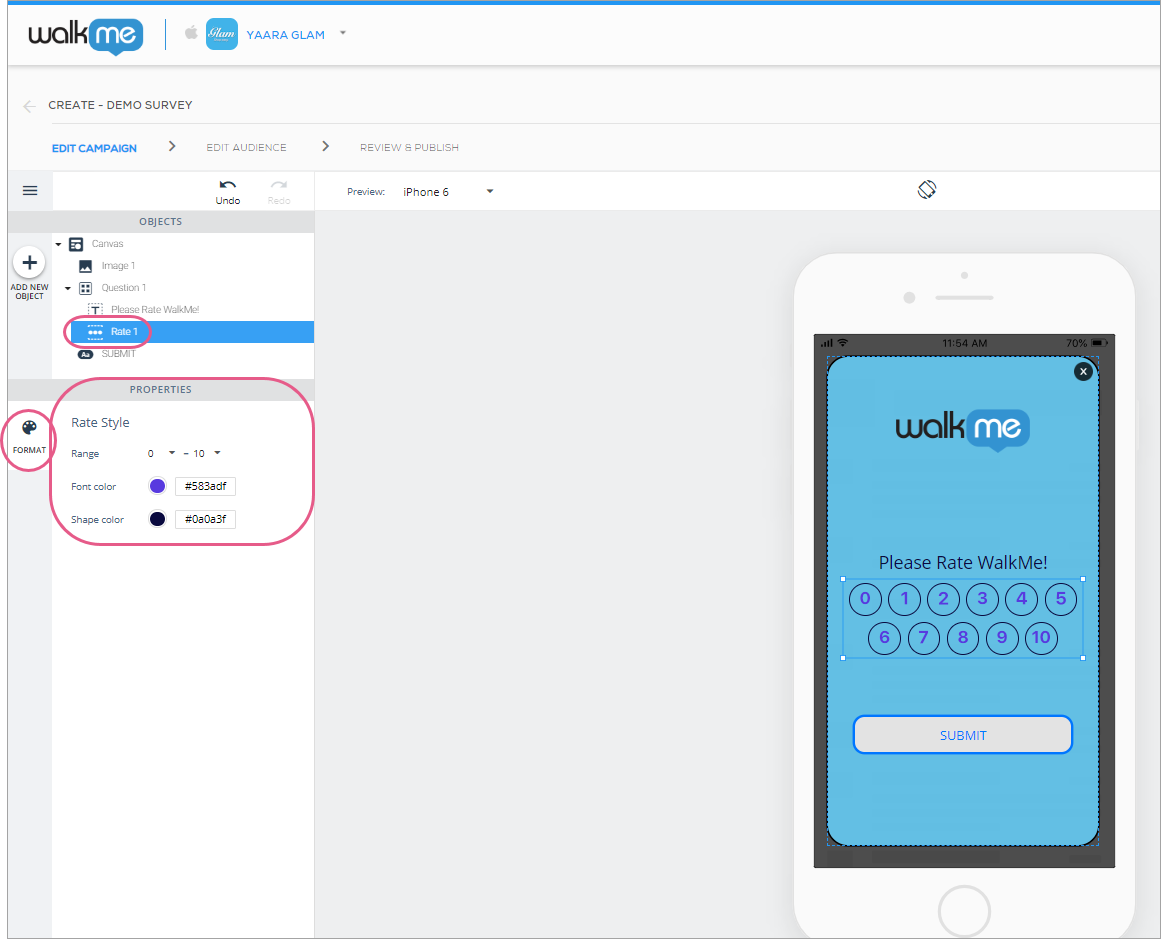
For this Rate-type question, you can configure the range of your rating numbers (the starting point can be "0" or "1," and the highest rating can be set to "3," "5," "7," or "10"), the color of the circle surrounding the numbers, and the color of the numbers themselves:
Here I've set the range to go from 0 to 10.
Open Answer-type questions
Configuring Open-Answer main (Question) widgets and Text sub-objects are the same as for Rate-type and Open Answer-type questions, but the Free-Text sub-object differs from the Rate object in two crucial respects:
The end-user can provide a free-form answer to any question you ask.
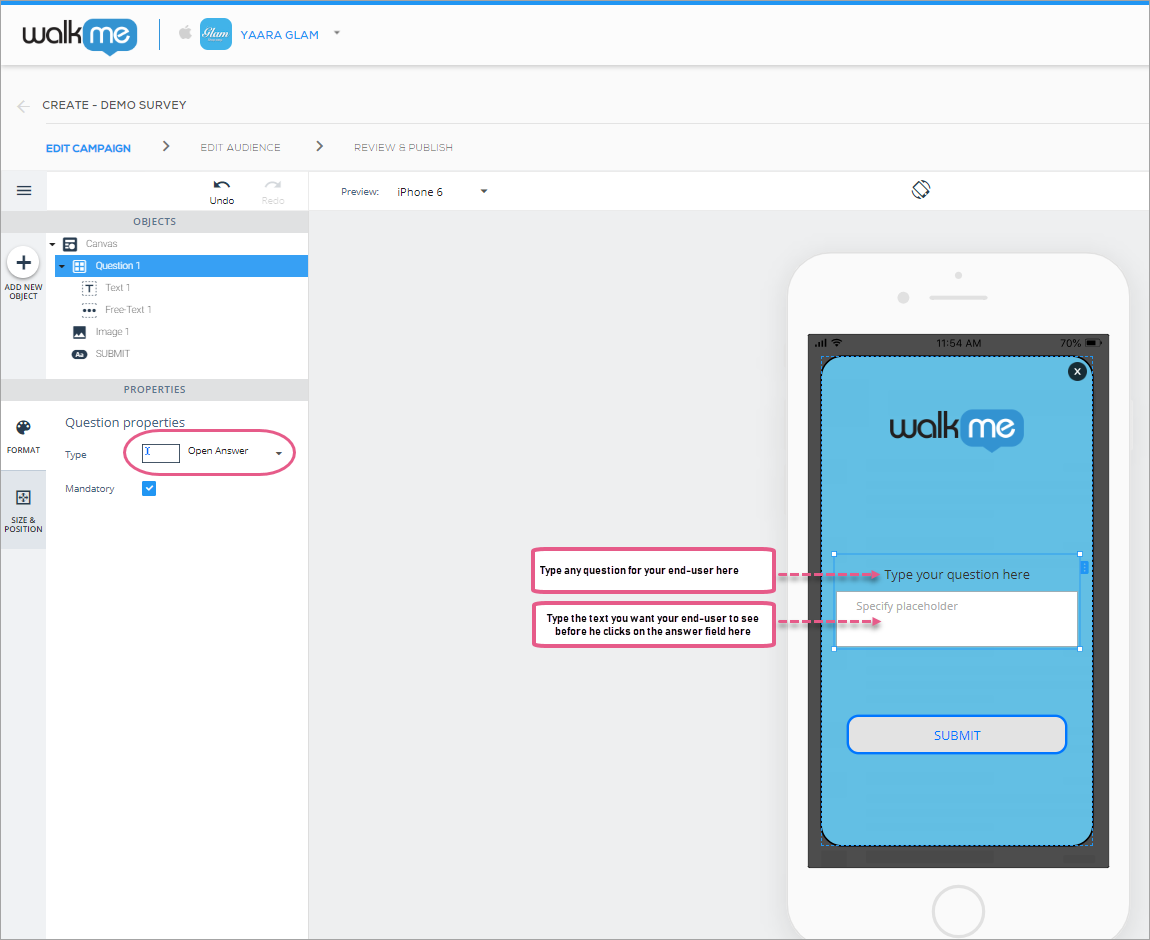
This means you must type your question on the device preview screen, and may also write placeholder text (text the end-user will see until he clicks into the answer field) into the answer field:
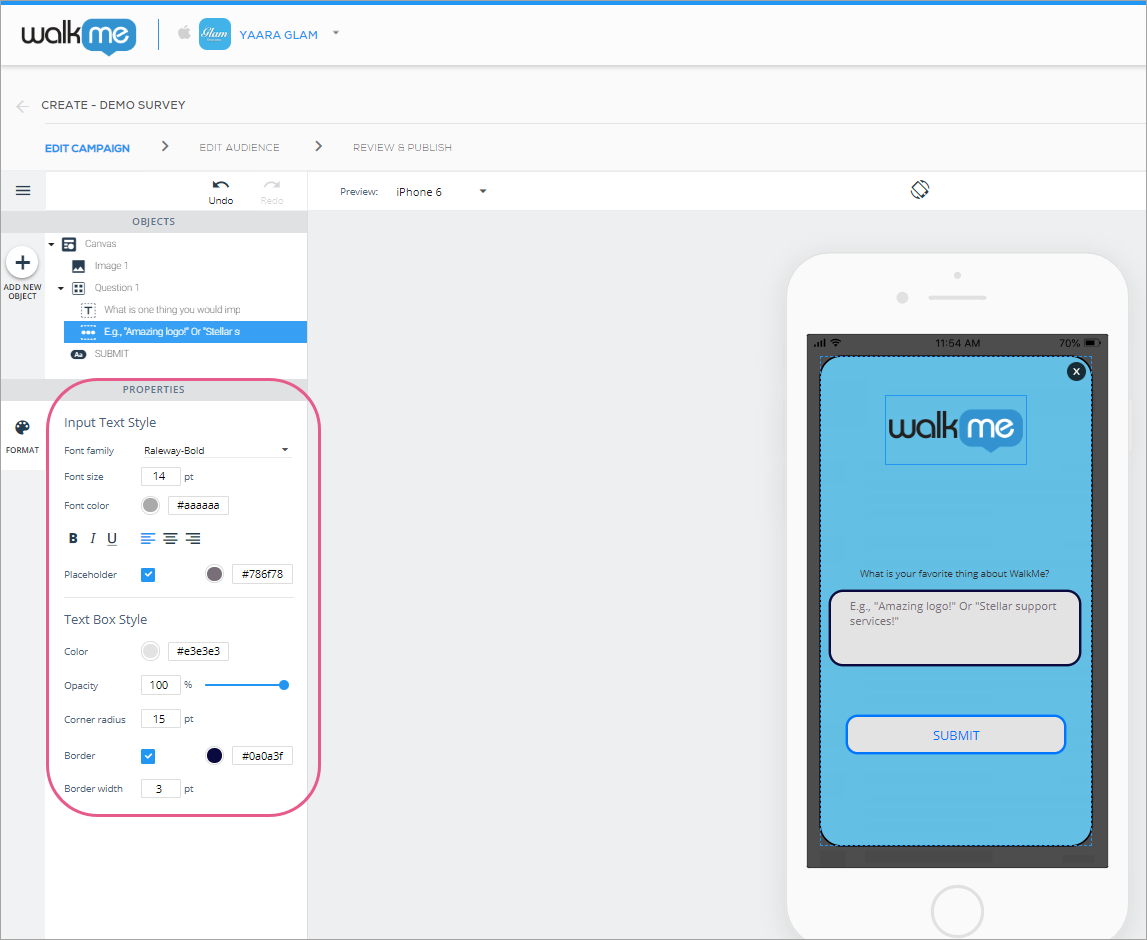
You can configure the end-user's input text font details, as well as the answer field's style:
The Input Text style section's Font family, Font size and Font color refer to the styling your end-users will see when they input their response(s) into the answer field, not what you will see in the preview device screen.
Checkbox-type questions
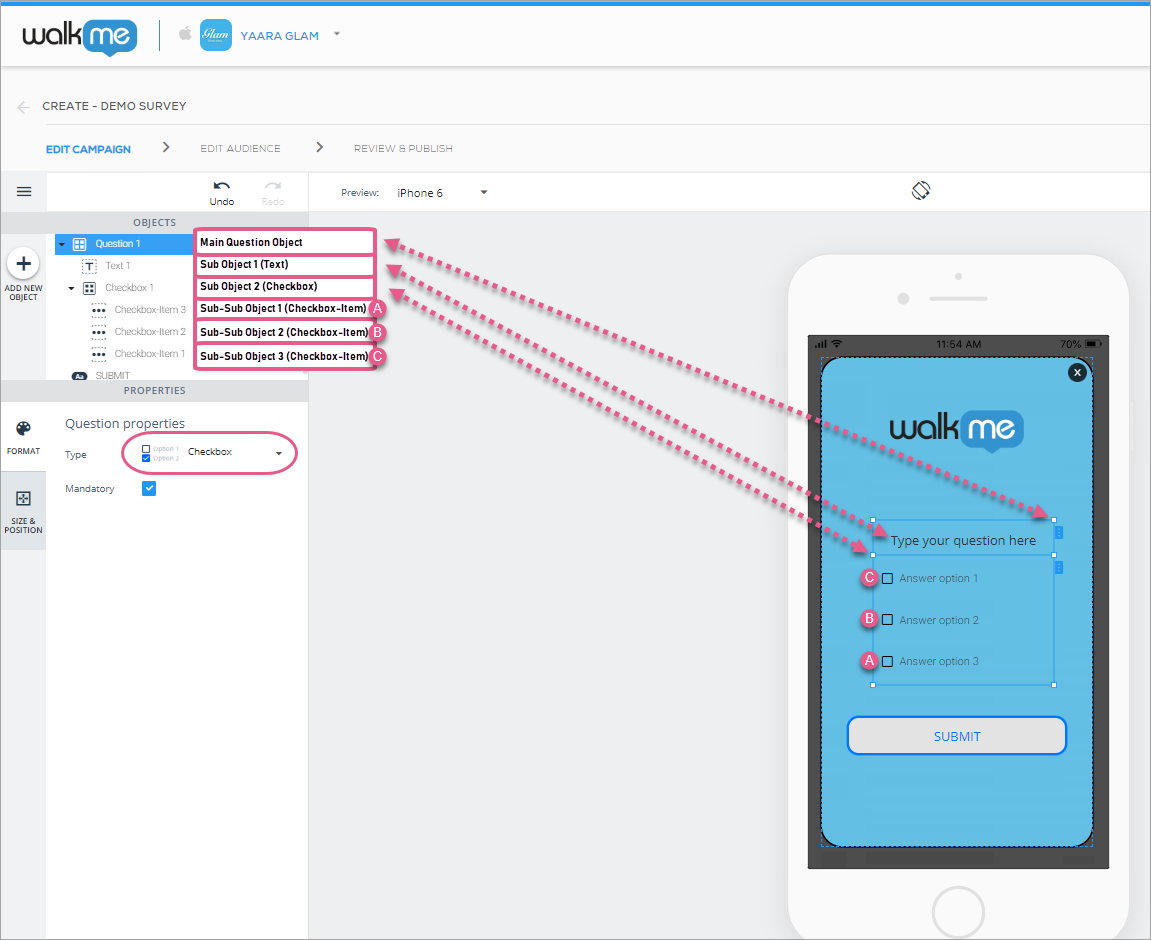
Configuring the Checkbox main (Question) widgets and Text sub-objects are the same as for Rate-type and Open Answer-type questions, but the Checkbox sub-object is different; it has three sub-objects (Checkbox-Items) of its own by default (though you can add additional objects at the top or bottom of the list):
As with all other text-based objects, write the question and answer options on the device preview screen itself. End-users can select one or all options as their answers.
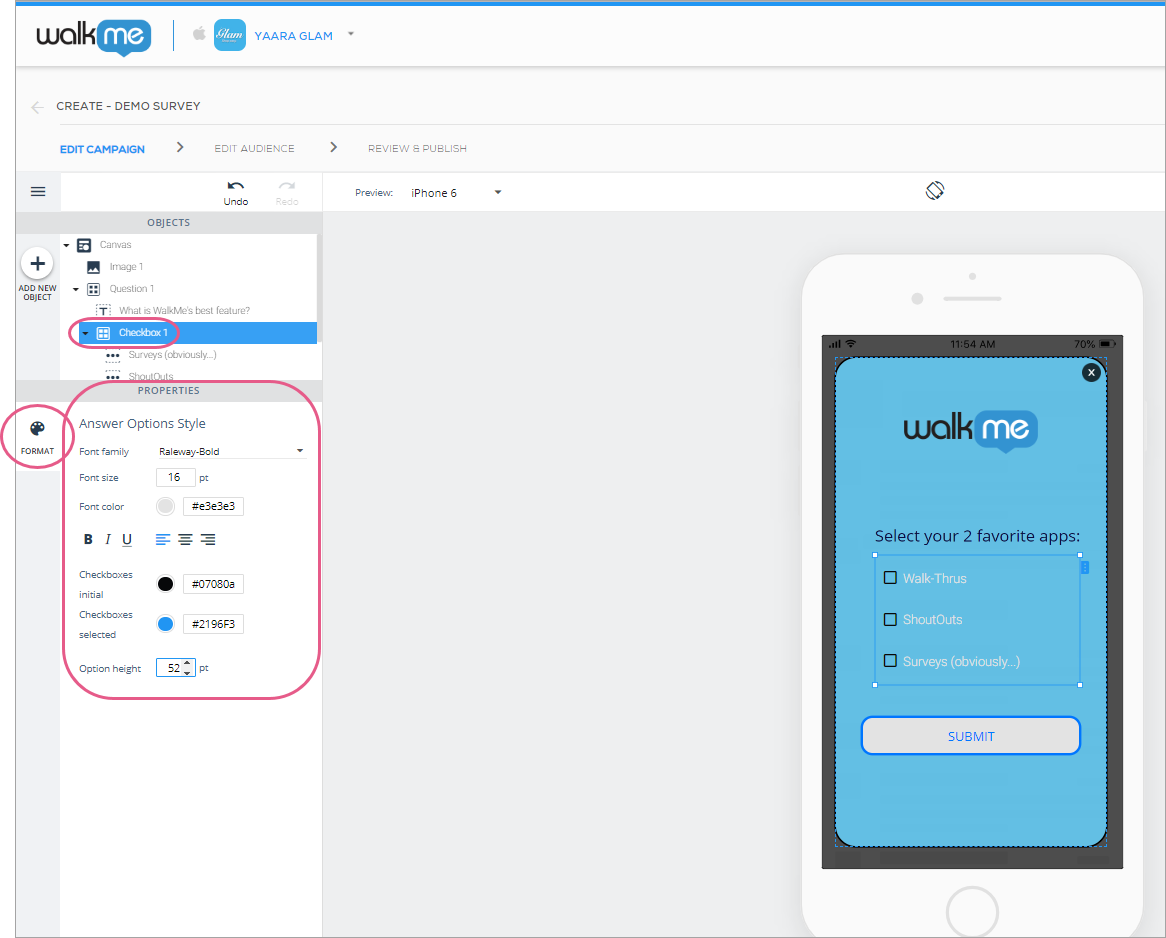
To style the main question's text, use the Text object, and to style the answer option text (checkbox text), the checkbox color before being clicked, the checkbox color after being clicked, and set the amount of space between checkboxes, click the Checkbox object:
Note that users can select more than one option on Checkbox-type questions.
You can add additional answer options to Checkboxes in one of two ways:
Method 1:
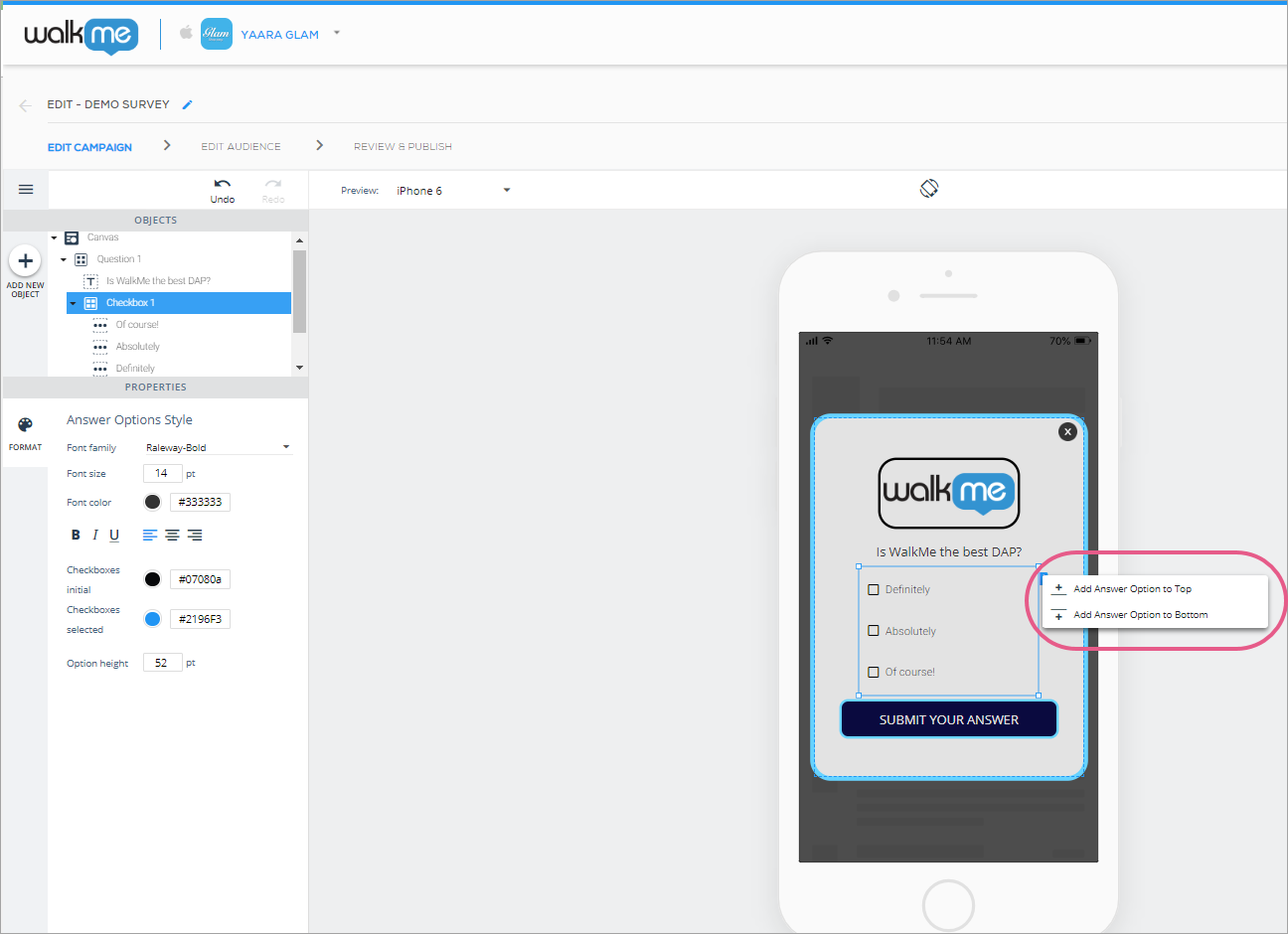
click on the Checkbox widget (either in the OBJECTS tree or by clicking on it on the preview device screen), and either right-click on the preview device screen or click on the blue tab on the side of the object;
Click on either Add Answer Option to Top, or Add Answer Option to Bottom:
Rename the new option to your preference.
Method 2:
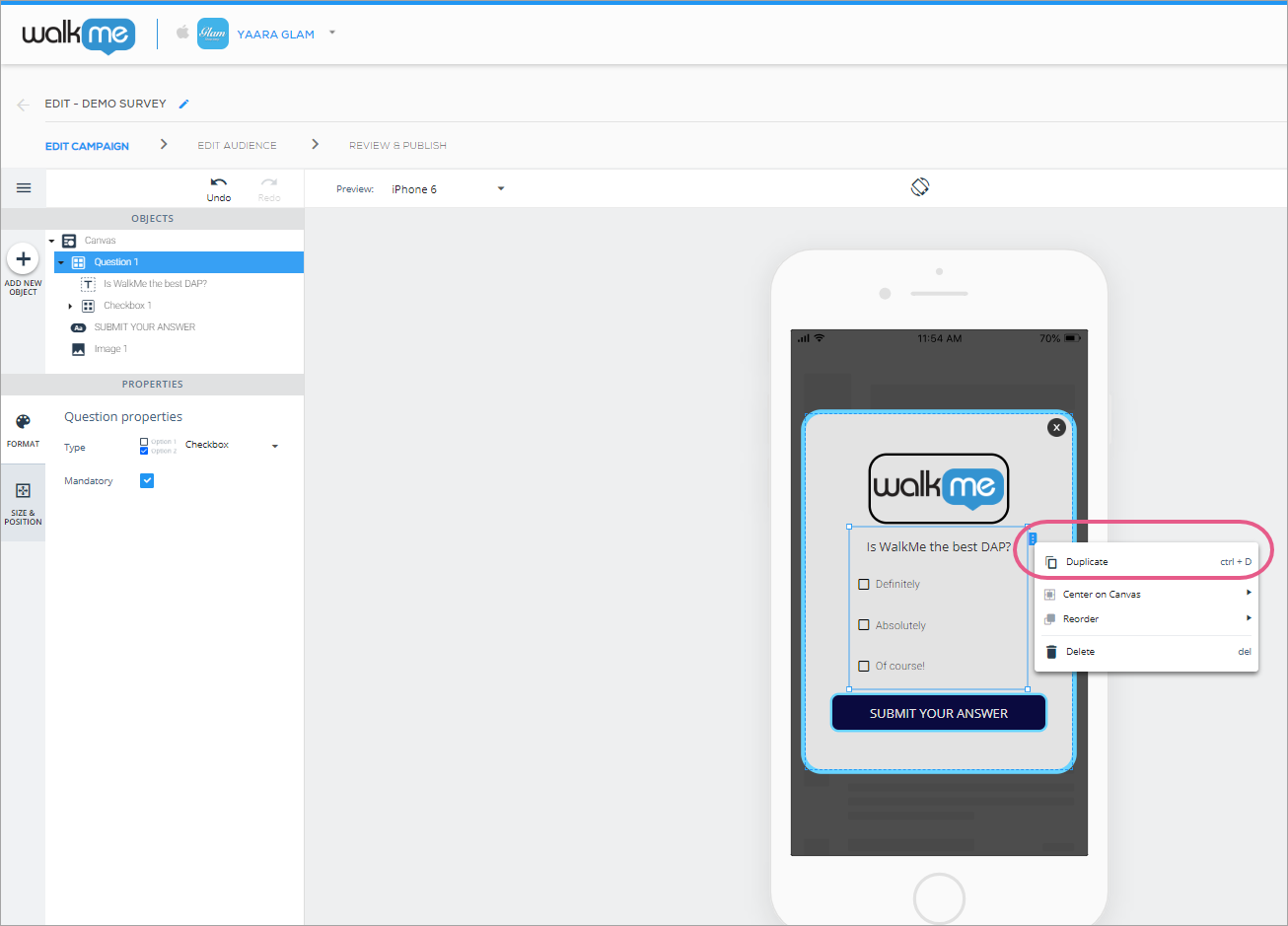
click on one of the Checkbox-Items (either in the OBJECTS tree or by clicking on it on the preview device screen), and either right-click on the preview device screen or click on the blue tab on the side of the object;
Click Duplicate in the menu:
Drag the duplicated answer option to its appropriate place in the answer list and re-name it to your preference.
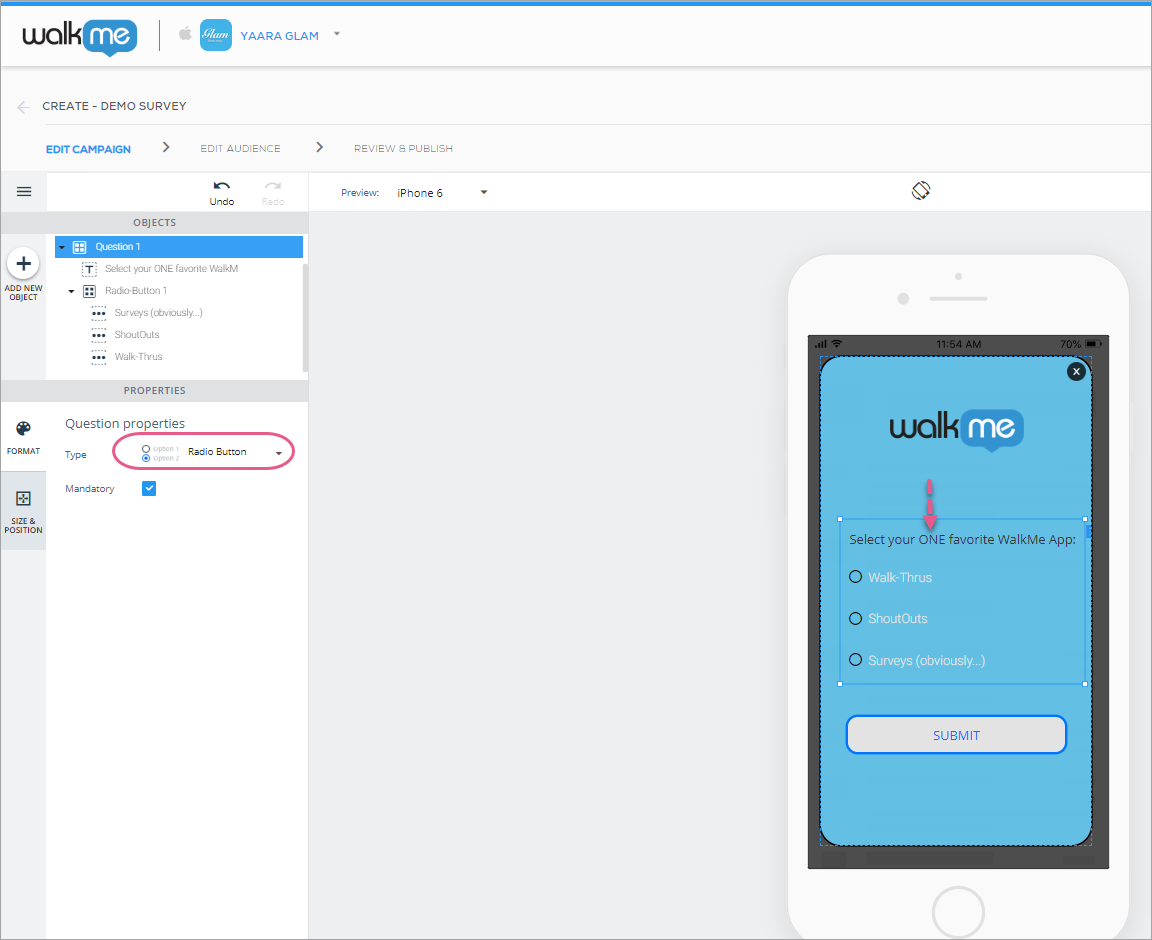
Radio Button-type questions
Radio Button-type questions work exactly the same as Checkbox-type questions, except that users may only select one answer to submit:
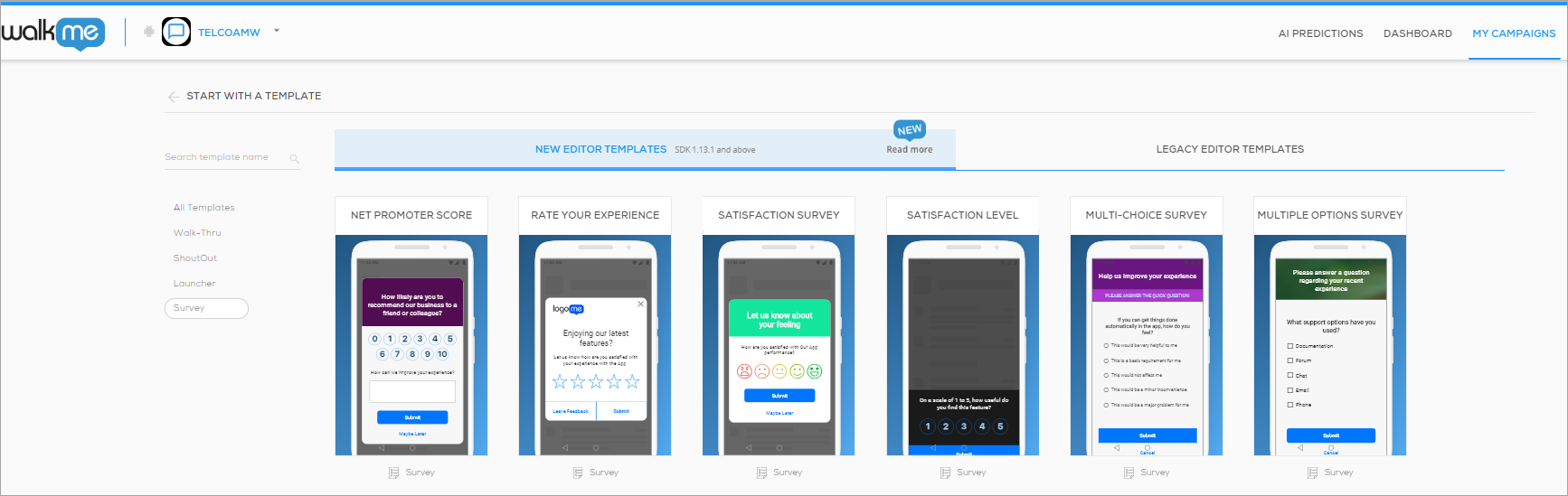
Available Survey Templates
There are currently six Survey templates you can use to accomplish the most common of use cases, from collecting Net Promoter Scores to requesting multiple responses to the question of your choice:
You can add or remove objects to / from a template you've selected to create the perfect campaign for your use case.
Review Survey Results
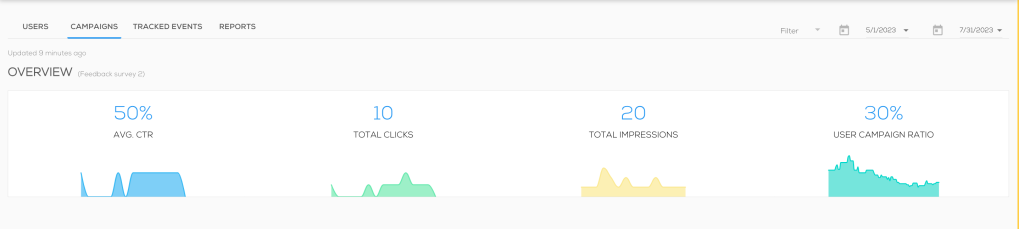
High-level Results
You may review survey results in the Campaigns dashboard by filtering by the specific survey campaign.
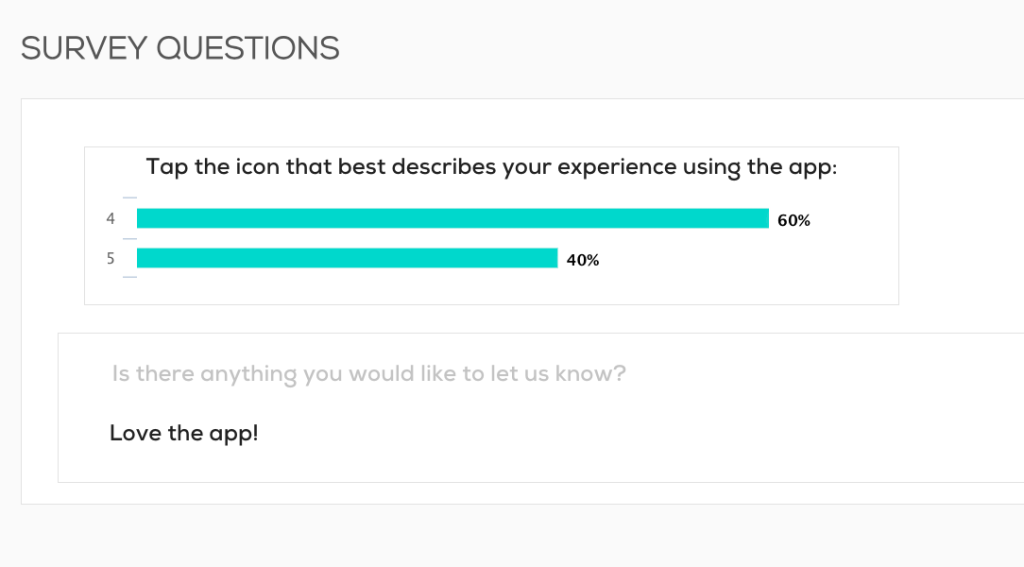
Detailed Results
Generate the following reports for a detailed breakdown on survey interactions and submissions.