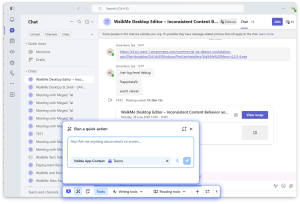
The Action Bar for Desktop brings WalkMe's Action Bar into your desktop applications. It appears as a WalkMe widget that expands into the Action Bar, giving users pre-built prompts and actions right where they work.
The Action Bar runs as an in-app experience: when a supported application is in focus, the Action Bar floats inside that application's window. When you switch to another supported app, the Action Bar moves with you.
The desktop Action Bar follows the same design and behavior as the web Action Bar, with a few differences and setup steps specific to desktop. This article covers what's unique to desktop. For everything else — features, launcher types, reading and writing tools, and settings — see the articles linked below.
Setup
Set up Action Bar for Desktop in up to three steps. Step 1 is needed only for the AI-Enabled Action Bar.
Step 1: Turn on WalkMe Contextual AI
(AI-Enabled Action Bar only)
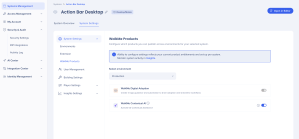
In Admin Center app in the console, go to Systems Management
Select the desktop system
Select the Systems Settings tab
Go to the WalkMe Products tab
Turn on WalkMe Contextual AI
Step 2: Set up the desktop location in console
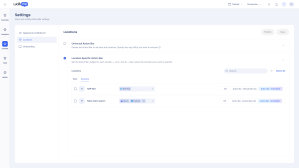
Open the Action Bar console app
Go to the Settings page
Select the Locations tab
Select the Desktop tab under Location-Specific Action Bar
For each desktop system, choose the widget type:
Off: users keep the desktop menu widget
Action Bar - Default (Non-AI)
Action Bar - AI-Enabled
Select the applications where the Action Bar appears
Optional: Assign segments to give the AI-Enabled Action Bar to specific users, while everyone else keeps the location's widget type. Learn more
Select Publish
Note
Select at least one application. Without one, you can't save or publish the location, and the system's checkbox is unavailable in multi-system publish.
Step 3: Add launchers
Add launchers in the Action Bar Console or the WalkMe Editor. Desktop launchers are built the same way as web launchers, with these differences:
Actions: Run Multiple SmartTips and Launch Survey aren't available for desktop systems
Preview: Preview isn't available for desktop systems in the console
Visibility in a single location: Display conditions use the desktop condition builder. To show a launcher only in certain applications, use the Action Bar application condition
Visibility in multiple locations: Display conditions aren't supported for desktop locations
The Action Bar for Desktop supports the same capabilities as the Action Bar for Web. It comes in two modes, depending on whether your account has AI enabled.
Both modes connect to the WalkMe Menu, giving users access to WalkMe content from inside their desktop applications.
Action Bar - Default (No AI)
Runs the Action Bar without AI abilities. Alongside the WalkMe Menu, it supports non-AI launchers that trigger WalkMe content.
Action Bar - AI-Enabled
Runs the Action Bar with AI abilities. Along with everything in the Default Action Bar, it adds AI launchers and comes with pre-built content, including reading and writing tools.
To learn more about each mode and their features, refer to the following articles:
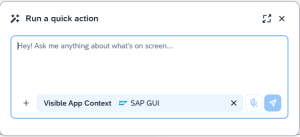
Included context: Instead of Webpage, users see Visible App Context, which reads the application they're working in. See the How Visible App Context Works section
Highlighted text: Works in all supported applications, except Outlook, Excel and PowerPoint on macOS
Widget: Opens the Pro Menu inside the Action Bar. Notifications and Settings aren't there. Users open the desktop menu from the system tray to reach them
Position: Each application window has its own Action Bar. Users can drag it inside the window, where it snaps to the nearest edge. See the Behavior Notes section
Response sources: Show the desktop application's name and icon instead of a webpage
What's supported?
Supported text sources:
Text Source
Support
None
✅
Highlighted Text
✅
All text on Screen
✅ (Only the content currently visible within the application window)
Selected element
Supported on SAP GUI only
Element on screen
Supported on SAP GUI only
Supported launchers
Launcher
Support Status
None
✅ Supported
Smart Walk-Thru
✅ Supported
ShoutOut
✅ Supported
Article
✅ Supported
Video
✅ Supported
Survey
—
Shuttle
✅ Supported
SmartTips validation
—
Menu
✅ Supported
ActionBot
✅ Supported
AI Chat
✅ Supported
Supported applications:
Category
Application
Windows
macOS
Communication
Slack
✅
✅
Communication
Microsoft Teams
✅
✅
Microsoft 365
Outlook (Classic)
✅
—
Microsoft 365
Outlook (New)
✅
✅
Microsoft 365
Word
✅
✅
Microsoft 365
Excel*
✅
✅
Microsoft 365
PowerPoint
✅
✅
Microsoft 365
OneNote
✅
✅
Microsoft 365
Access
✅
—
SAP
SAP GUI for Windows
✅
—
SAP
SAP Business Client
✅
—
Design
Figma
✅
✅
Text editors
Notepad++
✅
—
Text editors
Notes
—
✅
How visible app context works
Unlike web applications, where content can typically be accessed through the browser's Document Object Model (DOM), desktop applications rely on different technologies that do not always provide direct access to on-screen text.
To deliver a seamless, web-like AI experience without requiring deep integration with each desktop application, WalkMe uses a lightweight, screen-based approach to retrieve relevant text as context.
When are screenshots used?
When the AI Launcher is activated without any text selected, a screenshot may be used in the following scenarios:
Visible App Context: When this context source is enabled in the Action Bar.
Supported desktop applications: When users interact with supported applications, such as Microsoft Outlook or Slack.
In these scenarios, WalkMe captures a snapshot of the active application only, rather than the entire desktop. The screenshot is processed to extract visible text, helping AI understand the user's current context and provide relevant assistance. The focus is on meaningful content, such as the message, document, or text the user is reading or writing.
How are screenshots handled?
WalkMe follows a context-focused approach:
Used for context only: Screenshots are used to extract relevant on-screen text for the current AI interaction
Screenshots are not stored: Customer screenshots are not saved or retained as images
Limited capture scope: Only the active application's window is captured, not the entire desktop
Not continuous screen recording: Screenshots are captured as part of the relevant AI Launcher interaction, rather than through continuous monitoring
The first time a launcher needs a screenshot, users see an approval screen in the Action Bar. Their choice is saved for each user, kept across sessions, and applies to all supported applications and launchers.
Behavior
Action Bar and the desktop menu bubble
When the Action Bar is on (AI or Non-AI), it replaces the desktop menu bubble. Only one widget appears at a time
While the Action Bar is on, the Bubble settings in the WalkMe Menu console are hidden. Saved bubble settings are kept and apply again when the Action Bar is turned off
Switching windows and applications
Each window has its own Action Bar, with its own conversation, highlighted text and position
When users switch to another supported application, the previous Action Bar hides and keeps its state. Switching back restores it
In applications that aren't selected in the console, the Action Bar doesn't appear and no context is saved
Screen sharing
The Action Bar stays visible while users record or share their screen
Dragging and positioning
Users can drag the Action Bar anywhere inside the active application window, but not outside it
It snaps to the nearest window edge: horizontal edges give a horizontal layout, vertical edges a vertical layout
Dragging past the middle of the window moves it to the opposite edge
Desktop menu silent mode
Aktivierte Funktion
Please request access from your Customer Success Manager or WalkMe contact.
When the Action Bar for Desktop is turned on, the desktop menu runs in silent mode. Users work from the Action Bar and its Pro Menu instead of seeing two menus.
The desktop menu keeps running in the background but doesn't open on its own
To open the desktop menu, right-click the WalkMe Menu app in the system tray
To get the latest content or app version without opening the menu, right-click and select Update Menu from the same tray menu
At least one item is published in the Menu Organizer — without a published item, the Action Bar won't start
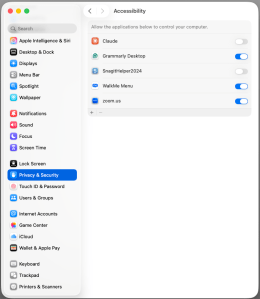
On macOS, users turn on the WalkMe Menu accessibility permission in System Settings
Screen recording permission is required for Windows application context capturing
Limitations
Appearance Conditions in multiple locations: You can publish a launcher to multiple locations, but you can't set Appearance Conditions for its desktop systems
Launcher visibility can only be controlled by the application name using Segmentation
Preview: Launcher preview isn't available for desktop systems in the console
Selected element and Element on screen: Available for SAP GUI for Windows only
Text selection on macOS: Outlook (legacy and new), Excel and PowerPoint don't share selected text through the macOS Accessibility APIs, so the Action Bar can't read text selected in them
Window size: The Action Bar doesn't appear in windows narrower than 400 px or shorter than 300 px, including splash screens, loading dialogs and modal windows
Context between windows: Context doesn't carry over between windows, in the same application or across applications
Notifications and Settings: These aren't available from the Pro Menu in the Action Bar. Users open the desktop menu from the system tray to reach them
Launcher actions: Run Multiple SmartTips and Launch Survey aren't supported
Security information
Text selection: The Action Bar reads text selection events from the operating system, but sends a selection to WalkMe only after the user runs a prompt. Nothing is sent otherwise
Visible App Context: When no text is selected and Microsoft Graph doesn't return content, the Action Bar may capture the active application window to read its visible text. It asks the user first and captures only after the user allows it. The capture is used only to run that prompt and isn't stored
Microsoft Graph: In New Outlook, the Action Bar can read the open email through the Microsoft Apps Integration instead of taking a screenshot. This needs one-time admin consent from the customer's IT administrator and a one-time sign-in from each user
Unselected applications: In applications you don't select in the console, the Action Bar doesn't appear and no context is captured or stored