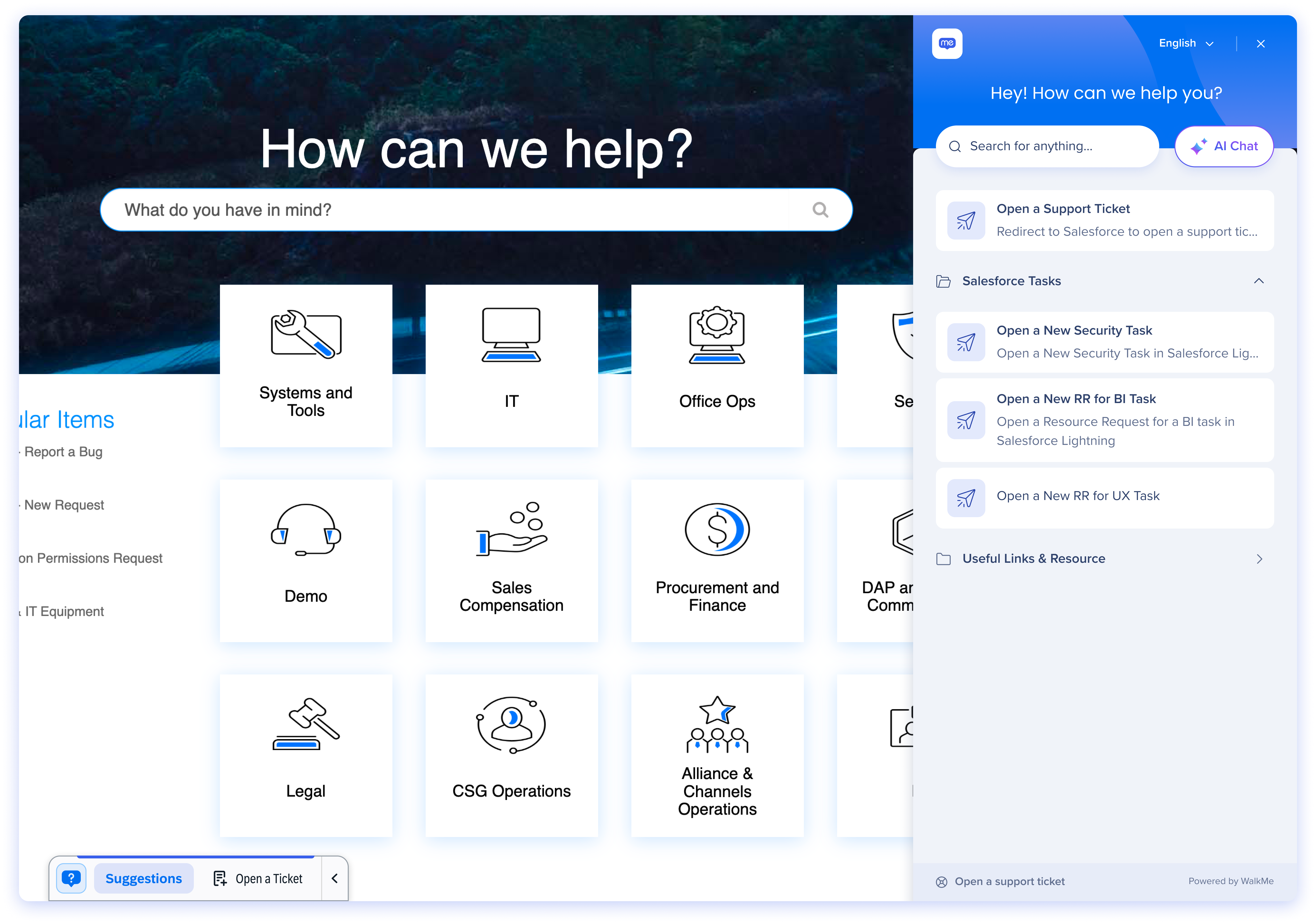
The Action Bar - Default is a WalkMe widget that gives you clear, always-available access to WalkMe content—without requiring AI capabilities.
It behaves like a familiar WalkMe widget that opens the WalkMe Menu, but with an important difference: it expands into an Action Bar experience. This expanded layout enhances the visibility and accessibility of regular launchers compared to a menu-only widget, while also allowing for the potential integration of AI capabilities in the future.
Deploy
Enable the Action Bar - Def from the WalkMe Editor.
-
Open to the WalkMe Editor
-
Select the Settings icon
-
Choose Customize content style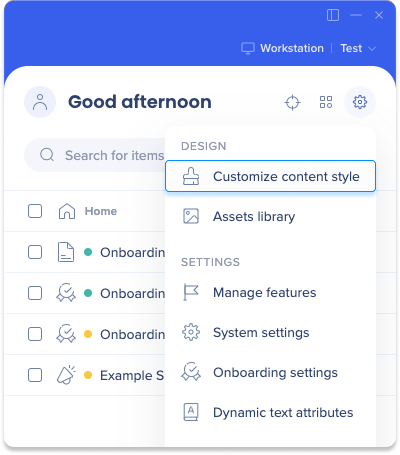
-
Choose Default Action Bar
-
Select Save
How It Works
The Action Bar - Default is designed to feel familiar, lightweight, and easy to control. It gives your users quick access to relevant WalkMe launchers while staying out of the way when not needed.
What users see
-
A widget appears on the screen when standard Action Bar launchers or menu content are available
-
The widget starts expanded by default, and users can click the arrow to collapse it to just the Menu icon
-
Launchers appear as Suggestions in the bar that users can click to trigger WalkMe content
How users interact with it
Open the Menu
Click the WalkMe widget to open the Pro Menu.
Use launcher suggestions
Launchers appear as suggestions in the Action Bar. Selecting a launcher performs the launcher's configured action, which may then surface WalkMe items such as Smart Walk-Thrus and Shuttles.
Control visibility
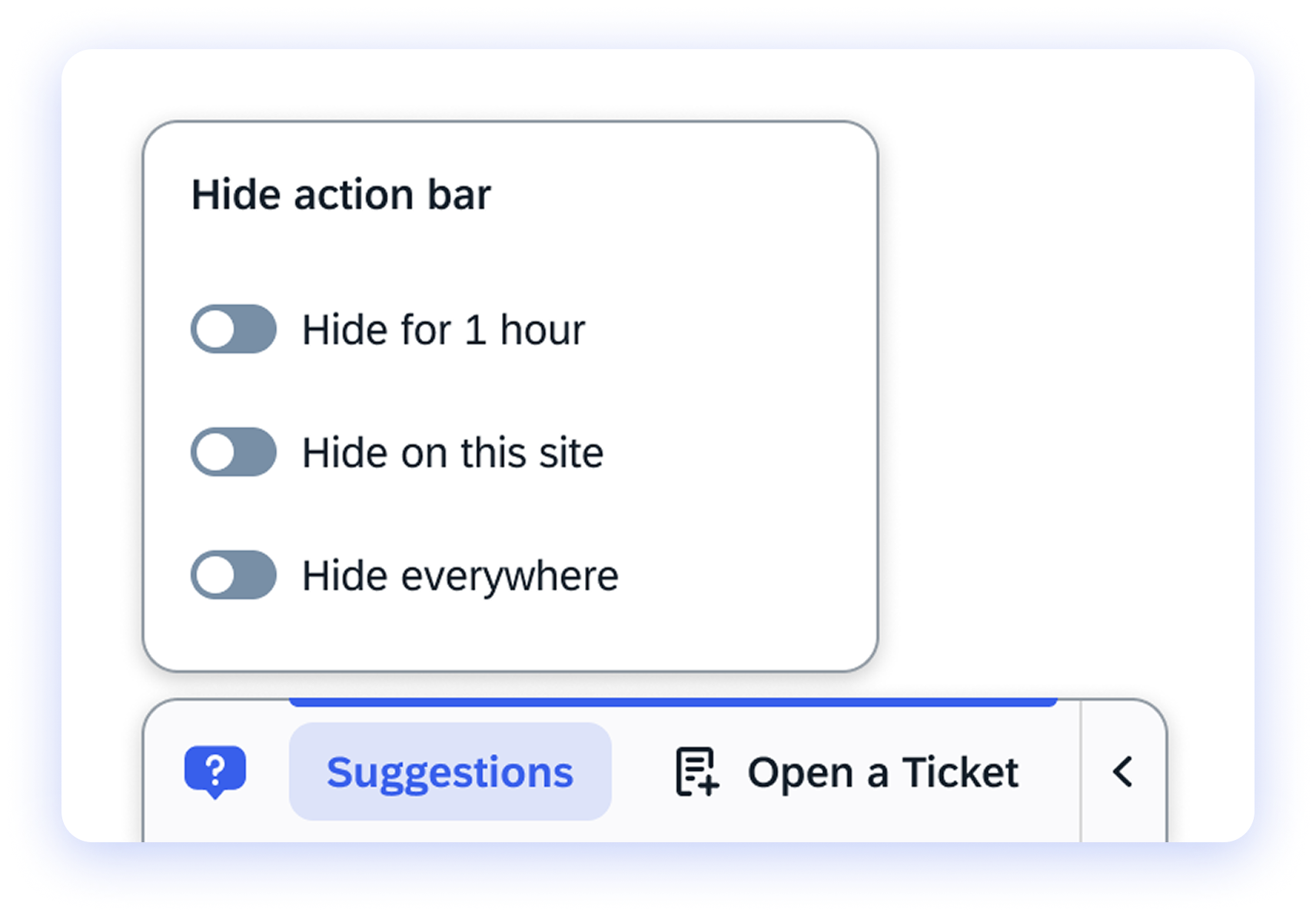
Users can right-click the widget to control when the Action Bar appears:
- Hide for 1 hour: Temporarily hides the Action Bar
- Hide on this site: Hides the Action Bar on the current site
- Hide everywhere: Hides the Action Bar across all sites
These options give users flexibility to reduce distractions while staying in control of their experience.
 Adding launchers to the Action Bar
Builders control which launchers appear as suggestions in the Action Bar by adding and managing standard Action Bar launchers in the WalkMe Editor.
Create a launcher
-
Open the WalkMe Editor
-
From the Create menu, select Launcher
-
Capture an element for your launcher
-
Select Save
-
You'll be redirected to the editor main menu
Note
To create a launcher, you need to capture an element initially. However, since the launcher will eventually be placed in the Action Bar, the specific element you choose doesn't matter. This step is just required to utilize our launcher creation technology.
Connecting a launcher to the Action Bar
-
Select the launcher you wish to add to the Action Bar
-
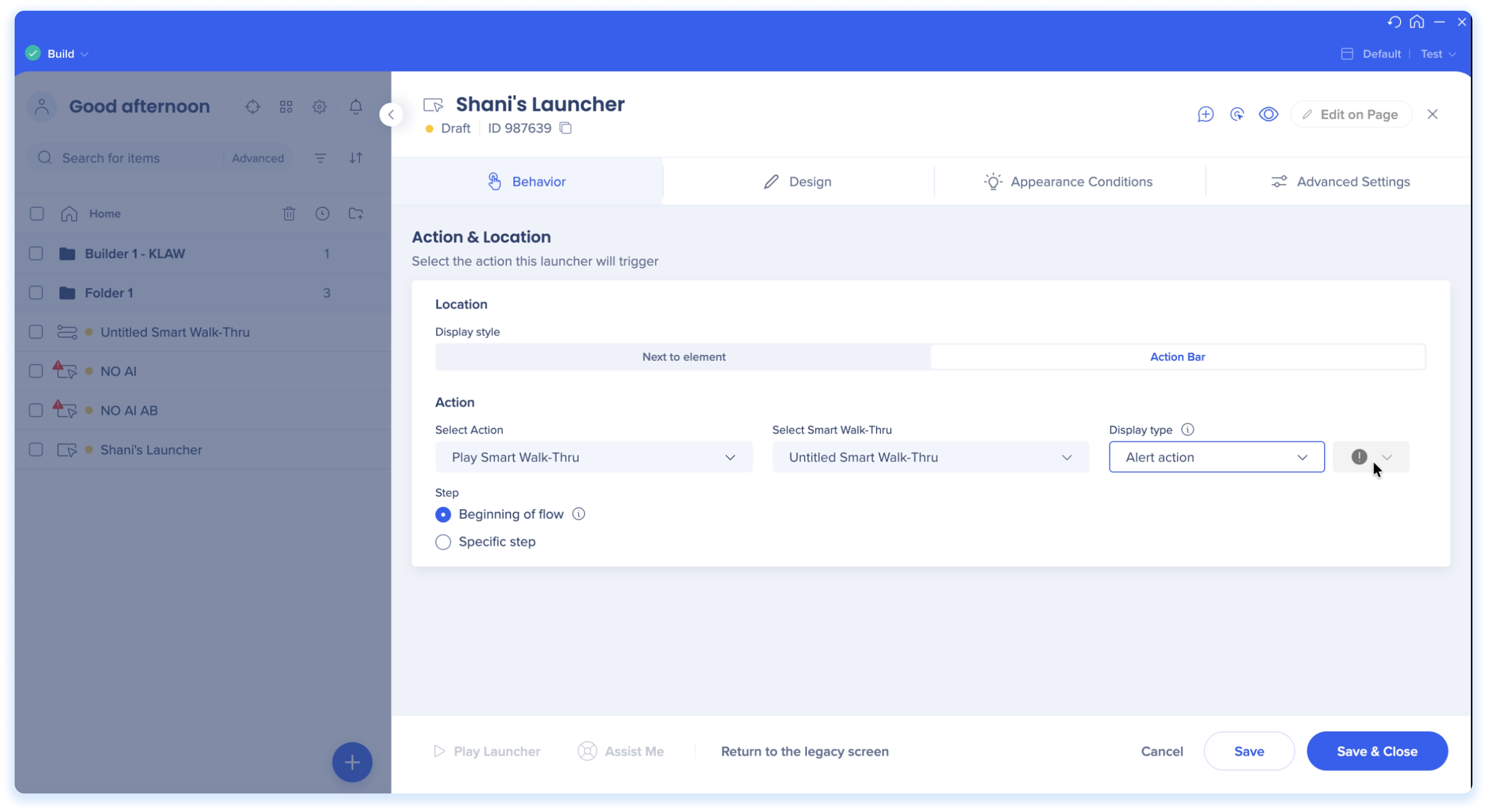
Select the Behavior tab
-
Configure the location settings:
-
Display style: choose Action Bar to display the launcher in the bar
-
Action: Choose the action you want the launcher to perform (for example, Play Smart Walk-Thru)
-
Select the specific WalkMe item
-
For Smart Walk-Thrus, choose whether to start the SWT at the beginning of the flow or a specific step within the flow
-
Choose a display type:
-
Standard action: For everyday actions that stay visible
-
Alert action: For important actions that appear only when triggered and display a red dot to grab attention
-
Choose an icon that matches your action
-
Note: Icons are not available for Alert display types
-
Click Save & Close
-
You'll be redirected to the editor main screen
-
Select the launcher and click Publish
Tip Tuesday
Creating Alerts in the Action Bar
Onboarding for Action Bar - Default
To help first-time users learn the Action Bar - Default, you can add a ready-made onboarding guide from the Solutions Gallery. The guide is a Smart Walk-Thru that introduces the Action Bar and walks users through its main features the first time they open it.
-
The guide plays automatically the first time a user opens the Action Bar, and only for users who haven't completed it yet. Once a user finishes, it won't play again, including across different systems
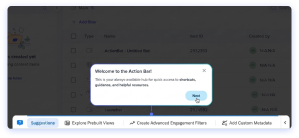
What the guide covers
The onboarding guide walks users through the Action Bar - Default step by step:
-
Welcome to the Action Bar: introduces the bar as the user's main help hub
-
Open the help menu: shows users how to open the full menu from the WalkMe logo
-
Extra controls: explains how right-clicking the logo lets users hide or unpin the bar
-
Move it anywhere: shows users how to drag the bar to reposition it on the screen
-
Smart suggestions: points out where helpful launchers appear based on what the user is doing
-
Completion: confirms the user has finished the guide
Add the guide from the Solutions Gallery
-
Open the WalkMe Console
-
Select the Tools category
-
Select the Solutions Gallery app
-
From the Solutions Catalog page, you can search for Onboarding for Action Bar - Default
-
Select Download to add the solution to your system
-
After you download the solution, a guided setup flow opens in the Editor to walk you through the flow logic and any changes you need to make before publishing. When you're ready, publish the guide to make it available to your users
Technical Notes
-
AI actions and AI chat are not available
-
The widget appears only when standard Action Bar launchers or menu content exist
- In Oracle environments, the Action Bar's position is fixed and cannot be moved
- To customize the Action Bar logo icon, please apply the following WalkMe custom CSS:
.walkme-logo-inner {
background-size: cover !important;
background-image: url("YOUR_IMAGE_URL_HERE")
}

.walkmex-svg-icon {
  display: none !important;
}
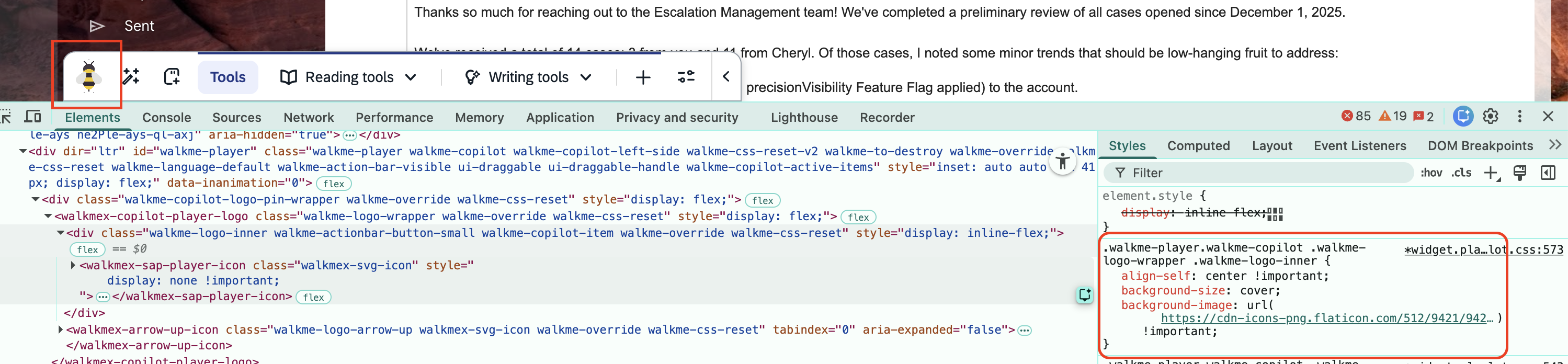
- Native support for this capability (without CSS) coming soon
Interested in AI Features?


