Brief Overview
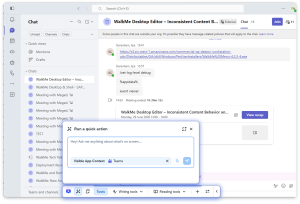
The Action Bar for Desktop brings WalkMe's Action Bar into your desktop applications. It appears as a WalkMe widget that expands into the Action Bar, giving users pre-built prompts and actions right where they work.
The Action Bar runs as an in-app experience: when a supported application is in focus, the Action Bar floats inside that application's window. When you switch to another supported app, the Action Bar moves with you.
The desktop Action Bar follows the same design and behavior as the web Action Bar, with a few differences and setup steps specific to desktop. This article covers what's unique to desktop. For everything else — features, launcher types, reading and writing tools, and settings — see the articles linked below.
How It Works
The Action Bar for Desktop runs as an in-app experience. When a supported application comes into focus, the Action Bar floats inside that application's window rather than sitting in the taskbar or dock.
Capabilities
The Action Bar for Desktop supports the same capabilities as the Action Bar for Web. It comes in two modes, depending on whether your account has AI enabled.
Both modes connect to the WalkMe Menu, giving users access to WalkMe content from inside their desktop applications.
Action Bar - Default (No AI)
Runs the Action Bar without AI abilities. Alongside the WalkMe Menu, it supports non-AI launchers that trigger WalkMe content.
Action Bar - AI-Enabled
Runs the Action Bar with AI abilities. Along with everything in the Default Action Bar, it adds AI launchers and comes with pre-built content, including reading and writing tools.
To learn more about each mode and their fearures, refer to the following articles:
Action Bar – Default (No AI)
How to Use the AI-Enabled Action Bar
Supported applications
The Action Bar appears only in supported applications. In any other application, the Action Bar doesn't appear and no text is captured.
Supported applications include:
- Communication: Slack, Microsoft Teams
- Microsoft 365: Outlook (Classic and New), Word, Excel, PowerPoint, OneNote, Access (Windows only)
- SAP: SAP GUI for Windows and SAP NetWeaver Business Client (Windows only)
Floating and positioning
The Action Bar floats inside the window of the application currently in focus. Users can drag it along the horizontal and vertical axes, and it snaps to the nearest edge of the window. It can't be moved outside the application window.
Context management
Each window keeps its own Action Bar, including its conversation, highlighted text, and position. When users switch to another supported app, the current Action Bar hides and its state is saved. Returning to that window restores the Action Bar as they left it. Context doesn't carry over between windows, even between two windows of the same application.
Text sources
The Action Bar for Desktop can work with:
- No text source
- Highlighted text
- All text on screen (only the content currently visible in the application window)
Setup
Enabled feature
The Action Bar for Desktop is an enabled feature. To use it, request access from your Customer Success Manager or WalkMe representative.
Before the Action Bar for Desktop can appear, make sure the following are in place:
Prerequisites
- WalkMe Menu Desktop version 4.3.3 or above is installed
- A WalkMe Menu Desktop system has been created
- At least one item is published in the Menu Organizer — without a published item, the Action Bar won't start
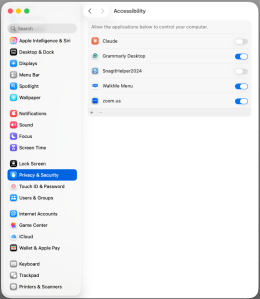
- On macOS, users turn on the WalkMe Menu accessibility permission in System Settings
Add launchers to your Action Bar for Desktop
Once the feature is enabled and the prerequisites are in place, you build launchers for the Desktop system the same way you do for web. For step-by-step instructions, refer to:
Building Launchers in the Action Bar Console
AI-Enabled Action Bar Building in WalkMe Editor
Technical Notes


