Brief Overview
Grouping steps lets you combine 2 or more consecutive steps into 1 unit. Long simulations become easier to build and follow, especially when a form is recorded field by field.
Grouping doesn't change the steps. Each grouped step keeps its own image, captured element, trigger, annotations, title, description, and audio, and plays exactly as before.
Use Cases
- Group a form recorded field by field into 1 step
- Make long simulations easier to scan in the Slides panel
- Show learners 1 dot per task instead of 1 per click
Access
Group steps from the Slides panel of the simulation editor.
Simulation Editing in WalkMe Learning Arc
How It Works
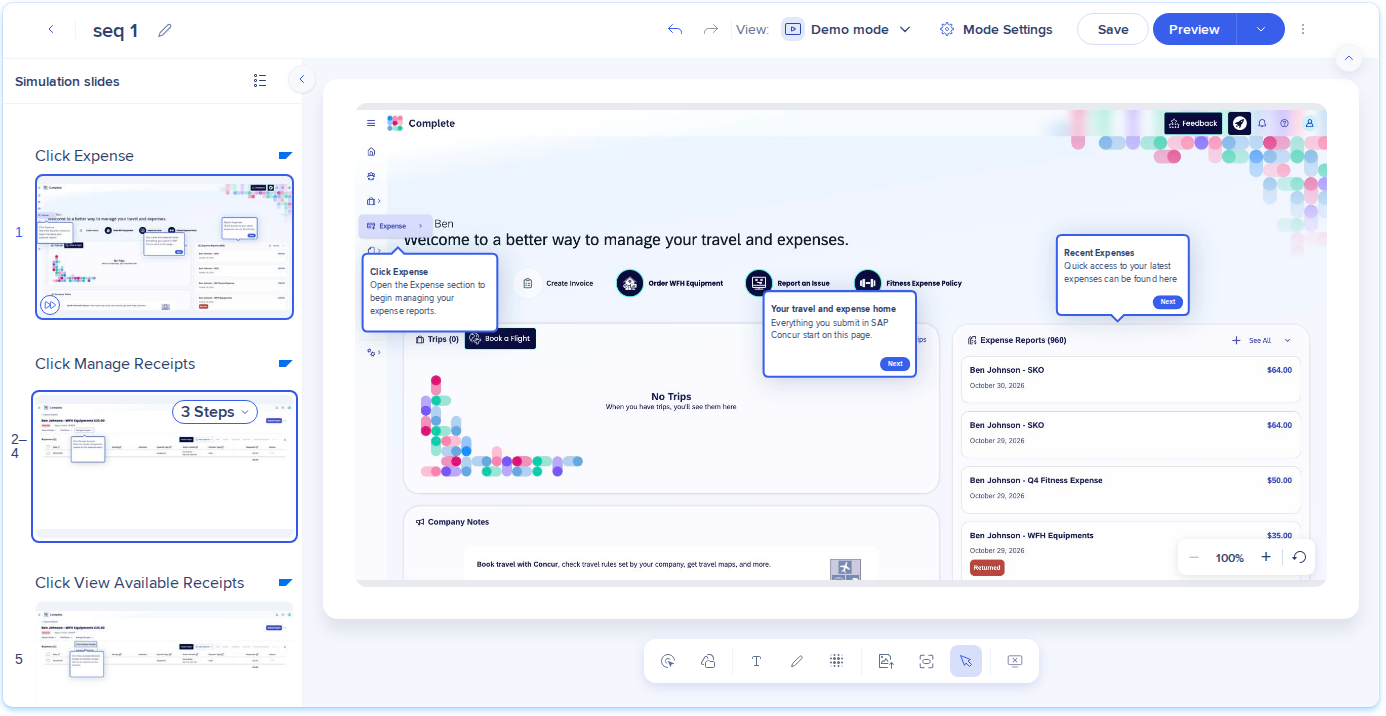
A group appears in the Slides panel as a stacked card, with a badge that shows the number of steps. You can reorder the steps in a group, remove steps, or ungroup them at any time.
Primary step
Each group has a primary step. By default it's the last step in the group, and you can choose another with Make primary. Its screenshot, title and description are used:
- As the group thumbnail in the Slides panel
- As the preview when learners hover over the group in the player step bar
- In exported documents, where annotations from the other steps in the group appear as numbered markers on the primary step's screenshot
Group steps
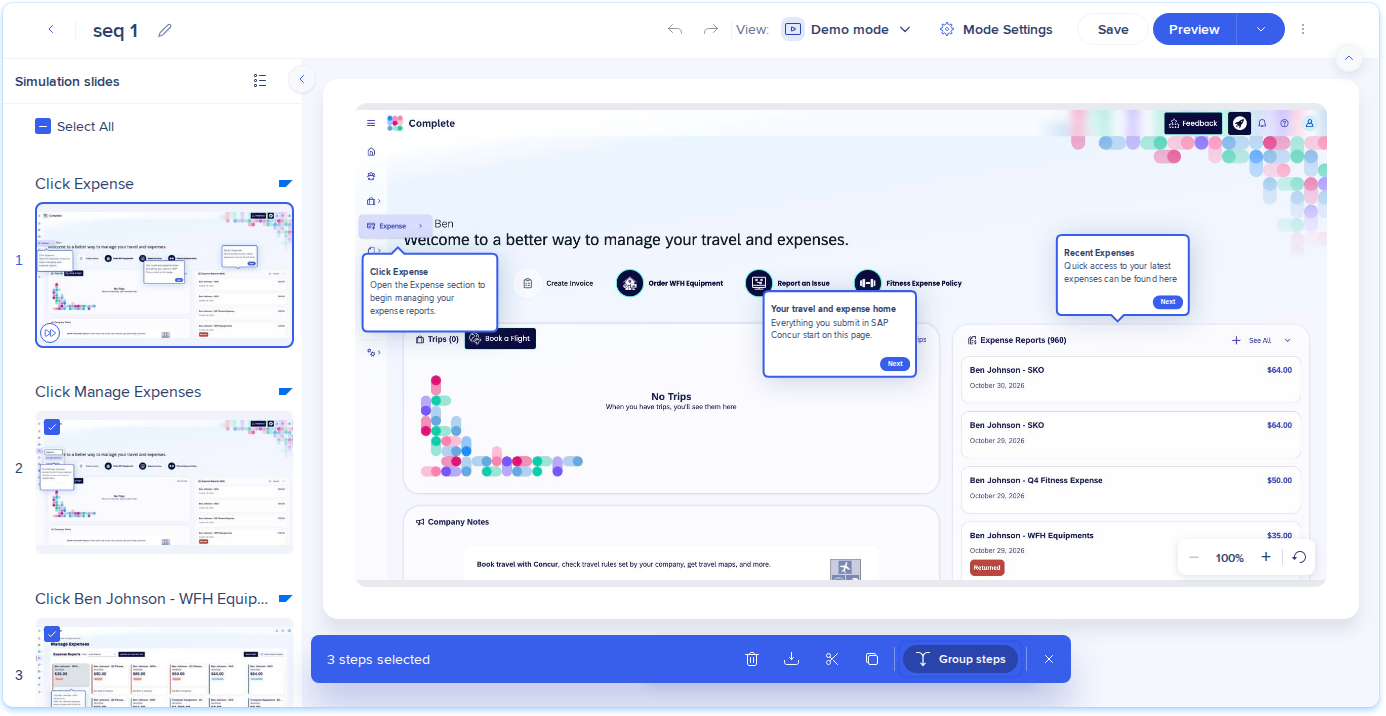
- In the Slides panel, select the checkboxes of 2 or more consecutive steps
- In the toolbar that appears, select Group steps
Edit a group
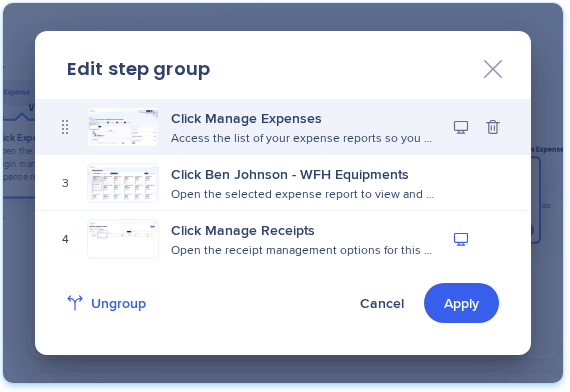
- On the group thumbnail, select the step count badge, and then select Edit
- In the Edit group popup, drag steps to change their order
- Hover over a step and select the primary step icon to make it the primary step, or the delete icon to remove it from the group
- Select Apply
To edit a single grouped step, open Step properties and use the step selector at the top to choose the step.
Ungroup steps
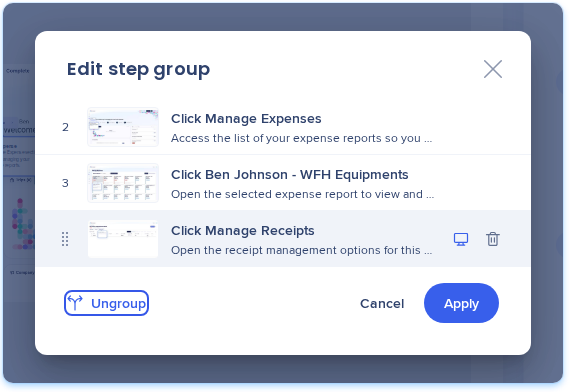
- On the group thumbnail, select the step count badge
- Select Edit
- Select Ungroup steps
Each step becomes a standalone step again, in the same order and with the same number.
What learners see
- A group appears as 1 dot in the step bar
- Learners play through each step in the group and can move back and forth between them
- Progress and analytics are tracked for each step, so reports keep counting each step
Technical Notes
Required permissions
For details, refer to WalkMe Learning Arc Roles & Permissions.
WalkMe Learning Arc Roles & Permissions
Limitations
- You can group only consecutive steps
- A group needs at least 2 steps


