Brief Overview
This article explains how to complete learning items in the portal. Learning items may include a course, a microlearning, or a learning journey. Depending on the type, content is organized into lessons or units. The learning workspace provides structured navigation and a focused environment to help you progress through content efficiently and track completion.
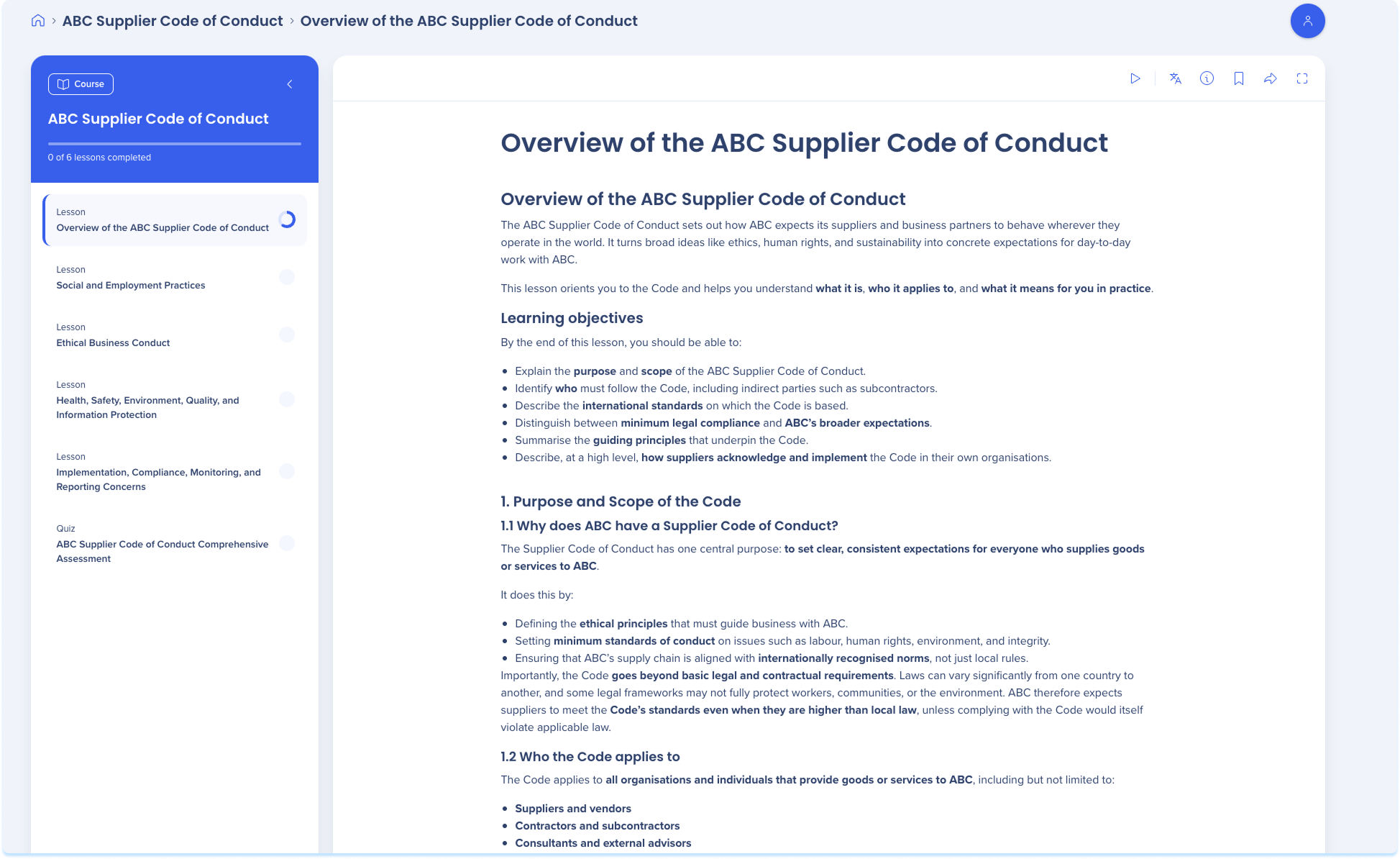
Open a Learning Item
To begin or continue learning:
- Select Start Learning or Continue Learning
- The learning workspace opens
Progress saves automatically as you move through the learning item.
Navigate the Learning Workspace
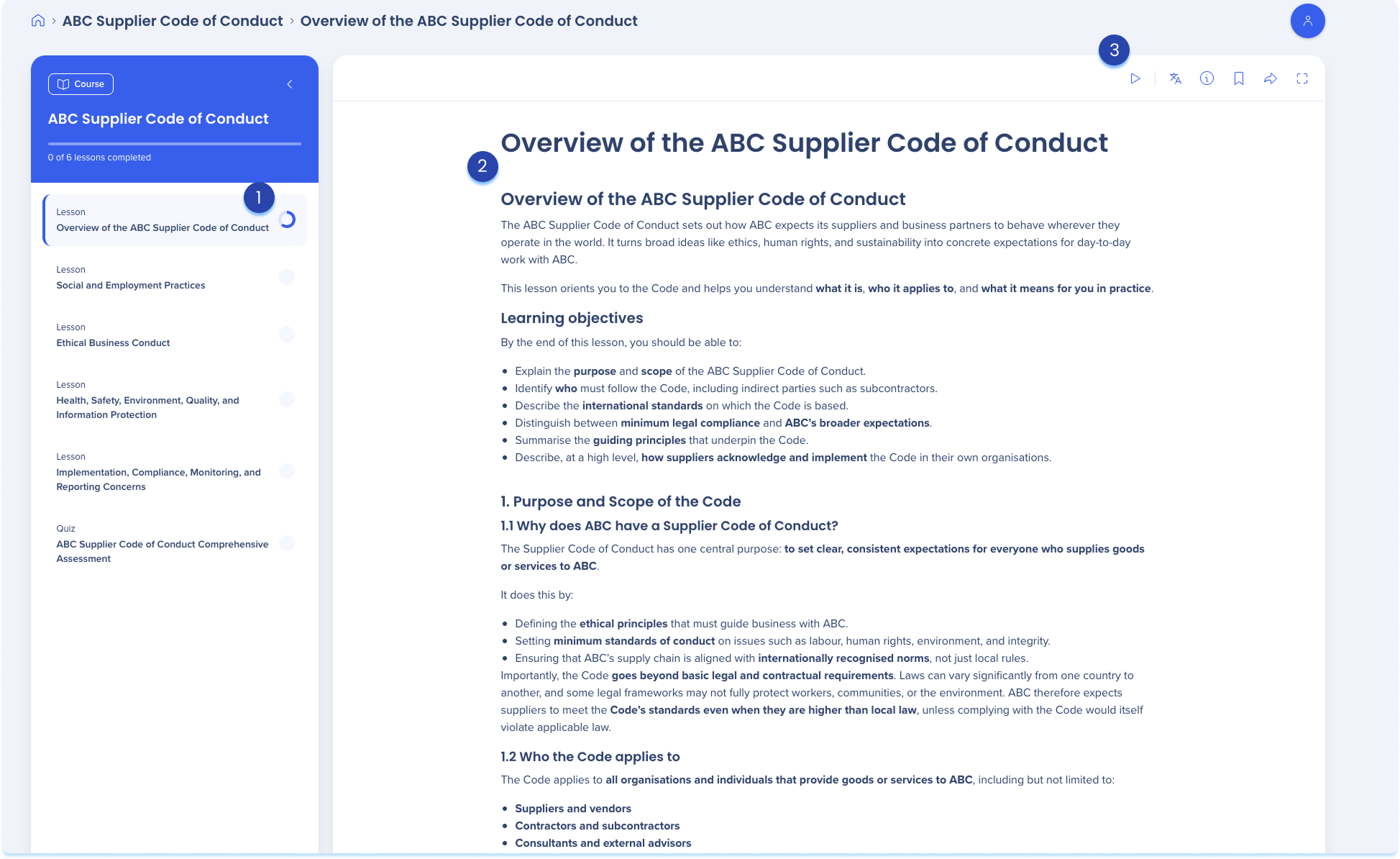
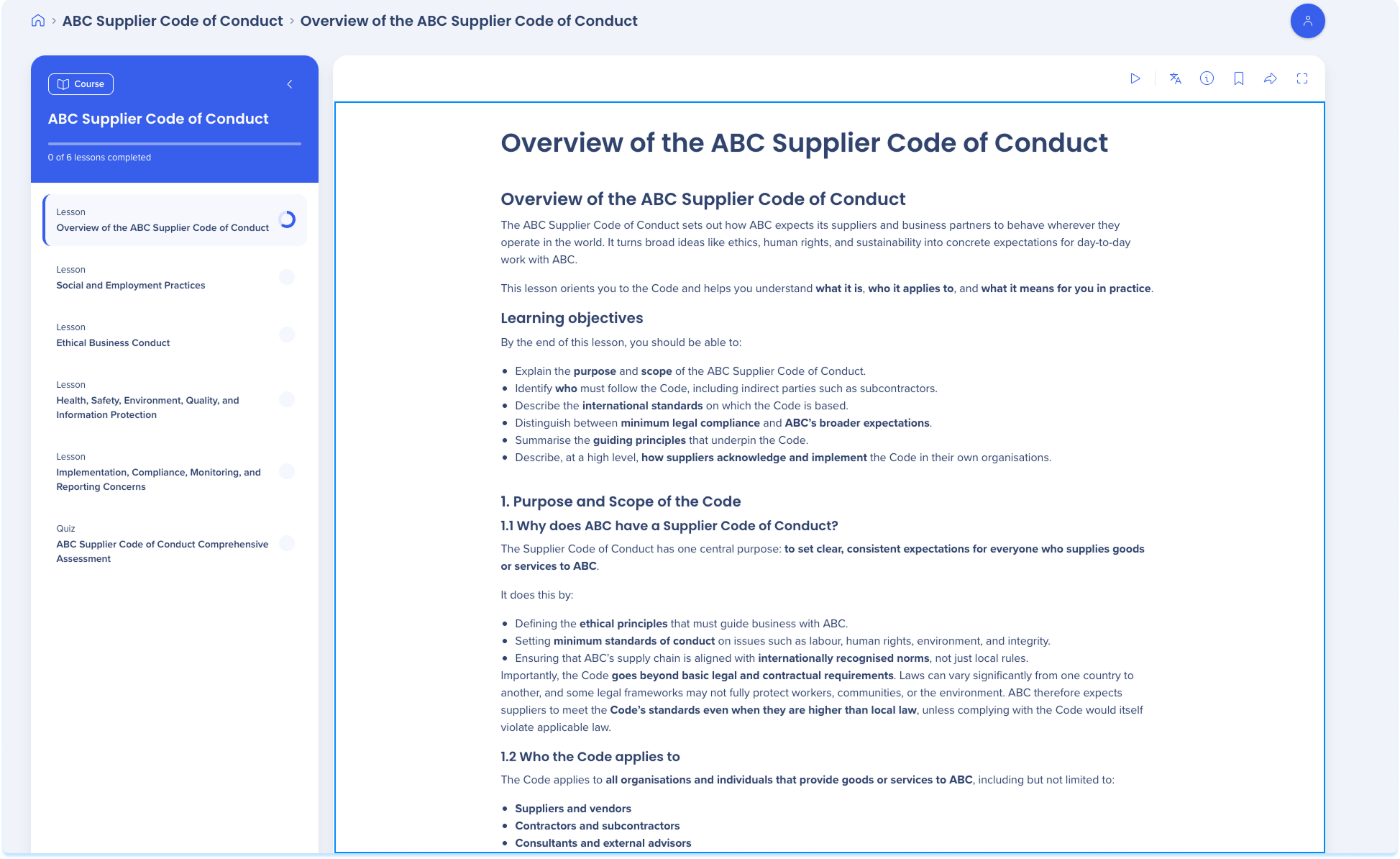
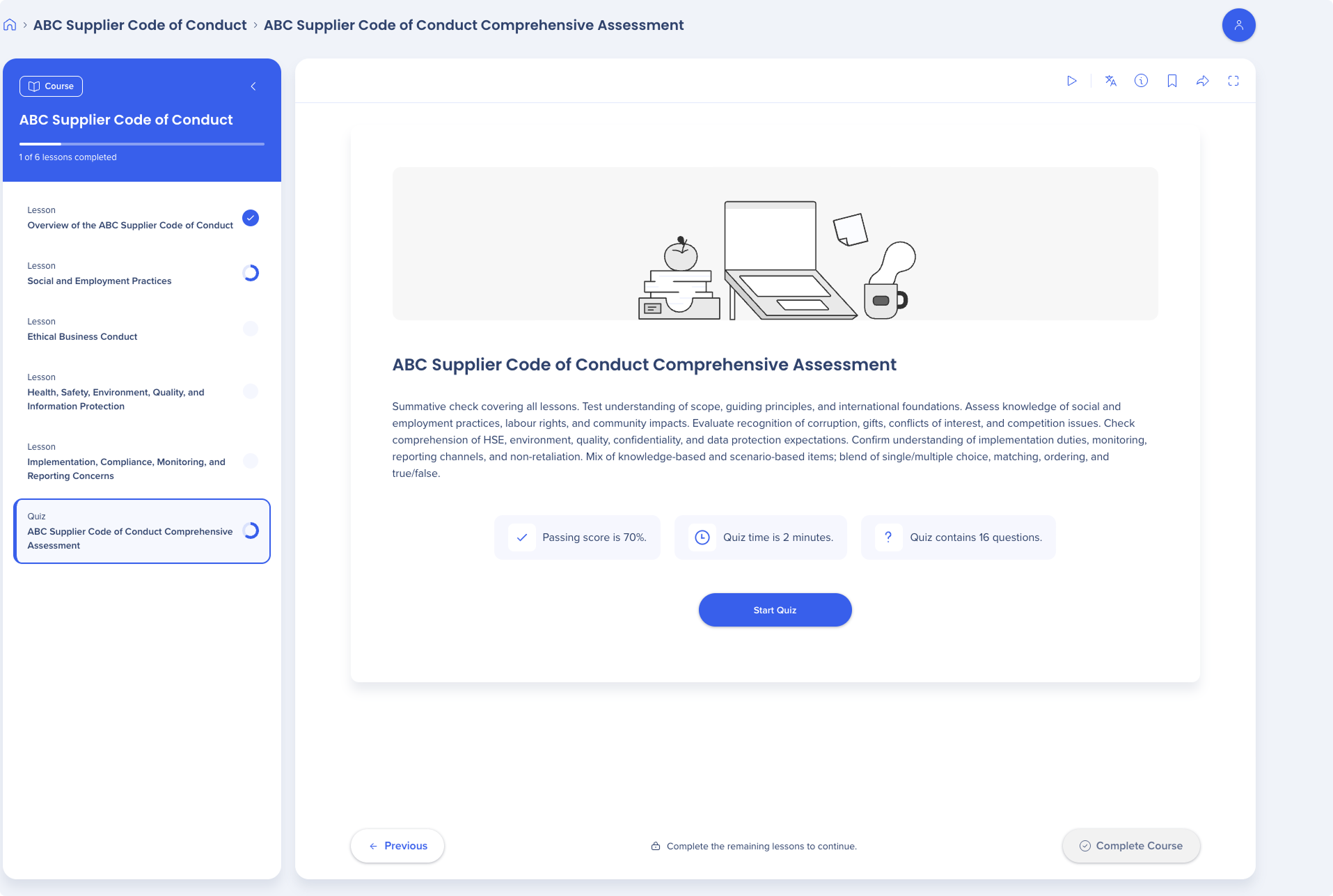
When a learning item opens, the workspace includes three main areas.
- Lesson or unit panel
- Main content area
- Top actions
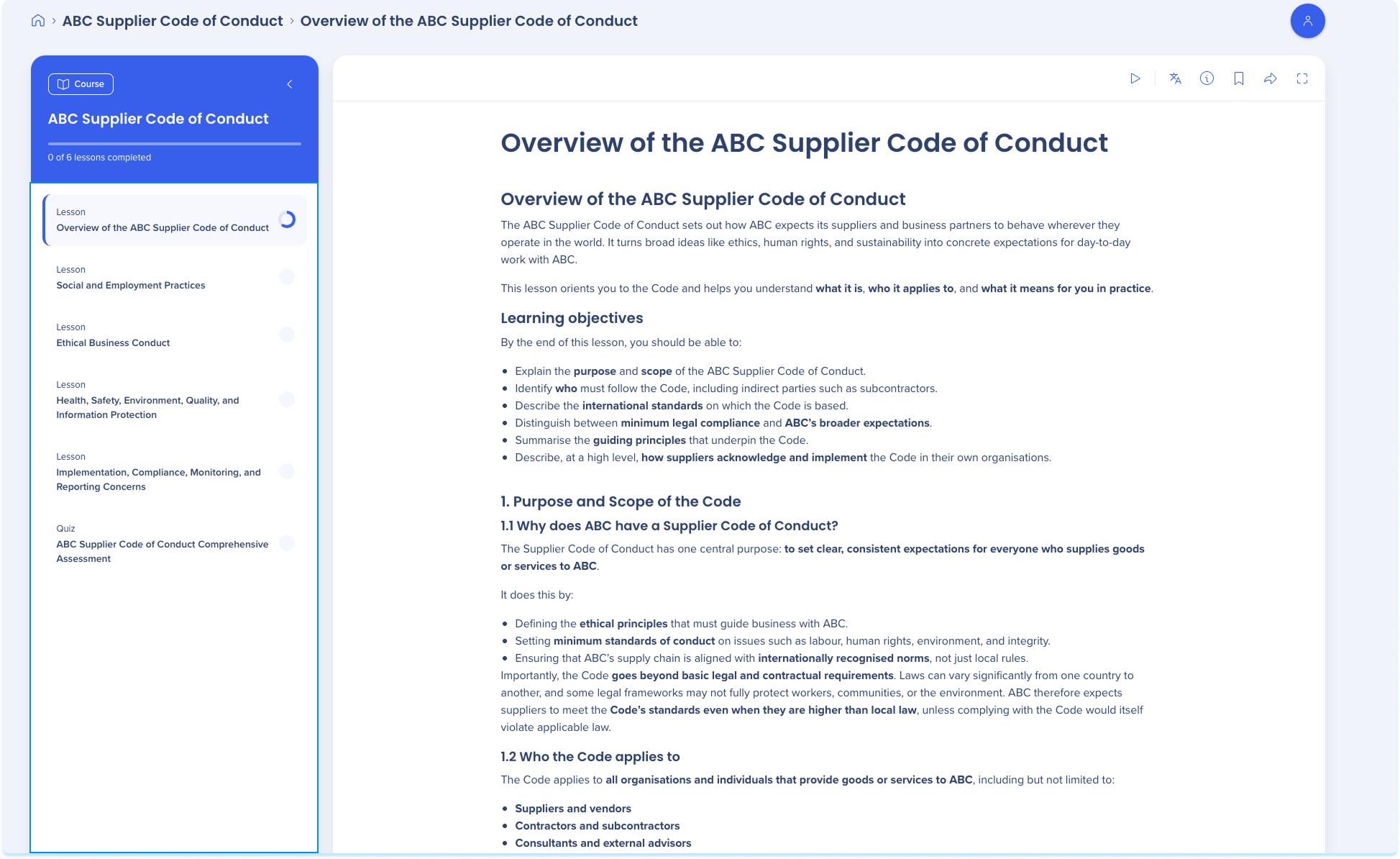
Lesson or unit panel
The panel on the left displays the structure of the learning item.
It includes:
The learning item title
- A list of lessons, units, or quizzes
- Progress indicators
- Completion checkmarks displayed next to finished lessons or units
You can select any lesson or unit to navigate directly.
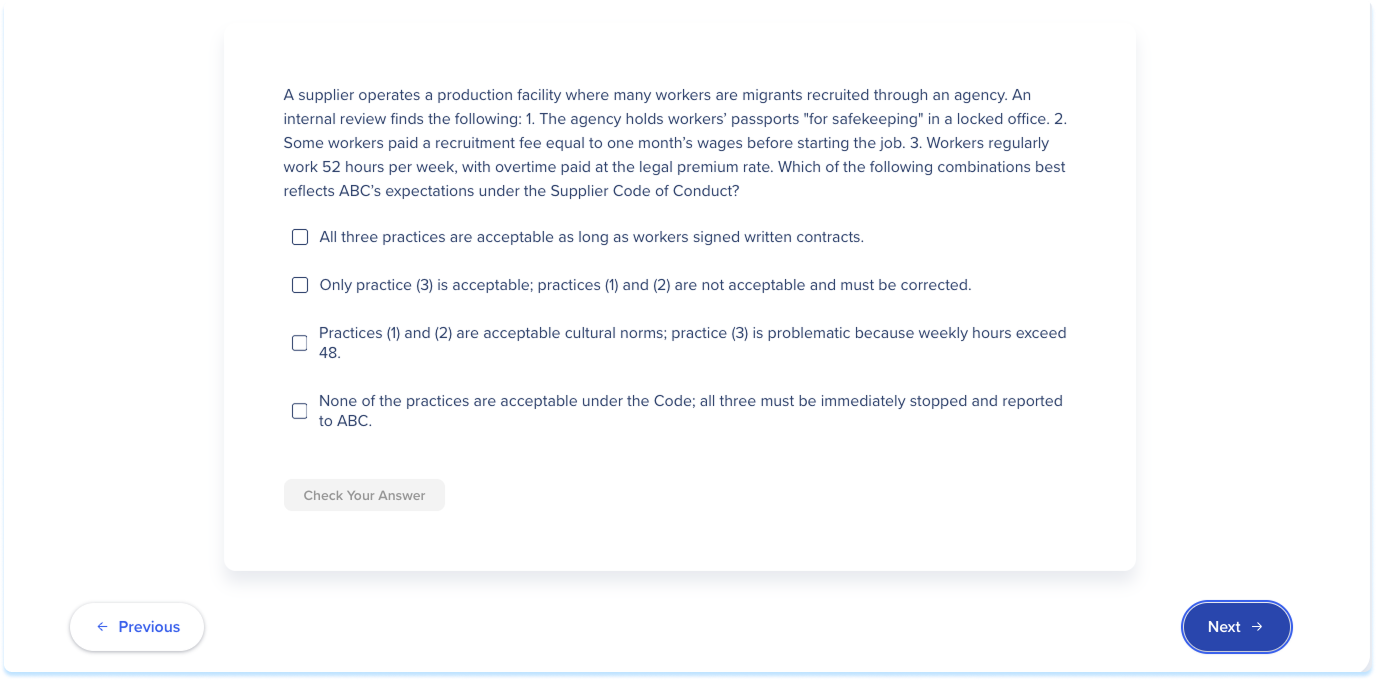
Main content area
The main content area displays the active lesson or unit.
This area is used to:
- Complete and interact with lesson content
Navigation controls include:
- Next
- Previous
Progress saves automatically as lessons or units are completed.
Top action bar
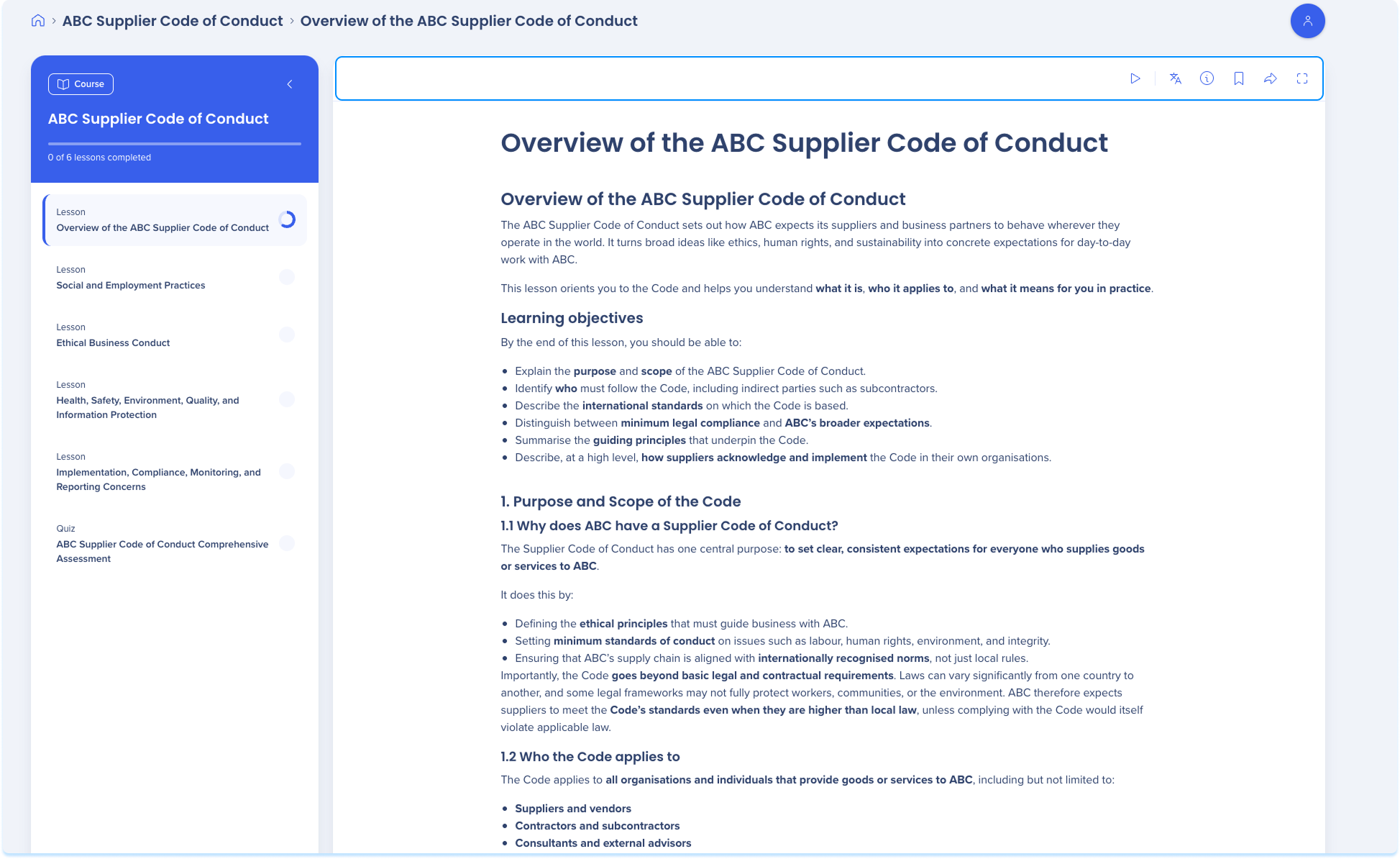
The top action bar contains controls that apply to the entire learning item.
Available actions may include:
- Listen
- Translate
- About
- Save content
- Share
Note
Offline translations take priority over real-time translation.
Audio mode
Audio narration turns a lesson into a listening-friendly version of its content. It focuses on the meaning of each part instead of reading out every element on the screen. Audio is paired with a static, scannable transcript so you can read along.
-
To listen, select Listen in the top action bar
Here's how audio narration handles each type of content:
-
Text: Narrated in full
-
Informational images (charts, diagrams, or labeled visuals): Narration describes the key takeaway
-
Decorative images (or images without a usable description): Skipped
-
Videos and screen recordings: A short spoken cue notes that the lesson includes a video, without describing it scene by scene
-
Quizzes and self-checks: A short spoken cue points you to finish them on the Content Page
- Resources and attachments: A short spoken cue lets you know the item is available on the Content Page
- Accordion: Each section is narrated in order, header first and then its body
- Hotspots: Each hotspot's label and content is narrated in order
- Summary cards and flashcards: Narrated as full content
Note
If a course contains a quiz, the quiz must be completed on the Content Page to finish the course.
Translate
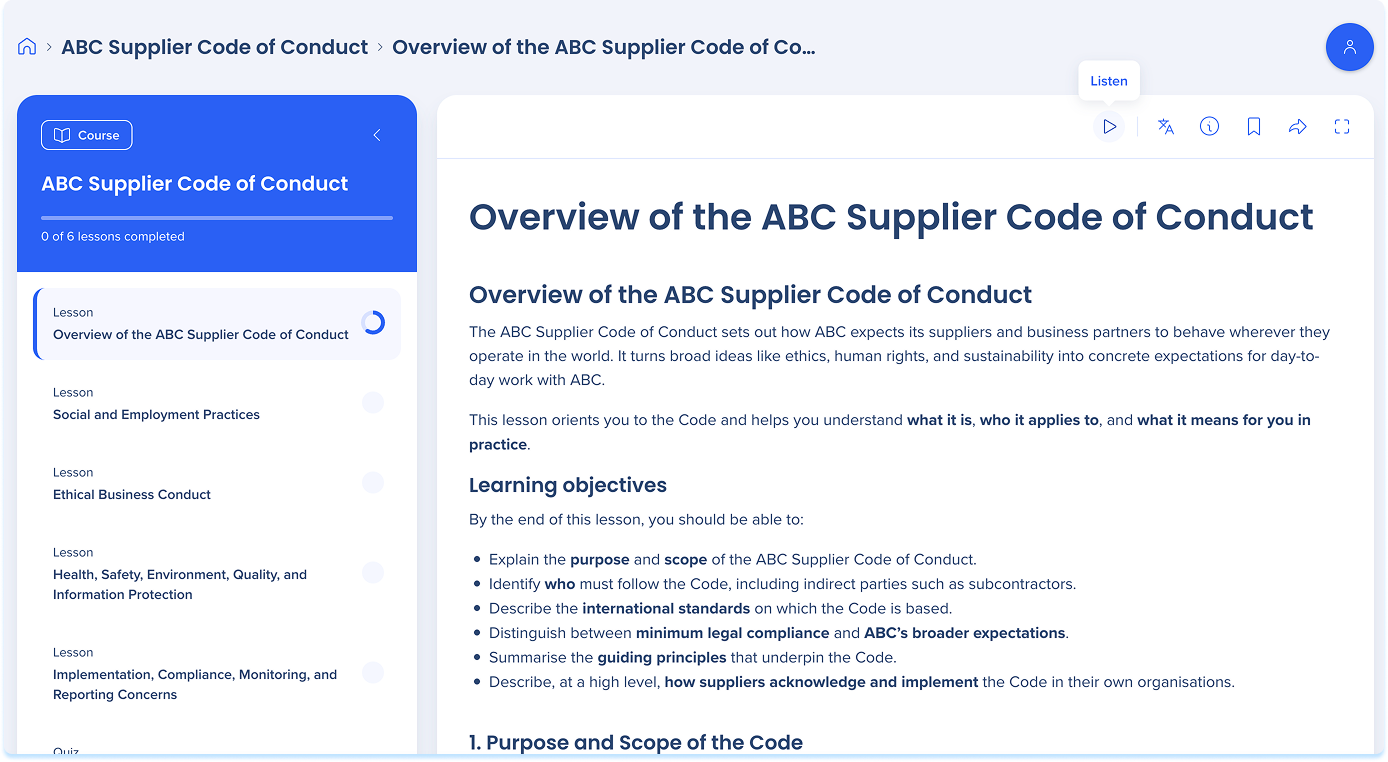
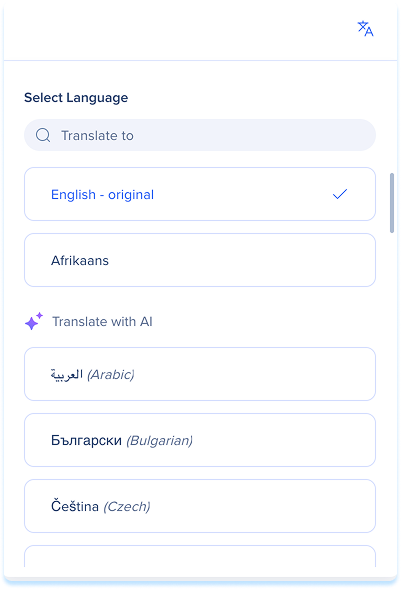
- Select Translate in the top action bar to open the Select Language dropdown, then choose a language
- The dropdown has two parts:
- The languages the content is already available in appear at the top, starting with the original language
- Under Translate with AI, translate the content into another supported language on demand
Learning Activity Types
Lessons or units may include different types of learning activities.
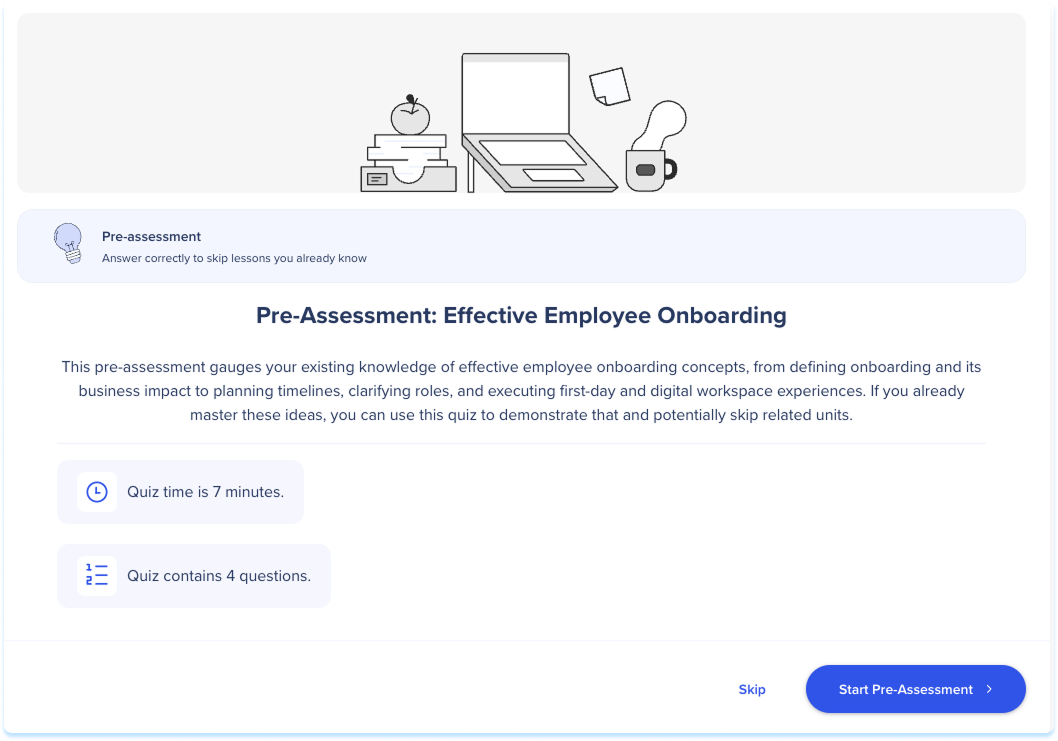
Pre-assessment
If a course begins with a pre-assessment, it's the first thing you see when you open the course, marked with a Pre-assessment label. Answering correctly lets you skip content you already know.
- Select Start Pre-Assessment to begin, or Skip to go straight to the full course (when the course allows skipping)
Simulations
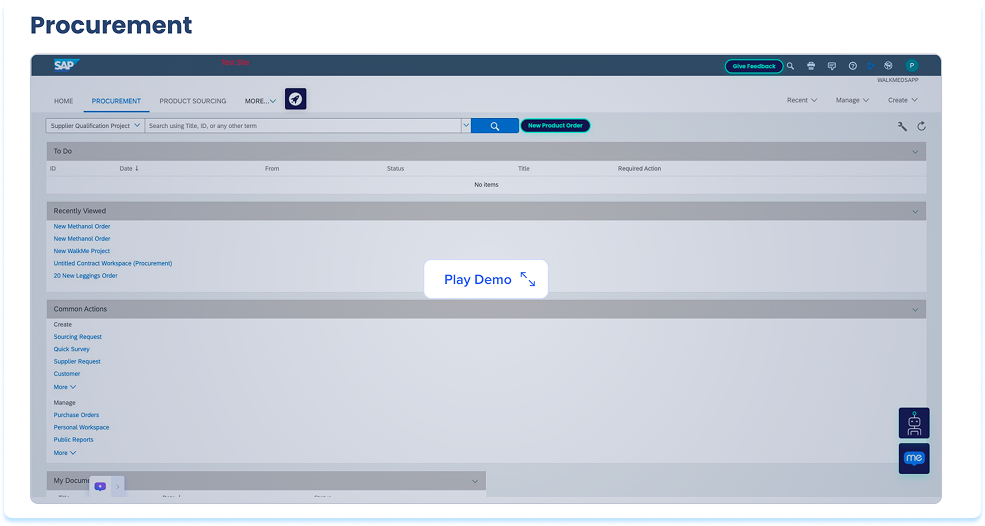
A Simulation provides interactive practice within a lesson or unit.
Depending on configuration, a Simulation may open in:
- Demo mode: Guided walkthrough
- Practice mode: Step-by-step interaction
- Test mode: Independent completion for a score
Follow on-screen instructions to complete the Simulation
Quiz
A quiz assesses understanding of the material.
To complete a Quiz:
- Review each question
- Select your answer
- Submit responses
After submission:
- A score is displayed
- Pass or fail status appears
- If allowed, select Try Again
Completion
A learning item is marked complete when all required lessons, units, simulations, and quizzes are finished.
When complete:
- Completion checkmarks appear next to required lessons or units
- The item moves to the Completed tab in My Learning
Certificates
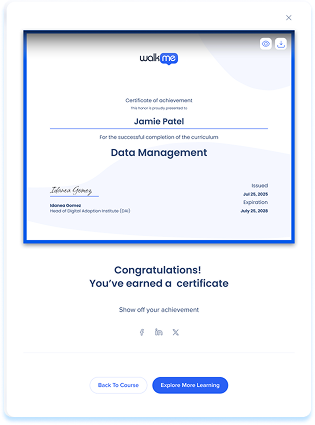
If a certificate is available:
- Open the certificate
-
You can download the certificate or share it directly to social media
Certificates are available only after successful completion.
Technical Notes


