Brief Overview
In-app distribution lets you show WalkMe Learning Arc content in the WalkMe Menu of your own WalkMe systems, so learners find the right content where they work. An admin turns on systems in the In-App Distribution tab in Settings. Then you add systems to each learning item and set where the item shows in the item drawer's Distribution tab.
This article explains how in-app distribution works and how to change it after the first setup.
How It Works
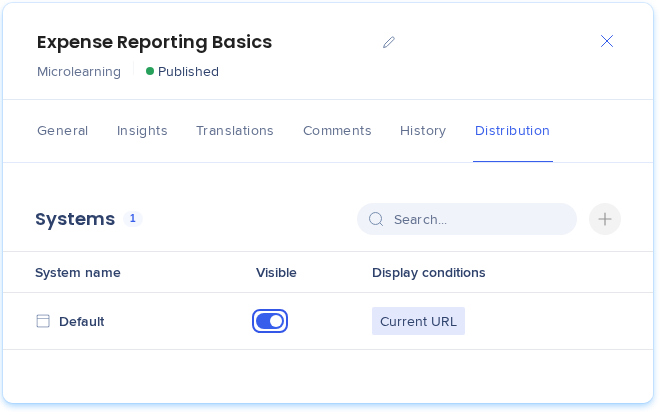
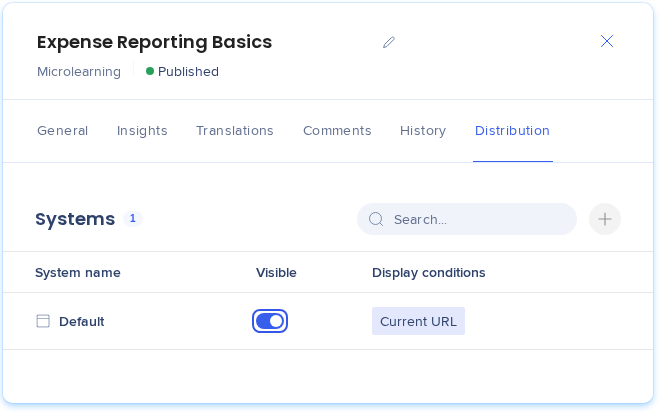
Each learning item can show in one or more of your systems. For each system, you decide whether the item is visible and on which pages it shows.
Note
To show learning content in-app, the system's WalkMe extension or snippet needs to be deployed on the target application. Without a deployment, learning content doesn't show.
Saving distribution changes
When you select Save in the Distribution tab, your changes go live in WalkMe right away. Until you save, changes show only on your screen, and you can select Cancel to discard them.
In each WalkMe system, learning content shows in a Learning tab in the WalkMe Menu. The tab is added automatically the first time you distribute content to that system.
After you save:
- Visible turned on: The item shows in the system's Learning tab
- Visible turned off: The item stops showing. Its display conditions are kept, so you can turn it back on at any time
- System removed: The item is removed from that system's menu, and its display conditions are deleted
Note
When you save distribution changes for a published item, WalkMe Learning Arc also publishes each system's settings and its WalkMe Menu. If someone on your team has unpublished changes to that system in the WalkMe Editor, like menu tabs, theme, or segments, those changes go live too.
Before you save, check with your WalkMe Editor admins whether any changes to that system are waiting to be published, and publish or discard them first.
Learning content in the WalkMe Editor
If you have Digital Adoption, your editor admins see a Learning folder in the system with your learning items. Manage these items in WalkMe Learning Arc only, since changes made to them in the Editor don't show in Learning Arc
Which systems can show content
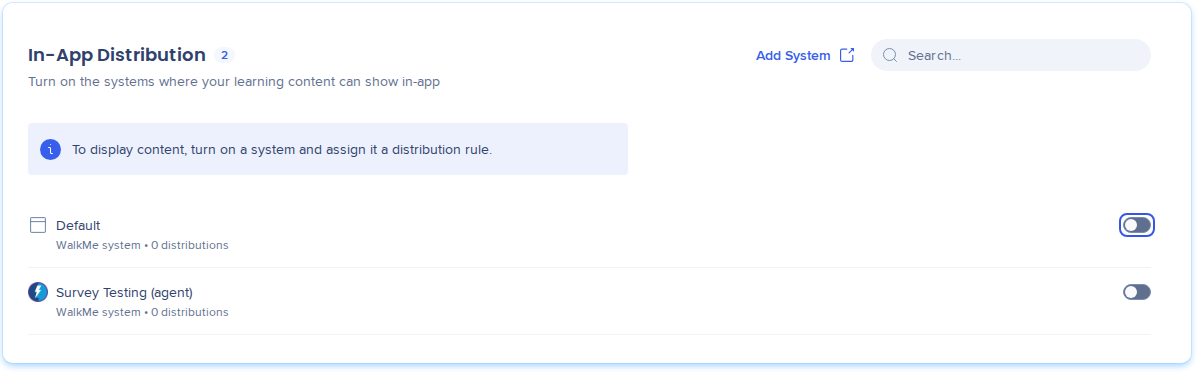
Only systems turned on in the In-App Distribution tab in Settings can show learning content.
In-App Distribution Settings
Note
Distribution is linked to the publish status of the learning item.
The Global system
Content distributed before Nov 16, 2026 keeps showing in-app through the Global system. New distributions go straight to your own systems.
Note
After you remove the Global system from an item, you can't add it back. Add one of your own systems instead.
Item state and in-app visibility
Whether an item can show in-app depends on its publish status:
- Draft or unpublished item: The Visible toggle is off and can't be turned on
- Publishing an item: The Visible toggle becomes available. It stay off unless you select Activate in-app distribution on publish in the publish popup.
- Editing a published item: Changes to Visible and display conditions go live after you select Save in the Distribution tab, with no need to republish
- Unpublishing an item: Its distribution turns off and the item stops showing in-app
- Adding a system to an item: The system starts with Visible turned off
Add a system to an item
To add another system to an item after the first setup, follow the same steps as the first setup.
In-App Distribution: Getting Started Guide
How display conditions work
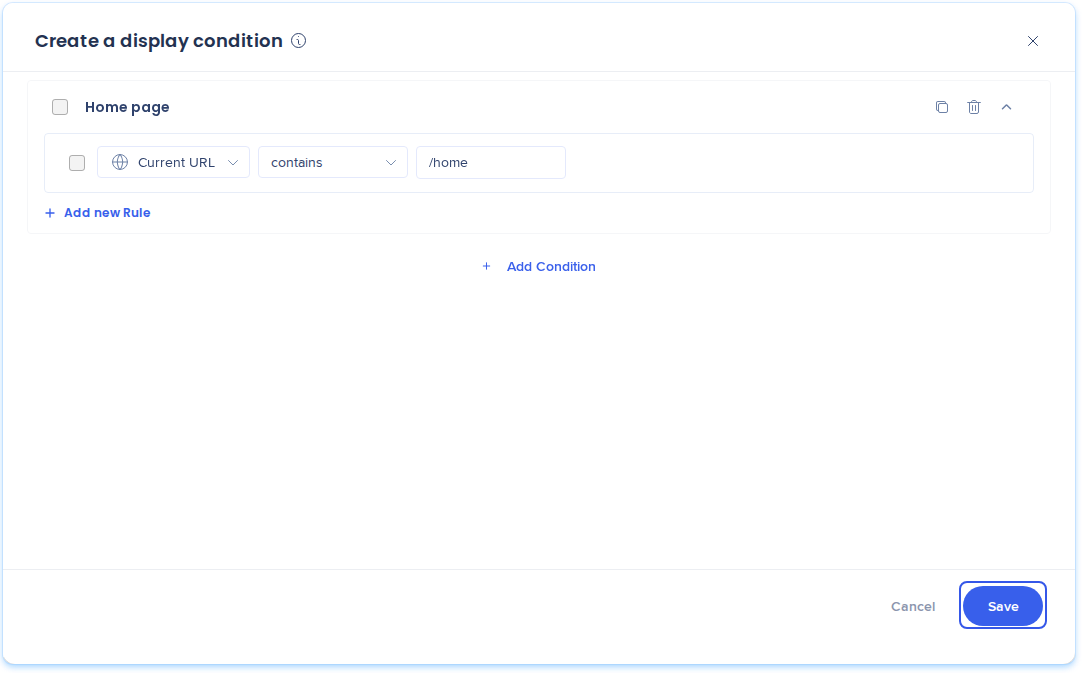
With no display conditions, an item shows system-wide, on every page where the system loads. Display conditions narrow it to specific pages.
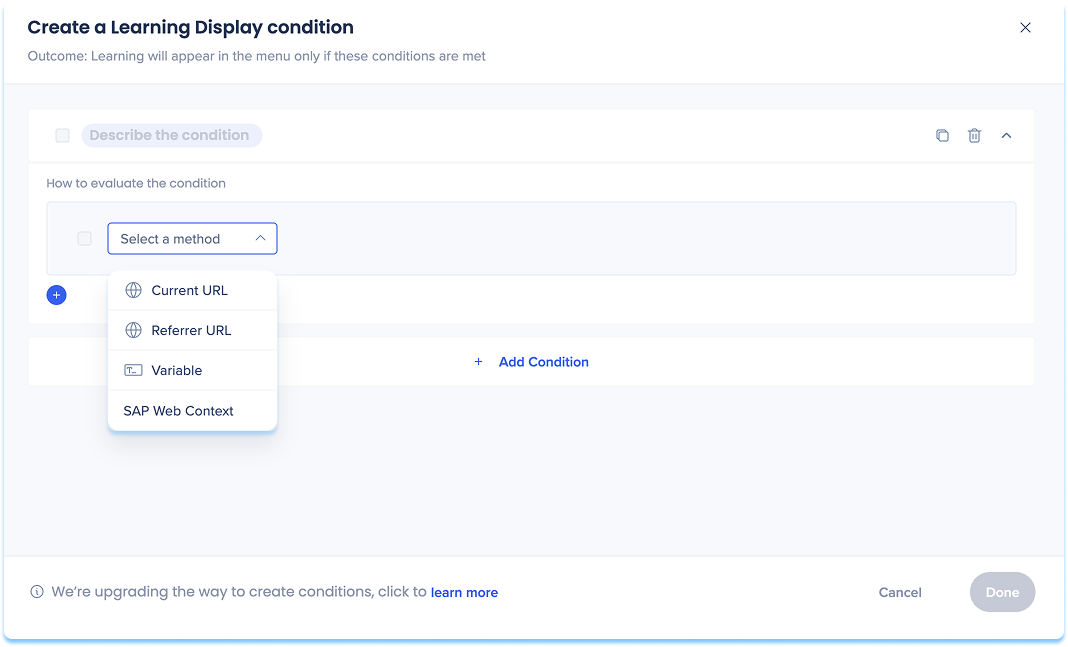
Each rule uses one of the following methods:
- Current URL: The page the learner is on, for example a URL that contains /home
- Referrer URL: The page the learner came from
- Variable: A value the application sets on the page
- SAP Web Context: The SAP app context, used for transitioned SAP Enable Now content. See SAP Web Context and SAP Enable Now content below
Hide an item in one system
To stop an item from showing in one system but keep that system and its display conditions on the item:
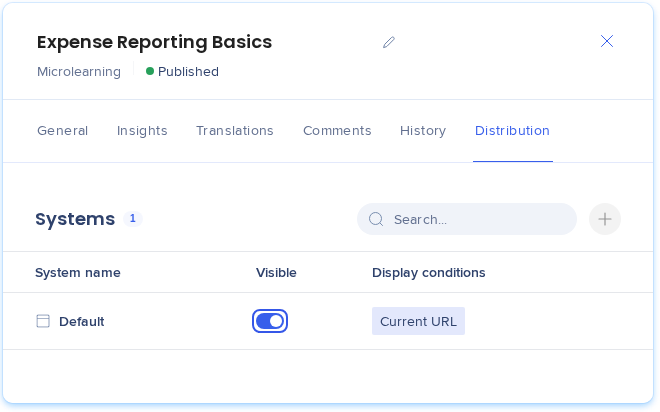
- In the item's Distribution tab, turn off Visible for the system
- Select Save
The item stops showing in that system and keeps showing in the others. To show it again, turn on Visible and select Save.
To remove the system and its display conditions instead, see see Remove a system from an item below.
Remove a system from an item
To remove a system and its display conditions from an item:
- In the Distribution tab, select the trash can next to the system
- In the confirmation popup, select Remove
- Select Save
The item stops showing in that system and its display conditions are deleted. You can add the system again later, except the Global system.
What turning off a system does
Turning off a system in Settings removes it from every item, stops its learning content from showing in-app, and deletes all its display conditions. Turning it back on doesn't restore them.
Statuses and filters
Hover over an item's cell in the Distribution column to see each system and its status. The same statuses appear in the CSV export:
- Active: Visible in the system
- Inactive: Not visible in the system
- Not published: The item isn't published
- Failed: The last change didn't apply
- Status unknown: The status couldn't be loaded
To find items by distribution, use the following filters on the Learning Content page:
- Distribution system: The systems turned on in Settings, Global system, or Not distributed
- Distribution visibility: Visible or Not visible
Options in one filter combine with OR. Different filters combine with AND.
SAP Web Context and SAP Enable Now content
When you transition SAP Enable Now content that includes Context, WalkMe automatically recognizes and saves these values in the transitioned content. When you add a distribution to that content, the Context appears as suggestions.
Suggested SAP Web Context types can include:
- Product
- Screen ID
- Version
- System
After the condition builder opens, review the pre-filled SAP Web Context fields and update them if needed.
Tip
WalkMe supports SAP Web Context, but we recommend using URL rules for new display conditions when possible.
Note
SAP Enable Now companion content doesn't transfer automatically to WalkMe Learning Arc. To keep using it, keep active contracts for both SAP Enable Now and WalkMe Learning Arc. This applies only while SAP Enable Now remains available.
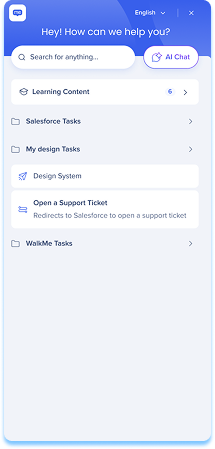
When an item is published, Visible is on, and its display conditions match the page, the item appears in the WalkMe Menu of that system. This helps learners find contextual learning materials in the flow of work.
In the menu:
- Learning content appears under a dedicated Learning content banner
- Relevant content shows based on the current screen context
- Learning content shows in the menu language
- If you have WalkMe Digital Adoption, both WalkMe content and learning content show
- If you don't have WalkMe Digital Adoption, only learning content shows, through a Lite system
- Select Show more to view more learning items for that page
To learn more about the WalkMe Menu, refer to the following article:
WalkMe Pro Menu
Search behavior
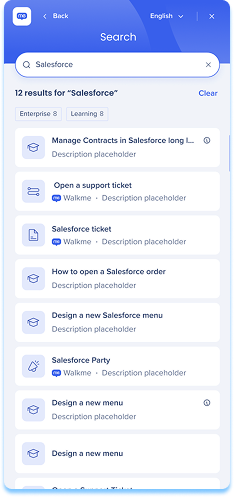
- From the main screen, search results include all content types
- From the Learning content screen, search results show only learning content
Opening content
- By default, selecting a learning item in the menu opens it in the portal in a new browser tab
- Line of Business content opens in the SAP Enable Now Trainer
Enabled feature
Opening content in-app (for example, as a popup) is available but needs to be enabled by the dev team. To request this, reach out reach out to your Customer Success Manager or WalkMe contact. The change is global and applies to all learning content launched from the menu. We recommend testing after it's enabled, as some applications restrict in-app rendering due to Content Security Policy (CSP) settings. CSP issues are typically something your organization can resolve on your end.
Technical Notes
- Display conditions belong to one item in one system. To show an item in several systems, set its display conditions in each system.
- To show different content to different users in the WalkMe Menu, set display conditions on each item in each system. Learning Arc segments control who can open an item, not whether it appears in the menu. The Global system's display conditions can't be edited.


