Brief Overview
In-app distribution shows your WalkMe Learning Arc content inside the apps your people already use. Learners find it in the WalkMe Menu of that app, so they can learn without leaving their work.
Learners open the WalkMe Menu in the app and see a learning section with the items you shared there. When they select an item, it opens in the portal.
Use Cases
- Show a short how-to course inside the CRM where people do the task
- Put onboarding content in the HR app new hires already open on their first day
- Show different content on different pages of the same app with display conditions
Access
You can set up in-app distribution in 3 places:
- Admin Center: To create the system and deploy WalkMe on the app
- Learning Arc settings: To turn on the system on the In-App Distribution tab
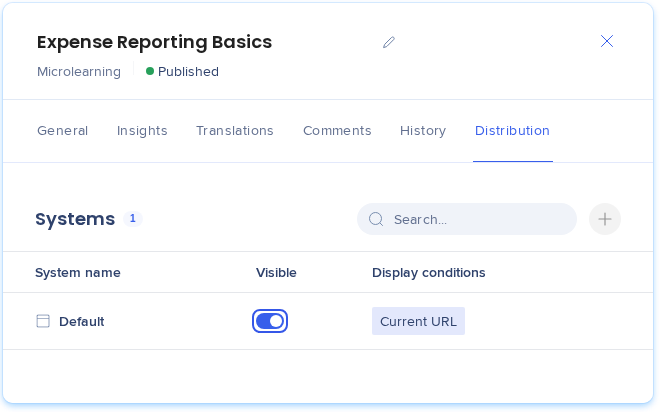
- Distribution tab of each learning item, on the Learning Content page: To add systems, set display conditions, and turn on Visible
How It Works
Make sure WalkMe loads on the app, turn on that app's system in Learning Arc settings, add the system to your content, publish, and turn on Visible. The steps below walk through each part once. To make changes later, refer to Managing In-App Distribution.
Key terms
- System: A WalkMe system you manage in the Admin Center. WalkMe is deployed on an app with the browser extension or a snippet, and learning content shows in that system's WalkMe Menu. On screen it reads WalkMe system
- Lite system: A lighter WalkMe system for customers who have WalkMe Learning Arc without Digital Adoption. It runs the WalkMe Menu so learning content can show in-app, without the Digital Adoption features. On screen it reads In-App learning system
- Global system: Shows only for existing customers, on content distributed before November 2026. It keeps that content showing in-app with no extra work. You can edit or remove it, but you can't add it
- In-App Distribution settings: A tab in Learning Arc Settings that lists your systems. Only systems you turn on there can show learning content
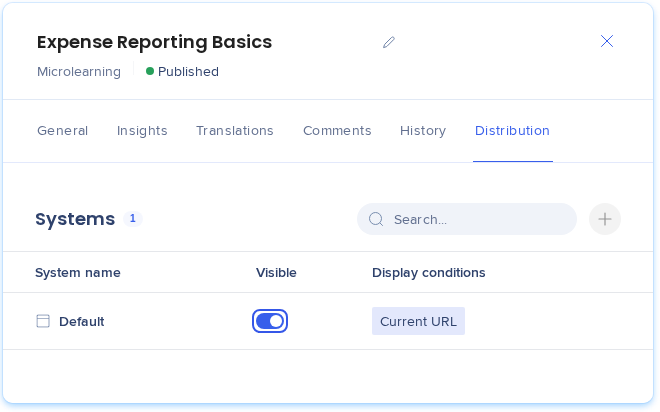
- Distribution tab: A tab in an item's side panel on the Learning Content page. It lists the systems the item shows in, with their Visible setting and display conditions
- Display conditions: Rules that narrow where in the app the item shows, for example only on pages whose URL contains /home. With no conditions, the item shows wherever the system loads
- Visible: An on or off setting for each system. When it's on, learners see the item in that system. It works only for published content
Before you start
Before you set up in-app distribution, make sure:
- You have a WalkMe system for the app where content should show. If you don't have Digital Adoption, ask your Customer Success Manager or WalkMe contact for a Lite system
- WalkMe is deployed on that app, with the browser extension or the snippet
- You have learning content ready to publish, or already published
Step 1: Make sure WalkMe loads on your app
Learning content shows in the WalkMe Menu, so WalkMe must load on the app first. If WalkMe doesn't load on a page, nothing shows there.
Already have a WalkMe system?
Your existing systems show on the In-App Distribution page in Settings. If the system for your app is there and WalkMe is deployed on the app, go to Step 2.
No system for your app? Create one
-
With Digital Adoption: Create a web system in the Admin Center. See Creating a System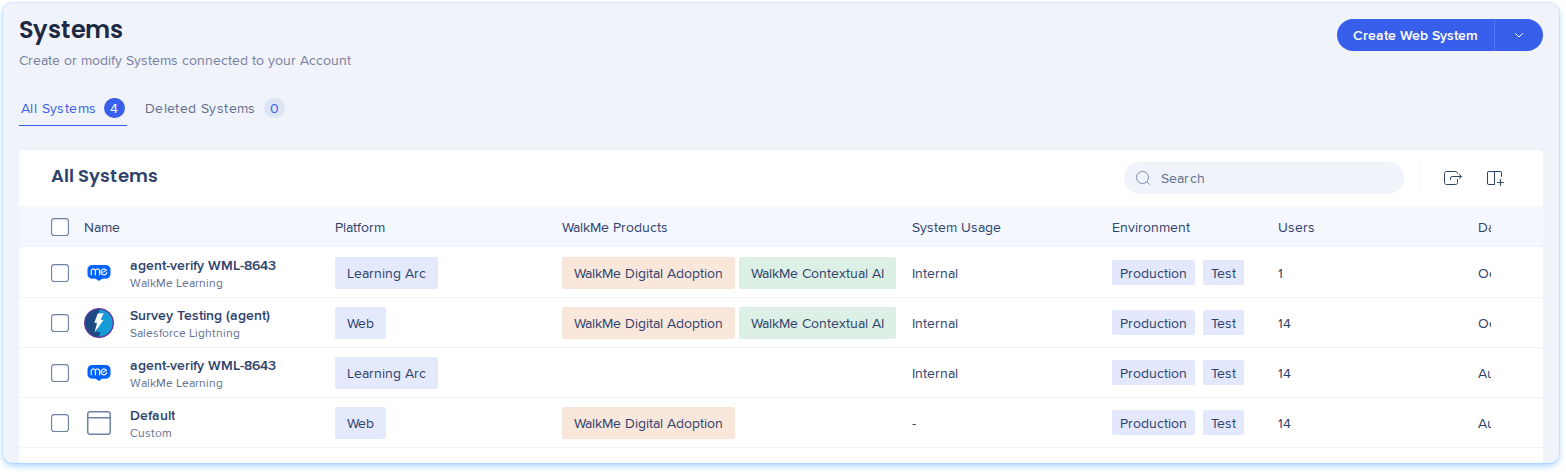
-
Without Digital Adoption: You need a Lite system. Ask your CSM or WalkMe contact for a Lite system for in-app learning, and tell them which app learning content should show in. In Learning Arc, it shows as In-App learning system
Deploy WalkMe on your app
A new system shows no content until WalkMe is deployed on the app:
-
Go to the Admin Center and select Systems Management
-
Find the system for your app on the All Systems list
-
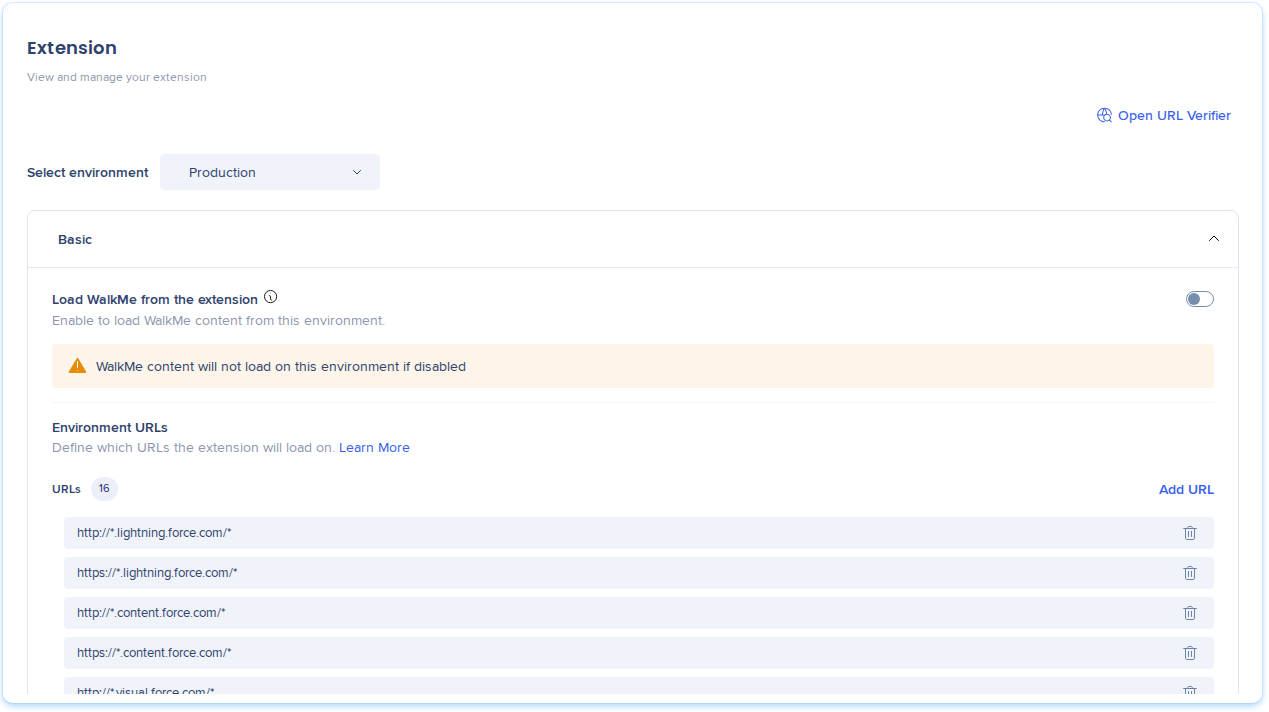
Deploy WalkMe on the app in one of two ways:
WalkMe Deployment Overview
Step 2: Turn on the system in Settings
To show learning content in a system, turn it on in Settings. All systems start turned off.
- In Learning Arc, go to Settings and select In-App Distribution
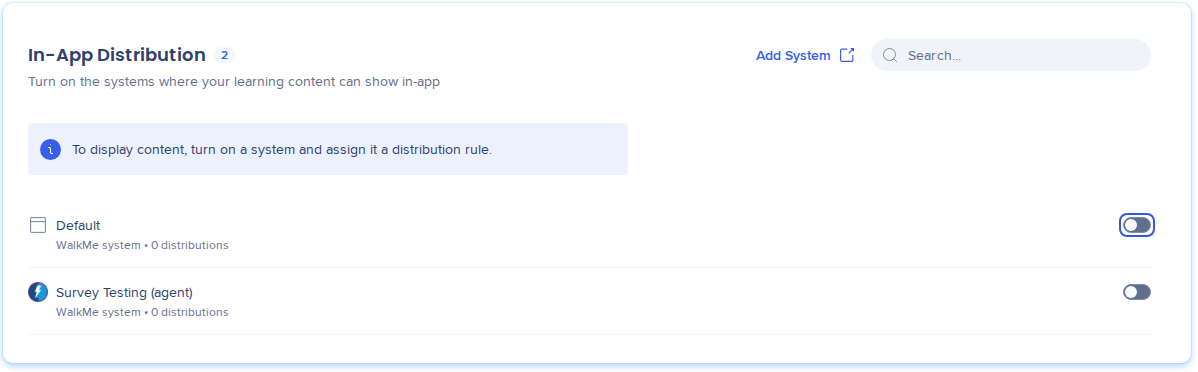
- Turn on your system
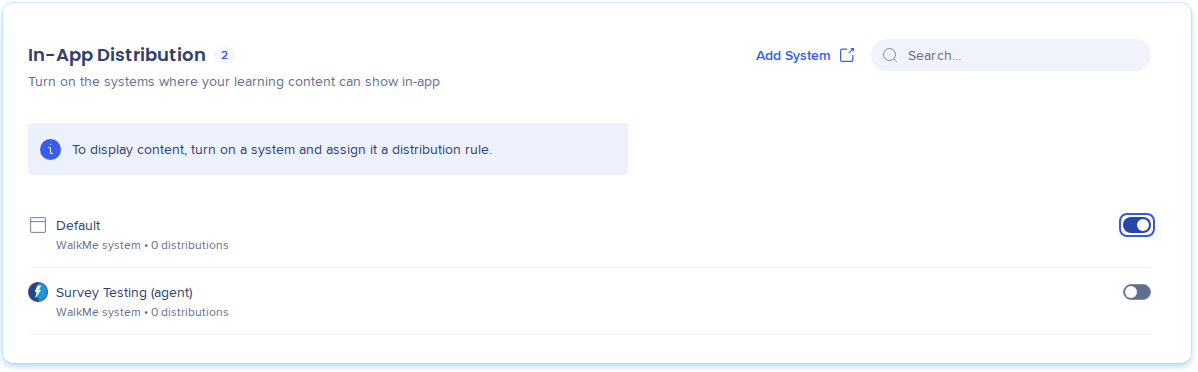
If your system isn't listed, refer to In-App Distribution Settings.
Step 3: Add systems to your content
- Go to Learning Content
- Select the item to open its side panel, and then select the Distribution tab. You can also select + in the item's Distribution column
- Select Add Systems. If the item already has systems, select + next to the search box
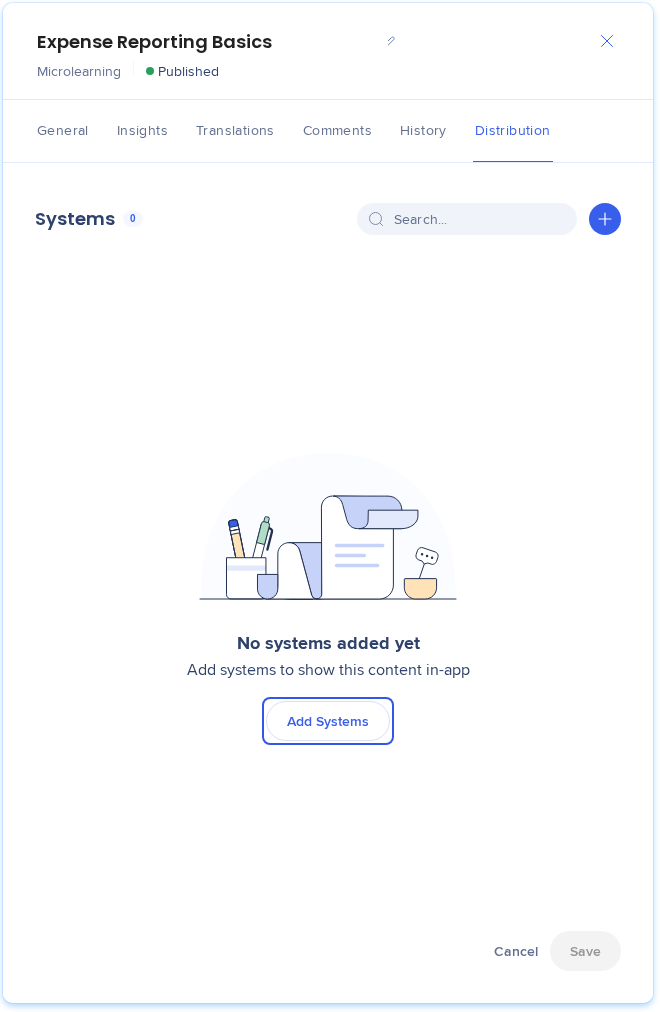
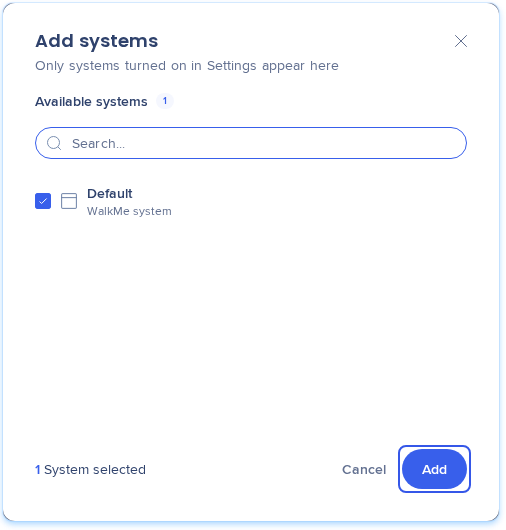
- In the Add systems popup, select 1 or more systems
- Select Add
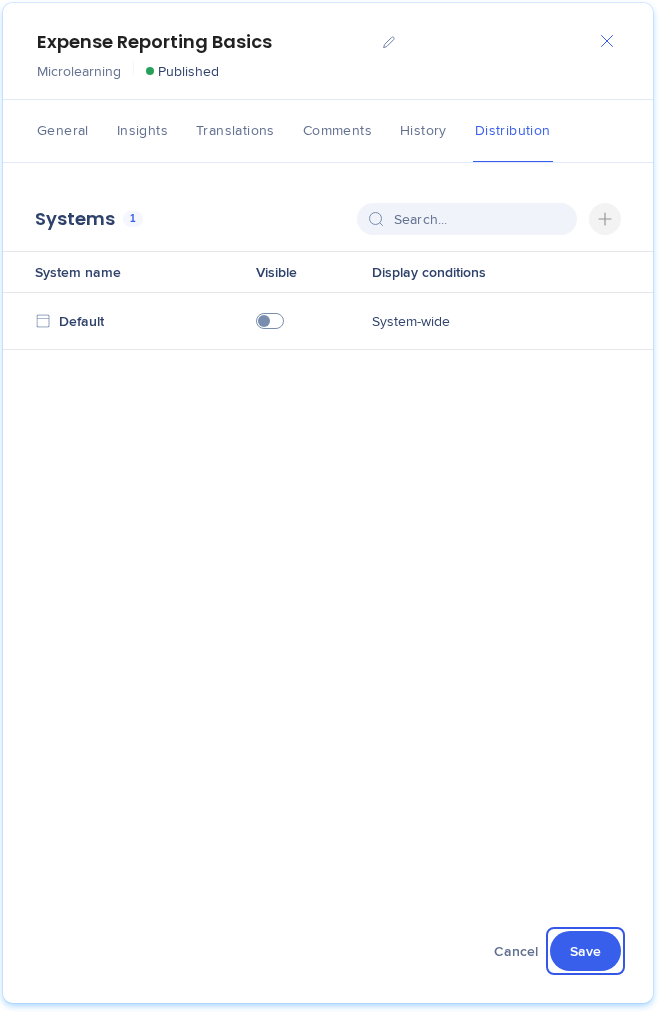
- Select Save
Note
- The Add systems popup lists only systems turned on in Settings that the item doesn't have yet
- Changes in the Distribution tab are saved only when you select Save
- This works for every learning type: course, microlearning, journey, SCORM, and instructor-led course
Step 4: Choose where it shows (optional)
By default, an item shows wherever the system loads, and the Display conditions column reads System-wide. To show the item only on some pages, add display conditions.
- In the Distribution tab, select + in the Display conditions column of the system
- In the Create a display condition popup, type a name under Condition Name
- Under Select a method, choose a method and set the rule:
- Current URL: The page the learner is on
- Referrer URL: The page the learner came from
- Variable: A value on the page
- SAP Web Context: An SAP app context
- To add more rules, select Add new Rule. To add another condition, select Add Condition (optional)
- Select Save in the popup, and then Save in the panel
The column shows the rule name, for example Current URL, or Multiple Rules when there are 2 or more.
Note
Display conditions belong to 1 item in 1 system. Make sure they match pages where WalkMe loads.
Managing In-App Distribution
Step 5: Publish and turn on Visible
Learners see the item only when it's published and Visible is on for the system.
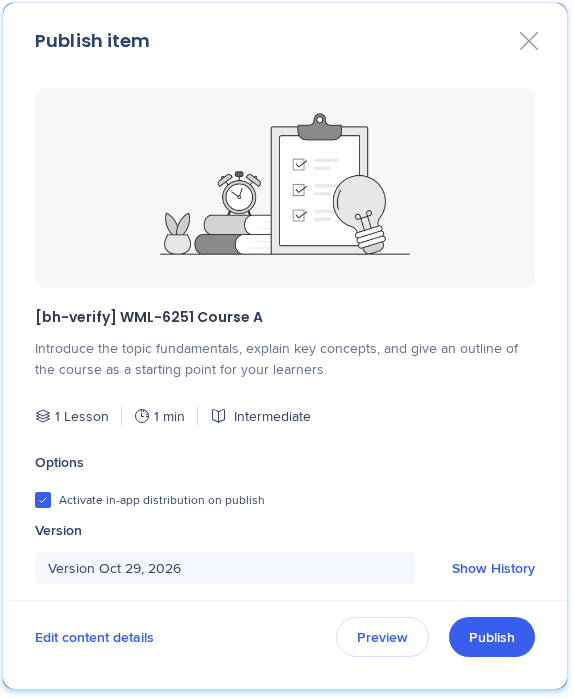
- Publish the item from the builder. In the Publish item popup, you can select Activate in-app distribution on publish to turn on Visible for every system you added
- If you didn't select it, go back to the item's Distribution tab
- Turn on Visible for each system
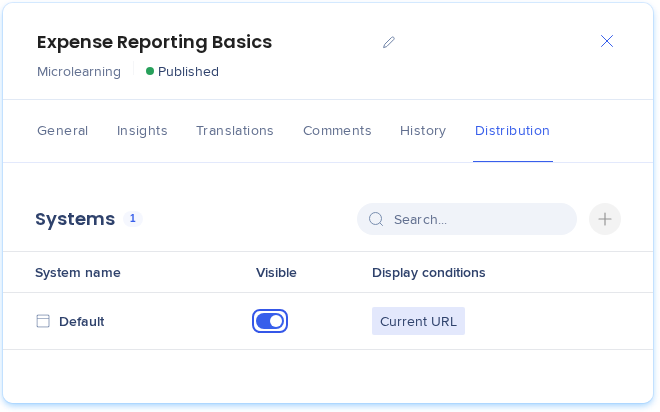
- Select Save
On a published item, changes to Visible and display conditions go live when you select Save. You don't need to publish again.
Saving publishes system settings too
Selecting Save in the Distribution tab republishes a published item to all its WalkMe systems, along with each system's settings. Any unpublished settings changes go live as well.
Manage and Publish Learning Content
Step 6: Check it in the app
- Open the app where WalkMe is deployed, on a page that matches your display conditions
- Open the WalkMe Menu
- Find the item in the learning section of the menu
- Select the item. It opens in the Learning Arc portal
Tip
If the item has a translation, content shows in the language of the menu.
WalkMe Pro Menu
Technical Notes
- Content shows only on pages where WalkMe loads, with the WalkMe browser extension or the snippet
- Display conditions support four methods: Current URL, Referrer URL, Variable, and SAP Web Context. WalkMe segments can't be used as display conditions
- The Global system can't be added to content. After you remove it from an item, you can't add it back
- Users with view-only access to learning content see distribution status in the Learning Content list, but can't open the Distribution tab