Brief Overview
Create a new system in the WalkMe Admin Center. These steps apply to customers with permission to create editor systems for more applications.
Follow every step. An incorrect setup can stop content from loading or require manual support.
Support
- If your license doesn't include self-service system creation, contact your Customer Success Manager
- If you have technical issues after creating a system, open a support ticket to check whether it needs more configuration
Access
Access the Systems page in the console:
- Open the WalkMe Console:
- Go to the Admin category
- Select System Management
Creating a New System
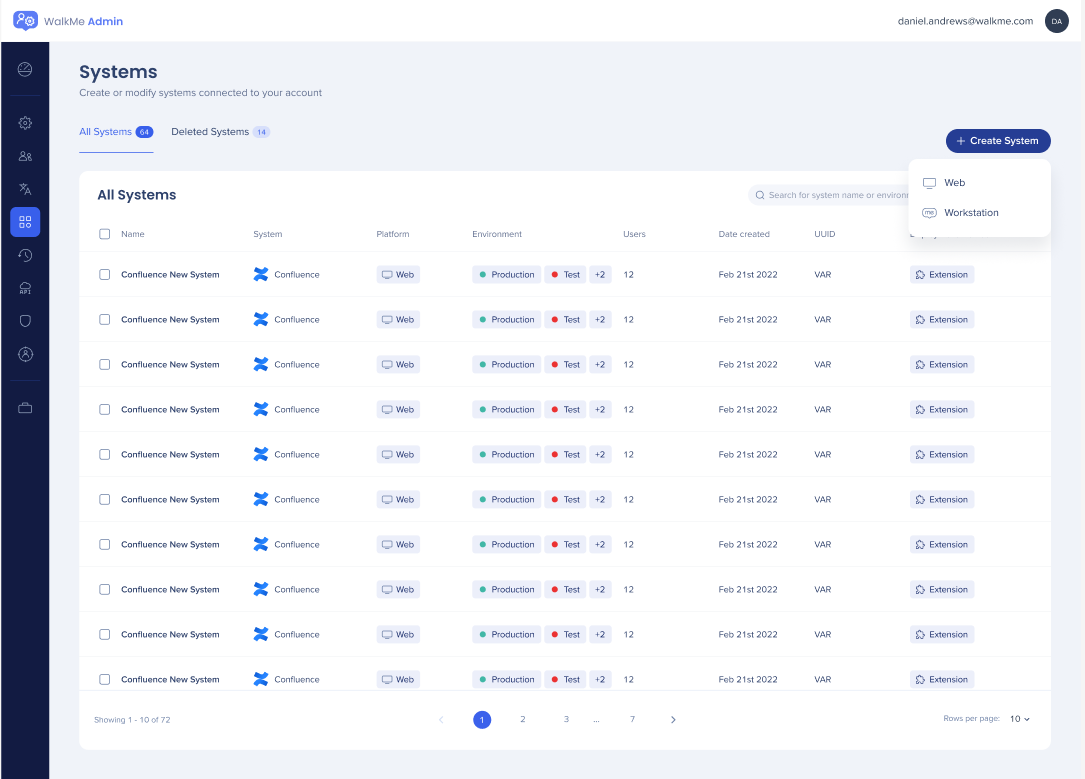
- Open the Systems page in the WalkMe Console
- Select Create System
- Choose Web
Desktop/Mobile Systems
To create a Desktop/Mobile system, type a name and select Create System. No other setup is needed.
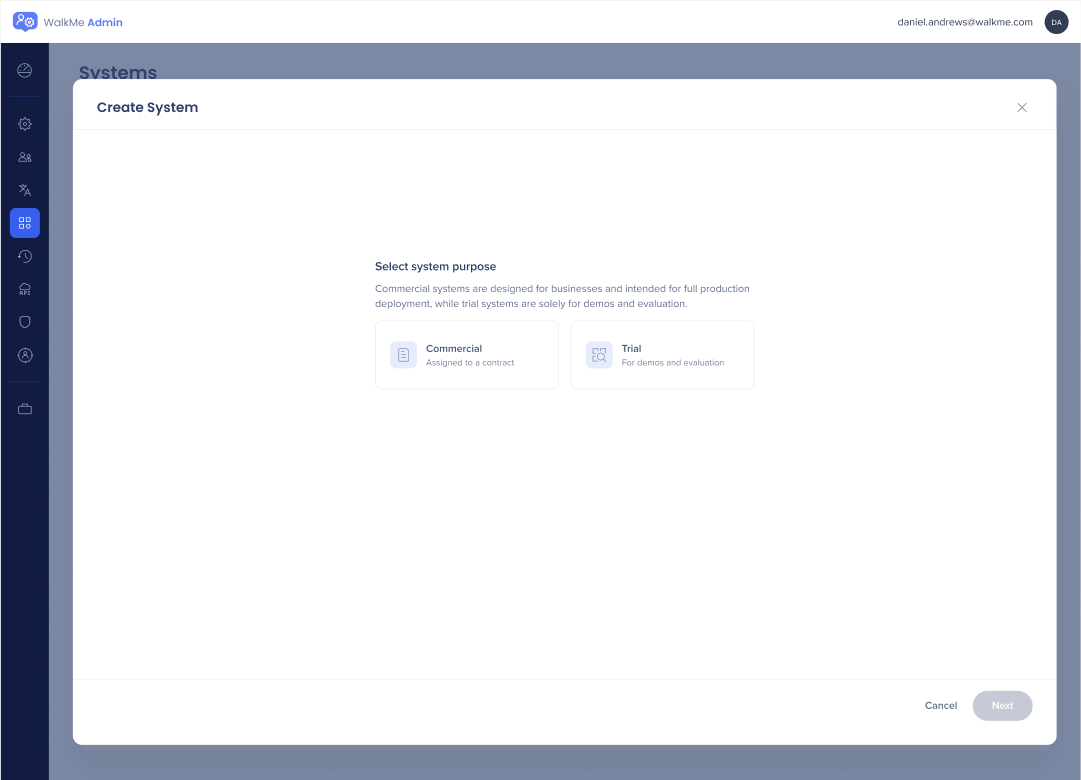
Select system purpose
Choose a system type:
- Commercial: Full production deployment and contract assingment
- Trial: For demos or internal evaluations
Note
Trial systems cannot be converted to commercial systems or published to production.
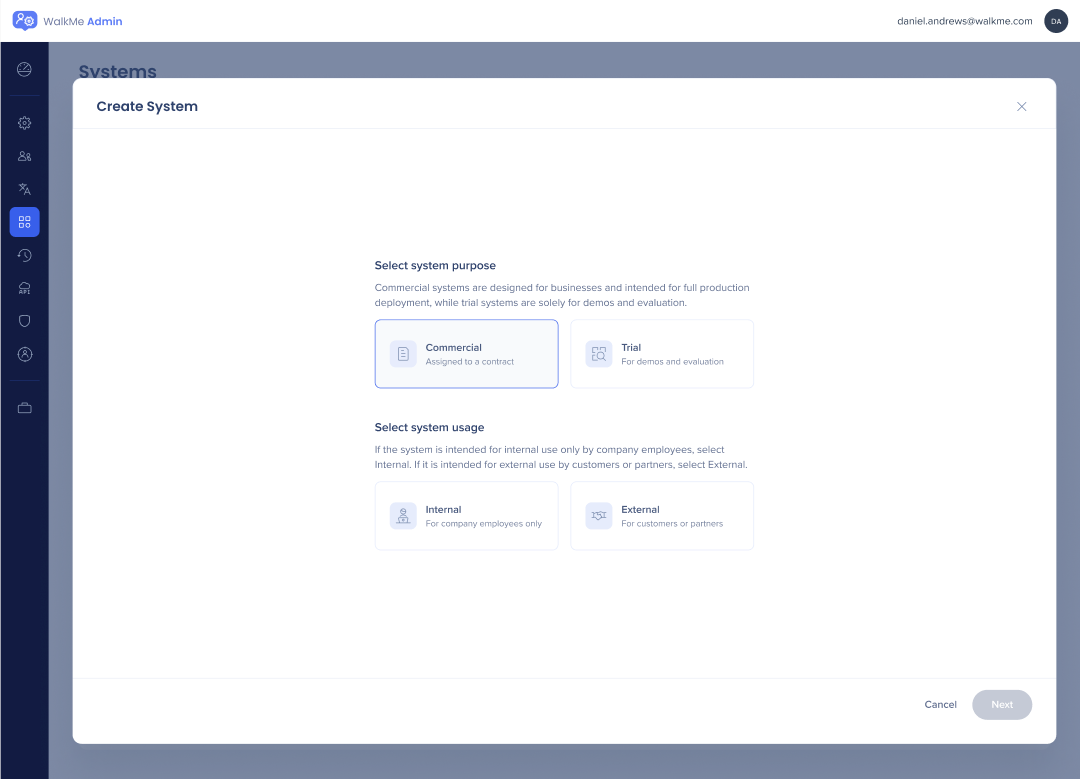
Select system usage
Select the system's audience, like employees or customers. This sets the deployment type (snippet or extension) and analytics behavior (UUID or analytics properties).
Note
Usage and Purpose settings can't be changed manually on systems created before May 2024.
Creation wizard
The wizard has 3 steps:
- Select Application
- Select Contract
- Configure (optional)
Step 1: Select application
Choose the web app you're creating the system for.
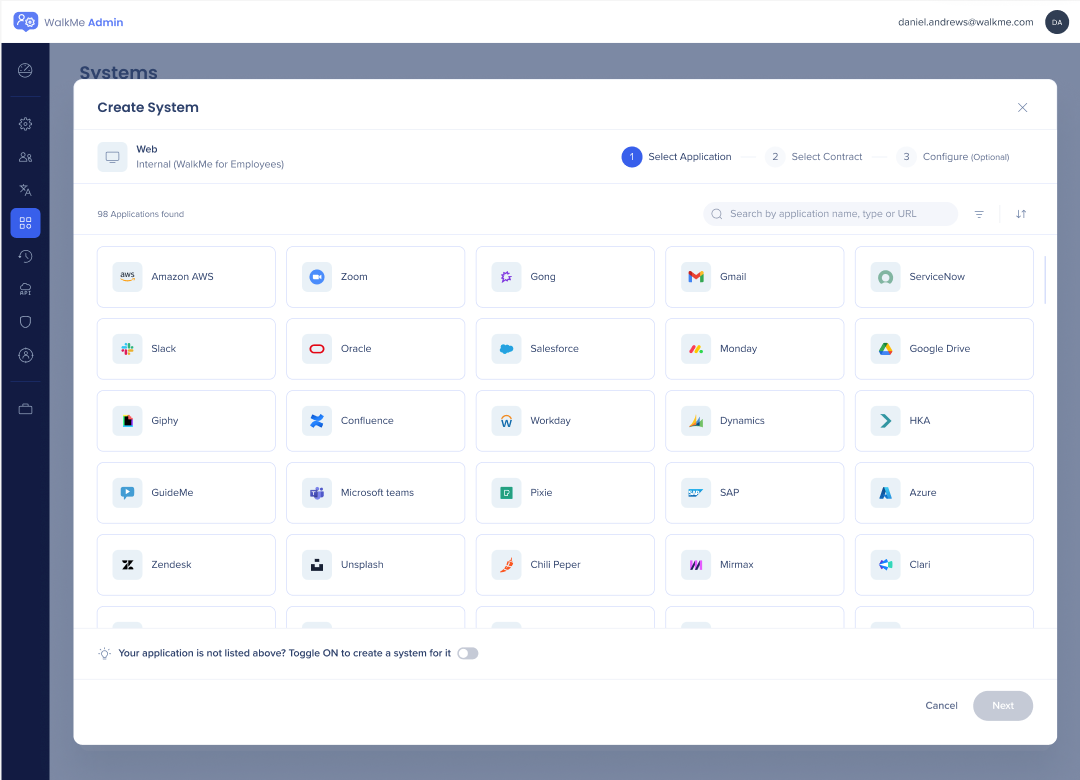
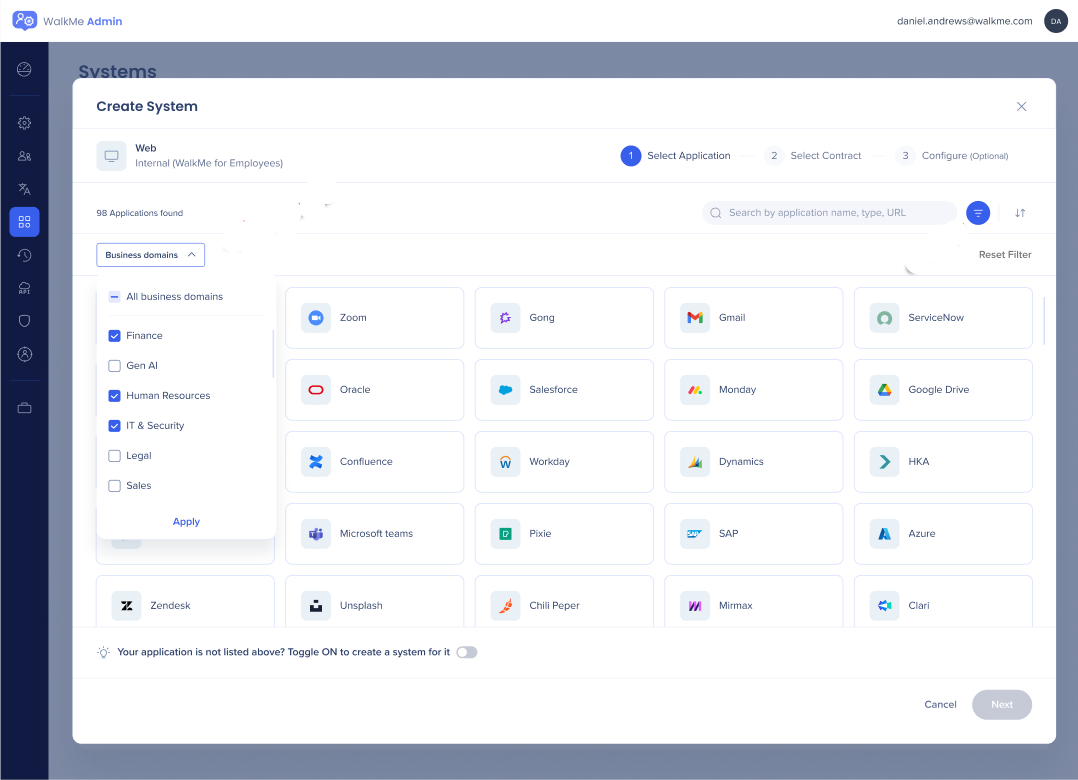
Apps are sorted by how often WalkMe customers create systems for them. You can also sort A to Z or Z to A, filter by Business domains (like Sales, Finance, or Healthcare), or search by name, type, or URL. Pasting a URL triggers Discovery, which suggests a matching app.
Custom systems
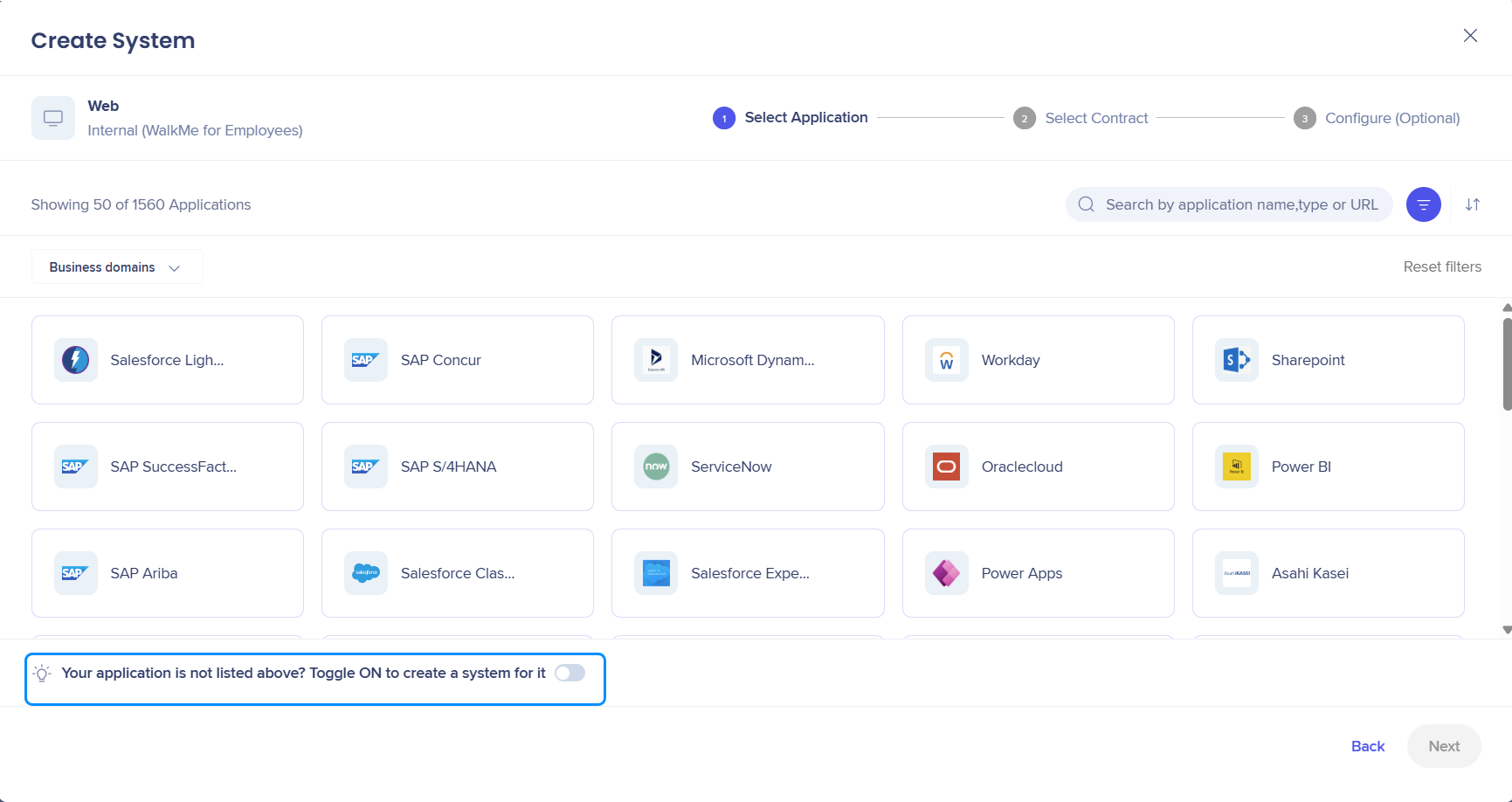
To create a custom system, turn on the toggle in the bottom left corner. The screen switches to create-your-own-system mode.
Note
Searching for “custom” returns no results. Instead, the toggle highlights to prompt you to create your own system.
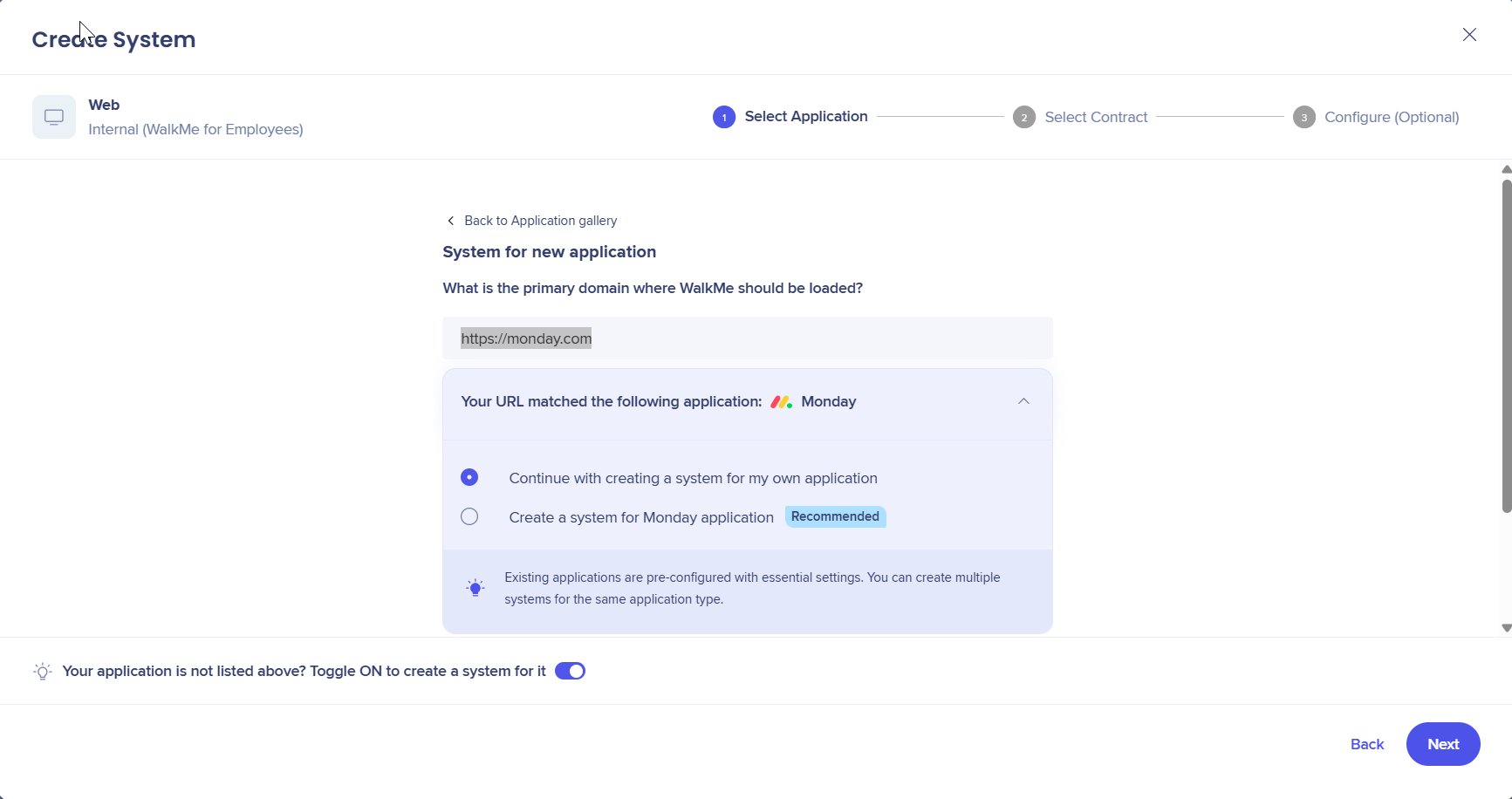
This mode asks 2 questions about your custom system:
- What is the primary domain where WalkMe should be loaded? (optional)
- What is the name of your application? (required)
For the primary domain, type a URL. To add more URLs, select Add URL.
For the first URL only, Discovery checks WalkMe's application database for a match. If it finds one, choose either:
If a match is found, you will be presented with two options:
- Continue with creating a system for my own application
- Create a system for [matched application] (RECOMMENDED)
The recommended option builds the system from an existing application. Existing applications come pre-configured with essential settings, so you won't need WalkMe to set up a custom system later.
For the application name, type any name.
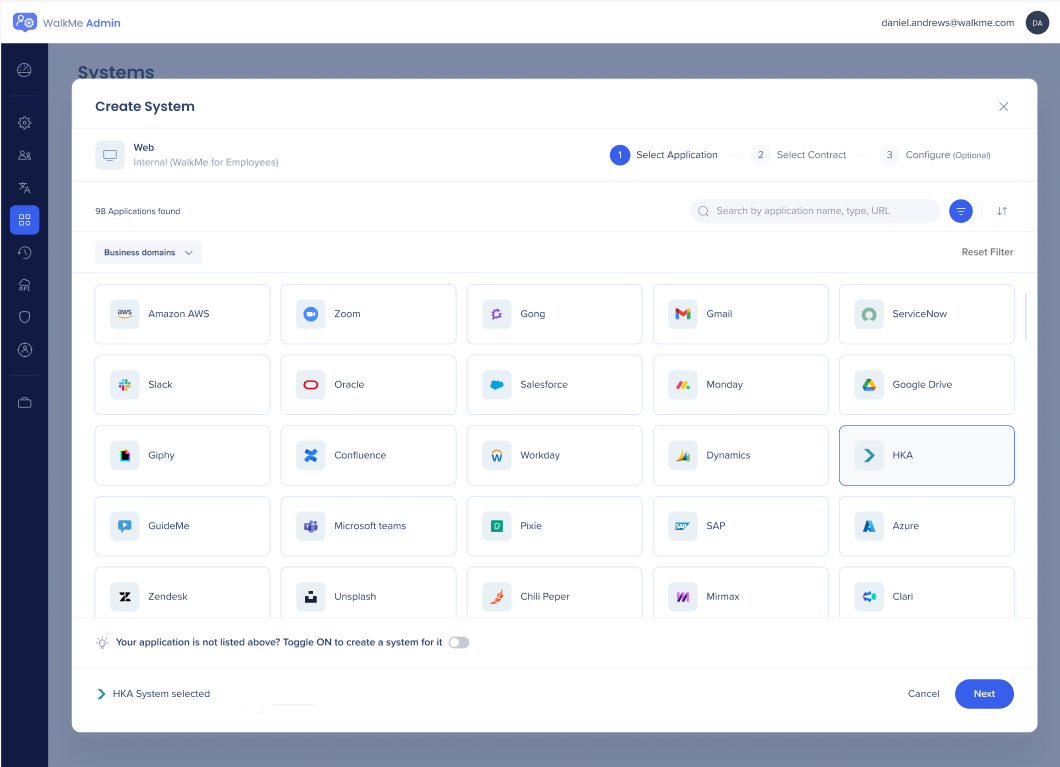
To leave this mode and return to the applications screen, turn off the toggle. The application you select appears below the toggle, so you can see which system you're creating.
Step 2: Select contract
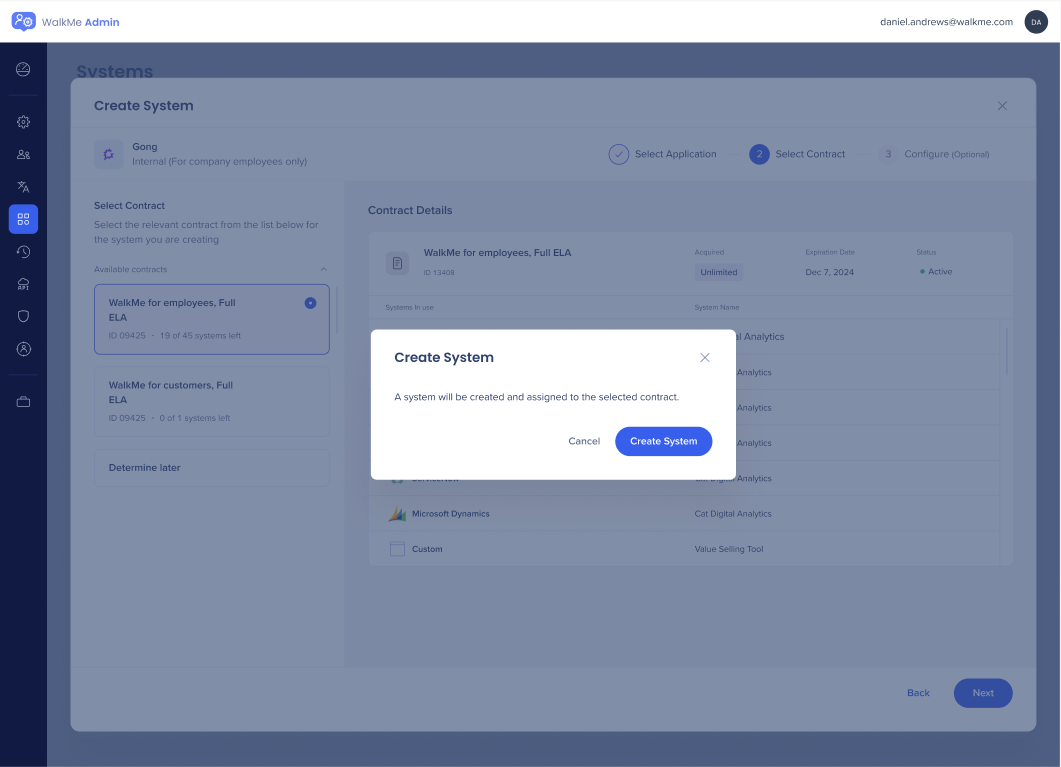
Assign the system to a contract.
The left side lists your account's contracts. Each entry shows the contract ID, the number of assigned systems, and the number of systems remaining. The right side lists the systems assigned to each contract.
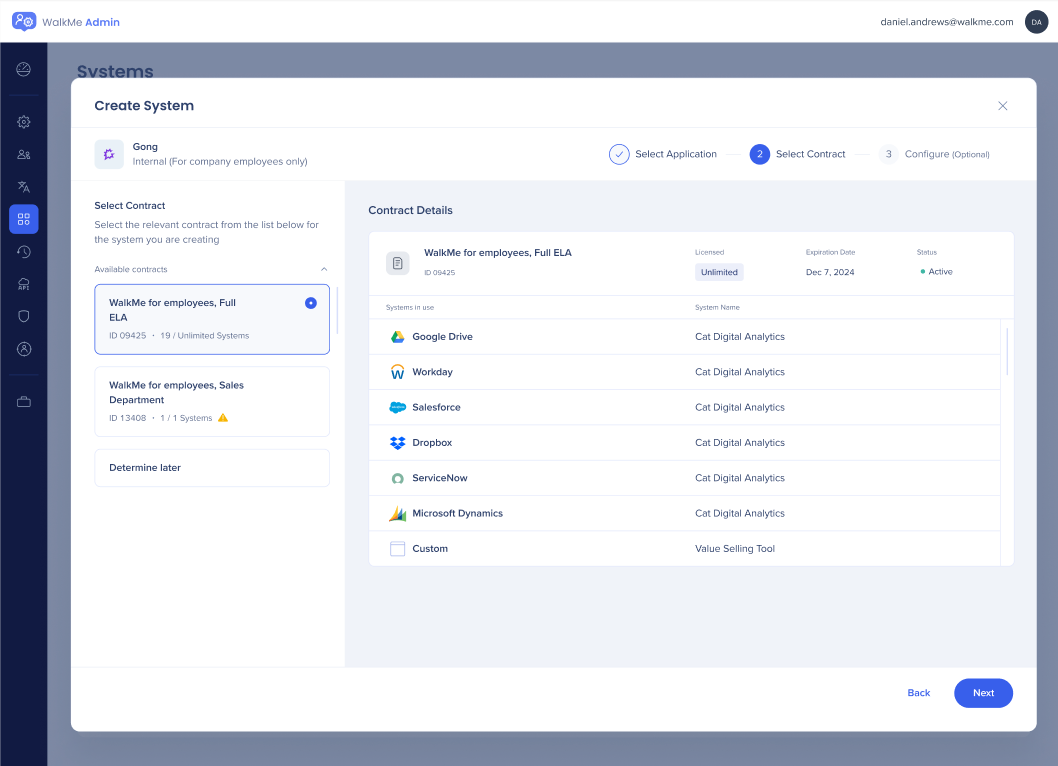
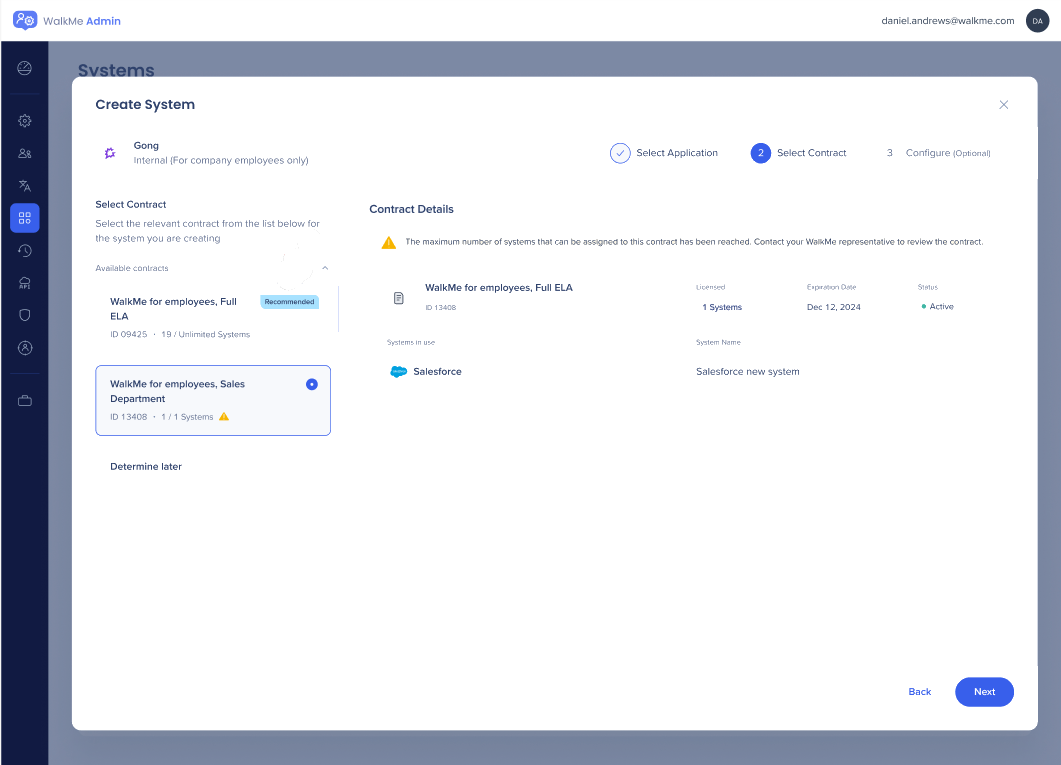
Contracts over their system limit show a Pay attention icon, with an explanation at the top of the screen. You can still assign the system, but contact your WalkMe representative about next steps.
Note
Skipping this step can create a Limited System. If you see the following upgrade message after logging into your new system, contact your Customer Success Manager.

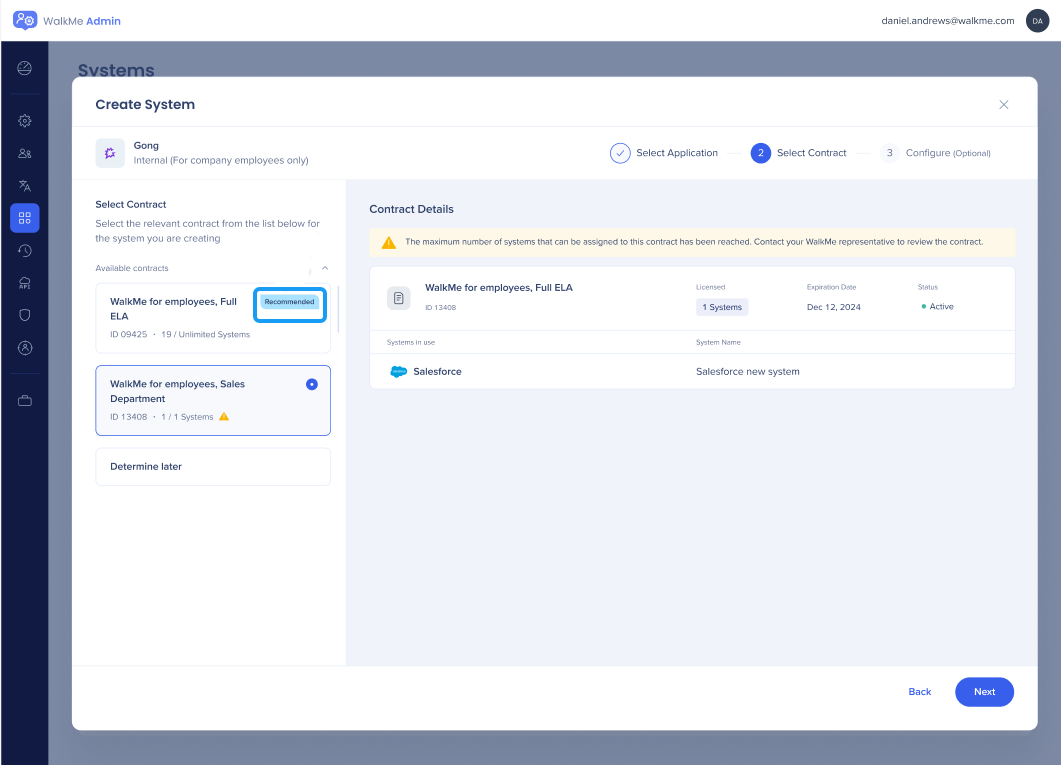
Recommended contract
For accounts with both internal (employee) and external (customer) contracts, a Recommended badge appears on contracts that match the usage you selected.
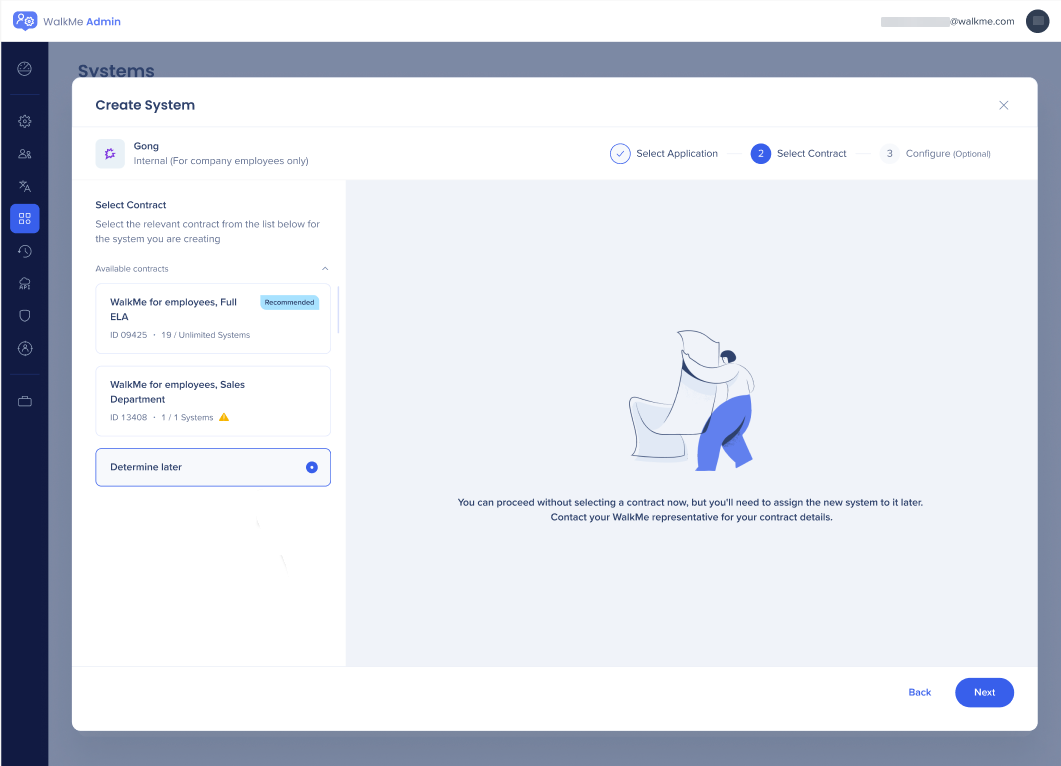
Determine later
If you're not sure which contract to use, select Determine later and continue. You can assign a contract from Contracts afterward.
Contracts in Admin Center
Select Create System. The system is created and appears in the Systems tab. The wizard then moves to Configure, which is optional. If you close the wizard now, you can still find the system in the Systems tab.
Configuring a New System
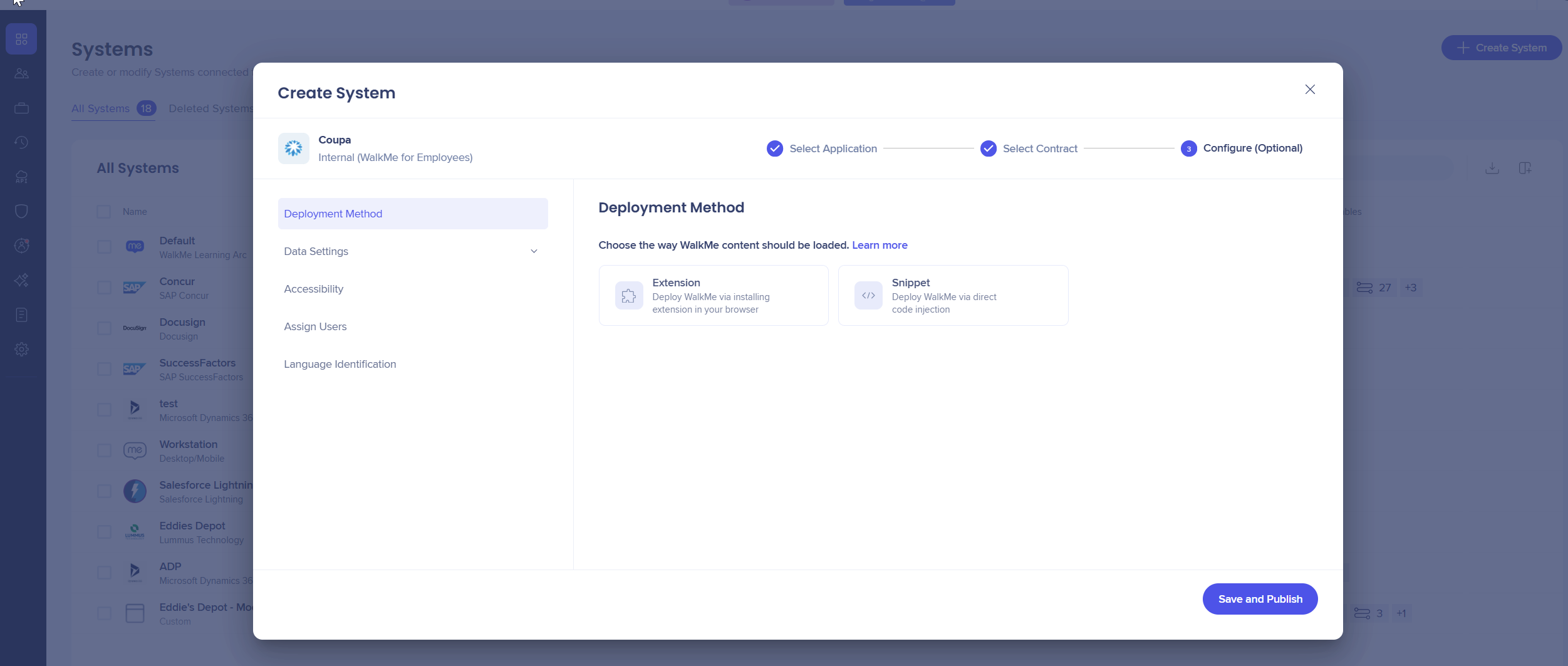
The Configure step includes 5 tabs:
- Deployment Method
- Data Settings
- Accessibility
- Assign Users
- Language Identification
Deployment method
Choose whether to deploy the system with an extension or a snippet.
If you choose Extension:
- Default deployment method: Set the extension as the default for every future system on the account. It's preselected the next time you create a system.
- Select Environment: Choose Production (default) or Test. Settings below this field apply only to the selected environment.
- Load WalkMe from the extension: This is off by default for new systems, so WalkMe doesn't load. Turn it on to add Environment URLs. Set it up separately for test and production.
- Environment URLs: Define URLs with URL match patterns. Base each environment on the application's unique web address. Only one environment loads at a time, so don't use the same URL in more than one environment.

Note
To add URLs after setup, go to Extension Settings. Before you publish, check that every URL WalkMe should load on is listed.
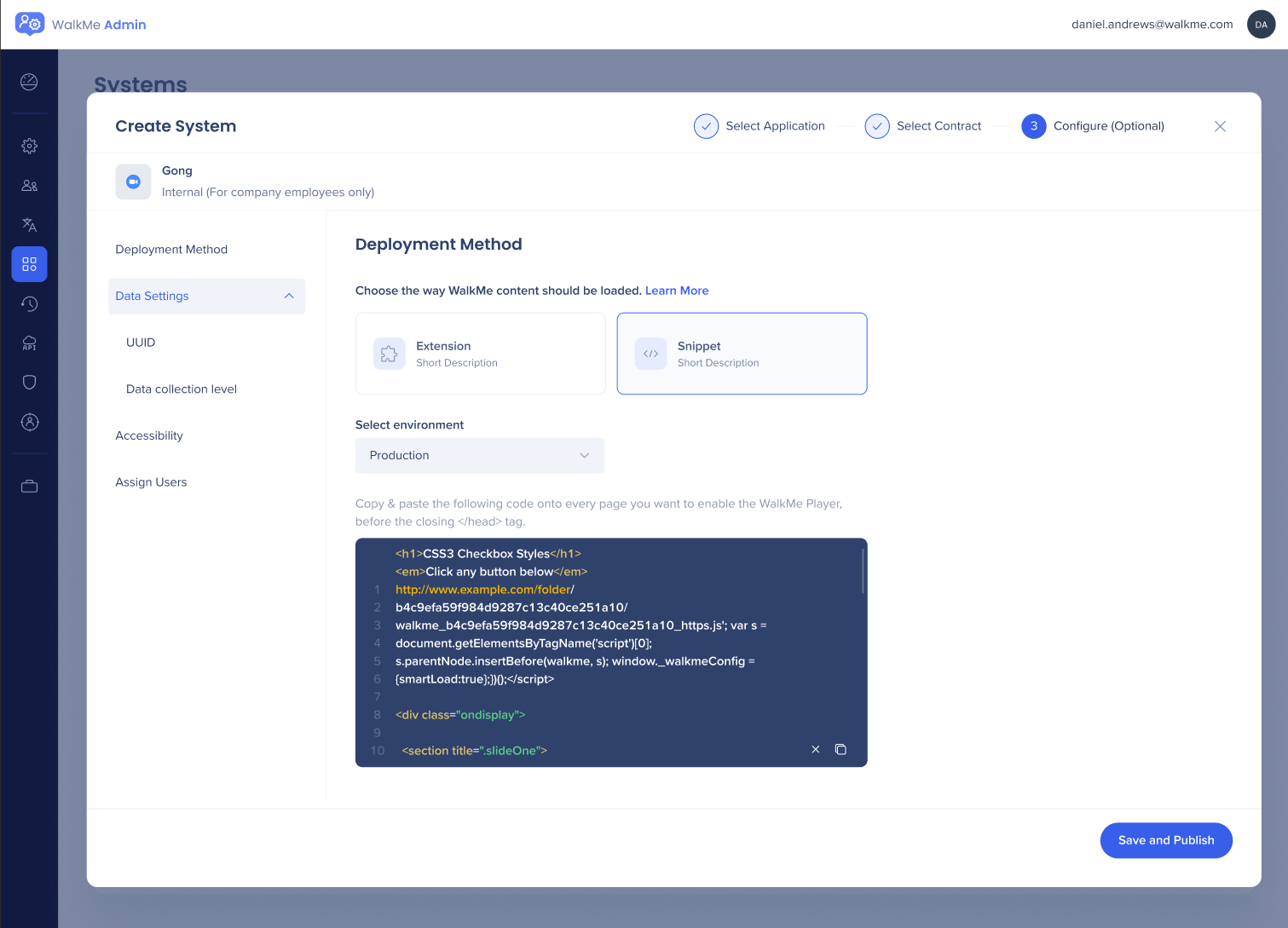
If you choose Snippet:
The snippet code depends on the environment. Choose the environment from Select Environment to get the right code.
Note
You can't add URLs to a snippet-based system.
Data settings
Unique user identifier (UUID)
A Unique User Identifier (UUID) gives you accurate user analytics, reliable task and progress tracking, and better personalization and segmentation.
- Configure the UUID here the same way you would in the editor
- Hover over each UUID option for a short explanation
- If your account has an identity provider (IDP) configured, that option is preselected
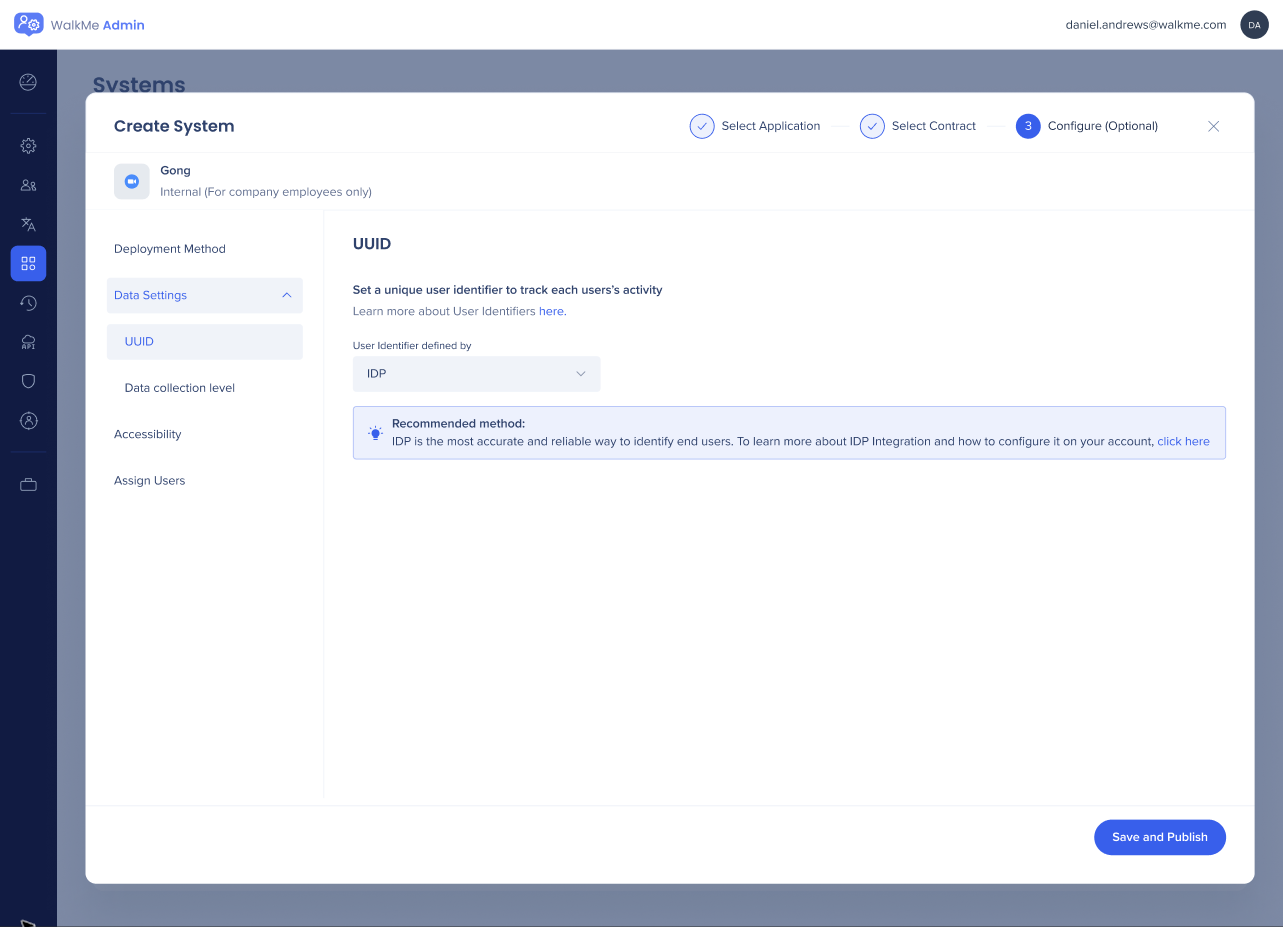
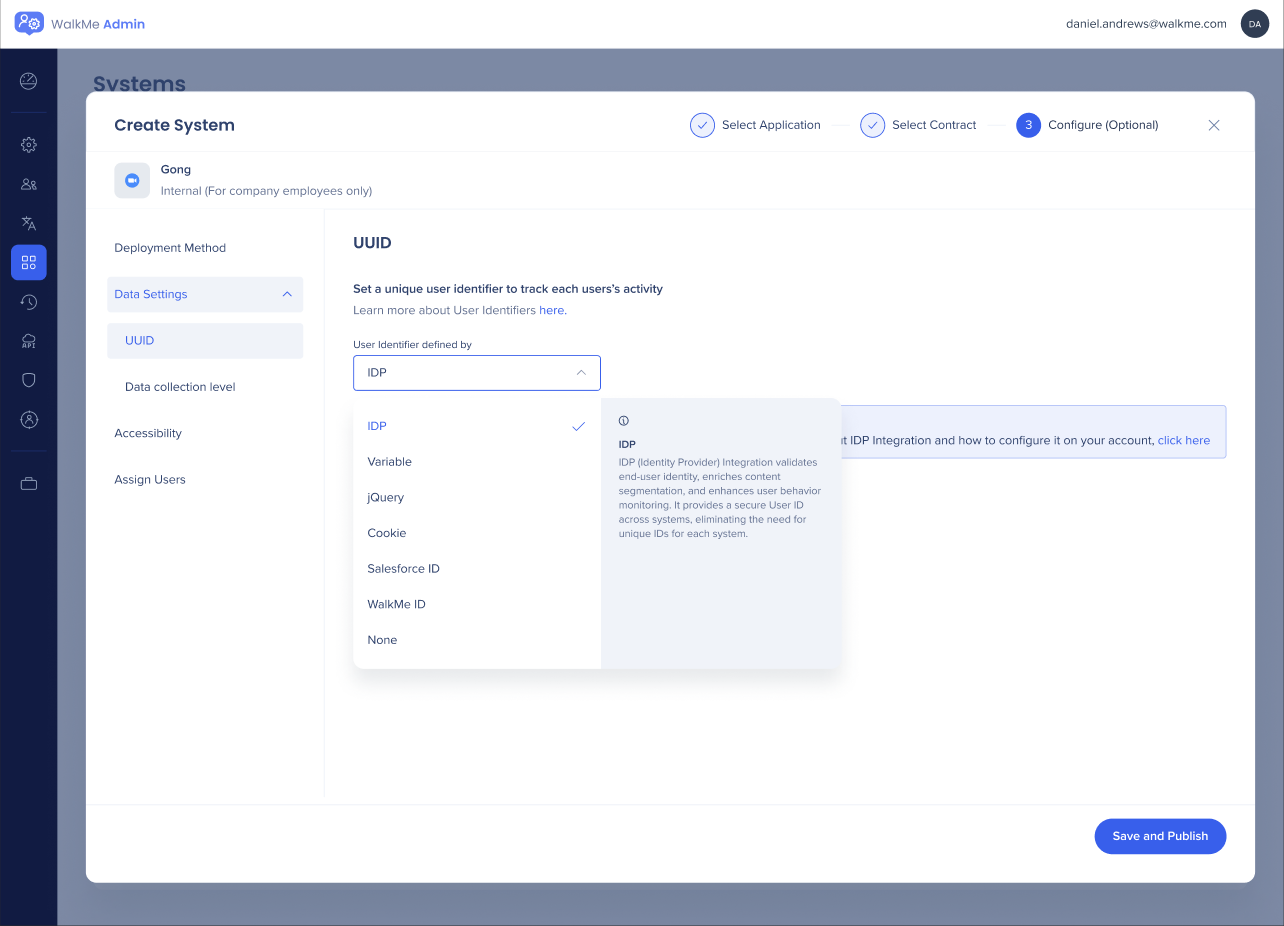

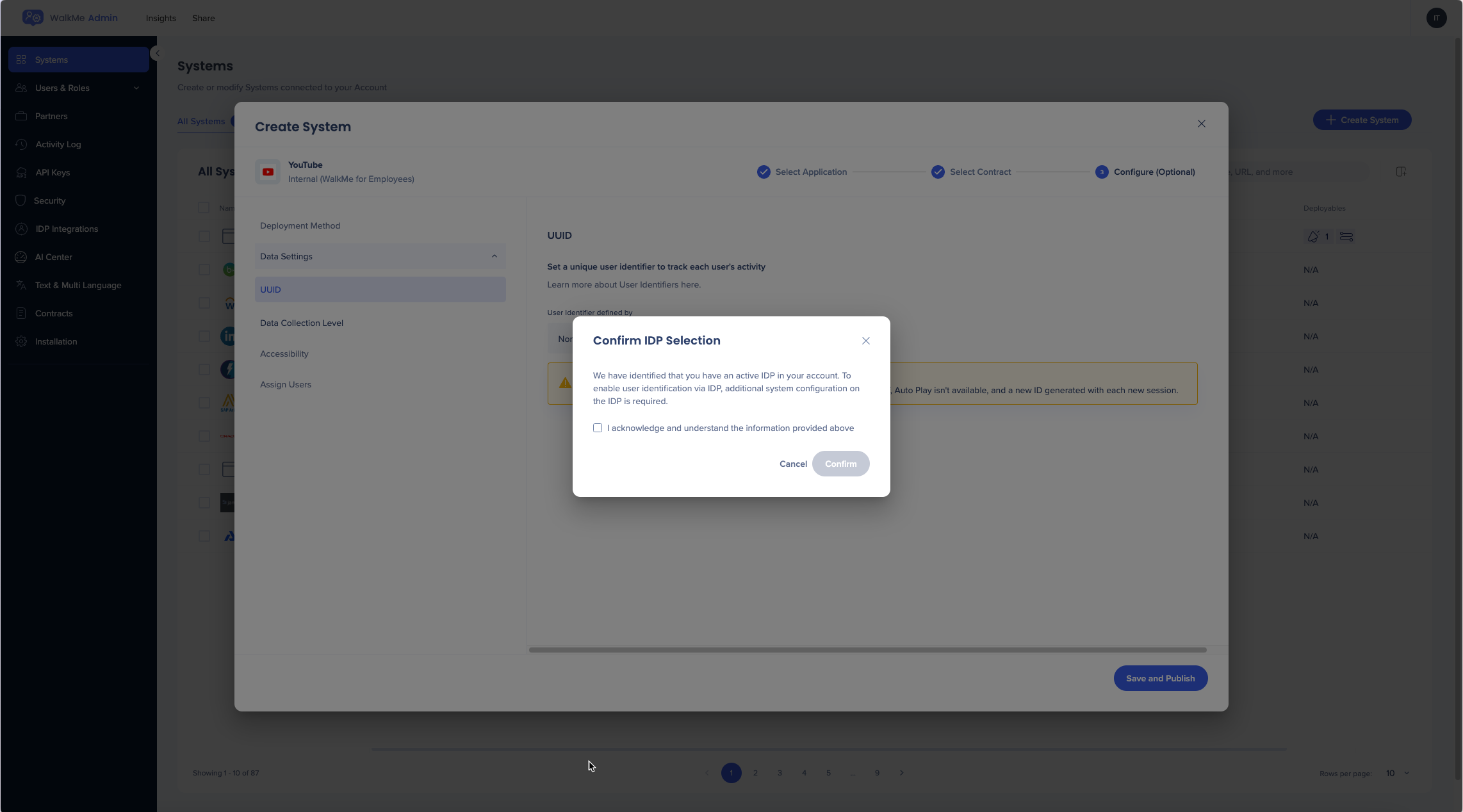
- If your account has at least one active IDP, a Confirm IDP Selection popup appears
Note
Selecting a value isn't enough. Complete the setup in the IDP integrations tab in the Admin Center, or no user analytics are collected.
- For help choosing a Unique User ID, contact your Customer Success Manager (CSM)
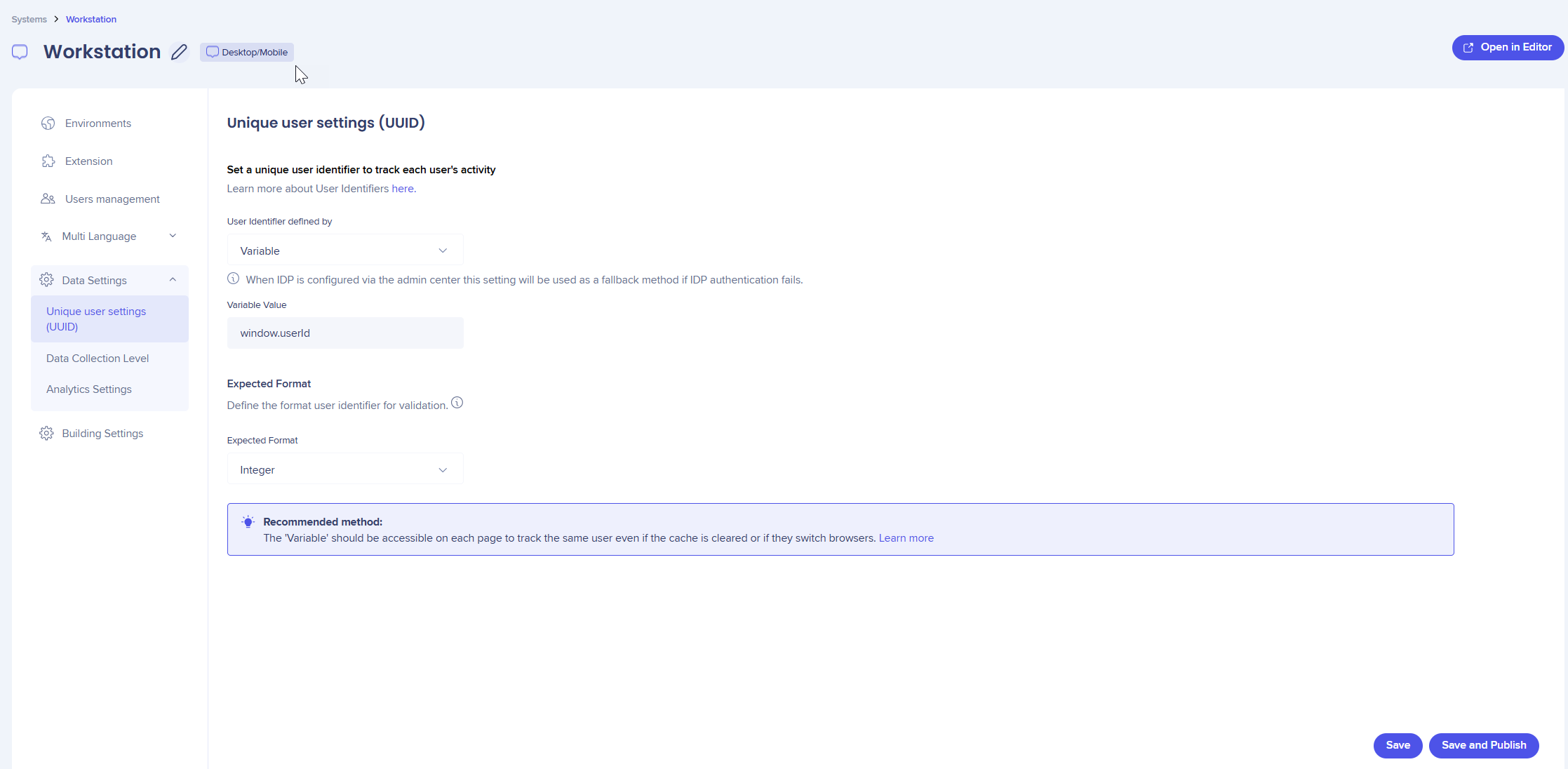
The expected format validates the value in the User Identifier field. The options are:
- Email
- GUID
- Integer
- Regular Expression: Custom Regex
- None (default)
After you define, save, and publish an expected format, WalkMe tags new user data as Valid or Invalid. In Console Insights, filter by User Validity: Valid returns users who match the format, and Invalid returns users who don't.

Technical design
At runtime, the WalkMe Player validates the user identifier and adds the $.wm.euIdIsVld attribute to each event.
$.wm.euIdIsVld
The attribute has one of these values:
- Undefined: No validation rule is defined
- True: Validation passes
- False: Validation fails
Use this attribute in Insights to filter events by validation result.
Data collection level
Set the data collection level during system creation. Only admins can set it, which ensures content is published with the correct level and no data is missed or delayed.

Insights: Getting Started Guide
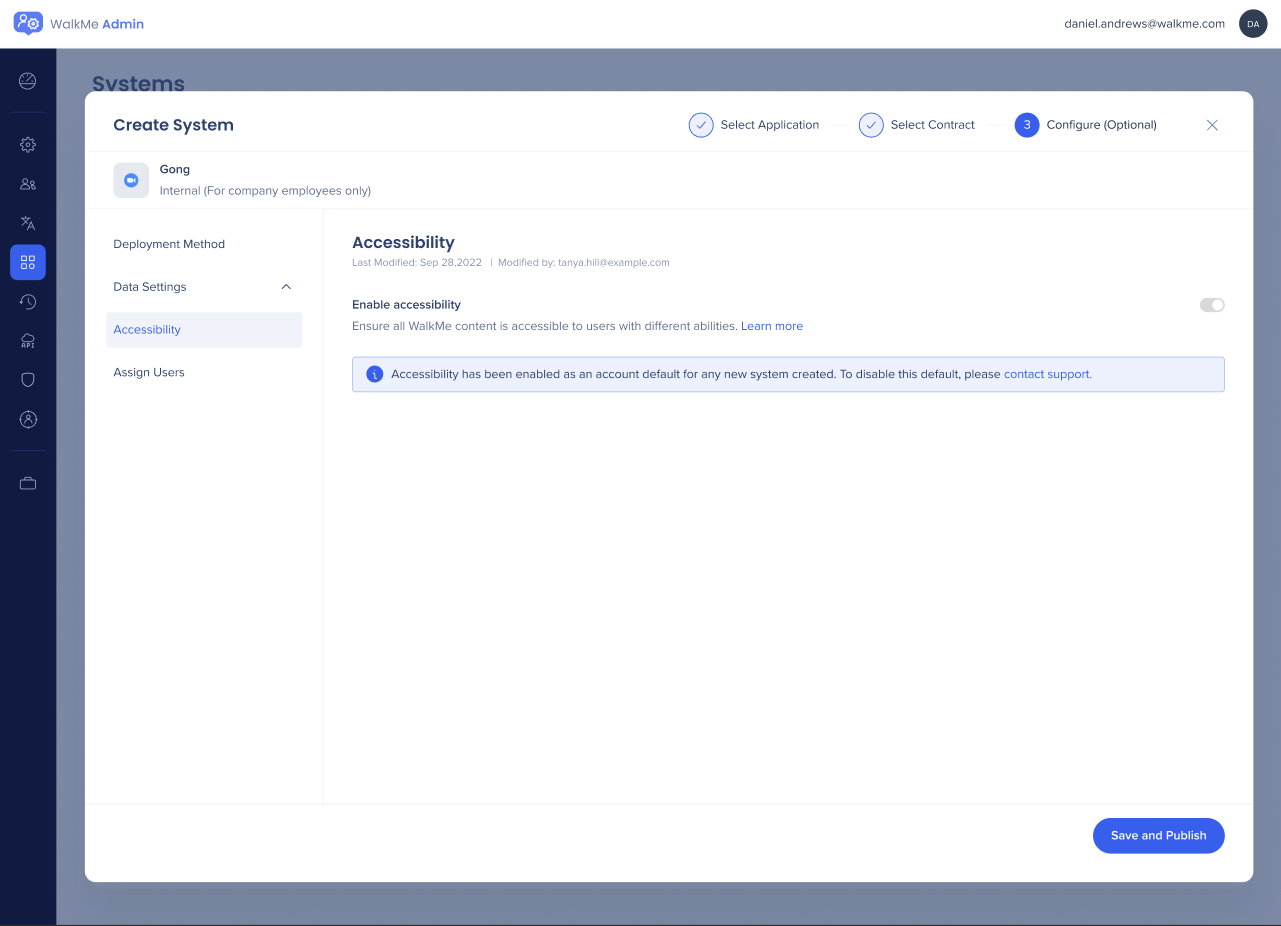
Accessibility
Turn on the toggle to turn on accessibility for the system. To turn it on by default for every new system on the account, select the checkbox. Existing systems aren't affected.
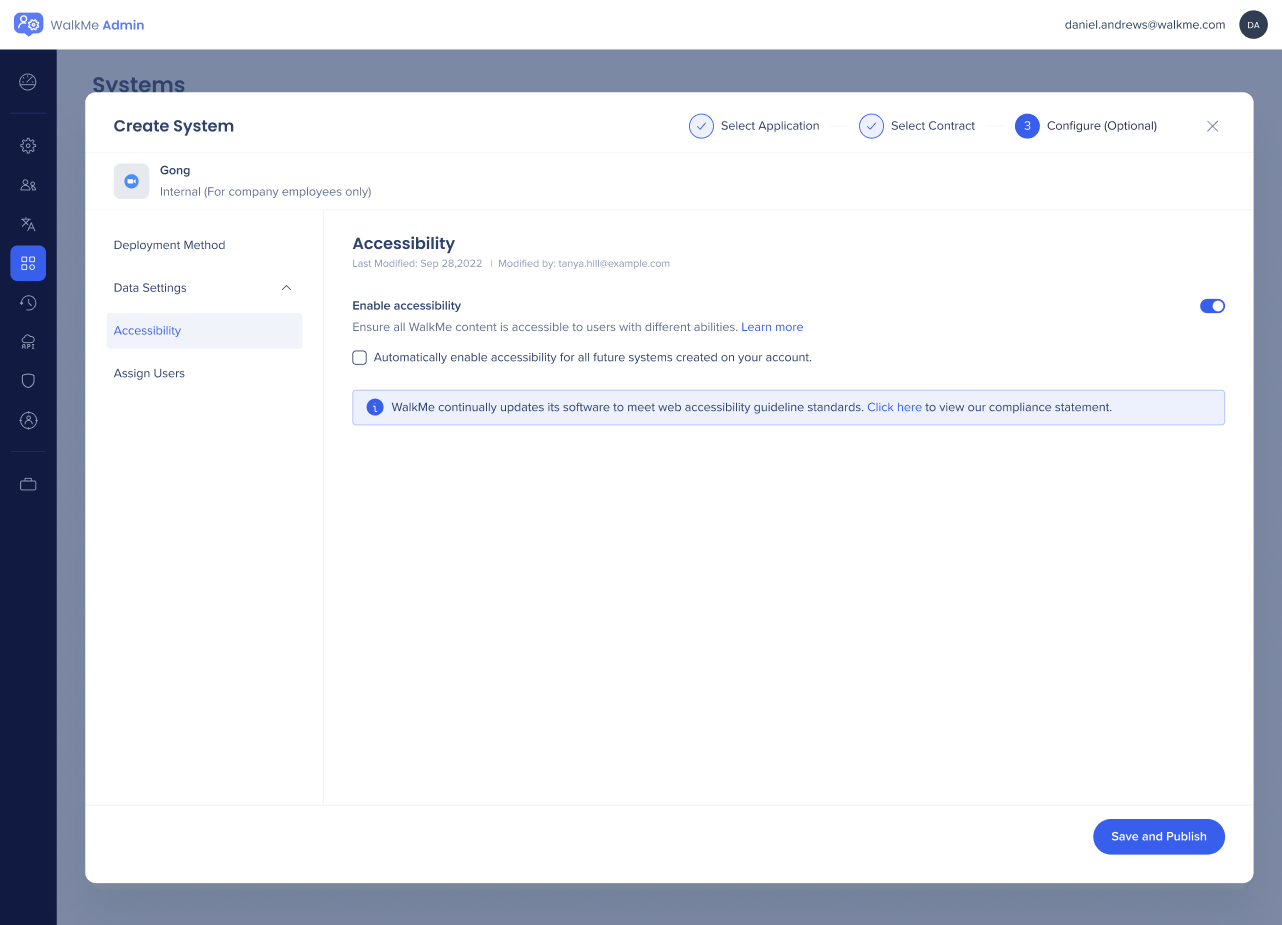
If accessibility was turned on at the account level, the toggle will remain on and can't be turned off without contacting support.
Security settings
If your organization has security requirements, contact your CSM to configure the new system before you publish any settings.
Publish settings
Settings take effect only after you publish. Select Save and Publish, review the changed settings, and choose Production, Test, or both.

Assign users
Bulk assign existing account users to the system. To create new users, go to the Users tab. You're automatically assigned to any system you create.
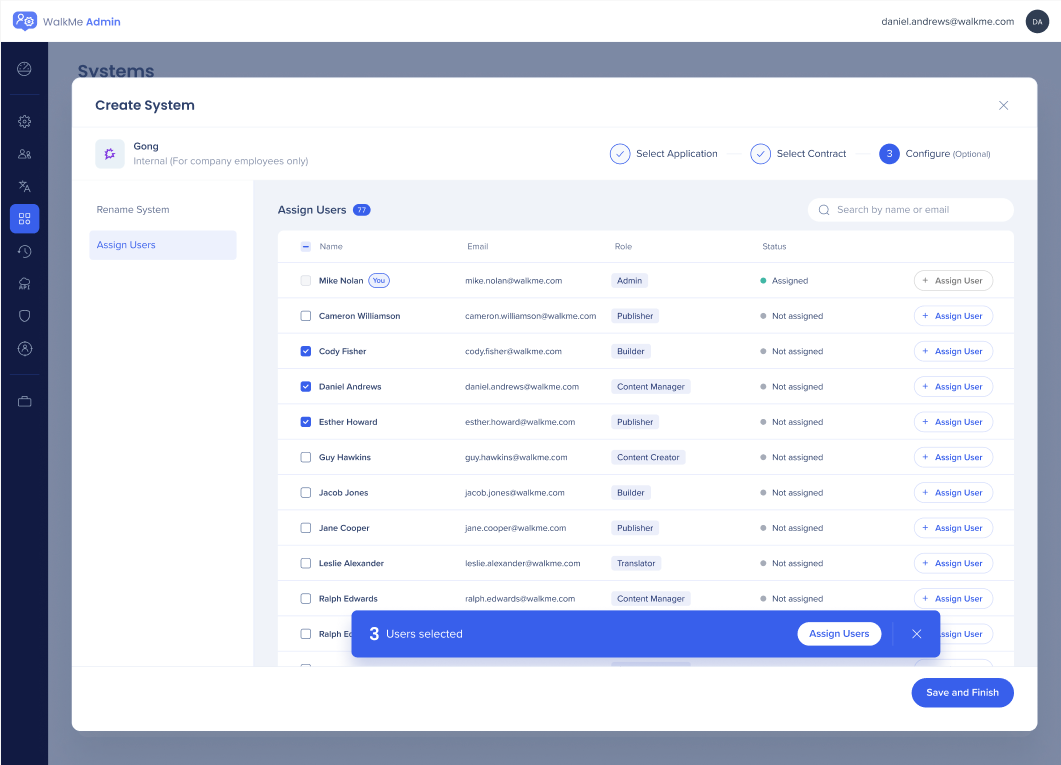
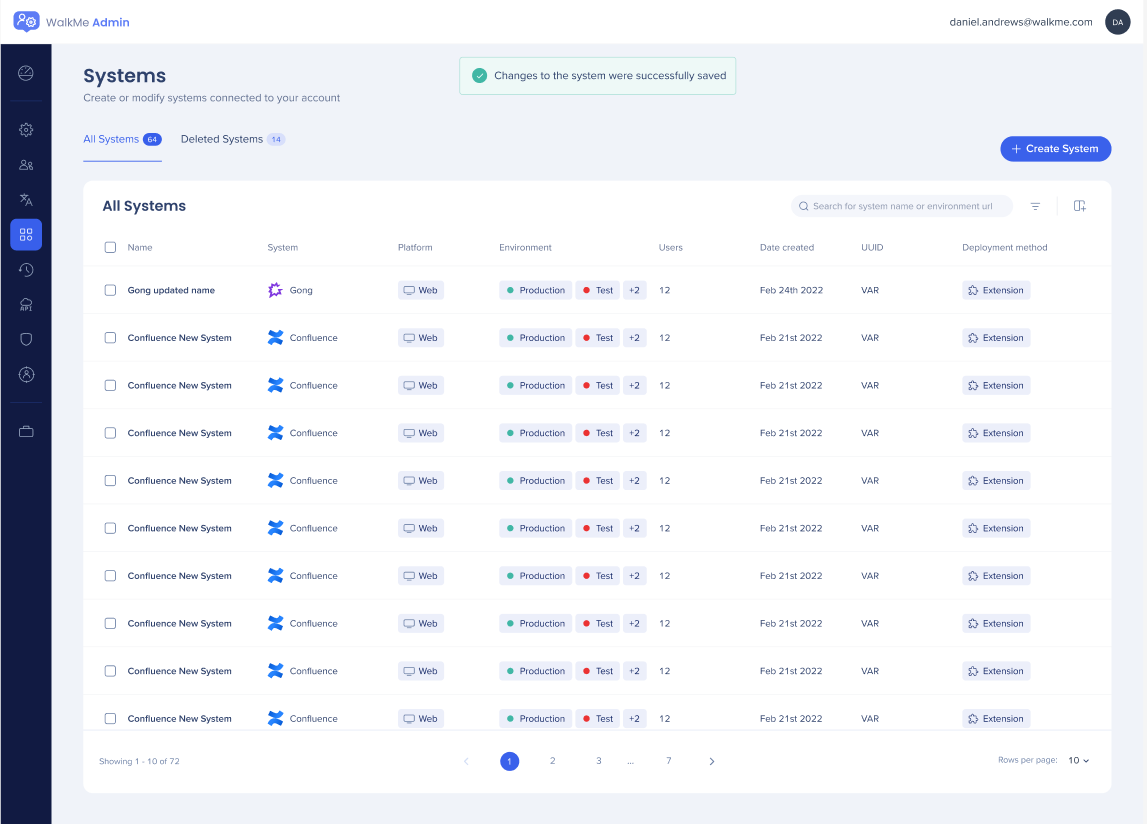
Select Save and Finish to return to the Systems tab.
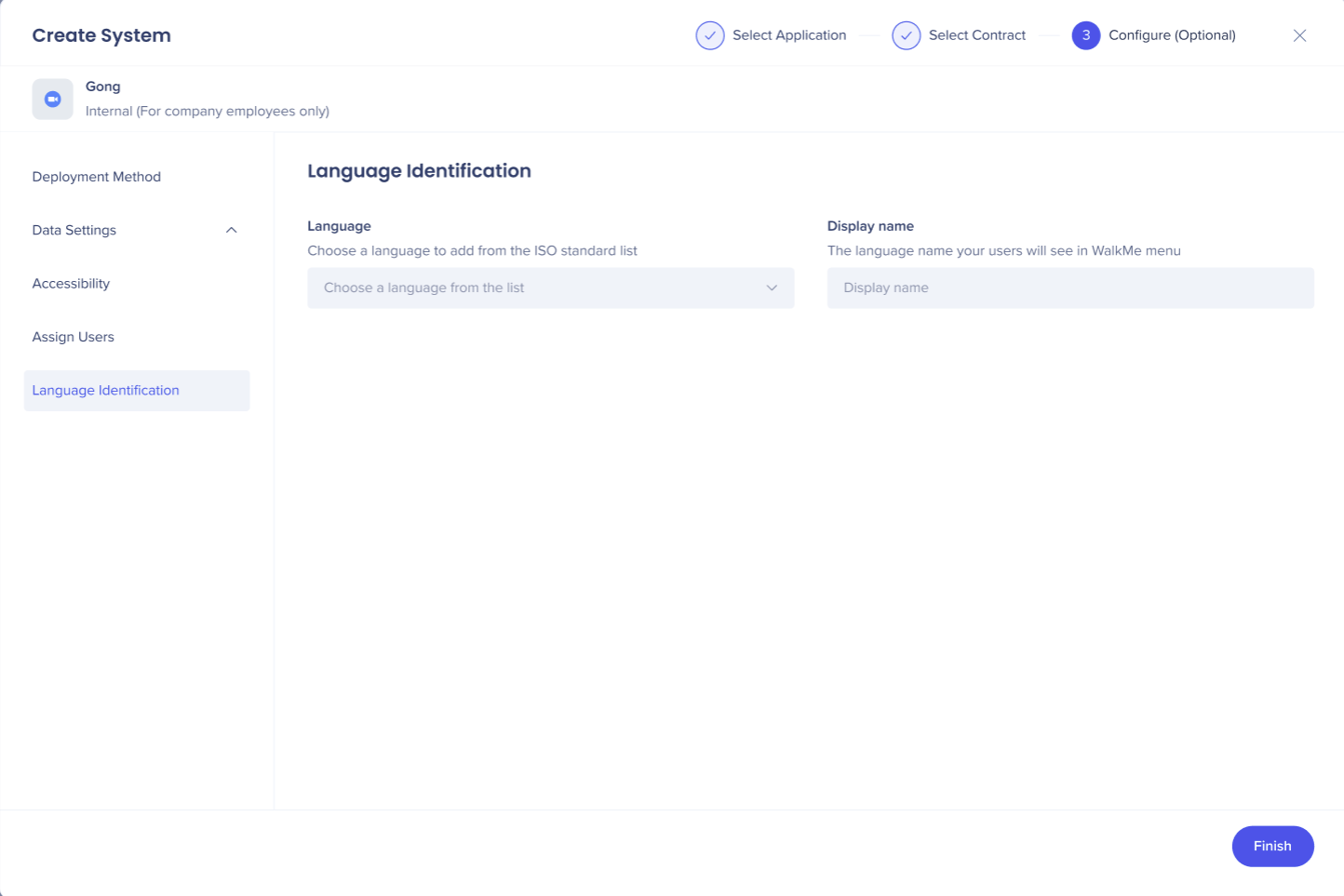
Language identification
Select a default language for the system.
Additional editor settings
After you create the system, open it in the editor and start building. If you see any of these issues that you didn't have on other systems, open a support ticket:
- You can't capture certain elements or pages
- You get a message that your site is a single page application (SPA), or content fails to load when the page changes without a refresh. For details, refer to Single Page Applications
- Published content doesn't appear, even though the URL is in your extension settings
Creating a System for Digital Adoption Teams
The following document explains how Digital Adoption teams that manage WalkMe across multiple systems can add a new system.
 Loading...
Creating an Contract-Based System
This flow is for specific contract-based systems.
Creating a Contract-Based System




 Reload document
 Open in new tab