Within WalkMe for Salesforce, you can use Salesforce Variables to segment the WalkMe assets you build to ensure that only content relevant to that user type is visible. Variables can also be used to create analytics reports about individual users based on their email or username to show their usage of WalkMe.
The Short Version
A variable is a value that can change depending on conditions or on information passed to the program through the browser. Salesforce provides a number of default variables that can be read and used by WalkMe for segmentation and in Insights. If there are variables you would like to use that are not enabled by default, speak to your Salesforce admin about adding them.
You can use variables to create segments that target specific users and present them with only relevant items. For example, if some ShoutOuts only apply to users in certain job roles, you can segment it by the role variable. For processes that are only relevant for users in North America, use the region variable.
Variables can also be used in user tracking to identify users. Use a variable that tracks email, ID, or even name to get a more accurate user count in your reports and put individual user actions in context. For example, pull reports on individuals who have completed their Onboarding tasks or not.
How It Works
To identify a Salesforce Variable, WalkMe will look into the HTML on the end user's Salesforce instance and pull the value. Salesforce Variables are checked against the value defined in the Segmentation Rule or user tracking settings. Salesforce Variables vary by user. Each variable value is represented as an 18 digit code and will change based on the person currently using the environment.
Salesforce has a number of default variables available within their system. To use the default variables within Salesforce, the variable name must start with “walkme_sf_vars.” Add the variable name after the period to use the variable within the Rule Engine.
For example: walkme_sf_vars.profileID
These WalkMe can read and segment by using the 18 digit version of the variable value. In some cases, Salesforce will supply a 15 digit version. You can learn how to convert variable values from 15 digits to 18 digits in our Salesforce course, linked at the bottom of this article.
Track Individual Users: Unique User Settings
Configure Unique User Settings to identify how you would like to identify users in WalkMe Analytics. By tracking an individual user you can associate engagement data with unique IDs. Tracking unique users, you will get a more accurate user count in your reports and put individual user actions in context. Unique User Settings are found in WalkMe Settings in the General tab. There are a few ways to track individual users. Only one option can be chosen at a time.
Tip
We recommend tracking by username, which is typically the user's email.
The tip above refers to tracking users in WalkMe Analytics only. For Unique User ID (UUID) configuration, you cannot use walkme_sf_vars values (including walkme_sf_vars.userName). Instead, UUID must be defined using variables like UserContext.userId, or other valid session identifiers that are not sourced from the SF Vars plugin.
Methods For Tracking Users
Use User Name (recommended)
- Use the Variable Identifier and input the WalkMe Salesforce username variable
- UserContext.userName
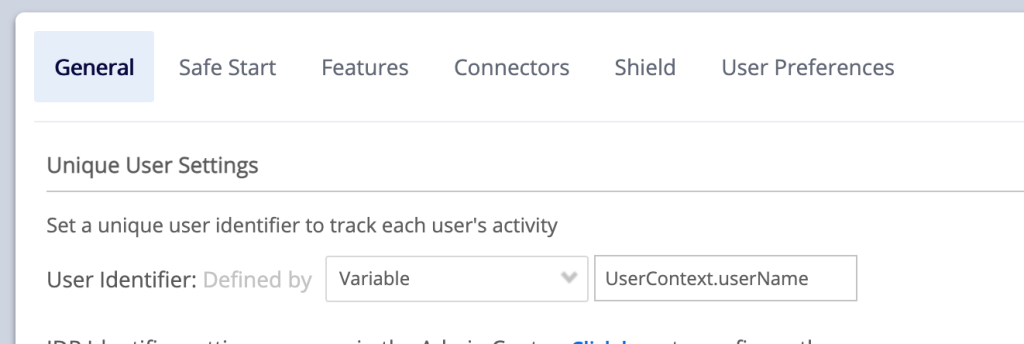
By Email or other variable
- If the user name is not the same as the user's email, you will first need to add it to your Salesforce instance as it is not one of the seven predefined Salesforce Variables
- After adding it in Salesforce Variable, you can use it as the variable by which to track unique users
Track Different User Types: Global Segmentation
Use variables in the rules in the Segmentation Center to target specific audiences. For example, if you have different Smart Walk-Thrus for admins and managers, create segments for each role type and define the segment by variable walkme_sf_vars.roleId is manager or admin. There are seven default sfvars available in WalkMe. Use the default seven in your segmentation rules without having to add them to your general settings.
Learn more about Segmentation.
Default Variables Available in Salesforce
Once sfVars is enabled for you by your Account Manager, the following variables can be used for segmentation:
- walkme_sf_vars.organizationId
- walkme_sf_vars.organizationName
- walkme_sf_vars.profileId
- walkme_sf_vars.roleId
- walkme_sf_vars.userId
- walkme_sf_vars.userLanguage
- walkme_sf_vars.userName
Note
The following variables are not available for use in Salesforce Lightning:
- walkme_sf_vars.organizationId
- walkme_sf_vars.organizationName
Finding the Current Variable Value
- Open the Salesforce account of an individual with the value you are looking for (for example, someone on the sales team)
- Enter full preview mode in the Editor
- Open the console by right clicking on the screen and selecting “Inspect”
- Type “walkme_sf_vars” into the console
- Press enter to see default variables in Salesforce
- If looking for the profile variable, search walkme_sf_vars.profileId and you will see the value for that account (for example, sales)
- If Salesforce returns a 15 digit variable, use a 15 to 18 converter such as this one
Using a Default Variable for Segmentation
- Create a new segment
- Select type User Data → Variable
- Type in the prefix “walkme_sf_vars.” and the default variable of your choice
- Choose an operator such as “Is” or “Is Not”
- Enter the Variable Value

Learn more about Segmentation.
Adding Additional Salesforce Variables
Salesforce exposes only the seven by default and will not look for any extra ones (for example, company or geography) in the HTML unless told and added within the General Settings. If you would like to track a variable that is not one of the default, you will need to have your admin add it to your site and add the variable name it in the Salesforce Variables field located in the General Tab in Settings.
To use variables in a rule, use the prefix “walkme_sf_vars.”
In the example below, a customer added an email variable to their environment and is using it for Unique User Tracking.

Note
Adding a variable is entirely separate from Unique User Tracking and will not affect it.
Note
The image above is misleading. Variables from walkme_sf_vars (e.g., walkme_sf_vars.Email) cannot be used to define Unique User IDs. Please remove this from the UUID field and define it instead using supported identifiers such as UserContext.userId or other persistent session-level variables.
How to Add Additional Salesforce Variables
The variables in Salesforce's setup page are referred to as Fields, and can be found in their Salesforce site's Setup page by going here:
Setup > Objects and Fields > Object Manager > User > Fields & Relationships
There are two types of these fields:
User Custom Fields
- If you want to add a variable under the User Custom Fields section, you will need its API name, which should end in "__c"
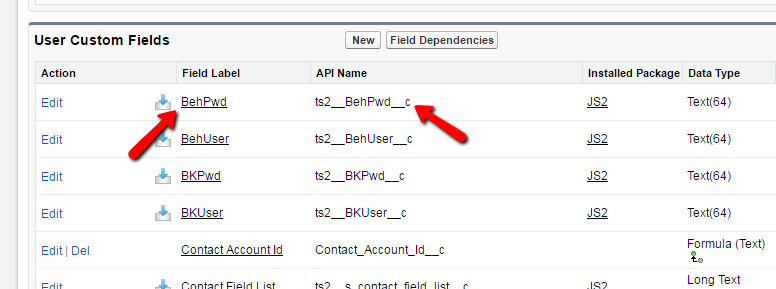
- In the example image, to add the BehPwd variable, you would need to type ts2__BehPwd__c into the Salesforce Variable field
- After adding the API name to the Salesforce Variable field, the custom variable will need to written as walkme_sf_vars.ts2__BehPwd__c when configuring it as a variable rule in the Rule Engine (note the case sensitivity)
- This applies to all Salesforce user variables
User Standard Fields
- If you want to add a variable under the User Standard Fields section, we will need its Field Name
- In this image, to add the About Me variable, you would need to type AboutMe into the Salesforce Variable field
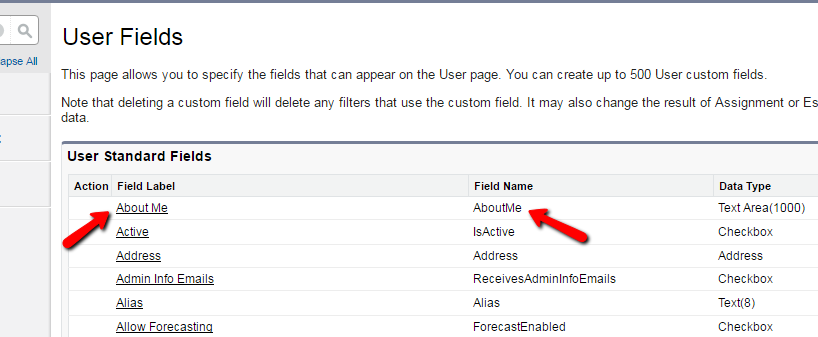
Note
"Lookup" type fields are not currently supported.
Salesforce User Permission Sets Segmentation
To do this, simply add a custom variable called "userPermissionSets".
- In the WalkMe Editor, go to System settings
- In the General tab, look for Salesforce Variable
- Add a new variable called userPermissionSets
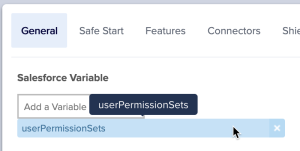
- Click Add and then Save
- Click Publish settings
- You will now be able to access a variable called window.walkme_sf_vars.userPermissionSets
Salesforce Groups Segmentation
In large organizations segmentation by Role ID or Profile ID is almost impossible due to the large number of different combinations of them, to have make use of this more usable WalkMe can now use a feature in Salesforce called "Public Groups".
Salesforce Administrators and delegated administrators can create public groups, to segment: Groups are sets of users. Groups can contain individual users, other groups, the users in a particular role.
To do this, simply add a Custom Variable called "userGroups".
This data will then appear on window.walkme_sf_vars.userGroups, as well as window.walkme_SF_Groups for backwards compatibility with the legacy SF Groups plugin.
Example of output:


