Brief Overview
Segments let you target and organize learning content for specific user groups in the portal and in-app. Each segment defines which users can access particular courses, paths, or learning items, helping administrators deliver tailored learning experiences
Configure SCIM with Okta
Access
To access the Segments page, navigate to it by clicking on the Segments page in the console navigation or use a direct link to the page:
How It Works
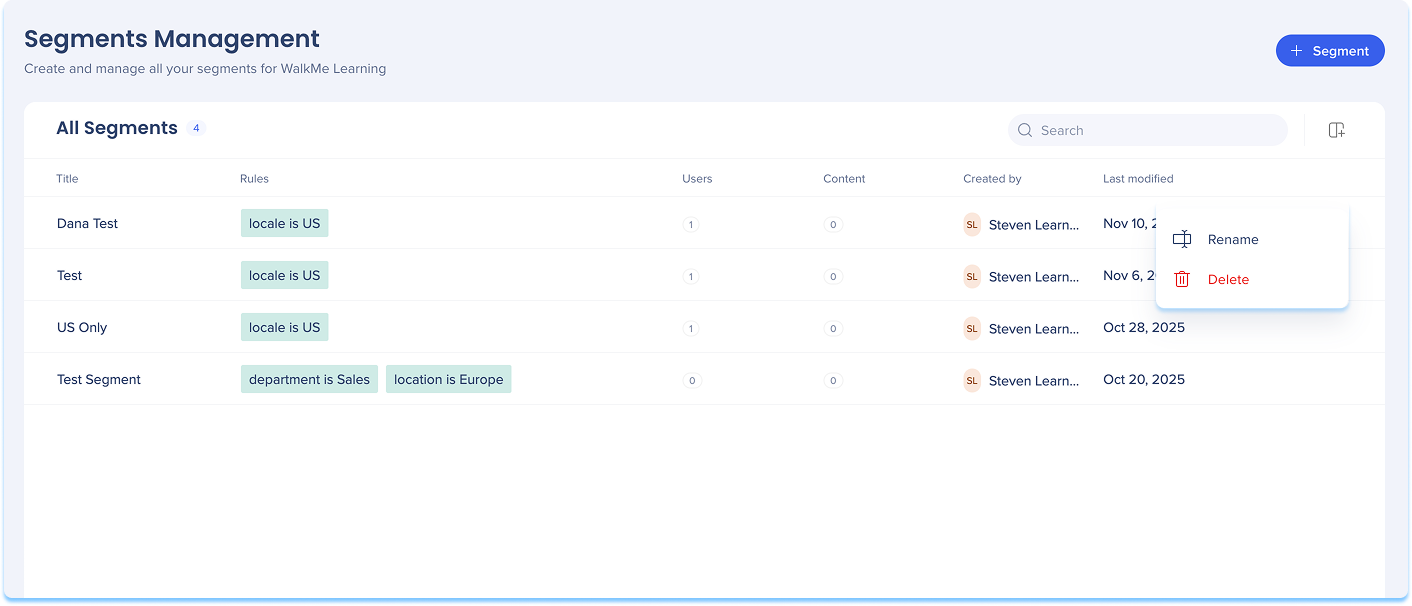
Segments Management page
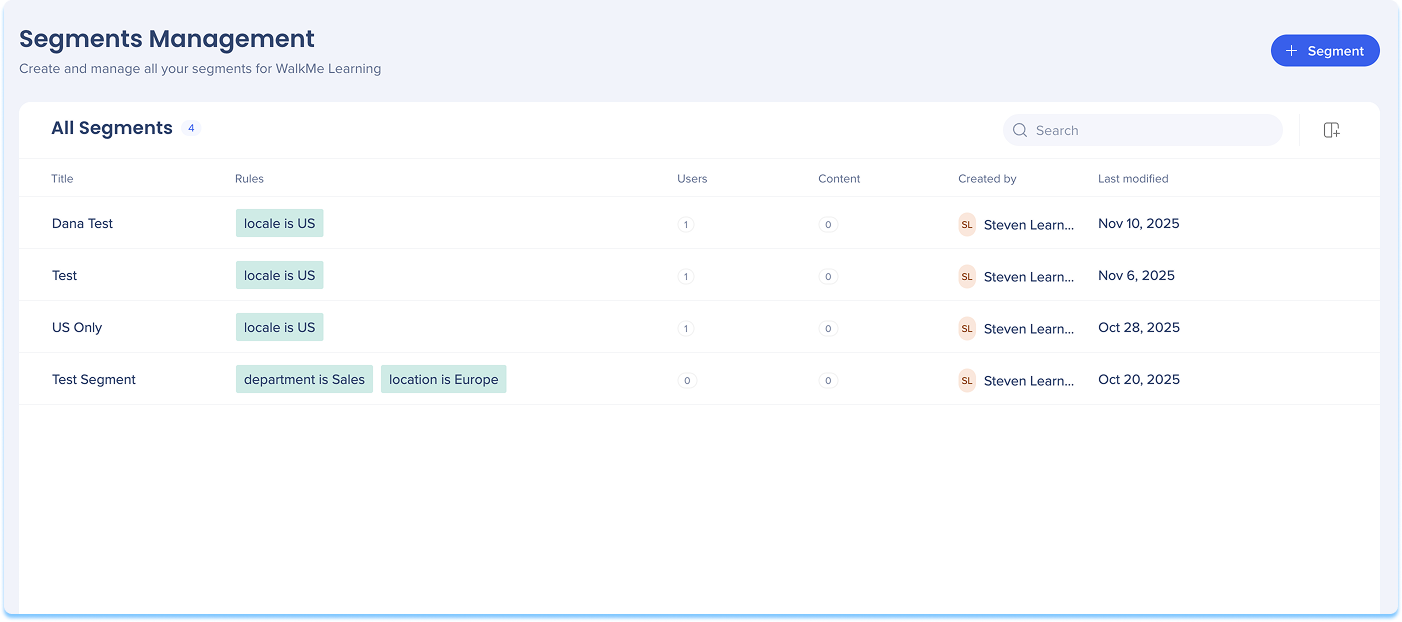
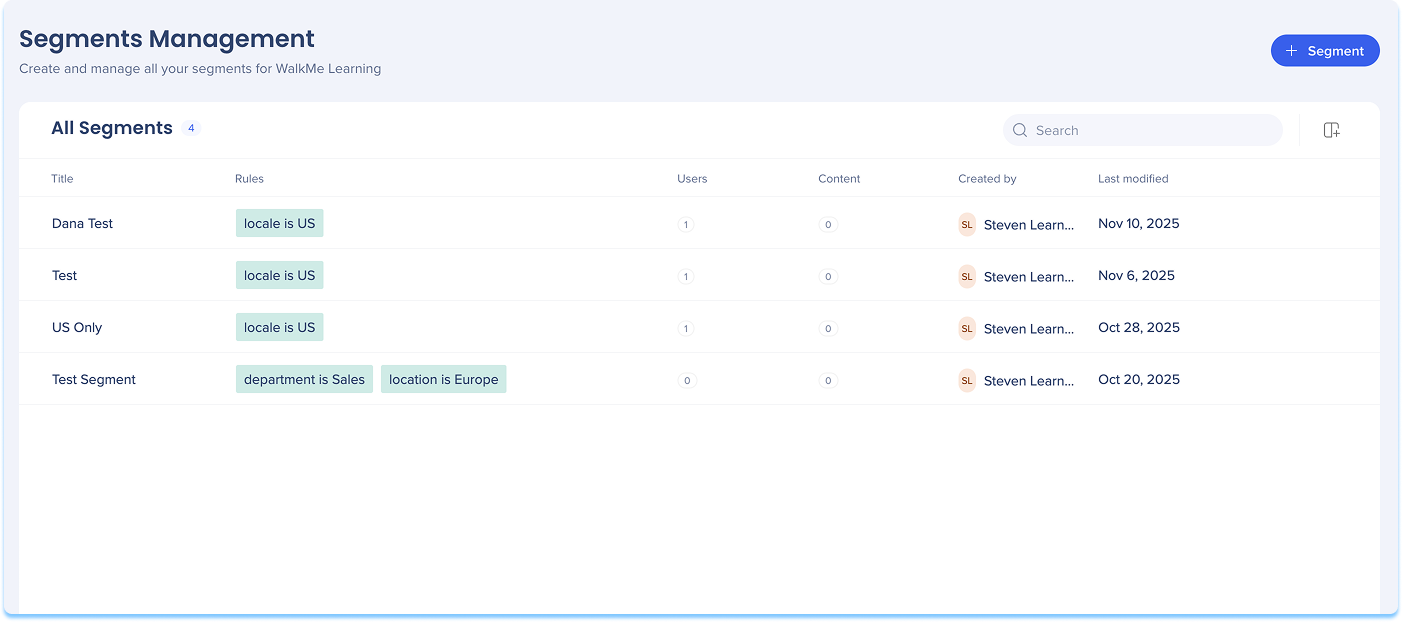
The Segments Management page lets you add, edit, rename, or delete segments used in learning content.
Add a segment from Segment Management
- Go to the Segments page
- Select + Segment
Note
Segments can be added from either the Learning Content page or the Segments Management page.
See below to learn how to add a segment from the Learning Content page.
-
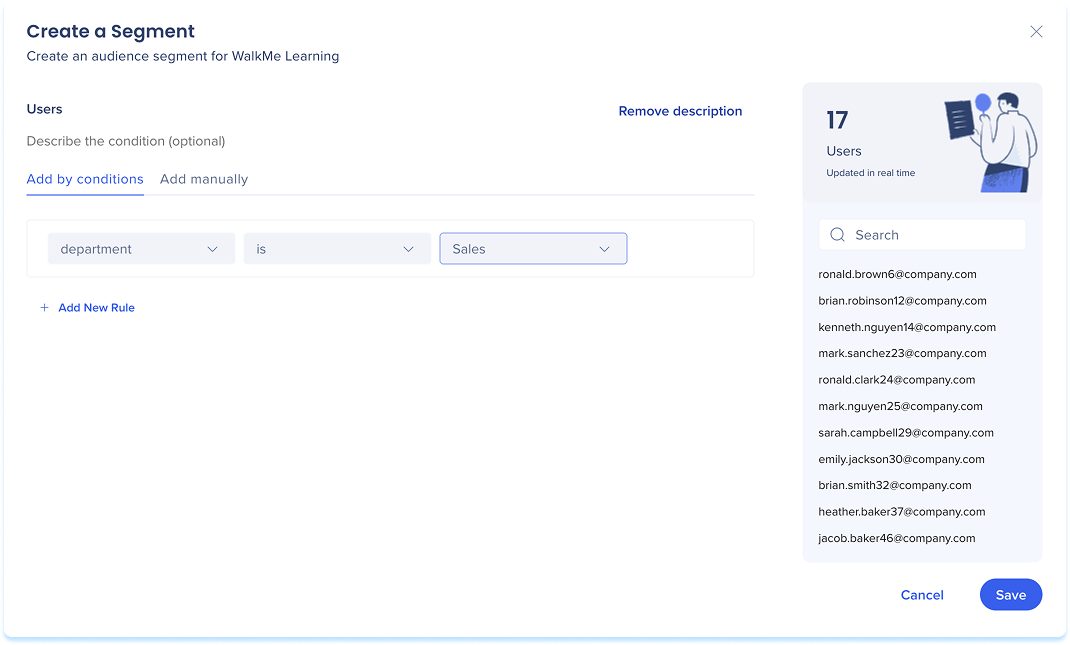
The Create a Segment builder opens
-
Enter a Title for your segment
-
Select Add description to explain the segment's purpose or audience (optional)
-
Choose how to define the segment:
-
Add by conditions: Use rules based on user attributes from your IDP
-
Add manually: Enter user email addresses directly
-
The Users panel updates in real time as you add conditions
-
Select Save
Search capabilities
- Use the Search bar to quickly find a segment by name or attribute
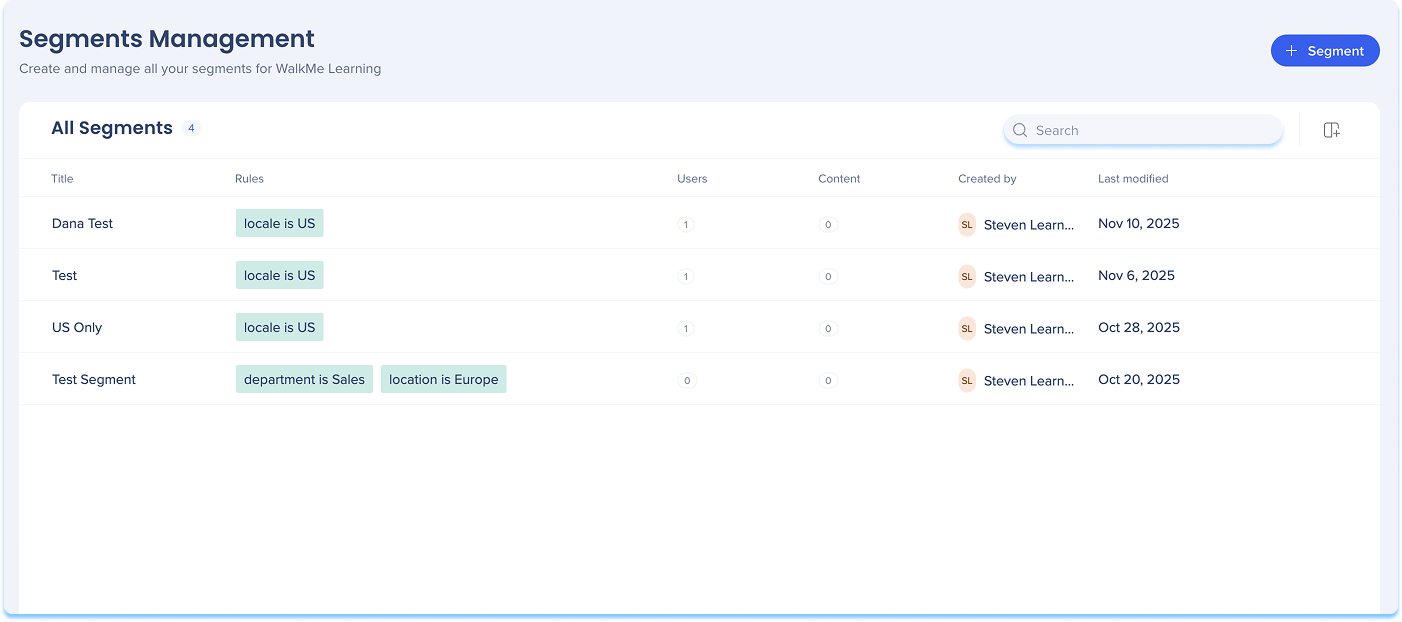
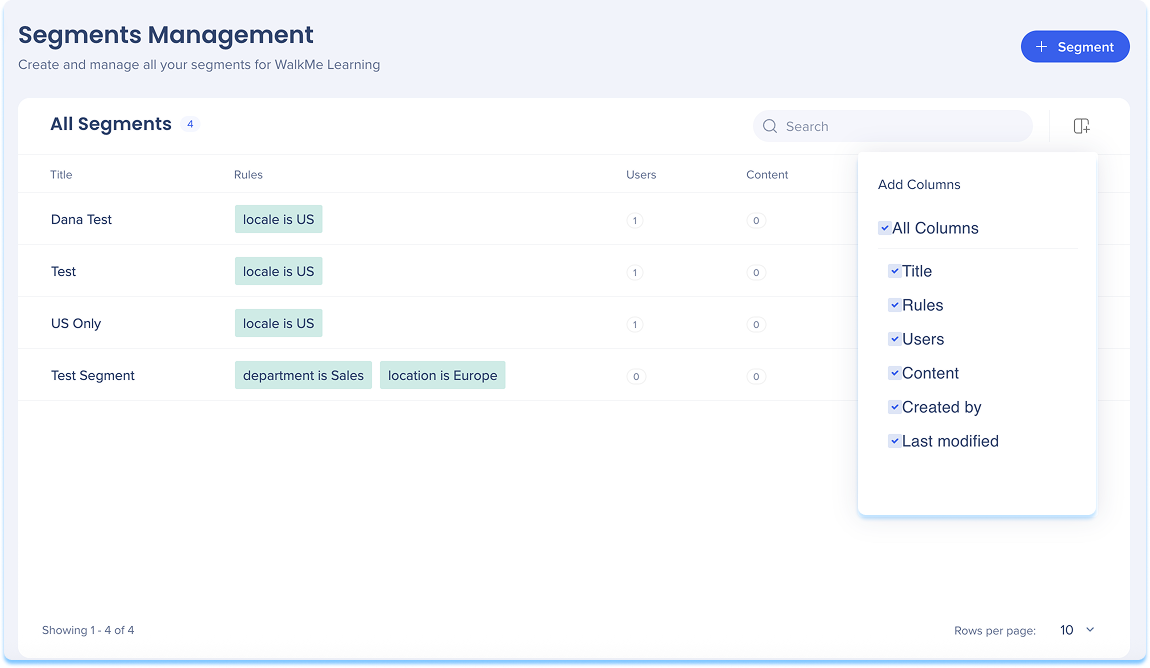
Columns
- Select the Manage Columns icon to choose which columns appear in the table
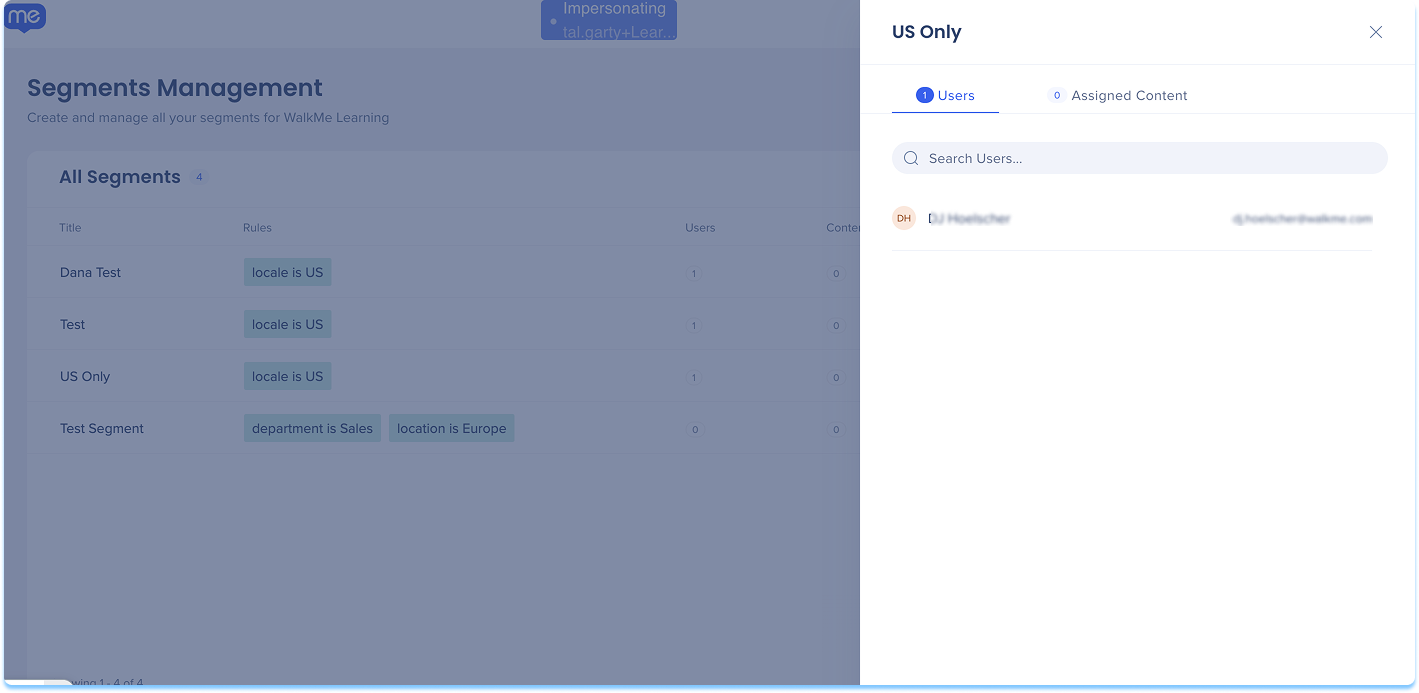
- Select the Segment information icon next to the item row to open the information panel
- The panel includes two tabs:
- Users
- Assigned content
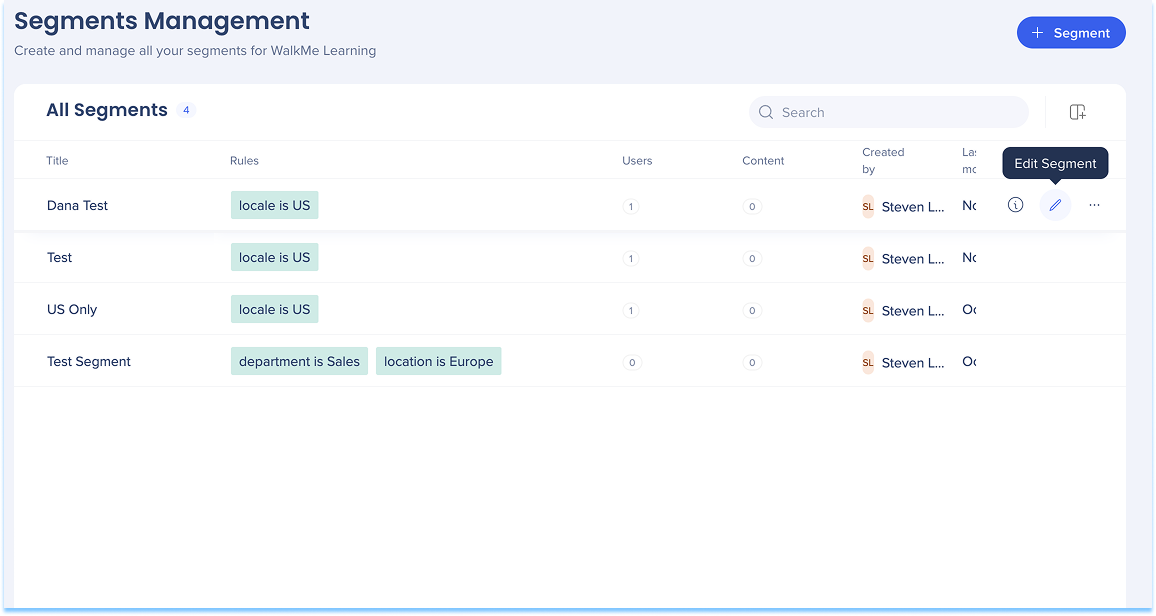
Edit segment
- Select the Edit icon next to a segment
- The Create a Segment builder opens with your current conditions
- Update the rules or attributes as needed
- Select Save to save your changes
Note
Editing a segment will reset all its saved data and may disrupt the delivery of WalkMe items connected to the segment.
Segment options
- Select the Options menu next to a segment, then choose one of the following actions:
- Rename: Change the segment's name
- Delete: Remove the segment
Note
You can't delete a segment that's currently connected to content. To delete it, first remove it from the Learning Content page, then return to Segments Management and delete it.
Segments in the Learning Content page
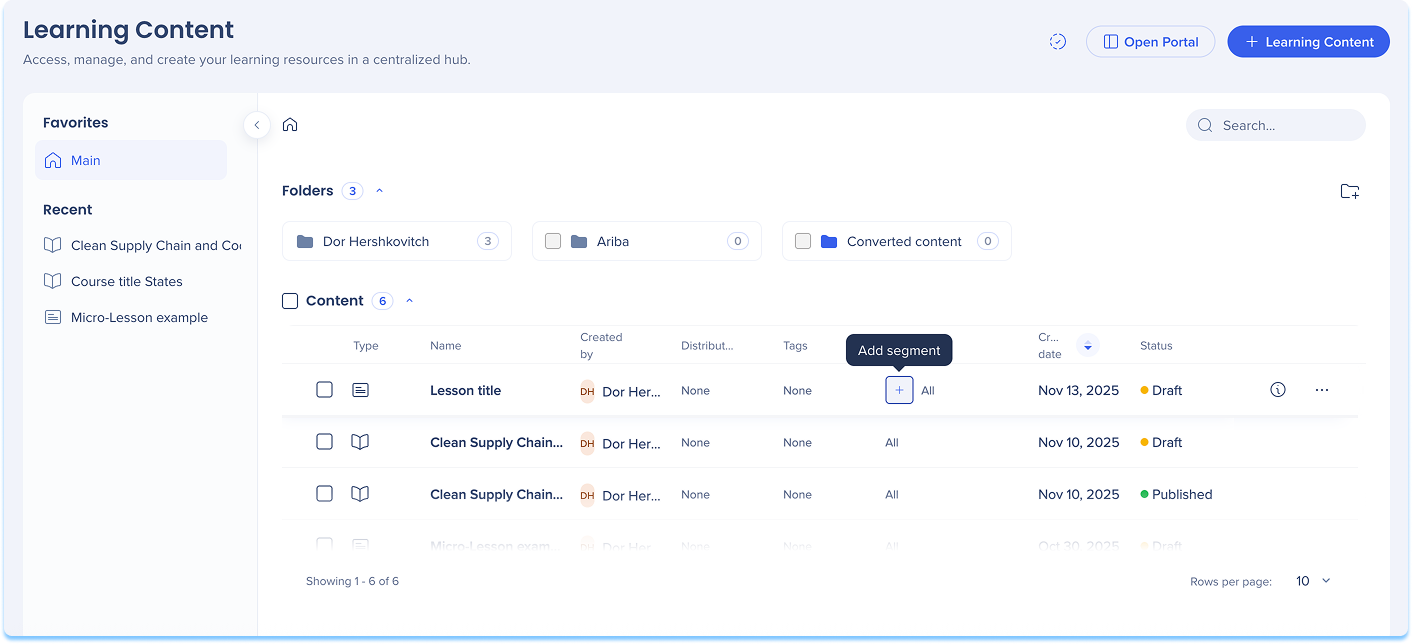
Segments can be added and assigned in the Learning Content page. Use this page to create new segments or apply existing ones to learning items.
Add a segment from Learning Content page
- Go to the Learning Content page
- In the Segment column, select the + Add icon
Note
Follow the same instructions as described in Add a segment from Segment Management above.
Apply segments
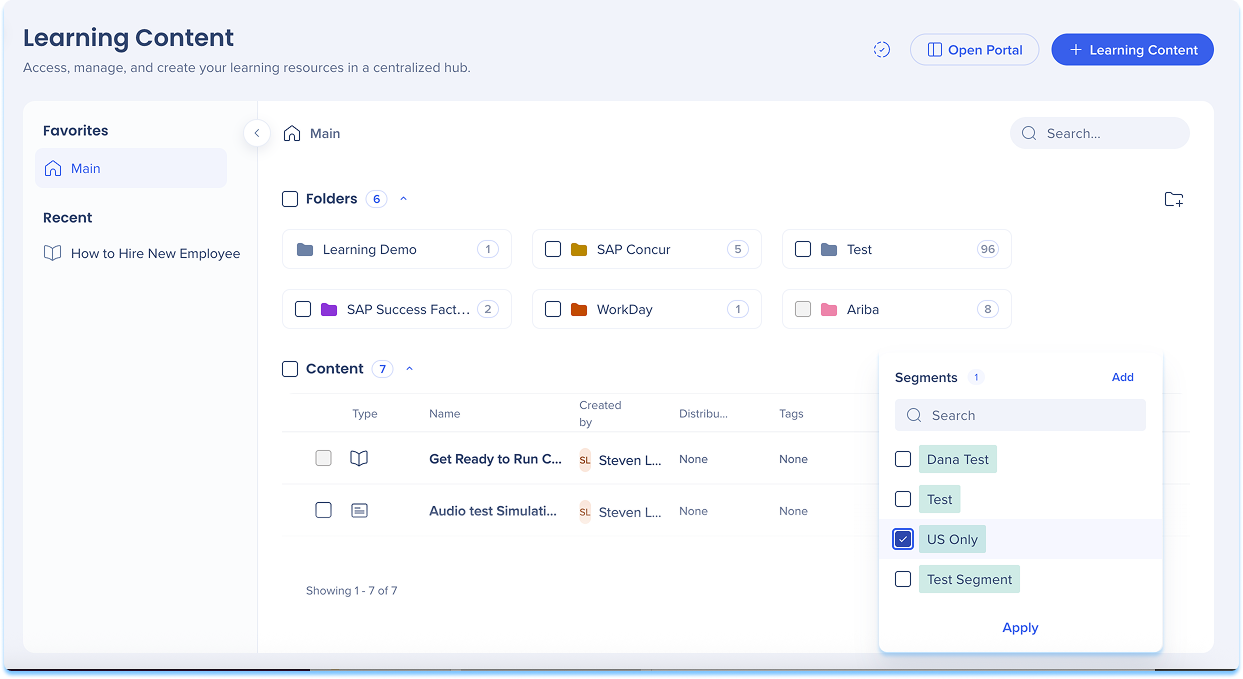
Apply an existing segment to content:
- In the Segment column, select the + Add icon
- Choose an existing segment from the list
- Select Apply to connect it to your content
Apply segments to multiple items
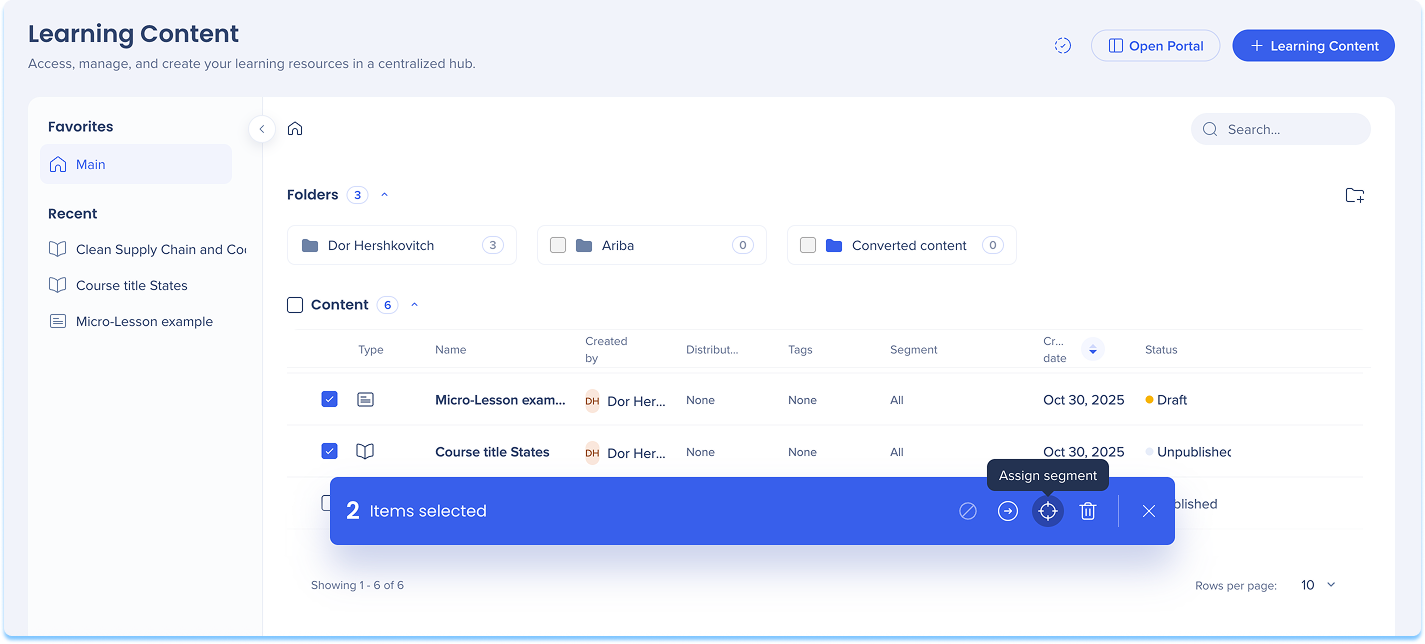
- Select the checkboxes next to the learning items you want to assign
- In the floating toolbar, select Assign Segments
- Choose one or more segments
- Select Apply