Brief Overview
The Survey Builder includes tools for configuring survey behavior, managing survey structure, applying conditional logic, and customizing the survey's visual appearance. These capabilities help builders control how surveys display, behave, and adapt to user responses.
This article covers survey settings, page and question management, survey logic, and theming options available when building surveys in the WalkMe Console.

Access
You can access the Surveys Builder page from the WalkMe Console.
WalkMe Surveys in the Console
How It Works
Survey appearance and behavior
Settings
Survey settings control how and when surveys are displayed to users.
Note
To access survey settings, the survey must be saved first.
- Click the Settings icon at the top of the page
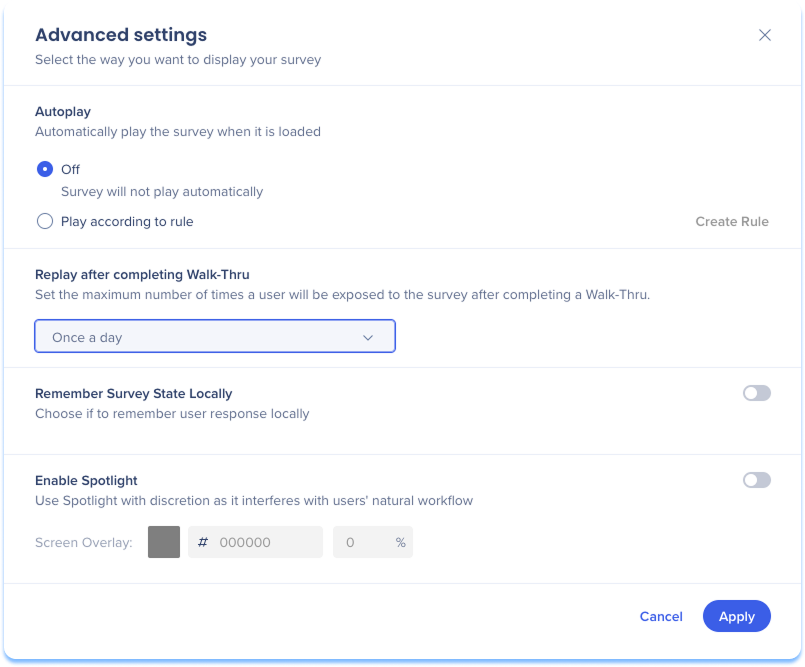
- An Advanced Settings popup will appear where you can configure the following settings:
- Autoplay: Controls whether the survey plays automatically when loaded
- Off: The survey does not play automatically
- Play according to rule: Automatically plays the survey based on defined conditions
- Select Create Rule to configure rules using the condition builder
- Replay after completing Walk-Thru: Sets the maximum number of times a user is exposed to the survey after completing a Walk-Thru
- Remember Survey State Locally: Saves the user's survey progress locally on their device
- Enable Spotlight: Fades the background when the survey is displayed
- Screen Overlay: Adjust the overlay color and opacity
- Select Apply
Change survey title
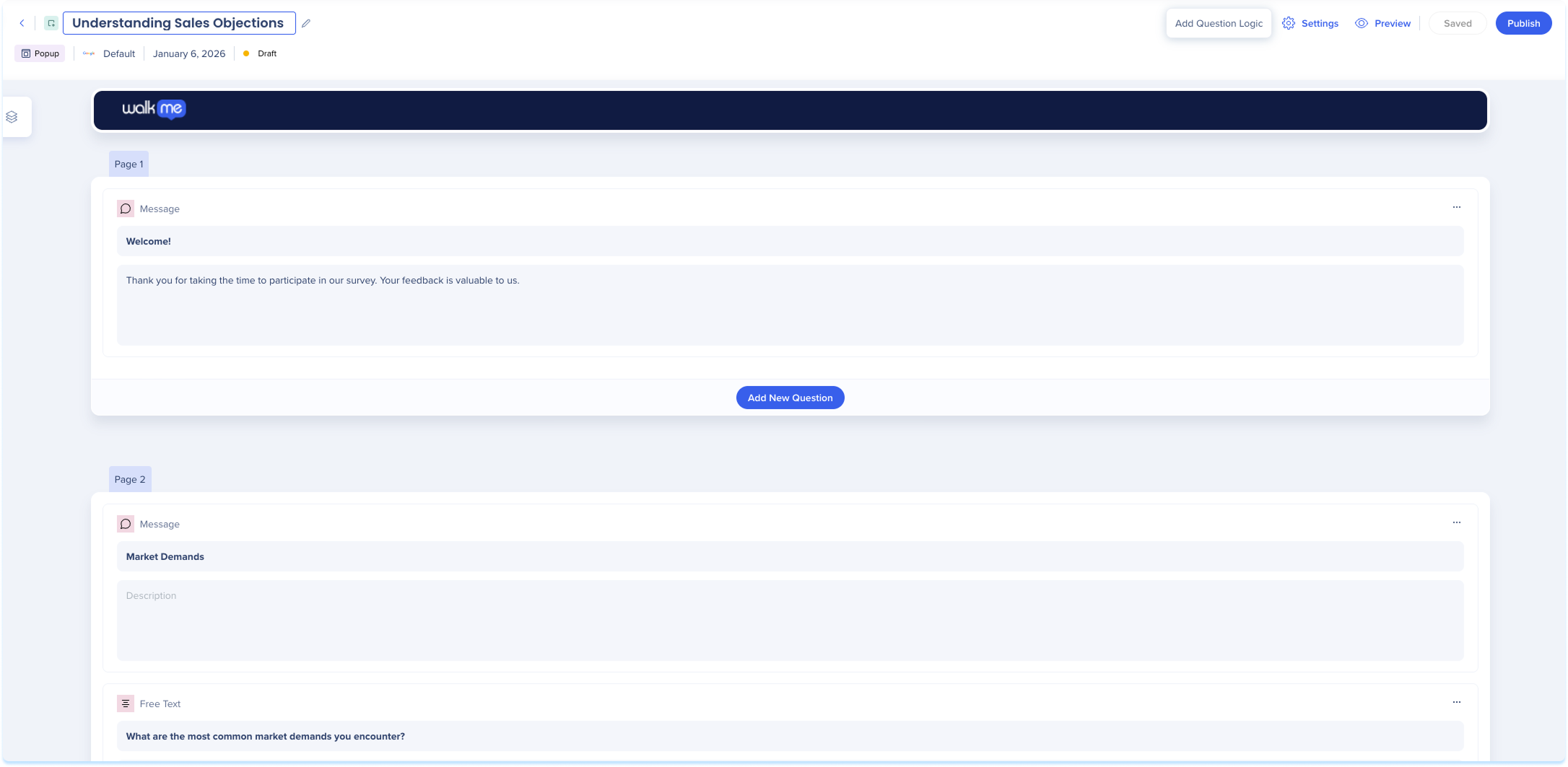
You can update the survey title at any time.
- Select the title field next to the edit icon
- Enter a new name
- Press Enter
Change survey logo
You can add or update a survey logo.
To change the logo:
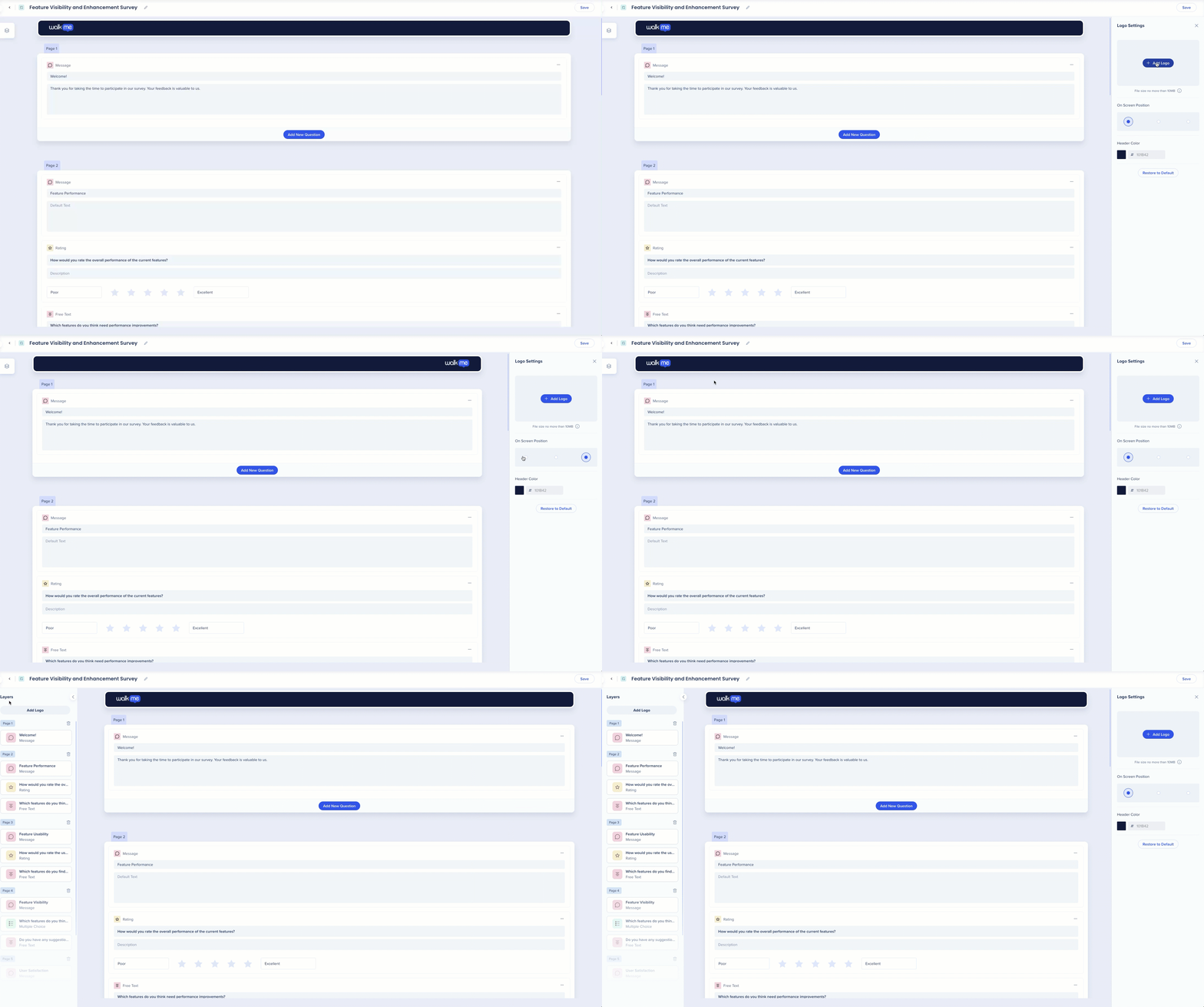
- Open the logo settings by doing one of the following:
- Select the logo at the top of the page
- Select the Layers icon
- Select Add Logo
- The Logo Settings panel opens
- Select Add Logo to upload an image
- Adjust the position of the logo on the screen
- Change the header color (optional)
Thank you page
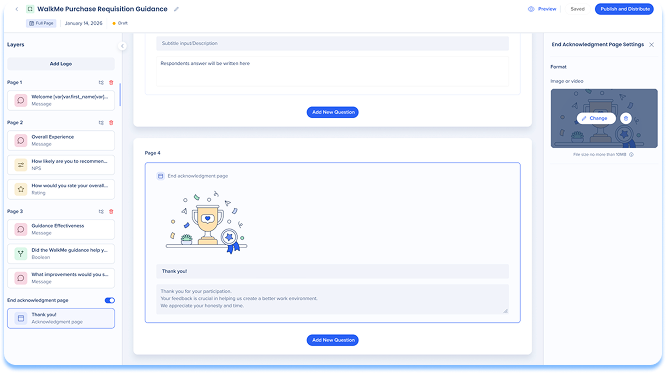
Customize the thank you page to confirm submission and provide a branded closing experience for your users.
To show and update the thank you page:
- Select the Layers icon
- Turn on the End acknowledgement page toggle
- You can customize the following:
- Title: Add a headline to thank the user or confirm their response was received
- Description: Provide additional context, instructions, or next steps
- Media: Upload an image or video to enhance the visual experience on the End Acknowledgement Page Settings
Manage survey pages and questions
You can manage survey pages and questions from the survey main canvas or the layers panel.
Page actions
Page actions allow you to manage survey structure and logic.
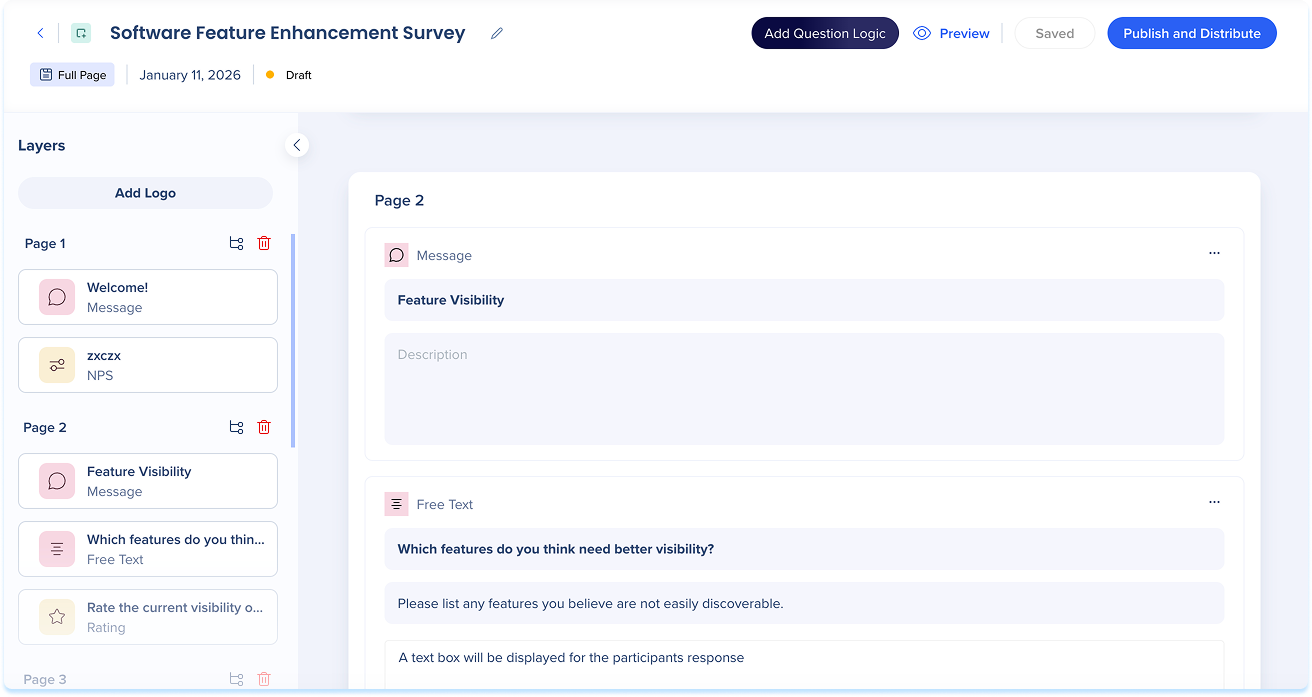
To manage a page from the layers panel:
- Select the Layers icon
- The following actions are available:
- Add Logic: Opens the logic configuration for the page
- Delete Page: Removes the page from the survey
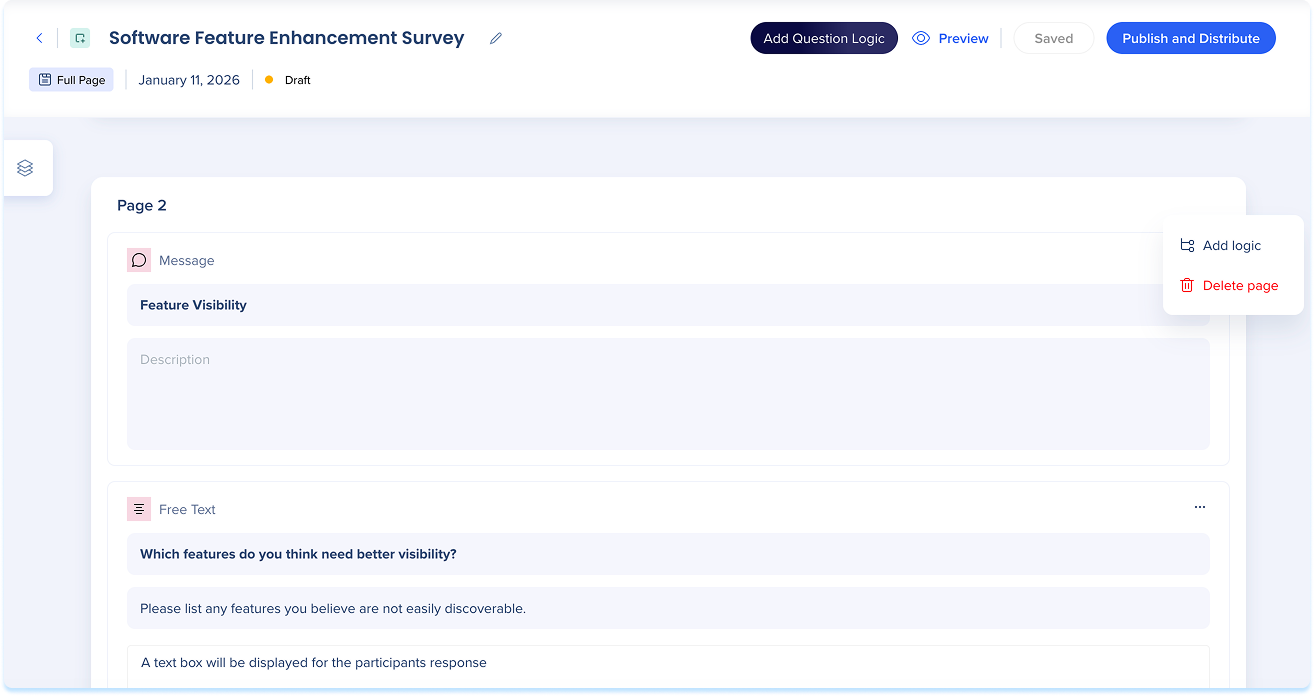
To manage a page in the main canvas:
- Hover over the page container
- Select the Options menu
- The menu includes:
- Add Logic: Opens the logic configuration for the page
- Delete Page: Removes the page from the survey
Note
If the page does not include any of the supported question types, clicking the page number tab will not open the logic settings panel and the “Add Logic” option within the layers panel will be disabled.
Note
Learn more about logic in the section below.
Question actions
Question actions allow you to manage individual questions.
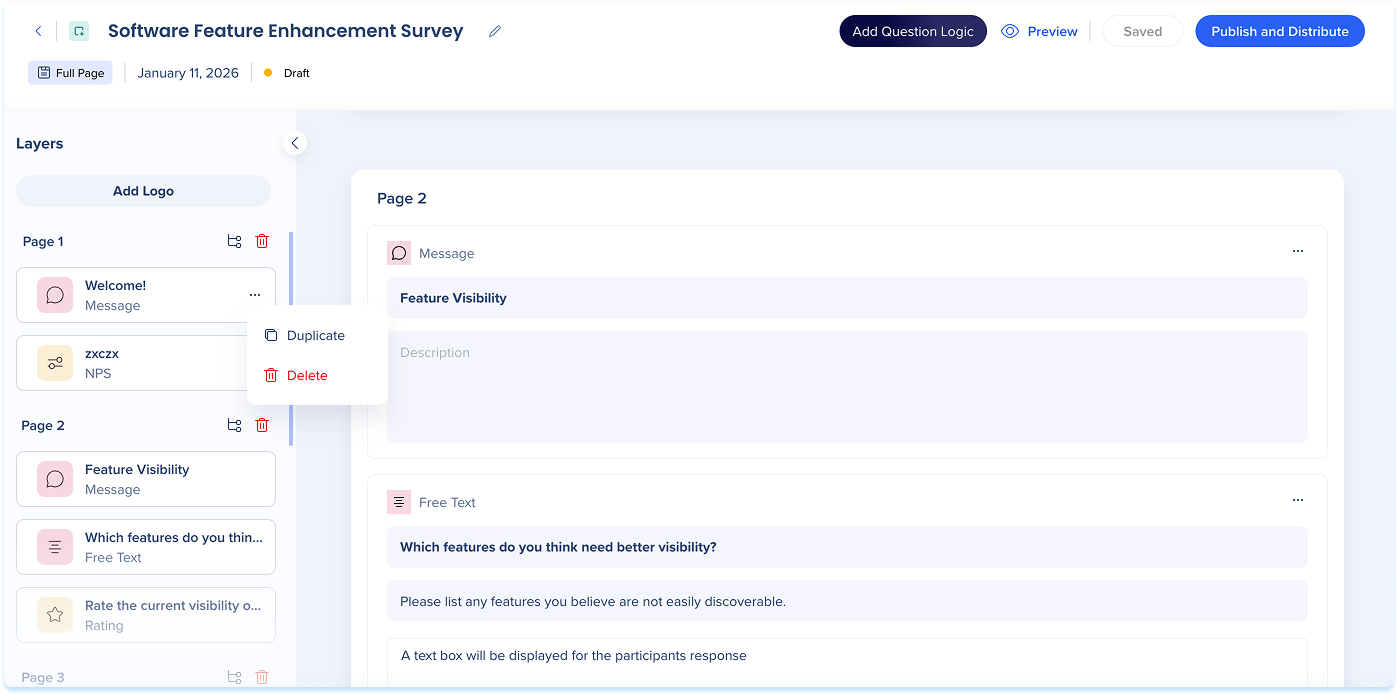
To manage a question from the layers panel:
- Select the Layers icon
- Select the Options menu
- The following actions are available:
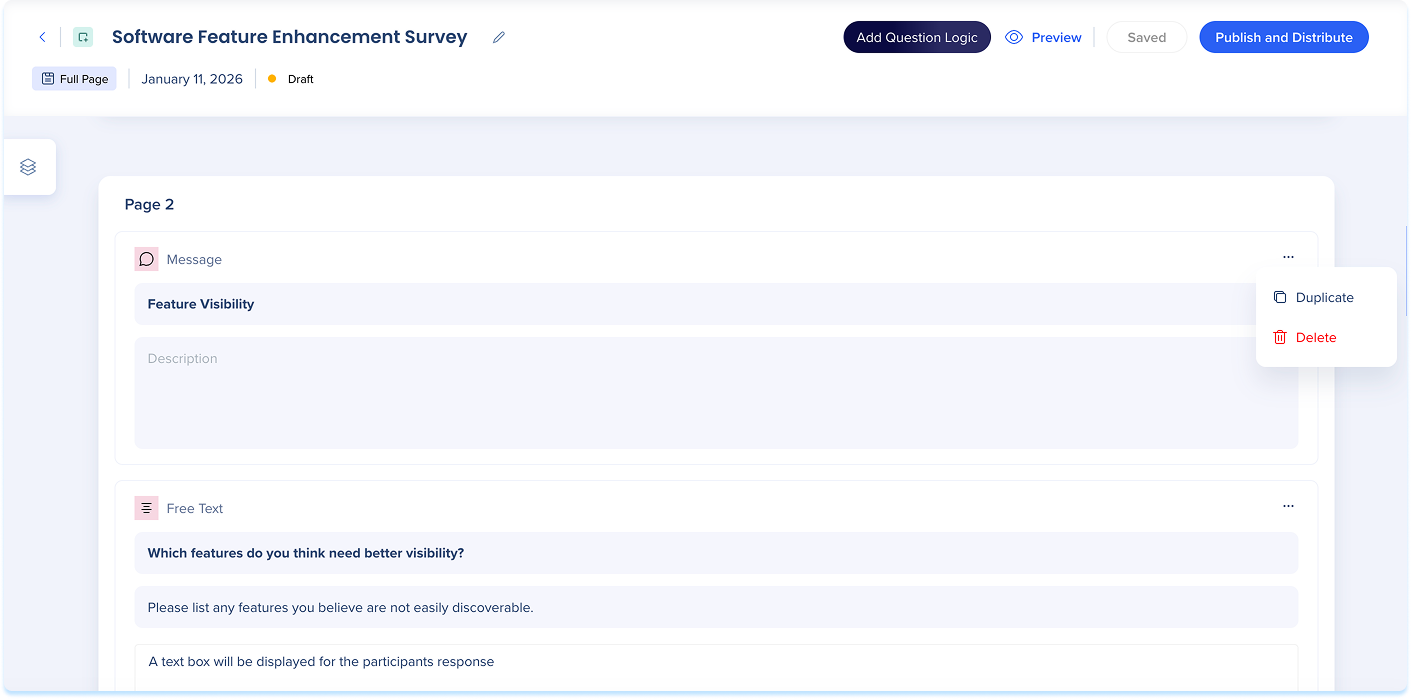
- Duplicate: Creates a copy of the question underneath the current question
- Delete: Removes the question from the survey
- Drag and drop the question to reorder questions
To manage a question from the main canvas:
- Hover over the page container
- Select the Options menu
- The menu includes:
- Duplicate: Creates a copy of the question underneath the current question
- Delete: Removes the question from the survey
Survey logic
Survey logic controls how respondents move through a survey based on their answers. Logic is configured at the page level and can be applied to one supported question per page.
To configure logic:
- Open the Logic panel by:
- Select Add Question Logic from the top of the page
- Select Add logic from the page actions
- Select a supported question from the For dropdown
- A logic card appears
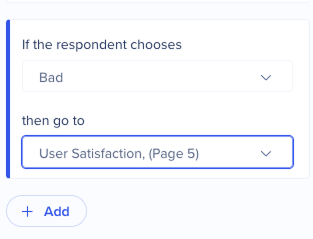
- For each response value, configure:
- If respondent selects [question value]
- Then go to [target page] or End Survey
Default behavior:
If a respondent selects a value that does not have logic assigned, the survey continues to the next page by default.
- Add additional logic cards to handle more values (optional)
Supported question types:
Logic can be applied only to:
Logic limitations and rules:
- Logic is tied to the first question on a page
- You cannot apply logic to multiple questions on the same page
- You cannot reuse the same value across multiple logic cards within the same logic set
- The source question's logic destination question must always be the first question on a page
- If no valid question exists on the page, logic cannot be configured
- For single choice dropdown questions, logic is bound by the selection order
- Even if you change the wording of a dropdown option, the original logic path tied to that position remains unchanged
Clear logic
To remove all logic from a page:
- Scroll to the bottom of the logic panel
- Select Delete All
Best practices
- Always test your logic flows in preview mode to ensure smooth user experience
- Use clear, concise questions to label your pages meaningfully to avoid confusion when configuring logic
- Document complex flows for team visibility and future edits

Multi-language support for full page surveys
You can manage full page surveys in multiple languages using the Multi-Language application in the WalkMe Console.
How to set it up:
- Go to the Multi-Language application in the console
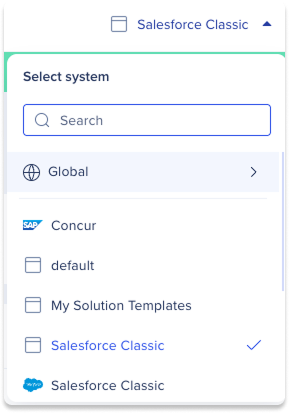
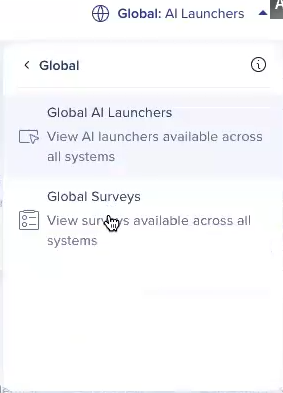
- From the System dropdown, select Global, and then select Global Surveys
- Set up your supported languages as you would for any other WalkMe item
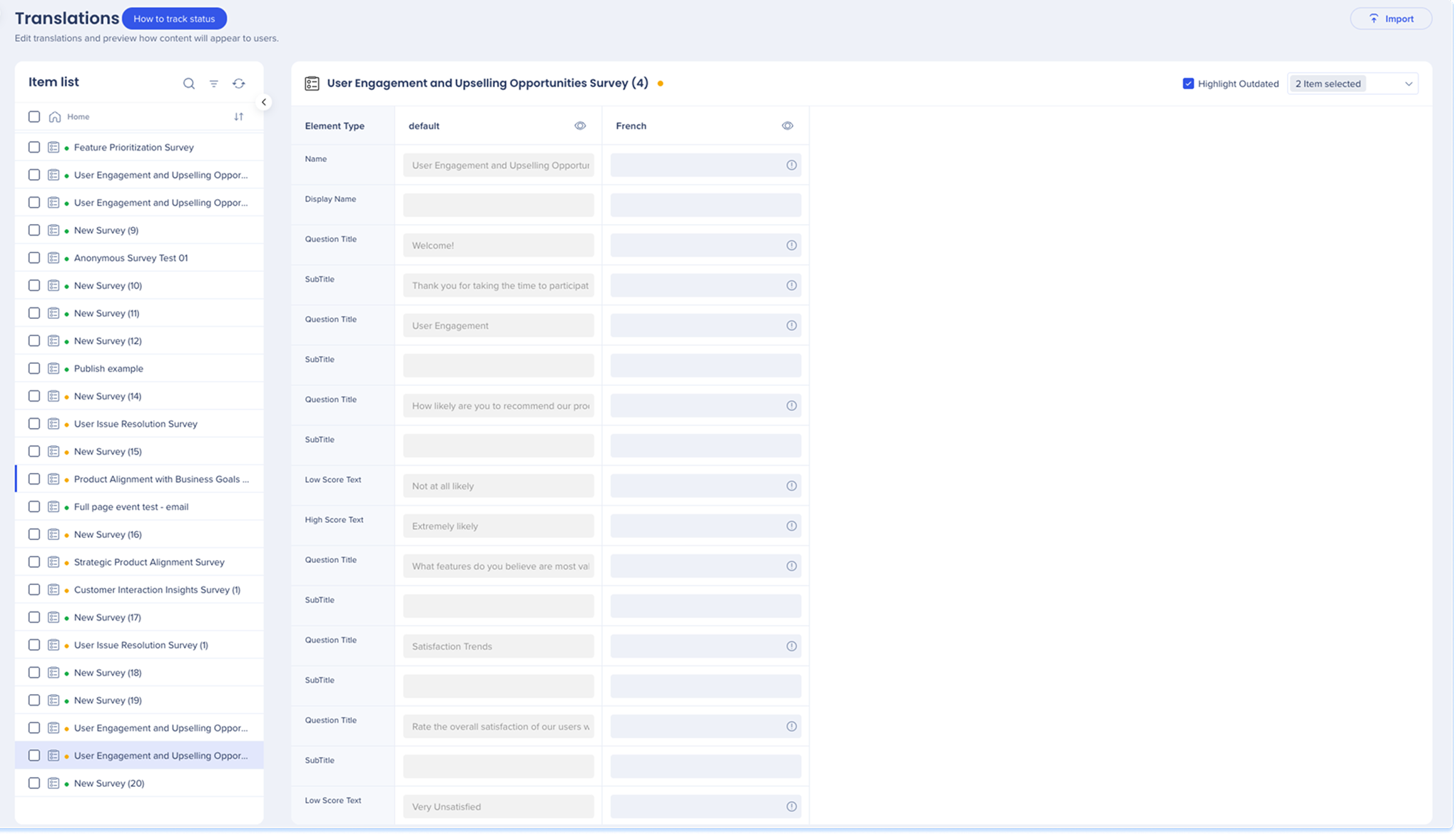
- After creating your survey and configuring your languages, go to Translations
- Add translations for each survey question and answer value
Multi-Language
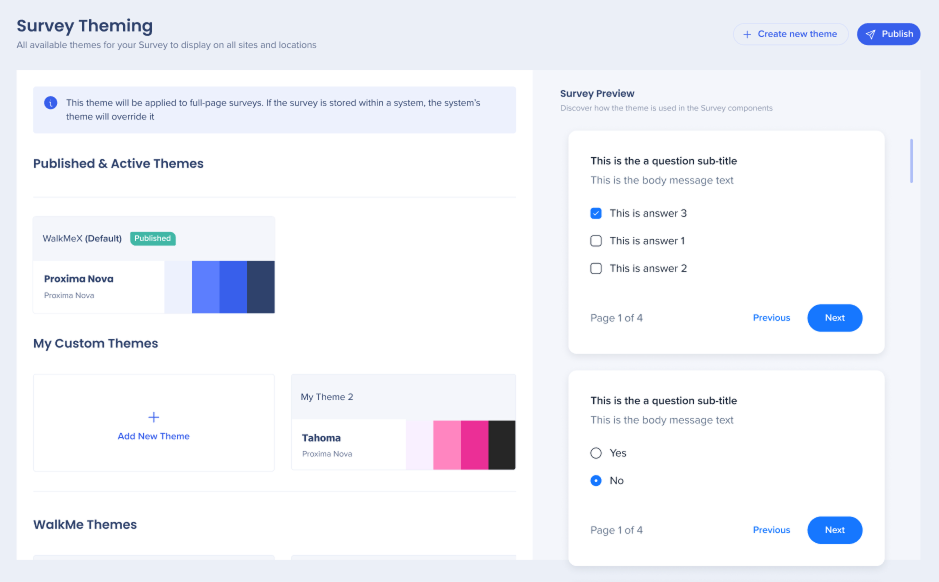
Theming for Surveys
Theming for Surveys lets you apply a consistent visual style across your surveys using shared colors, fonts, and layouts. This helps align your content with your brand and creates a unified experience for users.
Theming behavior depends on the survey format:
- Popup surveys: Automatically inherit the system theme
- Full page surveys: Can be designed individually in the Theming app
Design full page surveys
Open the Theming app in the WalkMe Console
- From the System dropdown, select Global, then select Global Surveys
- Review the default theme and preview the full page survey on the right side of the screen
- Configure colors, typography, and button styles
Theming