WalkMe for SAP GUI includes capabilities designed specifically for desktop. While many recent updates focus on closing gaps between Web and Desktop, some features are built exclusively for SAP GUI. This article outlines those features and explains how they work.
How it Works
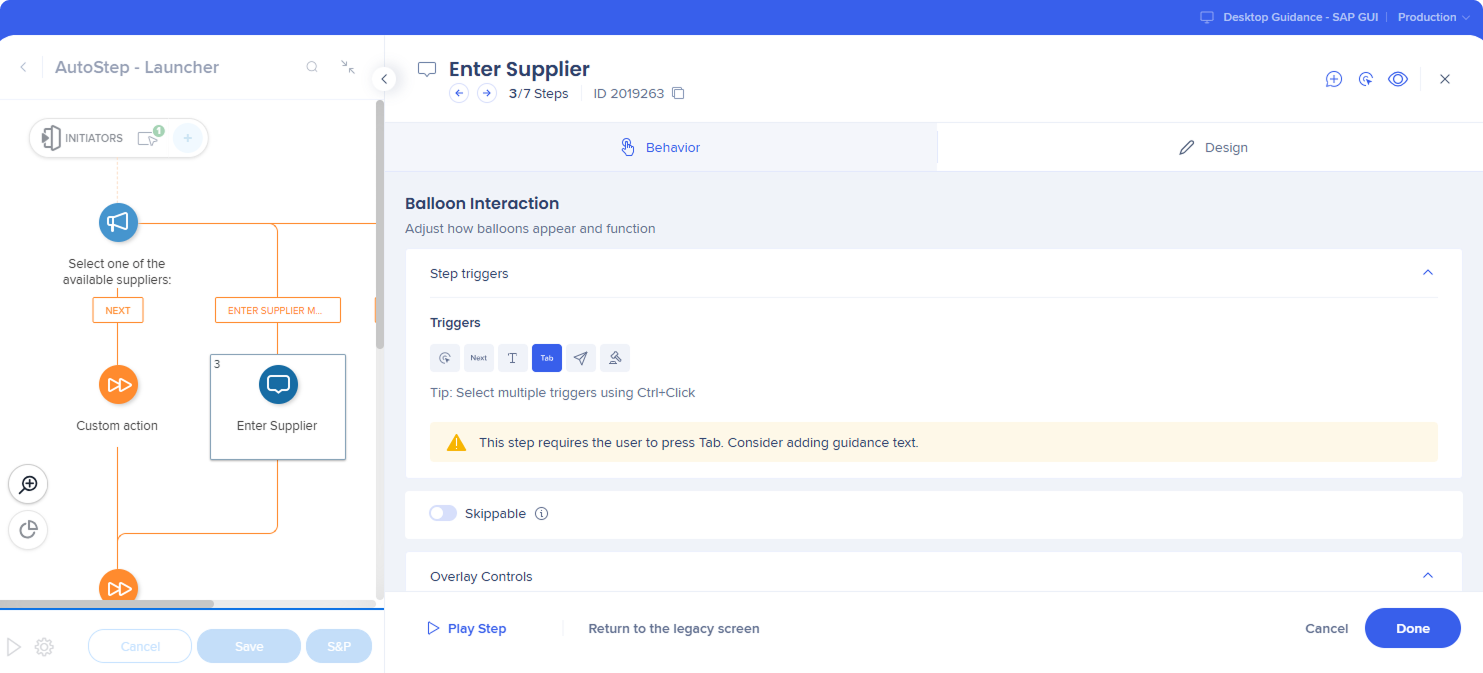
Tab trigger
Forward (Tab): Pressing Tab triggers the step when the cursor is in the SAP field that the current step points to, and the Smart Walk-Thru advances to the next step
Backward (Shift+Tab): Pressing Shift+Tab navigates back when the cursor is in the SAP field that the current step points to
Note
Only relevant for the regular steps
Backward (Shift+Tab) trigger works only when the previous step has a Tab trigger
If the previous step does not have a Tab trigger:
Shift+Tab behaves as SAP GUI default (focus moves back)
WalkMe does not navigate back
This feature uses active keyboard listening (global key listener) to trigger step advance/back
Listener is used only for this feature and only when enabled (under FF)
Capture only the minimum necessary signals (Tab / Shift+Tab) and avoid collecting content
Status bar error handling
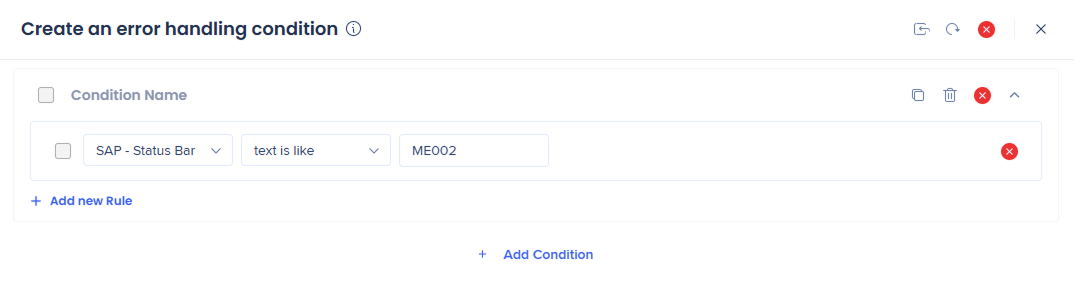
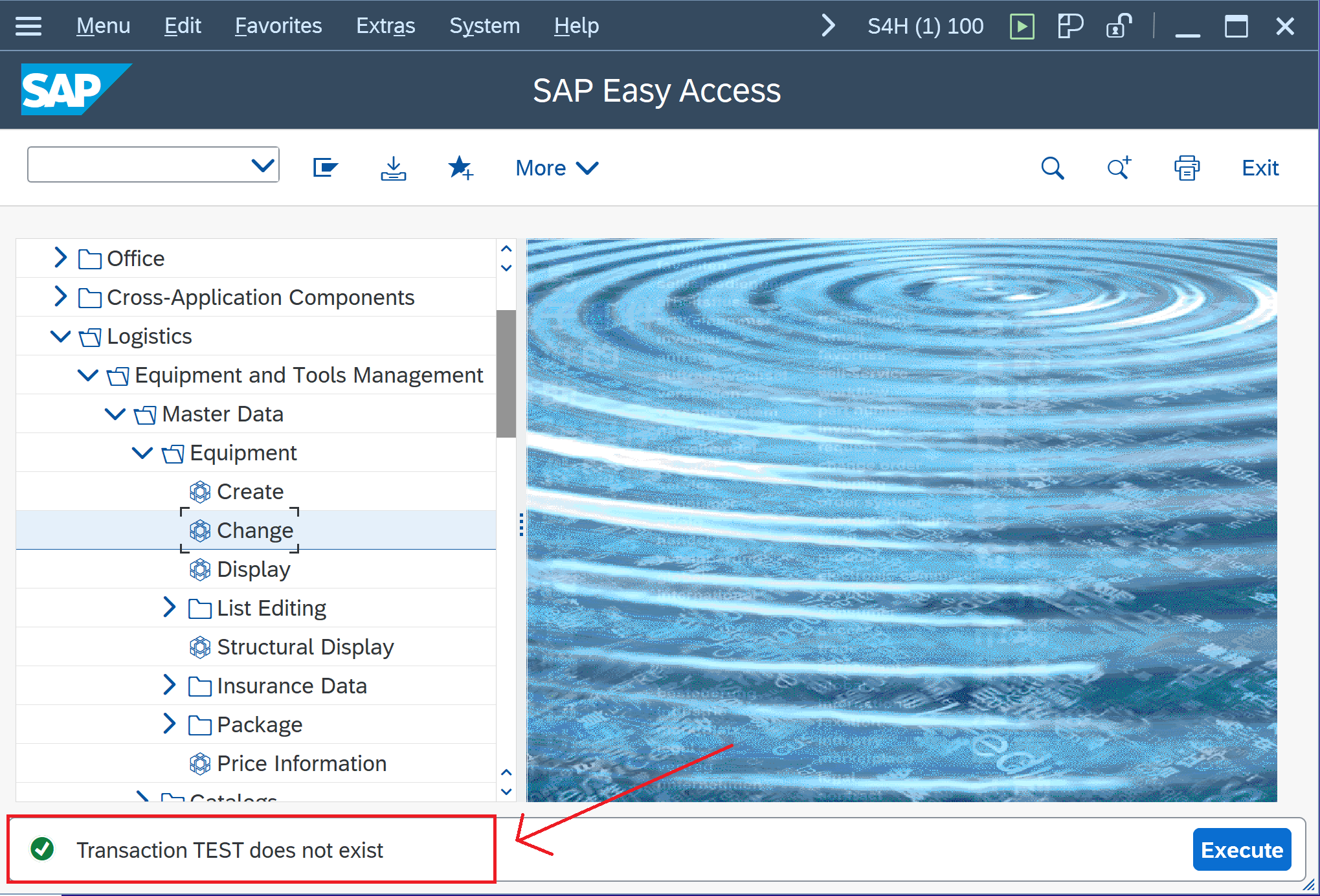
SAP – Status Bar category exposes SAP GUI status bar messages as a native input in the condition builder and Smart Walk-Thru error handling with no status bar element capture required.
Builders can evaluate the status bar using the standard structure MESSAGE_TYPE (MESSAGE_CODE): MESSAGE_DESCRIPTION and create the logic based on type/code and optional description matching, enabling more robust, maintainable automation driven directly by SAP's runtime message output.
Provides:
Higher task completion: users recover from SAP errors immediately instead of abandoning the process
Fewer tickets: common issues (missing fields, locks, authorizations) get resolved in-product
Faster builds, more resilient content: logic is tied to SAP's message codes/text, not fragile UI selectors
Smarter automation: Smart Walk-Thru Error Handling can catch and resolve failures in the moment - before users get stuck
Faster troubleshooting: Builders and support can correlate user outcomes to specific SAP message codes instead of ambiguous “step failed” scenarios
Example:Error (V1302): SD is not in the database or has been archived
Note
When using the status bar in a condition, WalkMe evaluates the full status bar value, including the message type, message code, and message description.
Empty string support in the condition builder
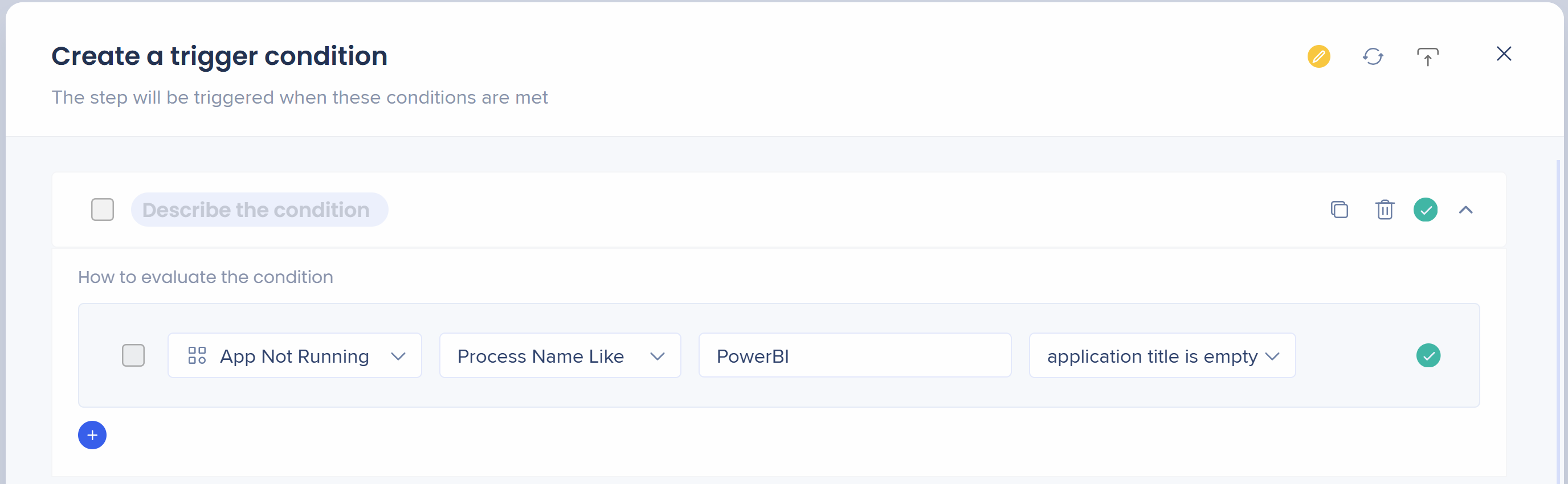
Before, the rule engine required you to enter a character and there was no way to exclude or set a “Not Like” condition for the Application/Process names—users weren't able to target some processes if the title was showing as blank.
The operator Application title is empty resolves this issue and sends an empty string value. Available under the Title input for:
App is Running
App is Not Running
App in Focus
App Not in Focus
Process: Any Process Name, Any Process Name Like, Process Name Is
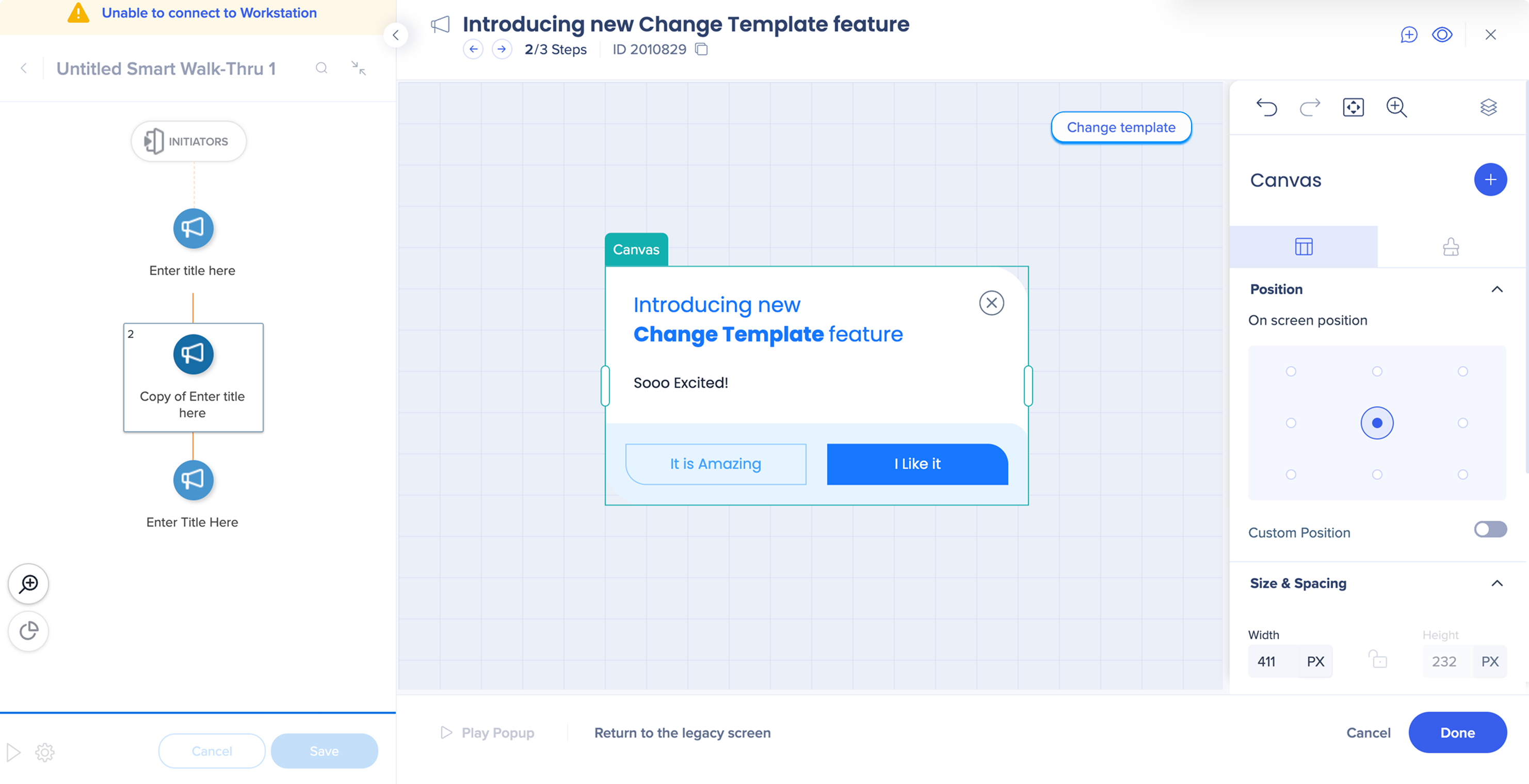
Change the template from the step
Change the balloon template directly from the Visual Designer canvas
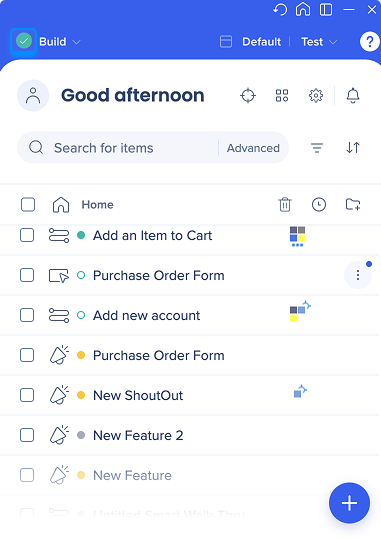
Connection indicator
The connection status indicator between the editor and Menu Desktop, same as the existing browser connectivity icon in the editor, reflects states such as connected, loading, or error, with contextual tooltips for each.
Provides immediate visibility into system readiness, allowing builders to confidently start capturing content in SAP GUI or play guidance.
Expanded list of conditions
On screen element
WalkMe Data
Clicked
Preview unavailable
text is per regular expression
text is not per regular expression
value is greater than
value is less than
is visible
is not visible
is not a valid time
is a valid email address
is not a valid email address
text length is
length is greater than
length is less than
word count is
word count is greater than
word count is less than
is a valid number
is not a valid number
is a valid date
is not a valid date
is a valid time
is a valid web address
value is greater than
value is less than
Onboarding task
Segments
was completed
was not completed
was completed in the last
was not completed in the last
Matches
Does Not Match
SmartTips
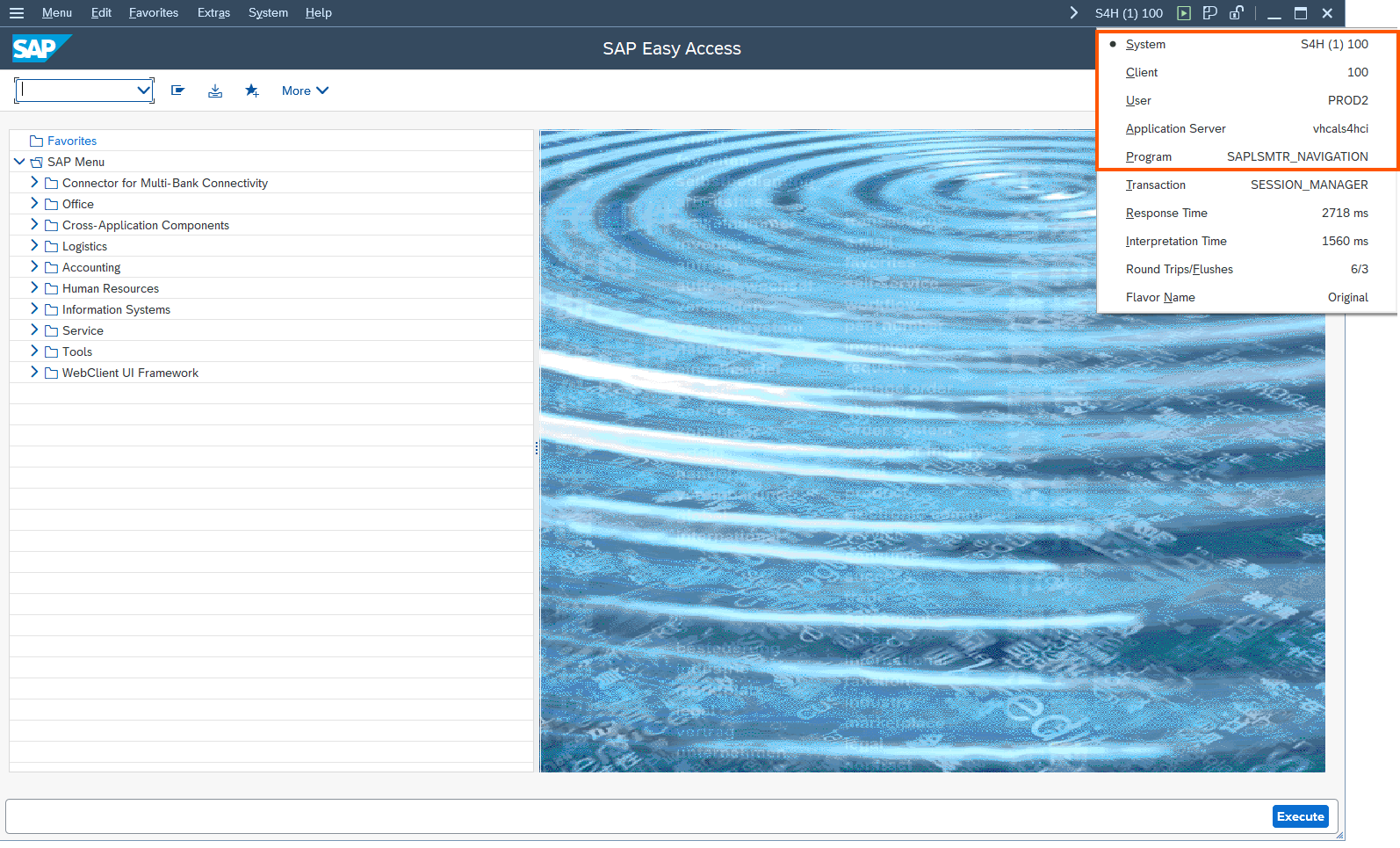
System information parameters
Appearance Conditions
Transaction code
Status bar
System – The SAP system identifier (e.g., DEV, QA, PRD)
Client – The specific client (tenant) within the SAP system
User – The currently logged-in SAP username
Program – The active SAP program or screen
Application Server – The server processing the current SAP session
Language – The language set for the current SAP session