Brief Overview
Saved Items is a dedicated bookmarking section in the WalkMe Menu for Desktop. It allows users to instantly access their most frequently used resources directly from the menu, without searching or navigating through folders.
Saved Items helps users spend less time searching and more time working, by keeping frequently used resources always within reach.
How It Works
Saved Items has a dedicated page in the WalkMe Desktop Menu, accessible via the Bookmark icon in the navigation bar. From this page, users can view, organize, and manage all of their bookmarked resources in one place.
Saved items page overview
The page is divided into two tabs:
-
All Items: displays a flat list of everything you've saved, regardless of which list it belongs to
-
You can search across all saved items using the search bar, or sort them by alphabetical order, first created, last created, or last modified
-
Lists: displays your saved items organized into named collections
 How to save an item
-
Hover over any resource in the WalkMe Menu to reveal the Bookmark icon
-
Click the Bookmark icon. A confirmation message appears letting you know the item is saved to the Saved items page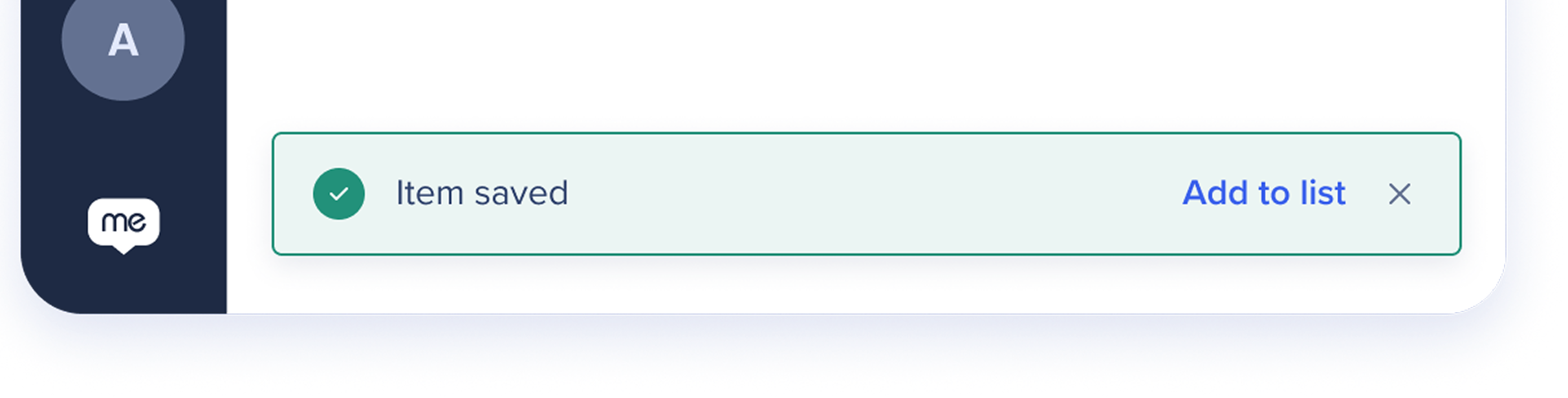
-
From the confirmation message, click Add to list to assign the item to an existing list, or create a new one on the spot (optional)
-
Once saved, the item appears in the Lists tab of the Saved Items page
Note
If you dismiss the toast without adding the item to a list, the item is still saved and will appear under All Items. You can assign it to a list at any time from the Saved Items page.
Managing lists and items
Creating a list
-
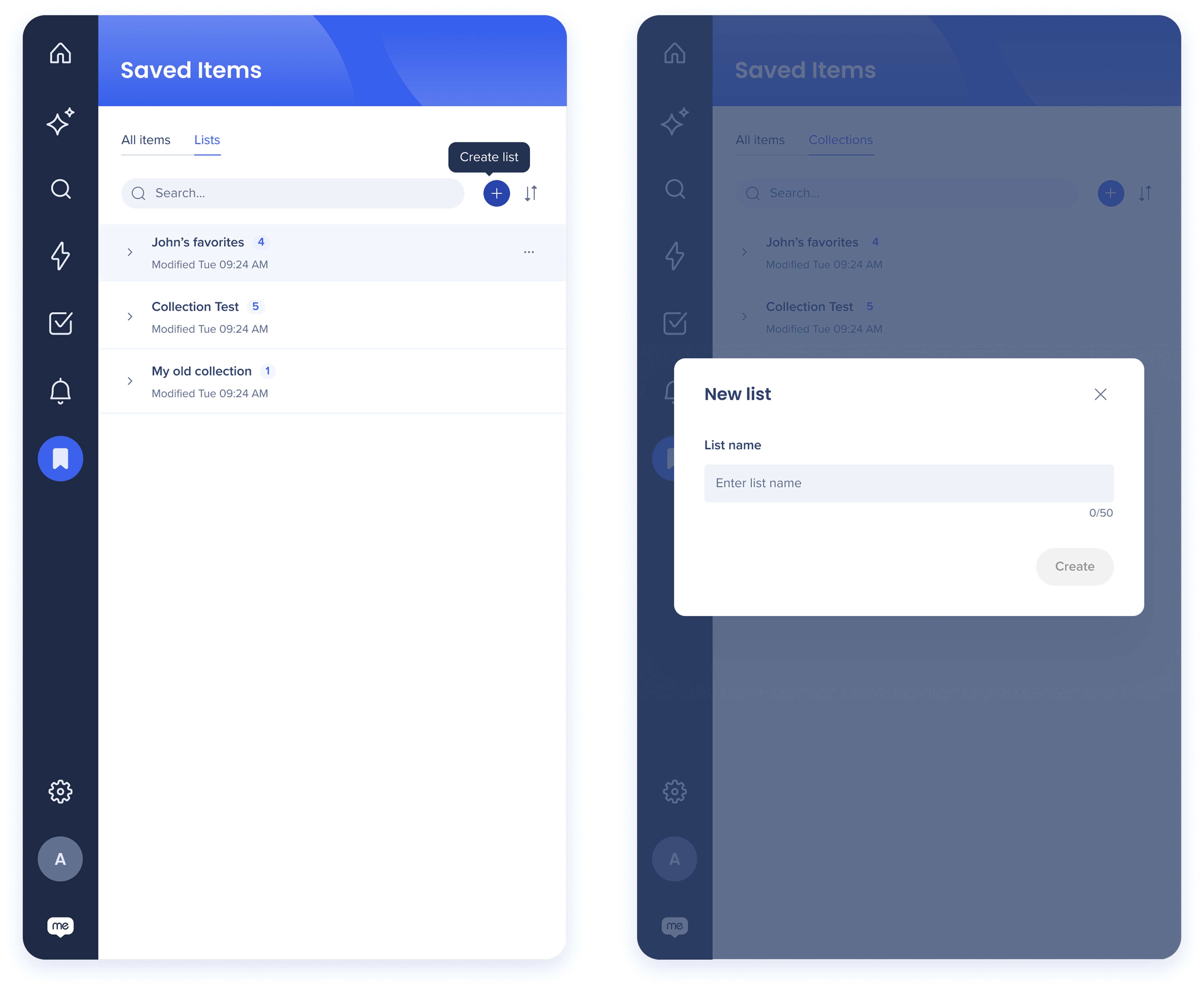
Go to the Lists tab in the Saved Items page
-
Click the Add icon
-
In the "New list" dialog, enter a list name (up to 50 characters)
-
Click Create
Renaming or deleting a list
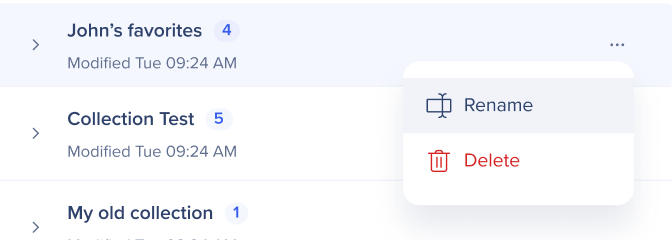
 Hover over any list to reveal the Options menu which offers:
Unsave an item
-
Hover over an item
-
Click the Bookmark icon to unsave it
-
The item is immediately removed from your Saved Items and any list it belonged to

Technical Notes
-
Items are limited to a single list only — an item cannot belong to multiple lists simultaneously
-
Deleting a master item removes it from all lists
-
Only available for the WalkMe Menu for Desktop


