Smart Highlights automatically surfaces relevant data from your enterprise systems inline, right where your team is already working. No tab switching. No searching.
The moment a user lands on a page, Smart Highlights scans the content, identifies key entities (people, companies, tickets, accounts), and pulls live data from connected enterprise systems directly into the browser.
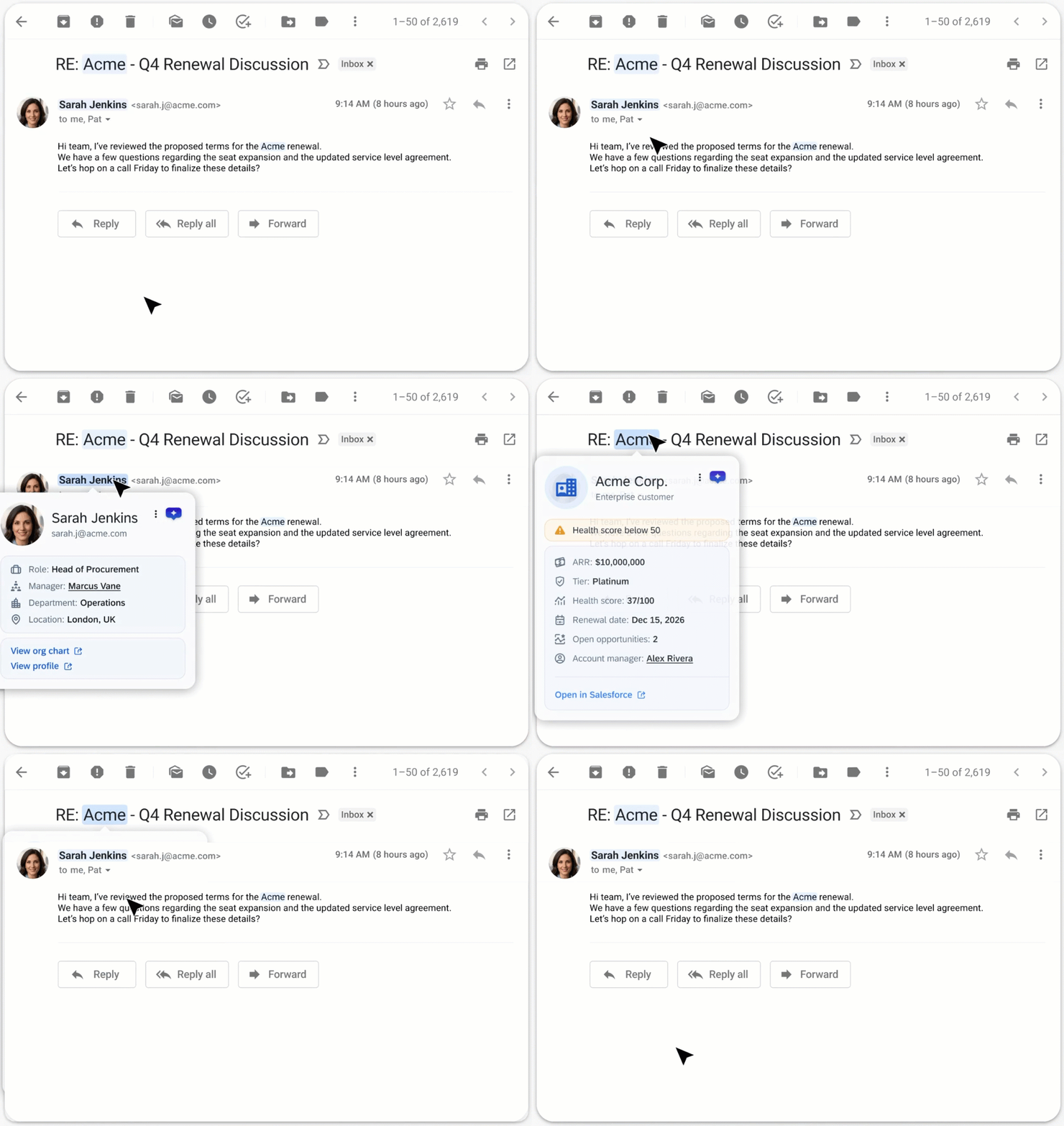
The result is a subtle blue highlight that, on hover, reveals a rich data card instantly, because all the retrieval happened in the background before the user even moved their mouse.
How It Works
Smart Highlights runs entirely in the background. There's nothing to click, nothing to set up as an end user, and no extra logins required. It uses the sessions you're already logged into, so by the time you hover over a highlight, the data is already there waiting for you.
How to use Smart Highlights
Open any supported application (for example, your Gmail inbox or Outlook)
Look for blue highlighted text on the page. These are your highlights, and each one has live data behind it
Hover over a highlight to view the data card
Use the action buttons inside the card if you need to dig deeper, for example View org chart or Open in Salesforce (optional)
First-time login
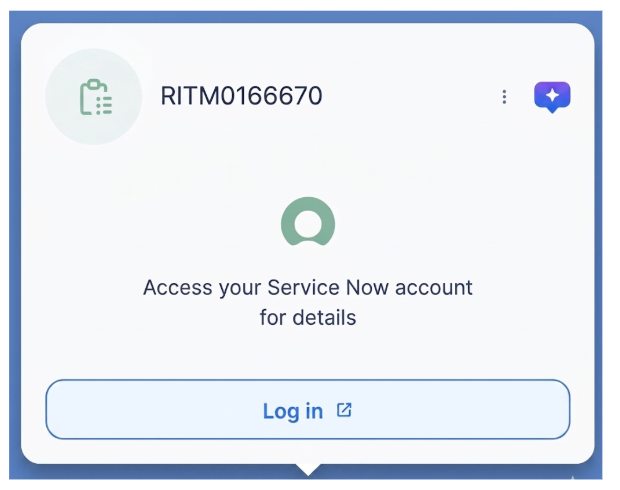
If Smart Highlights detects an entity but you aren't logged into that source system yet, a login prompt will appear inside the card instead of the data.
Here's what the flow looks like:
A login prompt appears inside the card
Click Log in. An SSO popup opens in the background while the card shows a loading state
Authentication completes automatically. The popup closes and the card loads instantly with live data
From that point on, as long as your session is active, you won't see this prompt again for that system.
How Smart Highlights are detected
Here's what happens from the moment you open a page to the moment a highlight appears:
Page scan: Smart Highlights automatically reads the visible text content on your screen as soon as you land on a page
Entity detection: An AI model identifies key business entities like names, company names, ticket numbers, and invoice numbers
Validation check: Results are filtered based on how certain the AI is about the match
Low-confidence matches, like a name that could refer to multiple people or a number that doesn't match a known format, are dropped silently before anything is shown to you
Data fetch: Smart Highlights reaches out to the relevant connected system in the background, using your existing session
Highlight: If the system returns data, the verified entities are wrapped in a blue highlight
Privacy note
Smart Highlights uses your existing SSO login to securely pull live data from systems like Salesforce or ServiceNow directly into your browser
The data never goes through or gets stored on WalkMe servers, and you only see information you already have permission to access
Highlight Types Breakdown
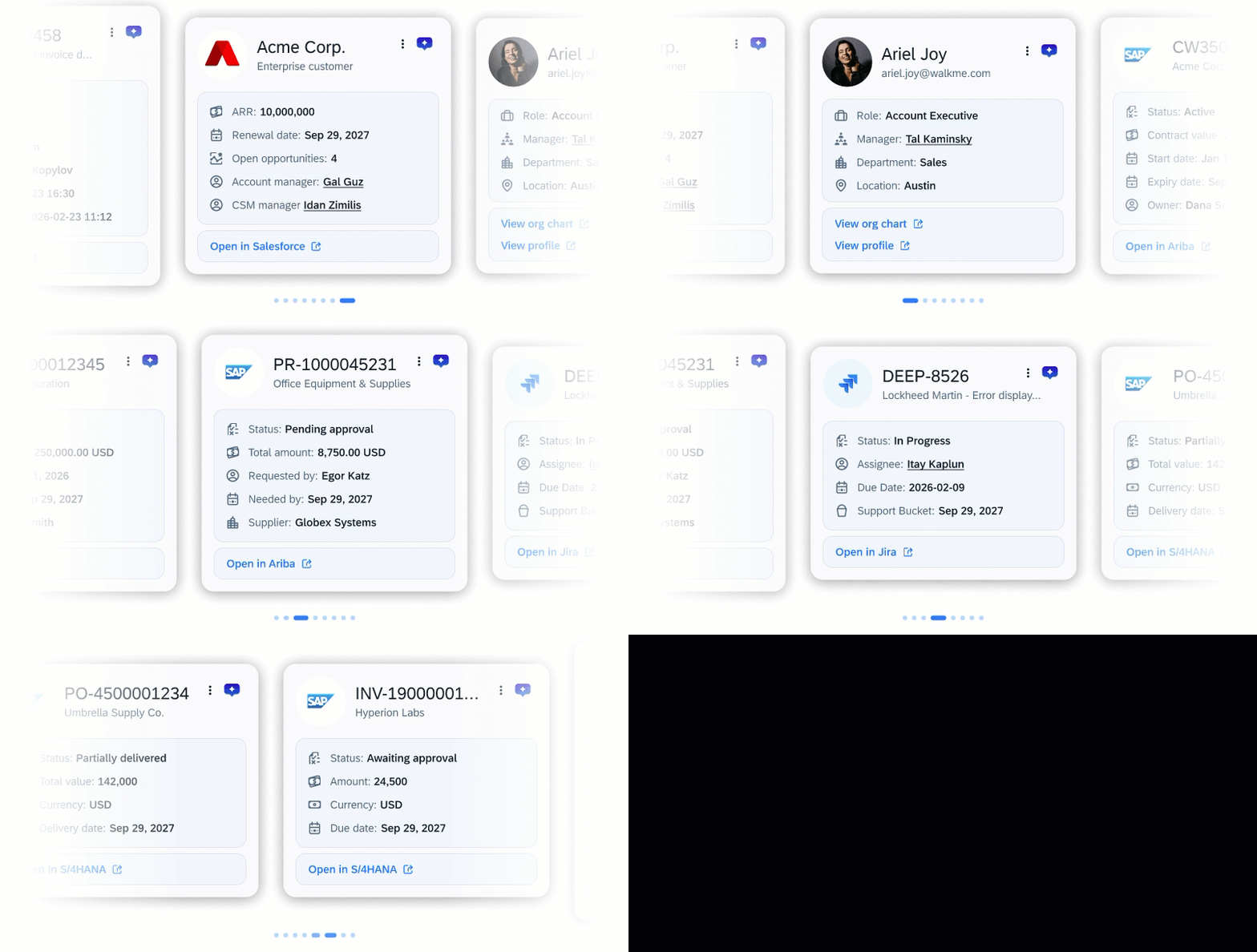
Smart Highlights surfaces different types of data depending on the entity detected and the system it comes from. Here's what each highlight type shows:
Employee highlight (SuccessFactors)
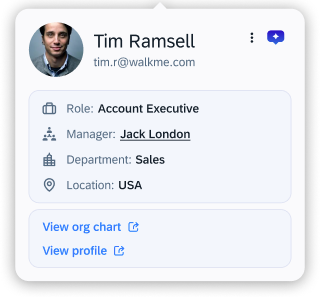
WalkMe employee names are identified highlighted in blue. Hovering over a name opens an information card containing:
Professional details: Displays the employee's role, manager, department, and location
Reporting structure: Select the manager's name within the card to view that manager's professional details
Actions:
View org chart: Opens the employee's reporting structure in SuccessFactors
View profile: Directs you to the employee's internal professional profile
Account highlight (Salesforce)
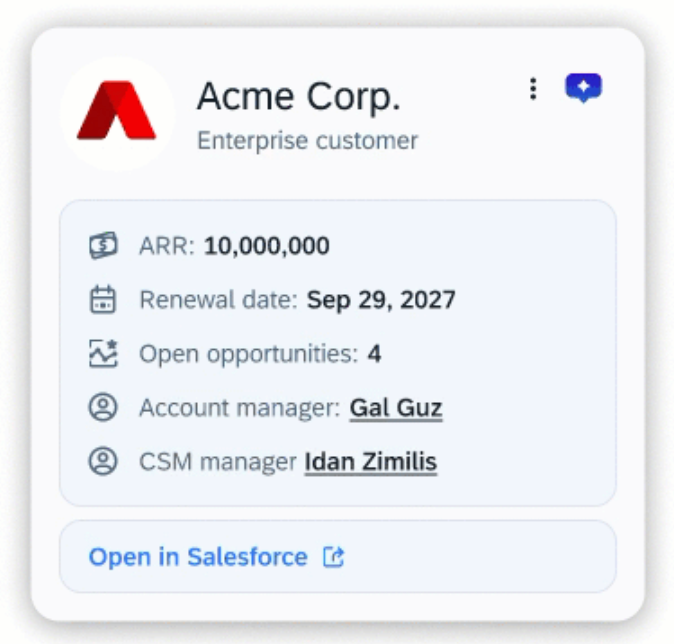
Customer account names are identified and highlighted in blue. Hovering over an account provides an account summary card with:
Account context: ARR, renewal date, and number of open opportunities
Internal team: The Account Manager and CSM assigned to the account
Actions: Open in Salesforce
Opens the detailed account profile directly in Salesforce for further management
Health score warning: If a customer's health score is below 50, a yellow warning banner appears at the top of the card. This allows you to immediately identify at-risk accounts that may require proactive outreach or special attention
Opportunity highlight (Salesforce)
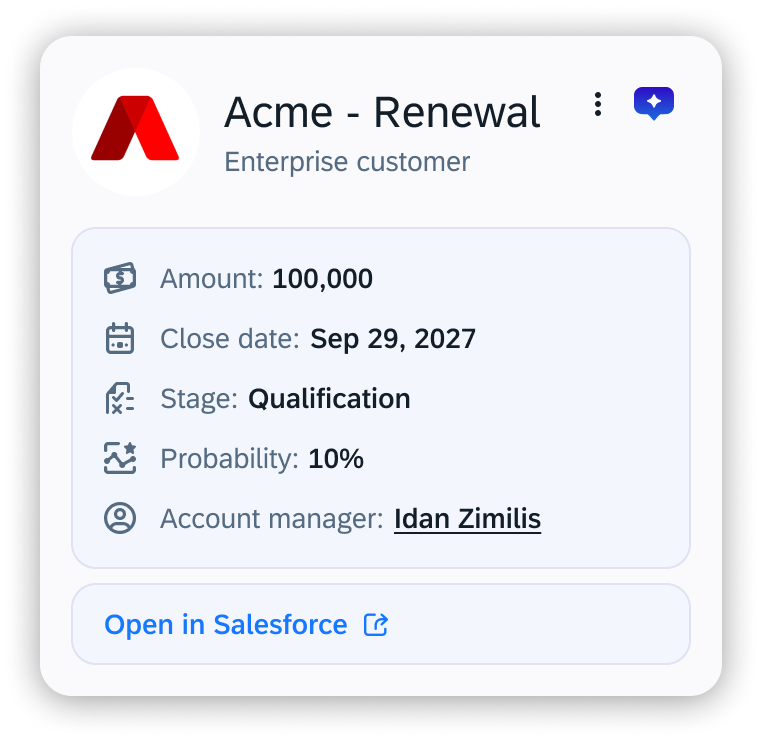
Opportunity names are highlighted in blue. Hovering over a customer opens a card with:
Deal details: Amount, close date, stage, and probability
Internal team: The Account Manager and CSM assigned to the opportunity
Actions: Open in Salesforce
Contact highlight (Salesforce)
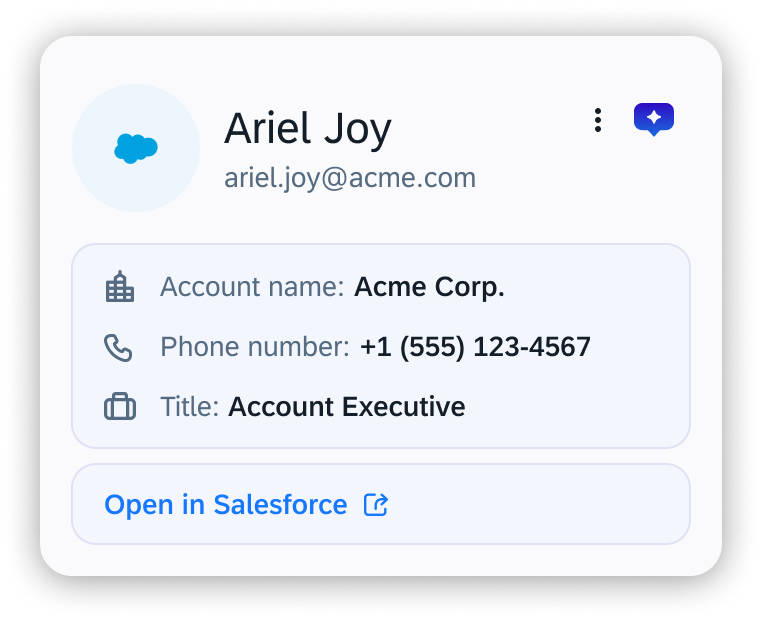
Contact names are highlighted in blue. Hovering over a name opens a card with:
Identity: Role, account name, and phone number
Actions: Open in Salesforce
Ticket highlight (ServiceNow / Jira)
Jira tickets
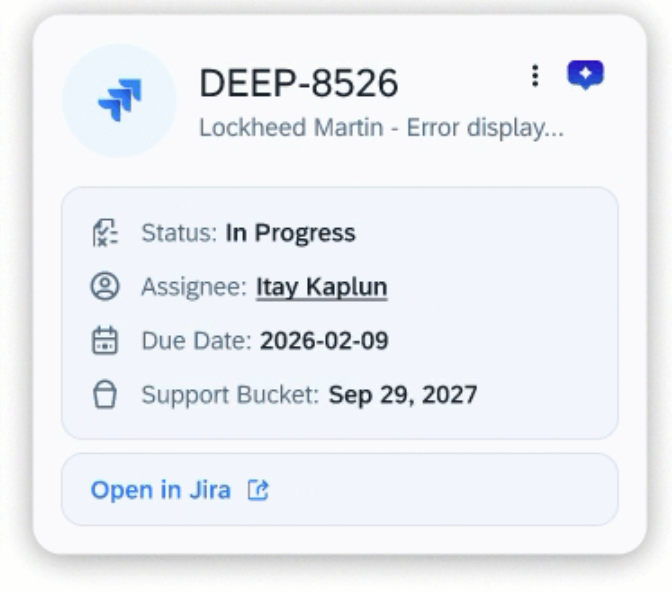
Jira ticket numbers are highlighted in blue. Hovering over the ticket number opens a card with:
Ticket summary: Title and current status
Ownership: Assignee and support bucket
Dates: Created date and close date
Actions: Open in Jira
ServiceNow tickets
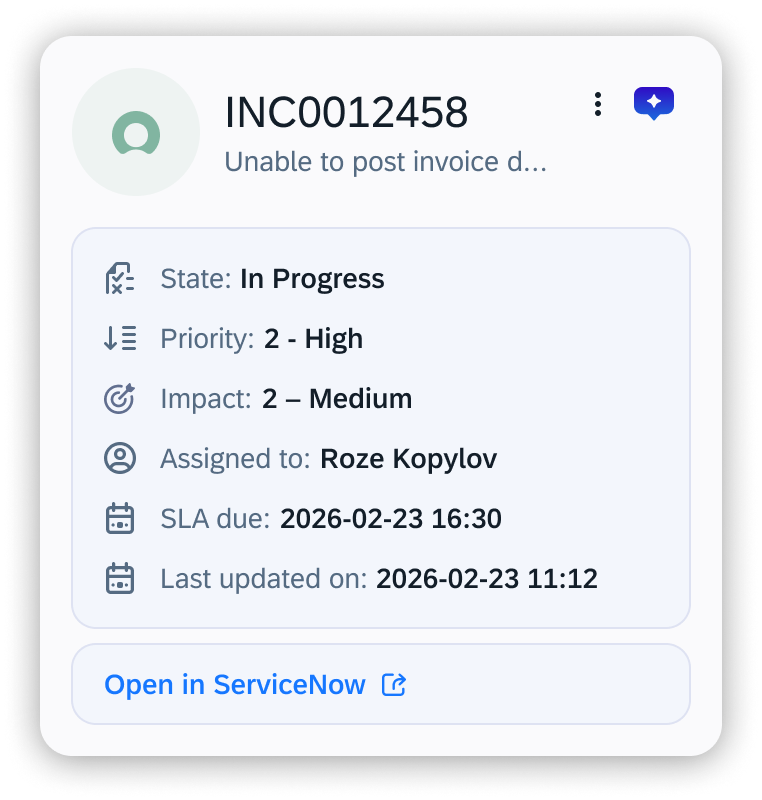
ServiceNow ticket numbers are highlighted in blue. Hovering opens a card with:
Ticket summary: Title and current state
Priority and impact: Urgency level and business impact
Ownership: Assigned agent
Dates: SLA due date and last updated
Actions: Open in ServiceNow
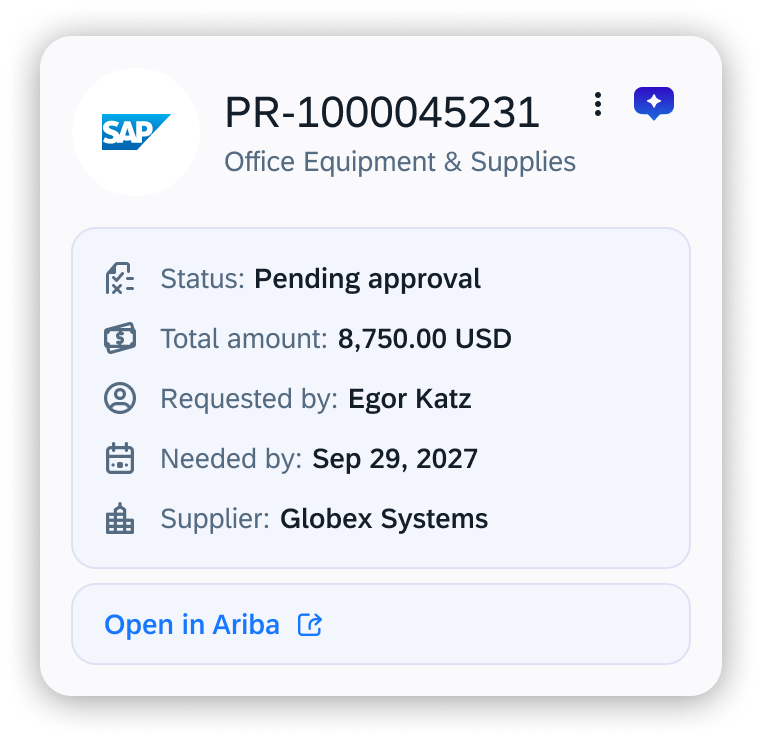
Purchase requisition highlight (SAP Ariba)
Requisition details: Status and total amount
Dates: Needed by date
Requester: The person who submitted the requisition
Supplier: The vendor associated with the request
Actions: Open in Ariba
Purchase order highlight (SAP Ariba)
Status: The current fulfillment status of the purchase order (for example, Partially delivered).
Total value: The total monetary value of the purchase order
Currency: The currency the order is denominated in
Delivery date: The expected or confirmed delivery date for the order
Actions: Open in Ariba
Invoice highlight (SAP Ariba)
Status: The current status of the invoice
Amount: The total monetary value of the invoice
Requested by: The person who submitted the invoice
Requested on: The date the invoice was submitted
Actions: Open in Ariba
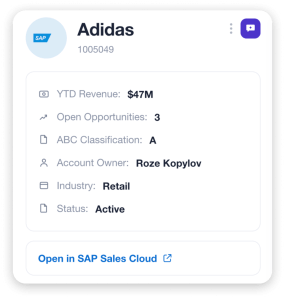
Account highlight (SAP Sales Could CX)
YTD revenue: The account's year-to-date revenue
Open opportunities: The number of open opportunities on the account
ABC classification: The account's ABC classification
Account owner: The person who owns the account
Industry: The account's industry
Status: The current status of the account
Actions: Open in SAP Sales Cloud
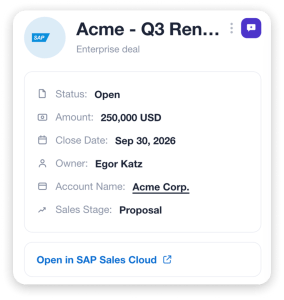
Opportunity highlight (SAP Sales Could CX)
Status: The current status of the opportunity
Amount: The total value of the opportunity
Close date: The expected close date
Owner: The person who owns the opportunity
Account name: The account the opportunity is associated with
Sales stage: The current stage in the sales cycle
Actions: Open in SAP Sales Cloud
Sales quote highlight (SAP Sales Could CX)
Account: The account the quote is associated with
Net value: The net value of the quote
Document type: The type of quote document
Progress: The current approval status of the quote
Owner: The person who owns the quote
Actions: Open in SAP Sales Cloud
Setup
Smart Highlights are configured by admins in the WalkMe Console. This includes connecting data source providers, adding which entities to surface, and managing which applications highlights appear on.
If you're an admin looking to enable or configure Smart Highlights for your organization, see the full setup guide here:
To track how users are engaging with Smart Highlights across your systems, including exposure rates, content views, and interactions by highlight type, see the AI Adoption Dashboard:
AI Entitlement and enablement for your account. Learn more
Chromium-based browser: Google Chrome or any chromium-based browser
Firefox and Safari are not supported
Company-distributed extension: Required for web applications. Not supported on “Store-based” extension
WalkMe Menu: WalkMe Menu is required for highlights to work on desktop apps (for example, Outlook Classic)
Create a desktop system (if the customer doesn't already have one)
Install the latest desktop menu version (≥ 4.3.0)
SSO Login: Smart Highlights uses the user's existing SSO session
Third party cookies enabled: Must be enabled for the hidden iFrame mechanism to work
If your organization's security policy blocks third-party iFrames, Smart Highlights will not work
How Smart Highlights retrieves data
Smart Highlights uses hidden iFrames to fetch data from connected systems. When the feature loads, it creates invisible iFrames pointed at each provider's domain. These authenticate automatically using the user's existing SSO session and communicate with the main page via the browser's native postMessage API. Data flows directly from the source system to the user's browser and never touches WalkMe servers.
⚠️ If your organization's security policy blocks third-party iFrames or cookies, Smart Highlights will not function.
Supported systems
Source applications (where data is pulled from):
System
Entities Surfaced
SAP SuccessFactors
Employees
SAP S/4HANA
Invoice, Purchase Order
SAP Ariba
Purchase Requisition, Purchase Order, Invoice
Salesforce
Account, Opportunity, Contact
ServiceNow
Ticket
Jira
Ticket
SAP CX Sales Cloud
Account Opportunity, Sales Quote
Display applications (where highlights appear):
Application
Type
Outlook Classic
Desktop
New Outlook
Desktop
Outlook
Web
Gmail
Web
Slack
Web
Google Calendar
Web
Jira
Web
ServiceNow
Web
SAP SuccessFactors
Web
New Outlook requires additional integration steps to enable Smart Highlights. Learn more