Brief Overview
Self-Healing for Smart Walk-Thrus helps your Smart Walk-Thrus recover on their own when your app's UI changes, so users can keep moving through their processes without interruption. You turn it on for your account in AI Settings and choose which systems use it or enable it for a specific system in Player Settings.
Access
Access Self-Healing for Smart Walk-Thrus from AI Settings the console:
- Open the WalkMe Console:
- Go to the Admin category
- Select the Security & Audit
- Select Security Settings
- Choose AI Settings
How It Works
When you turn on the toggle in the AI Settings page you are turning on Self-Healing for Smart Walk-Thrus for your account.
Turn on Self-Healing for your account
-
In AI Settings, turn on Self-Healing for Smart Walk-Thrus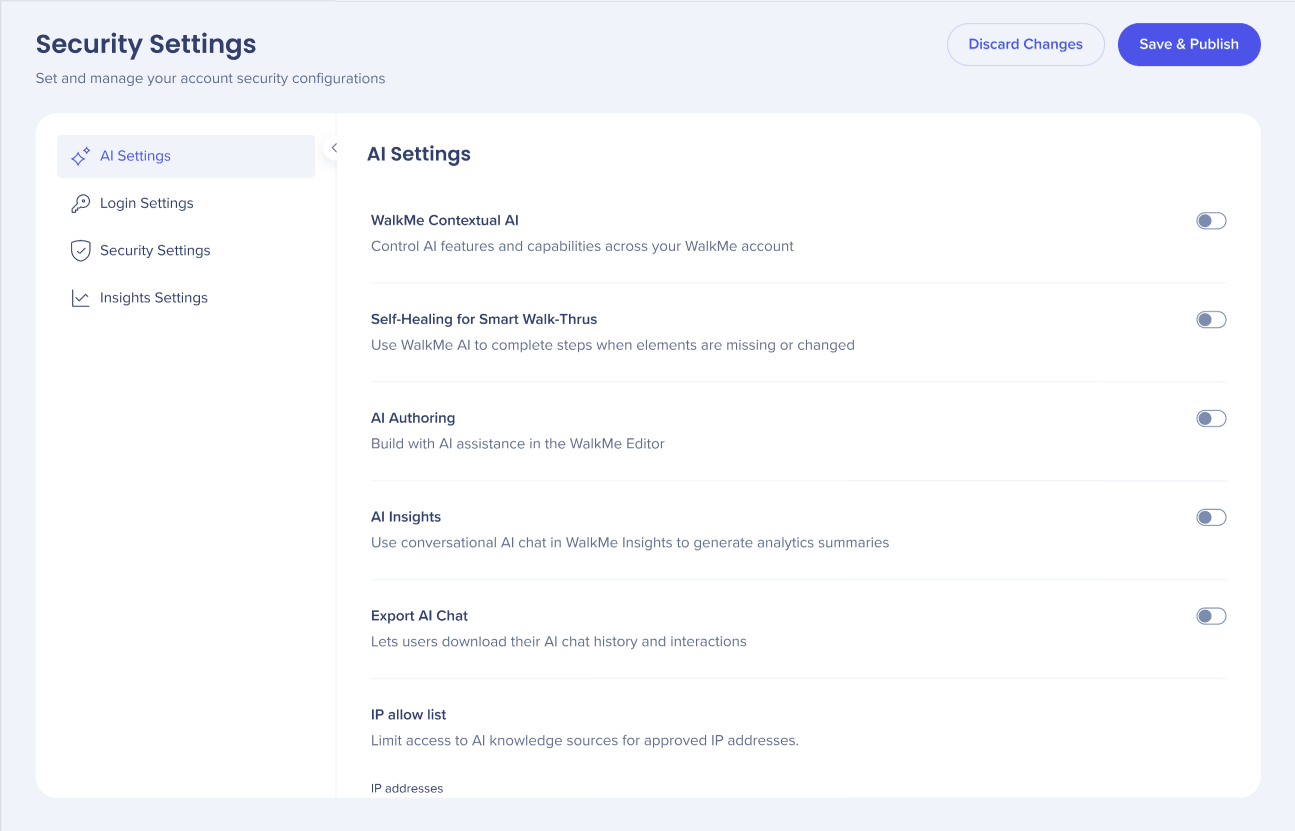
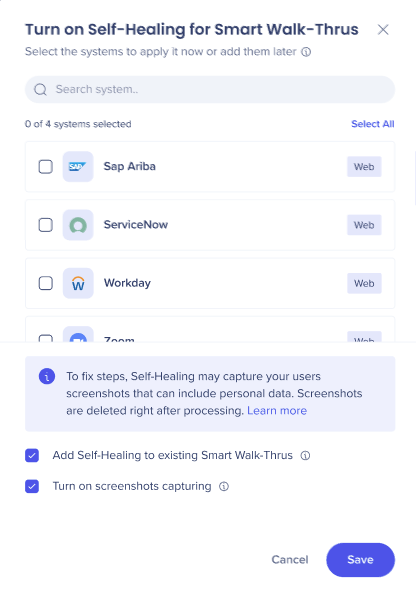
- Select the systems that should use Self-Healing
- Select the checkbox next to a system
- To select every system, select Select All
- To clear your selection, select Clear All
- To find a system, type its name in the Search system field
- To add systems later, don't select any
Note
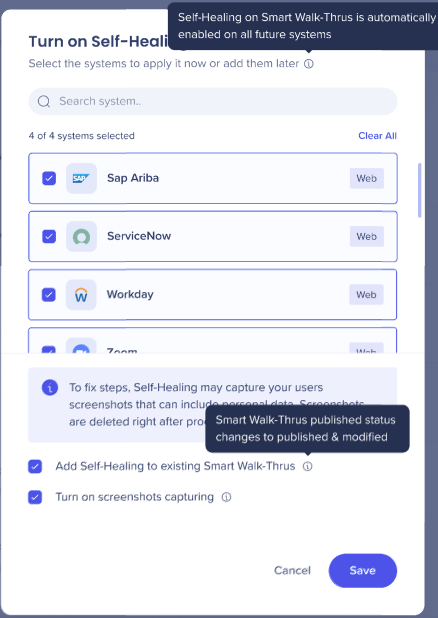
Self-Healing applies automatically to all future Smart Walk-Thrus in the selected systems
3. Under the privacy notice, the window shows two options. Both are selected by default:
- Add Self-Healing to existing Smart Walk-Thrus
- Unchecking the box means maintaining the Self-Healing status for exisiting Smart Walk-Thrus or turning it on if it was already off
-
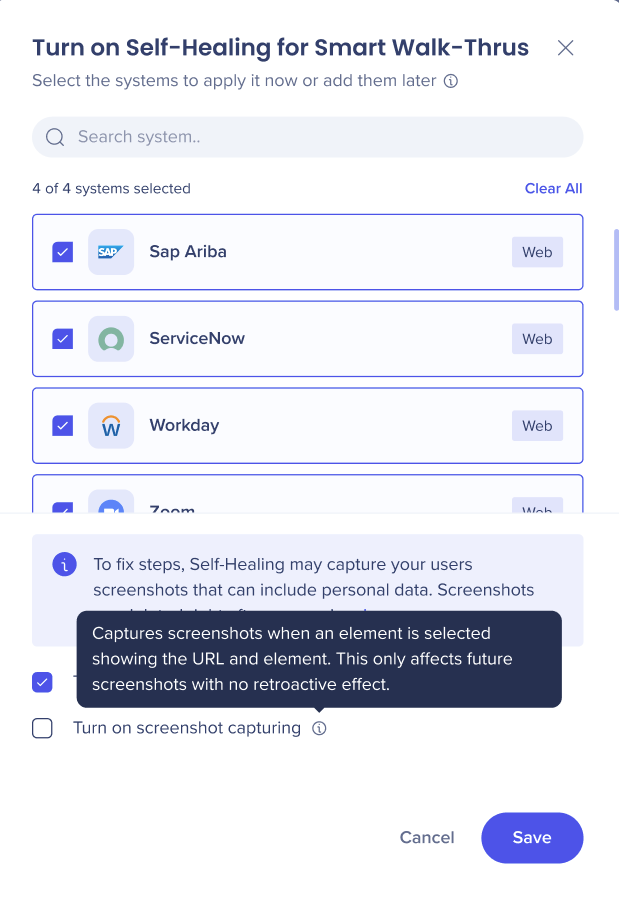
- Turn on screenshot capturing
- Unchecking the box means maintaining the existing screenshot settings or turning it on if it was already off
4. Select Save
Self-Healing on Smart Walk-Thrus needs advanced extension configuration to be able to work.
If your extension doesn't have these configurations, the Configuration update required window opens.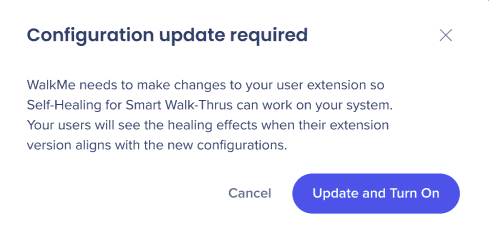
5. Select:
- Update and Turn On to confirm that WalkMe can update your user extension
- Cancel to return to the AI settings page
Note
Choosing Cancel means you do not have Self-Healing for Smart Walk-Thrus turned on for your account.
Extension settings
When Update and Turn On is selected, Extension settings will now display as turned on.
You can see if your extension configurations are updated to enable all your needed features to work effectively in your browser.
When Extension settings displays as on WalkMe has:
- Added a package into the users extension
- Updated the extension's permissions
After the configuration has been updated it can take some time for all Self-Healing for Smart Walk-Thrus to be fully enabled. This is dependant on the browser's configurations and the new updates aligning.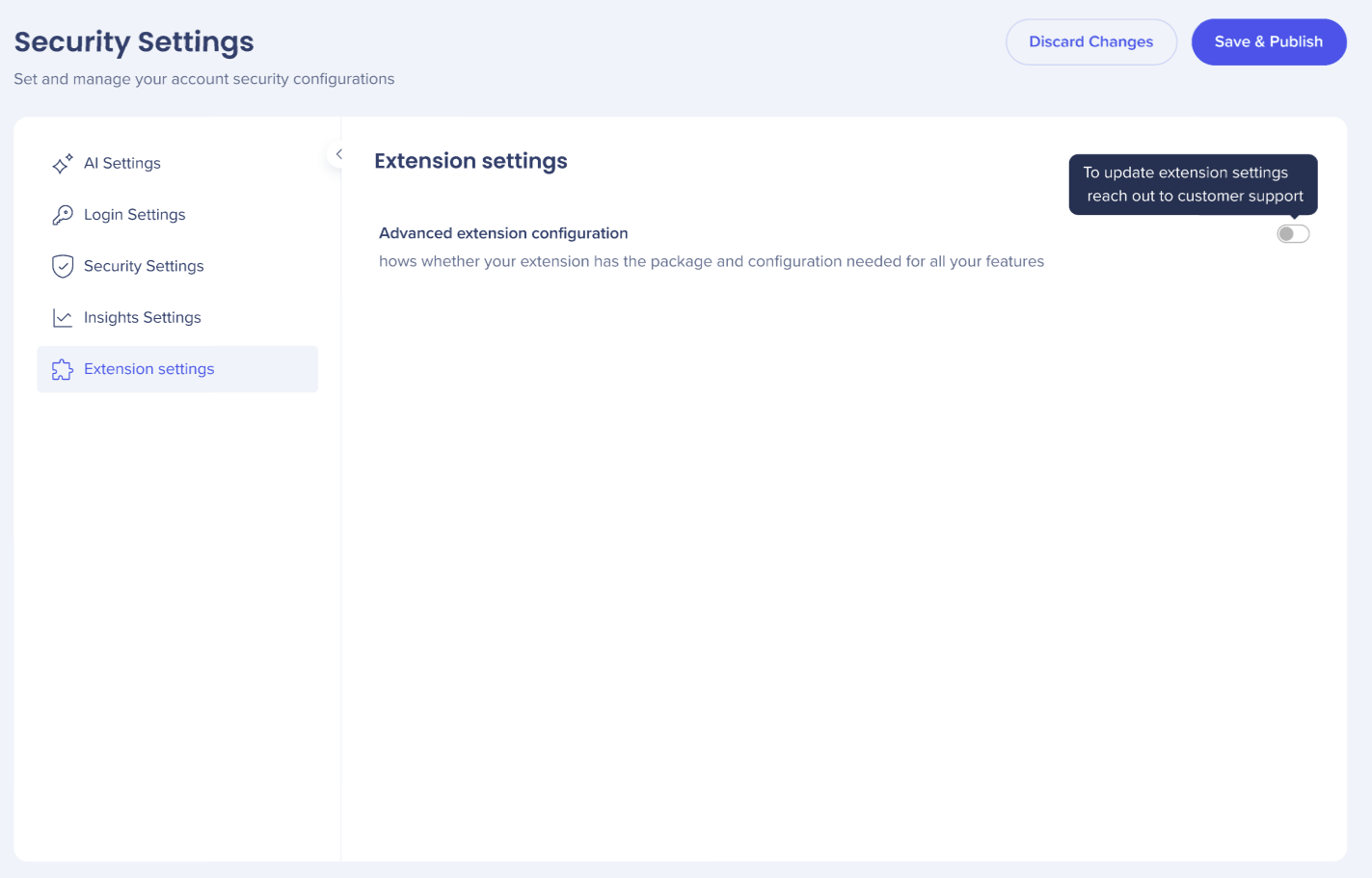
Turn on Self-Healing for a system
Self-Healing for Smart Walk-Thrus must be turned on at account level before you turn it on for an individual system.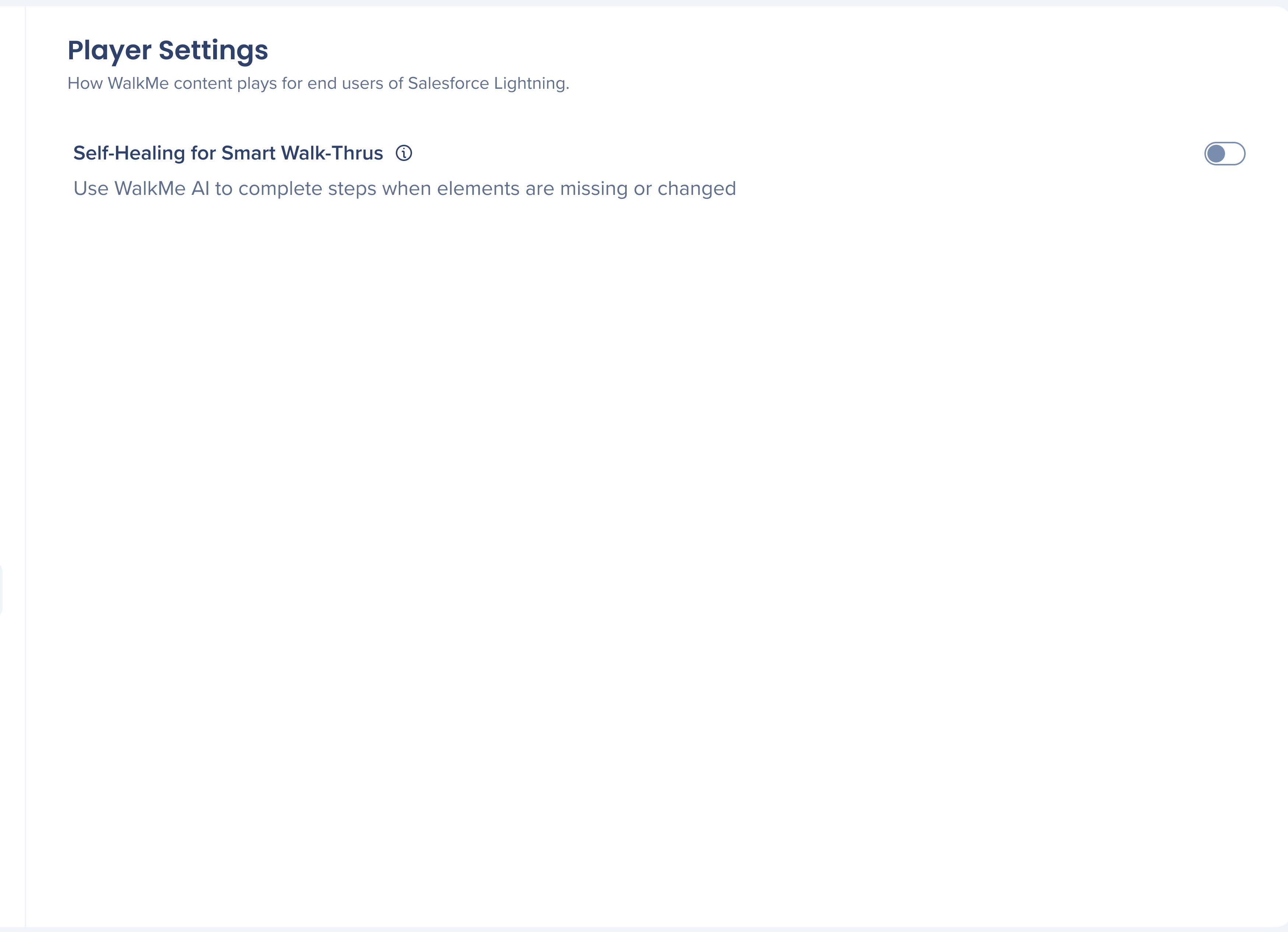
- Open the WalkMe Console
- Go to the Admin category
- Select Systems Management and then the system where you want Self-Healing
- In System Overview, select the System Settings tab
- Select Player Settings
- Turn on Self-Healing for Smart Walk-Thrus
- Select:
- Add Self-Healing to exisitng Smart Walk-Thrus
- Turn on screenshots capturing
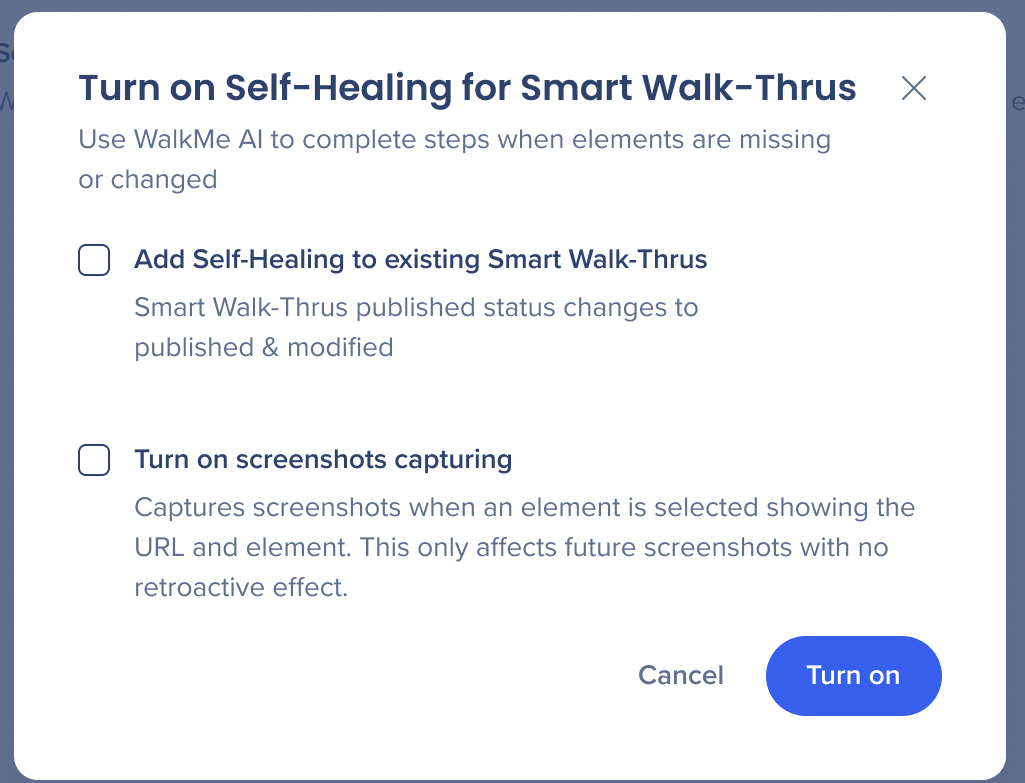
8. Select Turn on
Note
To remove Self-Healing for Smart Walk-Thrus on a specific system, use this flow and turn off Self-Healing for Smart Walk-Thrus.
Technical Notes
- You can turn off Self-Healing for one system or for the whole account
- Turning it off for the account turns it off on all systems, including systems where it's turned on through Player Settings


