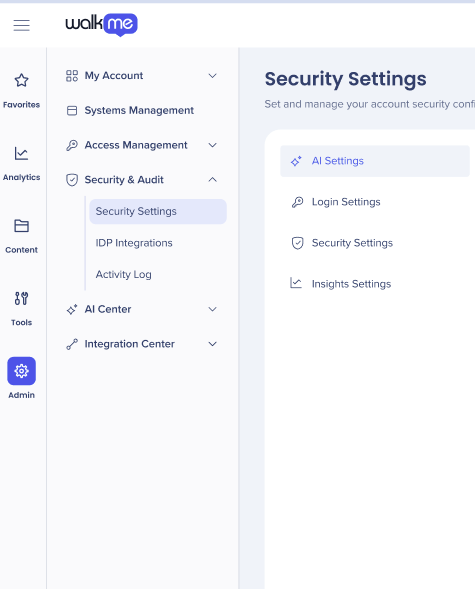
Brief Overview
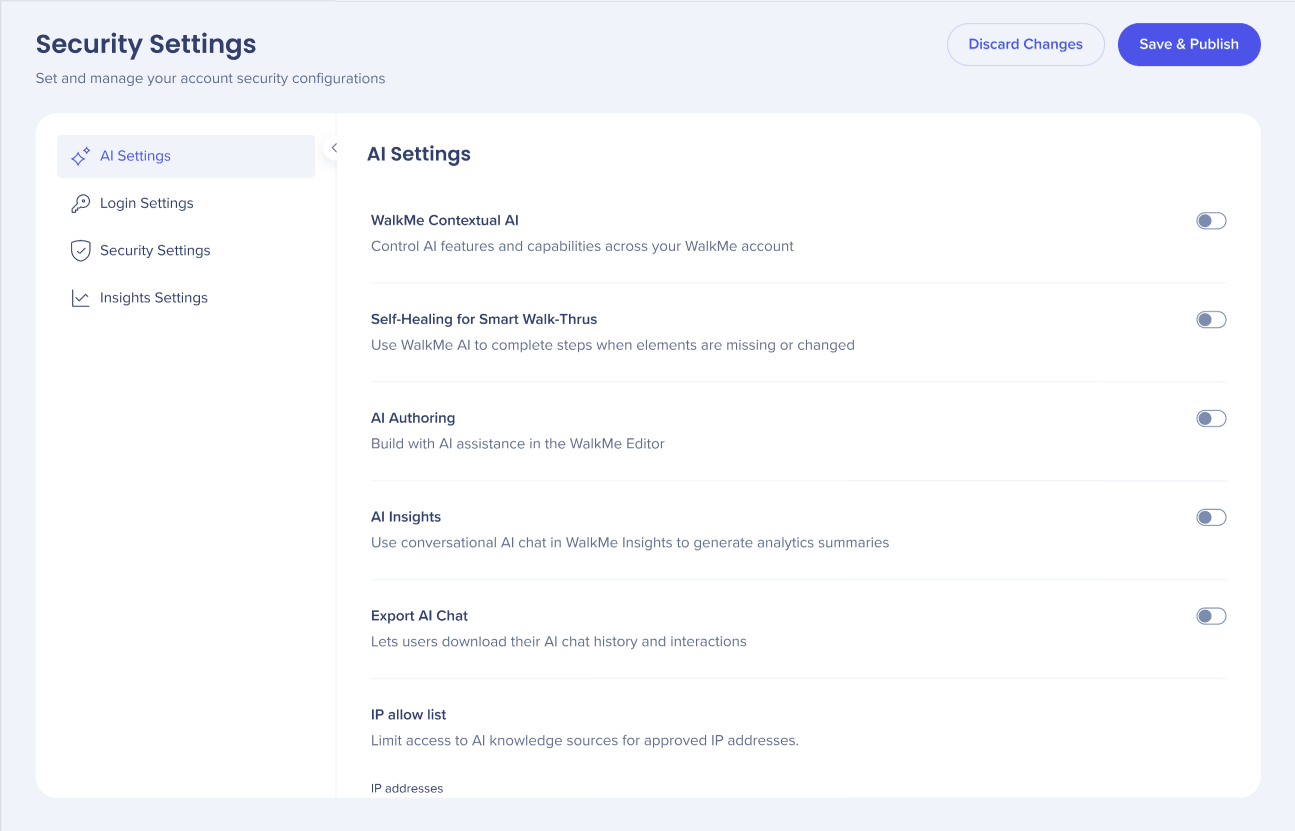
The AI Settings tab puts all AI capabilities in one place giving admins improved management and control over their AI features and usage across systems and accounts.
Access
Customers must first agree to WalkMe's AI Terms & Conditions before you can activate the toggles to turn on or off the AI capabilities.
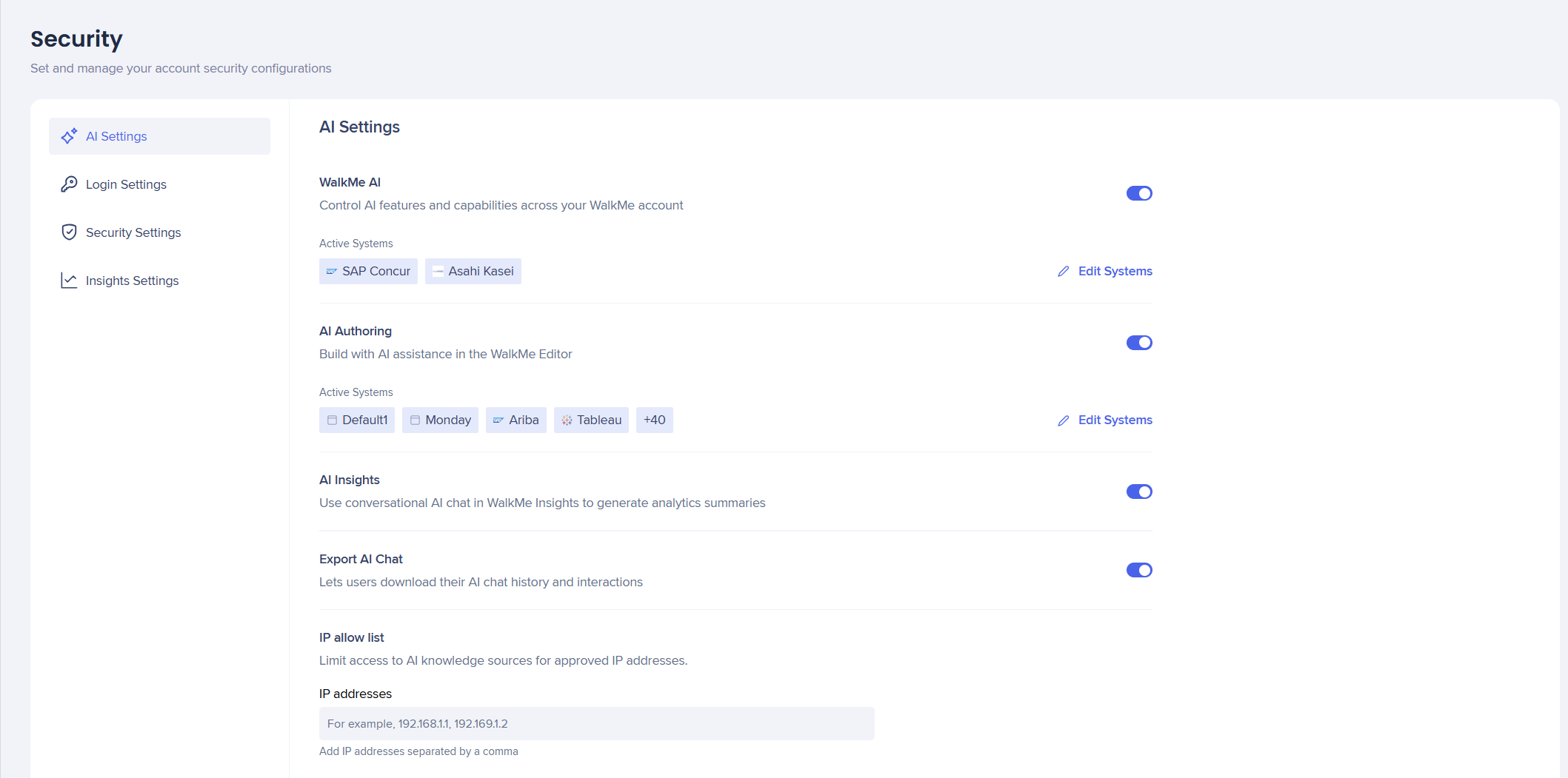
Configure the availability of Contextual AI Assistance across your WalkMe account. Enabling this feature activates Pinned, Proactive, and On-Demand AI packages to use automated system intelligence to detect user intent, suggest next best actions, and improve overall productivity and compliance.
This needs to be activated on an account level first and then for selected systems.
- Turn on WalkMe AI to enable these features for your account and systems
About Contextual AI Assistance
Self-Healing
Self-healing for Smart Walk-Thrus helps Smart Walk-Thrus to recover on their own when your app's UI changes, keeping users moving without interruption.
This must be activated on an account level first and then for individual systems.
- Turn on Self-Healing for Smart Walk-Thrus to enable this for both your account and systems
Turn on Self-Healing for Smart Walk-Thrus
AI Authoring
AI Authoring lets you create and modify WalkMe content by describing what you want in plain language, instead of building it manually.
This needs to be activated on an account level first and then for selected systems.
- Turn on AI Authoring to enable these features for your account and systems
AI Authoring
AI Insights
AI Insights is a conversational AI chat tool built into WalkMe Insights. It analyzes data from your connected WalkMe systems and surfaces answers in plain language.
AI Insights can be activated on an account level only .
- Turn on AI Insights to enable these features for your account
AI Insights
Export AI Chat
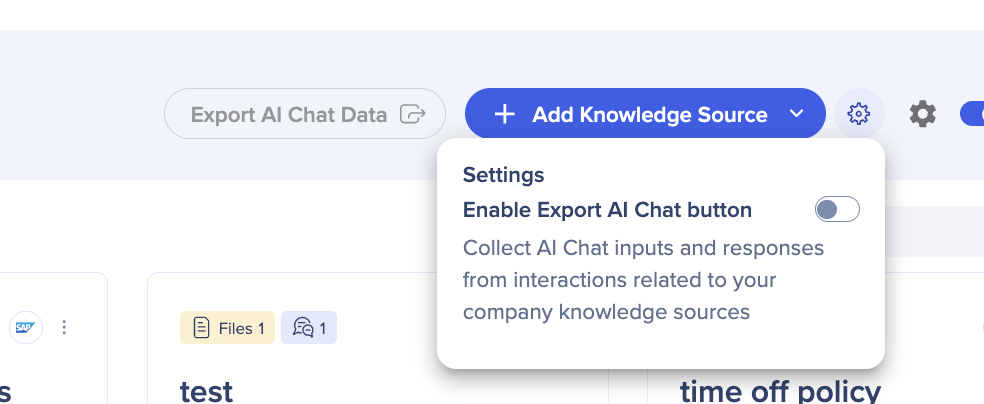
The Export AI Chat toggle enables users to collect the AI Chat inputs and responses from interactions related to AI knowledge sources. This toggle was previously in the AI Center.
- Turn on Export AI Chat, it then becomes accessible in the AI Center
Security Settings
IP Allow List
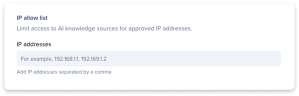
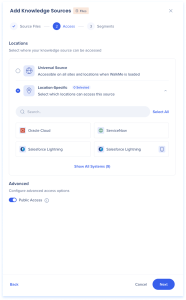
The IP allow list gives requests from approved networks, like your corporate VPN, access to knowledge sources that have Public Access turned off.
- Authenticated users get answers from restricted sources from any IP address
- Requests without user authentication get answers from restricted sources only when they come from an IP address on the list. From any other IP address, they get answers from public sources only.
- If all your knowledge sources have Public Access turned on, you don't need to add IP addresses
- Add IP addresses to the field. Each address appears as a tag
- Select Discard Changes or Save & Publish
Note
- You can't remove the last IP address from the list while any knowledge source has Public Access turned off.
- Turn on the Public Access toggle for those sources first in the AI Knowledge Sources page in the AI Center. Learn how
Technical Notes
- System-level AI is available only while account-level AI is turned on
- AI Chat is supported only with the Pro Menu, it isn't supported with the legacy WalkMe Menu
- AI Insights and AI Authoring do not support Custom LLM