Brief Overview
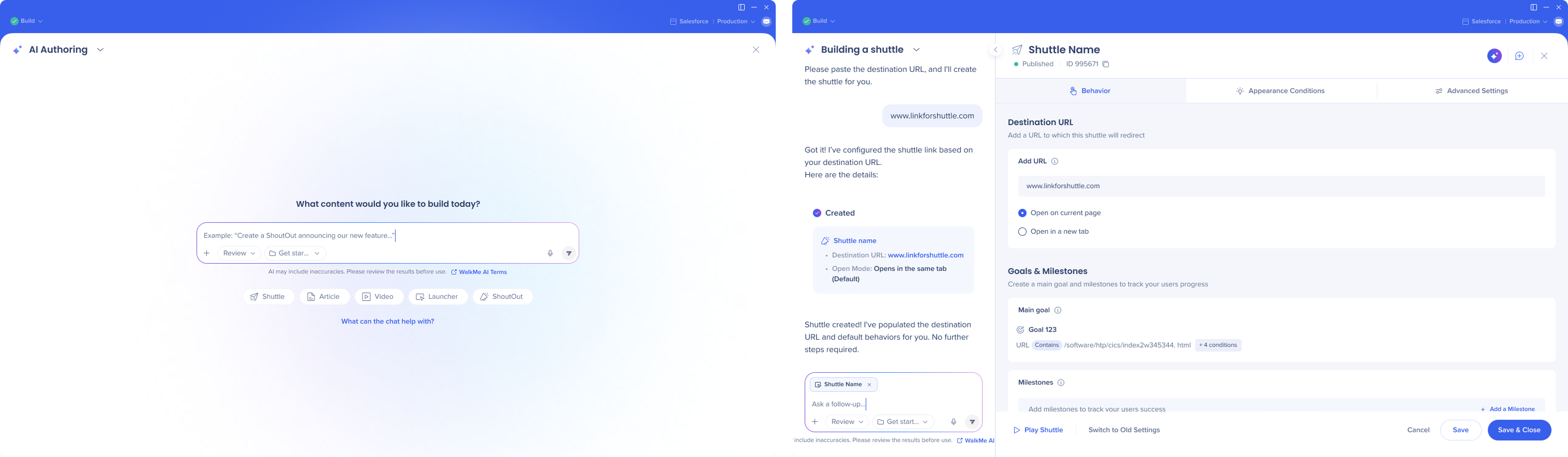
AI Authoring lets you create and modify WalkMe content by describing what you want in plain language, instead of building it manually.
Whether you need to adjust complex CSS rules, construct advanced logic conditions, or collaborate in isolated parallel project sessions, the AI handles the execution so you can focus entirely on the user experience.
Note
AI may include inaccuracies. Please review the results before use.
Use Cases
- Create items such as shuttles, ShoutOuts, launchers, articles, and videos
- Query and modify existing content
- Extend content you've already built
- Construct appearance and behavior conditions in natural language
- Edit CSS in free text
How to Enable
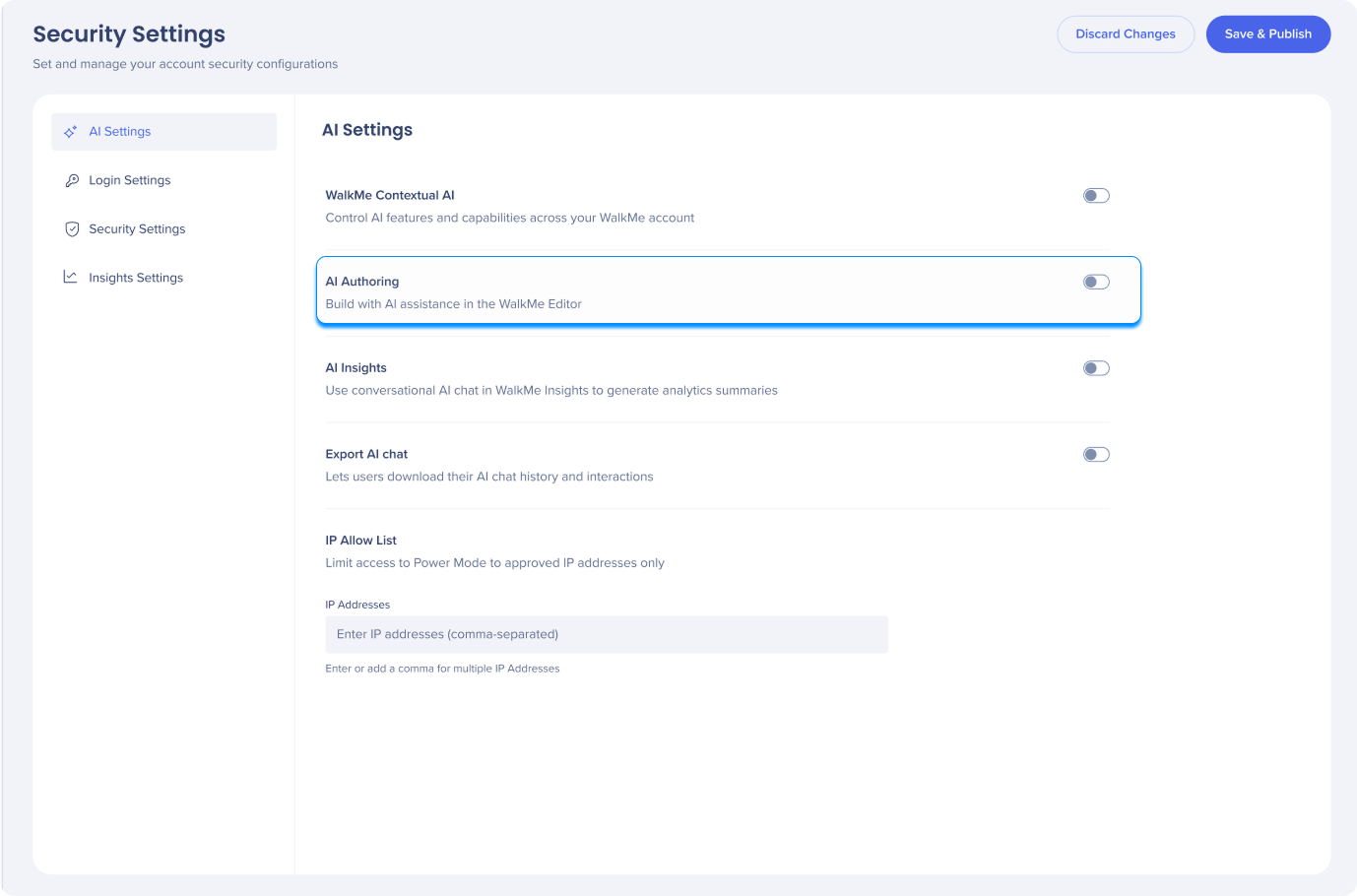
To enable AI Authoring:
-
In the WalkMe Console, go to Admin
-
Select Security & Audit
-
Select Security Settings
-
Go to AI Settings
-
Enable AI Authoring
How It Works
Create content with a prompt
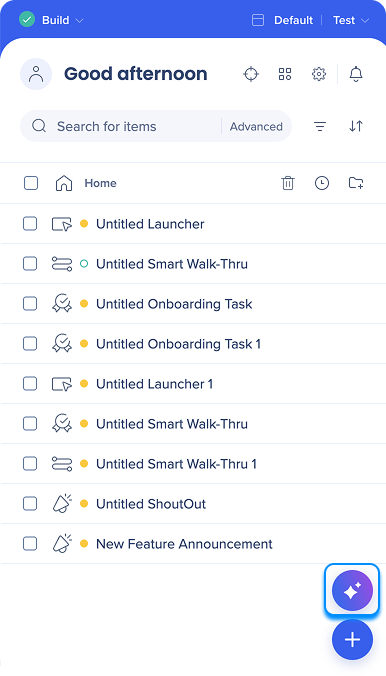
- Select the purple Author with AI icon in the bottom right corner of the editor
- In the free-text field, describe your goal (for example, an announcement, a navigation shortcut, or a styling change)
- To start faster, select a quick-start shortcut beneath the field: shuttle, article, video, launcher, or ShoutOut
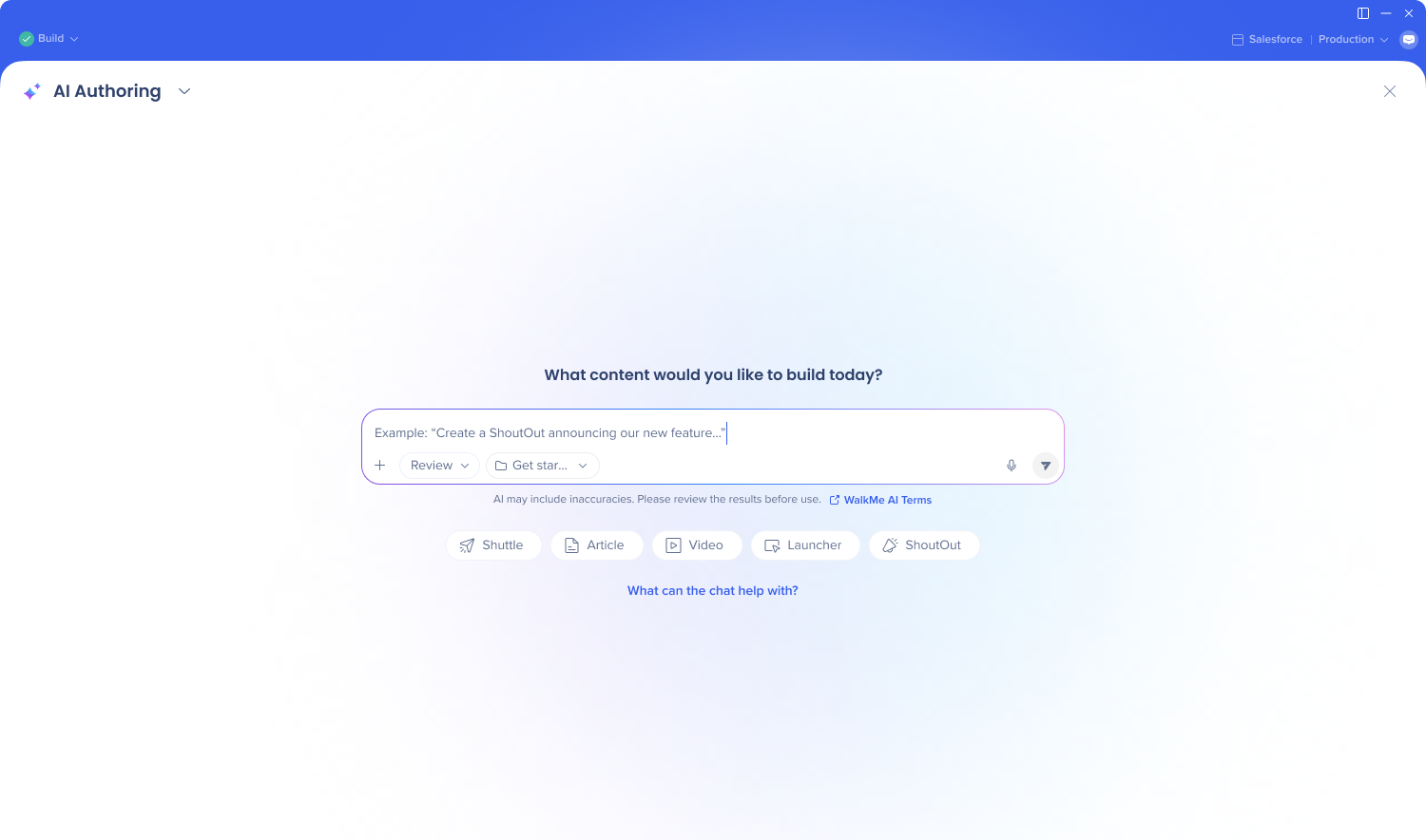
- Select Send
- Answer the AI's follow-up questions
- It asks for what it needs before it acts — for a shuttle, that's the destination URL where you want to send users
- Review the suggested plan — The AI summarizes what it will build
- Select Accept & Build
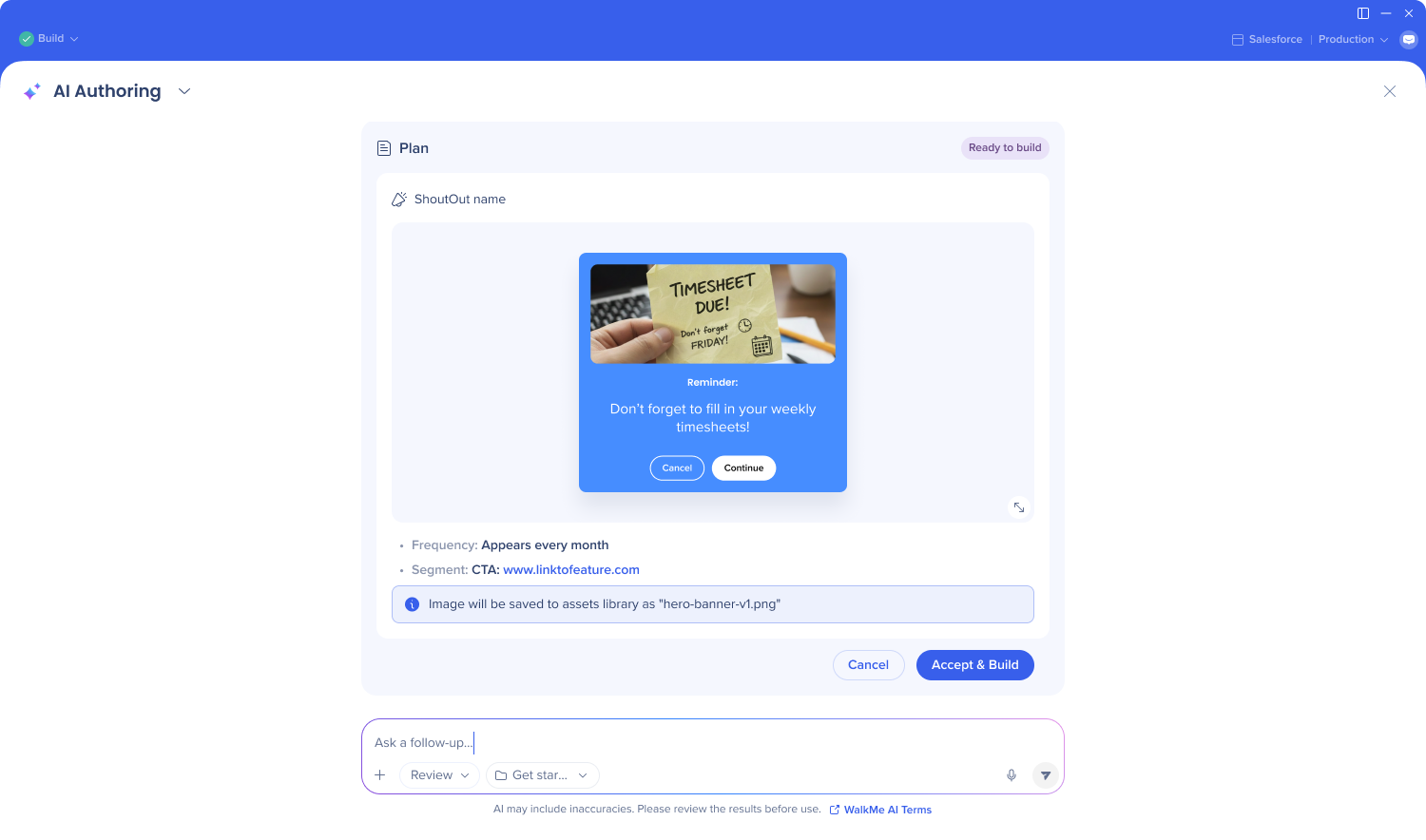
- Choose your next step:
- Refine it here — continue the conversation with a follow-up prompt
- Move to the editor — review and adjust the result
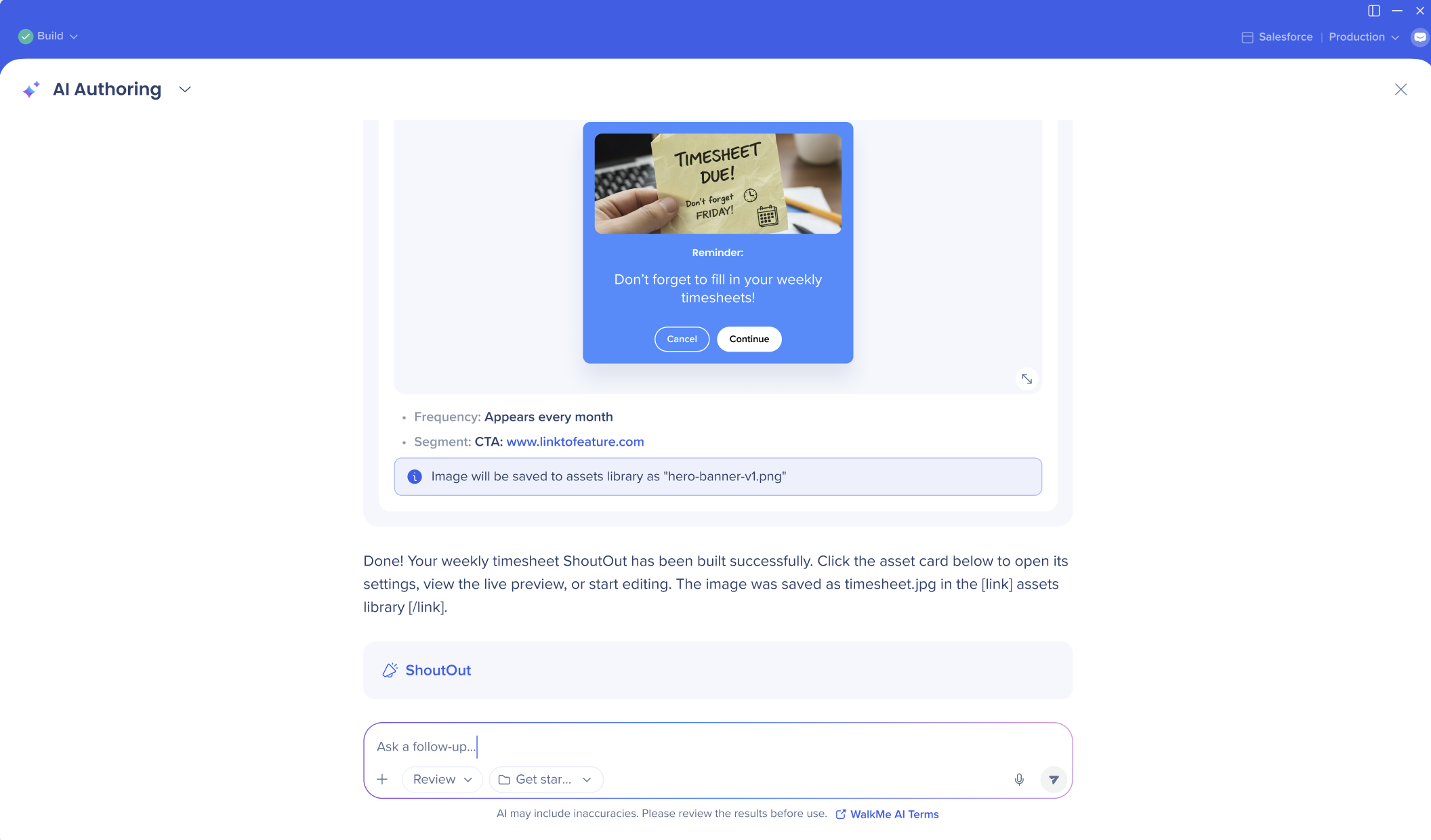
Launcher element selection
When creating a launcher, you'll have to manually select an element after AI creates the draft.
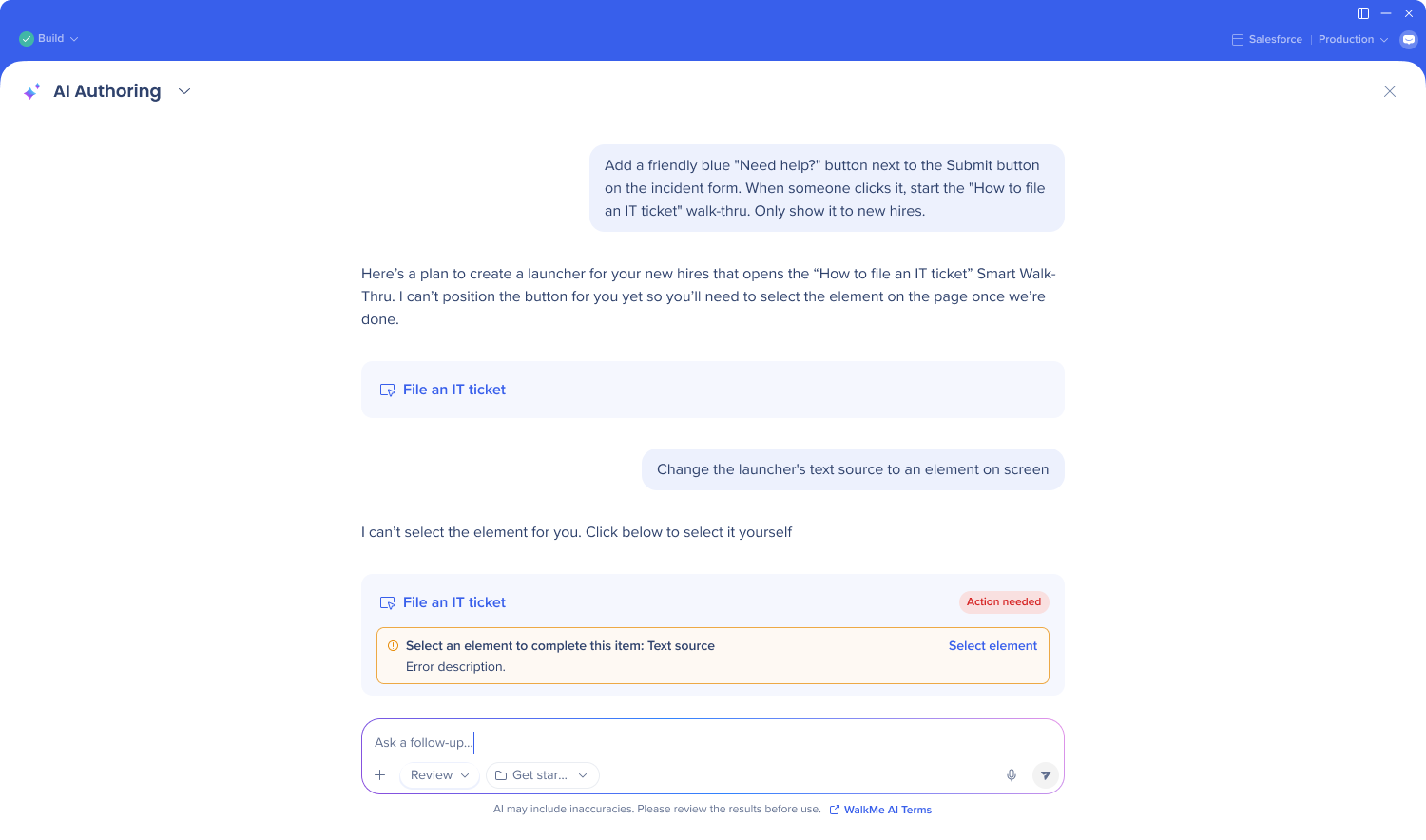
Images and attachments
Select the + Add button to upload an attachment or create and image, or drag and drop the files into the input field
- AI can generate images based on your request in plain language
- These images are automatically saved to the assets library
- You can also upload attachments, for example:
- A text source for AI to analyze, edit, summarize etc.
- An image to add to your ShoutOut or launcher templates
- An image to use as a reference for your content (nor recommended to use for this purpose yet, will be improved)
Supported formats and sizes
- Images: PNG, JPG, JPEG, GIF (≤ 20 MB each)
- Documents: CSV, TXT (≤ 30 MB each)
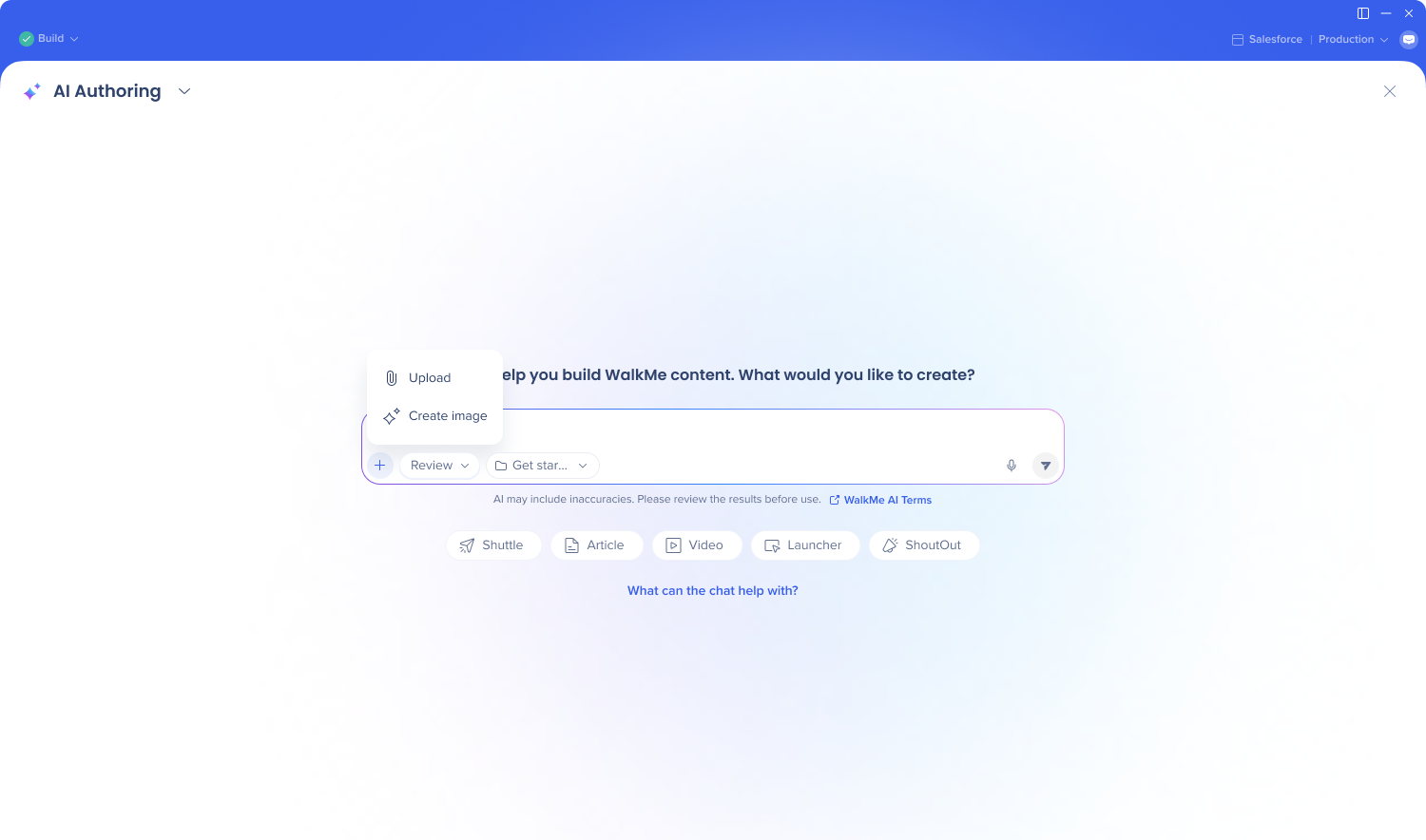
Building mode
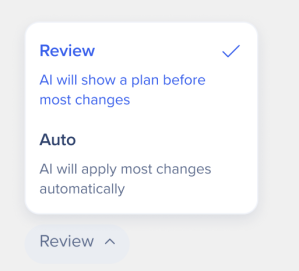
The building mode toggle controls how the AI applies changes to your content:
- In Review mode, the AI shows you a plan before making larger changes, giving you the chance to confirm before anything is built
- In Auto mode, the AI applies changes directly without pausing
- In both modes, minor changes may be applied automatically
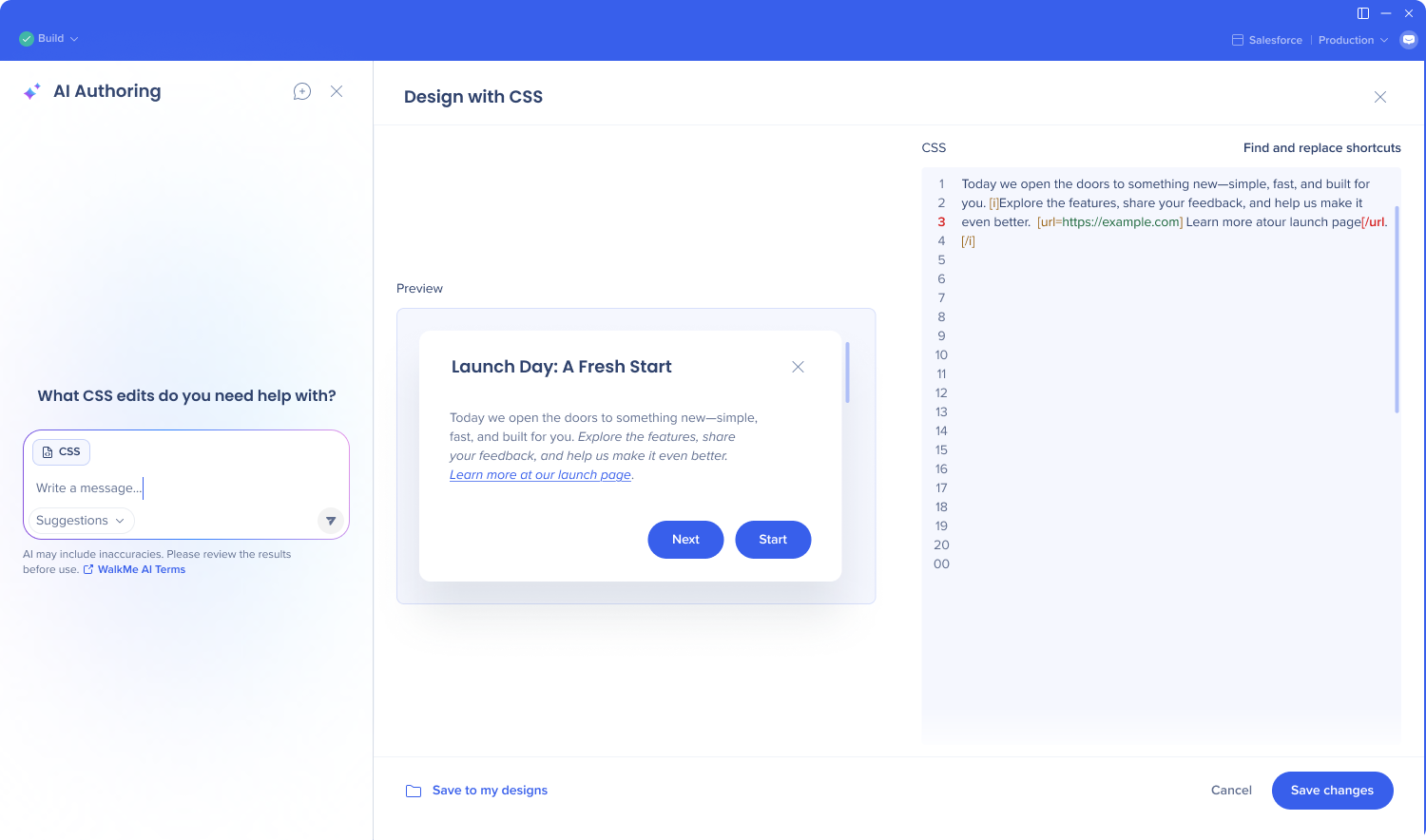
CSS
Beyond creating items, you can use natural language to write or adjust CSS. Describe the styling you want, and the AI translates it into the underlying configuration.
Conditions
You can also use AI to create conditions — describe the logic, and the AI translates it into the underlying configuration.
Note
Dynamic text attributes, number/date comparison rule, and on screen element condition aren't supported.
What you can ask AI
Create and edit content
-
"Create a ShoutOut for employees announcing the new travel policy. Generate a sleek, colorful 3D illustration of a business traveler at an airport with travel documents. Add a 'Review the policy' button that opens a new Shuttle to www.[newpolicy-example].com. Show it once a day, to a new APAC segment where var location = APAC"
-
"Create a ShoutOut called 'Month End Notice' with the headline 'Month end summary' that shows on the last day of every month"
- "Create an onboarding task that plays a video called 'Your first day at WalkMe' fromwww.youtube[example].com, and completes once the video has played"
-
"Create a launcher called 'Browser Rules' that appears when the URL contains 'salesforce', and only in Chrome or Firefox"
-
"Create an Action Bar launcher that summarizes the highlighted text"
-
"Add the prefix [v1] to all my content in draft mode"
-
"Update the z-index of all my launchers to 10"
-
"Move all ShoutOuts into a new folder called 'Old ShoutOuts'"
-
"Change the button color of {ItemName} to bright green"
-
"Create an article resource named 'Manager Guide' pointing to www.article[example].com, with the description 'Quarterly manager process' and the search keywords manager, quarterly, process"
-
"Generate an illustration of a rocket launching and save it to the asset library as 'Rocket'"
Find out what's built
- "List everything in this account, grouped by content type"
Technical Notes
Not supported in this version
- Smart Walk-Thrus and SmartTips
- Publishing or archiving content
- On-screen element in text sources and conditions
- Dynamic attributes
- Selecting elements for you
- Element identification (Advanced settings tab)
- Configuring global settings
- Classic ShoutOuts and surveys (not planned)
-
Custom LLM
Systems
Design limitations
- The AI builds only with the design options the editor UI supports today — it can't add capabilities the UI doesn't have.
Template elements
- Templates support images, icons, and buttons. These are the elements available in templates; legacy elements aren't supported.
Template theming
- Unless you specify otherwise, the AI creates templates within your existing theme, so new content matches your established styling automatically. You can also prompt it directly — for example, "connect my templates to the theming default variables" — to link a template to your theme's default variables.
- If your prompt asks for styling outside your theme, the AI creates it as requested and disconnects that item from Theming. For example, if your theme colors are blue and you request a purple launcher, the AI builds the purple launcher and disconnects it from the theme. Only that item is affected.
Data collection
- AI Authoring doesn't collect any new data on its own. The only account-specific input it uses is what a builder types into a prompt — for example, item names, URLs, or descriptions.
Data storage
- Conversation history in AI Authoring is kept for 18 months. This history isn't used to train the AI model.
Models
- Currently, WalkMe uses Gemini for content and image generation, and Perplexity for internet search, within AI Authoring. However, WalkMe reserves the right to change the LLM vendor in the future to enhance the performance and quality of the service.


