Brief Overview
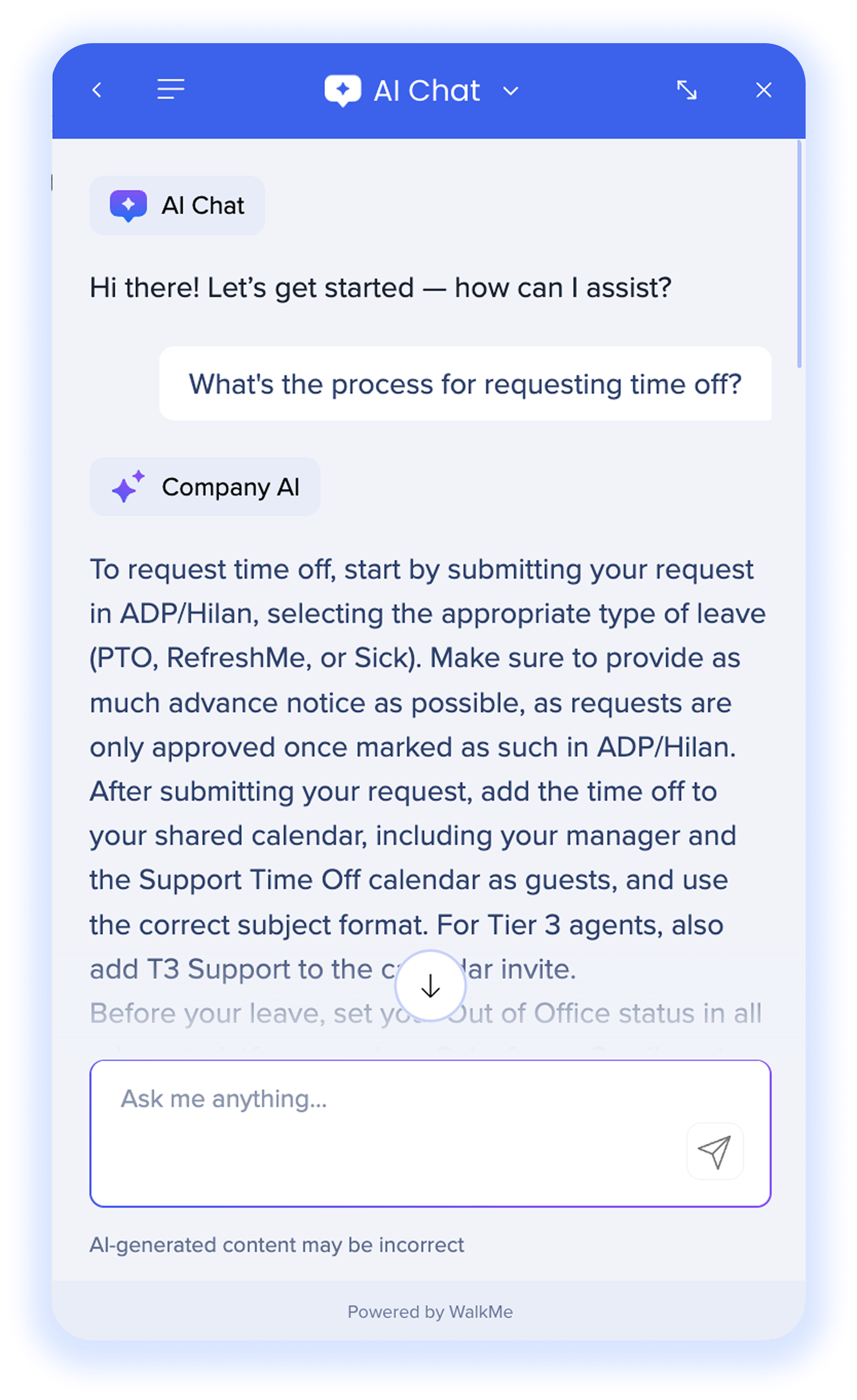 AI Answers lets users find critical business information without leaving their workflow. It connects to company-specific knowledge sources and delivers accurate, conversational answers through the WalkMe Menu and Action Bar, powered by generative AI.
AI Answers is powered by large language models (LLMs), which lets users ask follow-up questions and get contextually relevant answers. Enterprises control which data and content sources AI Answers can access, in line with WalkMe's security standards.
Use Cases
- Organizations looking to expand AI use in their digital transformation strategy
- Teams that need to find answers quickly to improve productivity
- Sales teams that need instant access to product information and resources
- IT departments that want to automate responses to common support issues
Set Up
Integrate your data
The AI Center lets admin users upload knowledge sources.
AI Center
Key terms
- Source: The site or file scanned for data that AI Answers queries
- System: The WalkMe system site where users ask questions about the source content
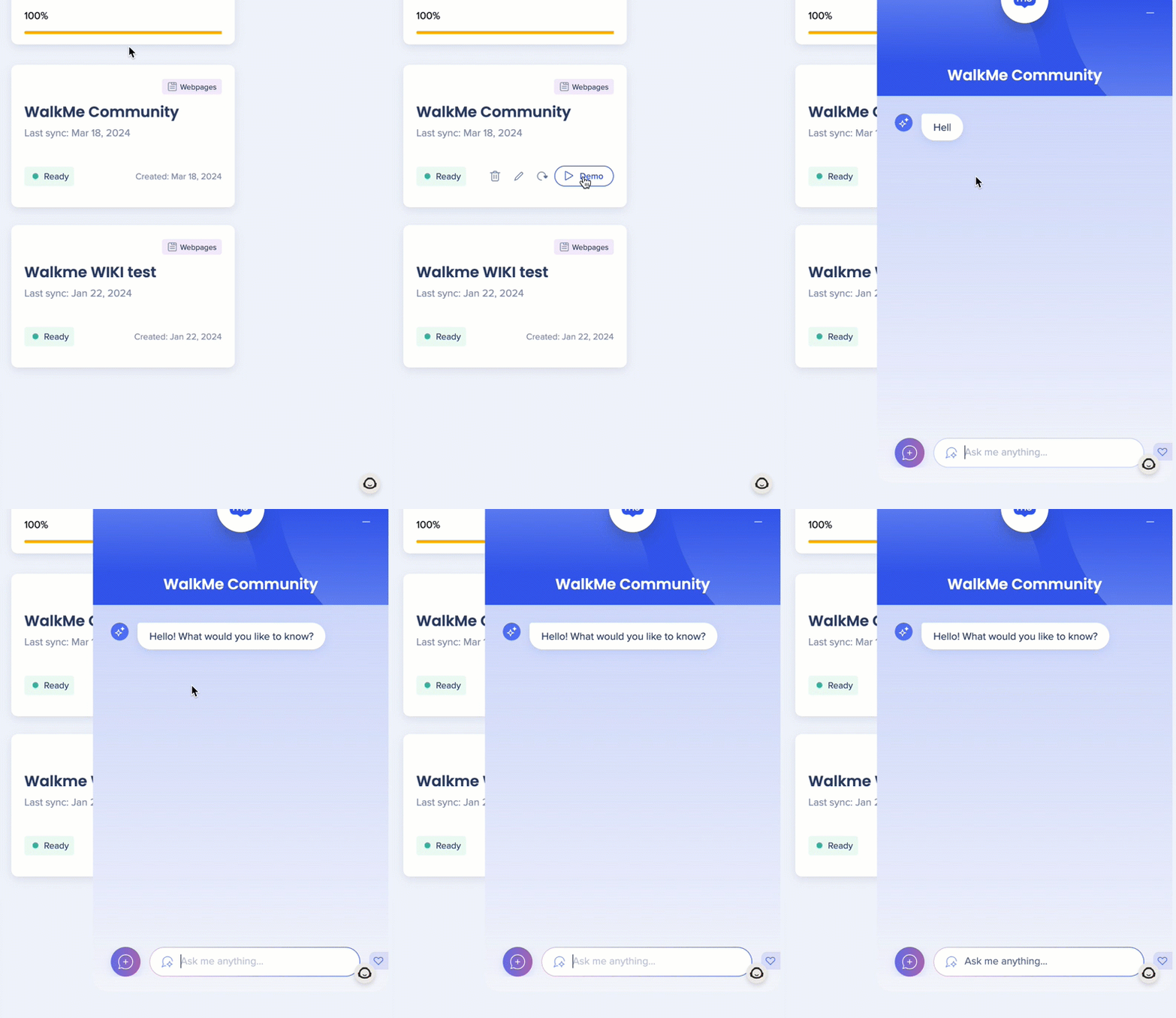
Test AI Answers
- Open the WalkMe Console
- Go to the Admin category
- Select AI Center
- Select AI Knowledge Sources
- Hover over your knowledge source
- Select Demo
Turn on the Pro Menu and Company AI
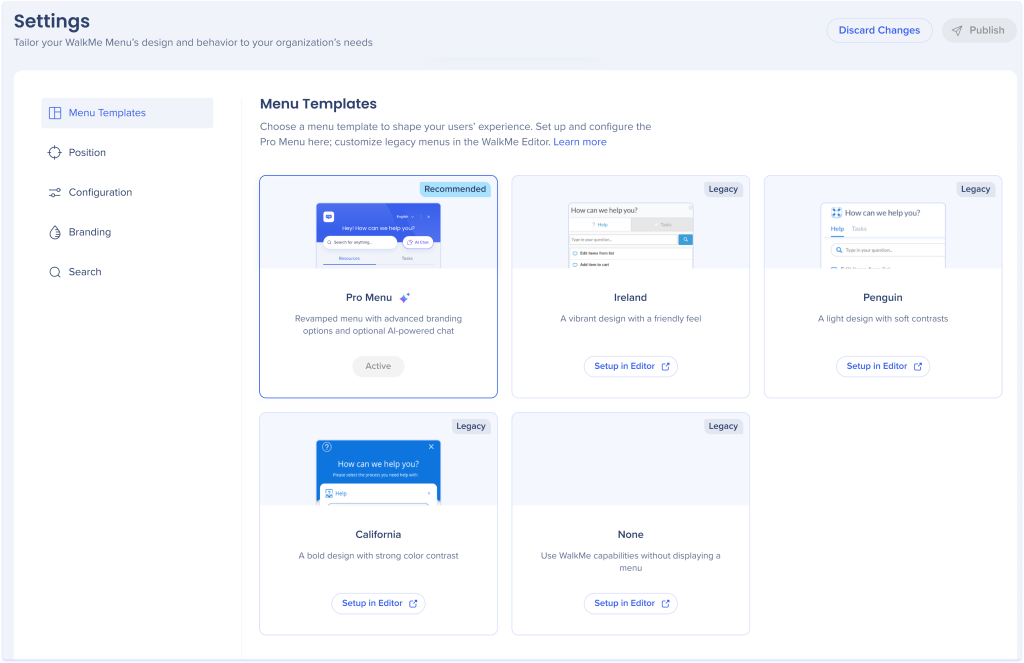
AI Chat in the Pro Menu is the entry point for AI Answers. Follow these steps to turn on the Pro Menu and AI Answers in the AI Chat:
1. Turn on Pro Menu in the console Menu app:
WalkMe Web Menu Setup in Console
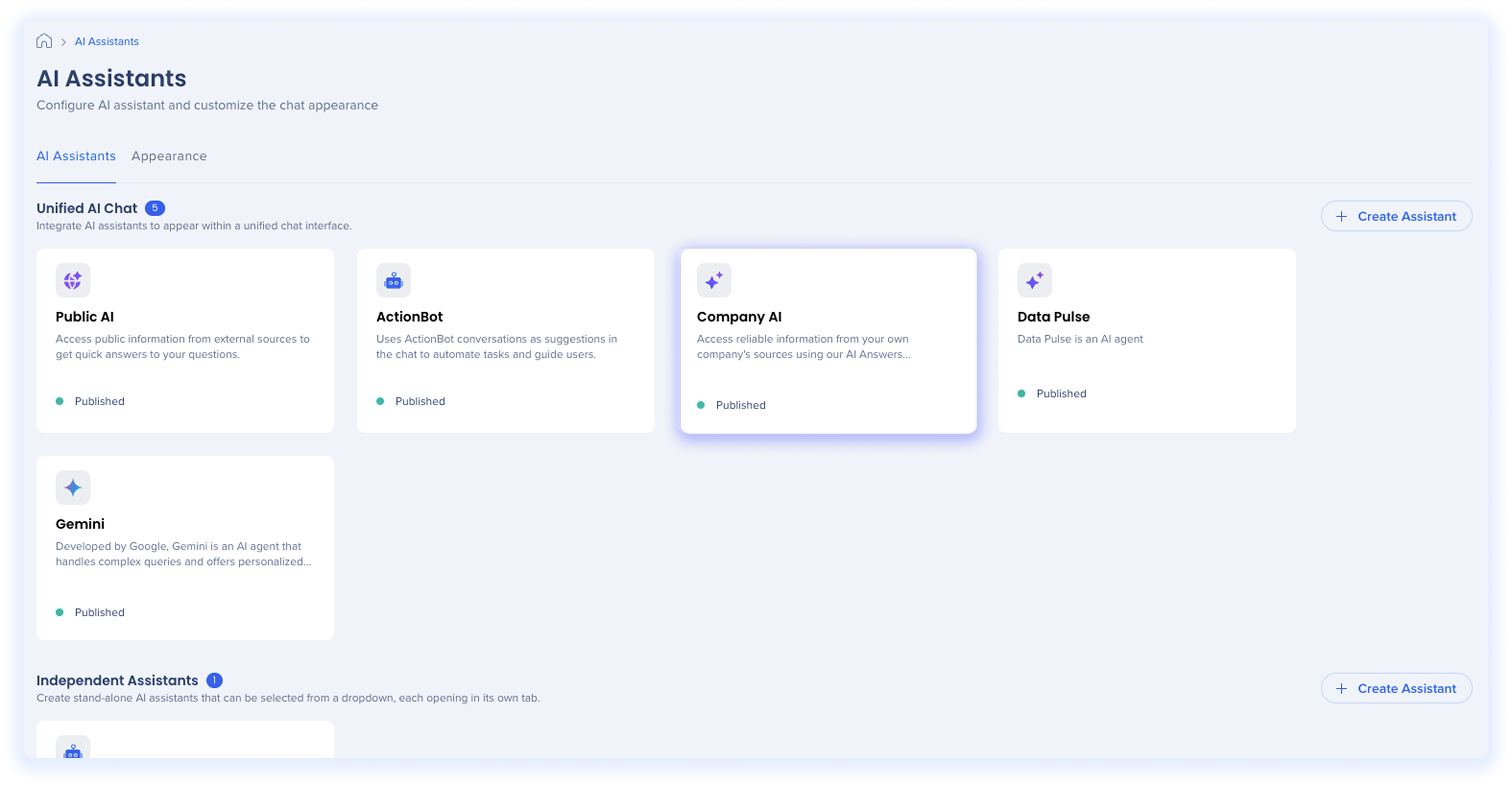
2. Turn on Company AI in the console AI Chat app. You can turn it on as part of the unified chat experience or as an independent assistant:
AI Chat in Console
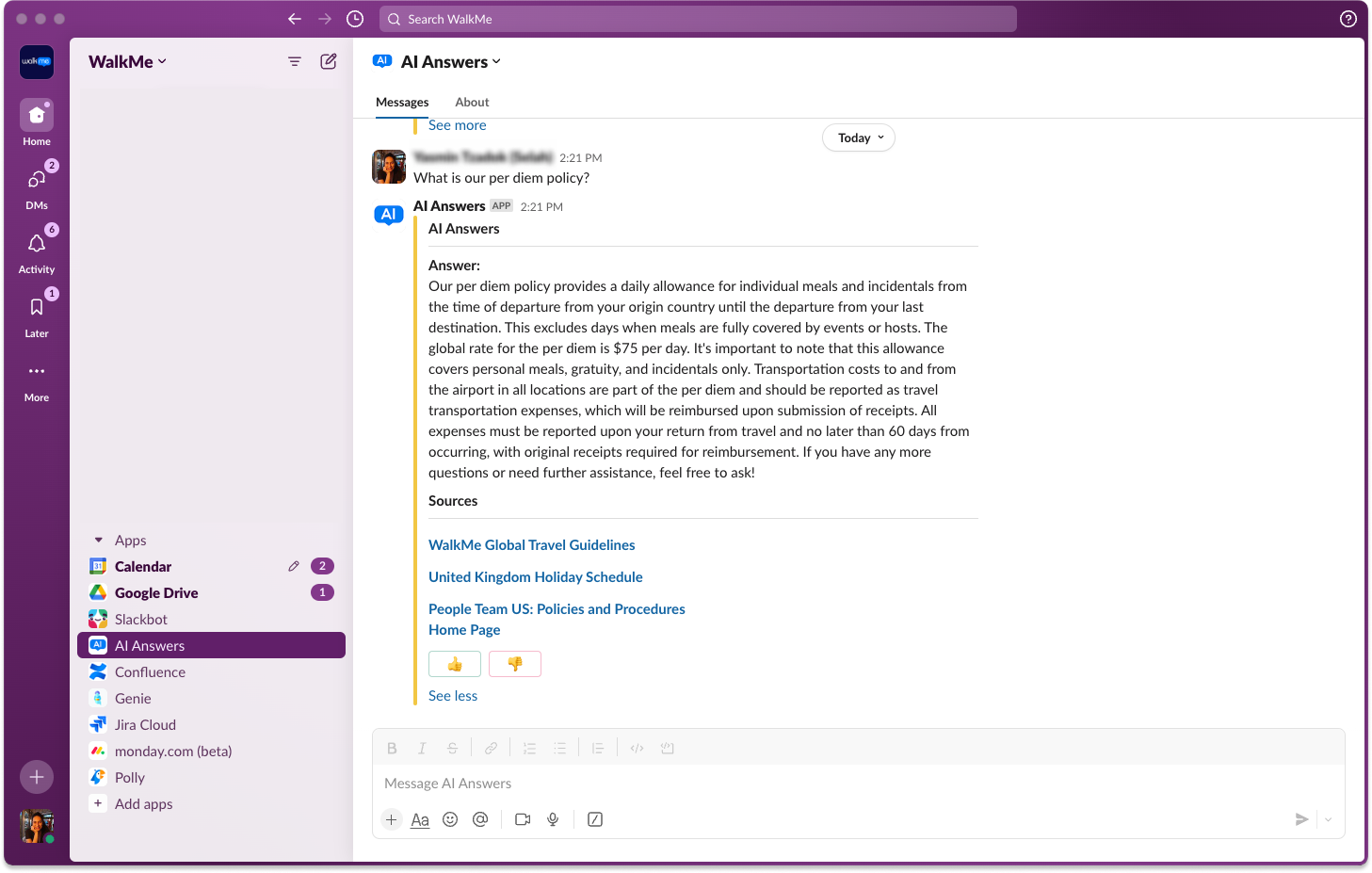
Integrate AI Answers into Slack
AI Answers integrates with Slack and Microsoft Teams, letting users access it directly from their workspace. The R&D team handles the integration and can set up access policies for your Slack channels. To request this integration, contact your Customer Success Manager.
How It Works
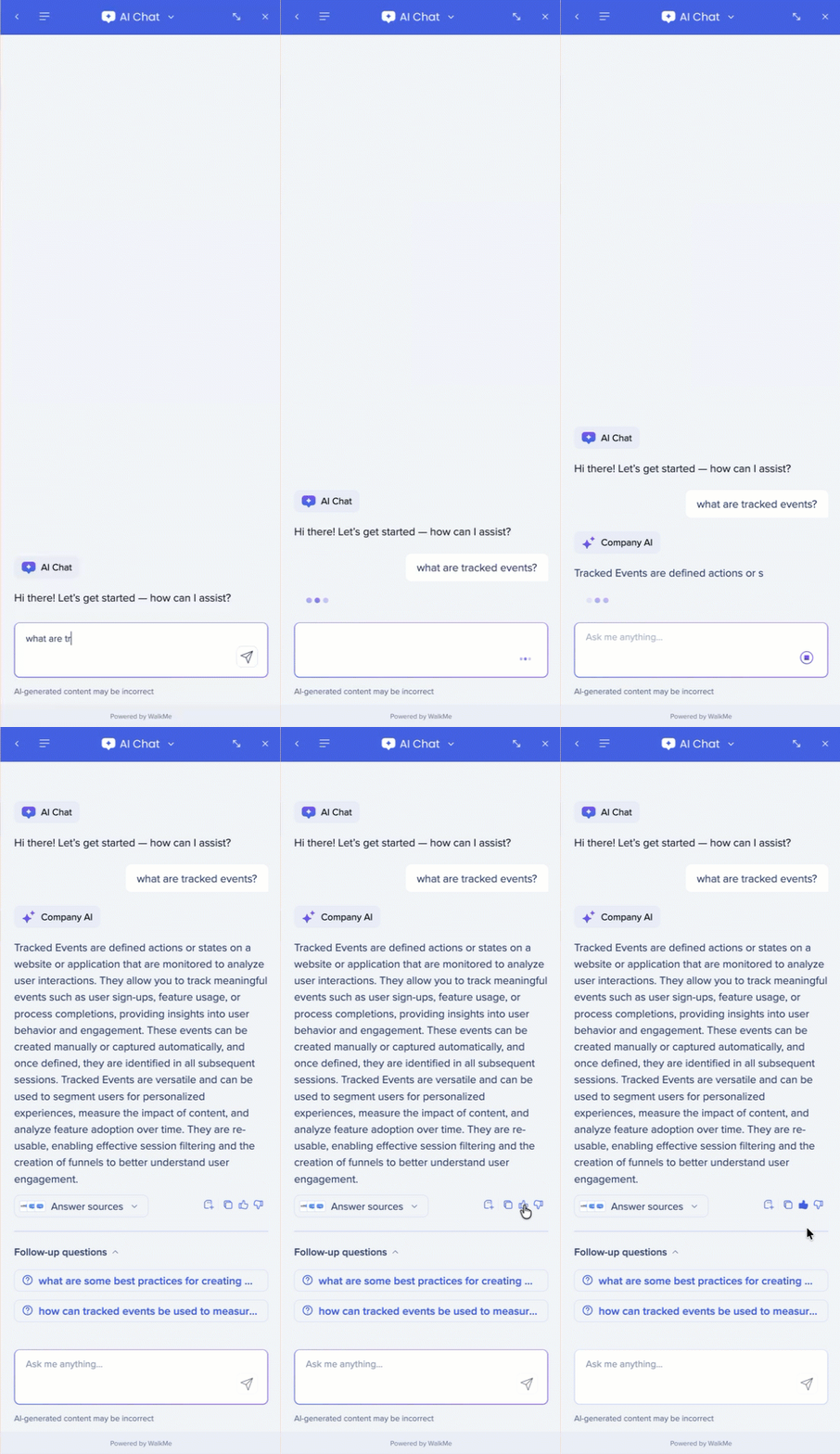
Type your question directly into AI Answers to get an answer without searching through documentation manually.
-
Open AI Chat by opening the Menu widget or selecting the AI Chat button on the menu homepage, depending on your menu setup
-
Type your company-related question in the Ask me anything field
AI Chat capabilities
Discover all of AI Chat's capabilities to learn how to interact with your company's knowledge assistant. Learn about AI Chat
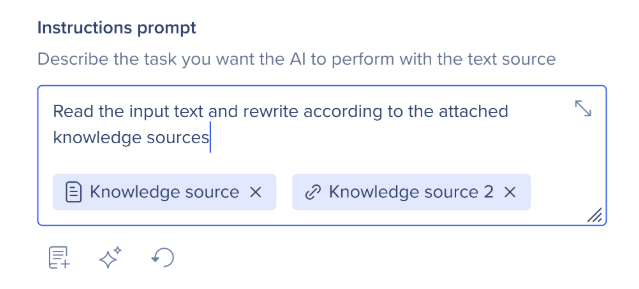
Knowledge Sources in prompts
Pull real-time, contextual knowledge from internal documentation to improve process compliance and decision-making.
- The knowledge sources available per system are set by the admin in the AI Center
AI Center
- The ability to add knowledge sources to prompts is available for AI launchers, AI SmartTips, and AI conditions, and can be created in the console or editor
Action Bar Building in Console
Technical Notes
-
AI Answers supports long conversations (up to 15 messages)
-
A knowledge source is a collection of information and documents — for example, FAQs, manuals, how-to guides, training materials, and public support pages — that employees or customers use to find answers about a company's products, services, and policies
-
Admins can add custom responses using the custom Q&A feature in the AI Center. Custom responses take priority when there is conflicting information
-
AI Answers can return related Smart Walk-Thrus (SWTs) in responses. For a Smart Walk-Thru to appear, it must be published to the menu and relevant to the user query. Including a description of the WalkMe item gives the AI more context to determine when it's relevant


