Brief Overview
When a Smart Walk-Thru step can't be played, Self-Healing uses WalkMe AI to find the right element in real time. The Smart Walk-Thru carries on, and users finish what they started.
Self-Healing works around an issue, but it doesn't fix the step itself. When a step needs Self-Healing, Builder Assistant recommends a fix, so you can update the step and keep it from relying on Self-Healing.
Use Cases
Self-Healing can find an element when it was:
- Renamed
- Moved on the same page
- Shown in a different language
- Repositioned, for example because of a different screen resolution, as long as no clicks are needed to reach it
- Loaded only after scrolling (lazy loading)
- Moved or relabeled inside a table
How to Enable
An admin turns on Self-Healing for the account:
- In the WalkMe Console, go to Admin
- Select Security & Audit
- Select Security Settings
- Go to AI Settings
- Turn on the Self-Healing toggle
Turn on Self-Healing for Smart Walk-Thrus
How It Works
Self-Healing runs while the Smart Walk-Thru plays. If a step can't find its element after 5 seconds, Self-Healing starts and WalkMe AI looks for the element on the page, using the step's intent to understand what the step is for.
Calibration
Before Self-Healing can run, WalkMe AI calibrates the system by generating an intent for each Smart Walk-Thru step.
- Calibration runs in the background, so you don't need to do anything
- When it's done, intents appear in each step's Advanced Settings tab and Self-Healing becomes available
- New and edited steps get an intent automatically when you save them
- You can review and edit intents as soon as calibration is complete, even before Self-Healing is turned on
Step intent
Step intent is a description of a step's element, what the step is for, or both. WalkMe AI features, like Self-Healing, use it to understand your flow.
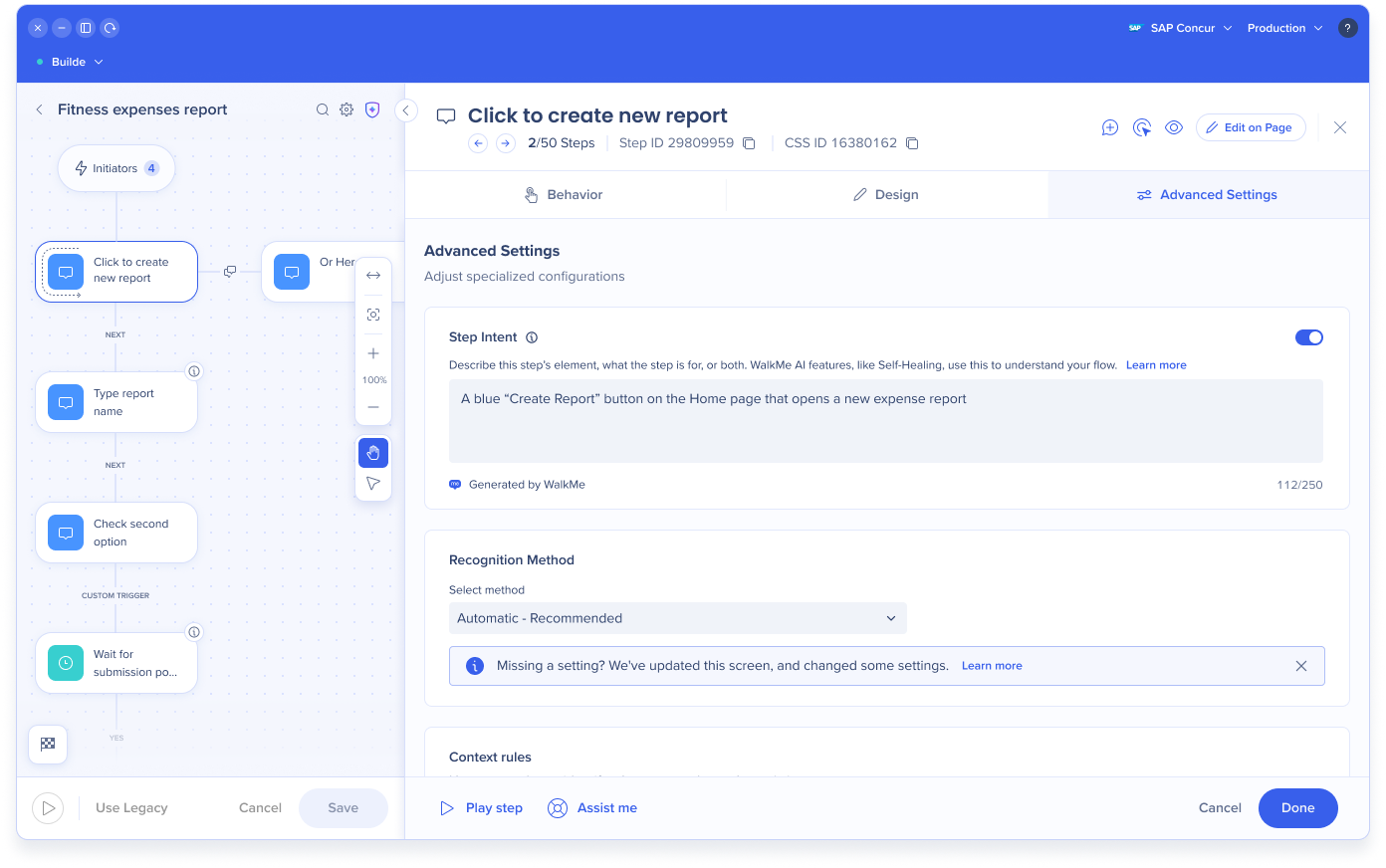
Each step's intent appears in the Advanced Settings tab:
- Generated by WalkMe: WalkMe AI wrote the intent from the step text, DeepUI, and Editor screenshots (when they're turned on)
- Edit: Rewrite the intent, up to 250 characters. To undo your changes, select Restore AI-generated intent.
- Turn off: The Step Intent toggle turns the intent off for that step. WalkMe AI features, like Self-Healing, won't work on the step until you turn it back on.
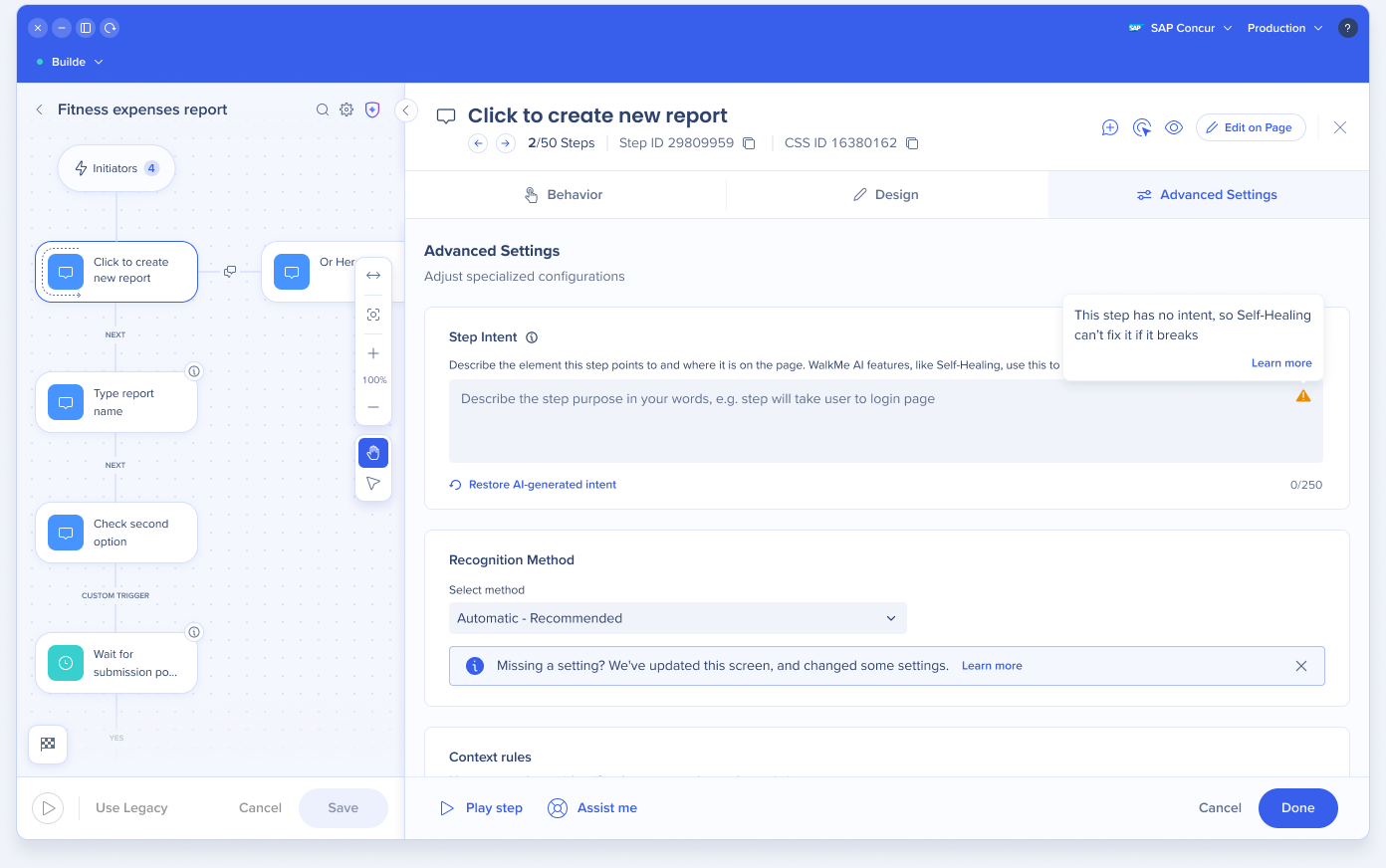
Steps with no intent
- If WalkMe AI couldn't generate an intent with enough confidence, the field is empty and shows a warning. Self-Healing can't fix this step until you add an intent.
- A warning icon next to the Smart Walk-Thru name lists the steps Self-Healing can't fix because they have no intent. Select a step to open it.
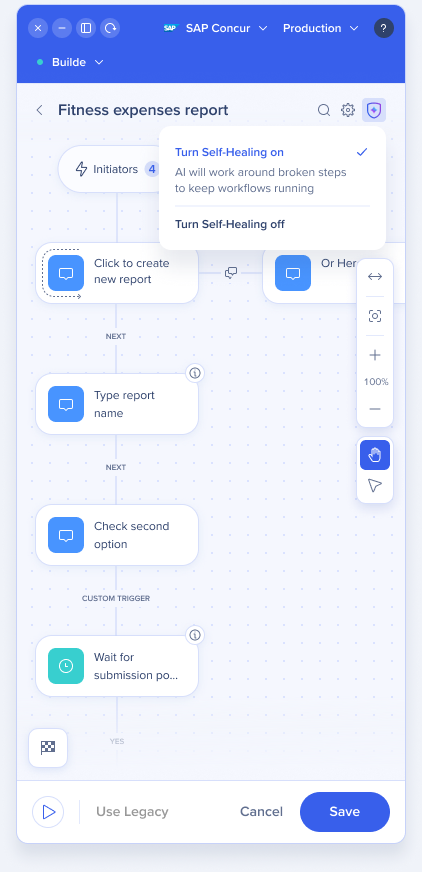
Turn Self-Healing on or off for a Smart Walk-Thru
Once Self-Healing is turned on for the account, you can turn it on or off for a specific Smart Walk-Thru in the Editor.
- The shield icon at the top of the Smart Walk-Thru map shows whether Self-Healing is on for the Smart Walk-Thru. Select it to turn Self-Healing on or off.
- When you turn Self-Healing off, you're asked to confirm first. You can turn it back on anytime.
Debug with the Flow Tracker
When you debug a Smart Walk-Thru in the Flow Tracker, you can see steps being healed live and fix them before you publish.
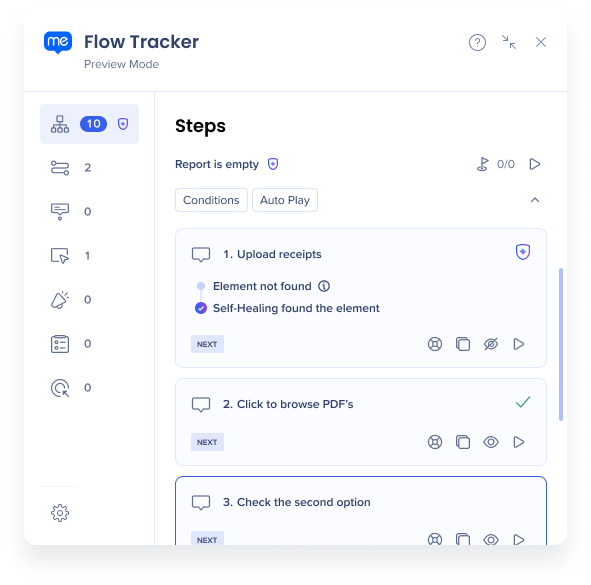
Flow Tracker
Builder Assistant recommendations
When a step still needs a fix, Builder Assistant shows a Self-Healing recommendation. For each step, you see:
- Cause: What changed, such as the label or language
- Last attempt and total attempts, with a breakdown of healed, not healed, and stopped by user
- How Self-Healing worked: Each issue and how WalkMe AI found the element
- Fix step: Opens the step in the Editor
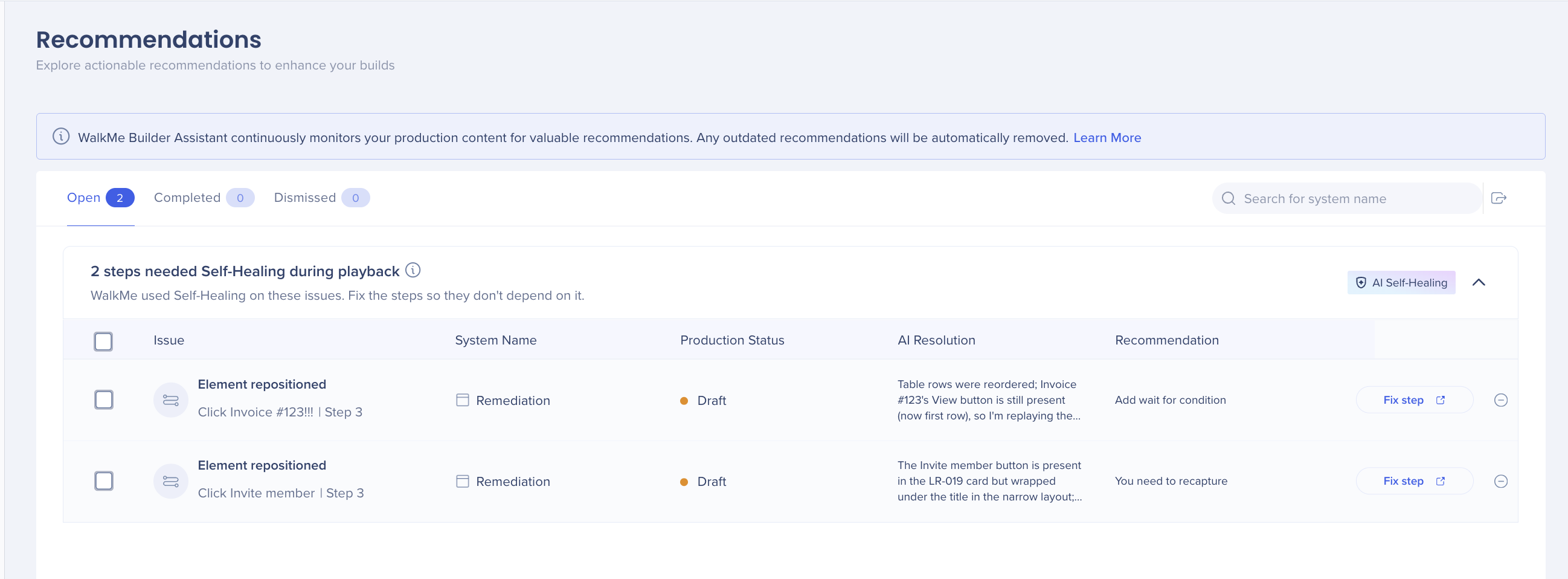
WalkMe Builder Assistant: Recommendations
Insights
The Smart Walk-Thrus tab in Insights shows a Smart Walk-Thrus with Self-Healing card and a Self-Healing column in the Smart Walk-Thrus Summary table.
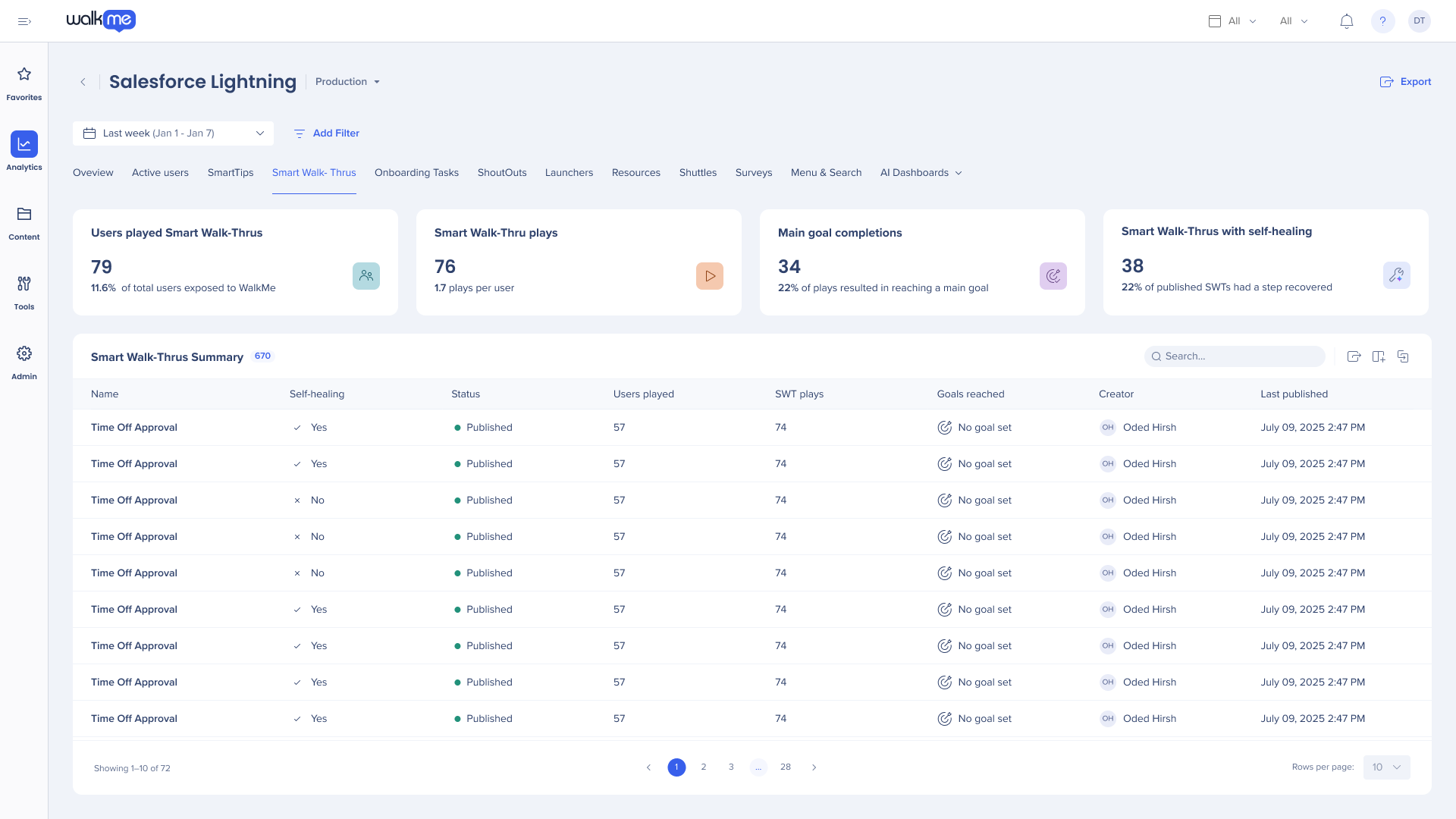
Insights Content Tabs
What users see
Self-Healing runs while the Smart Walk-Thru plays. If a step still can't find its element after 5 seconds, Self-Healing starts, and a short message appears on screen so people know WalkMe is getting the Smart Walk-Thru back on track. They can stop it at any time.
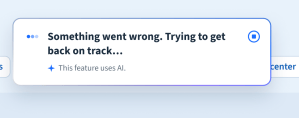
Something went wrong
When a step can't find its element, users see Something went wrong. Trying to get back on track… and Self-Healing starts looking for it.
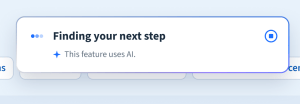
Finding the next step
While WalkMe AI looks for the element on the page, the message changes to Finding your next step. When it finds it, the Smart Walk-Thru continues.
Couldn't get back to the original flow
If Self-Healing can't get back to the original step, users see We couldn't return to the original flow. They can select Close to dismiss the message.
Technical Notes
Prerequisites
- The WalkMe AI addendum is signed and the AI terms and conditions are accepted
- Web only
- Unique user extension, on Chrome and Edge only
- Calibration is complete for the system
- The step has an intent
Limitations
- Self-Healing covers element not found only, on Smart Walk-Thrus only
- Works on the same page only. Self-Healing doesn't click, open menus or modals, or move to another page.
- Supported steps: Step and auto-step, when they're visual and element-based
- Doesn't run on the first step of an autoplayed Smart Walk-Thru
- Not available in Play mode. Preview is supported.
- The store extension and manual extension installs aren't supported


