Brief Overview
WalkMe Contextual AI doesn't turn on with a single switch. It rolls out in three stages, each one unlocking the next: your account gets activated for AI, an admin turns AI on for the account, then AI is turned on system by system. This article walks through all three stages, then shows you how to configure the features that need their own setup - AI Chat, Action Bar, Smart Highlights, and AI Knowledge Sources.
Access
Every setting and feature in this article is accessed from the WalkMe Console. Open the console for your data center to get started:
How It Works
Each step depends on the one before it: you can't turn on AI for a system until account-level AI is on, and account-level AI can't turn on until your account is licensed. Work through the steps in order.
Step 1: AI activation
Before anything else can happen, your account needs to be activated for AI — which happens once you agree to WalkMe's AI Terms & Conditions. For SAP customers, specified AI terms are already included in your contract, so no separate acceptance is needed.
For questions on whether your organization has agreed, or next steps to complete the process, contact your account team.
Once activated, your admin will have the ability to turn on or off the WalkMe AI capabilities.
Step 2: Turn on AI for your account
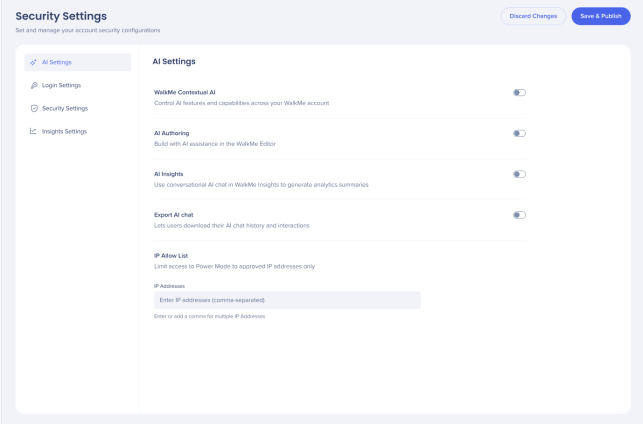
An account admin turns on WalkMe AI in the console:
- Go to the Admin category
- Select Security & Audit
- Select Security Settings
- Select AI Settings
- Turn on the AI features you want
Turning on WalkMe Contextual AI turns unlocks account-level enabled features, and sets your account to AI-ready so you can turn AI on system by system.
Step 3: Turn on AI for each system
Once account-level AI is on, choose which systems use AI:
- Open the system you want
- Go to the Products tab
- Turn on WalkMe Contextual AI for that system
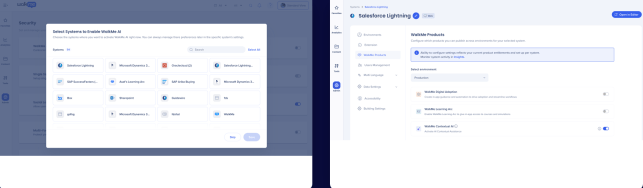
Once AI is turned on, AI SmartTips, AI Conditions, AI Steps in Smart Walk-Thrus, and AI Launchers (outside the Action Bar) are ready to use immediately. Three features need their own setup before they're visible to users:
- AI Chat
- Action Bar
- Smart Highlights
You can also upload knowledge sources from the AI Center to ground your AI in your organization's own knowledge.
AI Chat
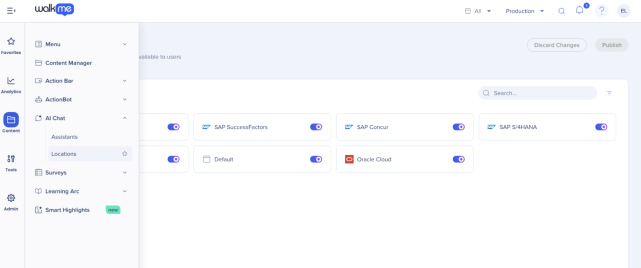
- Go to the Content category
- Select AI Chat
- Select Locations
- Choose where AI Chat should be available
- Select Publish
To set up which assistants users can access inside AI Chat, refer to the AI Chat in Console article:
AI Chat in Console
Action Bar
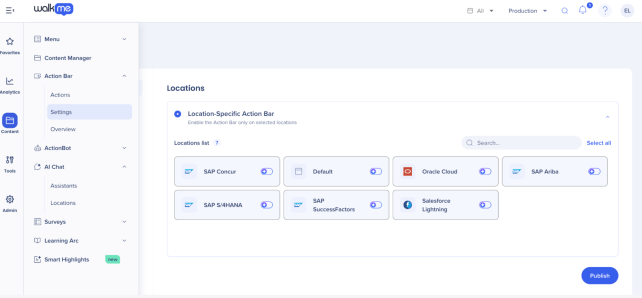
To make the AI-enabled Action Bar available to users, set up its locations and publish.
- Go to the Content category
- Select Action Bar
- Select Settings
- Choose the locations where Action Bar should appear
- Select Publish
Once published, the Action Bar becomes visible to users. To set up launchers, refer to the Action Bar Building in Console article:
Action Bar Building in Console
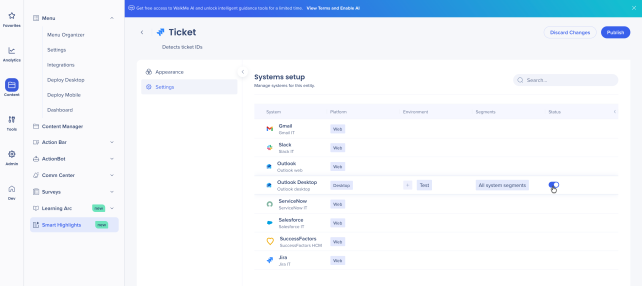
Smart Highlights
- Go to the Content category
- Select Smart Highlights
- Select Connect a data source and choose a data provider (for example, Jira, Salesforce, or SAP S/4HANA)
- Enter your organization's account details and select Connect
- Once the connection is verified, select Publish
- For each entity, set which systems it appears on, then customize the card's content and preview it
To set up data sources and entities, refer to the Smart Highlights Setup in Console article:
Smart Highlights Setup in Console
AI Knowledge Sources
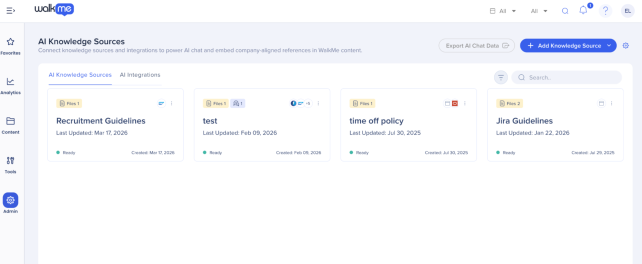
To ground your AI in your organization's own knowledge, admins can upload files from the AI Center:
- Go to the Admin category
- Select AI Center
- Select AI Knowledge Sources
- Upload files as AI knowledge sources
AI Knowledge Sources Page – AI Center
Technical Notes
Enablement requirements
- Admin permissions are required to turn on and configure AI at the account and system level
- System-level AI is available only while account-level AI is on. Turning off account-level AI removes access to system-level selection
Troubleshooting
- Turning on WalkMe AI only prepares the account - AI Chat, Action Bar, and Smart Highlights each still need their own locations configured and published before they're visible to users
- If Company AI isn't returning answers from uploaded knowledge sources, confirm all four: the knowledge source is connected to the right system, Company AI is enabled as an AI Assistant, AI Chat is configured for the relevant locations, and AI Chat has been published
- Publishing Action Bar settings makes the Action Bar visible, but doesn't publish anything inside it - launchers and AI Actions must be configured and published separately


