The SAP Micro-App Hub integration connects WalkMe Learning Arc to the SAP User Learning and Change Management micro-app. You import its projects, and each learning item becomes a draft course you can review, edit, and publish.
The micro-app creates learning content grounded in your SAP processes and takes it through a review. Learning Arc brings that content into the SAP Micro-App Hub content folder, with one folder per project, so builders start from a structured course instead of an empty one.
Enabled feature
This is an enabled feature. To request access, submit a request through the appropriate support channel:
WalkMe customers: In the Support Portal, select Enable or configure a WalkMe feature and include SAP Micro-App Hub Integration in the description
SAP customers: In ServiceNow, select the WME-LRN ticket component and include SAP Micro-App Hub Integration in the description
Use Cases
Turn reviewed SAP Micro-App Hub content into Learning Arc courses without rebuilding it by hand
Start from the micro-app's lesson text, then add interactive elements in Learning Arc before you publish
Keep imported courses up to date when the content changes in SAP Micro-App Hub
How It Works
When you import a project, Learning Arc builds:
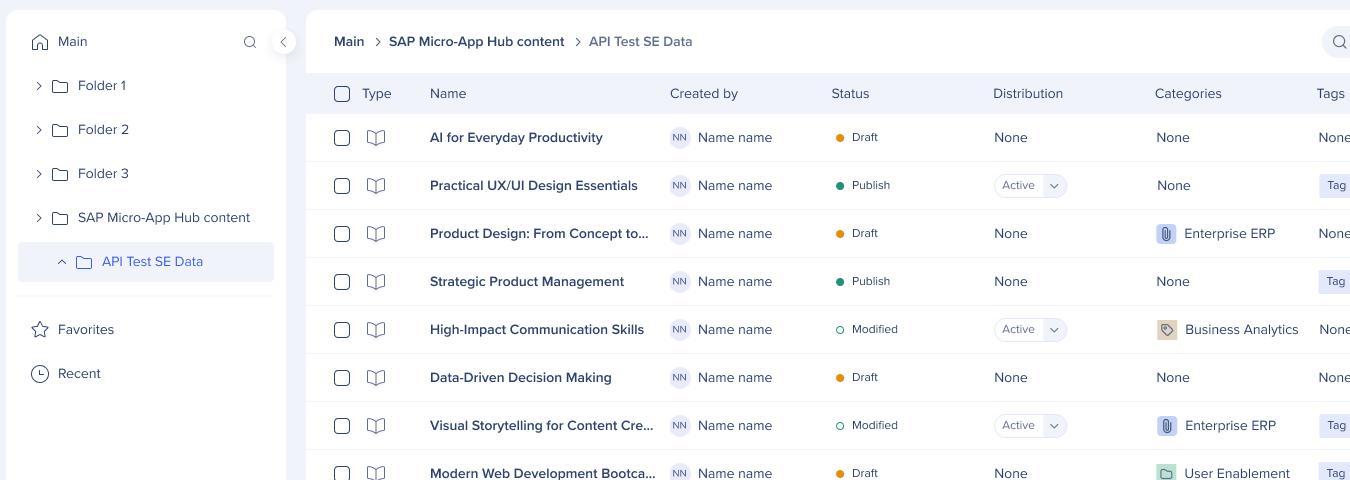
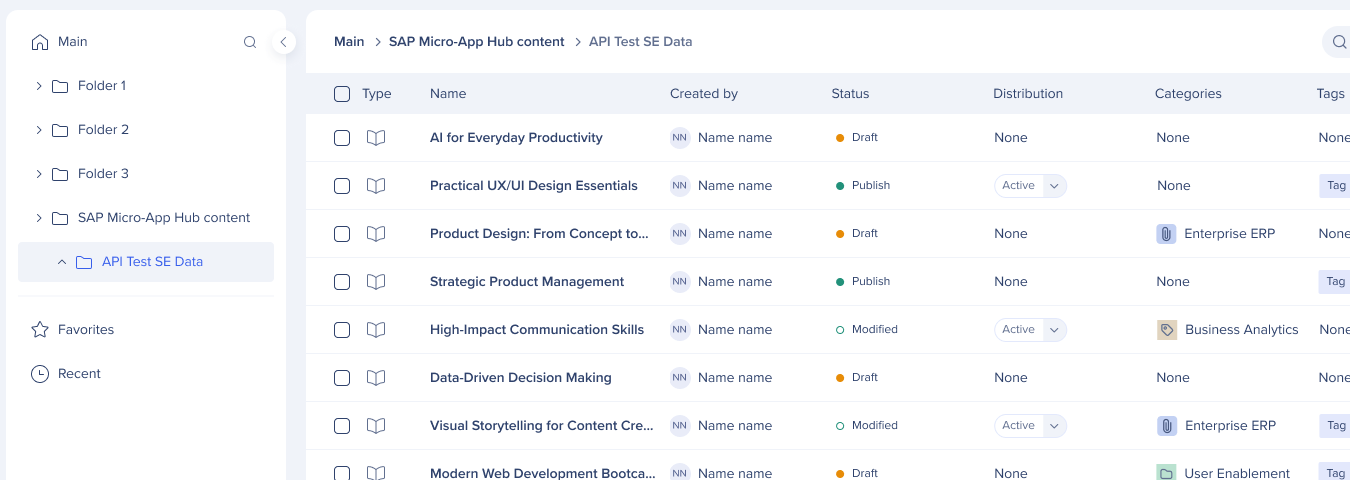
The SAP Micro-App Hub content folder on the Learning Content page
One folder per project, named after the project
One draft course per learning item in the project
Each course has a Course overview page, one page per unit, a Quiz page, and a Conclusion page.
Get your API credentials from SAP BTP
To connect, you need the OAuth client details from your SAP Business Technology Platform (SAP BTP) environment:
Open SAP BTP Cockpit for your AI-assisted user learning and change management sub-account
Go to Spaces, select your space, and then select Services and then Service BindingsIn some setups, the credentials are under Cloud Foundry Spaces, then App Router, then Auth.
Open the service binding details to find the client ID and client secret
Note
You need SAP BTP administrator access to get these credentials. If your administrator isn't available, open a support ticket with SAP.
Connect SAP Micro-App Hub
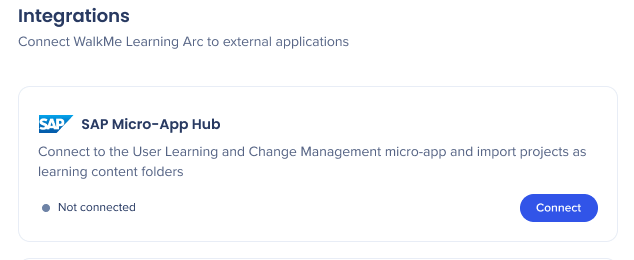
Select Settings and then Integrations
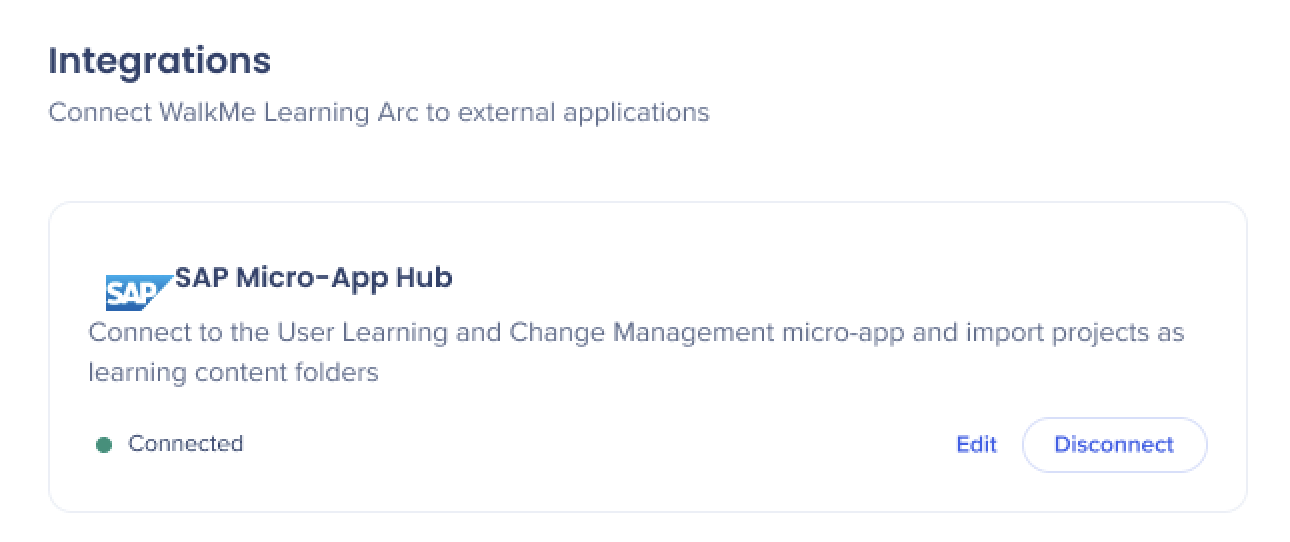
On the SAP Micro-App Hub card, select Connect
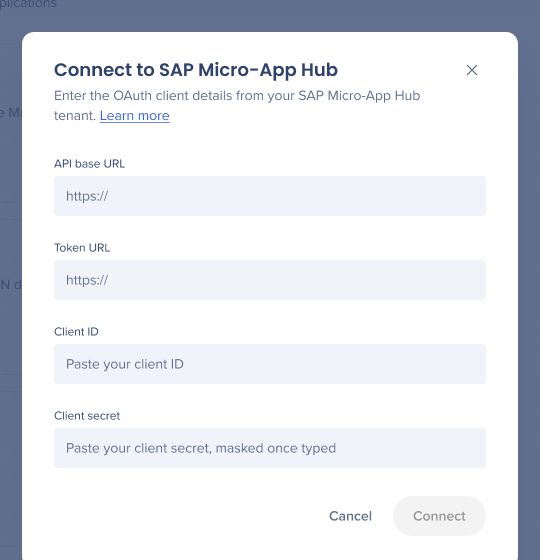
In the Connect SAP Micro-App Hub popup, fill out the following fields:
Field
What to enter
API base URL
Your SAP Micro-App Hub service URL, for example https://your-host.ondemand.com
Token URL
The url value from the service binding
Client ID
The clientid value from the service binding
Client secret
The clientsecret value from the service binding
Select Connect
To change the details later, select Edit on the card. The client secret stays masked. To keep the saved secret, leave the field as is.
Import projects
Open Learning content
Under Integrations, select SAP Micro-App Hub content
Select Add Projects
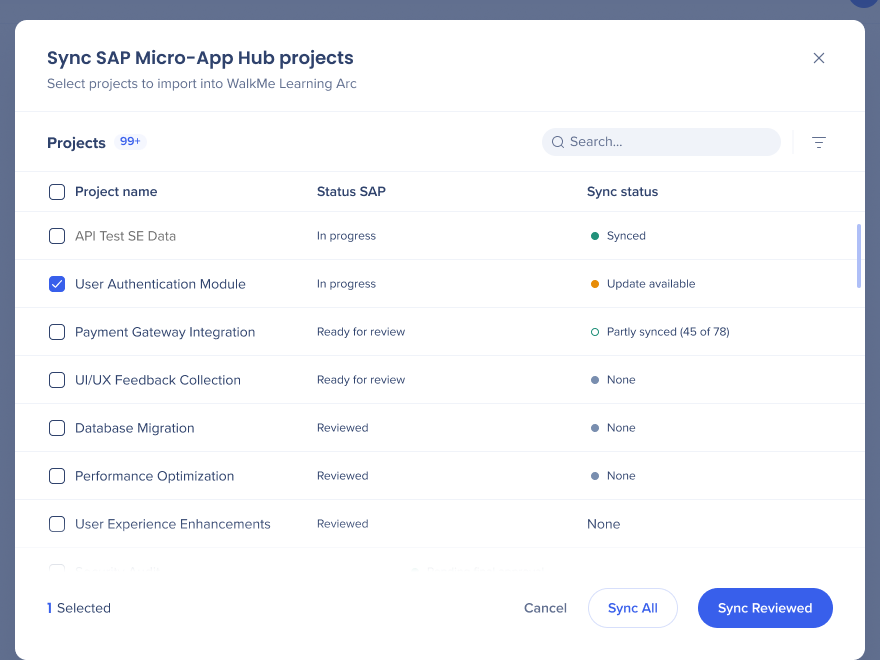
In the Sync SAP Micro-App Hub projects popup, select the projects to import. To find a project, use the search, or filter the Status SAP or Sync status column.
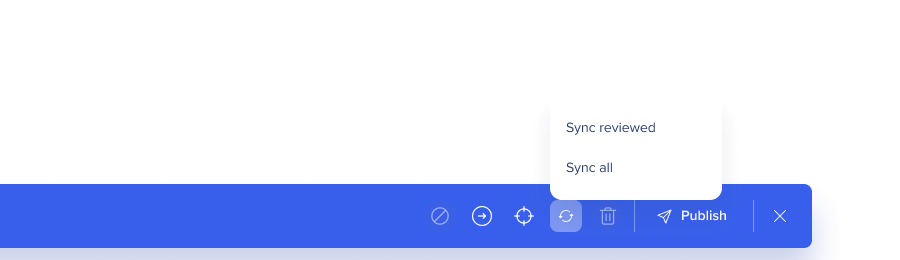
Select Sync Reviewed to import only reviewed content, or Sync All to import everything
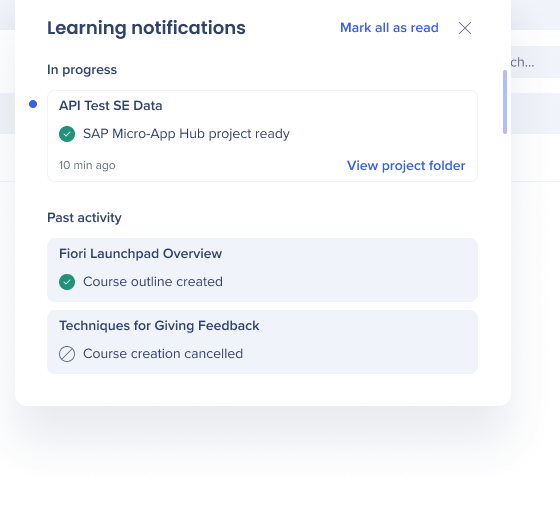
Track progress in Notifications. You can keep working while the import runs.
When a project is ready, you get a "SAP Micro-App Hub project ready" notification. Select View project folder to open it. The project folder appears in SAP Micro-App Hub content without a refresh.
After the first import, select Sync SAP Micro-App Hub projects next to the search box to open the same list.
Edit and publish a course
Open a project folder in SAP Micro-App Hub content
The Sync status column shows the state of each project:
Sync status
What it means
Synced
The project matches SAP Micro-App Hub
Update available
The content changed in SAP Micro-App Hub since the last sync
Partly synced (5 of 8)
The last run imported some items and skipped the rest
3/8 Added
An import or sync is running
None
The project isn't imported yet
To sync a project:
In SAP Micro-App Hub content, hover over a project row and select Sync
Select Sync Reviewed or Sync All
Learning Arc updates the courses in place, without duplicates. Courses with no changes are skipped and stay published.
To sync several projects at once, select their rows, then select Sync in the bar at the bottom of the page.
Disconnect SAP Micro-App Hub
Select Settings and then Integrations
On the SAP Micro-App Hub card, select Disconnect
In the Disconnect SAP Micro-App Hub? popup, select Disconnect
Learning Arc deletes the stored credentials, and your imported learning content stays in Learning Arc. The SAP Micro-App Hub content folder is hidden until you connect again.
Technical Notes
Prerequisites
An SAP customer account with an SAP Micro-App Hub environment on SAP BTP
API credentials for that environment: the API base URL, token URL, client ID, and client secret. To get them, see Get your API credentials from SAP BTP.
Limitations
You can connect one SAP Micro-App Hub tenant at a time
Only projects in English, or with no language set, show in the import list
Sync Reviewed imports only reviewed learning items and approved content. Sync All imports everything.
Videos with no link and quiz questions with no text are skipped. The project then shows "Partly synced", with no message that names the skipped items.
You can't create content in the SAP Micro-App Hub content folder or its project folders, or duplicate, move, or copy content into them
You can't rename or move the SAP Micro-App Hub content folder
Sync status shows on project folders only, not on the courses inside them
One import or sync runs per project at a time
Diagrams are imported as images in the course, and they don't show in the Asset Library