Permalinks are direct links to your website that automatically start a Smart Walk-Thru, ShoutOut, or ActionBot when clicked. These links can be embedded within training resources, emails, or social media posts in order to immediately give users guidance.
If you are building Smart Walk-Thrus targeted to users who are not already on your site, permalinks can provide a highly effective method to engage your users or drive adoption of new features in your software. When your users click the permalink, they will be redirected to your site, with a Smart Walk-Thru automatically running on the relevant page.
Use Cases
Common use cases for permalinks include the following:
Send a welcome email to new employees with a permalink to begin onboarding
Include a permalink in a promotional post on social media
Use permalinks in support emails to help users through a process
Initiate a Performance Review process from an email sent to all employees/managers
For example: When you release a new feature on your software you may send an email to your users with directions of how to use it in the hope that they will try it out.
WalkMe helps you to take this one step further with a permalink. Your users simply click on it in the email, and it takes them straight into your environment and launches the relevant Smart Walk-Thru. After being guided through the new feature, your users will be more likely to continue using it.
How It Works
Permalinks work like a hyperlink. When the selected text is clicked, the user's default browser opens the identified URL and calls on the WalkMe API to activate the published Smart Walk-Thru, ShoutOut, or ActionBot that corresponds with the ID identified. The content will begin to play from its first step, or from a chosen step or conversation if specified.
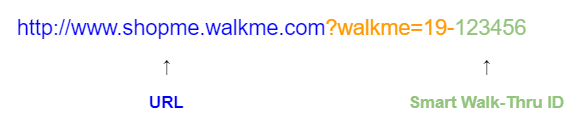
To create a Smart Walk-Thru permalink, all you need is the URL of the website that you would like to open and the Smart Walk-Thru ID.
Permalink format: http://www.[insert your domain here].com/yourpage?walkme=19-<Smart Walk-Thru ID>
Note: Just one set of digits, for example: ?walkme=19-123456
You can also create a permalink that begins on a specific Smart Walk-Thru step.
Permalink format: http://www.[insert your domain here].com/yourpage?walkme=19-<Smart Walk-Thru ID>-<Step ID>
Note: Two sets of digits, separated by a hyphen, for example: ?walkme=19-123456-11459929
Permalink to open the ShopMe homepage and run a welcome Smart Walk-Thru with ID 123456
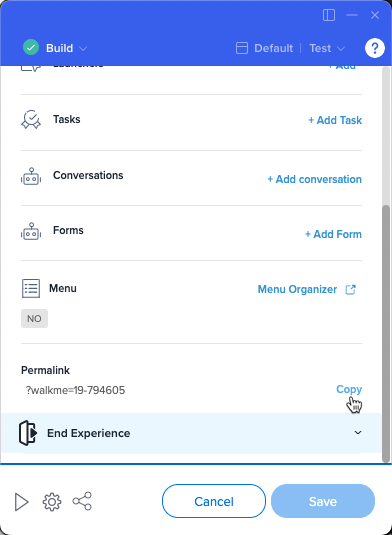
To make it easier to create a permalink, you can copy the Smart Walk-Thru permalink ID directly from the WalkMe Editor:
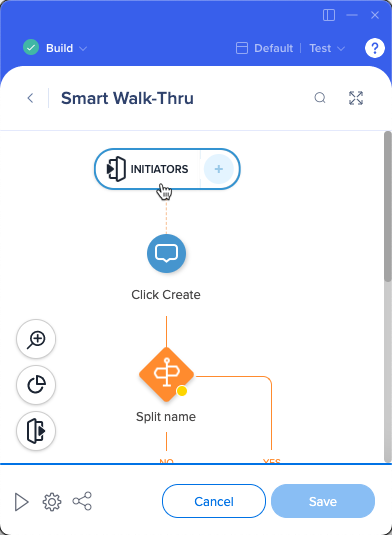
Open the Smart Walk-Thru in the WalkMe Editor
Click on Initiators
Click Copy next to Permalink
Add the copied parameter to the end of your website's URL, and you're all set!
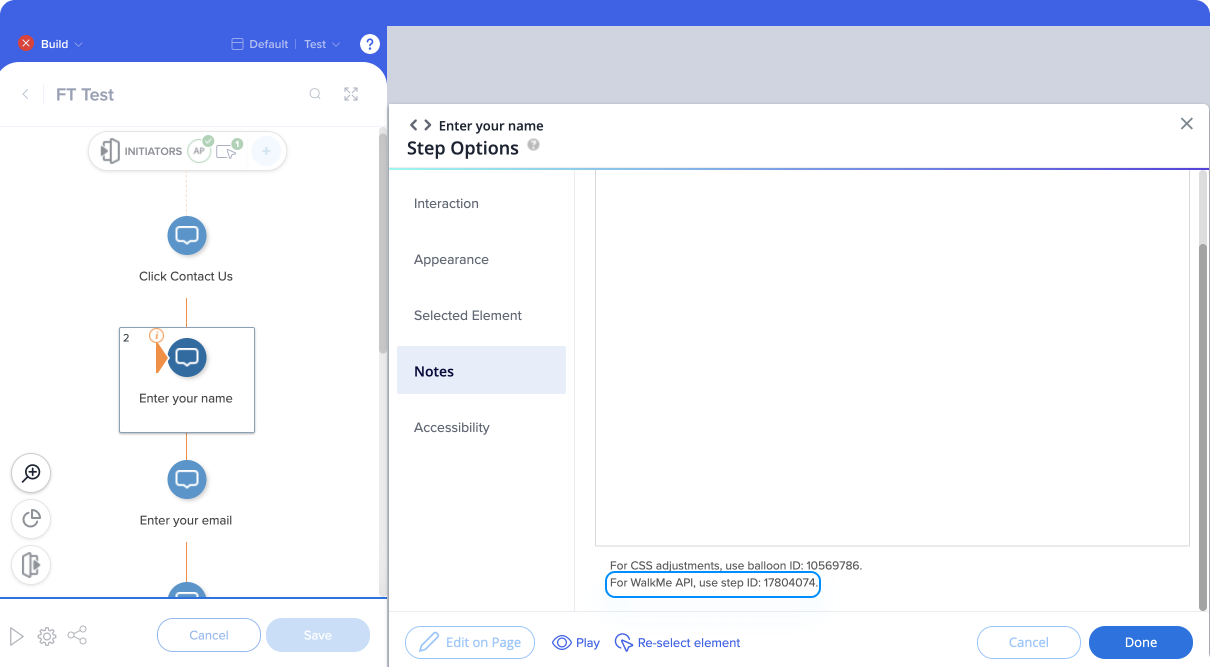
To build a permalink for a specific step of your Smart Walk-Thru, you'll also need the step ID.
Open the Smart Walk-Thru in the WalkMe Editor
Click on the step name
In the Notes tab of the step options, copy the step ID
Permalinks to password-protected sites
To build a permalink to a password-protected site, add a Wait For Step with a rule that waits for the user to login before providing additional guidance.
This way, once the login screen loads, WalkMe will wait to play the first step until the user has had time to login and land on the correct page.
Tip
Make sure that your website is built to preserve URL parameters
Often when a user is blocked from the page and redirected to a login screen, the browser loses track of the fact that it was supposed to play a Smart Walk-Thru
To resolve this issue, contact your website's administrator and make sure that your website preserves URL parameters
ShoutOut permalinks
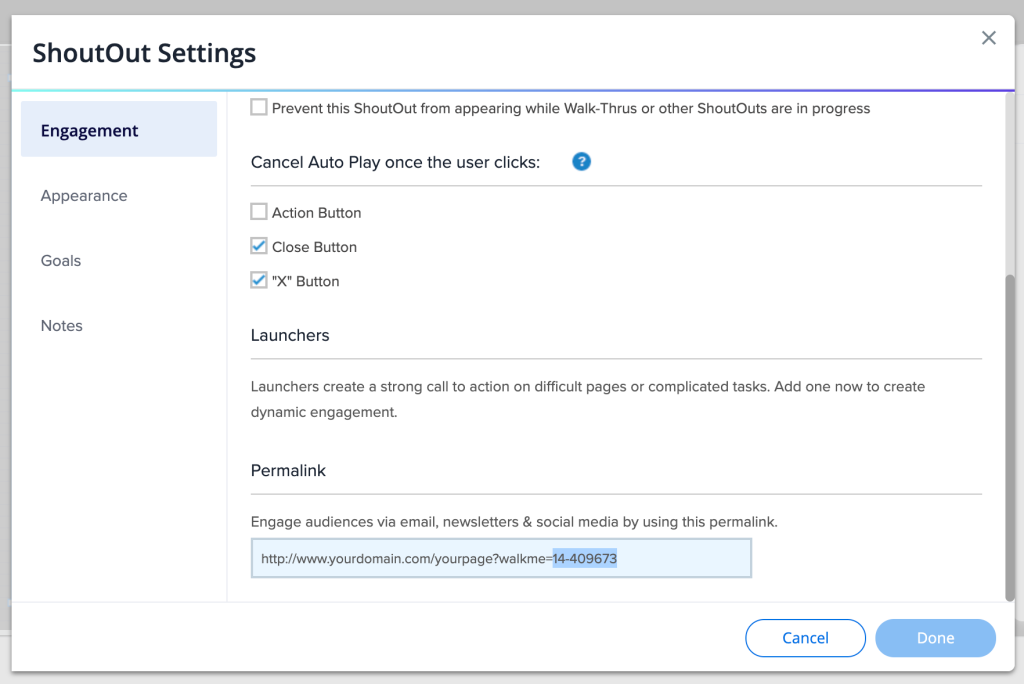
Permalinks can also be created with a ShoutOut. The permalink is constructed similarly with the ShoutOut ID.
Permalink format: http://www.[insert your domain here].com/yourpage?walkme=14-<ShoutOut ID>
You can find the ShoutOut permalink in the Engagement tab of the ShoutOut settings.
ActionBot permalinks
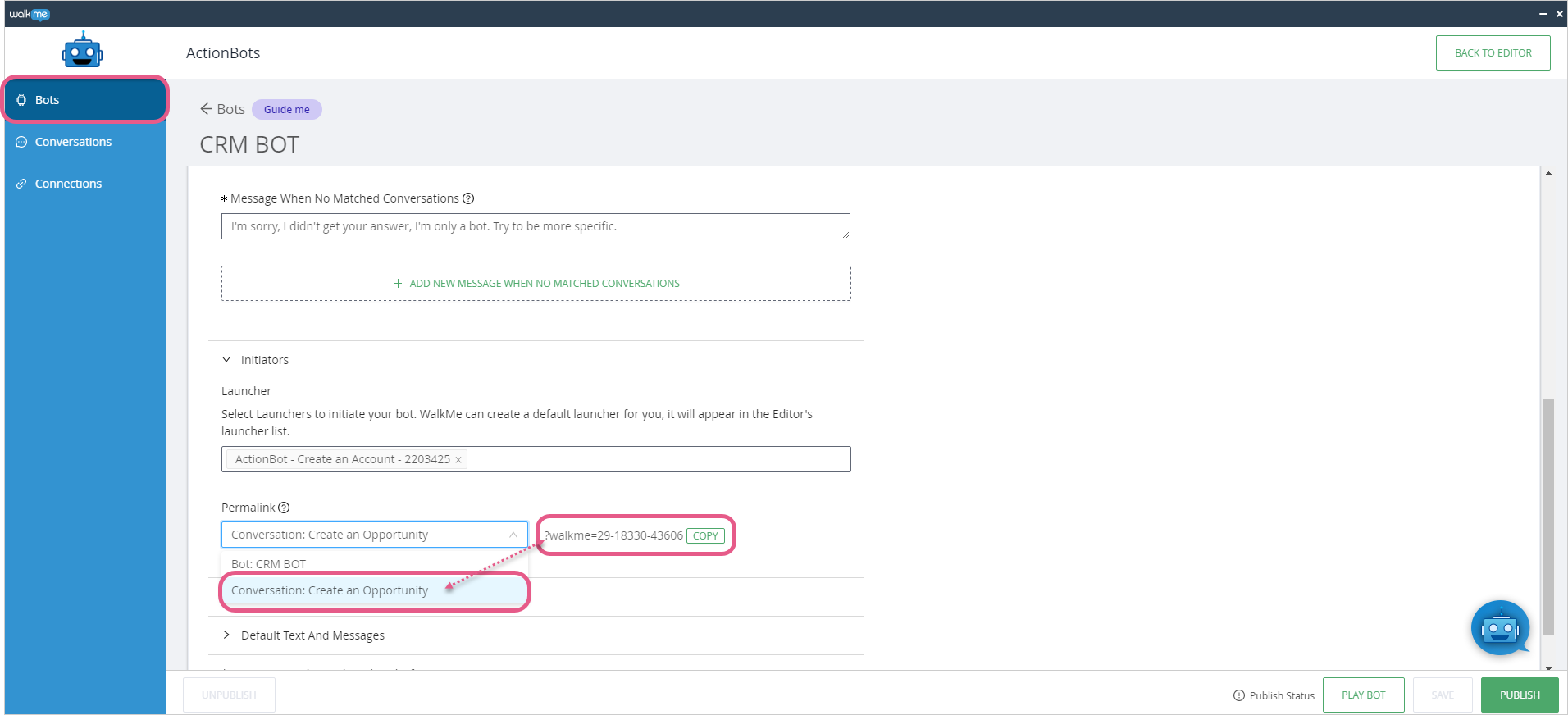
ActionBot permalinks can be found by going to ActionBot → Bots → (select a Bot) → Initiators → Permalink.
Copy your desired permalink, either linking to a bot's dialog box or a particular conversation.
The permalink format will be one of the following:
http://www.[insert your domain here].com/yourpage?walkme=29-<Bot ID>
Note: Just one set of digits, for example: ?walkme=29-12345
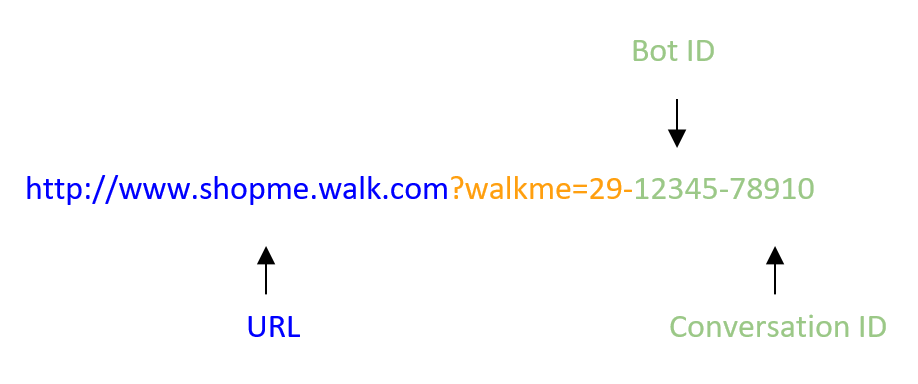
http://www.[insert your domain here].com/yourpage?walkme=29-<Bot ID>-<Conversation ID>
Note: Two sets of digits, separated by a hyphen, for example: ?walkme=29-12345-78910
Permalink to open the ShopMe homepage and run a conversation with ID 78910 inside an ActionBot with ID 12345
Permalinks that open the WalkMe Menu
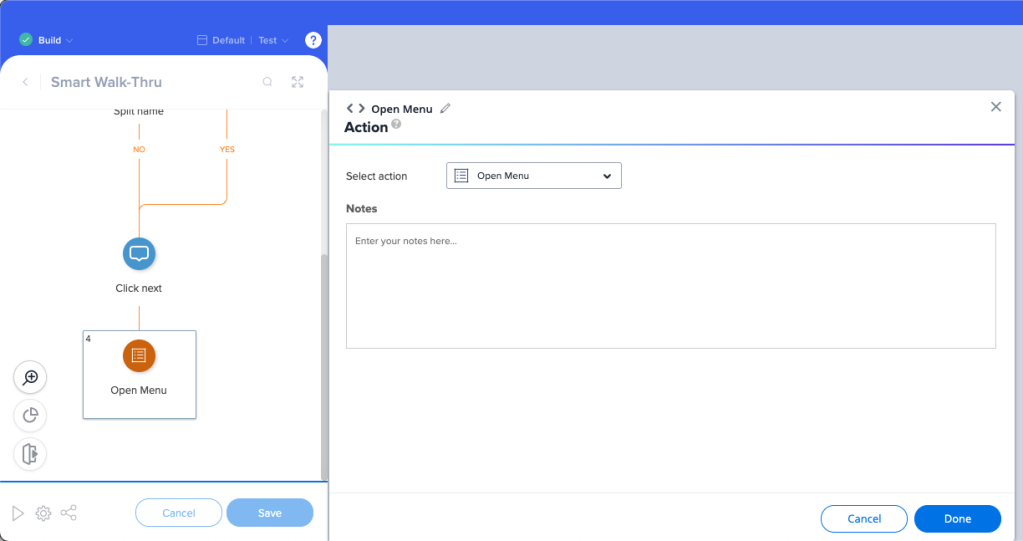
If you would like users to open the WalkMe Menu from an outside site, add a permalink to a Smart Walk-Thru that contains an Open Menu action.
Permalinks for web & mobile web systems
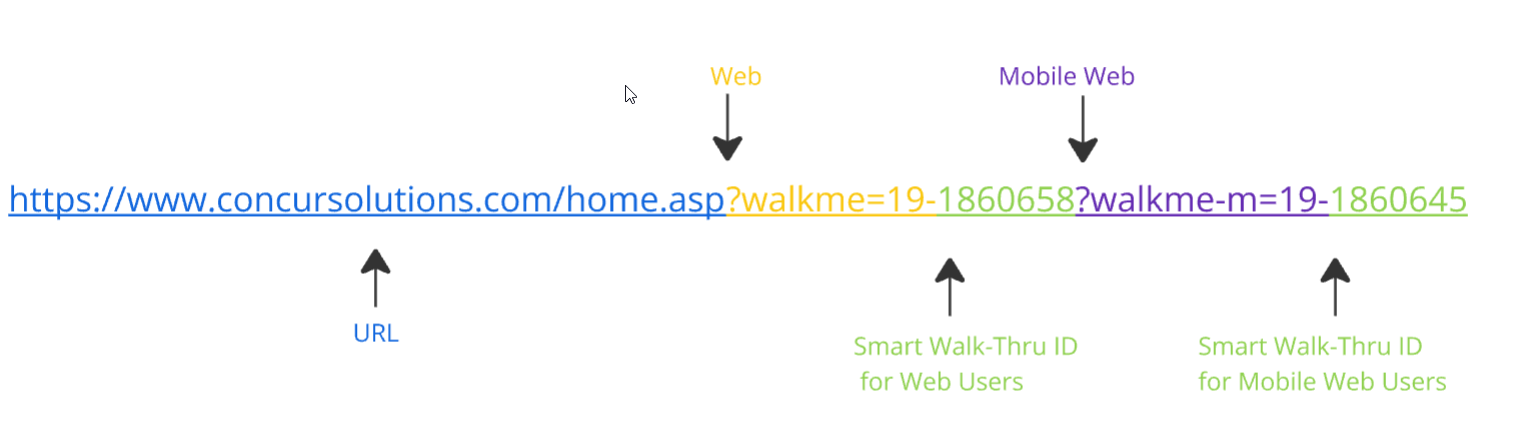
Create a single permalink URL for your users, that will be applicable for both your web and mobile web users. Define which WalkMe item should start for regular web users, and which item should be played for mobile web users.
Permalink format: http://www.[insert your domain here].com/yourpage?walkme=19-<Smart Walk-Thru ID>?walkme-m=19-<Smart Walk-Thru ID>
You can also create a permalink that begins on a specific Smart Walk-Thru step:
Note that we can also indicate the specified step we'd like the flow to start from
Add both the syntax of both permalinks onto your URL, while ensuring the permalink for the web system is first, while the mobile web permalink is last
For themobile web permalink, change ?walkme to ?walkme-m (to indicate it is the dedicated flow for mobile web users)
Note: The “?” character prior to the mobile permalink portion can be replaced with “#” to assist in some cases where the URL parameters are not preserved - ?walkme=14-YYYYYYYY#walkme-m=14-XXXXXXXXXX
The resulting URL should appear exactly like in the syntax provided above, but with the values filled in
Alternatively, the permalink can be built manually by retrieving each of the WalkMe items ID per while following the required format.
Microsoft Dynamics permalinks
The Dynamics (CRM) platform doesn't naturally support permalinks because the application only accepts expected URL parameters, and if a non-standard one is provided the user will receive a technical error.