Brief Overview
Distributions let you control where learning content appears in-app, specifically in the Pro Menu. This ensures learners see the most relevant content in the right place at the right time. Use the Distribution column on the Learning Content page in the console to add, edit, or remove distribution rules for each item. This gives you full control over in-app visibility and makes it easier for learners to find the information they need, right where they work.
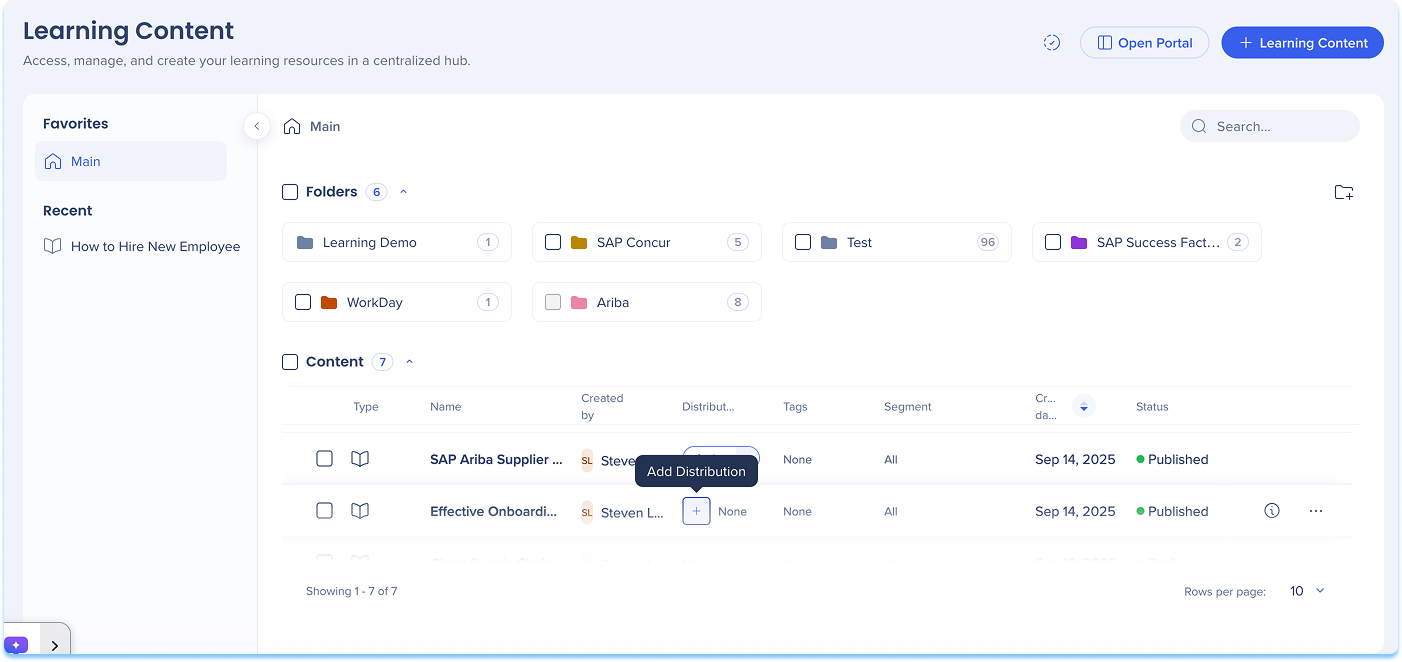
Add a Distribution
To define where learning content will appear in-app:
- Go to the Learning Content page
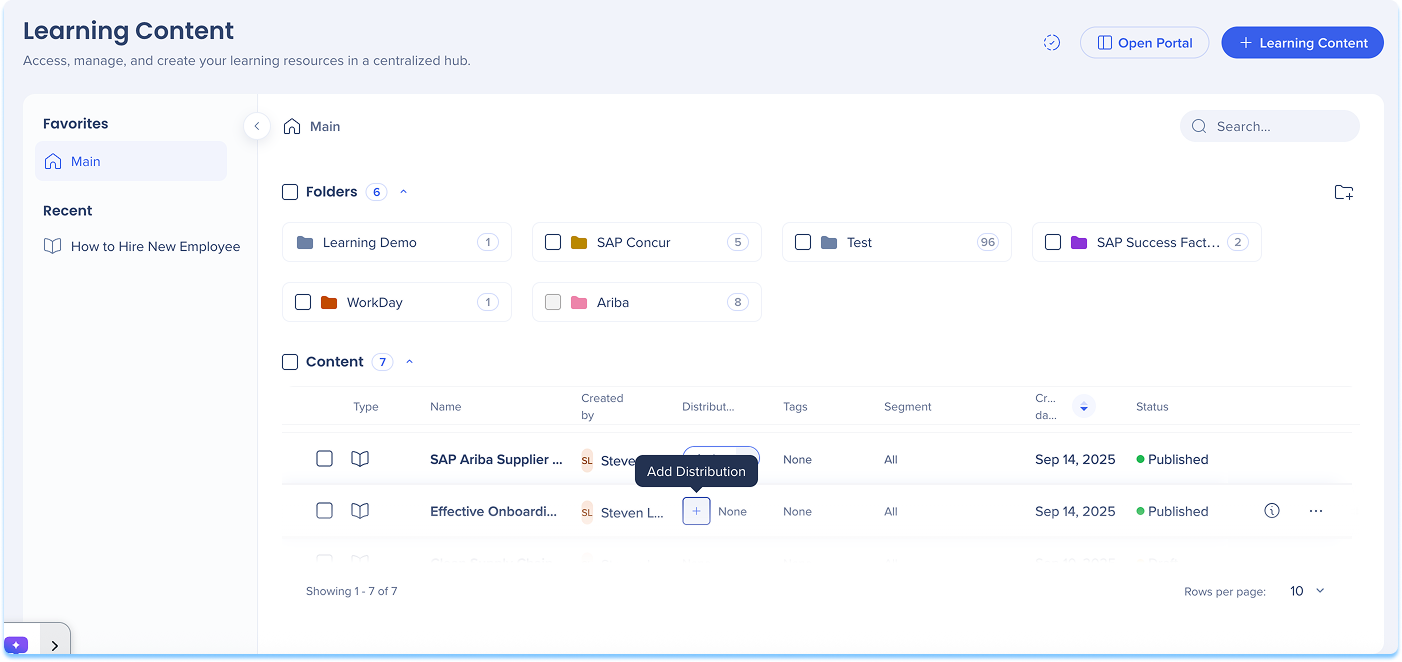
- In the Distribution column of the content line, select + Add Distribution
-
The Create a Distribution condition builder opens
-
Enter a Title for your distribution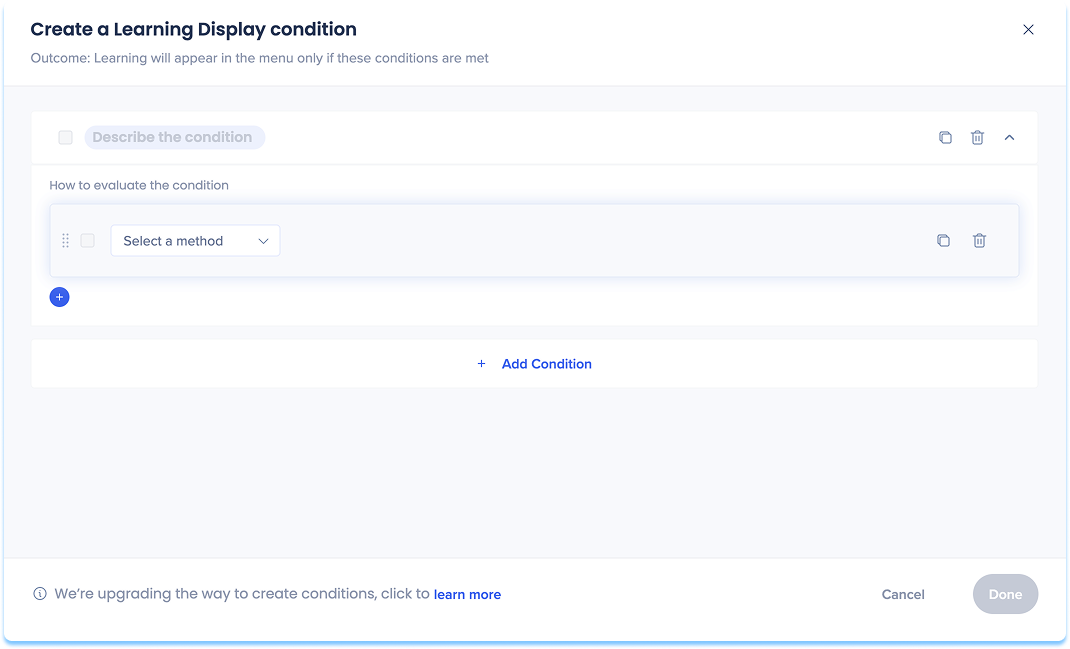
-
Choose how to define the in-app location:
-
Current URL: The page the user is currently viewing
-
Referrer URL: The page the user visited right before the current one
-
Variable: Uses dynamic attributes for personalized targeting
-
SAP Web Context: Used for transitioned SAP Enable Now content that contains Context
SAP Web Context
コンテキストを含むSAP Enable Nowコンテンツを移行すると、WalkMeは自動的に認識し、移行されたコンテンツにこれらの値を保存します。 そのコンテンツに配信を追加すると、コンテキストが提案として表示されます。
推奨されるSAPウェブコンテキストタイプには、以下が含まれます。
-
製品
-
画面ID
-
バージョン
-
System(システム)
条件ビルダーが開いた後、事前入力されたSAPウェブコンテキストフィールドを確認し、必要に応じて更新します。
注:WalkMeは、SAPウェブコンテキストの使用をサポートしていますが、可能であればURLルールを使用して新しい表示条件を定義することをお勧めします。
-
Set variables for your chosen option
-
Select Save
注
SAP Enable Nowのお客様がWalkMe Learning Arcに移行する場合、添付コンテンツは自動的に転送されません。
SENコンパニオンコンテンツを引き続き使用するには、SENとWalkMe Learning Arcの両方の有効な契約を維持する必要があります:SAP Enable Nowが利用可能な間のみ。
Manage a Distribution
To update or control existing distributions:
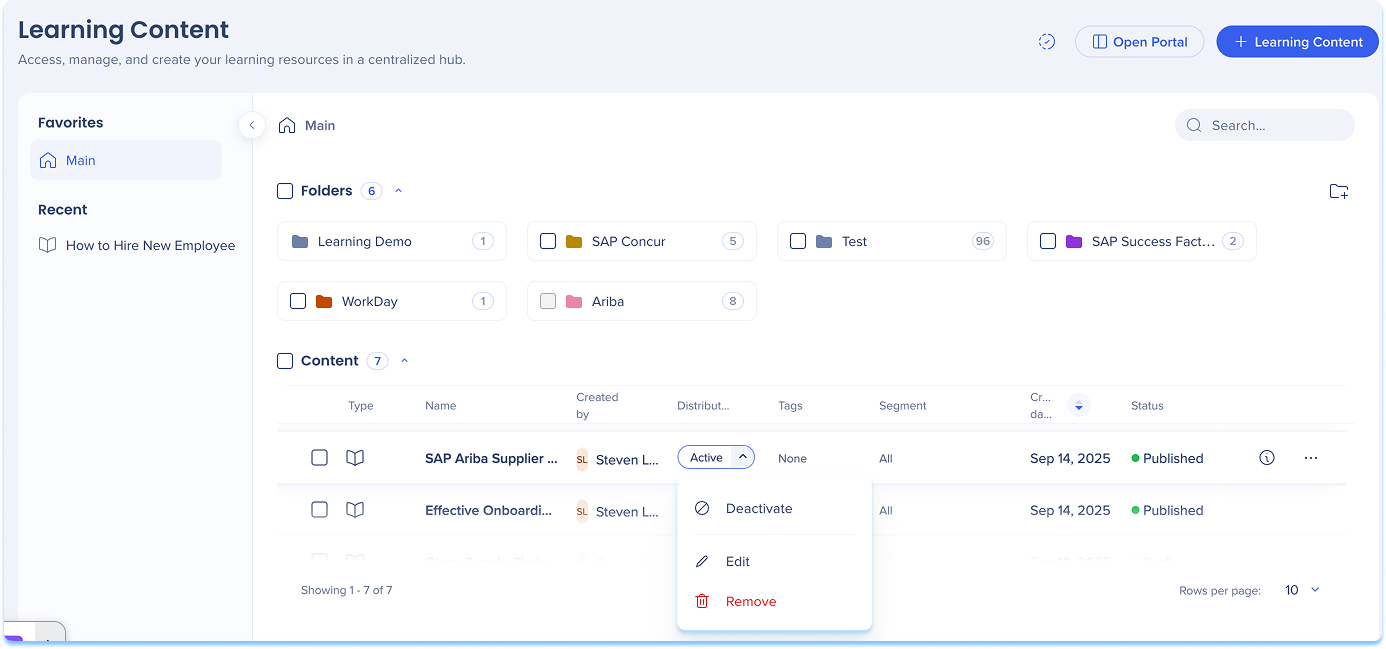
- In the Distribution column, open the dropdown
- Select one of the following actions:
- Activate / Deactivate: Turn the distribution on or off
- When turned off, the item will not appear in-app until reactivated
- Edit: Update or modify distribution conditions
- Remove: Delete the distribution definition from the content item
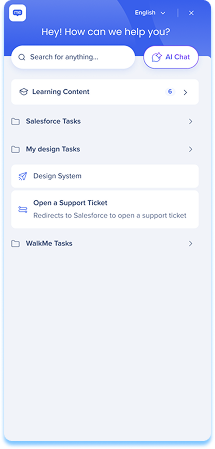
After you define distribution rules for learning content, the relevant course will automatically appear in the Pro Menu when users access the defined page. Learning content in the Pro Menu helps you access contextual learning materials directly within the flow of work.
In the Menu:
- Learning content appears under a dedicated Learning content banner
- Relevant content is displayed based on the current screen context
- If you have WalkMe, both WalkMe content and learning content are shown
- If you don't have WalkMe, only learning content is shown
- Select Show more to view additional learning items for that page
WalkMe Pro Menu
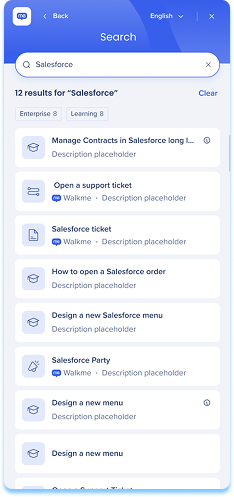
Search behavior
- From the main screen, search results include all content types
- From the Learning content screen, search results show only learning content
Accessing content
- By default, Learning Arc content opened from the pro menu launches in a new browser tab
注
アプリ内でコンテンツを開くこと(例えば、ポップアップとして)は可能ですが、開発チームが有効にする必要があります。 これをリクエストするには、カスタマーサクセスマネージャーまたはWalkMeの連絡先に連絡します。 変更はグローバルであり、メニューから開始されるすべての学習コンテンツに適用されます。 一部のアプリケーションは、コンテンツセキュリティポリシー(CSP)の設定によりアプリ内レンダリングを制限しているため、有効化された後にテストすることをお勧めします。 CSPの問題は、通常、組織がお客様側で解決できるものです。
- Line of Business (LOB) content opens in the SEN Trainer
Technical Notes
- When a single account has multiple Learning Arc systems with in-app learning content deployed on the same site, it is not currently supported to display different content to different users based on user properties. Segmentation can restrict a user's access to specific content, but does not filter what is visible in the menu.


