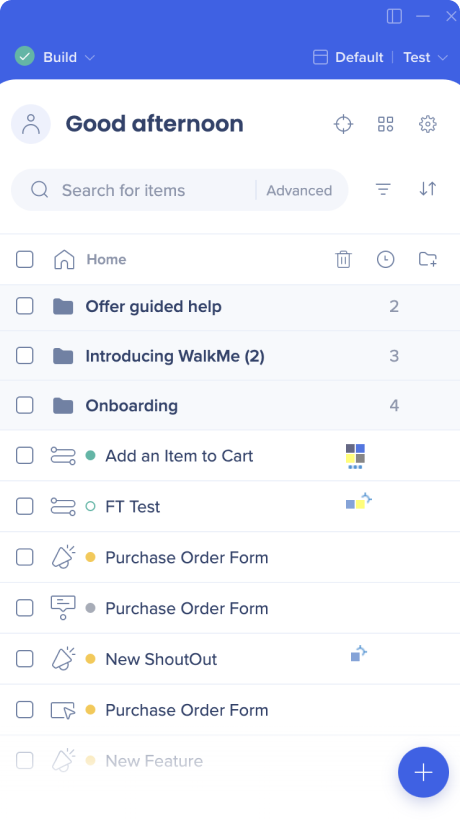
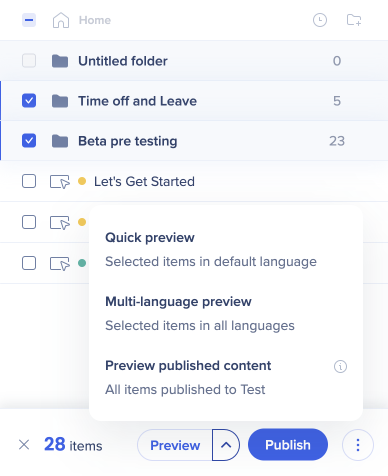
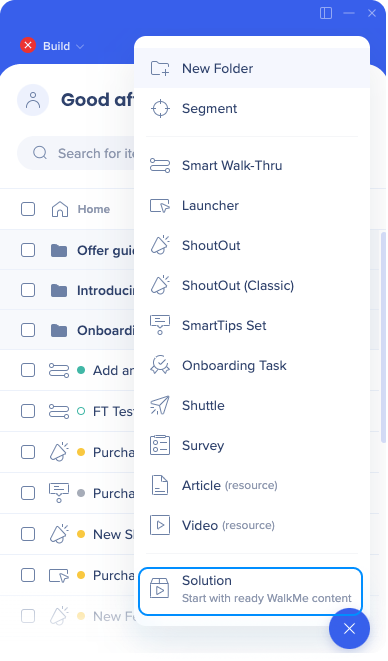
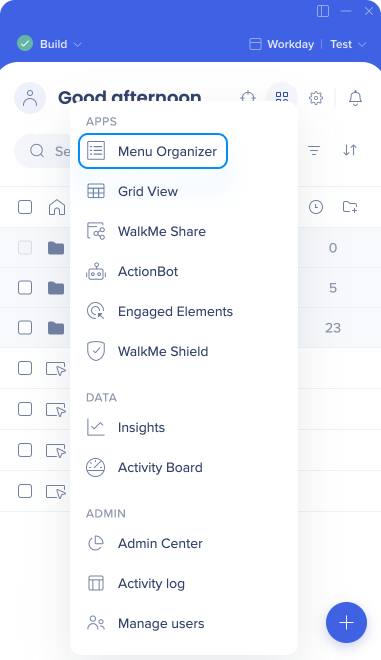
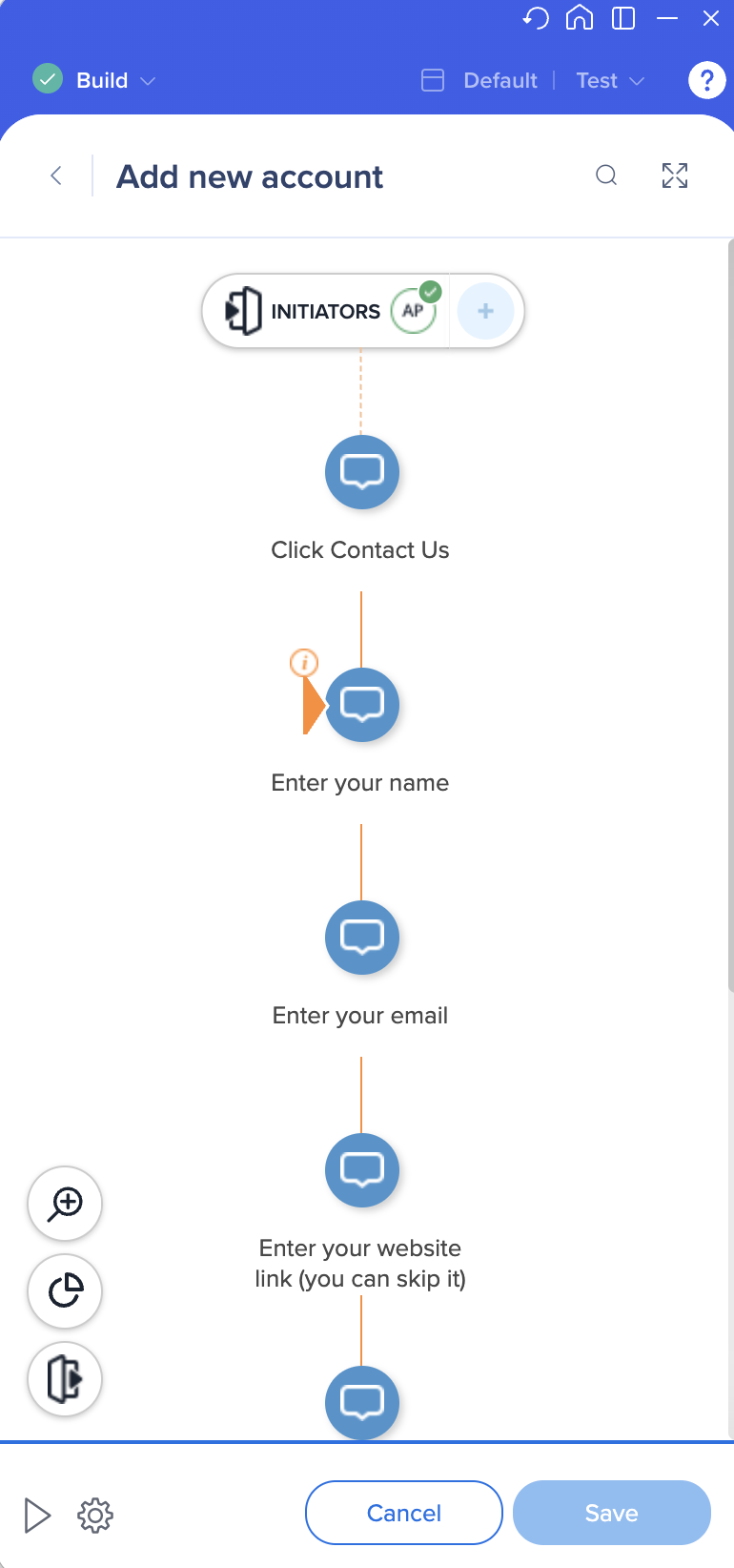
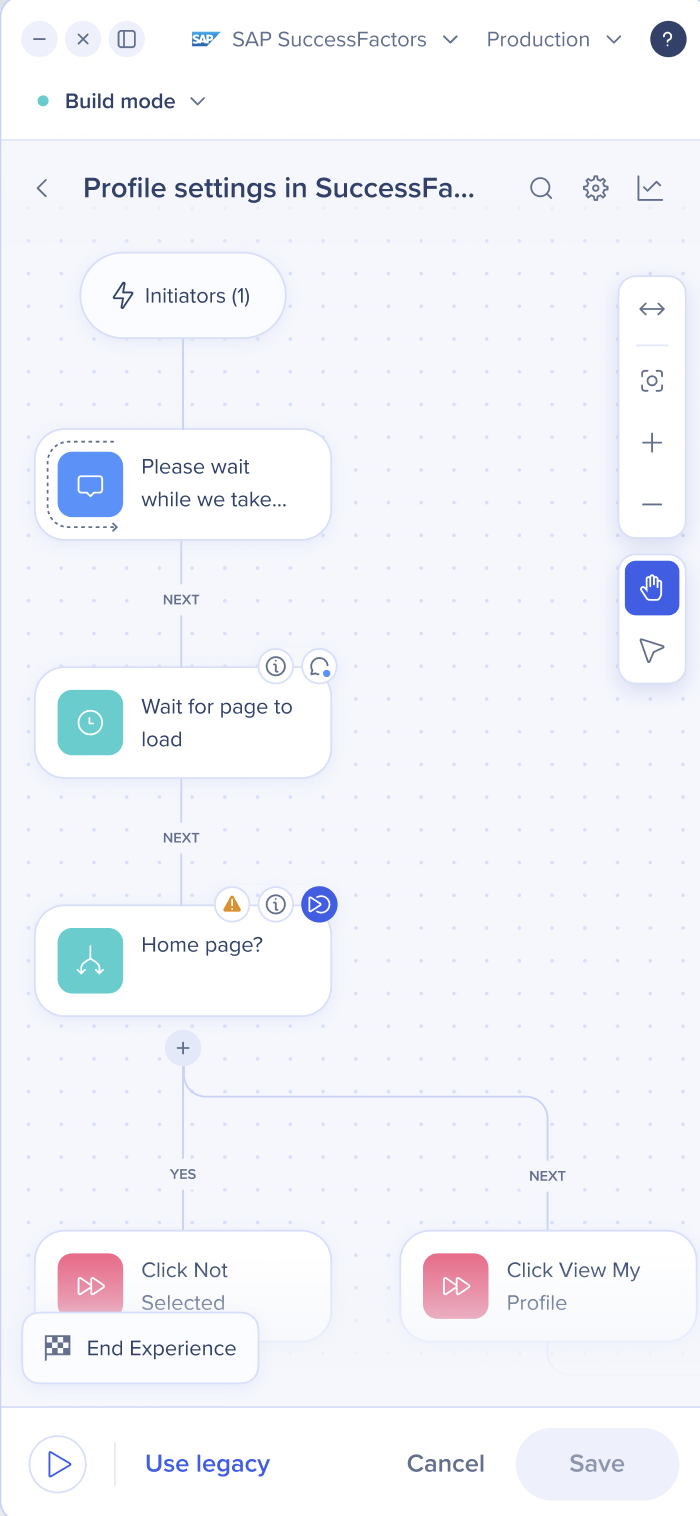
The WalkMe Editor now has a new design. Our goal was to transform the old interface into a visually appealing, easier to use, and intuitive experience, consistent with other WalkMe applications.
This article covers the key changes in the new design compared to the old.
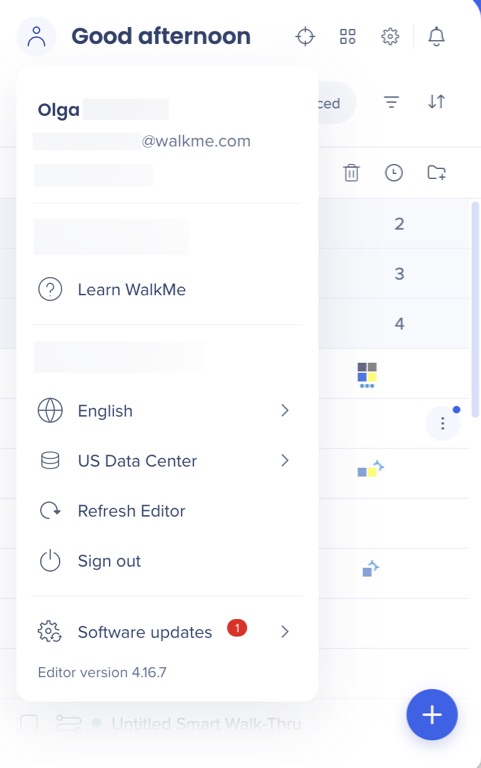
The user menu is a new concept, designed to provide a more personalized experience for the builders.
Within the user menu, users can access actions and information tailored to their specific user profile.
Previously, many of these options were found in the editor options menu.
Settings menu
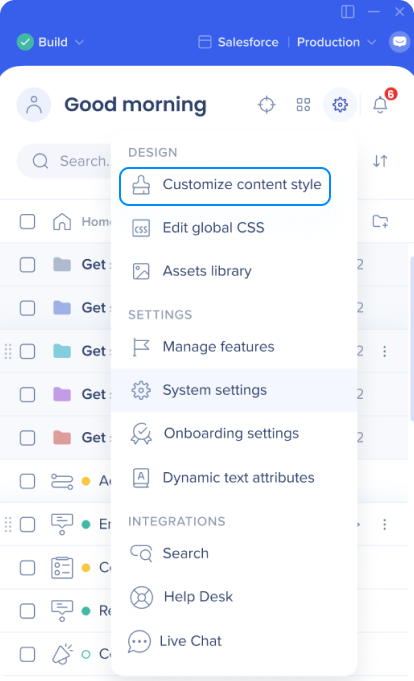
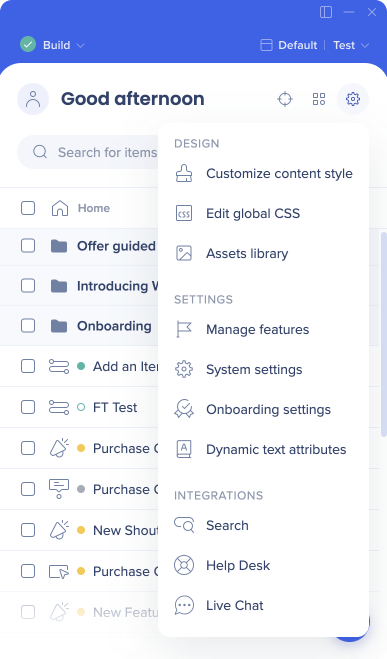
The settings menu serves as a centralized hub for all configurations within the editor, including global system settings.
In the previous design, these settings were found in different locations in the editor, in the footer, header, and within the options menu. We consolidated them all in one location for improved user experience.
Several notable changes:
Integrations moved from the "All items" dropdown menu to the Settings Menu. We consider them as global, system-level settings, which led to this repositioning.
The feature previously known as "Customize" and located in the Editor footer has been relocated to the Settings Menu, now referred to as "Customize content style."
We have removed the direct link to the Snippet screen. Instead, users can access the "System settings" from the Settings Menu and find the new Snippet tab there.
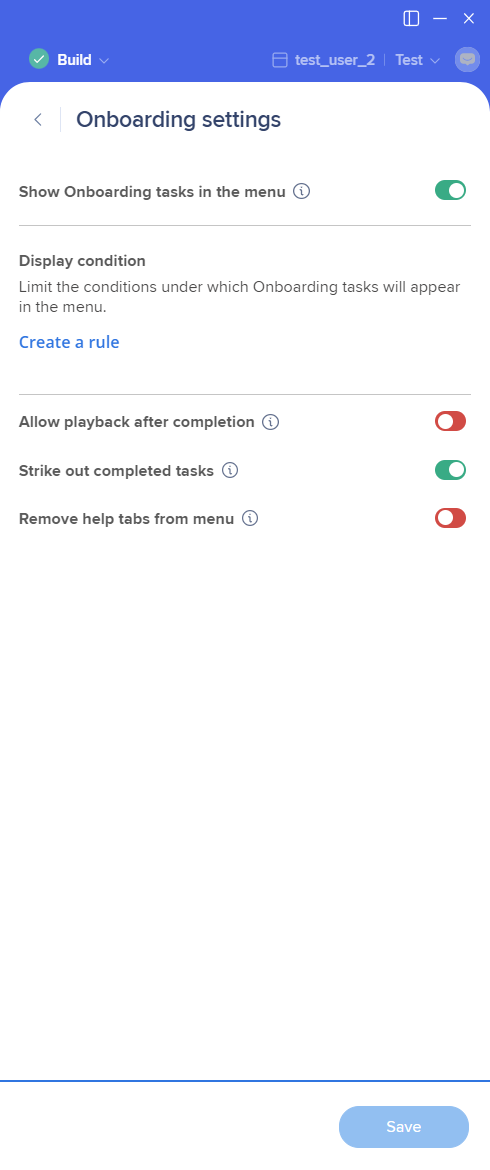
Onboarding settings, previously available only through the "All items" dropdown menu when viewing Onboarding exclusively, have now been placed in the Settings Menu. This change allows users to access this system-level setting regardless of their item list filtering.
All Items Menu
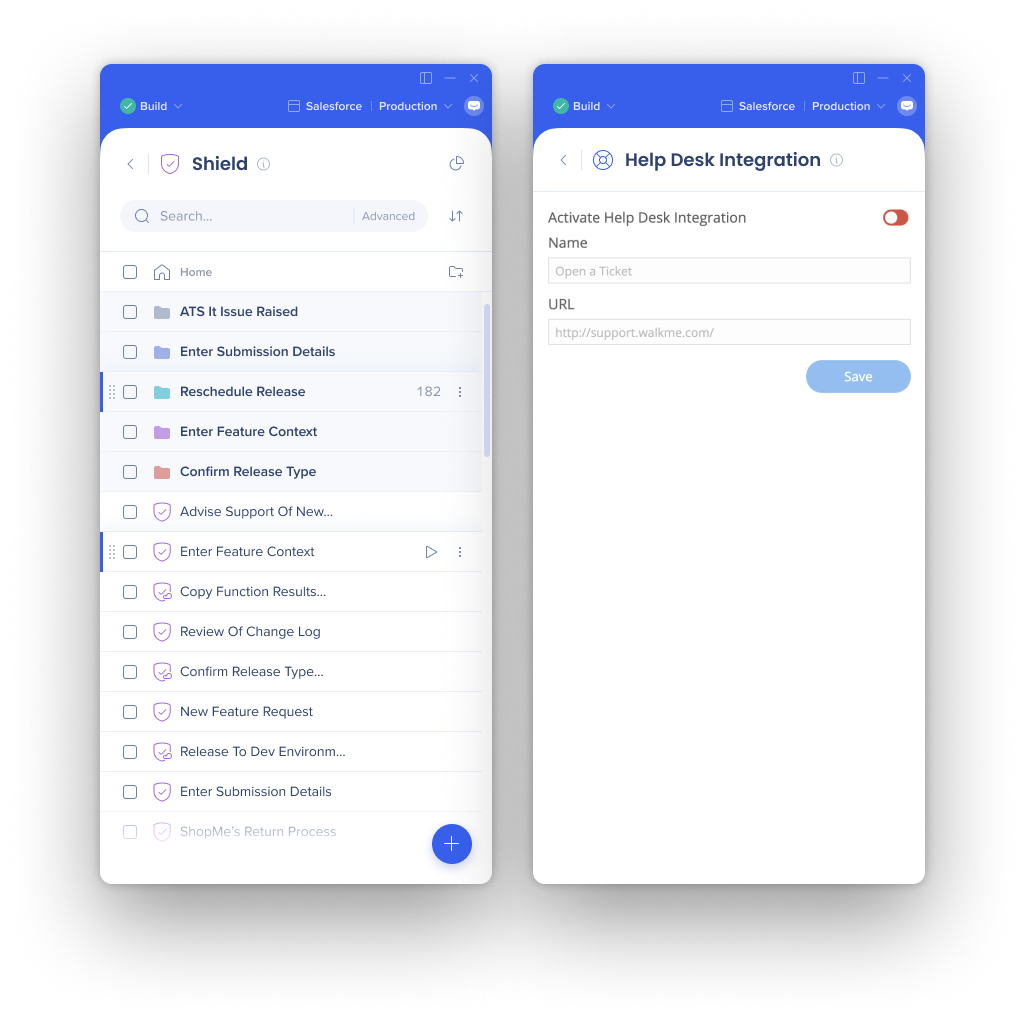
The following apps were previously only, or mainly, available from the “All items” menu:
ActionBot
Shield
Engaged Elements
Element Library
Search integration
Live Chat
Help Desk
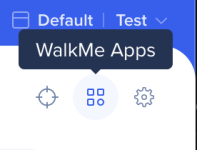
These apps got a new look and will now be available from either the “WalkMe Apps” menu or the “Settings menu”.
Item Screens
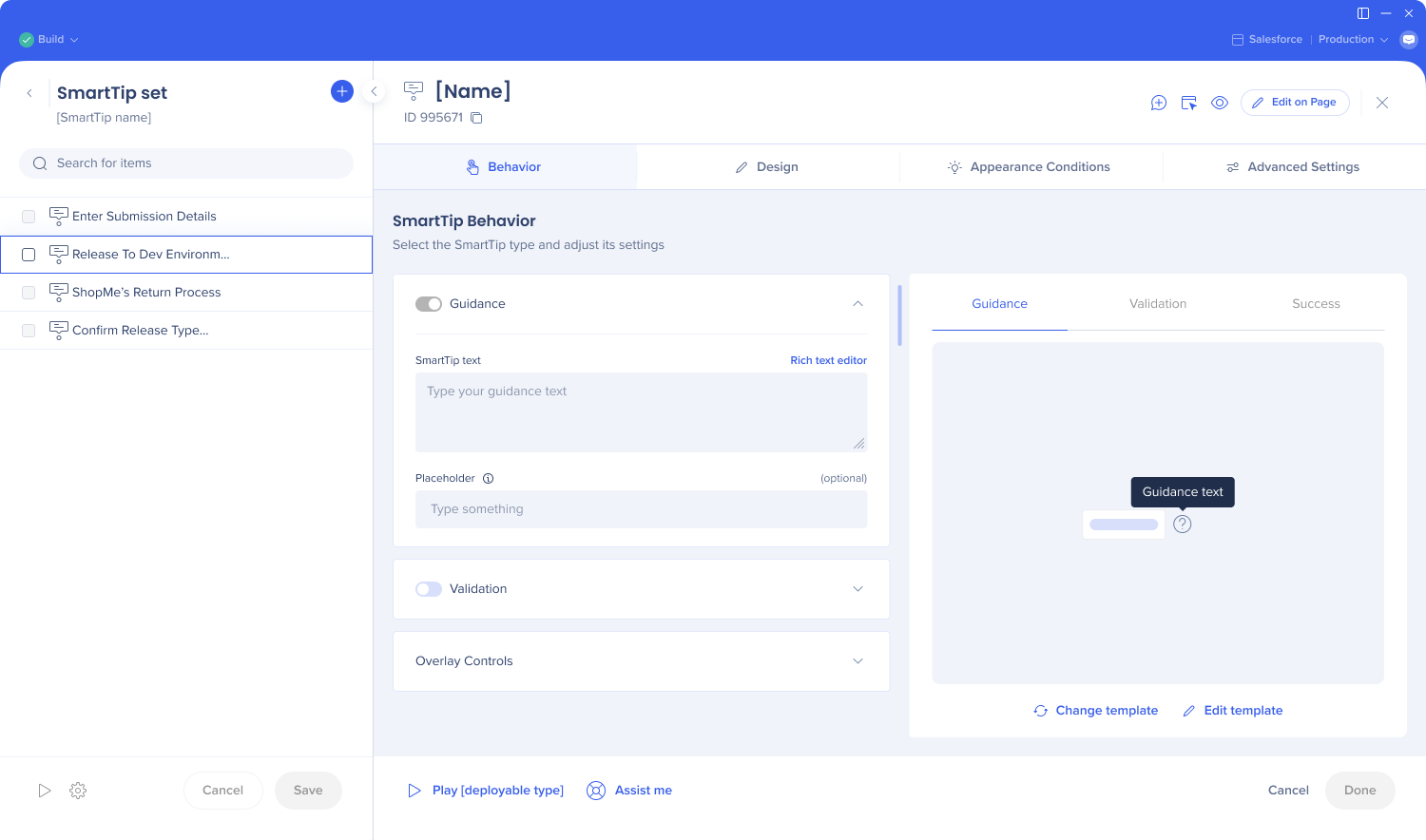
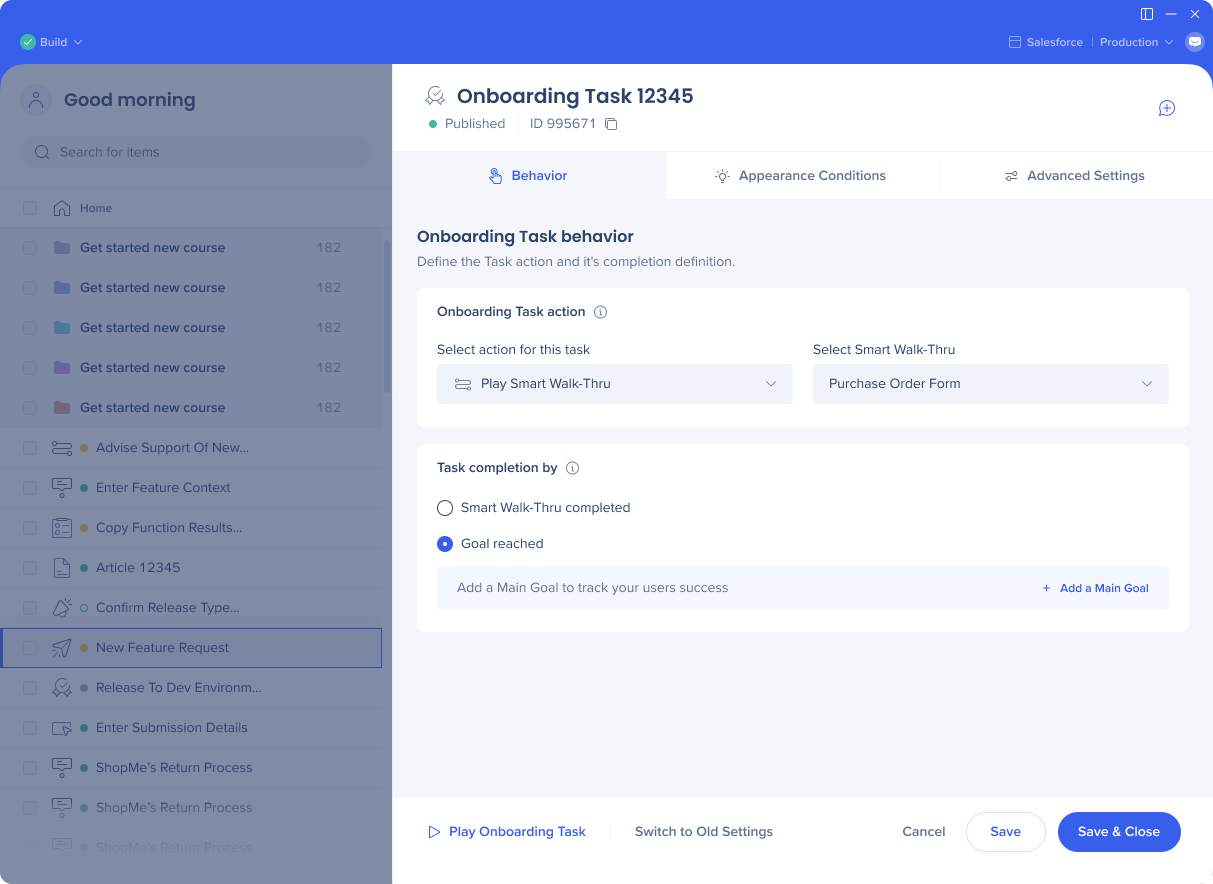
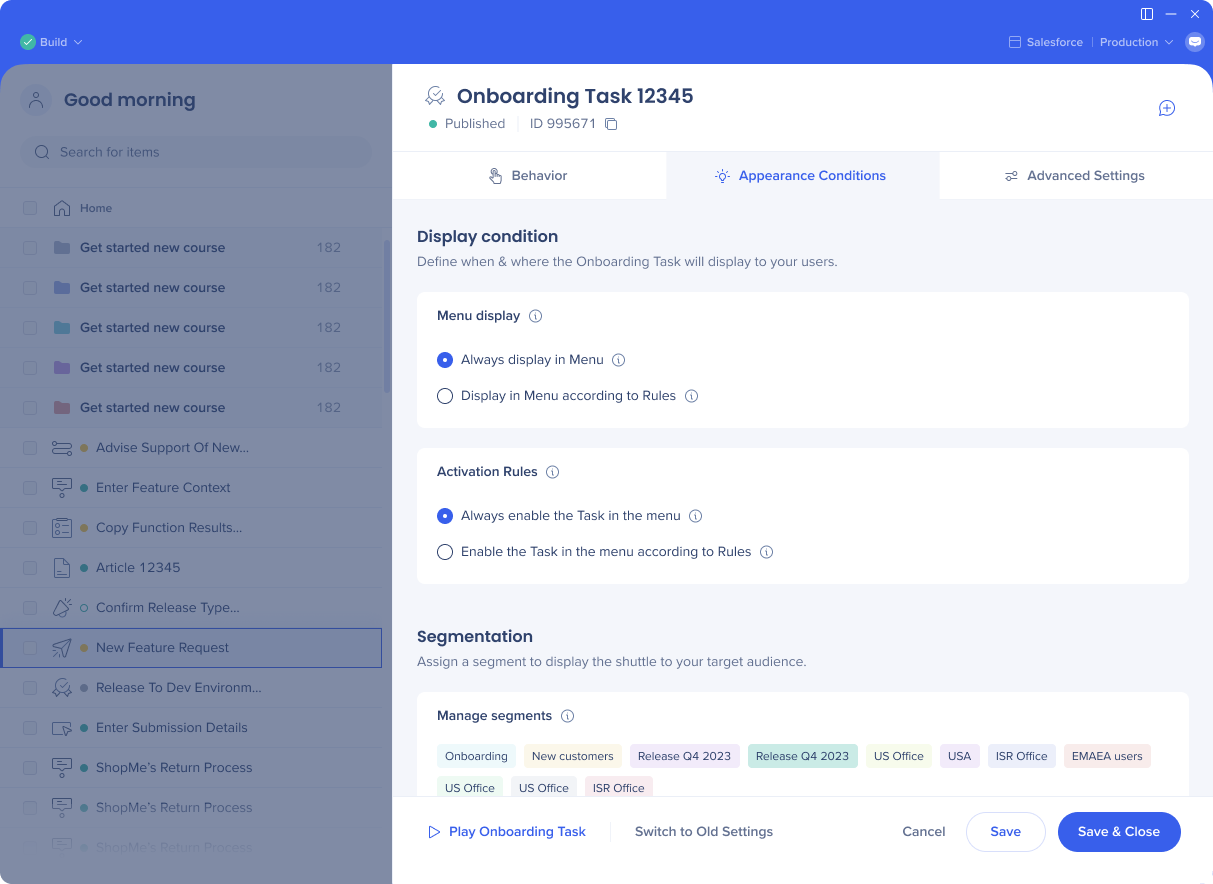
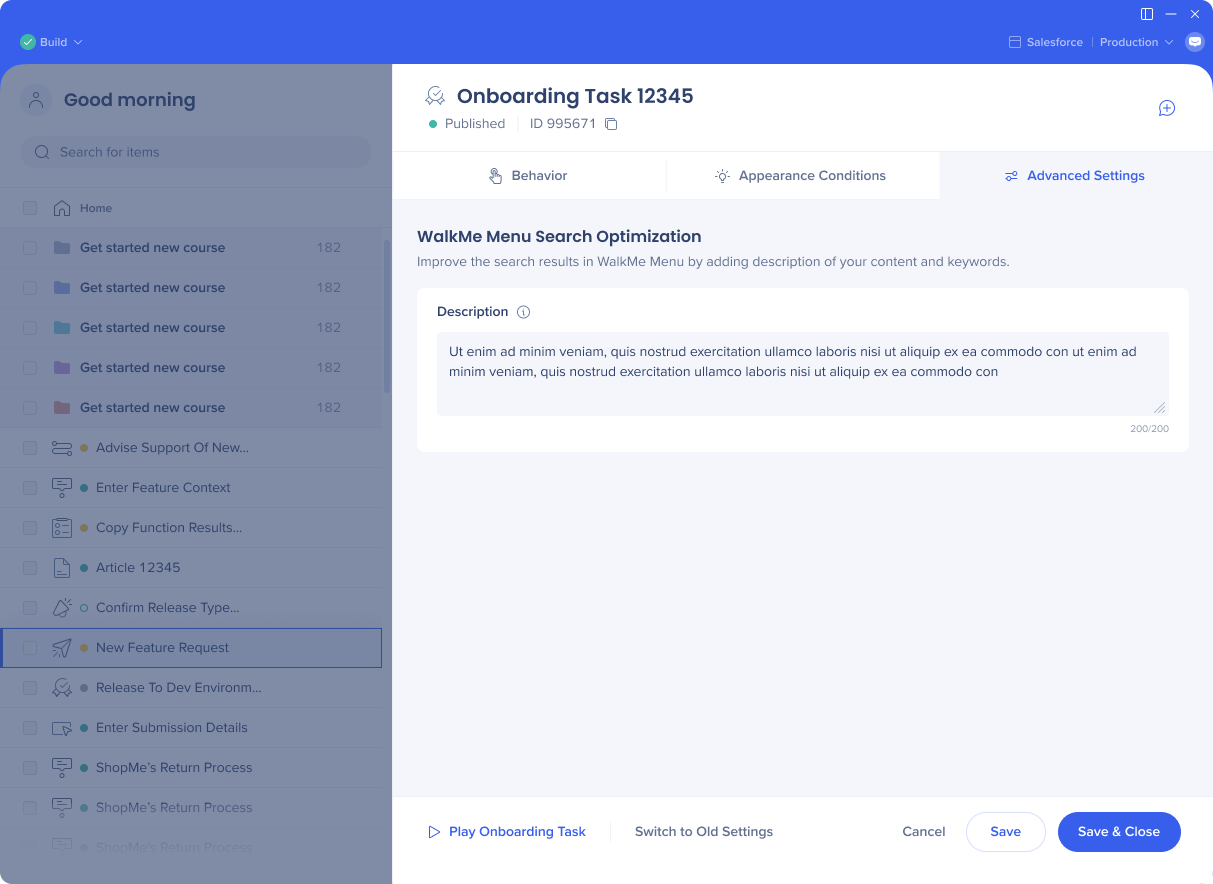
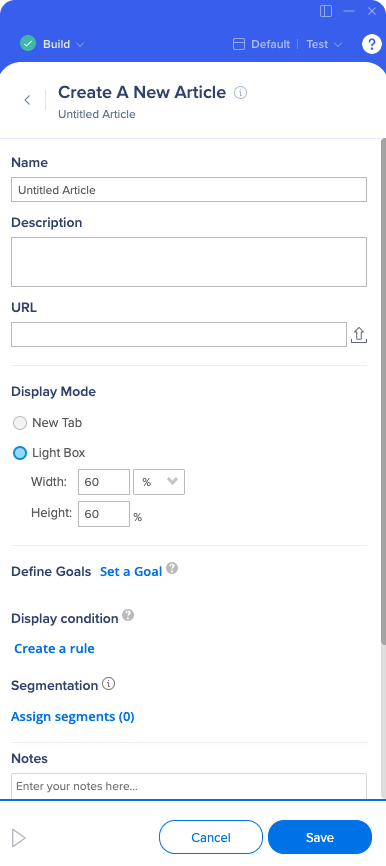
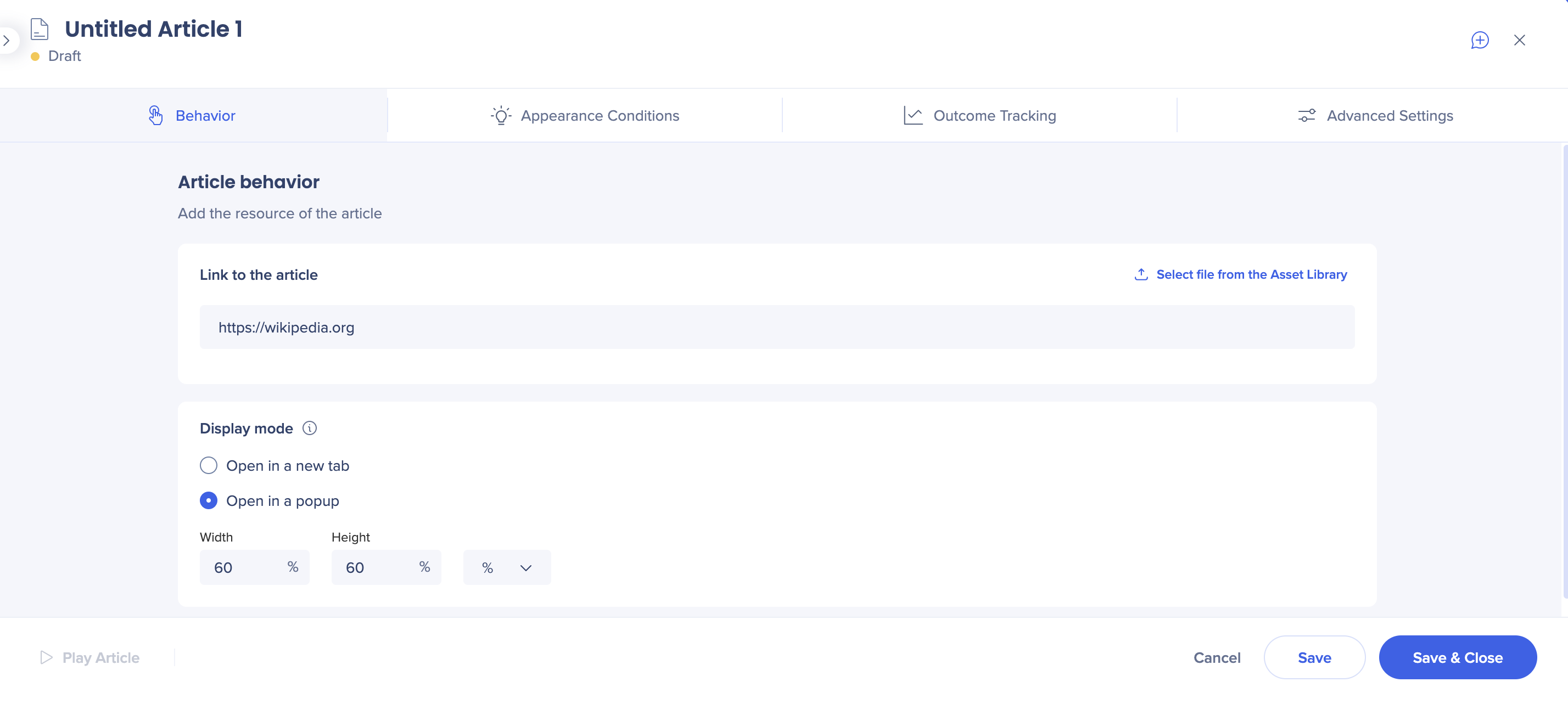
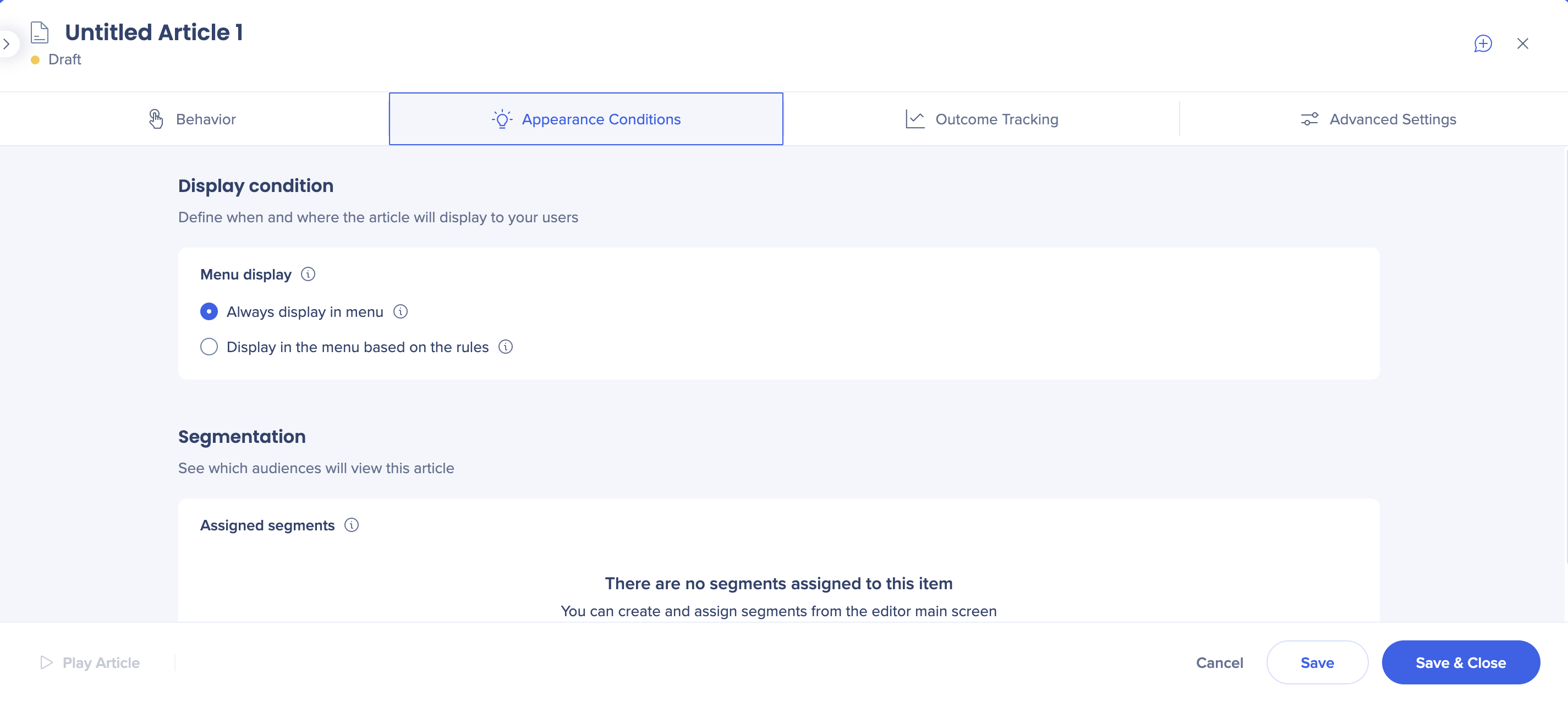
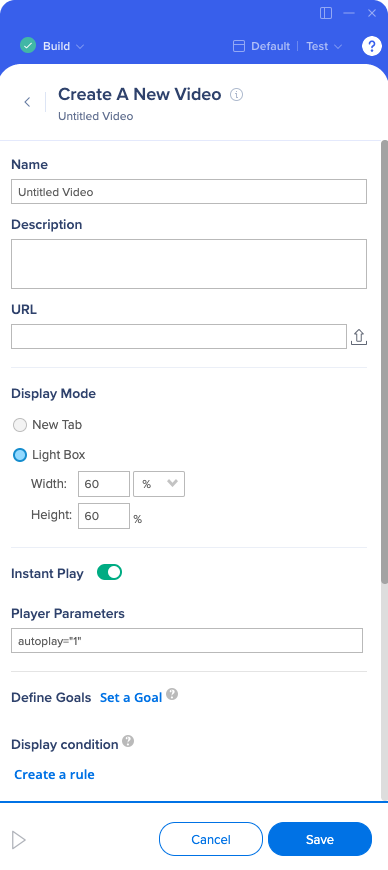
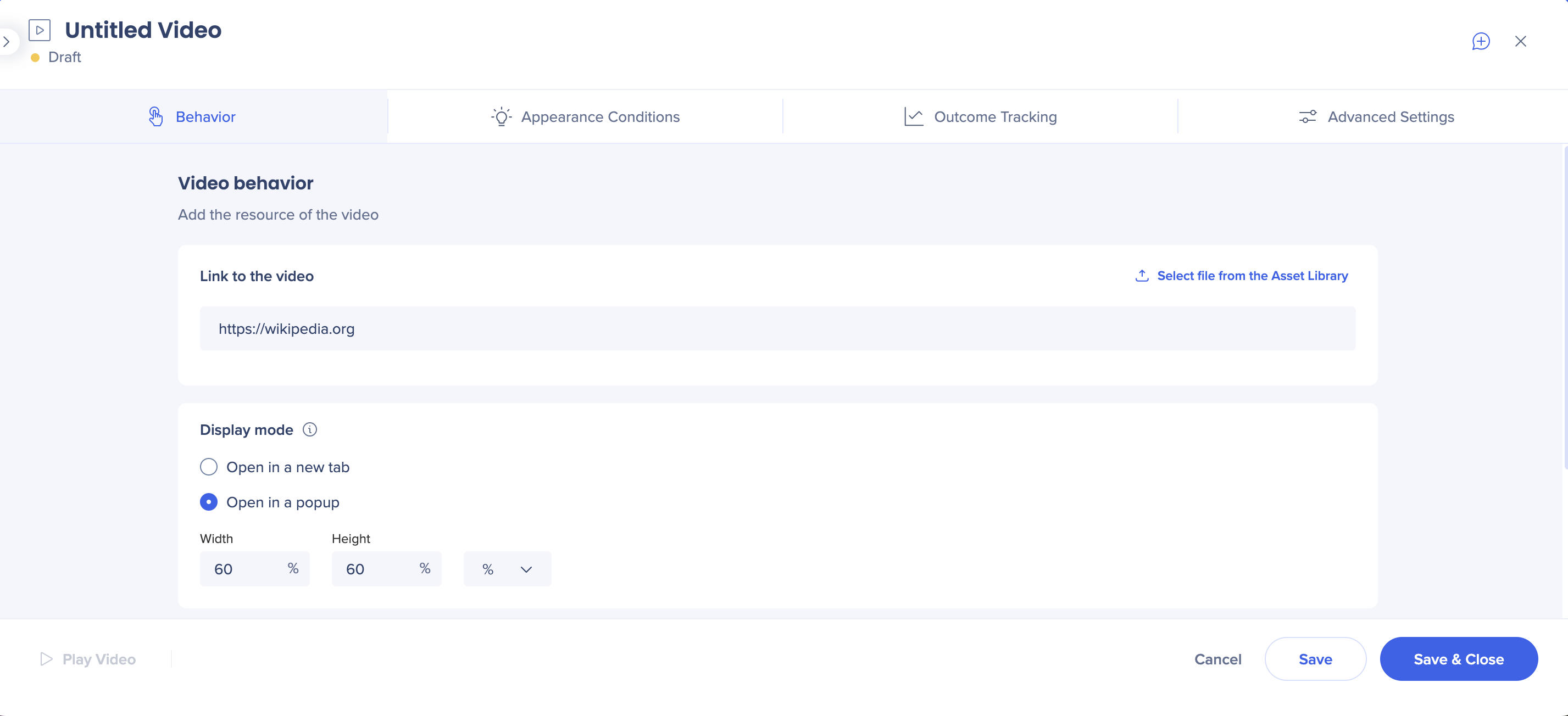
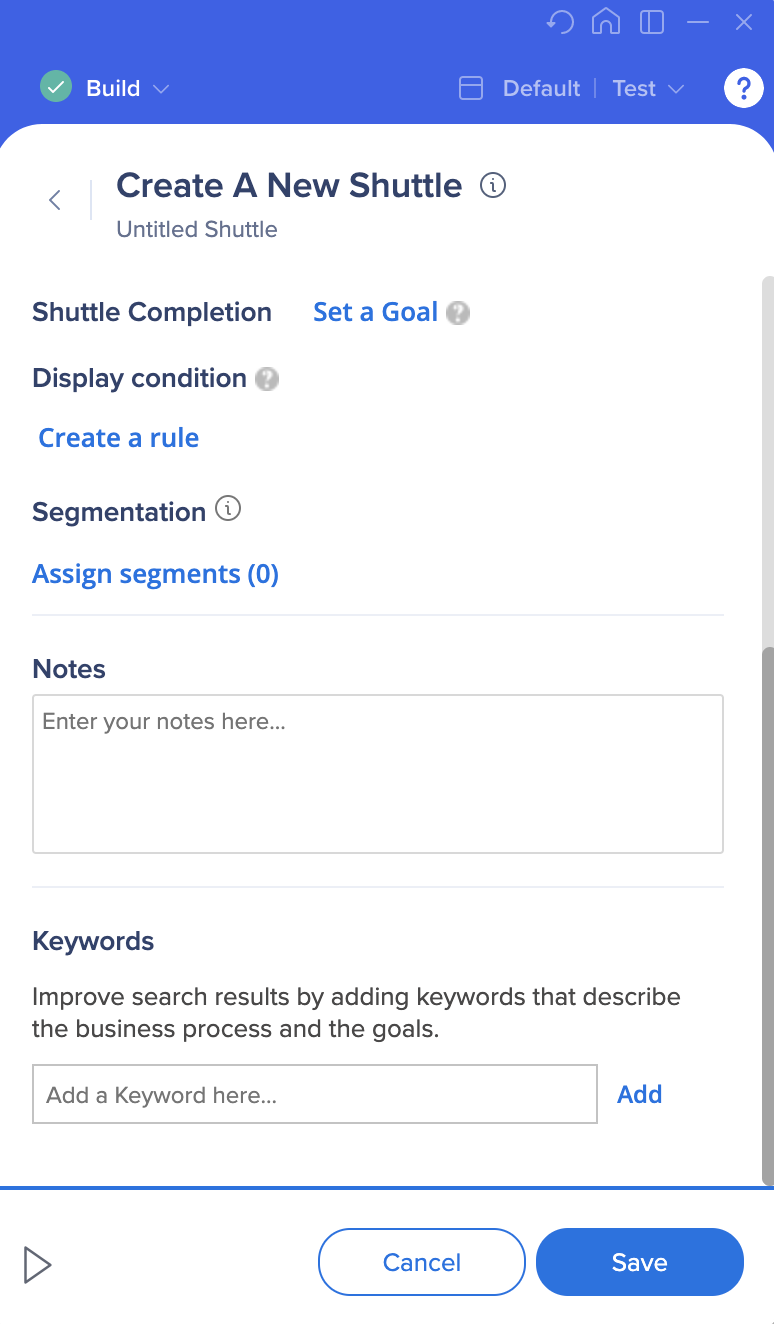
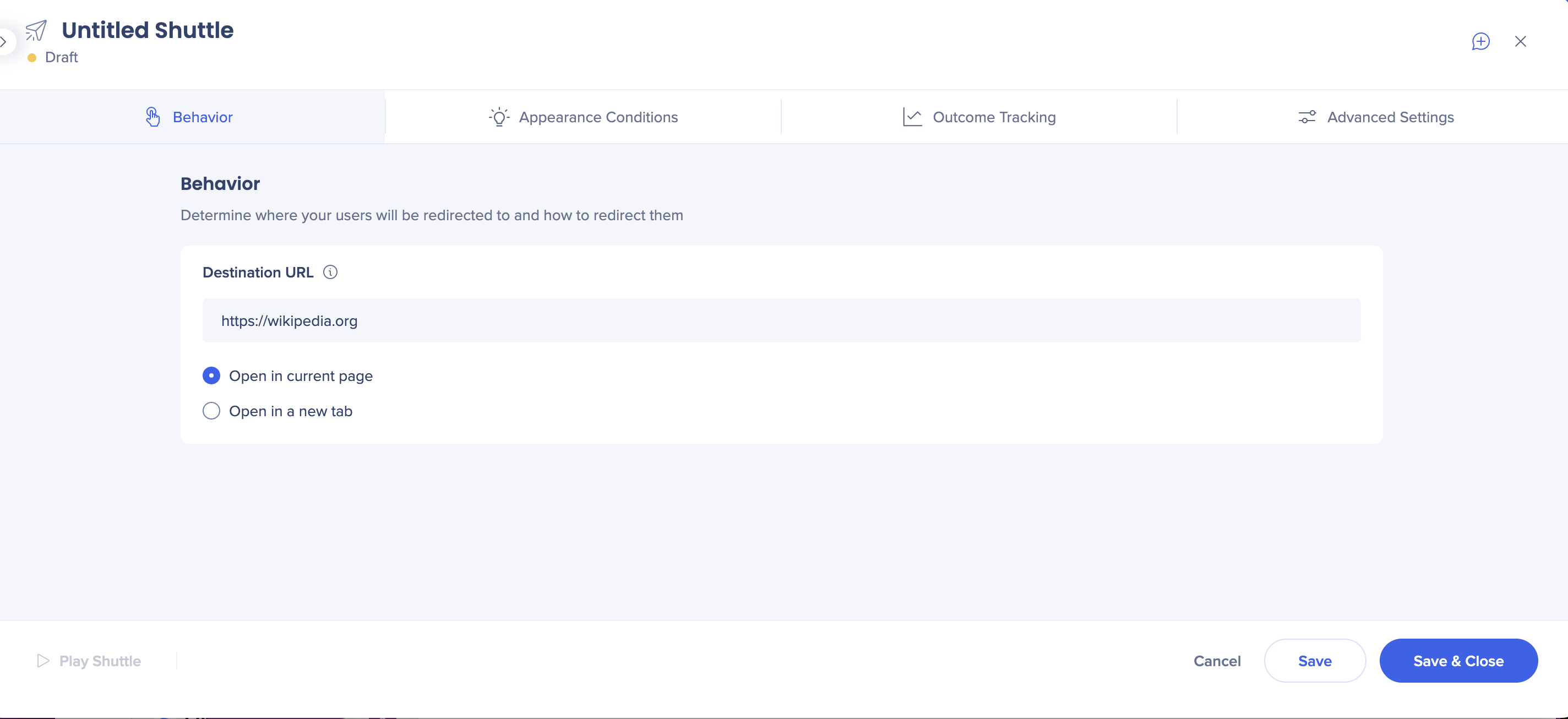
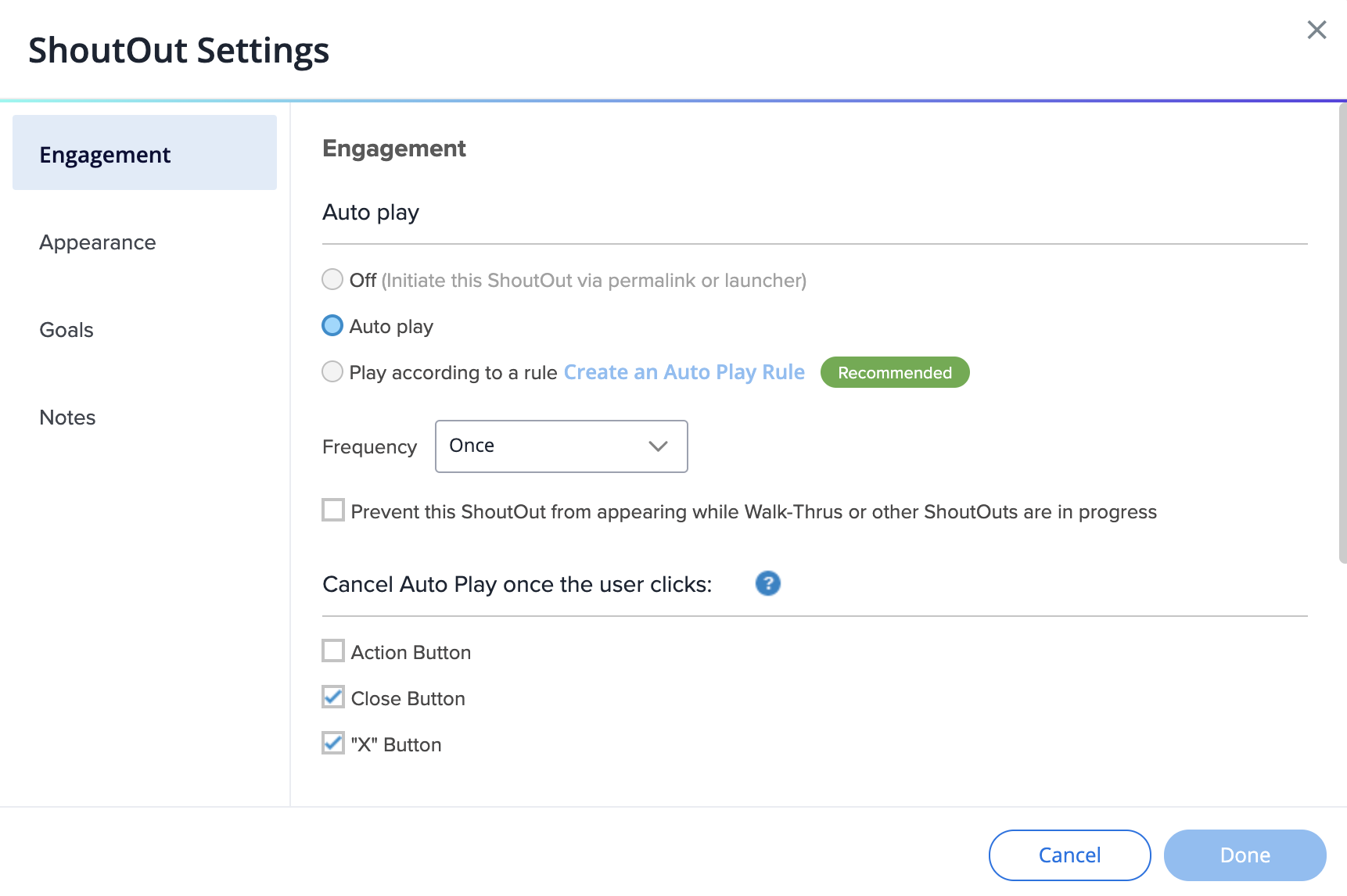
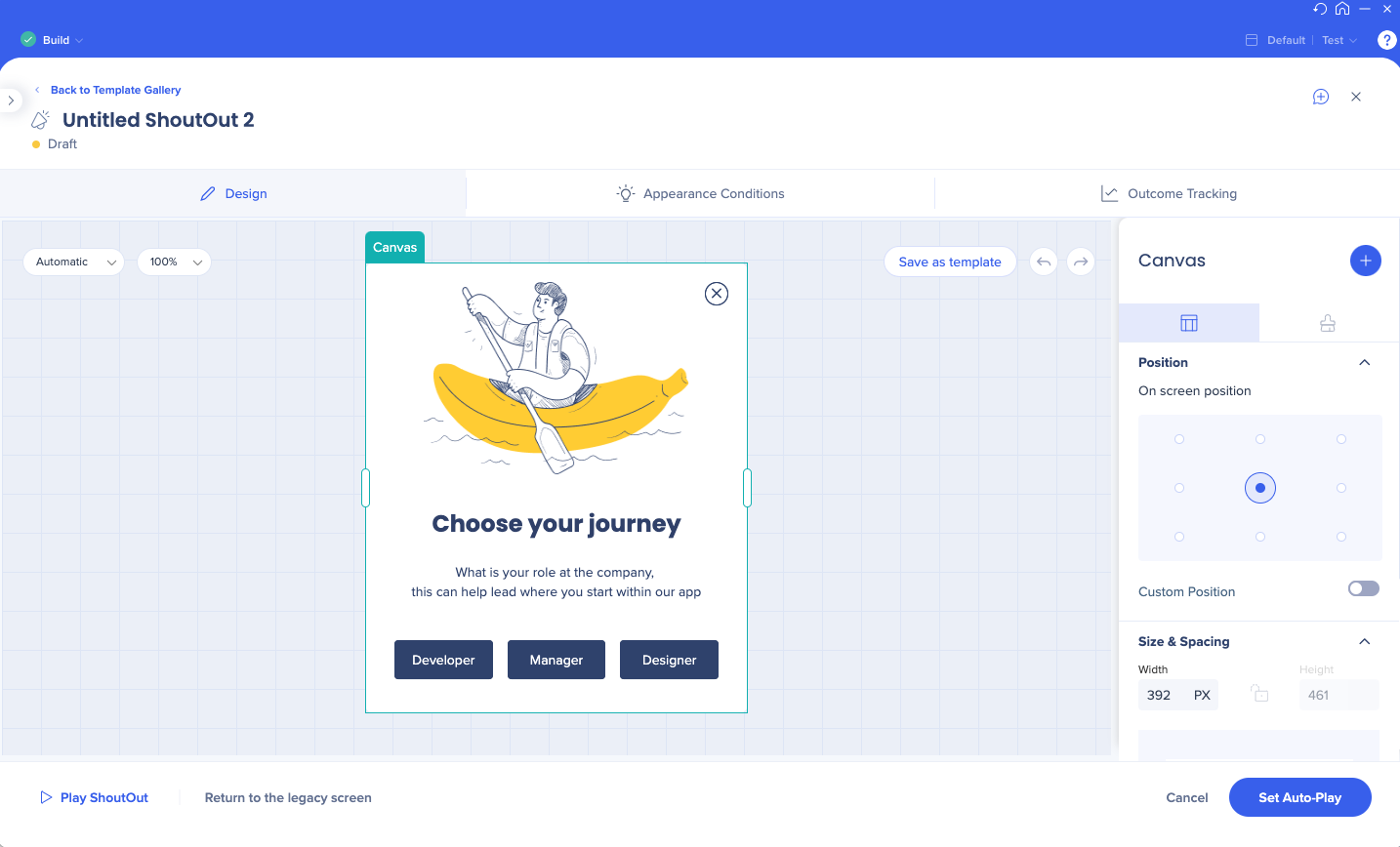
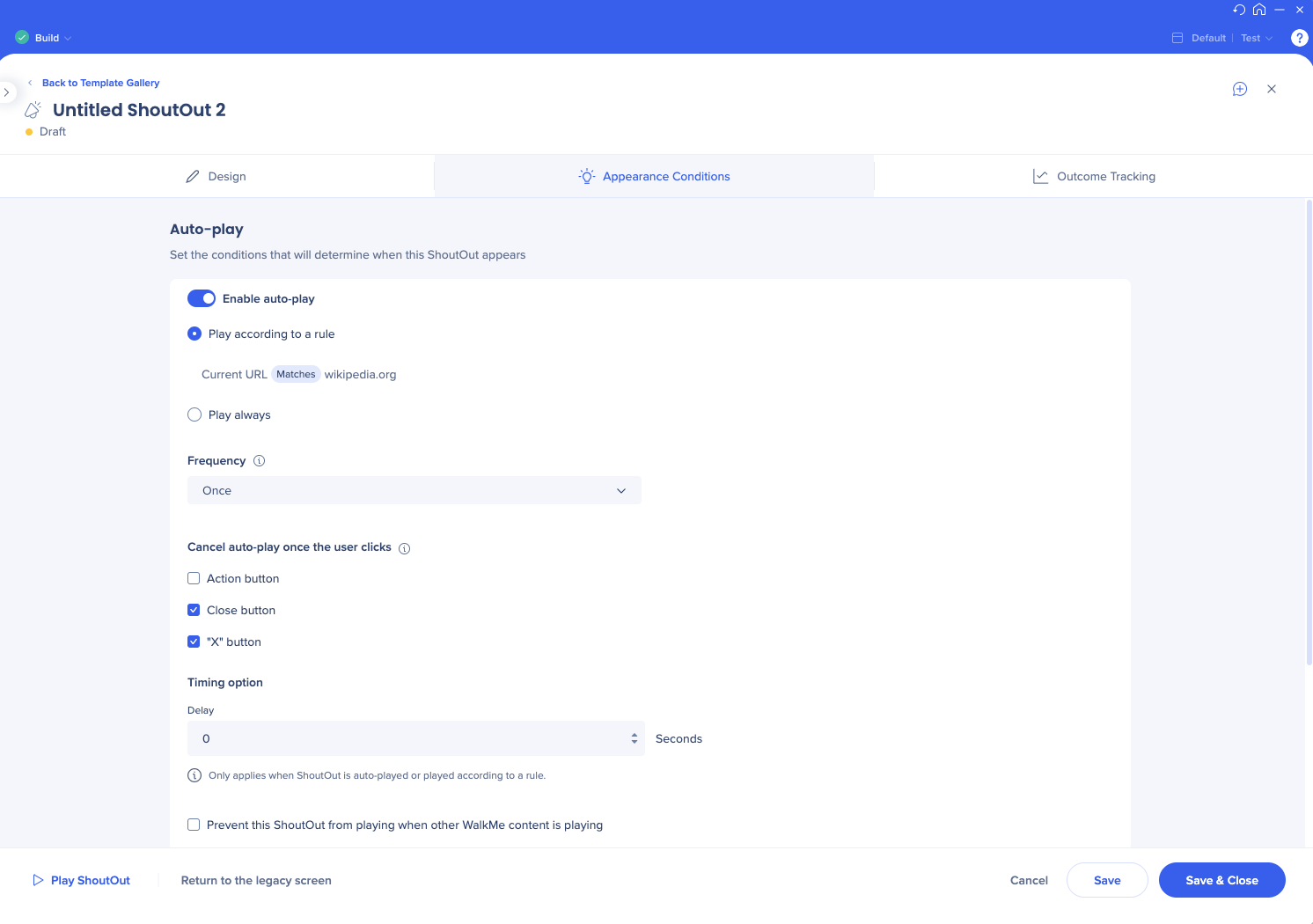
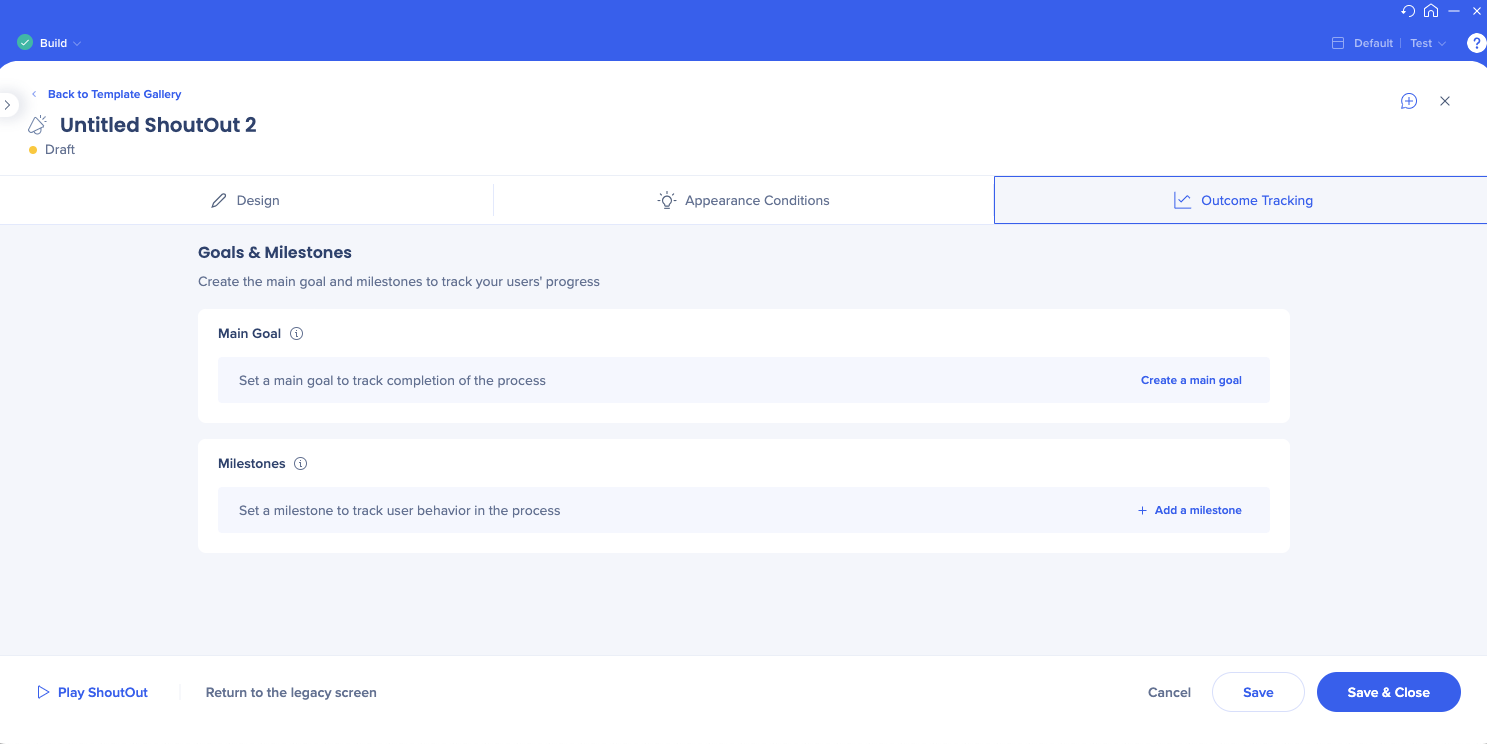
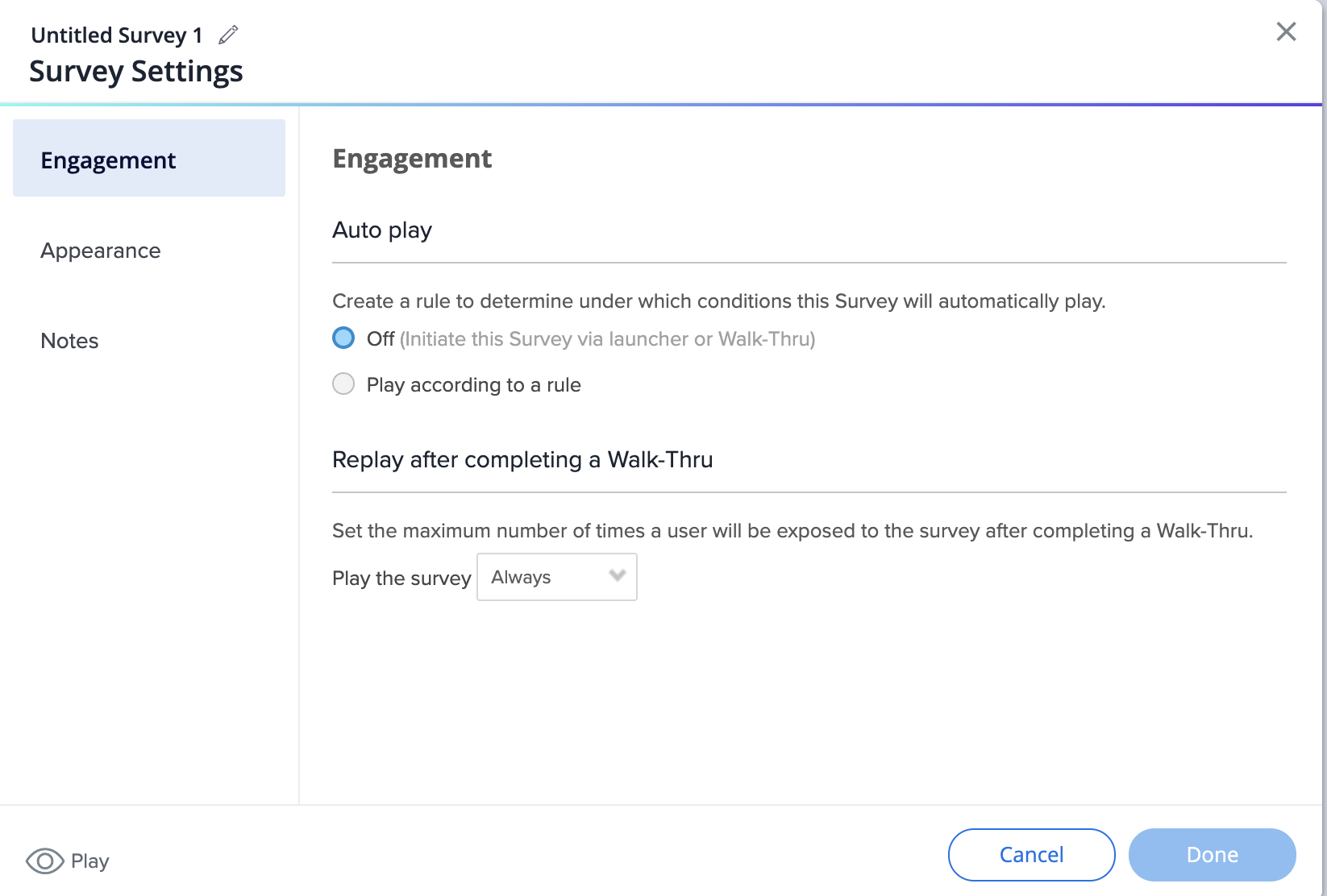
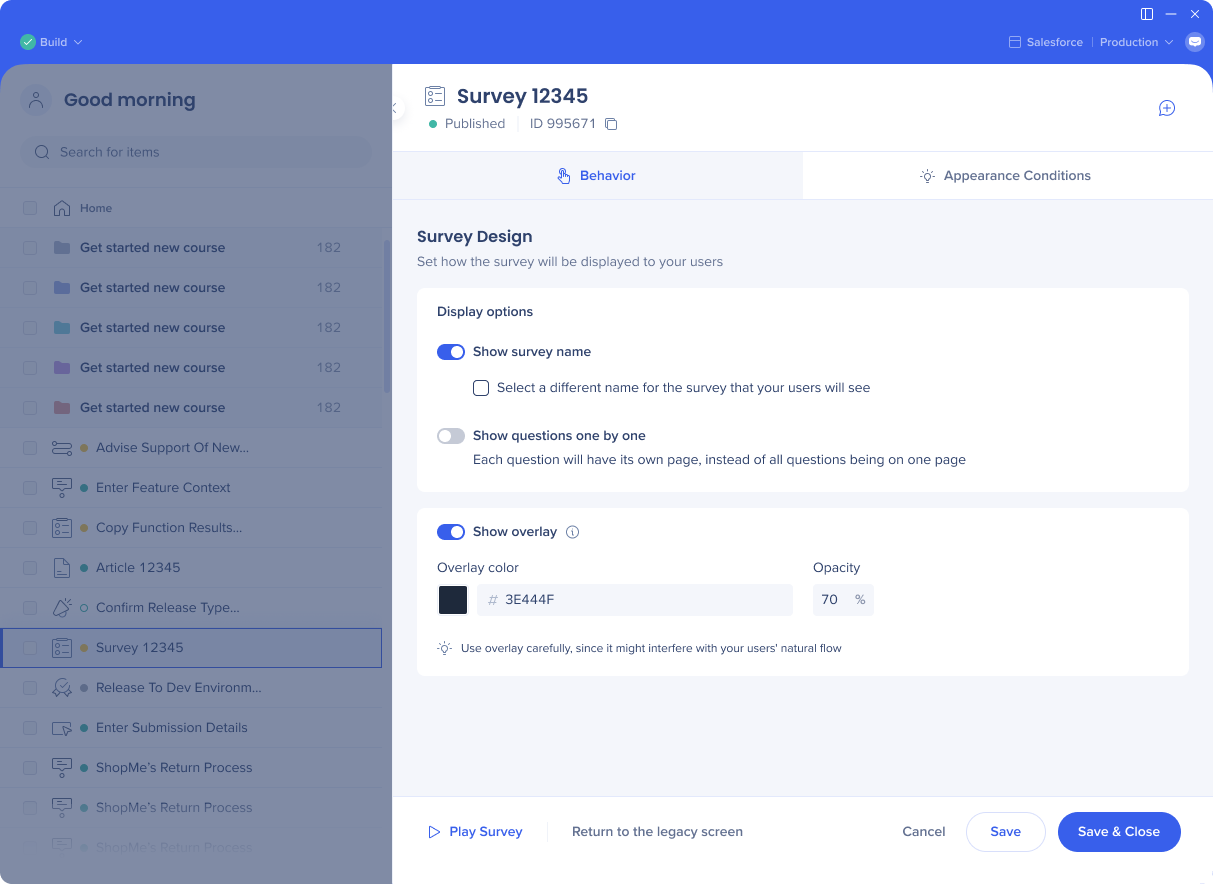
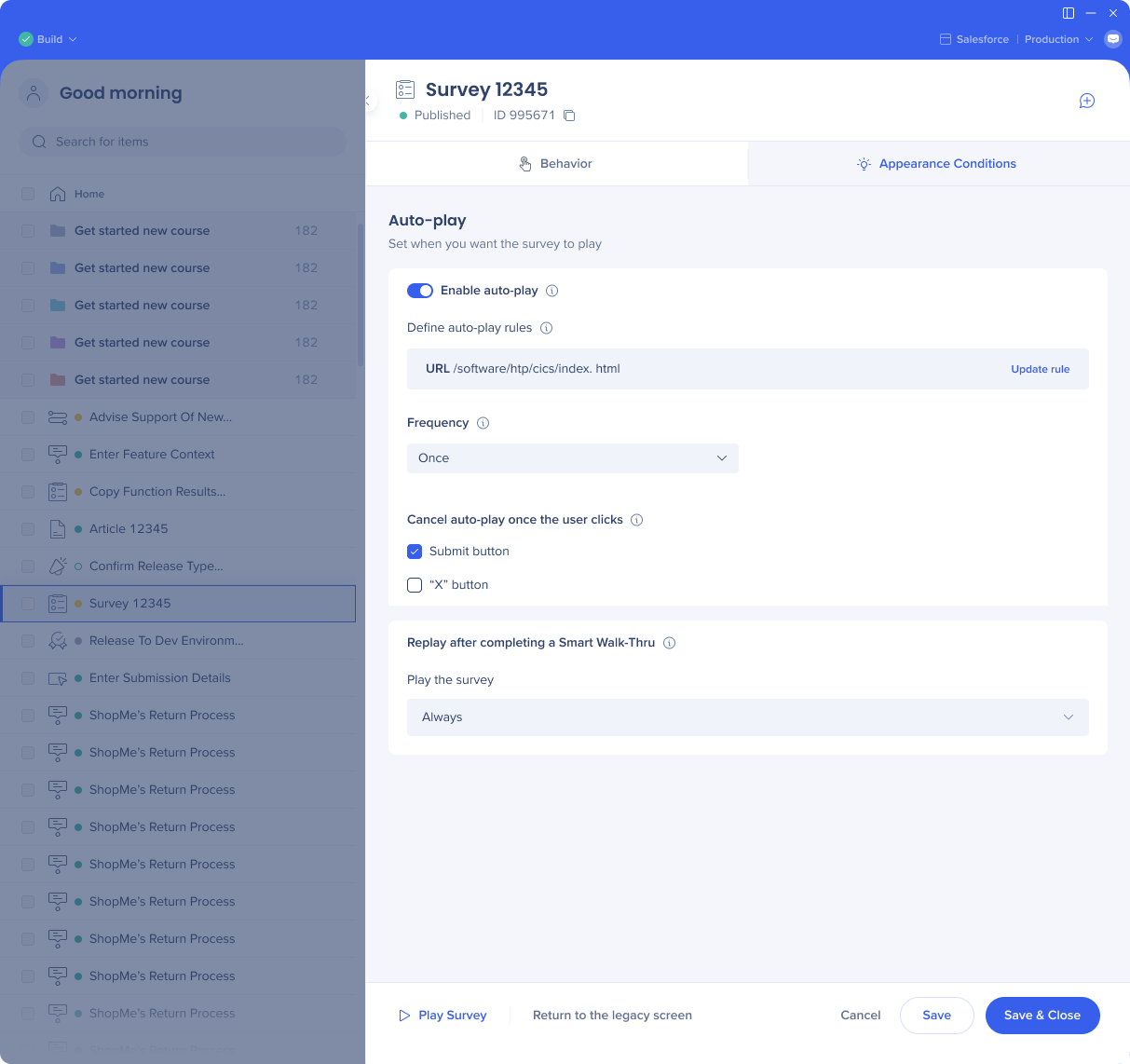
New updated screens are available for SmartTip sets, ShoutOuts, Smart Walk-Thrus, onboarding tasks, shuttles, surveys, articles, and videos.
The settings tabs moved from the left-hand side to the top
Tabs were grouped
The header is now the part of item creation
The footer is dedicated to finalizing and troubleshooting
Notes used to have a tab of their own, it was replaced with the Add+ icon in the upper right corner
Launcher settings
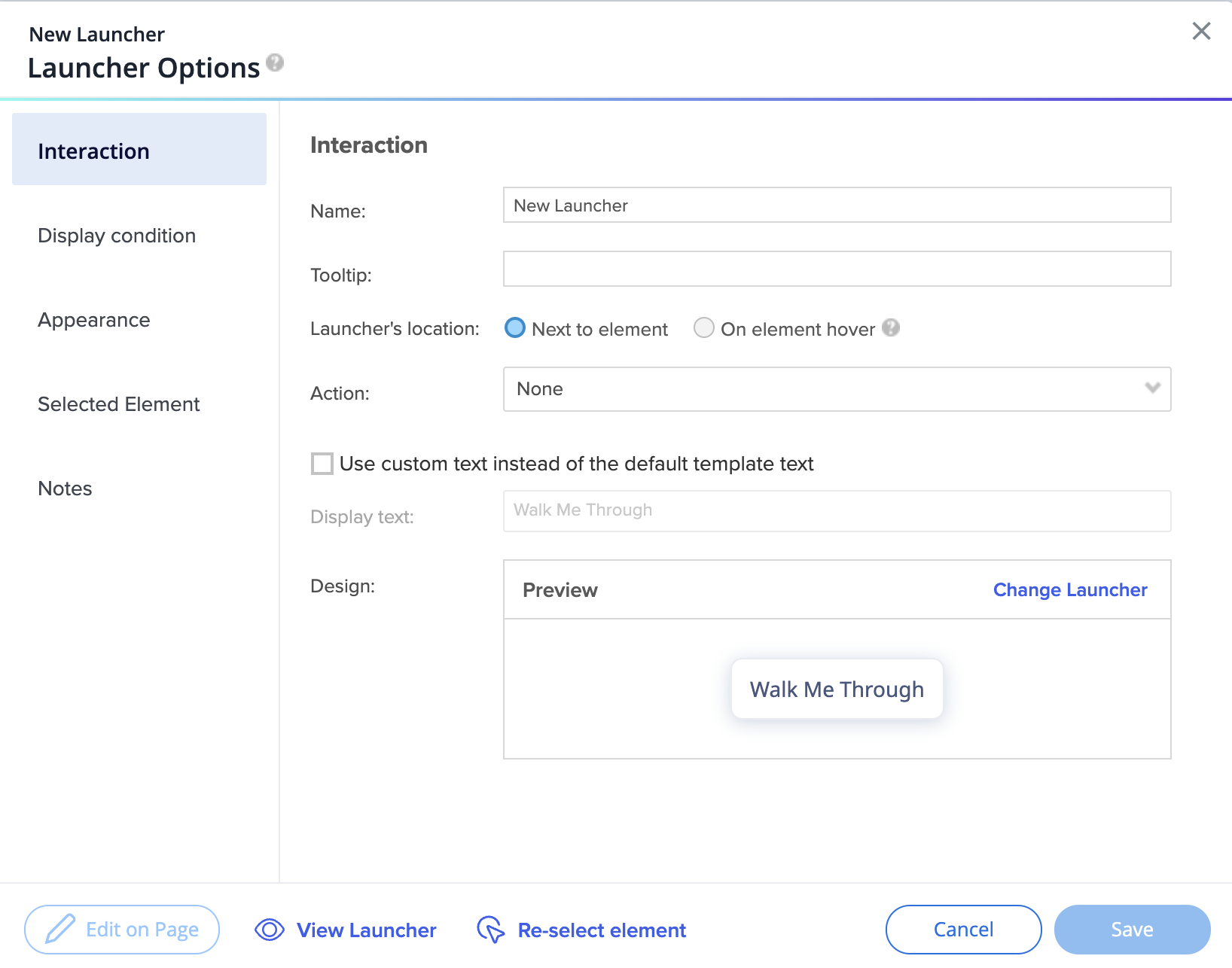
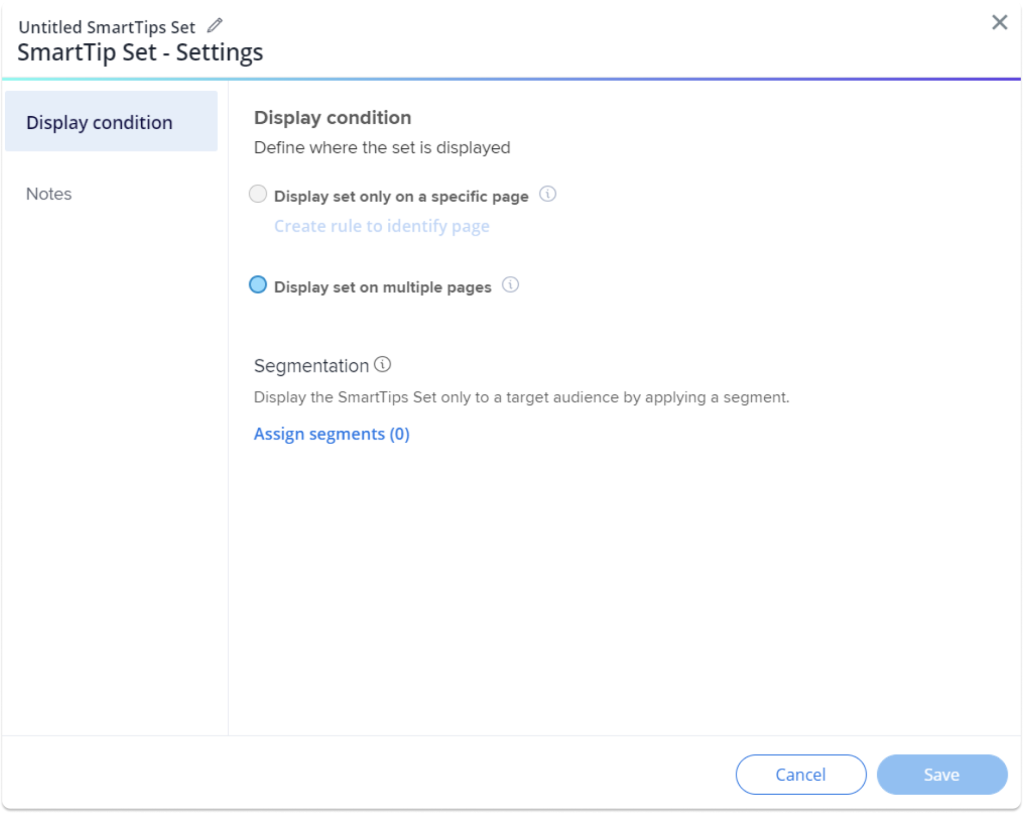
Before:
Still available by default, click on the banner to try the new design
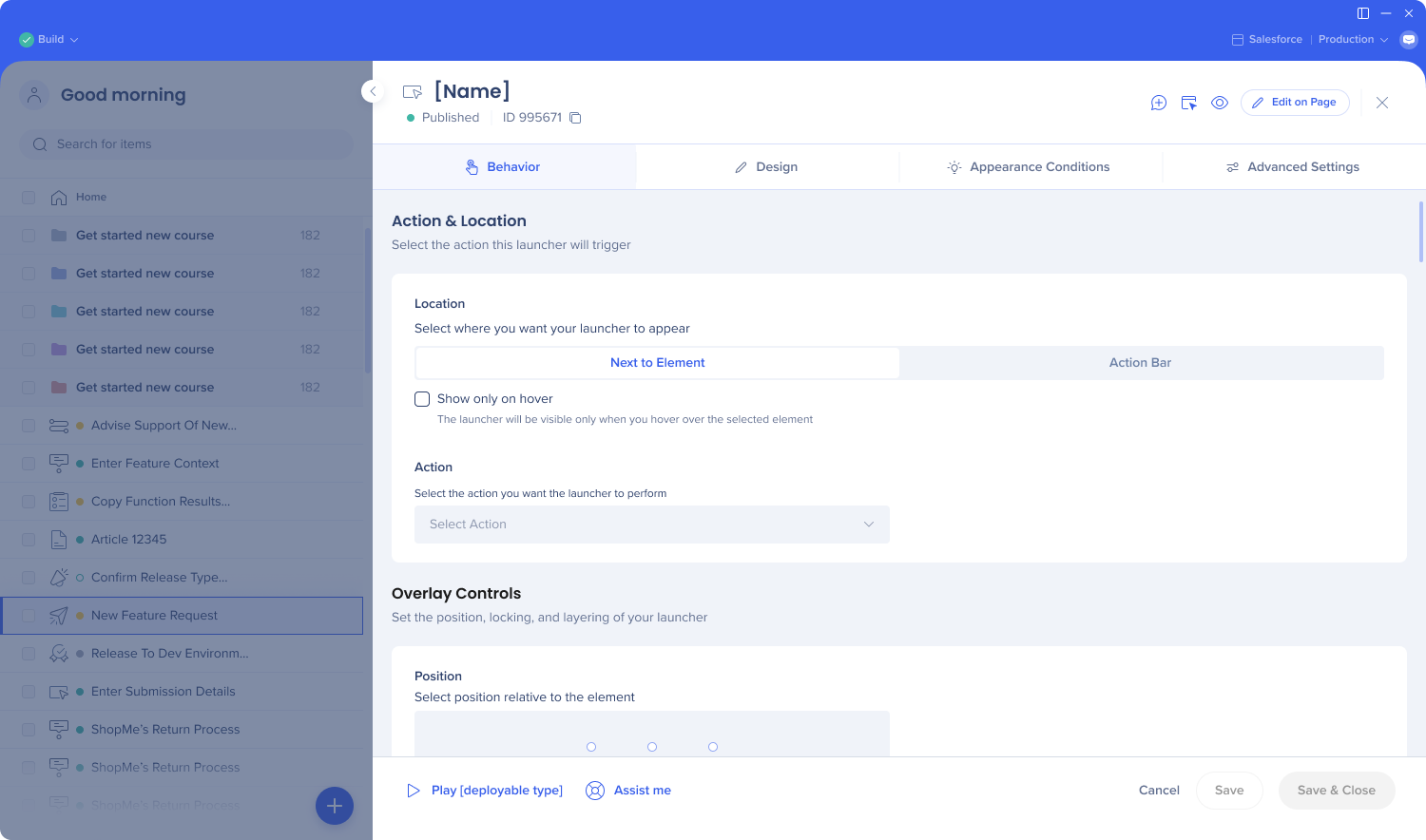
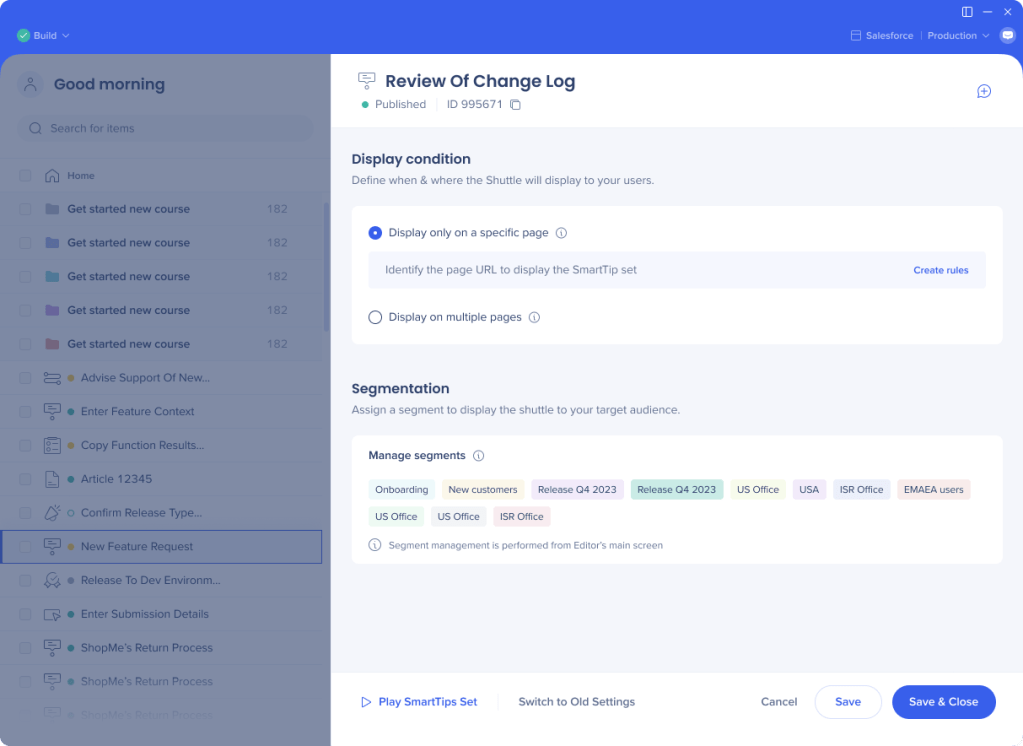
After:
Tabs renamed and reorganized to combine similar settings and make the user experience smoother
New Behavior tab contains the Interaction tab settings
Selected Element tab settings partially moved to Advanced Settings, and partially removed
Element loading behavior is now a dropdown with “Automatic” selected by default. This automatic feature is the best technology; no need to select the behavior manually anymore.
“Constantly checks“ option renamed into Removal behavior. New name better explains the functionality of this setting.
Users on DeepUI systems won't see the “Element attributes to ignore” section
Precision level and element grade settings were removed and replaced with a better behind the scenes technology
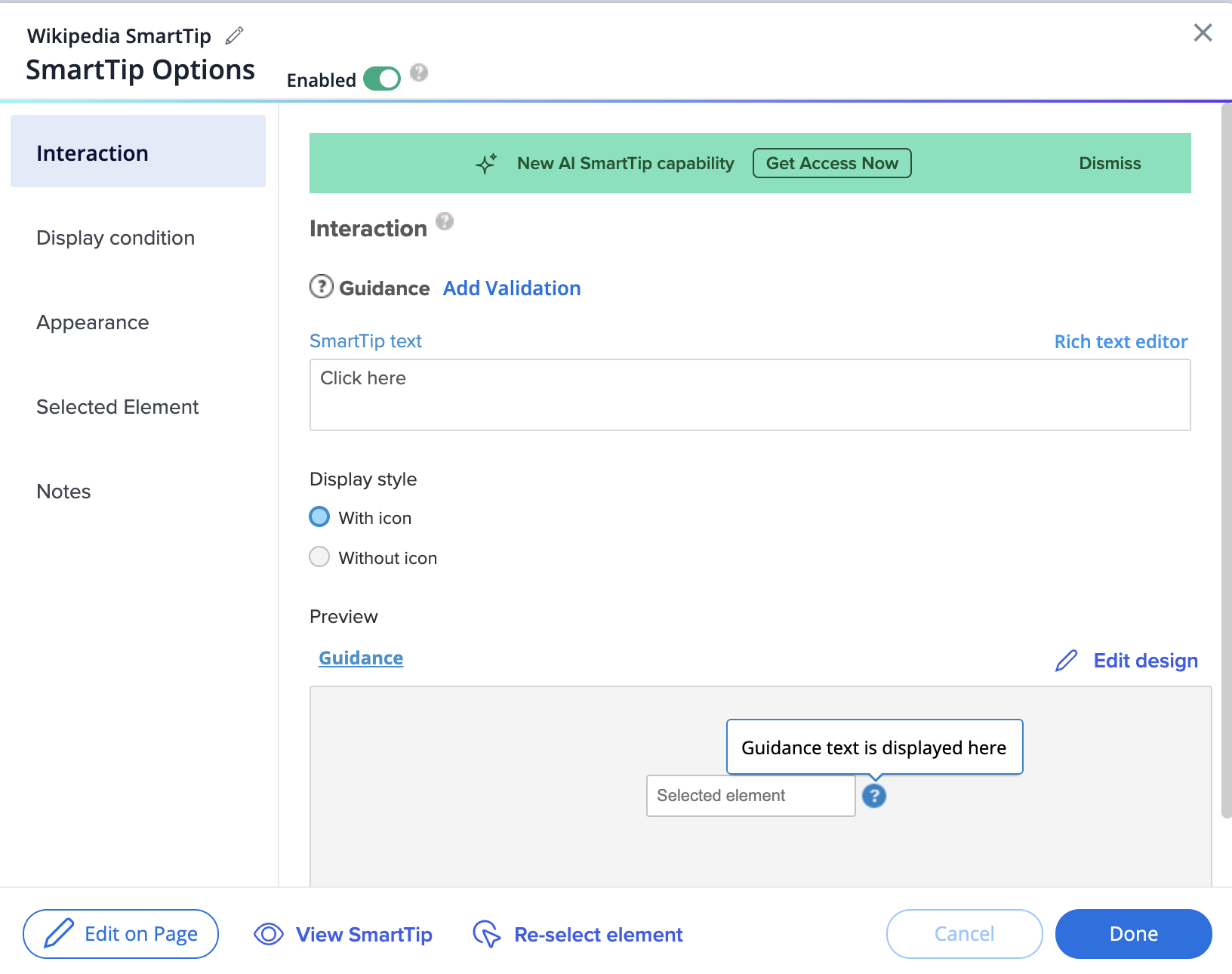
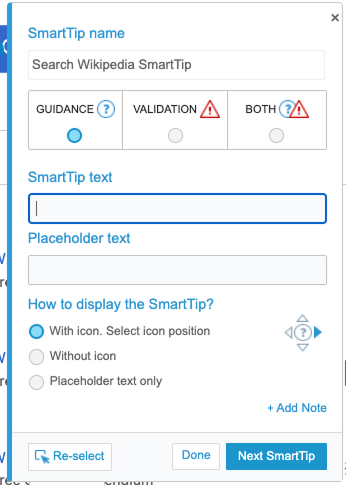
Still available by default, click on the banner to try the new design
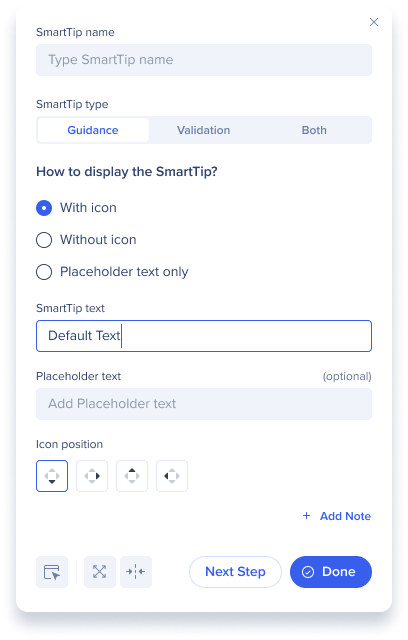
After:
Tabs renamed and reorganized to combine similar settings and make the user experience smoother
New Behavior tab contains the Interaction tab settings
Display style (with or without icon) moved to the Design tab
Selected Element tab settings partially moved to Advanced Settings, and partially removed
Element loading behavior is now a dropdown with “Automatic” selected by default. This automatic feature is the best technology; no need to select the behavior manually anymore.
“Constantly checks“ option renamed into Removal behavior. New name better explains the functionality of this setting.
Users on DeepUI systems won't see the “Element attributes to ignore” section
Precision level and element grade settings were removed since it got replaced with a better behind the scenes technology
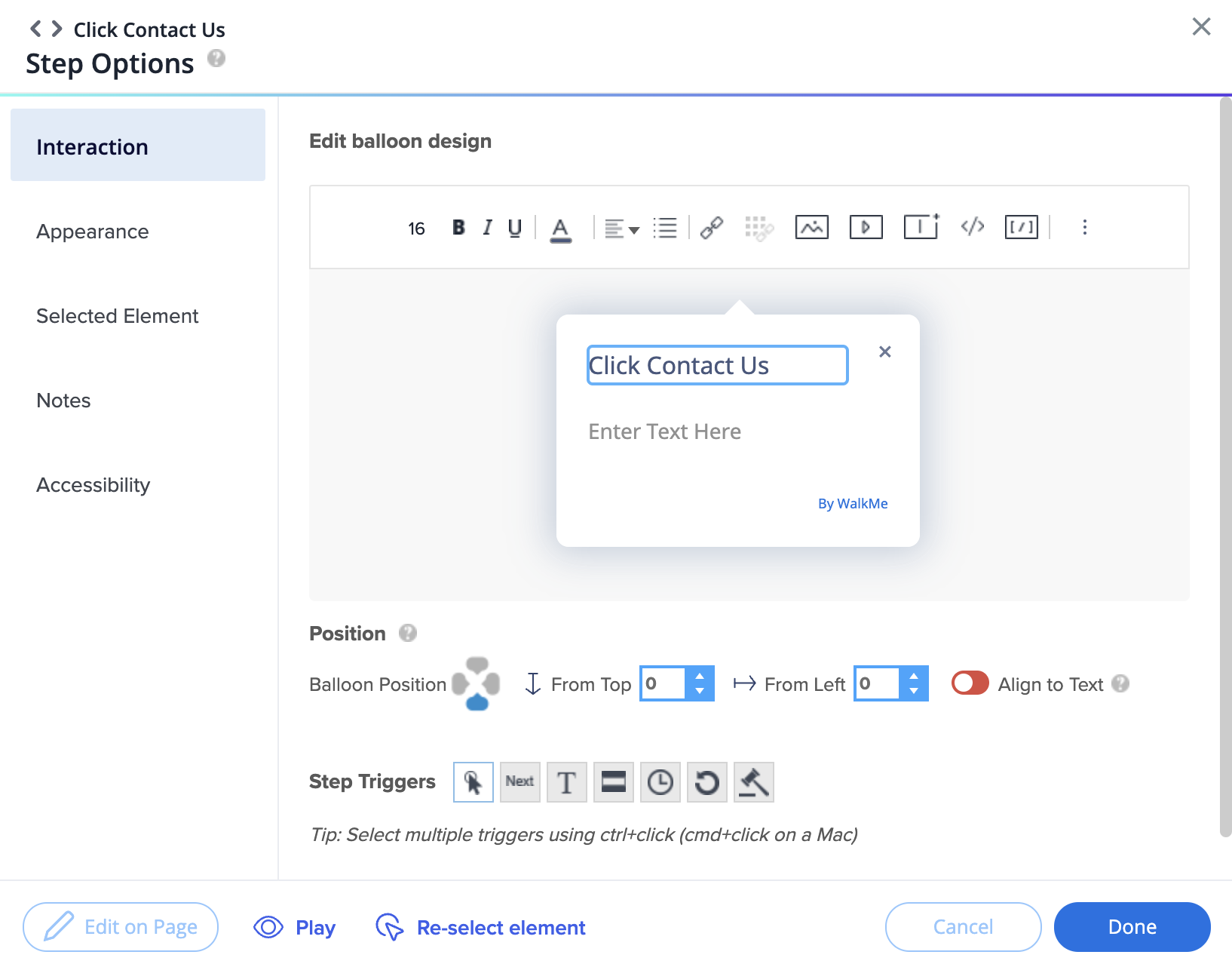
See the step number and navigate between step screens
See and copy the step ID
Add notes
Reselect the element
View screenshot
Open the Edit on Page tool
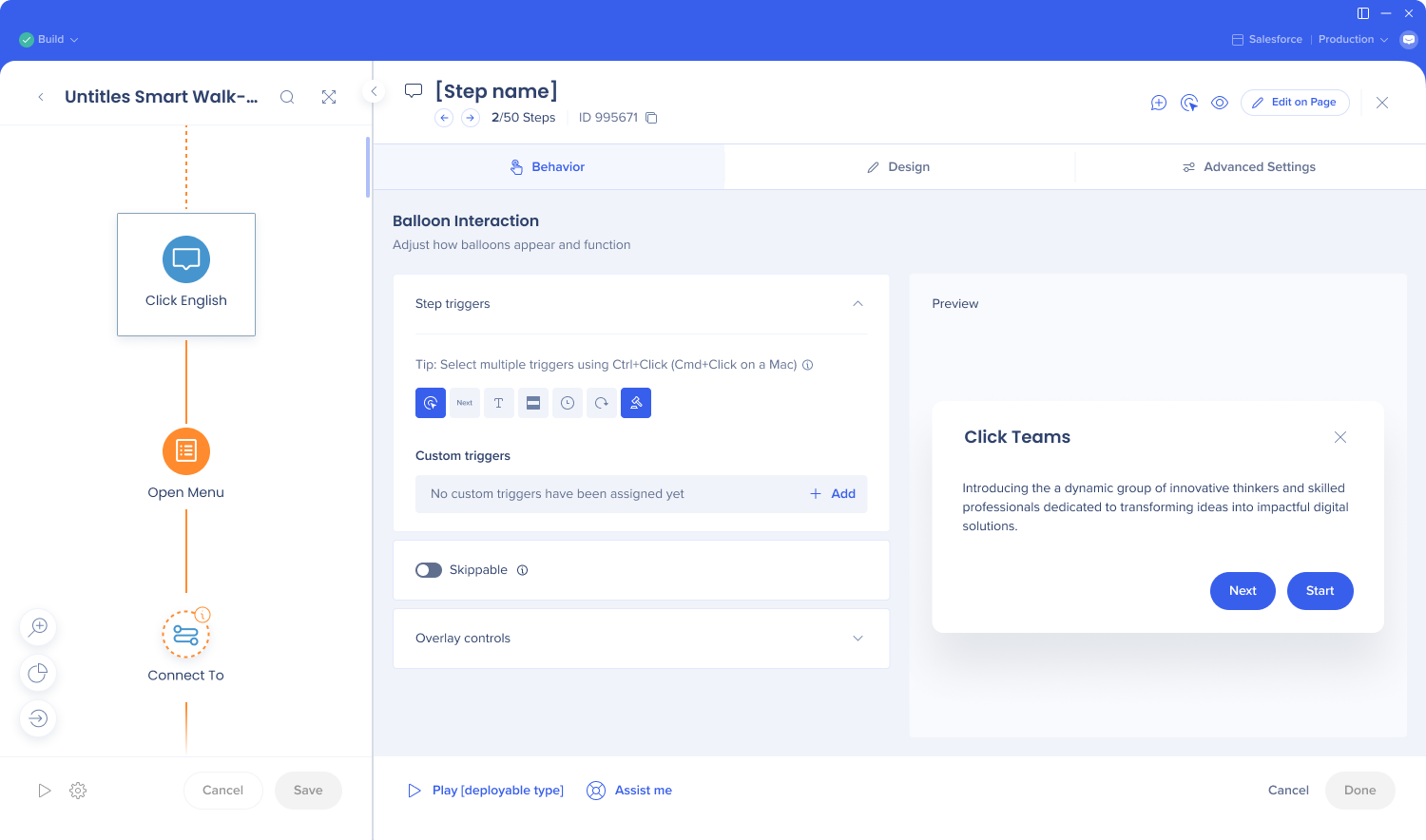
Behavior tab:
Easily change the text from the Quick edit screen
Select multiple custom triggers, and see an indication of which triggers work well together
Set the step duration
Overlay controls
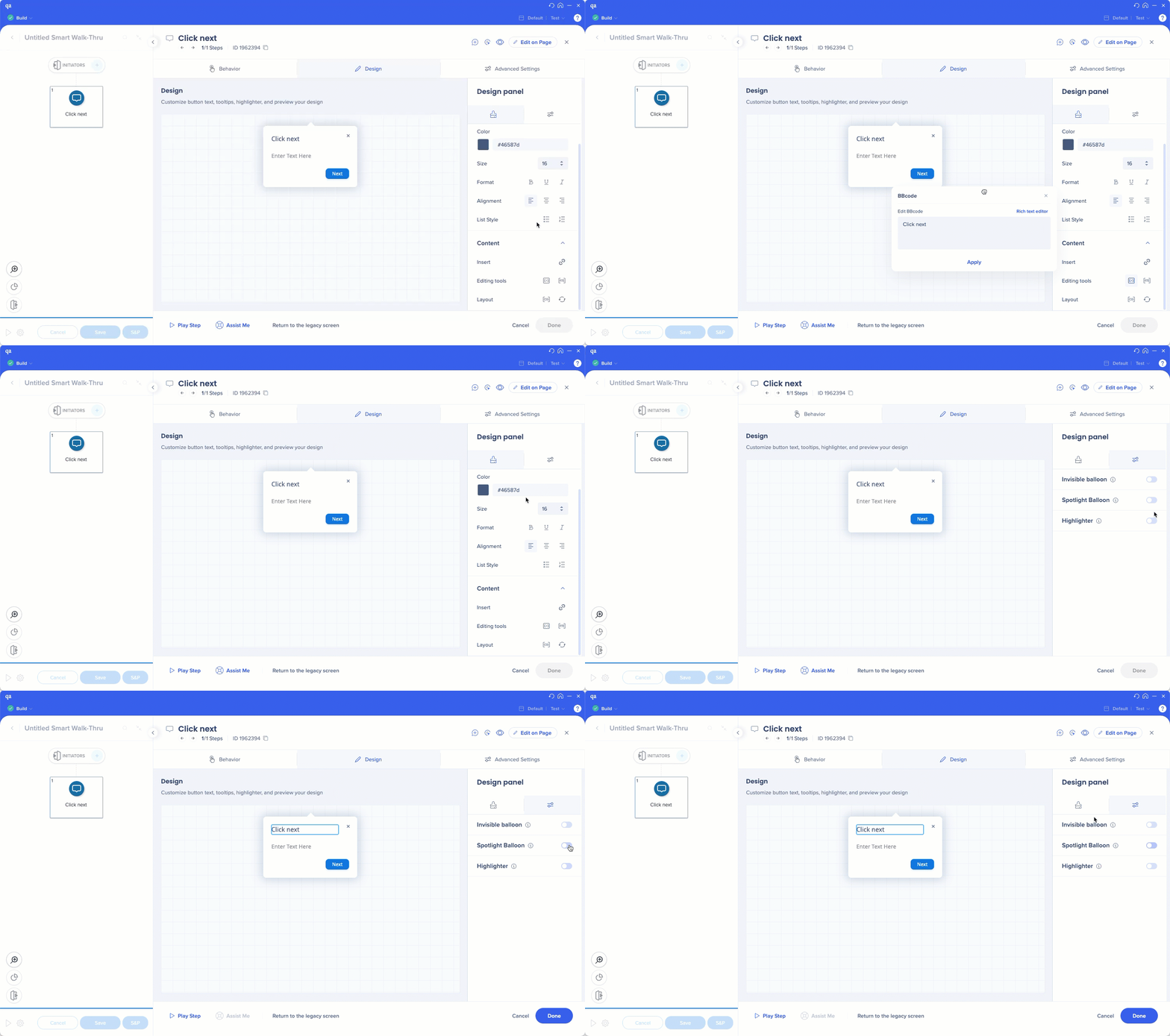
Design tab
See preview of spotlight and highlighter
Easily drag the setting windows such as BBcode's
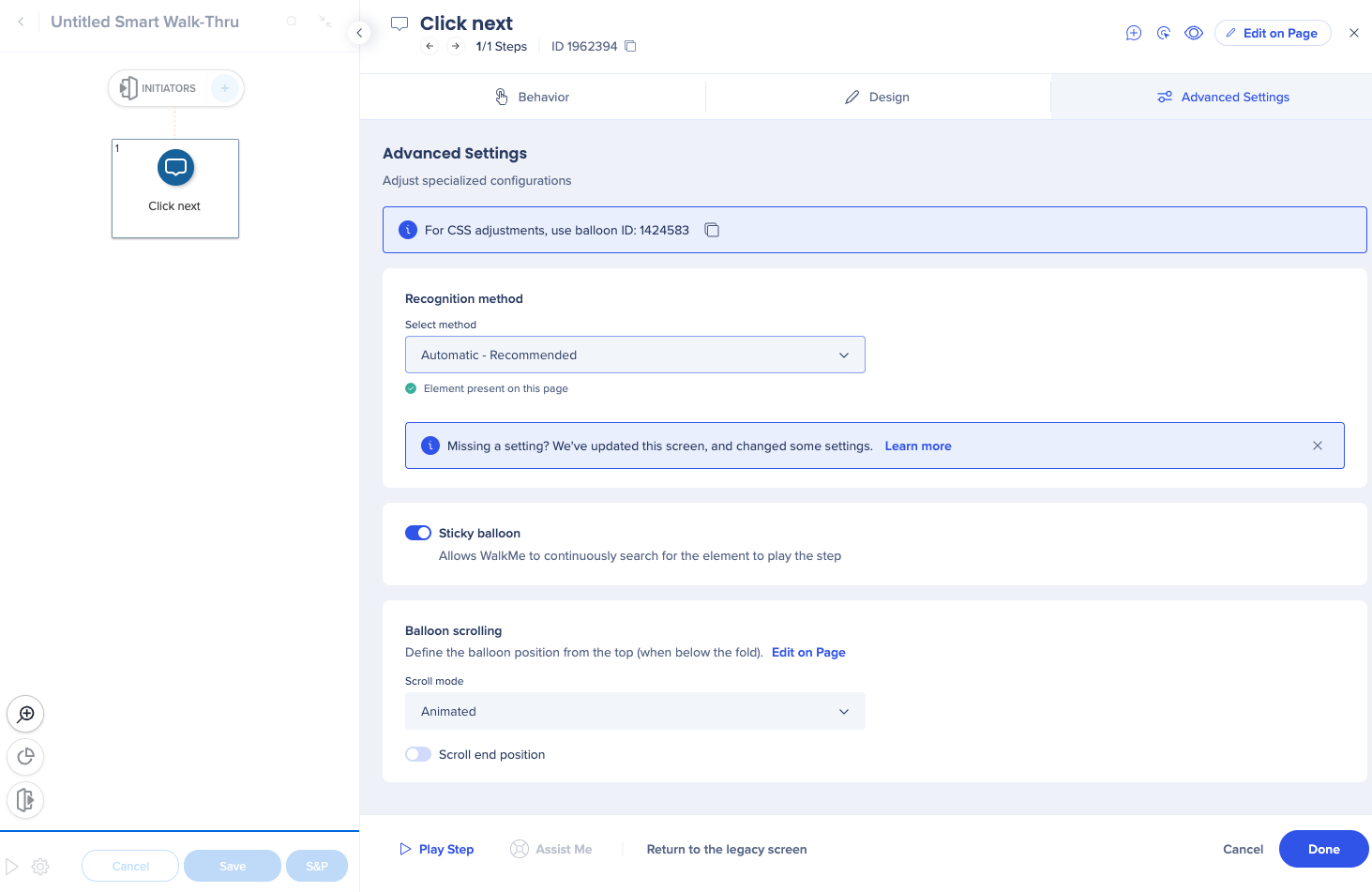
Advanced Settings tab
Selected Element tab settings were partially moved here, and partially removed
Element loading behavior is now a dropdown with “Automatic” selected by default. This automatic feature is the best technology; no need to select the behavior manually anymore.
Precision level and element grade settings were replaced with a better behind the scenes technology
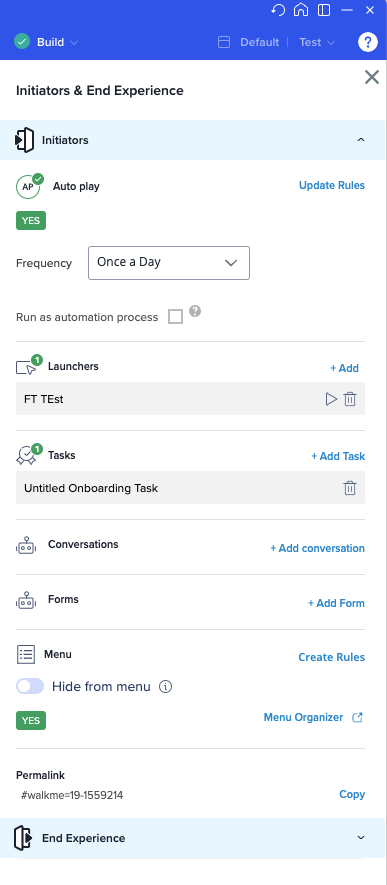
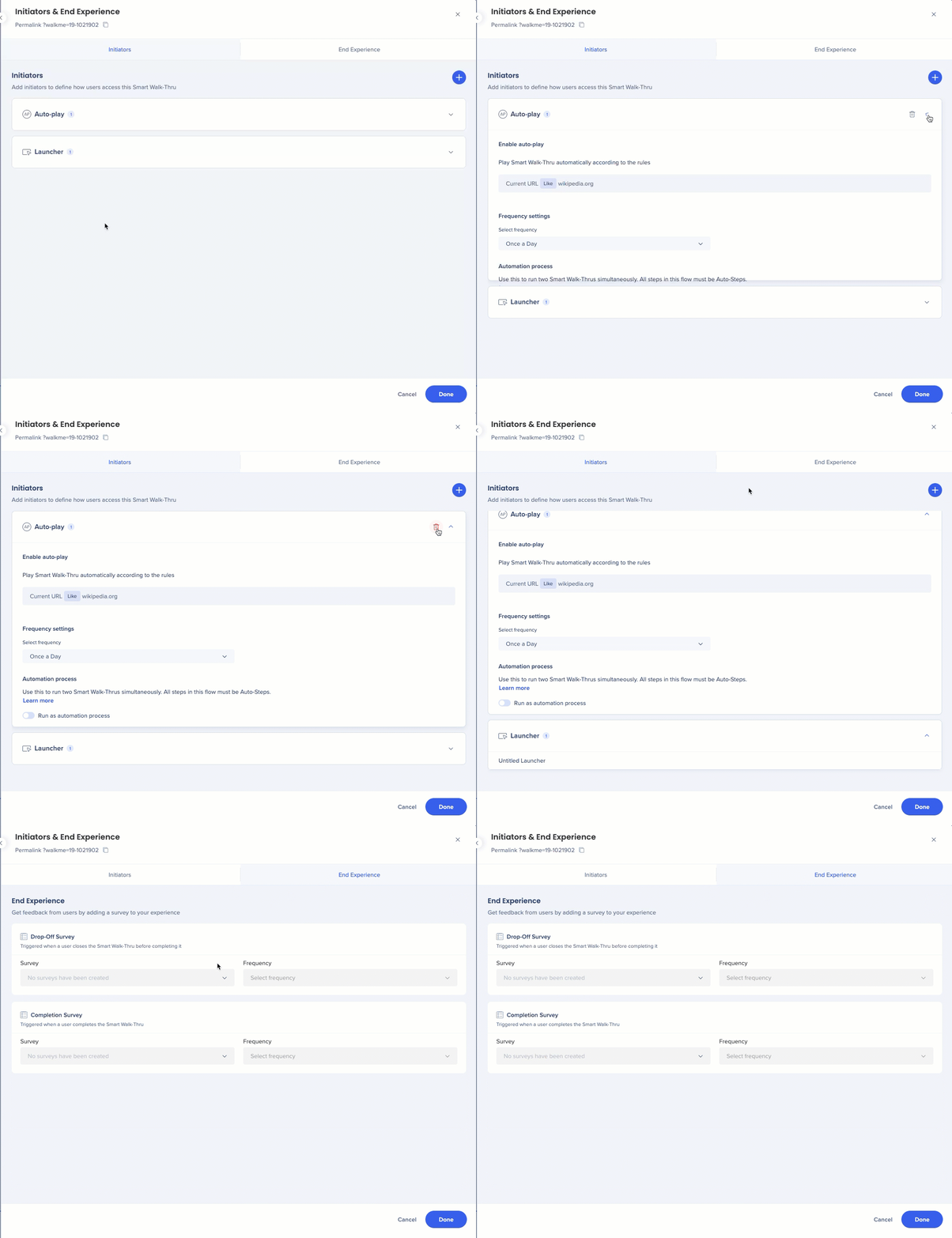
Initiators and end experience
Before
After
Full screen view
Click Expand to see the details of each initiator
Survey naming change to better reflect the use cases
Smart Walk-Thrus settings
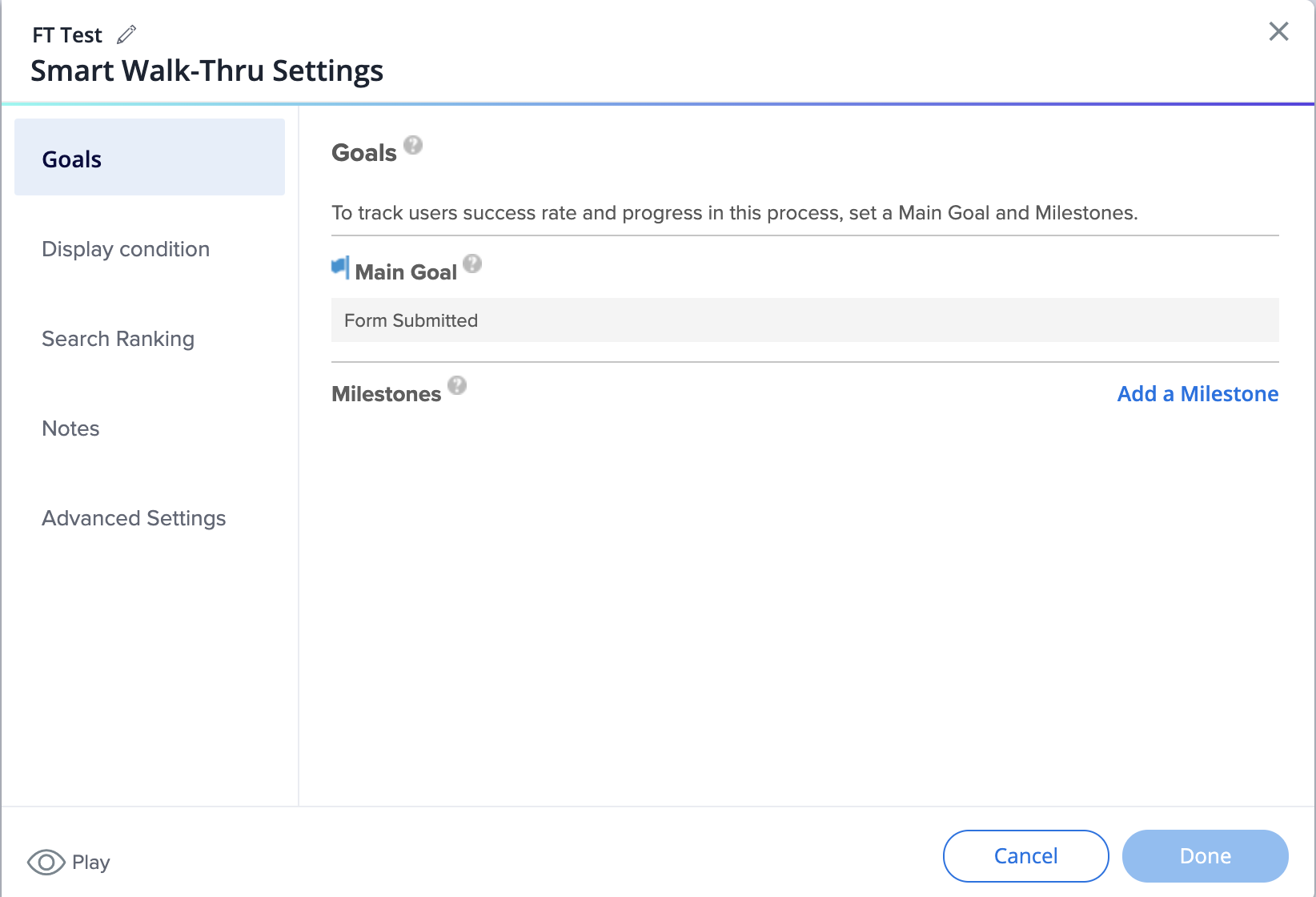
Before
Goals have their own tab
Display conditions tab includes segmentation and the ability to create the menu display conditions from here
Search ranking has its own tab
Advanced Settings only include the field for entering custom data
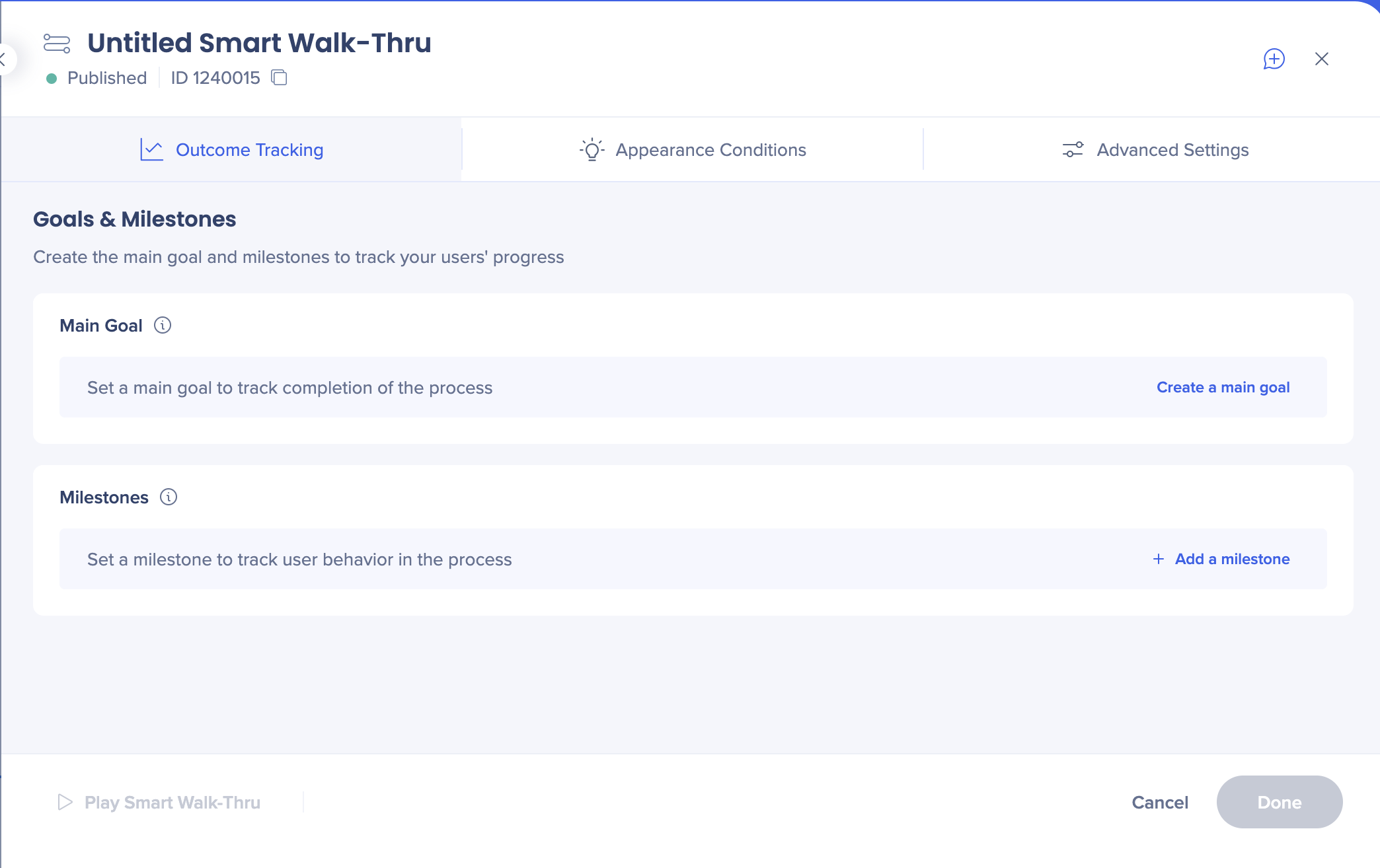
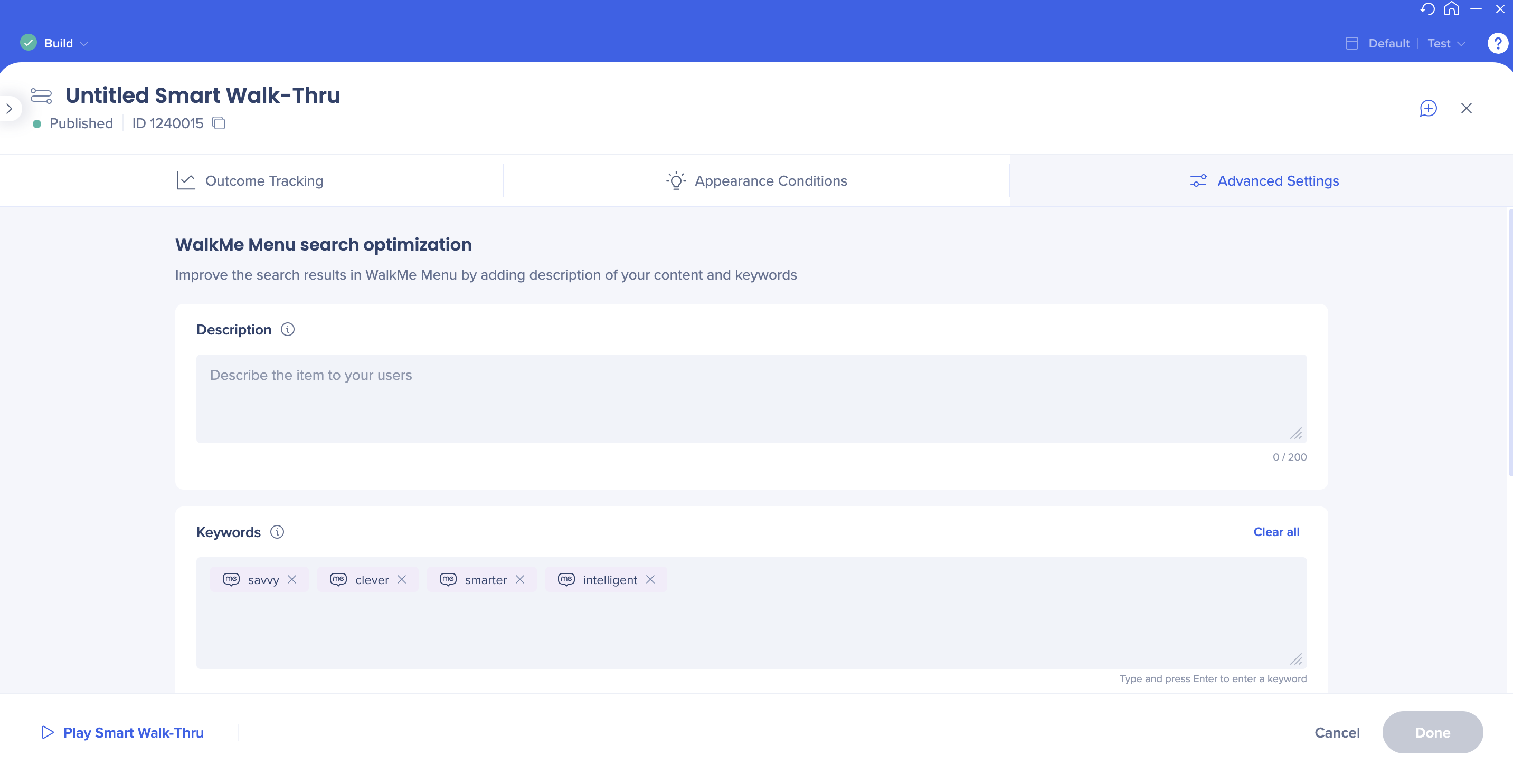
After
Goals and milestones moved under the new Behavior tab
Segmentation is now done from the Appearance Conditions tab
Menu display conditions were moved to the Initiators panel
Search ranking/optimization and keywords moved to the Advanced Settings tab