概要
WalkMeエディタには、すべてのWalkMeアプリの機能に関する多くの重要な設定があります。
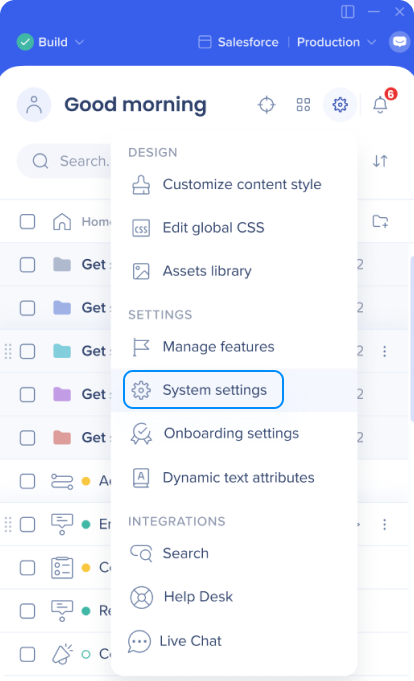
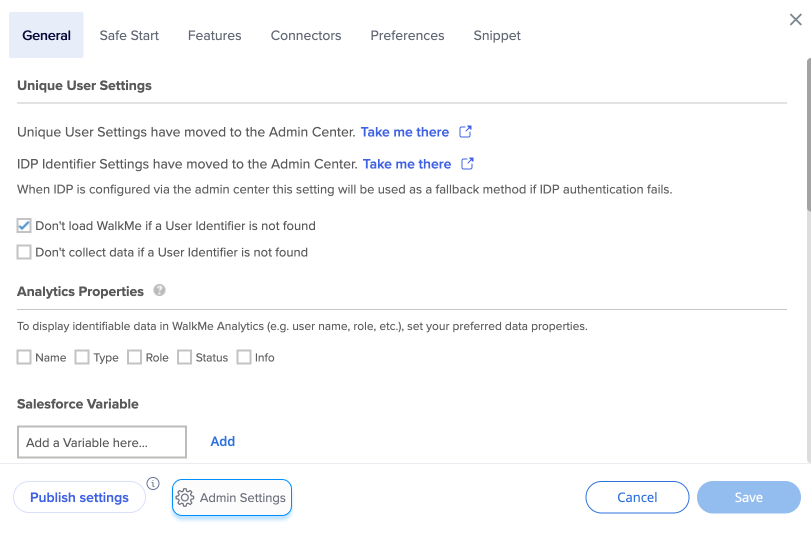
エディタ設定にアクセスするには、右上にある設定アイコンをクリックし、システム設定 を選択します。
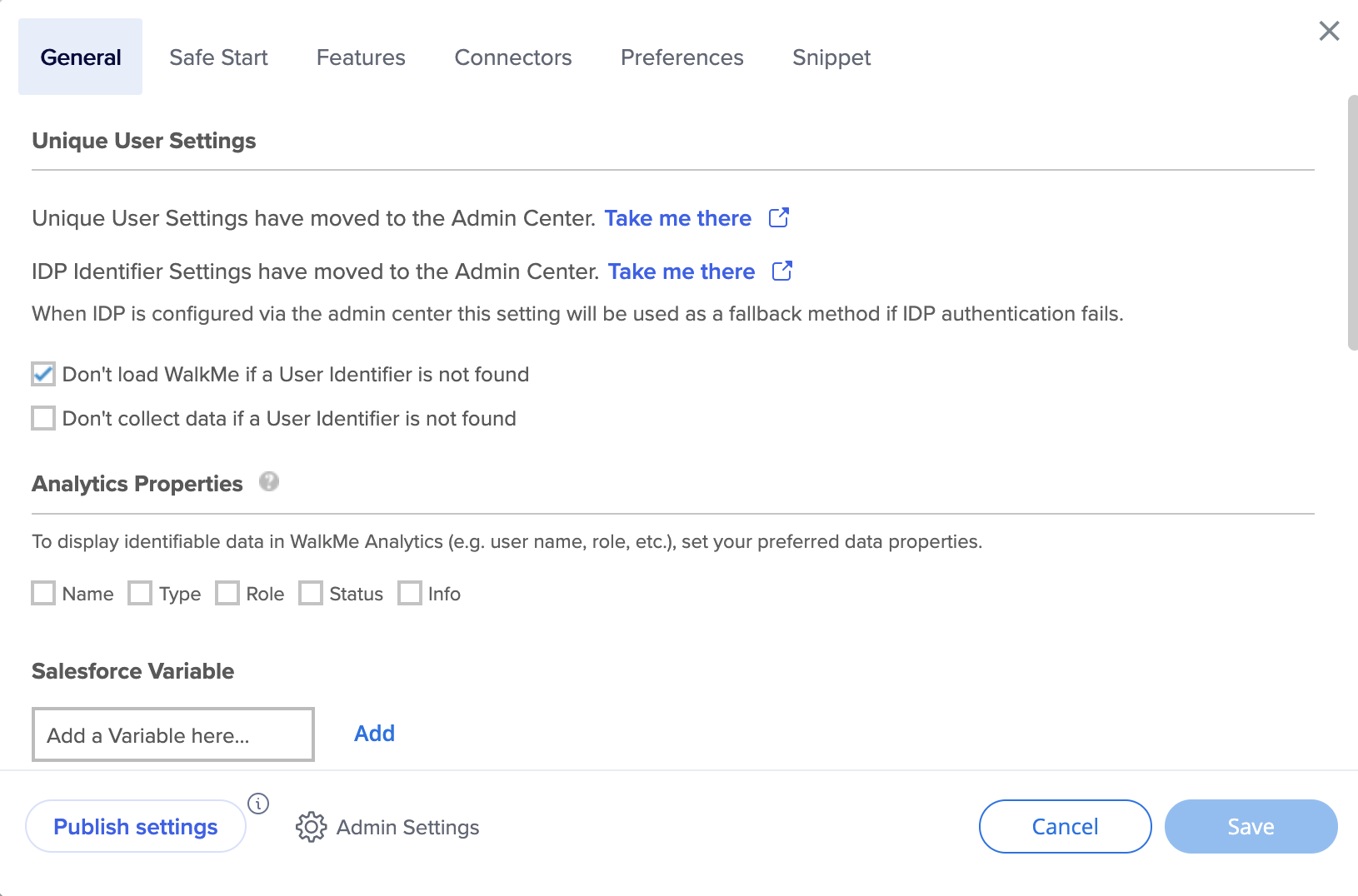
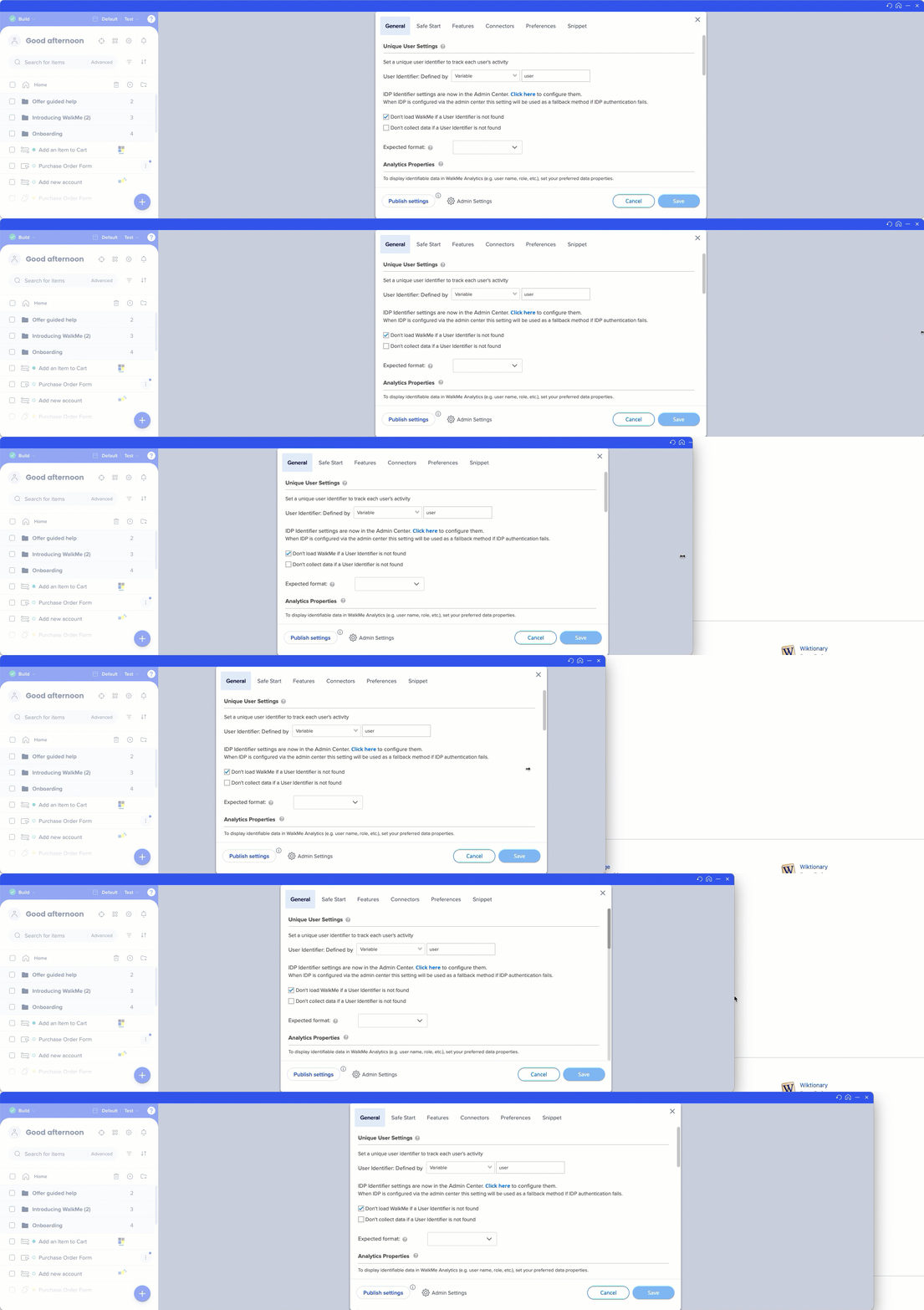
一般的な設定 一意のユーザー設定
WalkMeソリューションを構築する際、エンドユーザーに関するデータ収集の方法について検討してください。 例えば、Insights で進捗状況や使用状況のサポートを調べる際には、E メールアドレス、匿名のID番号、または画面上の一意の識別要素でユーザーを識別します。 ユニークユーザー設定を構成して、すべての分析を自身のサイトの情報と同じ条件で収集し、同じ方法でユーザーを識別することで、WalkMeインサイトと自身のサイトを密接に統合します。
Unique User Settings (UUID)
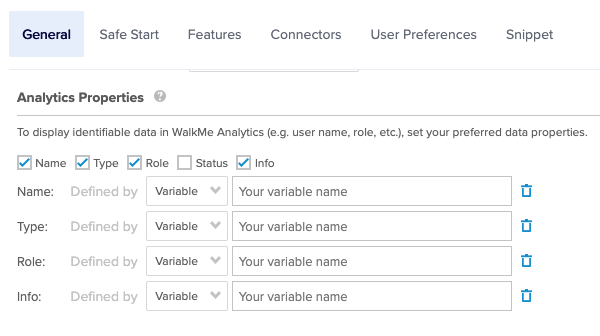
Analytics Properties(アナリティクスプロパティ)
変数、jQueryセレクター、ウェブサイトCookieの形でカスタムインサイト属性として分析プロパティを使用することで、より粗雑なきめ細かなユーザー情報のためにあなたのレポートにより良くフィルターをかけます。
Using Analytics Properties
ダイナミックテキスト属性
ダイナミックテキストアトリビュートを使用すると、ダイナミックコンテンツおよびルールを作成できます。 一度保存すると、ルール(テキスト/数字/日付の比較用)やアイテム内の動的テキストとして使用できます。
ご存知ですか?
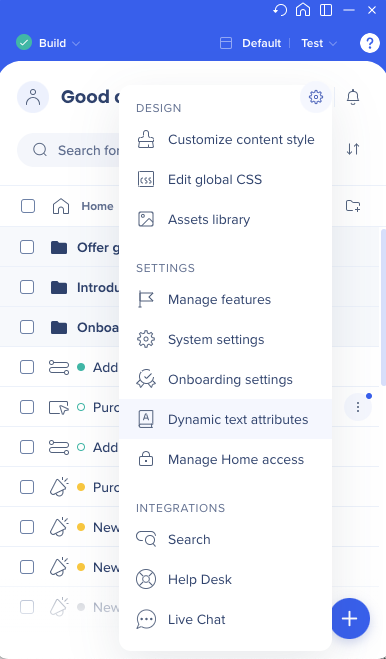
ダイナミックテキスト属性がエディタの設定 メニューから直接利用できるようになりました
Dynamic Text Attributes
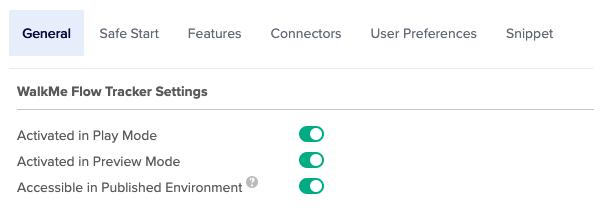
フロートラッカーの設定
再生モードで有効化 - フロートラッカーはウォークスルーがエディタで再生されると自動的に起動します。
プレビューモードで有効化 - フロートラッカーは、プレビューモードが有効になると自動的に起動します
公開環境でアクセス可能( QA - 関連) - フロートラッカーは公開環境でアクセスできますが、自動的に開始されません。 キーワード「walkmetracker」は、フロートラッカーをアクティブにするプレーヤーメニュー検索で使用されます。
Flow Tracker
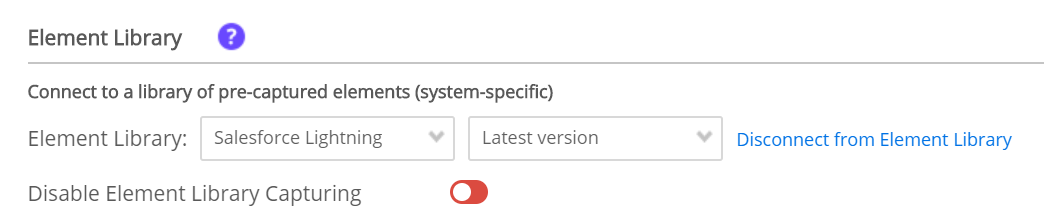
エレメントライブラリ
WalkMeのElement Library(エレメントライブラリ)機能は、WalkMeのベストプラクティスを使用して作成されている事前にキャプチャーされたシステム固有のエレメントです。 ユーザーは、標準の青色でなく緑色で囲われたElement Libraryのエレメントを選択することで、利用可能アイテムを構築することができ、WalkMeは主要なプラットフォームのリリースを通じて、接続された利用可能アイテムを維持、更新することができます。
Element Library
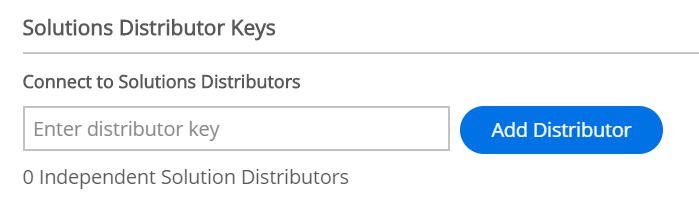
ソリューションの配布
My Solutionsはユーザーが作成するテンプレートで、アカウント間のコンテンツを簡単に共有できることで組織またはパートナーの最新ブランドガイドライン、キャンペーン、コンテンツの推奨事項について最新の状態を保つことができます。 次に、 セキュアな配布キーを使うことで、エディターアカウント間に構築したソリューションパッケージを簡単に 共有することができます。
My Solutions Templates
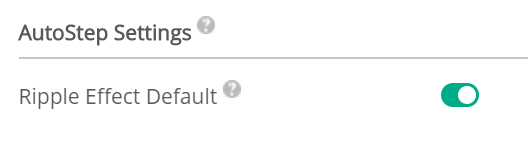
自動ステップの設定
自動ステップを使用すると、エンドユーザーが複数回完了する必要がある繰り返しのプロセスを自動化できます。 デフォルトでは、自動ステップがクリックされるとリップルエフェクトが表示されます。 これは設定の中で無効にできます。
https://support.walkme.com/knowledge-base/using-smart-walk-thru-auto-steps-to-automate-walkme-processes/
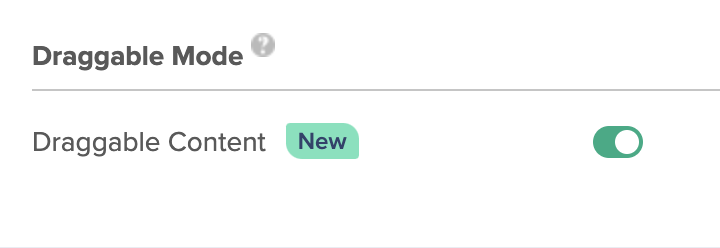
ドラッグ可能モード
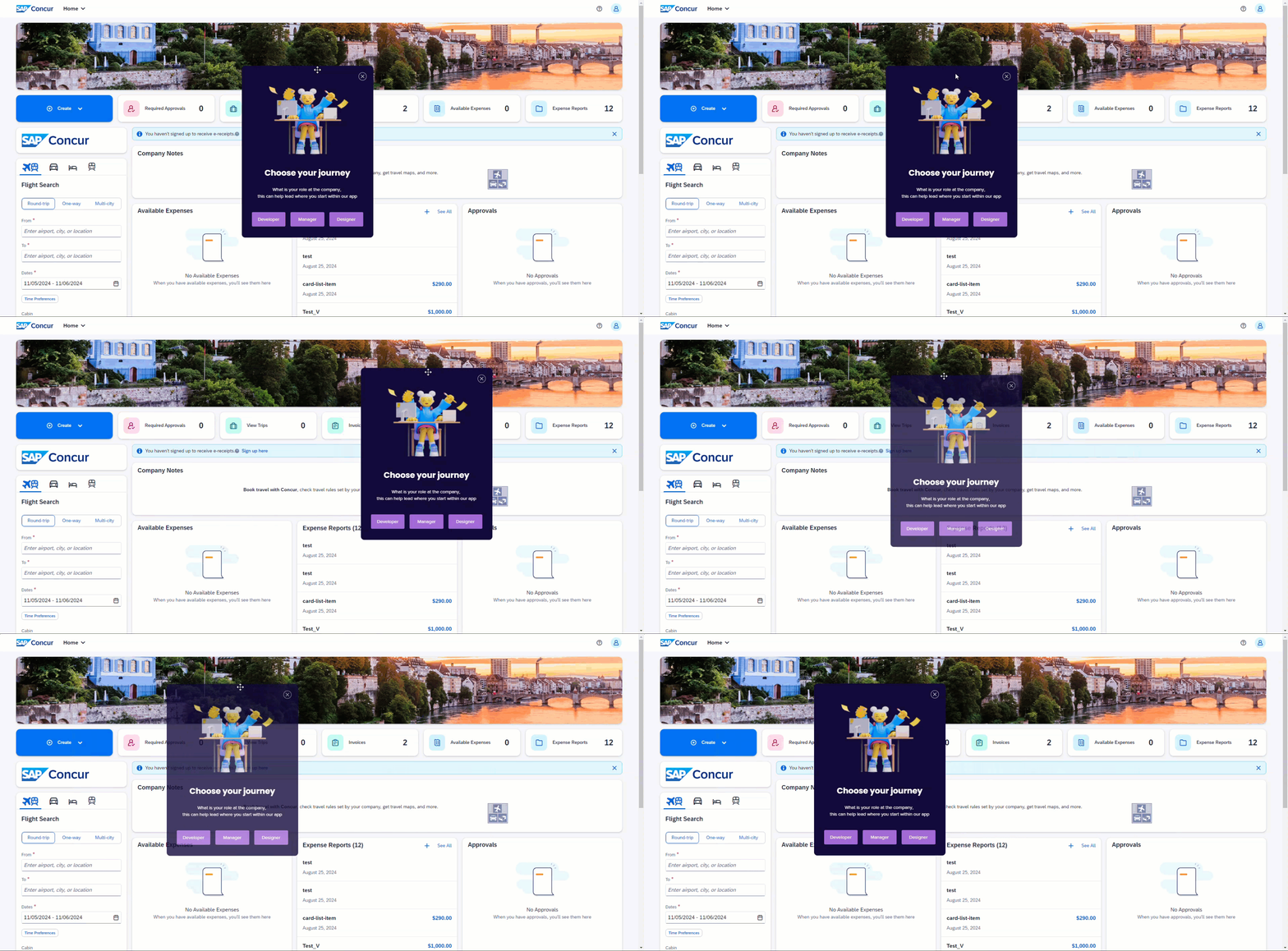
このモードを有効にすると、WalkMeのコンテンツ(シャウトアウト、ポップアップステップ、記事、動画、サーベイ)をドラッグ可能にします。 このモードを有効にすると、これらのアイテムの上部の境界を操作することで、画面全体で移動できます。
技術注記
ドラッグ可能モードは、2024年11月17日時点ですべての新システムで自動的に有効になります。
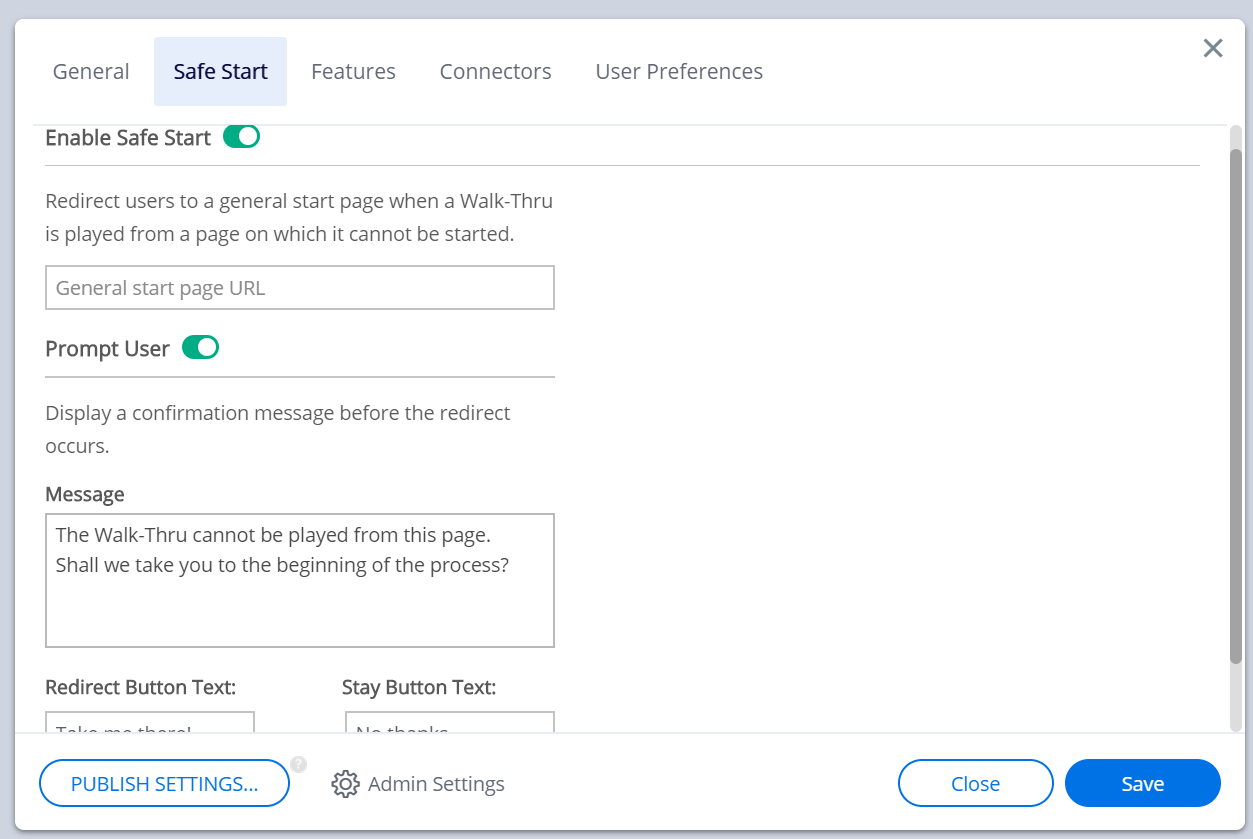
セーフスタート
ウォークスルーが起動できないページから再生されると、ユーザーを一般的なスタートページにリダイレクトします。
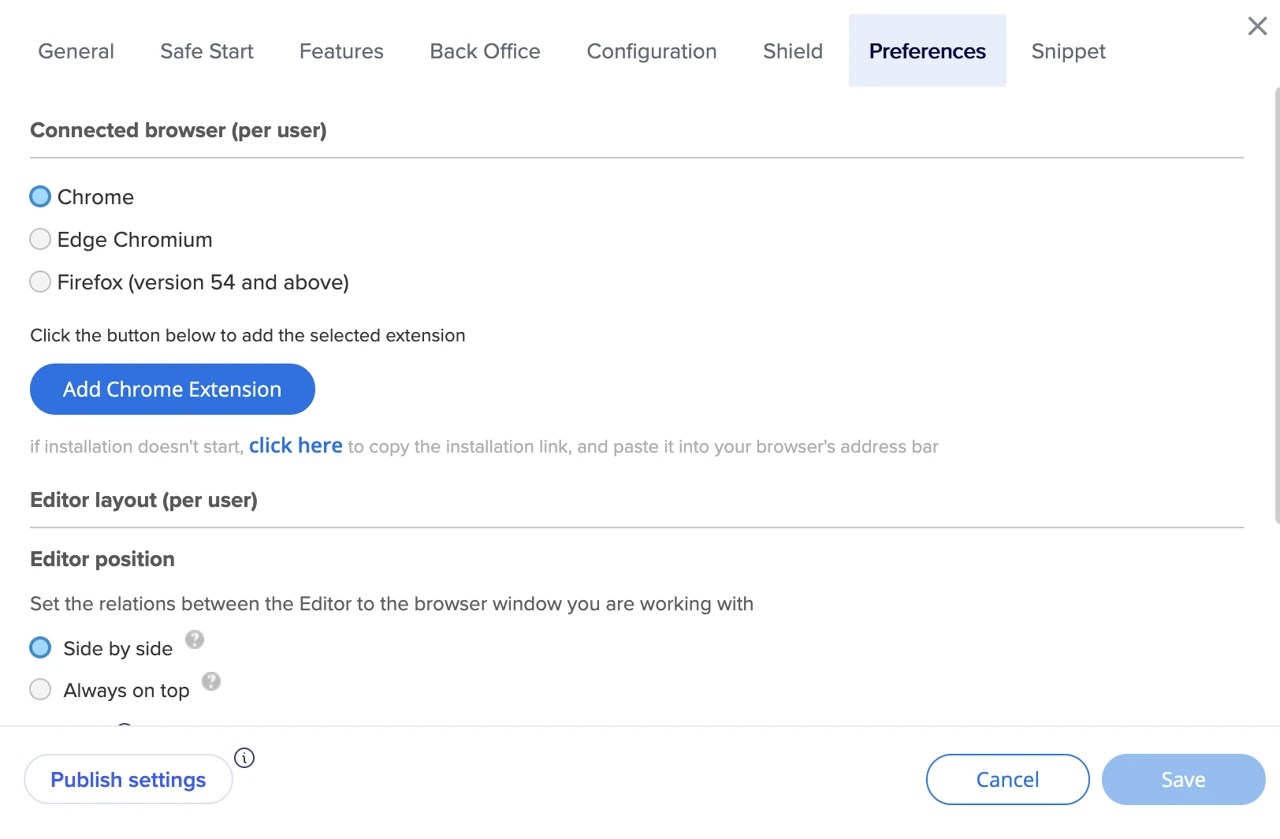
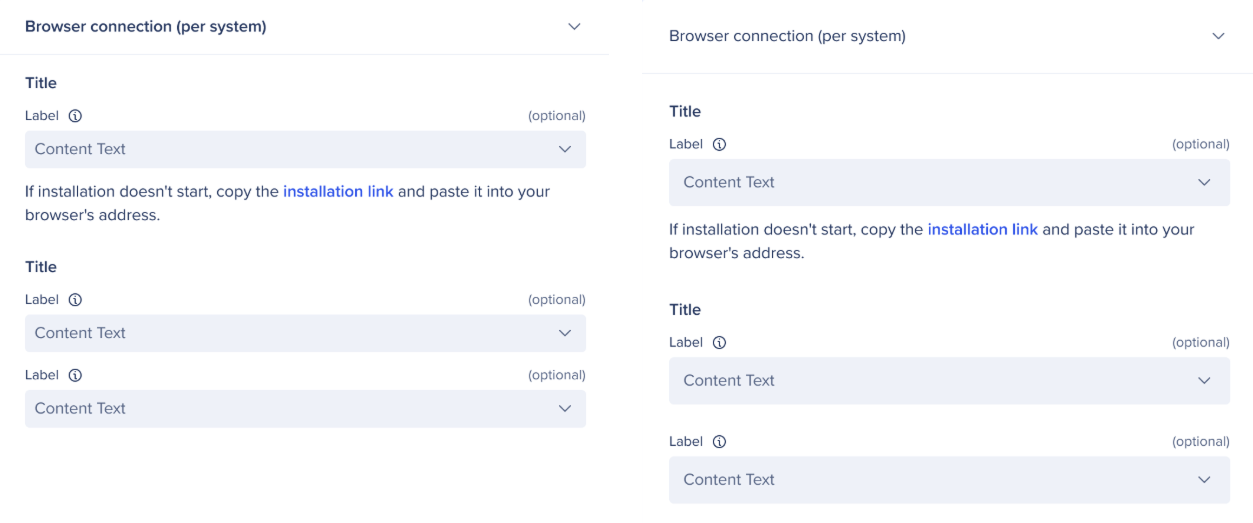
ユーザー優先権 接続されたブラウザ(ユーザーごと) 設定は、ユーザーごと です。 このようにすることで、複数のビルダーは互いの流れを妨げることなく、同じシステムで同時に作業できます。
各ユーザーは、各システムで独自のブラウザーを定義します。 ユーザーはシステムAでChromeを使用し、システムBでFirefoxを使用することを選択できます。
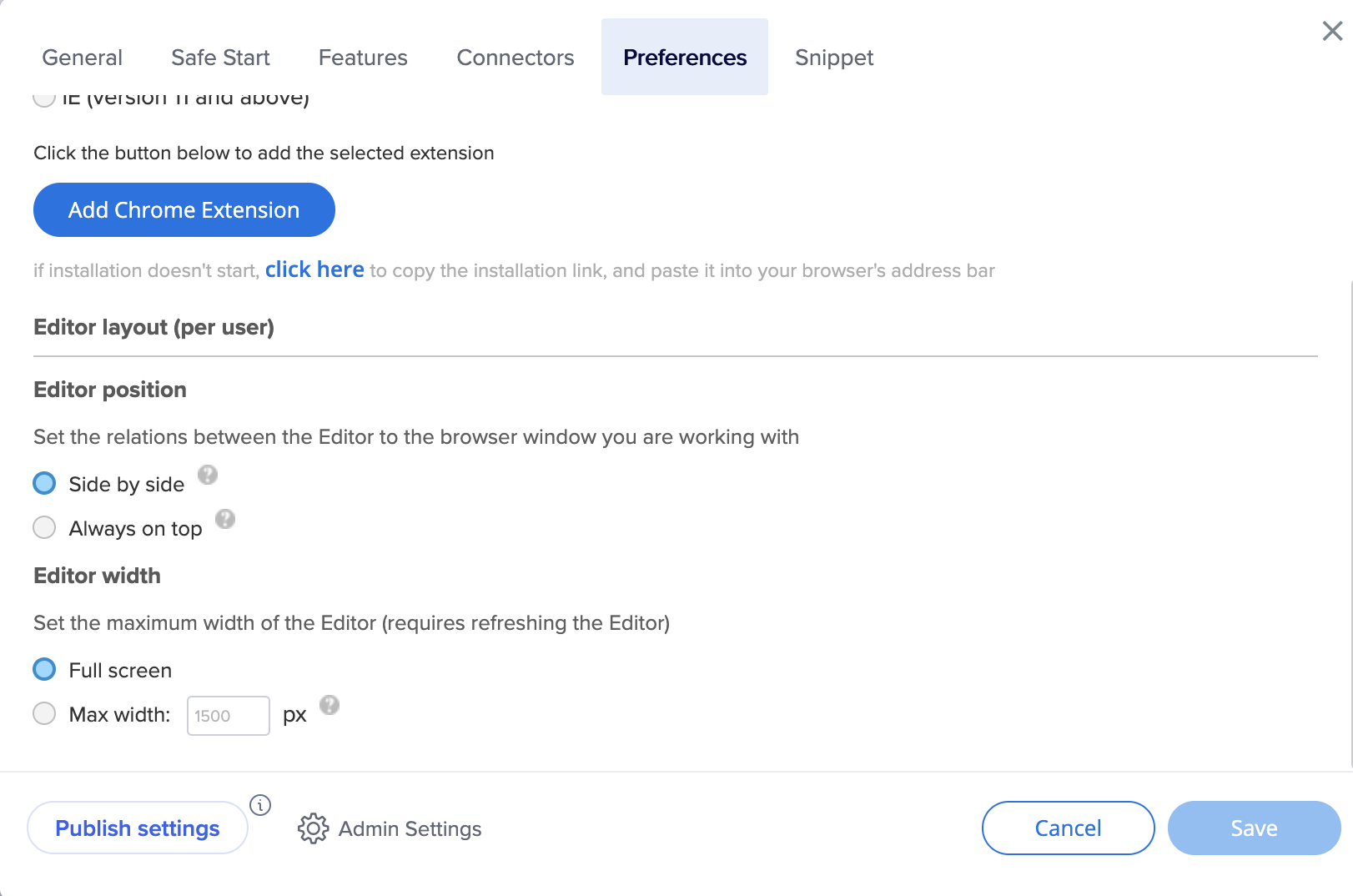
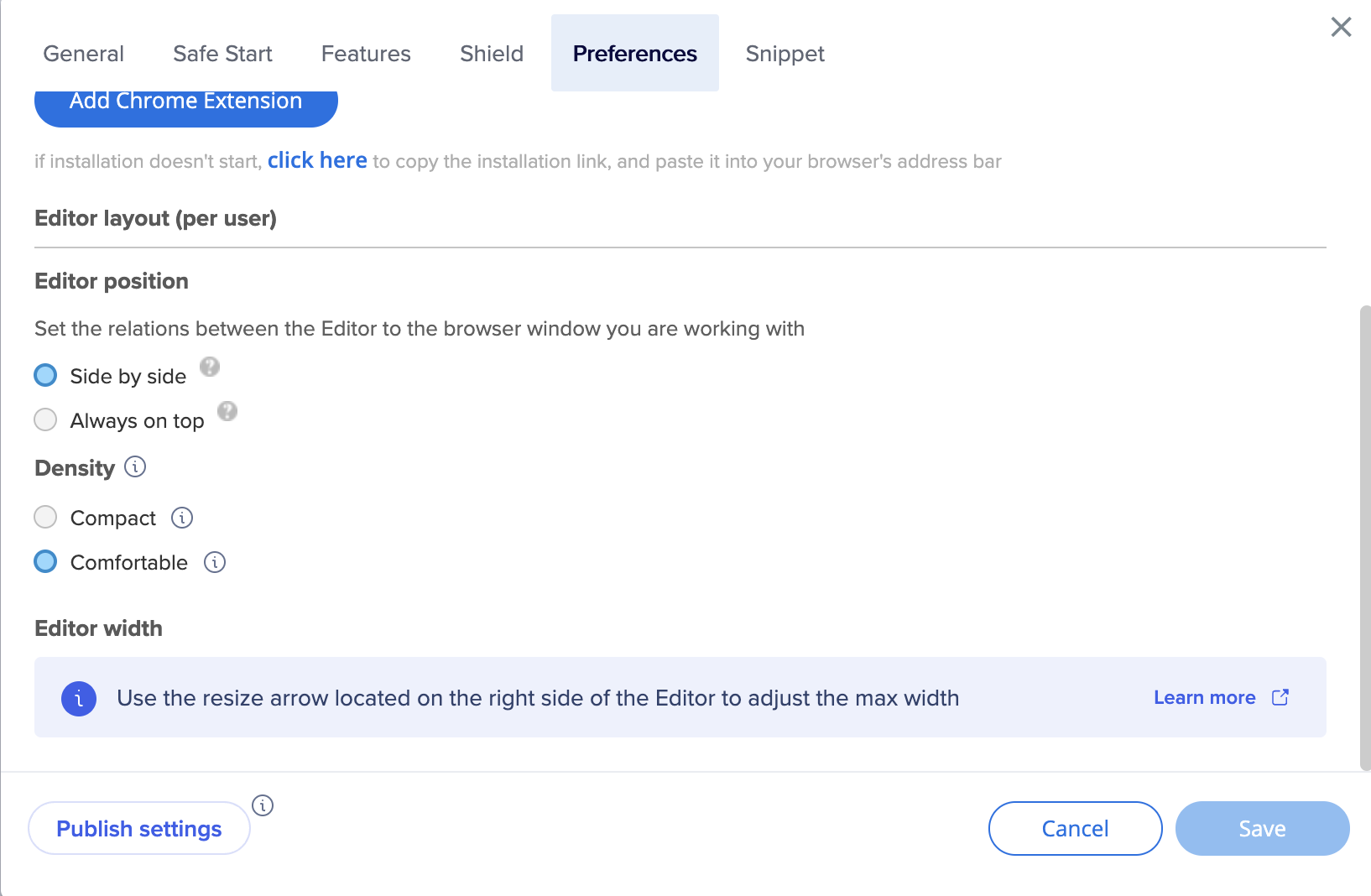
エディタのレイアウト エディタでは、2つのレイアウトモード が利用できます:
サイドバイサイド (SBS) :エディタと接続されたブラウザを横並びに配置できます。
常にトップに: エディタを他のすべてのウィンドウの上部に配置します。
このモードでは、エディタは他のすべてのウィンドウの上に浮かびます。
もしもエディタがウィンドウのビューを妨げる場合は、最小化ボタンを押してエディタを最小化してタスクバーにします。
タスクバーにあるWalkMeアイコンを押して、エディタでの作業に戻ります。
エディタのレイアウトモードはいつでも変更できます。
エディタ幅 エディタバージョン5.0以降:
エディタの右側にある矢印をクリックして、幅を調整します
以前のバージョンでは:
密度
ニーズに適した表示モードを選択します:
コンパクトvs.快適性
管理設定 管理設定にアクセスするには、エディタ設定で[Admin Settings(管理設定) ]をクリックします。