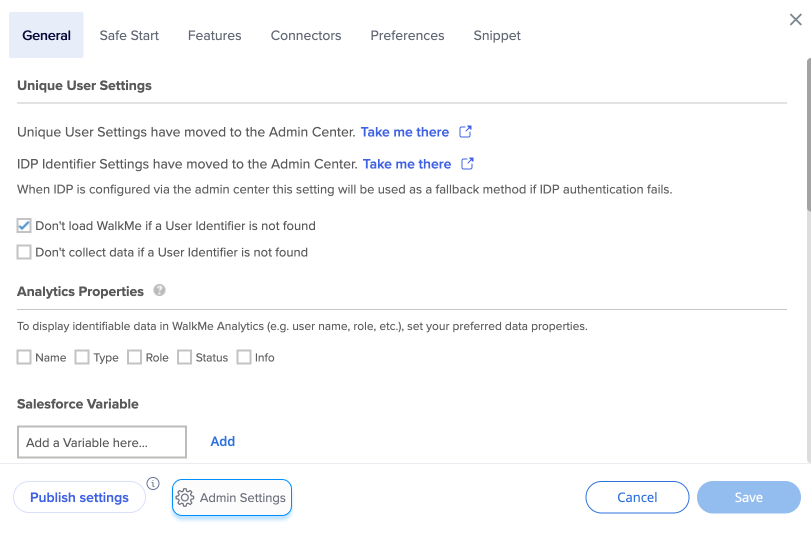
WalkMe Editor contiene muchos ajustes importantes para la funcionalidad en todas las aplicaciones de WalkMe.
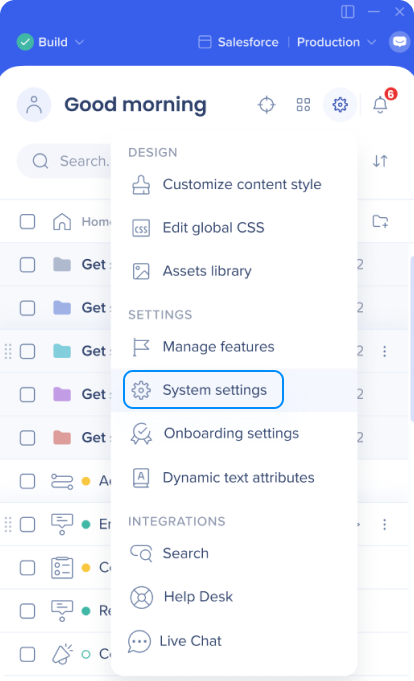
Puedes acceder a la configuración del editor haciendo clic en el icono de configuración en la esquina superior derecha y seleccionando Configuración del sistema.
Configuración general
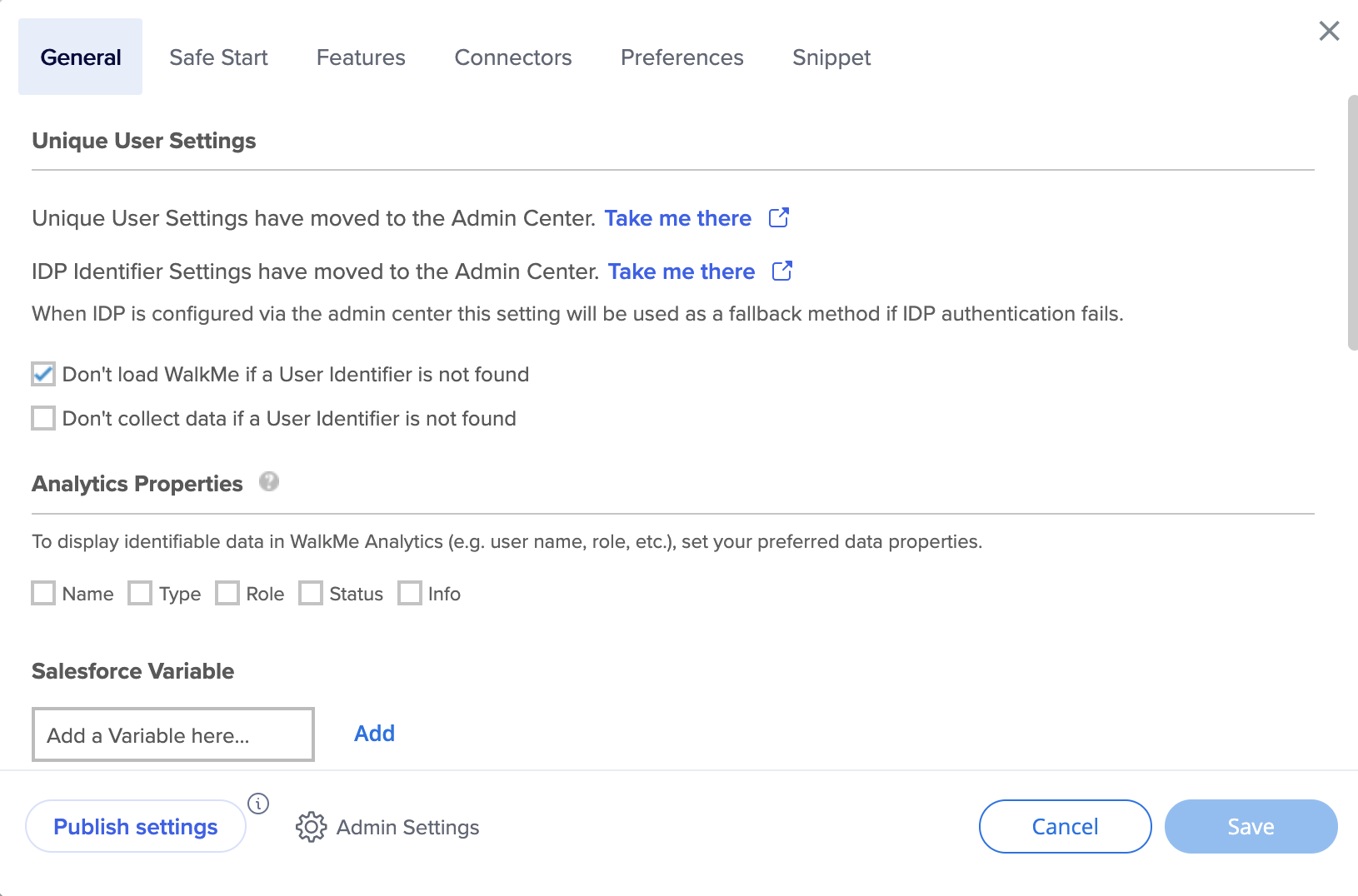
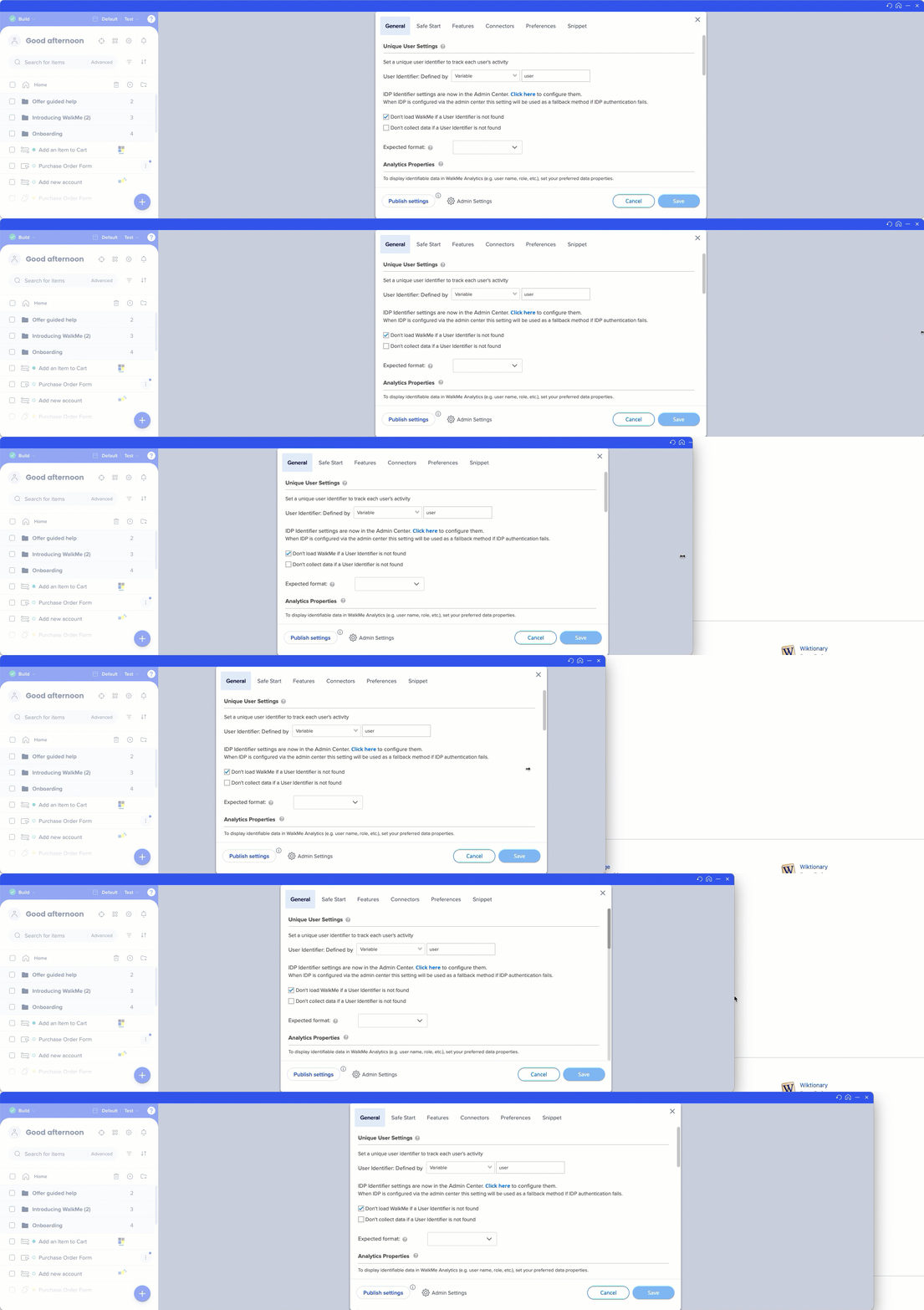
Configuración de usuario único
Al crear tus soluciones de WalkMe, considera cómo te gustaría recopilar datos sobre los usuarios finales. Por ejemplo, cuando busques información sobre el progreso o el uso en Insights, ¿te gustaría que los usuarios fueran identificados por su dirección de correo electrónico, un número de ID anónimo o un elemento de identificación único en la pantalla? Ajusta Configuración de usuario único para que todos los análisis se puedan recopilar en los mismos términos que la información del propio sitio, proporcionando una estrecha integración entre WalkMe Insights y el propio sitio identificando al usuario de la misma manera.
¿Lo sabías?
La configuración de UUID se trasladó al Centro de administración. Más información
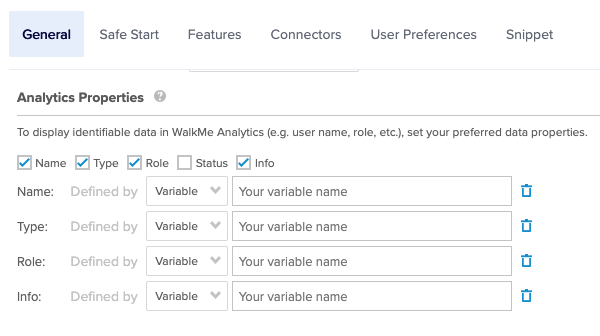
Utiliza propiedades analíticas como atributos personalizados de Insights en forma de variables, selectores de jQuery y cookies del sitio web para filtrar mejor los informes y obtener información más detallada del usuario.
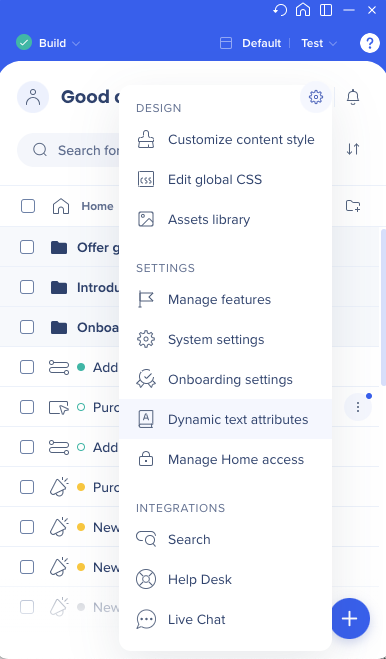
Los atributos de texto dinámico te permiten crear contenido dinámico y reglas. Una vez guardados, se pueden utilizar en las reglas (para comparar texto, números o fechas) y como texto dinámico en elementos.
¿Lo sabías?
Los atributos de texto dinámico ahora están disponibles directamente desde el menú de configuración del editor
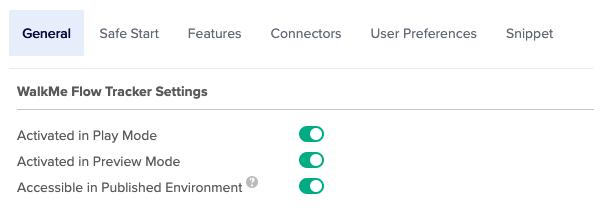
Activado en el modo de reproducción: Flow Tracker se inicia automáticamente cuando se reproduce un Walk-Thru desde el Editor.
Activado en el modo de vista previa: Flow Tracker se inicia automáticamente cuando está activado el modo de vista previa.
Accesible en el Entorno Publicado (relacionado con QA): Flow Tracker es accesible en el Entorno Publicado, pero no se inicia automáticamente La palabra clave "walkmetracker" se utiliza en la búsqueda del Menú del reproductor para activar Flow Tracker.
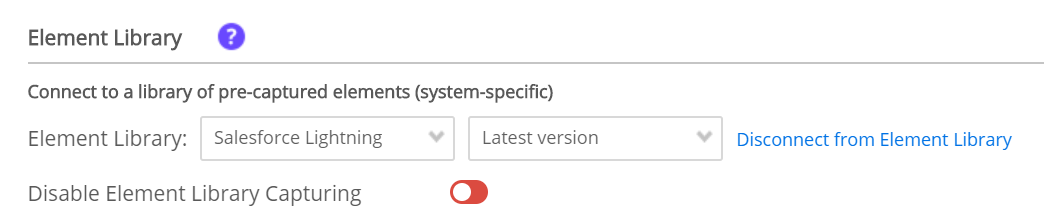
La función Biblioteca de elementos de WalkMe se compone de elementos específicos del sistema capturados previamente y creados utilizando las mejores prácticas de WalkMe. Los usuarios pueden crear implementables seleccionando un elemento de la biblioteca de elementos, resaltado en verde en lugar del azul estándar, lo que permite a WalkMe mantener y actualizar el implementable conectado a través de las principales versiones de la plataforma.
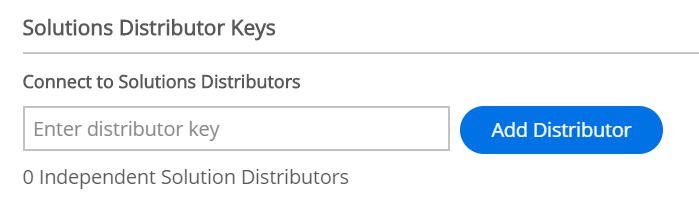
Mis soluciones son plantillas generadas por los usuarios que te permiten mantenerte actualizado sobre las últimas pautas de marca, campañas o recomendaciones de contenido de la organización o del socio compartiendo fácilmente contenido entre cuentas. Luego,usando una clave de distribución segura, puedescompartir fácilmente el paquete de soluciones que has creado entre cuentas de editor.
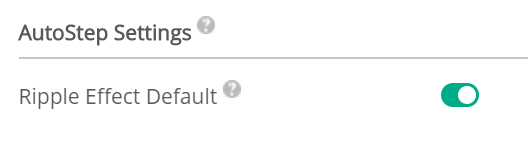
Los pasos automáticos permiten a los clientes automatizar procesos repetitivos que los usuarios finales deberán completar varias veces. De forma predeterminada, se mostrará un efecto de ondulación cuando se haya hecho clic en un paso automático. Esto se puede desactivar en la configuración.
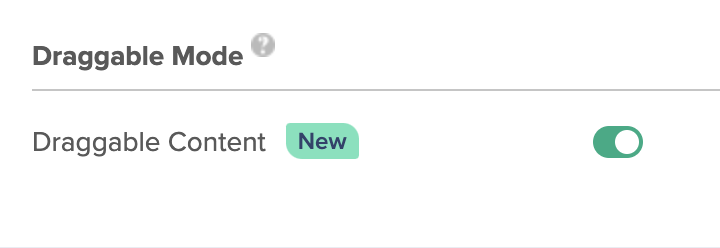
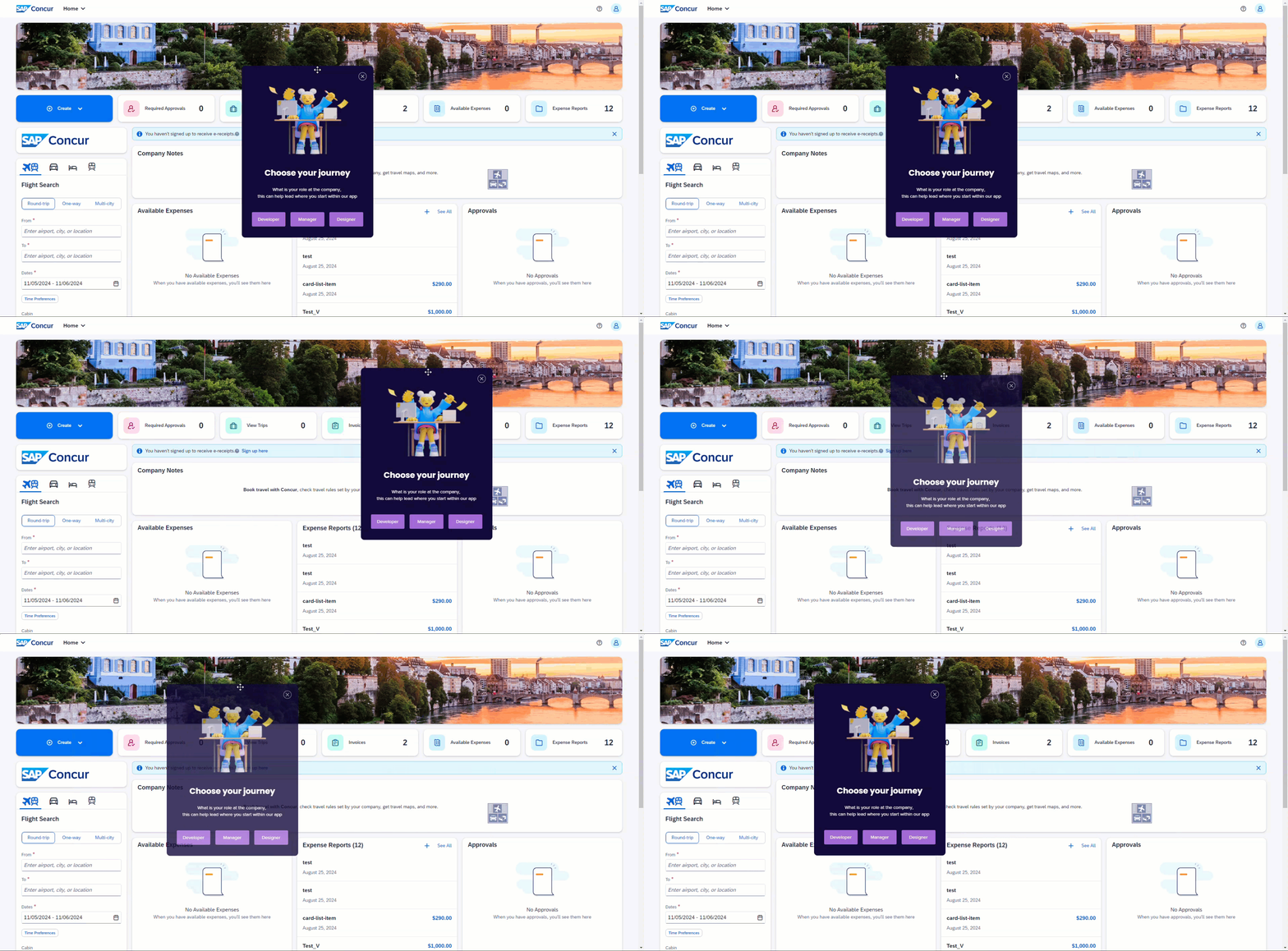
Este modo permite que el contenido de WalkMe (ShoutOuts, pasos de ventanas emergentes, artículos, vídeos y encuestas) sea arrastrable. Cuando está activado, puedes mover estos elementos por la pantalla interactuando con su borde superior.
Nota técnica
El modo de arrastrar se activa automáticamente para todos los sistemas nuevos a partir del 17 de noviembre de 2024
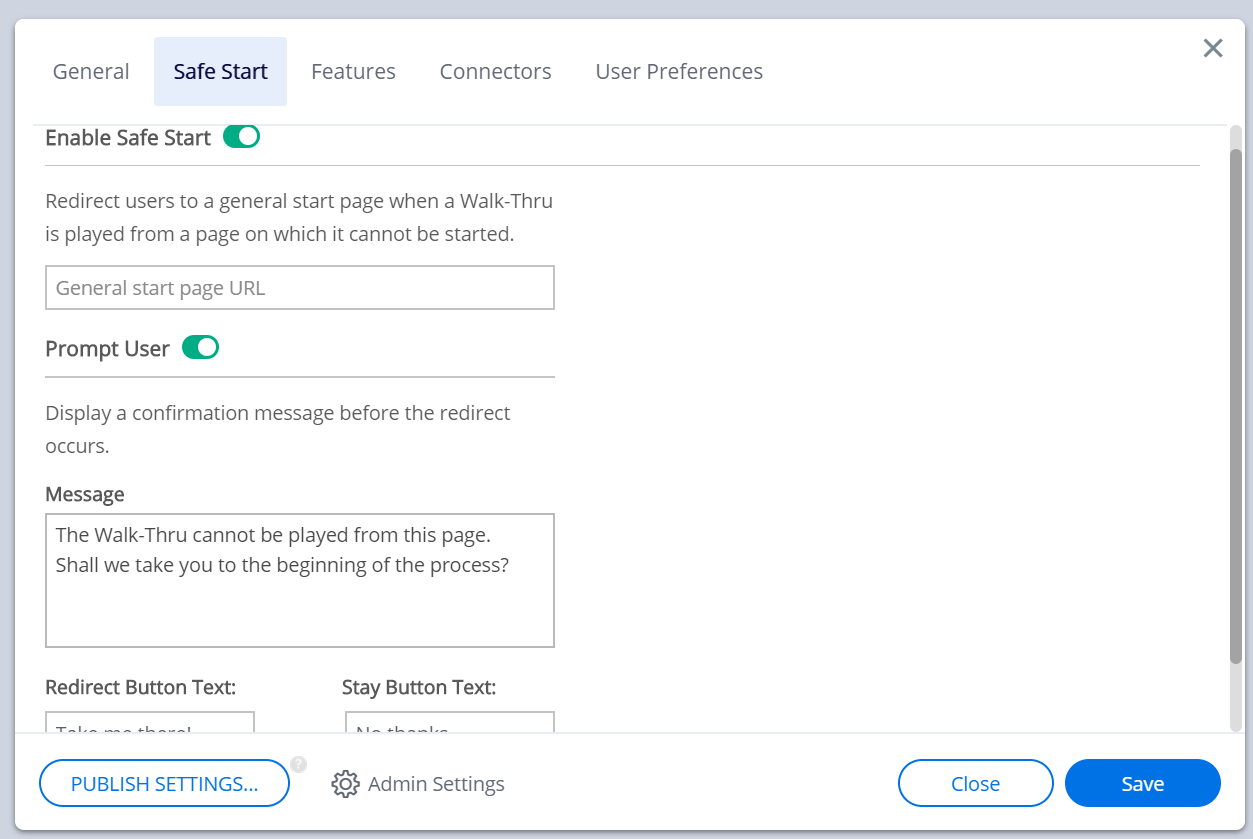
Inicio seguro
Redirige a los usuarios a una página de inicio general cuando se reproduce un Walk-Thru desde una página en la que no se puede iniciar.
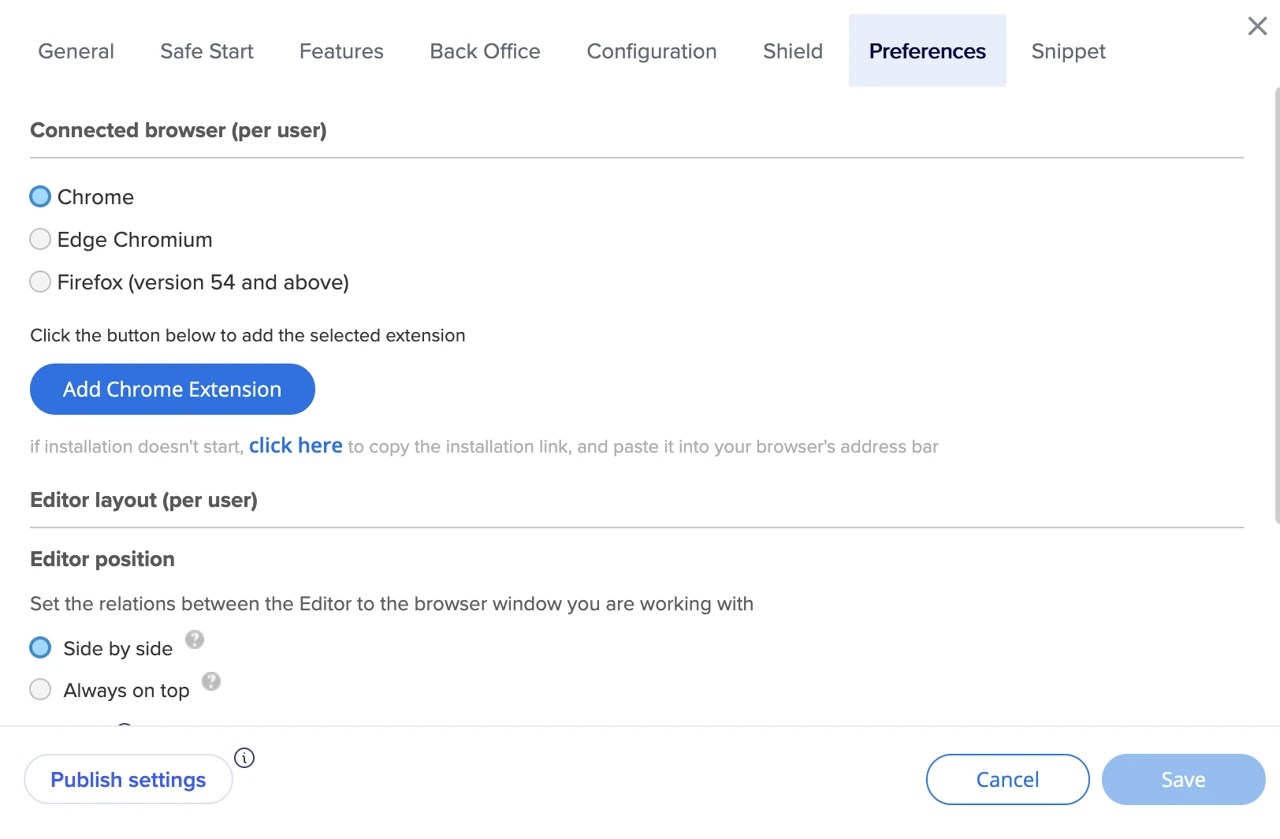
La configuración es por usuario. De esta manera, varios creadores pueden trabajar simultáneamente en el mismo sistema sin interrumpir el flujo entre sí.
Cada usuario define el navegador por sí mismo, en cada sistema. Pueden elegir utilizar Chrome en el sistema A y Firefox en el sistema B.
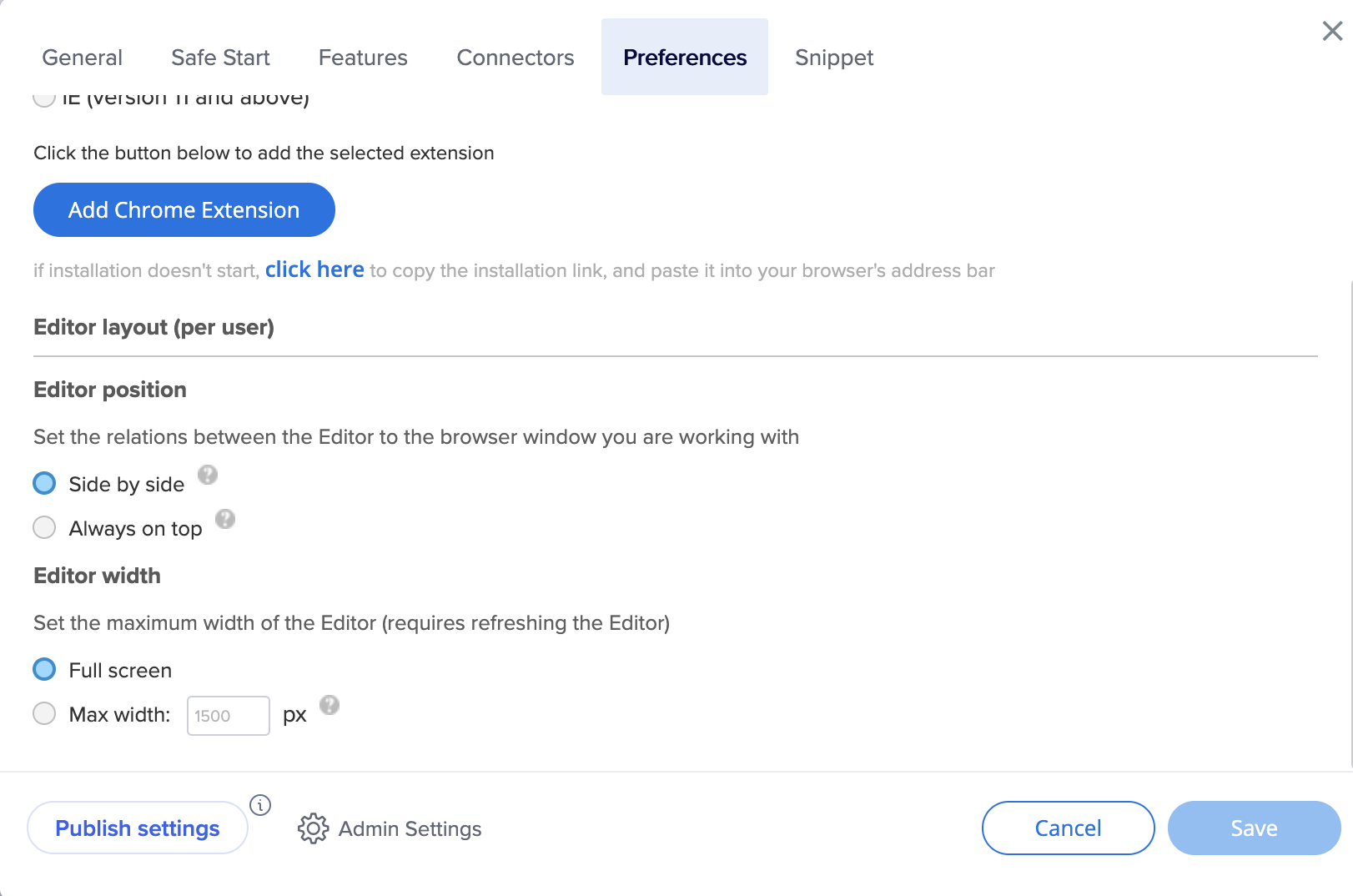
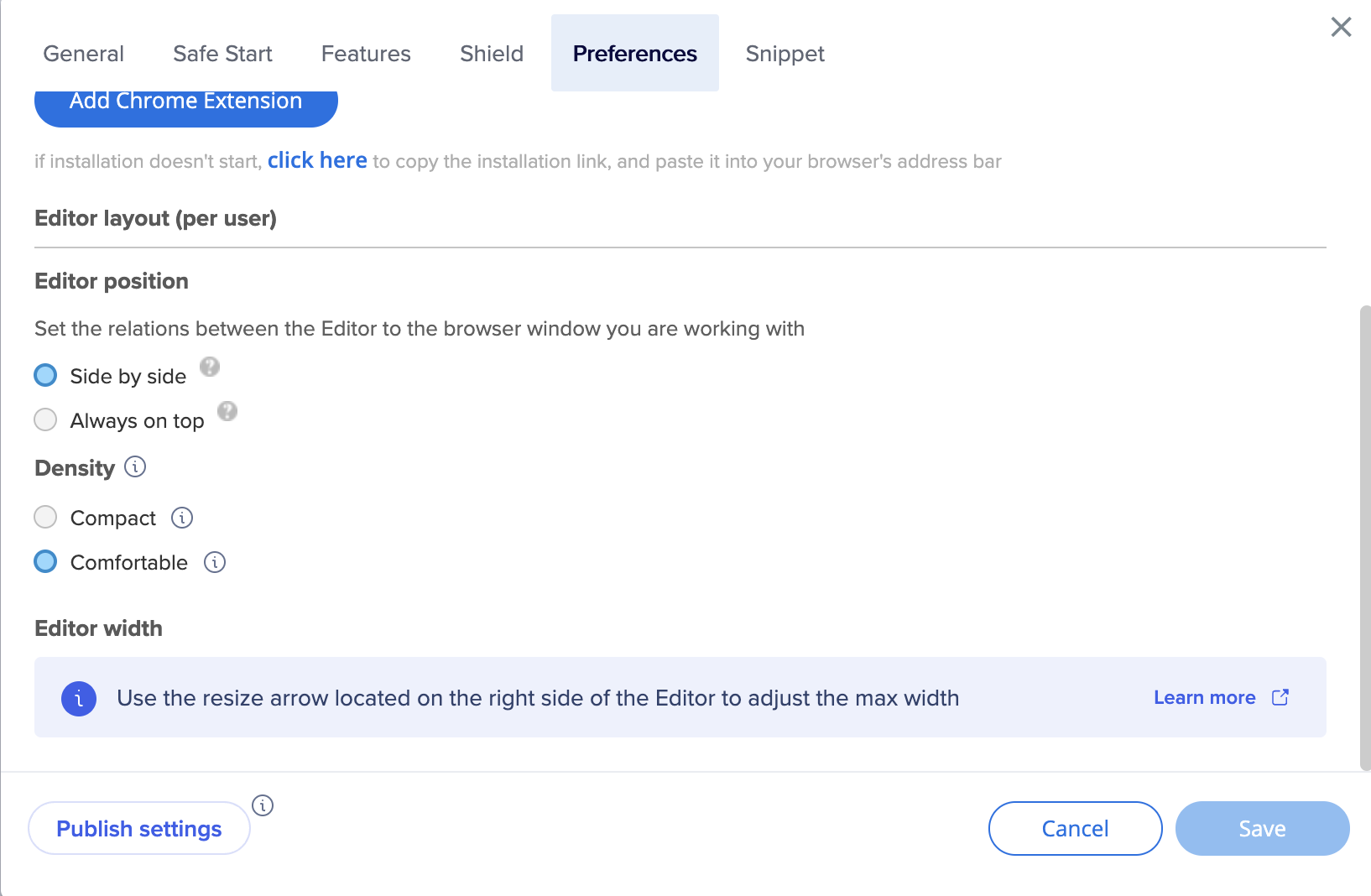
Diseño del editor
Hay dos modos de diseño disponibles para el Editor:
Lado a lado(SBS): permite que el Editor y el navegador conectado se alineen lado a lado.
Este es el diseño predeterminado. Se recomienda para trabajar en la mayoría de los sitios web.
Para alinear el Editor con el navegador conectado, asegúrate de tener una instancia del navegador conectado y presiona el botón SBS.
El Editor se alineará lado a lado con la instancia del navegador conectado que está en primer plano.
Siempre encima: coloca el Editor sobre todas las demás ventanas.
Recomendado para presentaciones de ventas y trabajo en sitios web que requieren que el navegador sea de ancho completo.
En este modo, el Editor flota sobre todas las demás ventanas.
Si encuentras que el Editor obstruye la vista de la ventana, presiona el botón de minimizar para minimizar el Editor en la barra de tareas.
Presiona el icono de WalkMe en la barra de tareas para volver a trabajar en el Editor.
El modo de diseño del Editor se puede cambiar en cualquier momento.
Ancho del editor
En la versión 5.0 del editor y posteriores:
Utiliza la flecha de redimensionar en el lado derecho del editor para ajustar el ancho
En las versiones anteriores:
Cambia de Pantalla completa a Ancho máximo y escribe el tamaño de ancho deseado del Editor (mínimo de 1500 px)
Nota
Es necesario actualizar el editor para que el cambio surta efecto.
Densidad
Selecciona el modo de vista que mejor se adapte a tus necesidades:
Compacto: diseño condensado con espaciados más estrechos para una vista máxima (predeterminado)
Cómodo: diseño espacioso para centrarse y facilitar la lectura
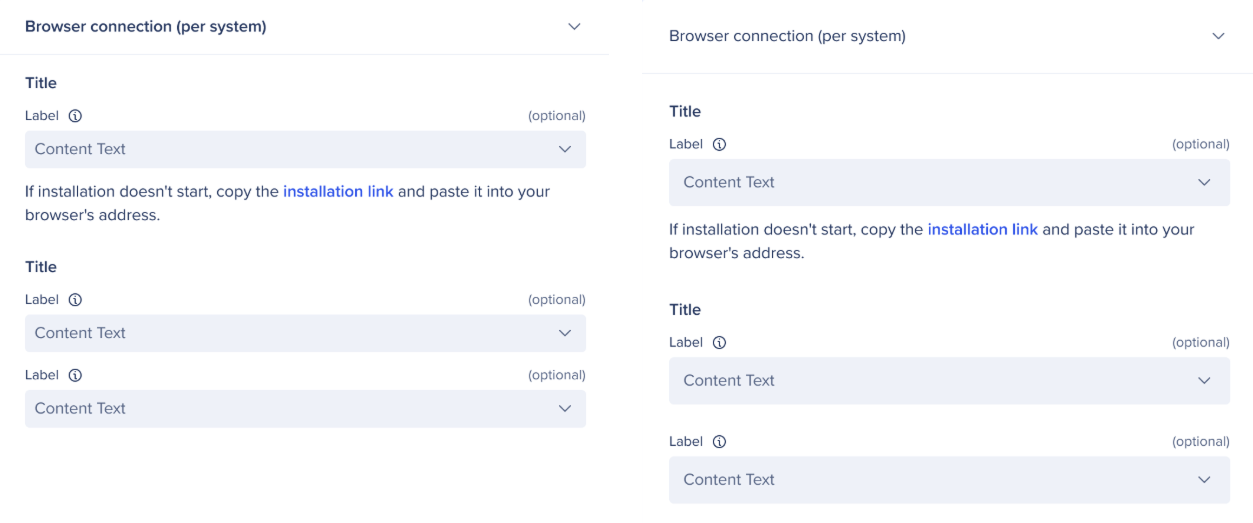
Compacto frente a cómodo
Configuración de administrador
Puedes acceder a la Configuración de administrador haciendo clic en Configuración de administrador en la configuración del editor.