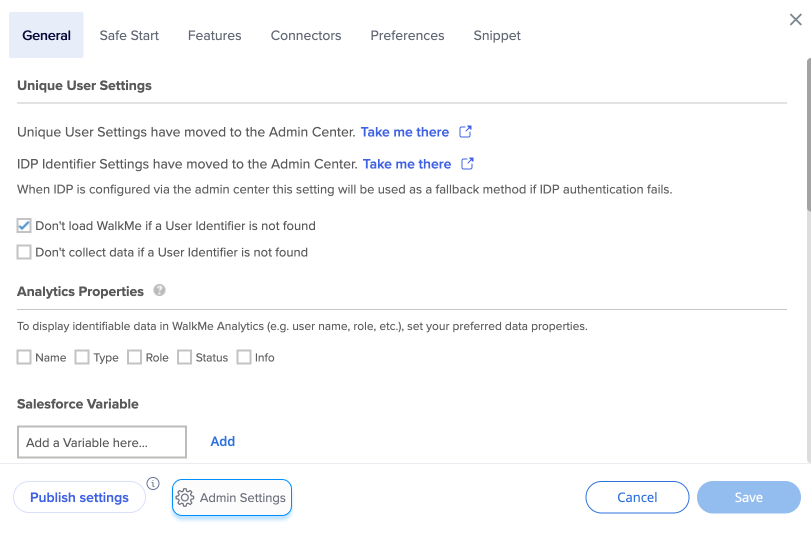
O Editor WalkMe contém muitas configurações importantes para a funcionalidade em todos os aplicativos WalkMe.
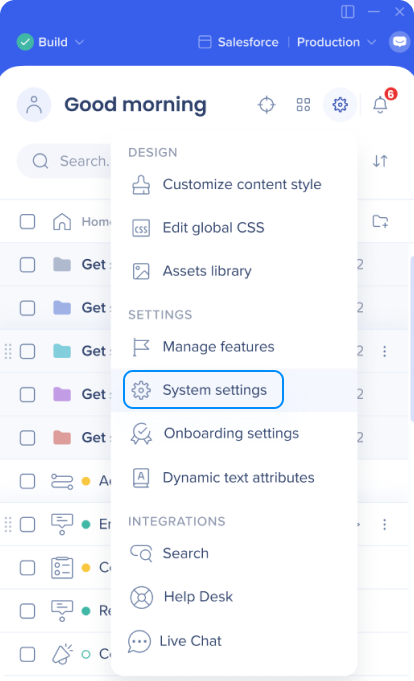
Você pode acessar as configurações do editor clicando no ícone de configuração no canto superior direito e selecionando Configurações do sistema.
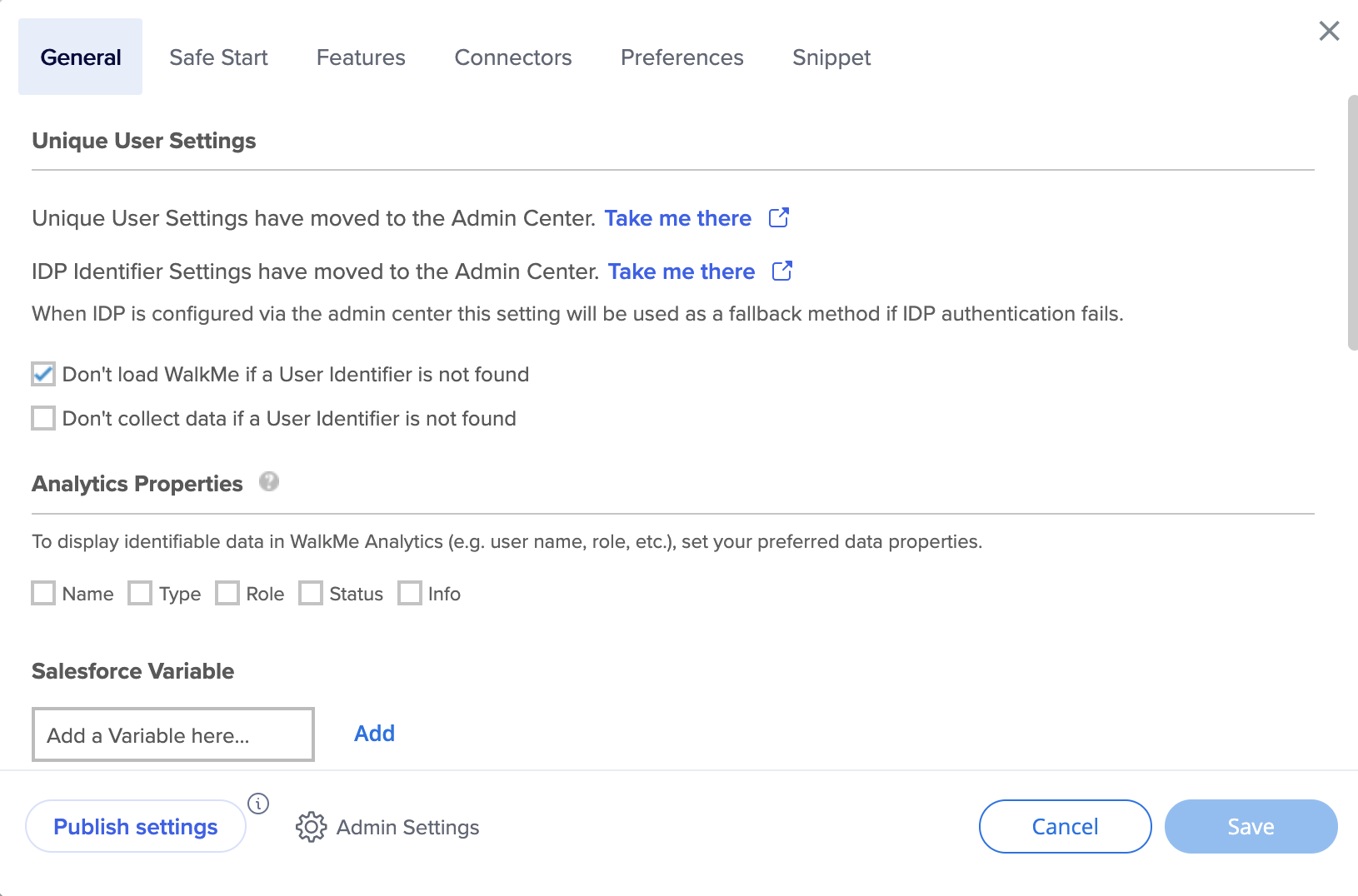
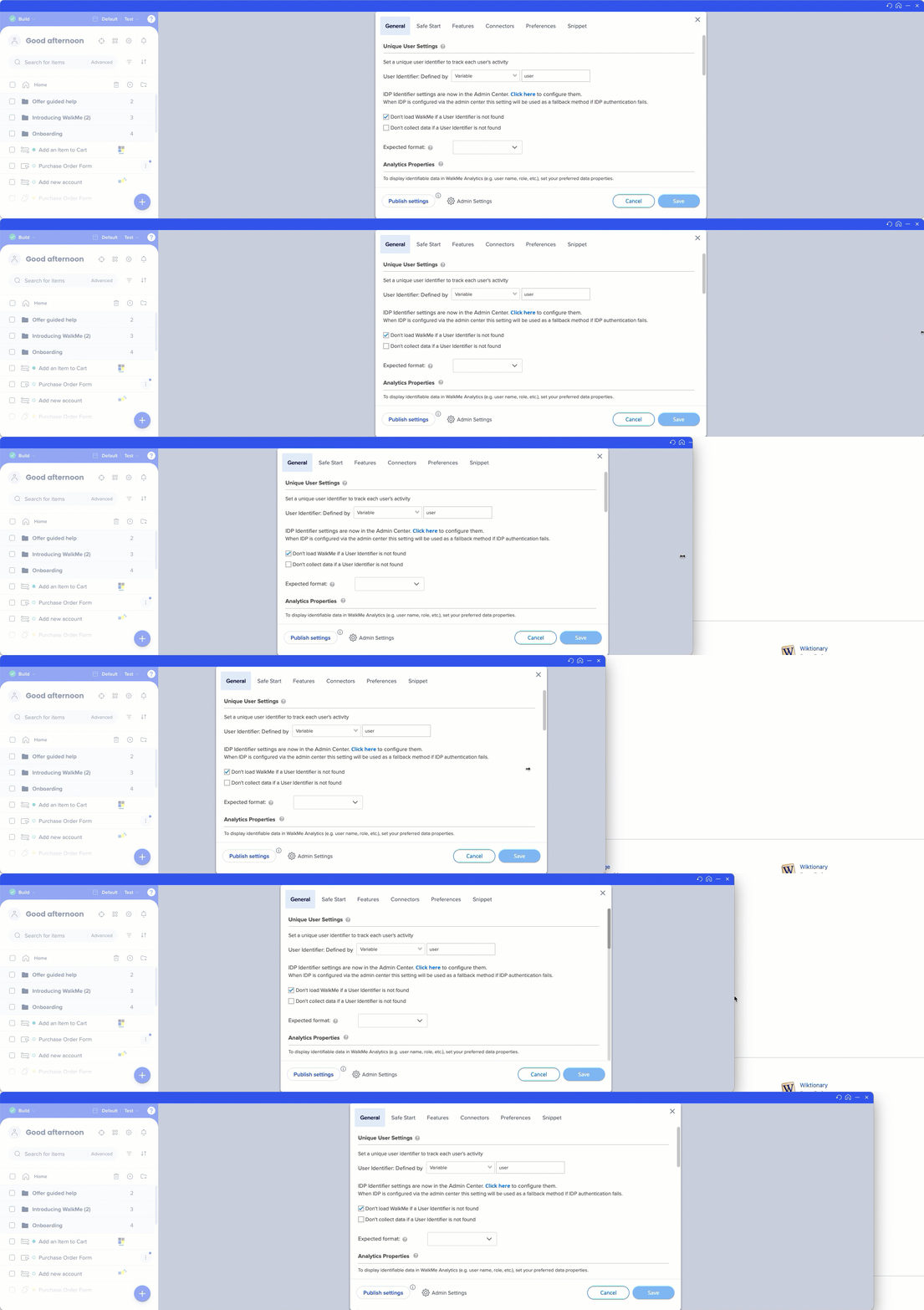
Configurações Gerais
Configurações de usuário exclusivas
Ao criar suas soluções WalkMe, considere como você gostaria de coletar dados sobre seus usuários finais. Por exemplo, ao pesquisar suporte de progresso ou uso no Insights, você deseja que os usuários sejam identificados pelo endereço de e-mail, número de ID anônimo ou um elemento de identificação exclusivo na tela? Configure Configurações de Usuário Exclusivas para que todas as suas análises possam ser coletadas nos mesmos termos das informações do seu próprio site, fornecendo uma integração próxima entre o WalkMe Insights e o seu próprio site, identificando o usuário da mesma maneira.
Você sabia?
As configurações de UUID foram movidas para o Centro de Administração. Saiba mais
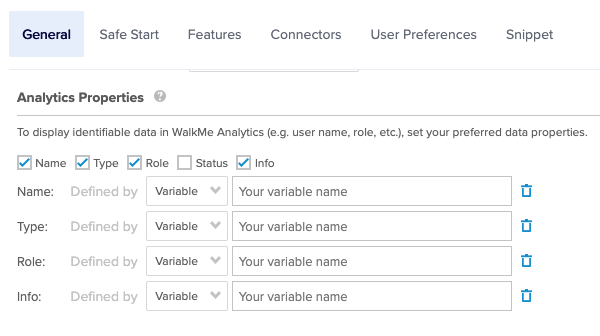
Use propriedades analíticas, como atributos personalizados do Insights na forma de variáveis, seletores jQuery e cookies de sites, para filtrar melhor seus relatórios e obter informações mais granulares do usuário.
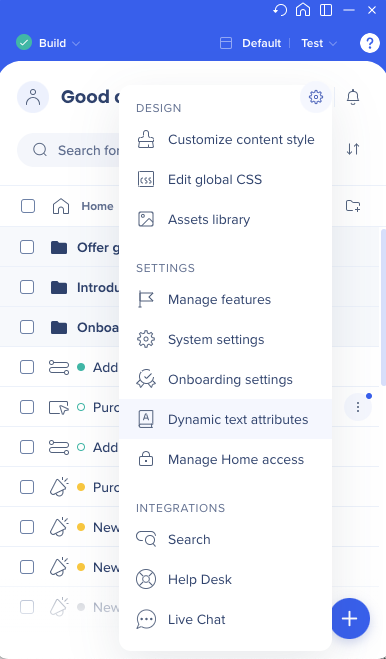
Os atributos de texto dinâmico permitem criar conteúdo dinâmico e regras. Uma vez salvos, eles podem ser usados em regras (para comparação de texto/números/datas) e como texto dinâmico em itens.
Você sabia?
Os atributos de texto dinâmico agora estão disponíveis diretamente no menu Configurações do editor
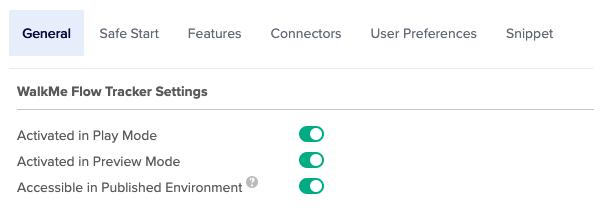
Ativado no Modo de Reprodução - O Flow Tracker é iniciado automaticamente quando um Walk-Thru é reproduzido no Editor.
Ativado no Modo de Pré-Visualização - O Rastreador de Fluxo é iniciado automaticamente quando o Modo de Pré-Visualização está ativado.
Acessível no Ambiente Publicado (Relacionado ao Controle de Qualidade) - O Flow Tracker está acessível no Ambiente Publicado, mas não é iniciado automaticamente. A palavra-chave 'walkmetracker' é usada na pesquisa do menu do Player para ativar o Flow Tracker.
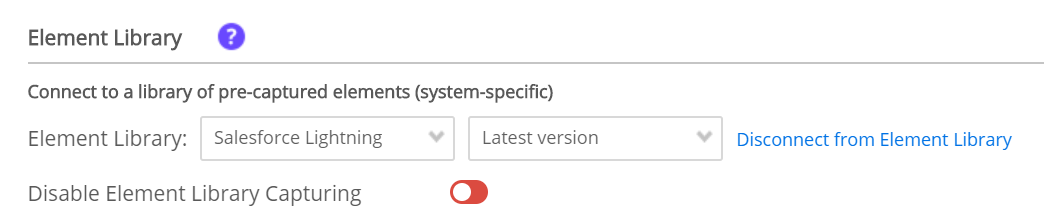
O recurso Biblioteca de Elementos do WalkMe é composto por elementos pré-capturados e específicos do sistema, criados usando as práticas recomendadas do WalkMe. Os usuários podem criar implementáveis selecionando um elemento da Biblioteca de Elementos, delineada em verde em vez do azul padrão, permitindo que o WalkMe mantenha e atualize os implementáveis conectados por meio das principais versões da plataforma.
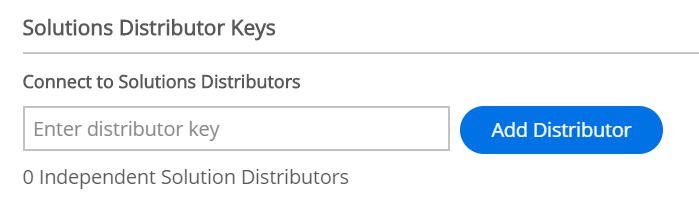
Minhas Soluções são modelos gerados pelo usuário que permitem manter-se atualizado com as diretrizes de marca, campanhas ou recomendações de conteúdo mais recentes da sua organização ou parceiro, compartilhando facilmente conteúdo entre contas. Então, uCom uma chave de distribuição segura, você pode compartilhar facilmente o pacote de solução que criou entre contas de editores.
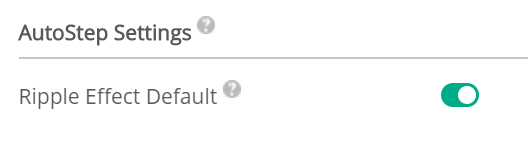
As etapas automáticas permitem que os clientes automatizem processos repetitivos que os usuários finais terão que concluir várias vezes. Por padrão, um efeito de ondulação será exibido quando uma etapa automática for clicada. Isso pode ser desativado nas configurações.
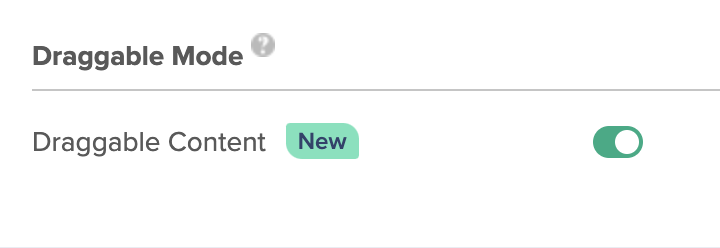
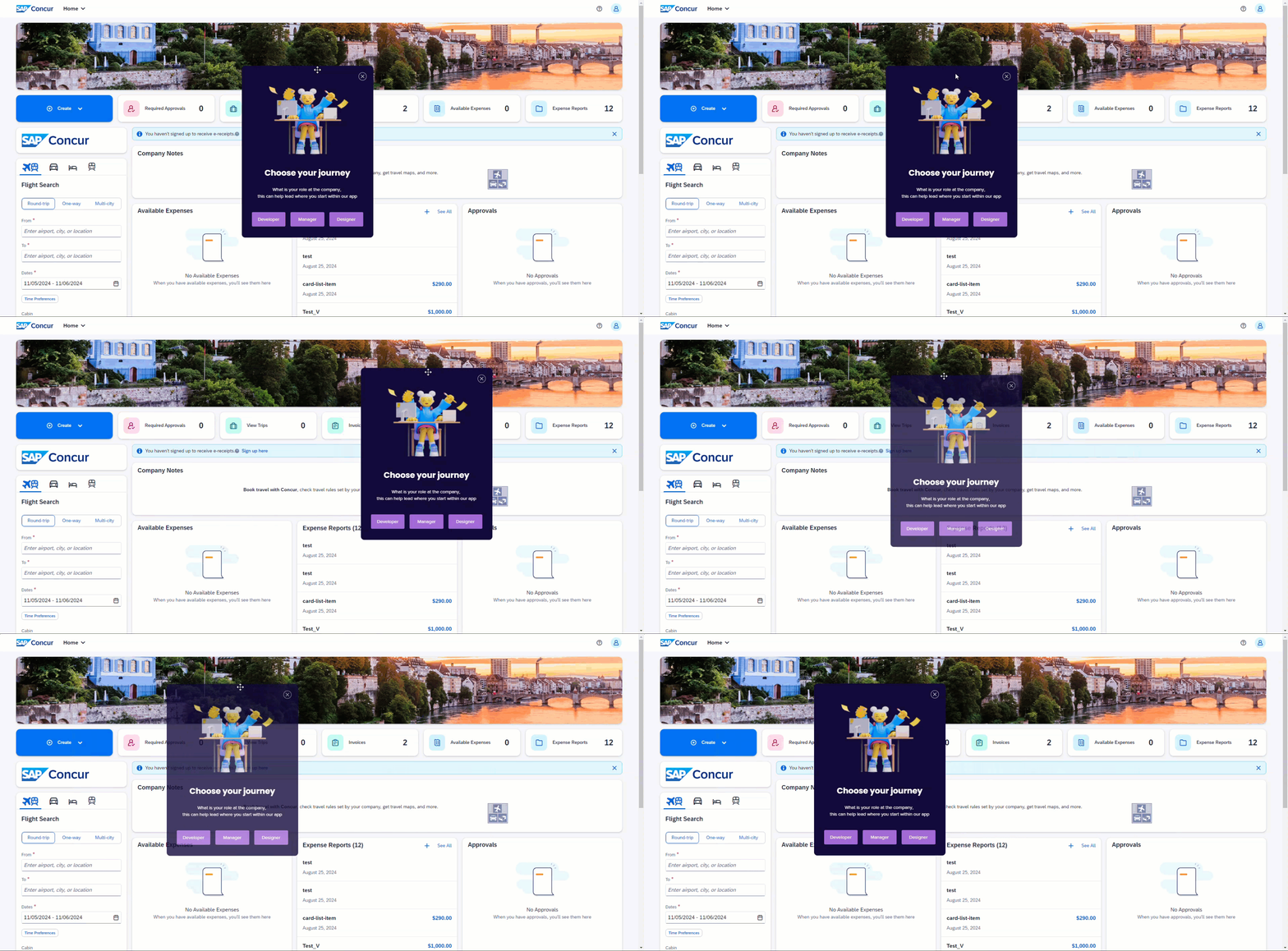
Esse modo permite que o conteúdo do WalkMe (ShoutOuts, etapas pop-up, artigos, vídeos e pesquisas) seja arrastável. Quando ativado, você pode mover esses itens pela tela interagindo com a borda superior.
Nota Técnica
O modo de arrastar está ativado automaticamente para todos os novos sistemas a partir de 17 de novembro de 2024.
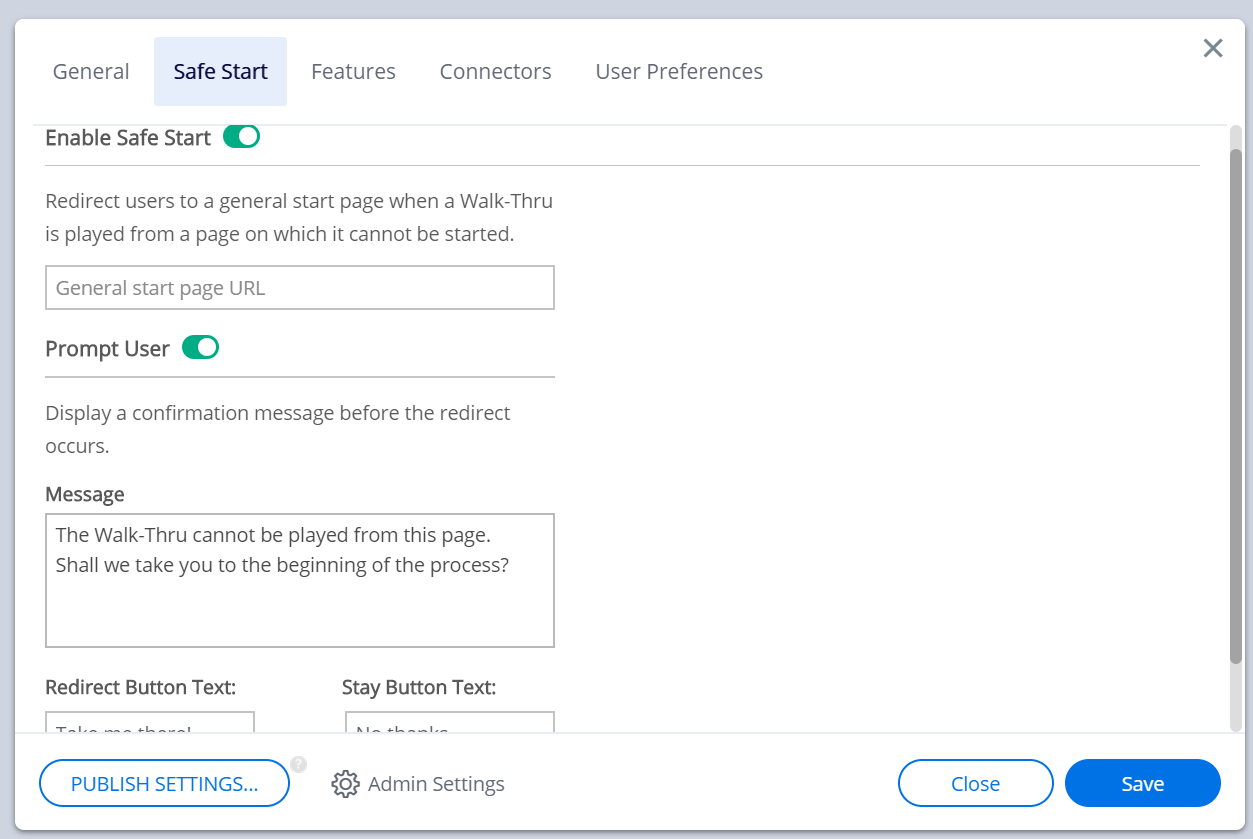
Início seguro
Redirecione os usuários para uma página inicial geral quando um Walk-Thru é executado a partir de uma página na qual ele não pode ser iniciado.
A configuração é por usuário. Dessa forma, vários construtores podem trabalhar simultaneamente no mesmo sistema sem interromper o fluxo uns dos outros.
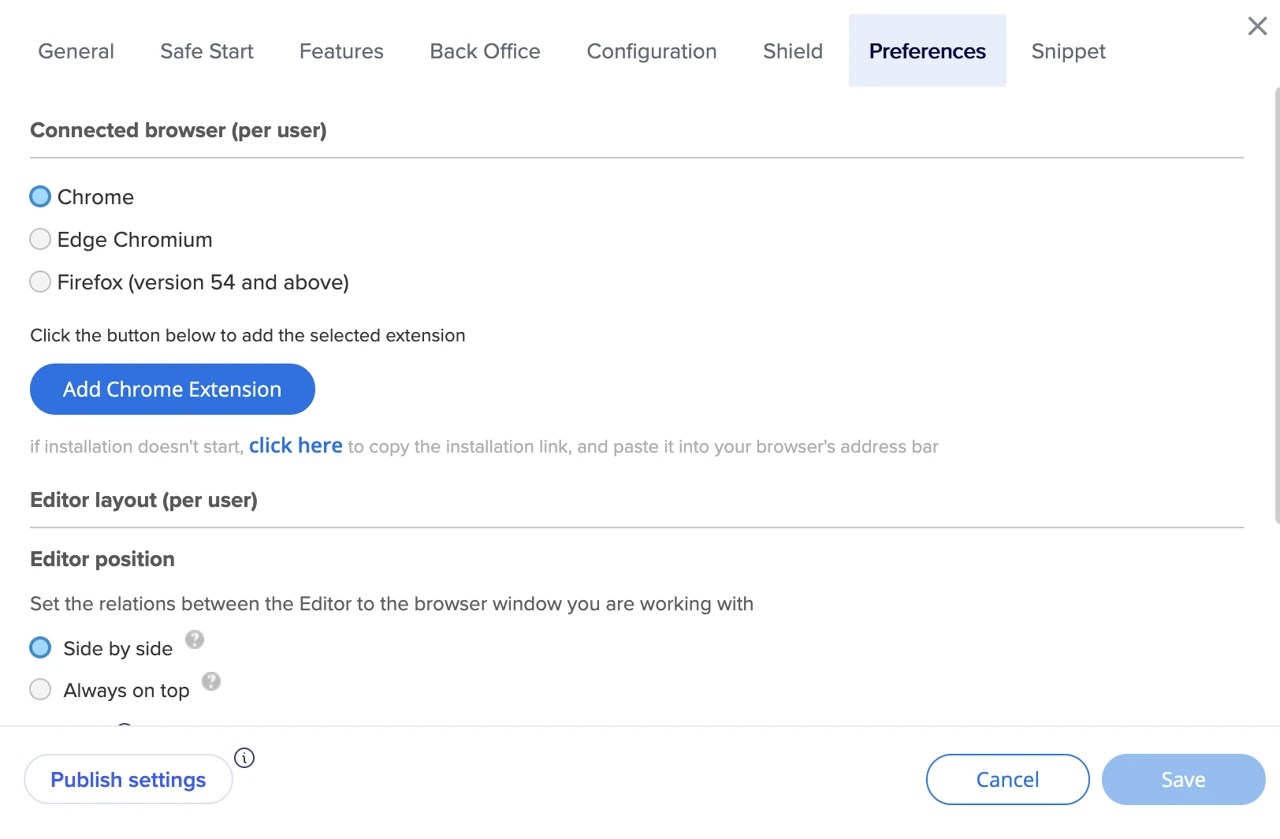
Cada usuário define o navegador para si mesmo, em cada sistema. Eles podem optar por usar o Chrome no sistema A e o Firefox no sistema B.
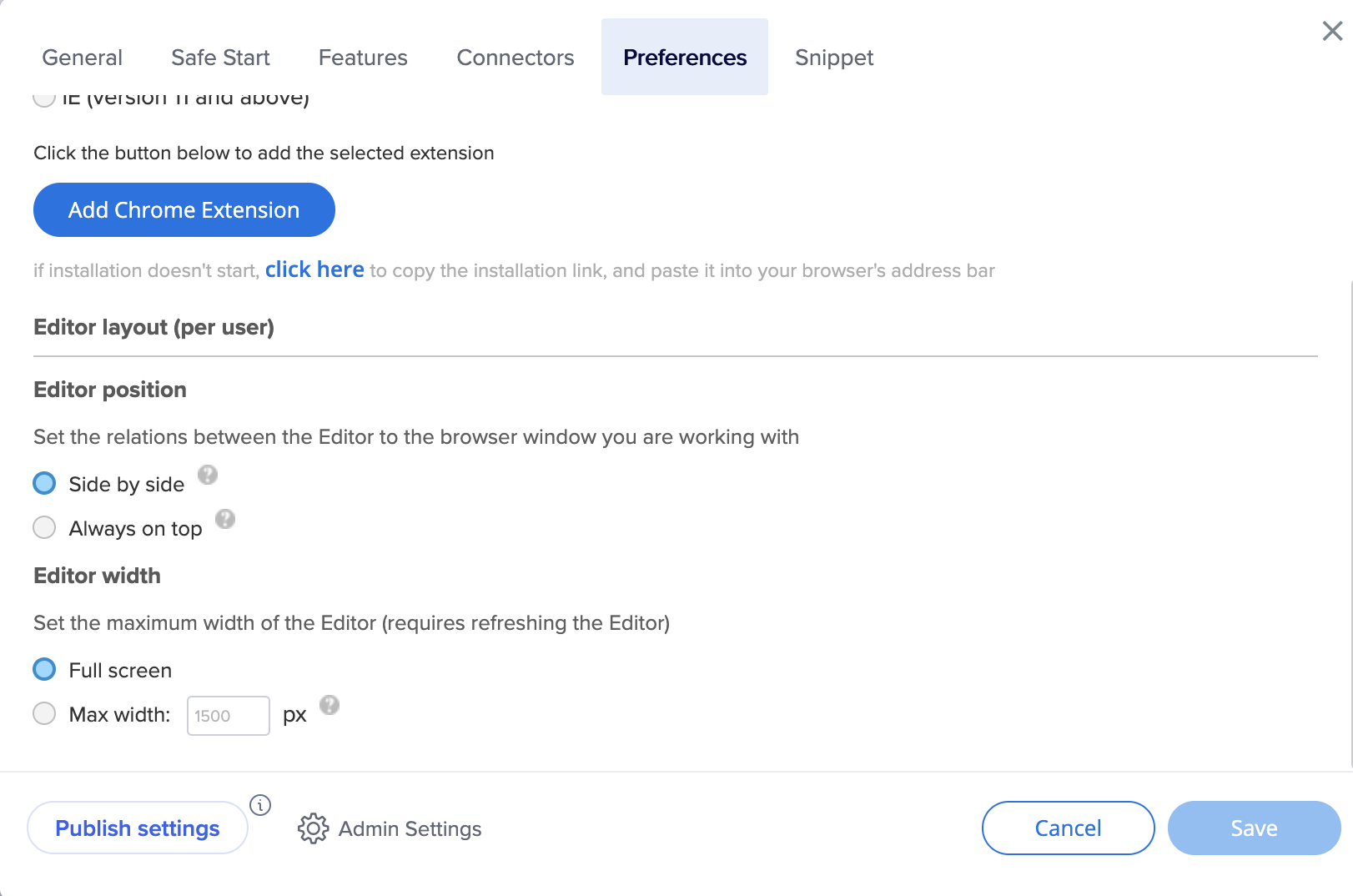
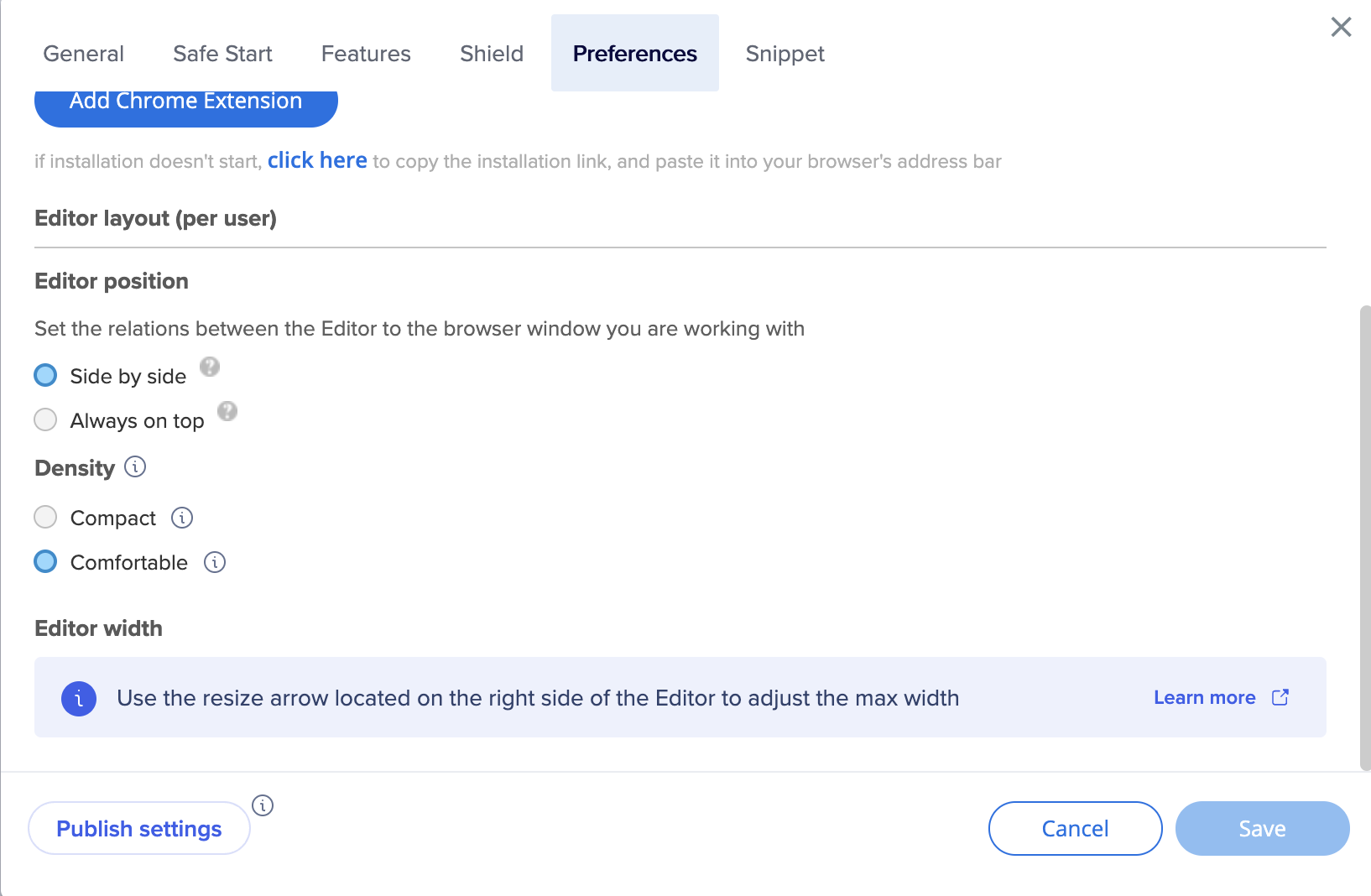
Layout do editor
Dois modos de layout estão disponíveis para o Editor:
Lado a lado(SBS): permite que o Editor e o navegador conectado se alinhem lado a lado.
Este é o layout padrão. É recomendado para trabalhar na maioria dos sites.
Para alinhar o Editor ao navegador conectado, certifique-se de ter uma instância do navegador conectado aberta e pressione o botão SBS.
O Editor se alinhará lado a lado à instância do navegador conectado que está em primeiro plano.
Sempre no topo: posiciona o Editor no topo de todas as outras janelas.
Recomendado para apresentações de vendas e para trabalhar em sites que exigem que o navegador esteja em largura total.
Nesse modo, o Editor flutua acima de todas as outras janelas.
Se achar que o Editor está obstruindo a visualização da janela, pressione o botão minimizar para minimizar o Editor na barra de tarefas.
Pressione o ícone WalkMe na barra de tarefas para voltar a trabalhar no Editor.
O modo de layout do Editor pode ser alterado a qualquer momento.
Largura do editor
No editor versão 5.0 e posterior:
Use a seta de redimensionamento no lado direito do editor para ajustar a largura
Nas versões anteriores:
Alterne de Tela cheia para Largura máxima e insira o tamanho de largura desejado do Editor (mínimo de 1500 px)
Observação
Você precisa atualizar o editor para que a alteração entre em vigor.
Densidade
Selecione o modo de visualização que melhor atende às suas necessidades:
Compacto: layout condensado com espaçamento mais apertado para visualização máxima (padrão)
Confortável: design espaçoso para foco e legibilidade
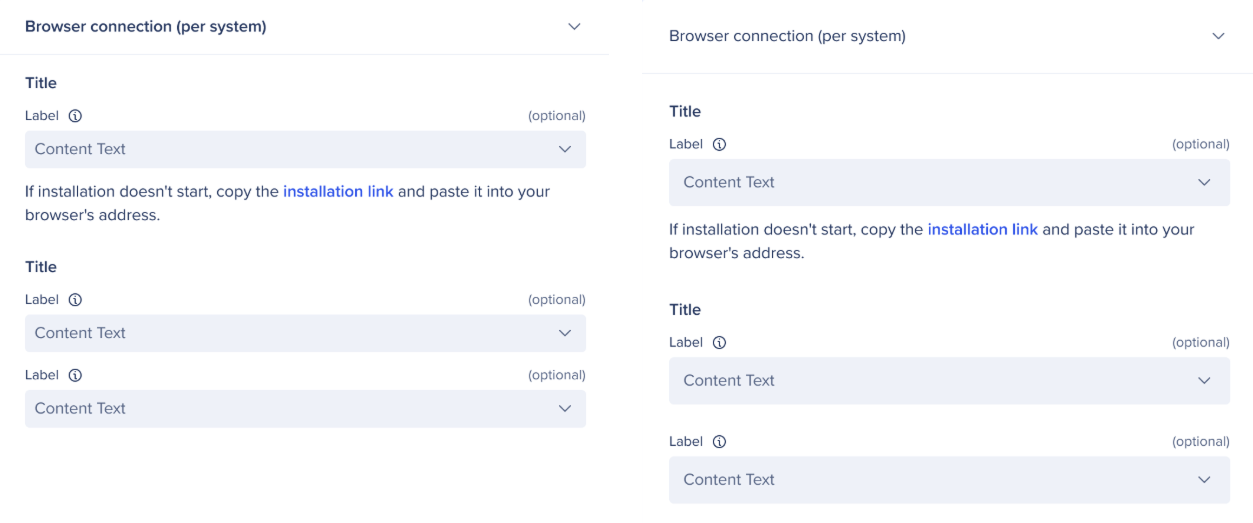
Compacto vs. Confortável
Configurações do Administrador
Você pode acessar as configurações do administrador clicando em Configurações do Administrador nas configurações do editor.