Brief Overview
AI-selected launchers help deliver the right next best action to users at the moment it's most helpful—providing assistance before users even know they need it.
Instead of tying a launcher to a single predefined action, builders can define a set of actions, and AI proactively selects the most relevant ones to offer based on user context at run time.
For builders, enabling AI-selected launchers requires very little setup. For Joule skills, builders can download preconfigured AI-selected launchers from the Solutions Gallery and publish them directly to the Action Bar from the WalkMe Editor. Builders can also create AI-selected launchers from scratch, enabling them to surface WalkMe content and other actions dynamically based on user context.
How It Works
AI-selected launchers evaluate the user's current webpage and surface the most relevant action(s) directly in the Action Bar in the form of a launcher.
AI-selected launchers can be configured for different content types. Builders can set them up to surface predefined Joule skills or create AI-selected launchers from scratch to dynamically present WalkMe content and other actions.
Getting Predefined Joule Skills
Follow these steps to add, configure, and publish AI Joule skills using distribution keys:
-
Open the Solutions Gallery in the WalkMe Console
-
Select the Shared Solutions page from the navigation bar to explore or download content shared by others
-
Select the Activate distribution key button, and enter the key provided to you (keys are system-specific)
-
Select Add Distributor
-
Select Save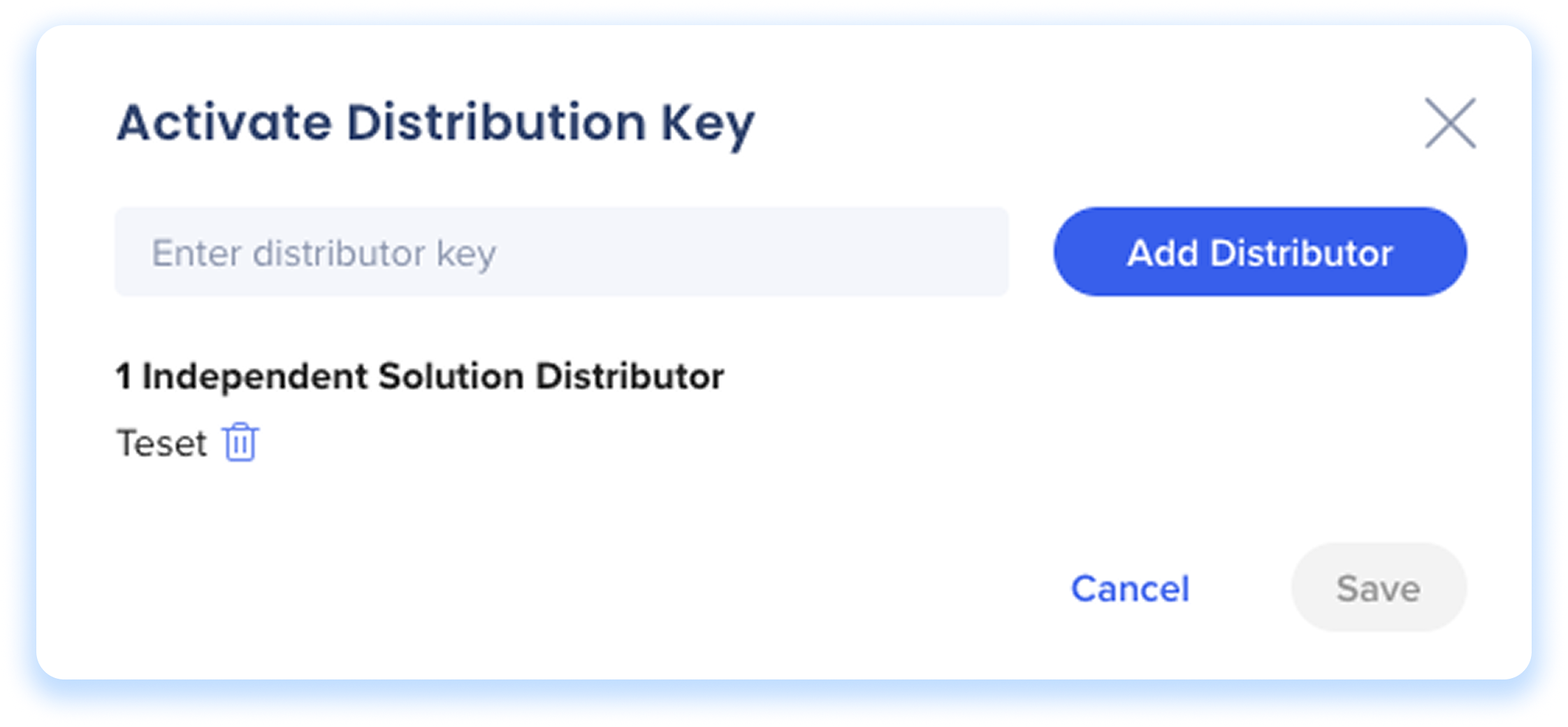
Available distribution keys
-
ServiceNow: 28EFD12F-6439-46AB-8077-6D5302D09A3C
-
Gmail: B748EAB5-5CE1-41DF-A40A-0AC2DC051265
-
S/4: 227F6CF2-F7CE-495C-A74E-72395B2FB95E
- Outlook:2DBCCAE6-911E-46ED-B6C6-78107DA83E9B
-
The new solution tile will appear in the Shared Solutions page
-
Hover over the tile and select Configure
-
Choose the system destination for the skill
-
Select Next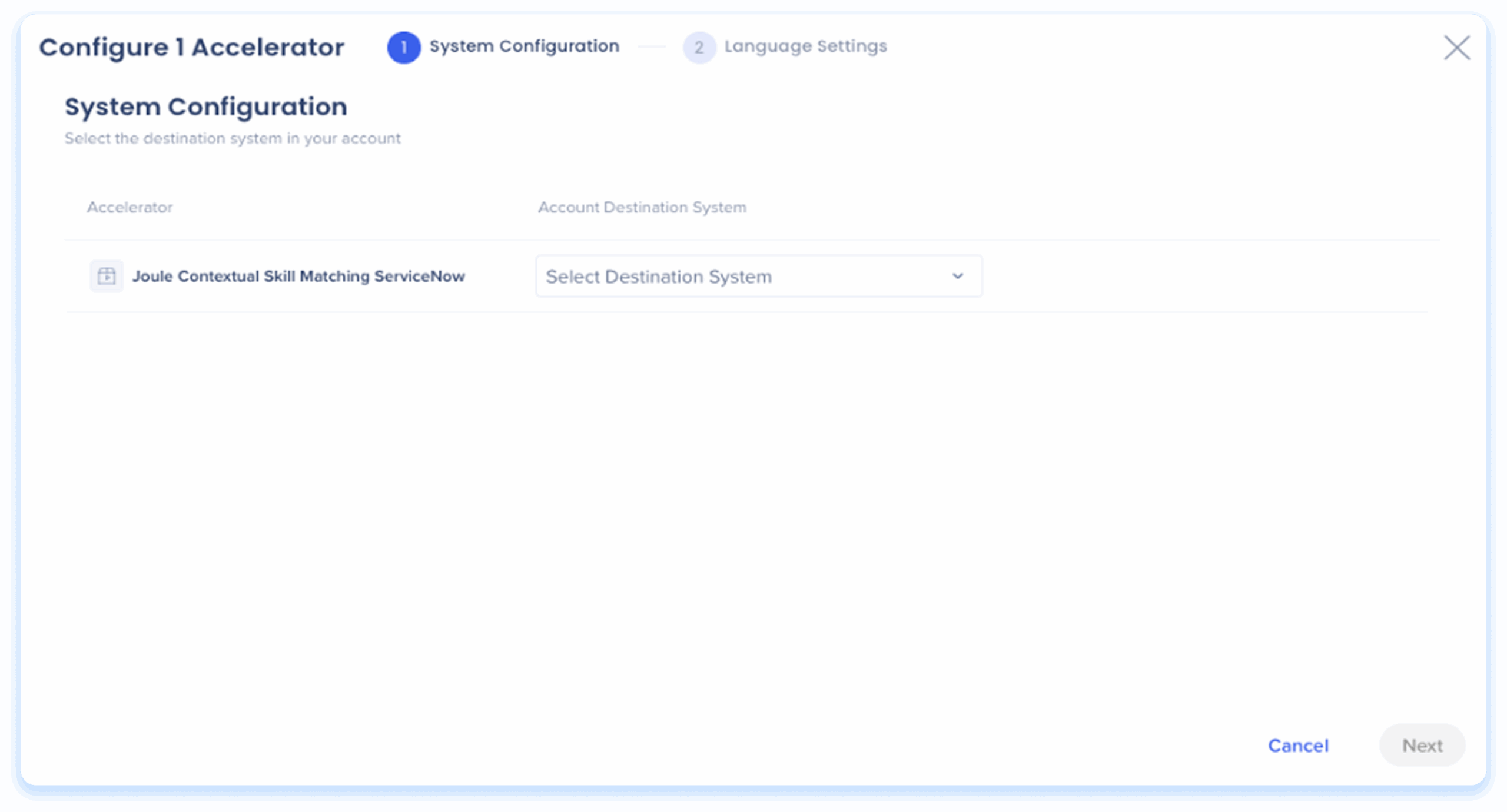
-
Select Download to Editor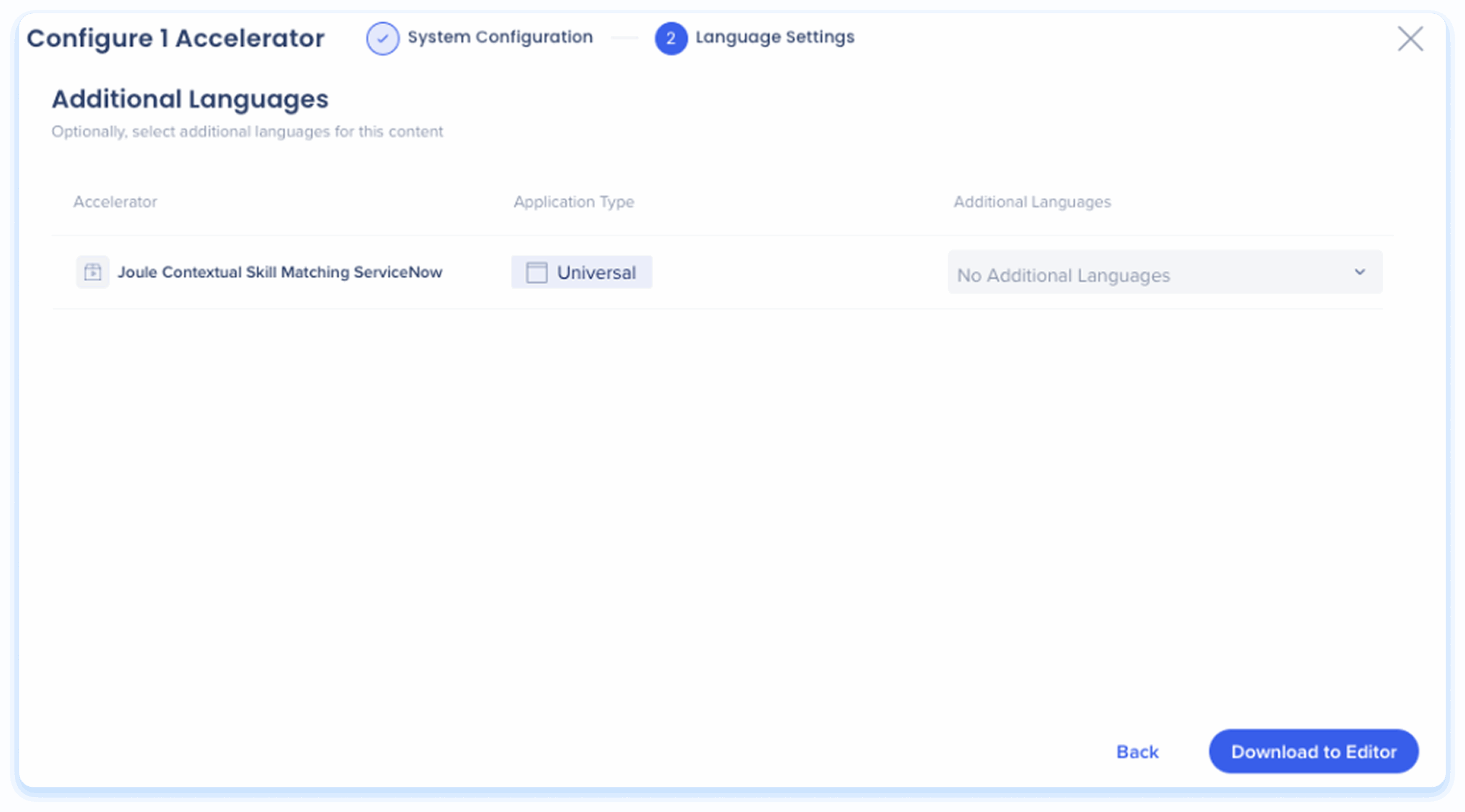
-
The skill will now appear as a launcher in your editor's list
-
Choose the launcher and publish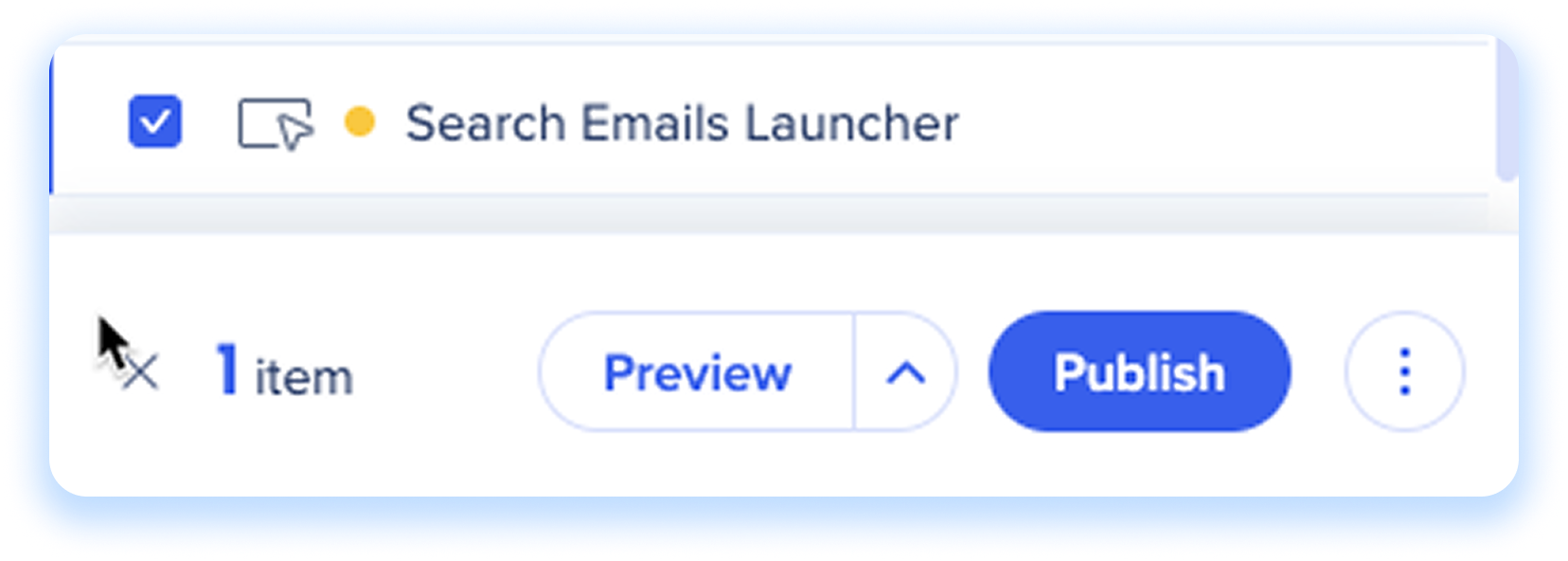
Requesting Additional or Custom Joule Skills
If your organization requires additional existing Joule Skills or wants to implement a custom skill that is not listed here, contact your CSM to ask about enabling a the skill.
Create an AI-selected launcher from scratch
Before you begin
Creating an AI-selected launcher from scratch is NOT REQUIRED for joule content.
The primary workflow involves downloading Joule skills directly from the Solutions Gallery as mentioned above. If you need a specific skill that isn't available in the Joule Skills Catalog, please contact your CSM to request additional skills not listed or to have a custom skill developed for your organization.
If the above steps do not meet your customization needs, you can follow these configuration steps to create an AI-selected launcher manually.
Step 1: Getting Started
You can start by editing an existing launcher or creating a new one from scratch.
Create a new launcher
-
Open the WalkMe Editor
-
From the Create menu, select Launcher
-
Capture an element for your launcher
-
Select Save
-
You'll be redirected to the editor main menu
-
Return to the main menu and select your new launcher from the list
Make WalkMe content discoverable for the AI
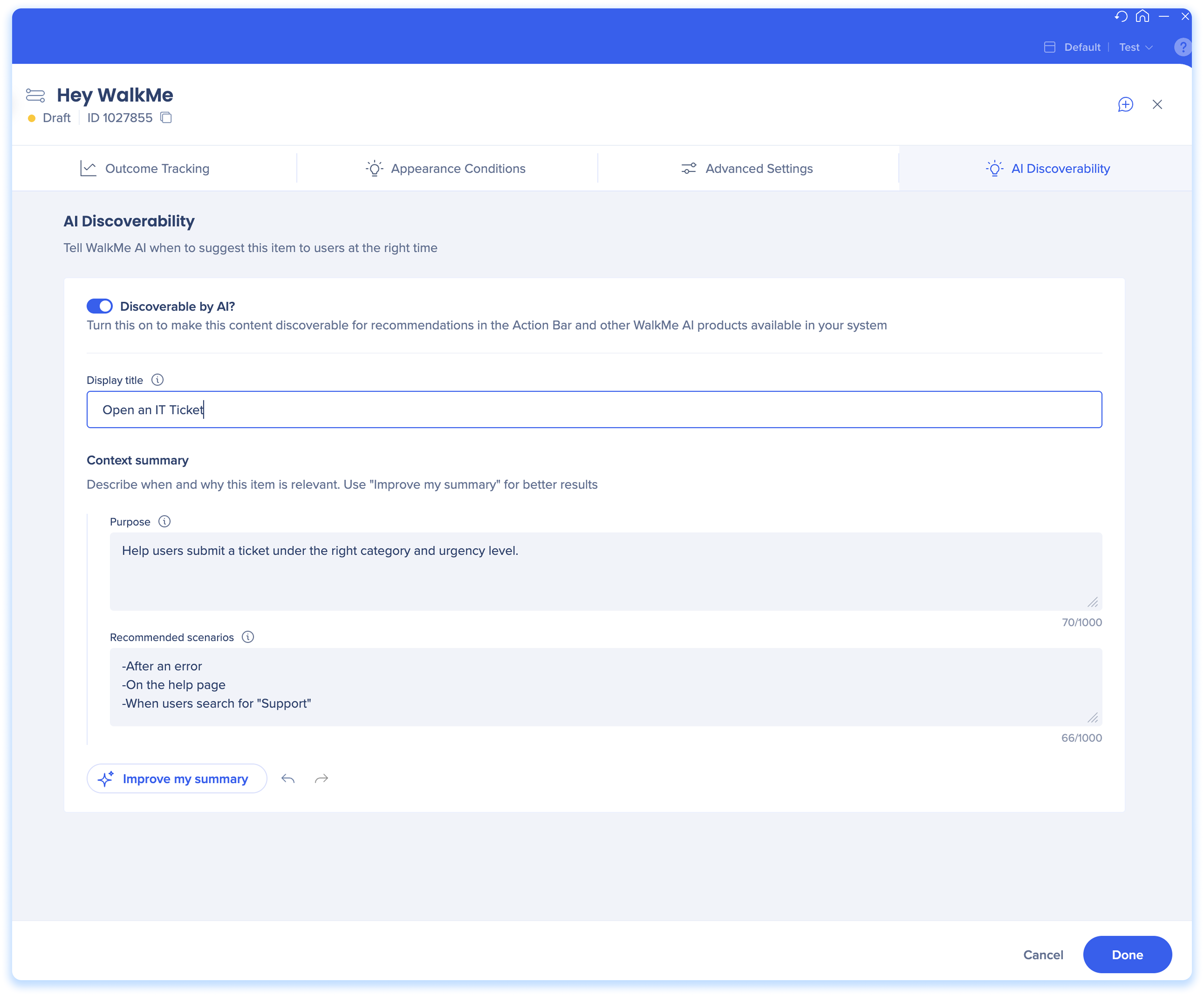
To use WalkMe content in an AI-selected launcher, the content must be enabled for AI discoverability.
- From the editor main menu, select the WalkMe item you want to surface
- For Smart Walk-Thrus, click the Settings icon
- Select the AI Discoverability tab
- Turn on the Discoverable by AI toggle
- Configure the AI context fields:
- Title: Enter the name that will appear as the action in the Action Bar
- Context summary: Describe when and why this content is relevant
- Purpose: Explain what this content helps users do or complete
- Recommended scenarios: List situations or triggers for when this content should be offered
- Click the Improve my summary button to enhance the context fields for better AI matching (optional)
- Click Done
Step 2: Behavior Configuration
-
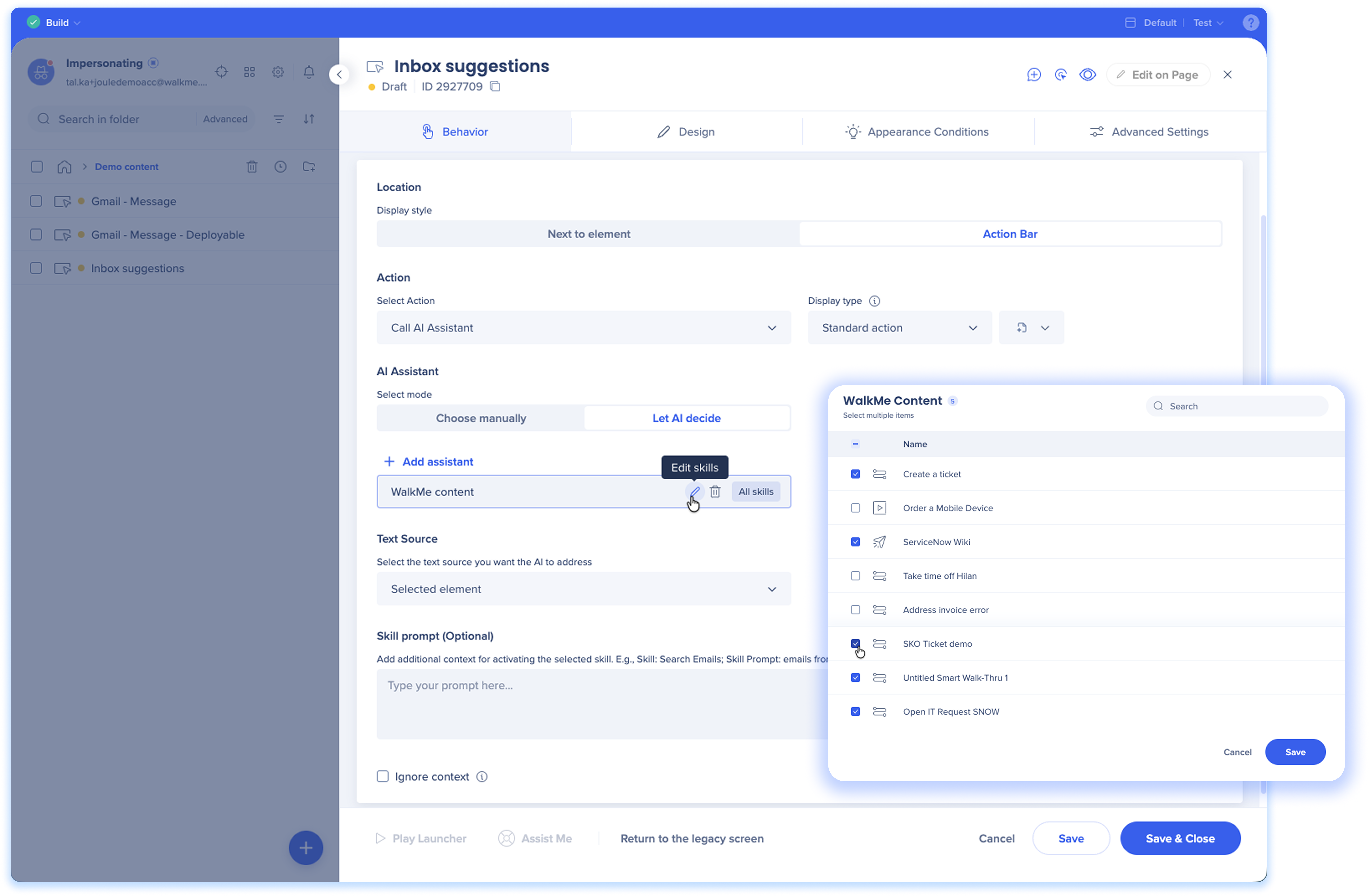
Location: In the launcher Behavior window, select Action Bar for the location
-
Action
-
Select action: From the Select Action dropdown, choose Call AI Assistant
-
Display type: Choose how to display the launcher
-
Standard action: For everyday actions that stay visible
-
Alert action: For important actions that appear only when triggered and display a red dot to grab attention
-
Icon: Choose an icon
-
Select an icon that matches your action
-
Note: Icons are not available for Alert display types
-
AI Assistant
-
Select mode: Choose between the following:
-
Automatically with AI: AI scans the text source and selects the most relevant skill recommended
-
Use this when you want the launcher to adapt dynamically across different workflows, for example suggesting to summarize, translate, or rewrite depending on the content
-
Select specific skills: Manually choose from the available skills list
-
Add assistant: Click the Add assistant button to choose which content to add to your AI launcher. You can choose as many assistants as you want
-
Joule: Surfaces SAP joule skills content
-
WalkMe: Surfaces standard WalkMe launchers (For example, a launcher that opens a Smart Walk-Thru)
-
Hover over an assistant to edit the content list to control which items the AI can select from or to remove an assistant from the AI-selected launcher
- Text source: Choose what content the launcher will act on
-
All text on screen: Uses the entire page
-
Selected element: Uses the element linked to the launcher, for whole page selection
-
Element on screen: Activates when a selected element appears
-
Highlighted text: Runs when users manually highlight text
-
Skill Prompt (optional): Add additional context for activating the selected skill
-
The skill prompt field lets you guide the AI with extra context or instructions. This helps tailor the response to a specific need or business case
-
For example, if the skill is Search Emails, you could add: “from suppliers this quarter.”
Prompts like this make the AI's output more accurate and aligned with user intent
-
Ignore context (optional): Tick Ignore context if you don't want the launcher to use saved memory, page-specific context, or personalization
-
Select the Save & Close button
Step 3: Publish
-
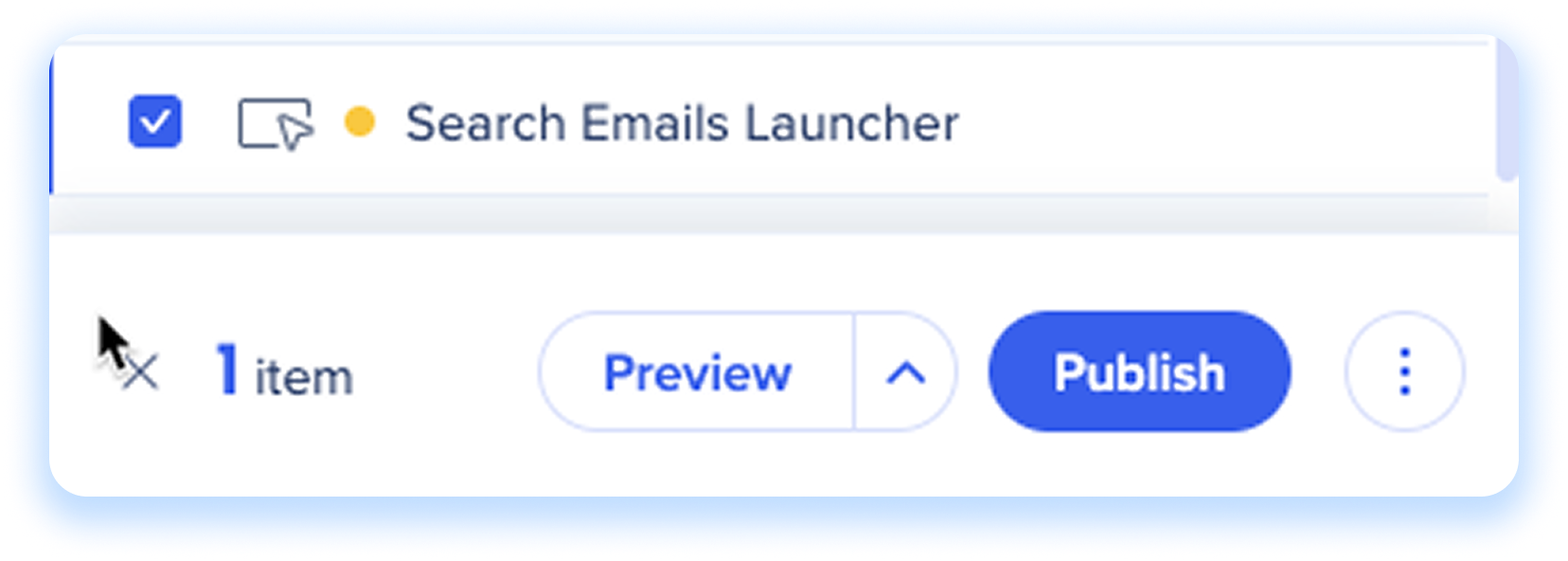
Tick the launcher from the editor's main menu
-
Click Publish
Once published, users will see the launcher in the action bar, and it will automatically trigger AI skill recommendations when relevant.
Technical Notes


