Brief Overview
Tracked Events let you measure meaningful user actions across your application, such as completing a signup, submitting a form, or visiting a specific page.
Access
Create and manage Tracked Events on the Events page in the WalkMe Console.
Insights Events Page
How It Works
Tracked Events use Digital Experience Analytics (DXA) to track user actions on your website or application. Because tracking works with or without WalkMe content present, you can measure end-user completion of a process before and after WalkMe is deployed.
You can create a Tracked Event in two ways:
- Manually — define the tracking rules yourself, when you need precise control over what's tracked
- By capture — select an on-screen element using the WalkMe Editor
About Insights Tracked Events
Create a Tracked Event Manually
Use manual creation when you need precise control over what data is tracked, such as page visits, specific elements, or WalkMe content actions.
- Select Create Event on the Events page
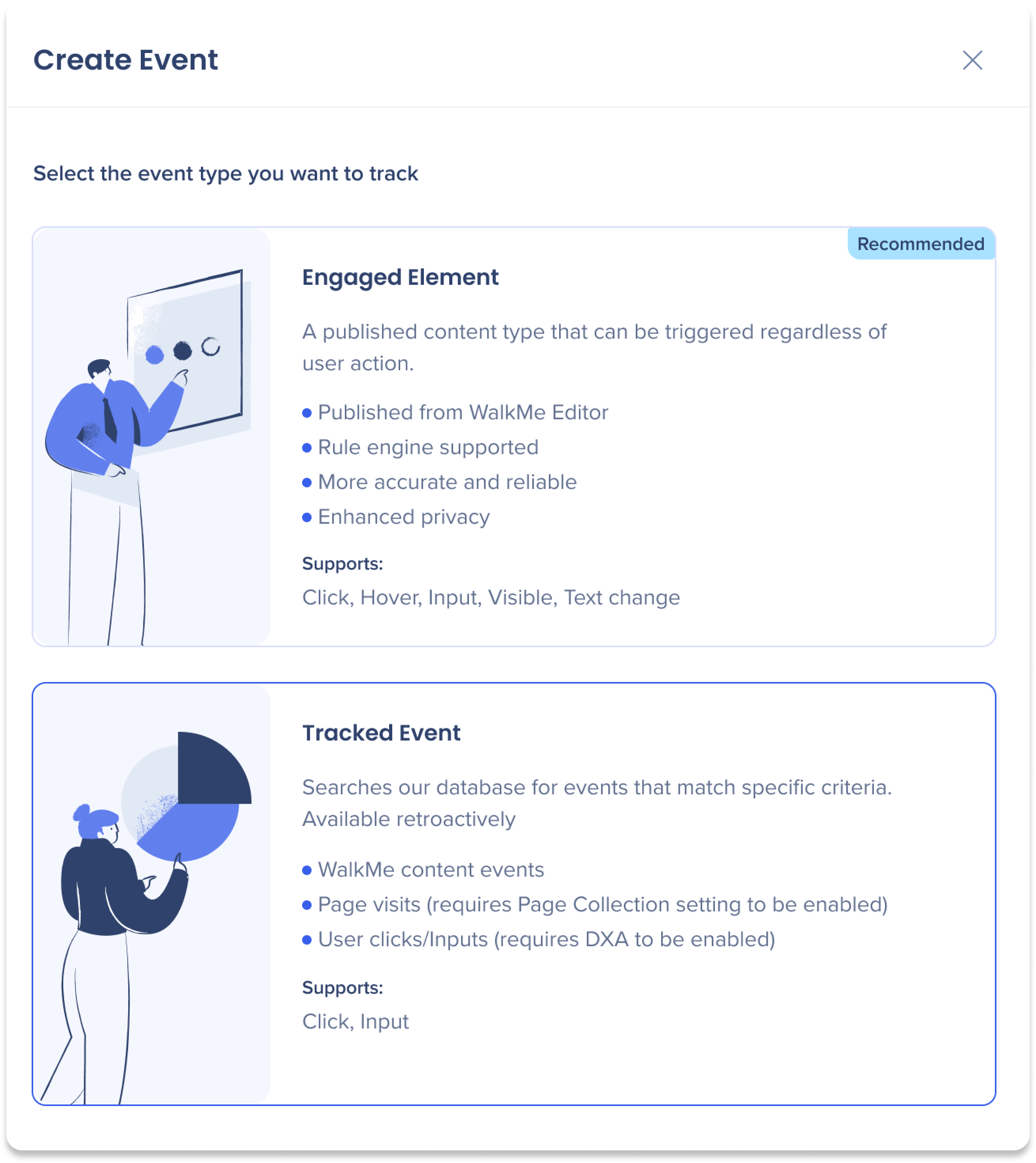
- Select Tracked Event
-
Select Create Manually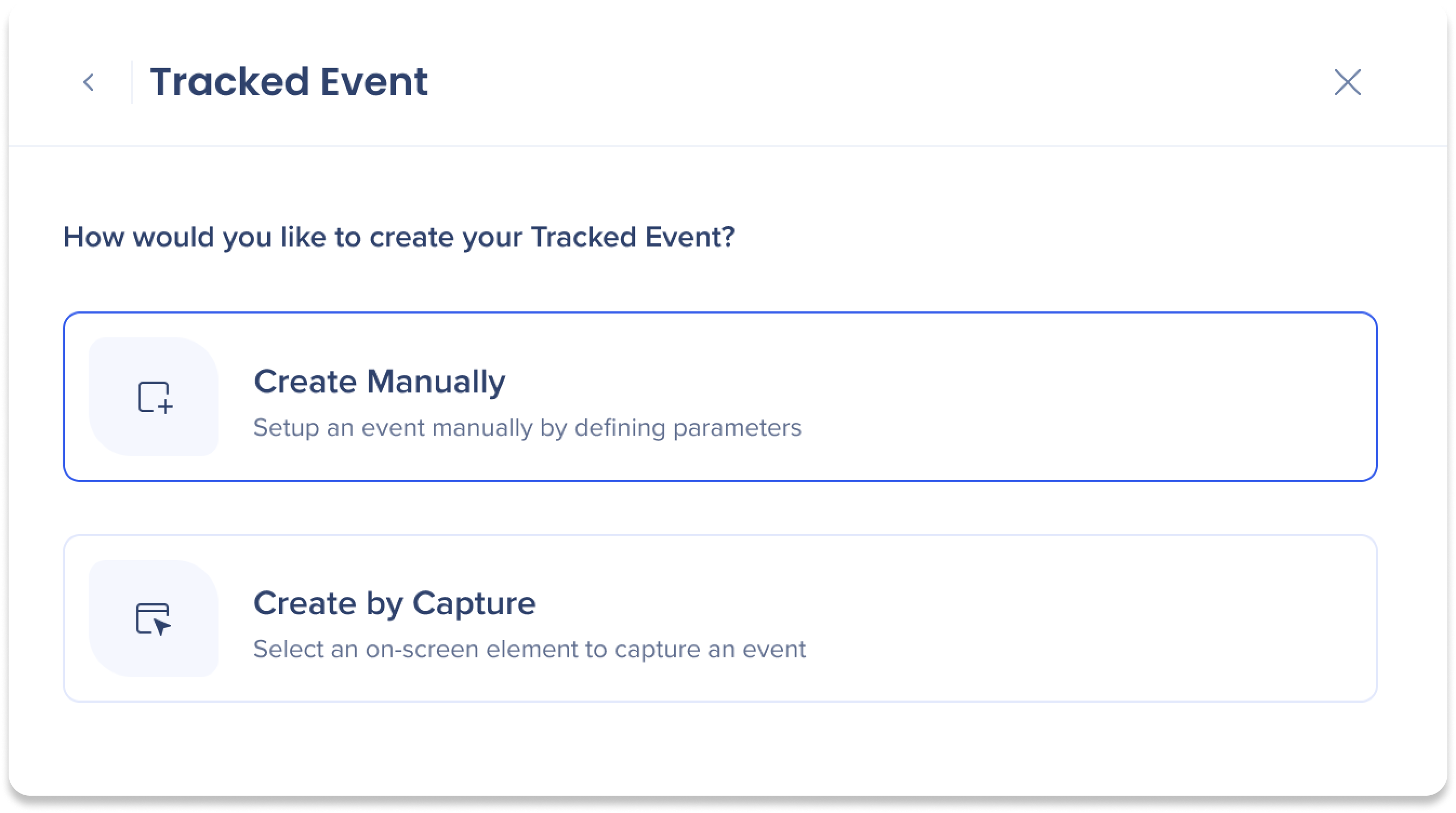
-
Enter a name for the Tracked Event
-
Select a system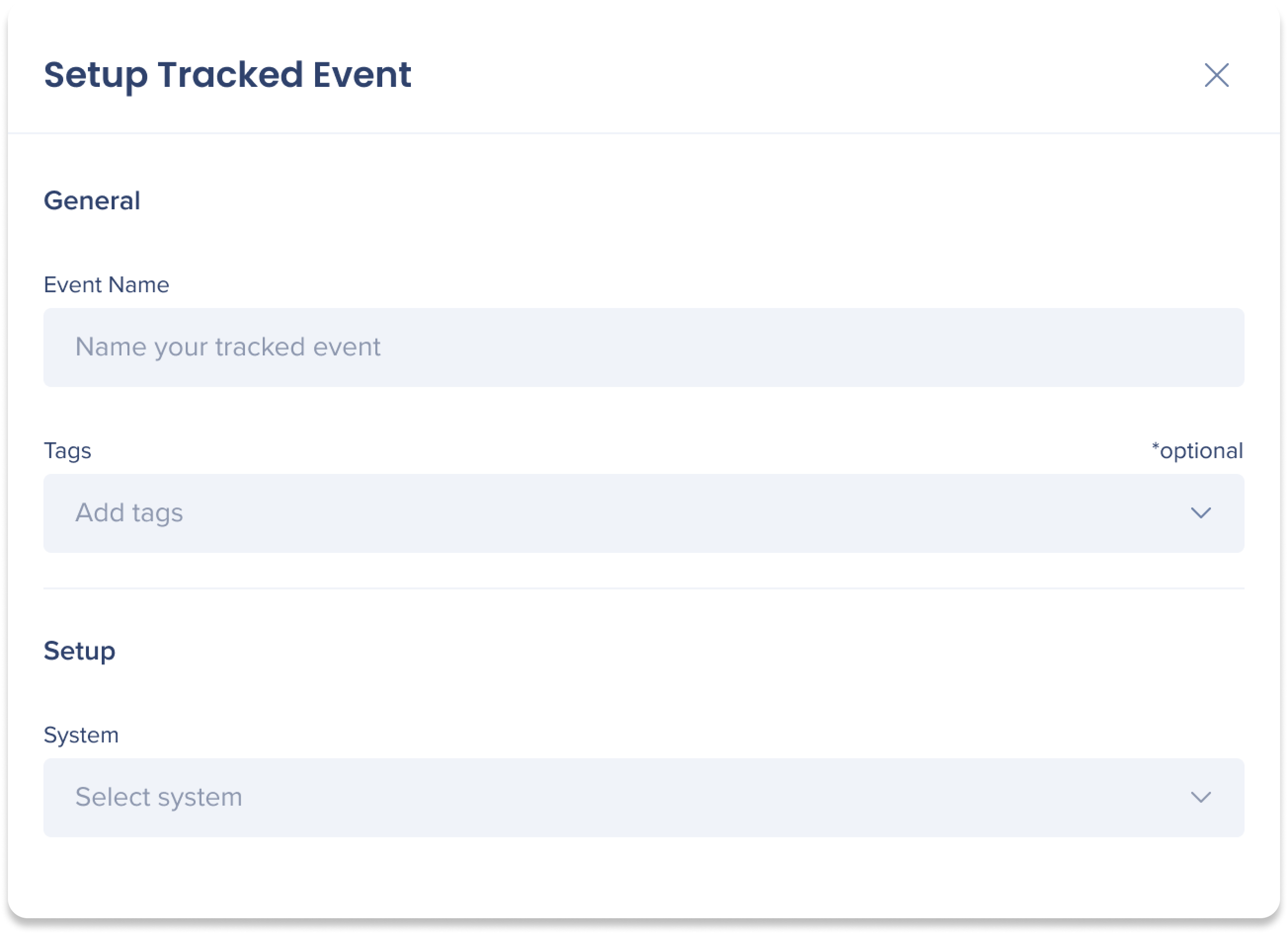
- Select what you want to track:
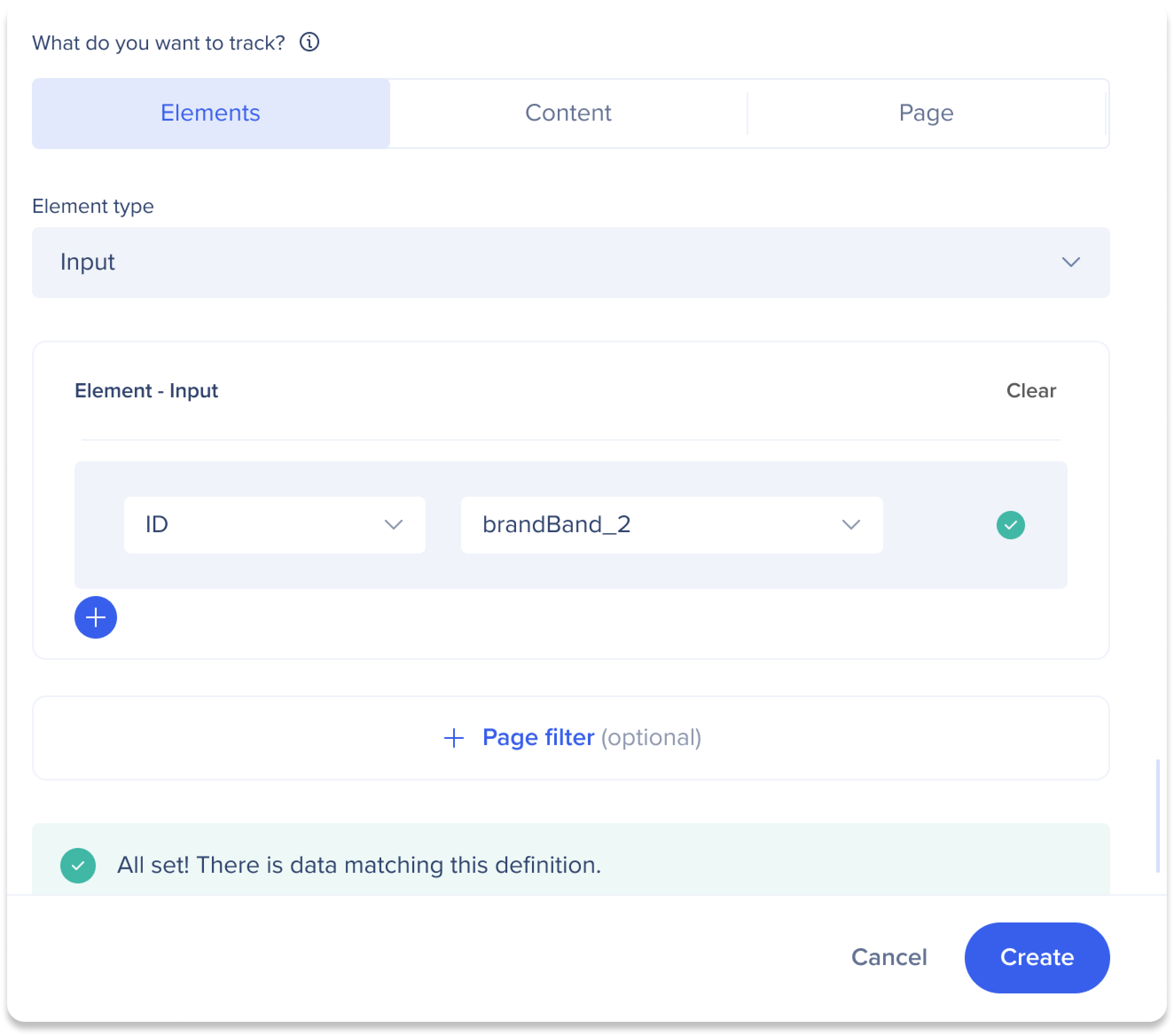
Track elements (Manual)
Use the Elements data type to track interactions with specific HTML elements.
Observação
O DXA deve estar ativado para usar o tipo de dados Elementos.
- Select an element interaction type:
- Use the condition builder to define element rules:
- Label
- Class
- ID
- CSS selector
- Enter or select values for each condition
- Optional: Add page filters to narrow the data set
- Select Create
Melhores práticas
- Selecione o elemento de nível mais alto com o qual os usuários interagem
- Certifique-se de que a definição seja exclusiva para evitar agregar ações não relacionadas
- Evite classes e IDs dinâmicos ou aleatórios
CSS selectors
CSS selectors allow you to precisely define which HTML elements should be tracked. They require basic familiarity with CSS and should be used only when label, class, or ID rules are insufficient.
Supported syntax
- ID: #idName
- Class: .className
- Tag: div
- Attribute: [attribute='value']
- Combinations: div.class1.class2 #someId[attribute=value]
Melhores práticas
- Evite atributos gerados dinamicamente
- Evite nomes de classe e IDs longos
- Teste seletores usando a mensagem de validação em tempo real
Observação
- Classes com mais de 35 caracteres não são coletadas
- IDs com mais de 40 caracteres não são coletados
- Eventos existentes que usam operadores descontinuados permanecem visíveis, mas não podem ser editados
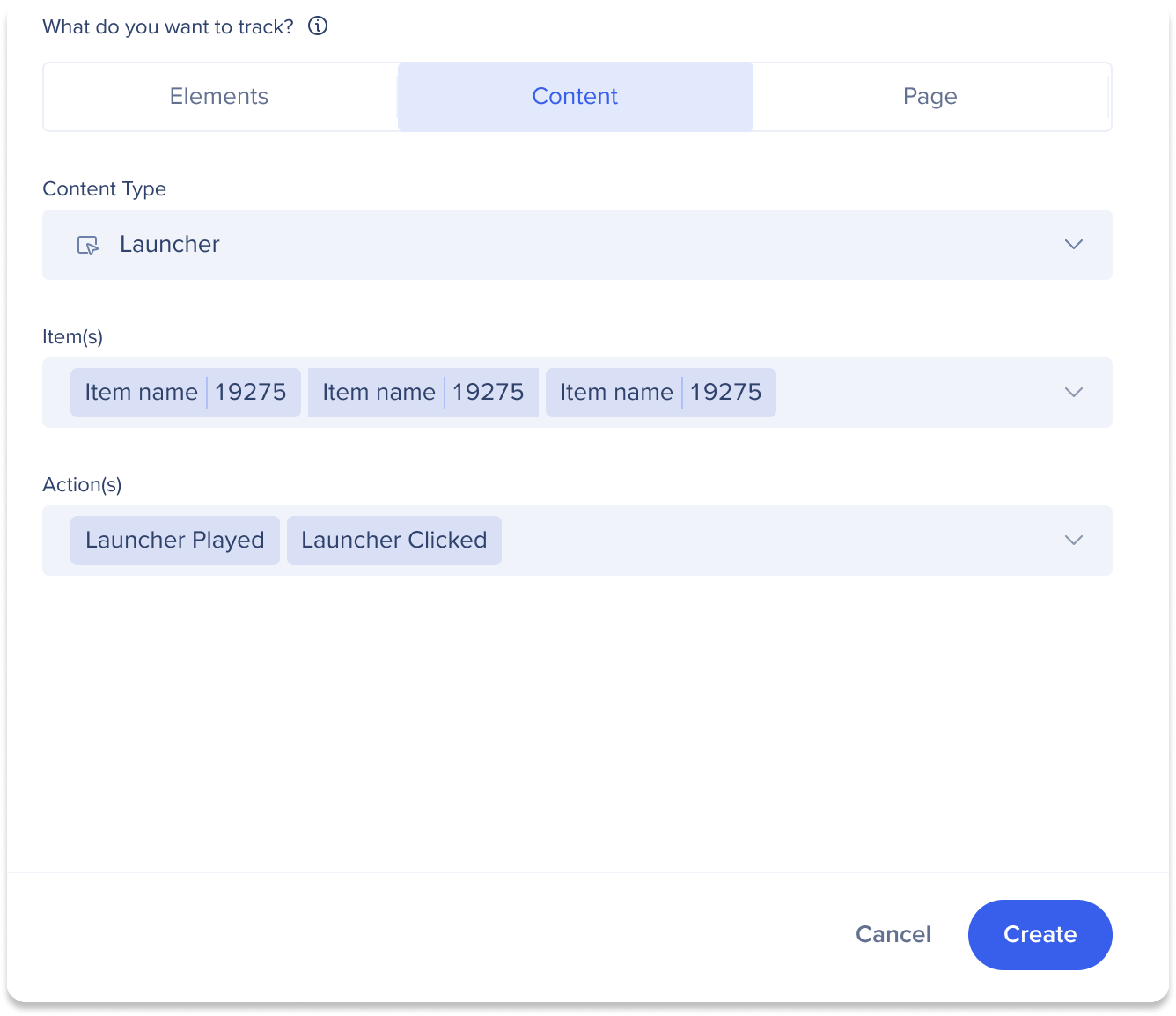
Track WalkMe content (Manual)
Use the Content data type to track interactions with WalkMe items.
- Select a content type (for example, Launcher or ShoutOut)
- Select specific items
- Select one or more actions:
- Select Create
Track page visits (Manual)
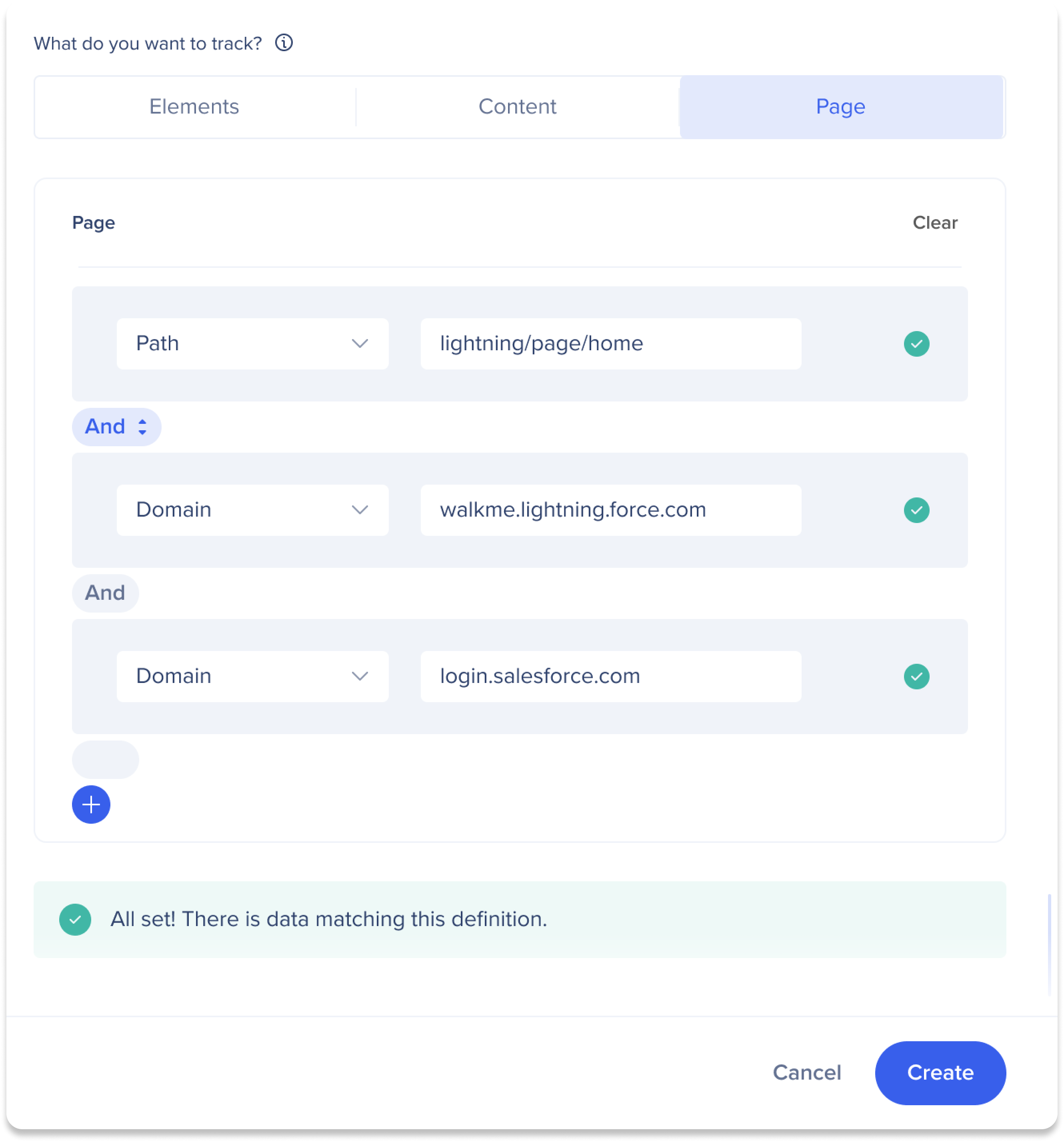
Use the Page data type to track visits to specific pages.
Observação
A coleção de páginas deve estar ativada.
- Use the condition builder to define page rules:
- URL
- Path
- Hash
- Domain
- Query
- Enter values
- Add additional conditions if needed
- Select Create
Melhores práticas
- Use Path em vez de URLs completas quando os parâmetros de consulta forem dinâmicos
- Use curingas (*) para ignorar segmentos de URL alterados
- Use URLs completas somente quando forem necessários vários componentes de URL
Create a Tracked Event by Capture
Use capture when you want to define a Tracked Event by selecting an on-screen element instead of writing rules manually.
- Select Create Event
- Select Tracked Event
-
Select Create by Capture
-
Select a system
-
Enter a URL Destination
-
Select Start Capture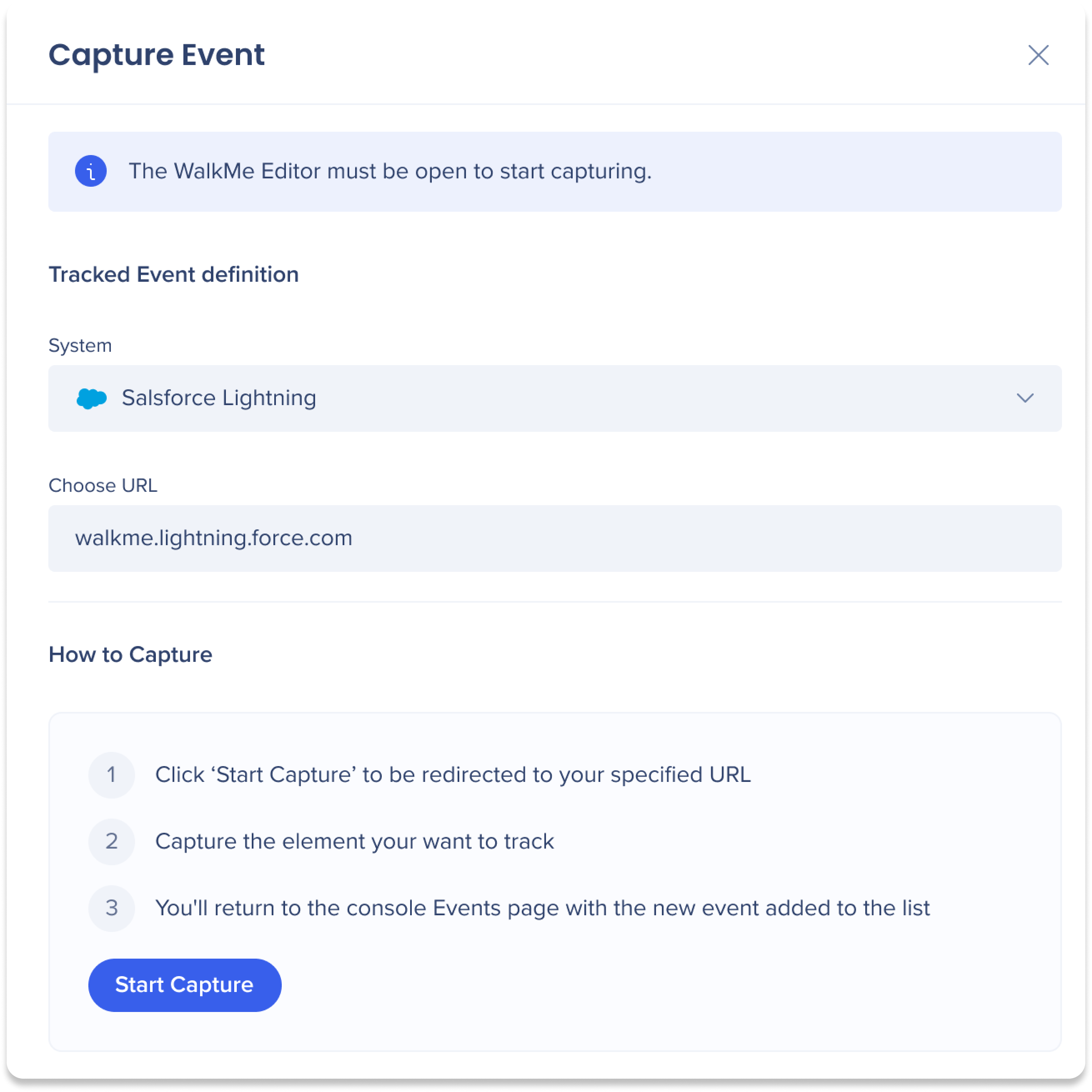
Observação
O WalkMe Editor deve estar aberto para começar a capturar.
-
Capture the element
-
Enter an event name
-
Select Done
The Tracked Event appears in the Management tab.
Best Practices
- Validate definitions using real-time data feedback
- Use Tracked Events as building blocks for funnels and advanced Insights reporting
- Review event definitions periodically to ensure continued accuracy
Collect Baseline Data with Engaged Elements or Tracked Events
Technical Notes
Prerequisites
- Full DXA is required for retroactive Click and Input tracking
- Page collection must be enabled for Page tracking
- The latest editor extension is required for capture
- Users must have access to the relevant system
Operator limitations
- Only the is equals operator is supported for new Tracked Events
- Deprecated operators are supported for existing events but cannot be edited
- Wildcards are supported (for example: /insights/*)
- Use the Contains operator only when necessary
- Integration filters apply only when events belong to the same system
- When creating rules manually, use either AND or OR, not both
Support and environment limits
- Only the Production environment is supported
- Desktop and mobile systems are not supported
- Mobile web data is not supported
- Action Bot, Quiz, and TeachMe are not supported
- Insights officially supports Chrome