Kurzübersicht
Verwenden Sie diesen Artikel, um häufige Anmeldefehler zu beheben – einschließlich SSO, Passwort und Editor-Anmeldeprobleme – und finden Sie heraus, ob Sie es selbst beheben können oder WalkMe kontaktieren müssen.
SAML SSO-Fehler
SSO teilweise konfiguriert
Wenn SSO nicht vollständig konfiguriert ist und Benutzer ihm bereits zugewiesen wurden, werden sie auf eine generische Seite weitergeleitet, anstatt sich im Produkt anzumelden.
Um dies zu beheben, führen Sie eine oder beide der folgenden Aktionen in den Admin-Einstellungen aus:
- Weisen Sie Benutzer einem vollständig konfigurierten SSO zu – gehen Sie zu Sicherheit und wählen Sie SSO, um zu bestätigen, dass alle Schritte im SSO-Assistenten abgeschlossen sind.
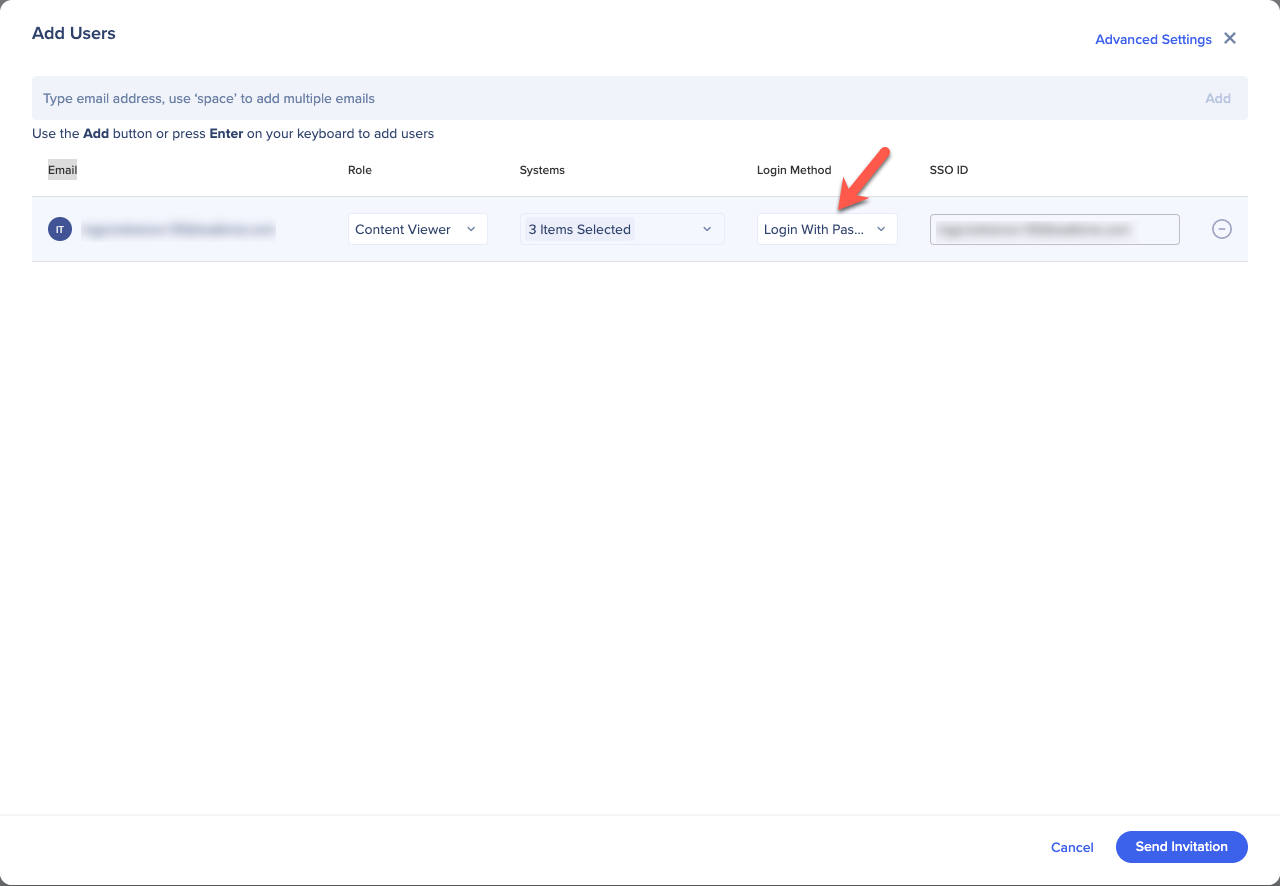
- Weisen Sie Benutzer stattdessen „Anmeldung mit Passwort als Anmeldemethode“ zu.
SSO-ID ist nicht korrekt konfiguriert
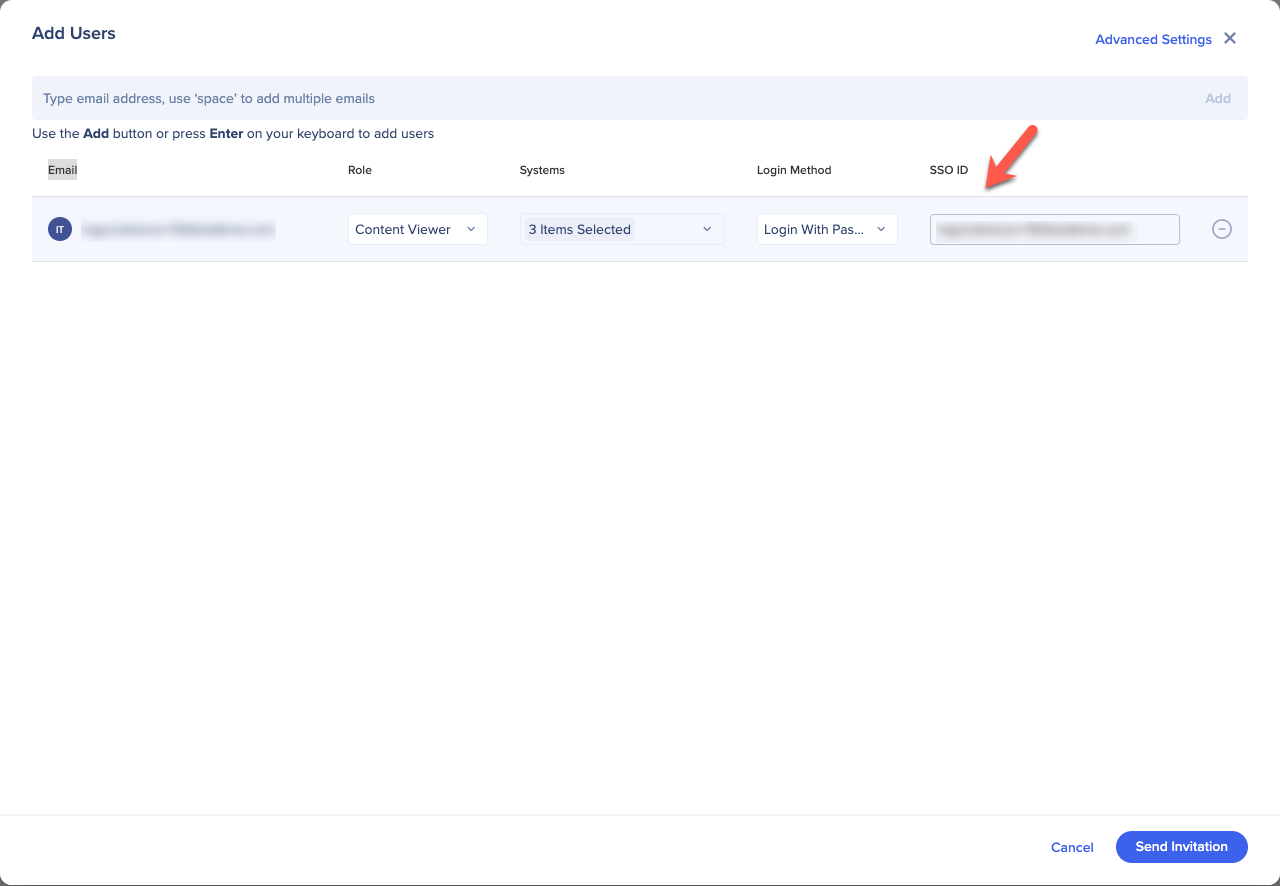
Wenn die SSO-ID (standardmäßig die E-Mail des Benutzers) nicht mit dem Wert in Ihrem Identitätsanbieter (IDP) übereinstimmt – wenn Sie beispielsweise eine eindeutige Zeichenfolge anstelle einer E-Mail verwenden –, sehen die Benutzer beim Anmeldeversuch den Fehler „Benutzererstellung deaktiviert“.
Um dies zu beheben, gehen Sie zum Admin Center, öffnen Sie den Assistenten zum Hinzufügen von Benutzern und überprüfen Sie das Feld SSO-ID, um zu bestätigen, dass es mit dem Wert in Ihrem IDP übereinstimmt. Nach der Korrektur senden Sie dem Benutzer eine neue Einladung.
SSO konfiguriert, funktioniert aber nicht
Wenn die Authentifizierung fehlschlägt, wurden einige Werte möglicherweise während der SSO-Einrichtung falsch eingegeben. Sie werden wahrscheinlich die Hilfe Ihres IT-Teams benötigen.
Zur Fehlerbehebung:
- Öffnen Sie die Registerkarte „Netzwerk“ in Ihrem Browser.
- Aktivieren Sie Protokolle aufbewahren, damit Anfragen auch dann gespeichert werden, wenn sich die Seite ändert.
- Bestimmen Sie, welcher Fall zutrifft:
Die Anfrage erreicht die SSO-Website nicht.
WalkMe-Einstellungen wurden nicht richtig angewendet. Gehen Sie zum Admin Center und bestätigen Sie, dass die Einstellungen in Schritt 3 des SSO-Assistenten korrekt sind.
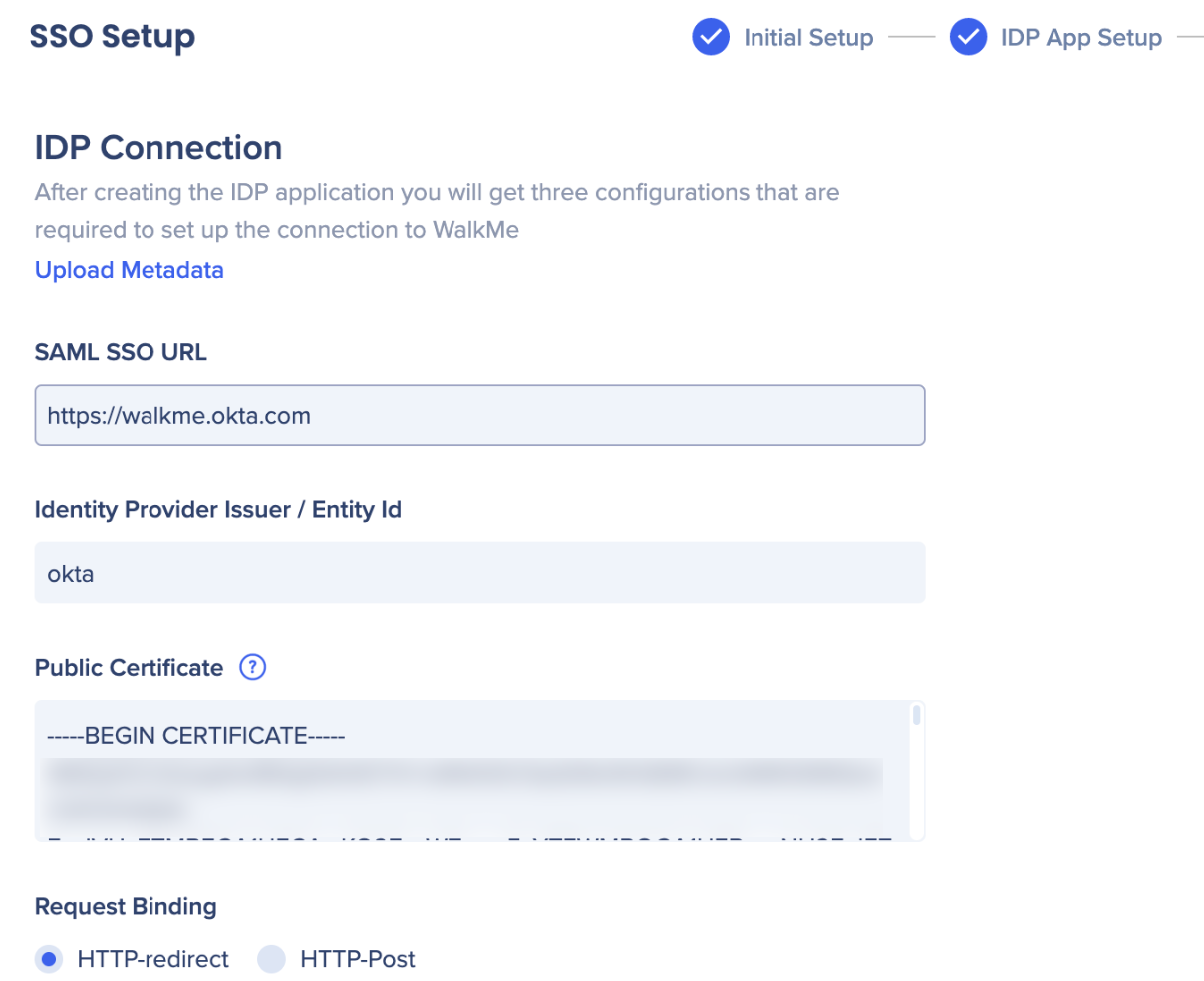
Für die erweiterte Fehlerbehebung: Suchen Sie nach samlRequest auf der Registerkarte Netzwerk, kopieren Sie die angeforderte URL und decodieren Sie sie unter https://www.samltool.com/decode.php. Vergleichen Sie die Werte mit Schritt 3 des SSO-Assistenten.
Der Benutzer hat sich authentifiziert, konnte aber das Produkt nicht aufrufen.
Dies ist das hufigste Szenario. Gehen Sie zum Admin Center und bestätigen Sie, dass die URL und die Entitäts-ID in Schritt 2 des SSO-Assistenten korrekt sind.
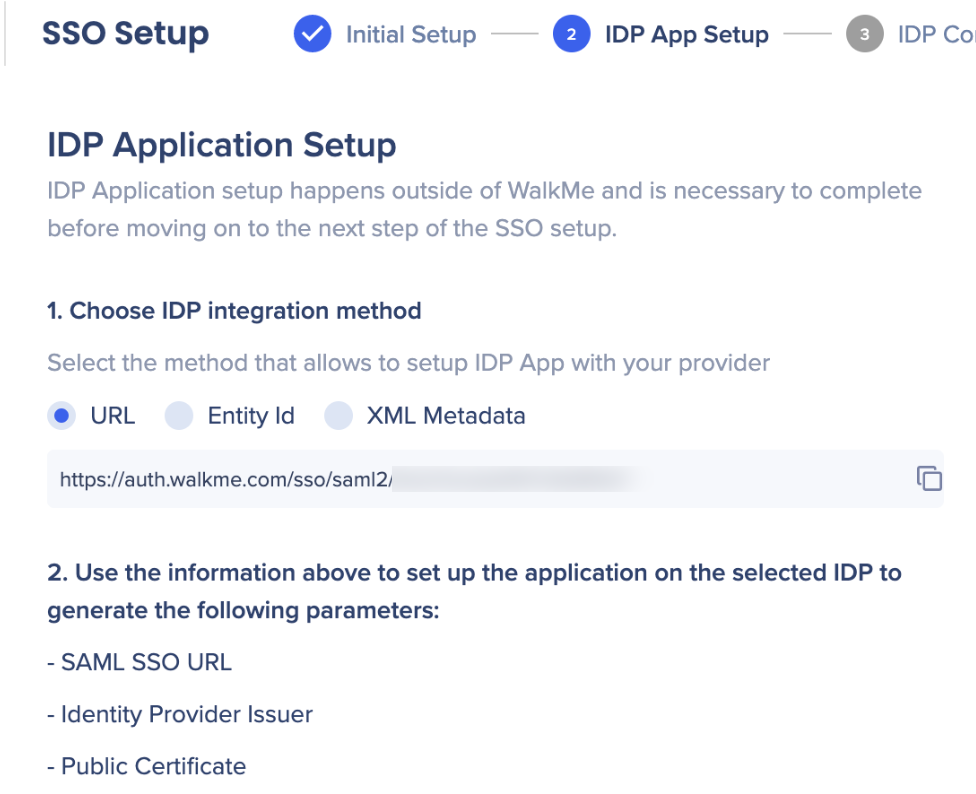
Für erweiterte Fehlerbehebung: Suchen Sie nach samlResponse auf der Registerkarte Netzwerk, kopieren Sie den SAMLResponse-Wert und dekodieren Sie ihn unter https://www.samltool.com/decode.php. Überprüfen Sie, ob Ziel, Aussteller und Zertifikat mit den Werten in Schritt 2 des SSO-Assistenten übereinstimmen. "Überprüfen Sie auch, ob der Nameid-Wert mit der SSO-ID im Benutzer-Raster übereinstimmt.
Anmerkung
Wenn Sie ein Support-Ticket öffnen, hängen Sie die samlRequest und samlResponse an, um den Prozess zu beschleunigen.
Außerbetriebnahme der Legacy SSO
WalkMe ist zu einer neuen SSO-Lösung gewechselt, die über das Admin Center verwaltet wird. Wenn Ihr Konto noch das Legacy-SSO verwendet, migrieren Sie so schnell wie möglich zur neuen Lösung. Anweisungen finden Sie im Artikel Single Sign-On.
Single Sign-On (SSO)
Passwort-Fehler
Falsche E-Mail-Adresse oder Passwort
Wenn Sie sich an Ihr Passwort nicht erinnern können, setzen Sie es auf der Anmeldeseite zurück. Sie erhalten eine E-Mail mit einem Reset-Link, der 30 Minuten lang gültig ist. Wenn die E-Mail nicht ankommt, überprüfen Sie Ihren Spam-Ordner.
Passwortstatus
Aktiv: Der Benutzer kann sich normal anmelden.
Ausstehende Benutzeraktivierung: Der Benutzer muss sein Konto mithilfe der von WalkMe gesendeten Einladungs-E-Mail aktivieren und sein erstes Passwort erstellen. Sie können sich erst dann anmelden, wenn dies erledigt ist. Der Einladungslink läuft nach 7 Tagen ab – wenn er abläuft, muss ein Admin das Benutzerkonto löschen und neu erstellen.
Gesperrt: Nach 10 fehlgeschlagenen Anmeldeversuchen ist das Konto gesperrt. Der Benutzer kann es nach einer Stunde erneut versuchen.
Wiederherstellung: Ausgelöst durch ein erzwungenes Passwort-Zurücksetzen vom Admin Center. Der Benutzer muss mithilfe der Rücksetzungs-E-Mail ein neues Passwort erstellen, das 2 Tage lang gültig ist. Überprüfen Sie den Spam-Ordner, wenn die E-Mail nicht ankommt.
Passwort abgelaufen: WalkMe-Passwörter verfallen alle 3 Monate. Nach Ablauf des Passworts wird der Benutzer aufgefordert, sein Passwort beim nächsten Anmeldeversuch zu aktualisieren.
Passwort-Verifizierungscode zurücksetzen
Wenn Sie ein Zurücksetzen des Passworts in einem Browser angefordert haben, aber den Zurücksetzungslink in einem anderen Browser geöffnet haben, sehen Sie einen Überprüfungscode anstelle einer Seite zum Zurücksetzen des Passworts.
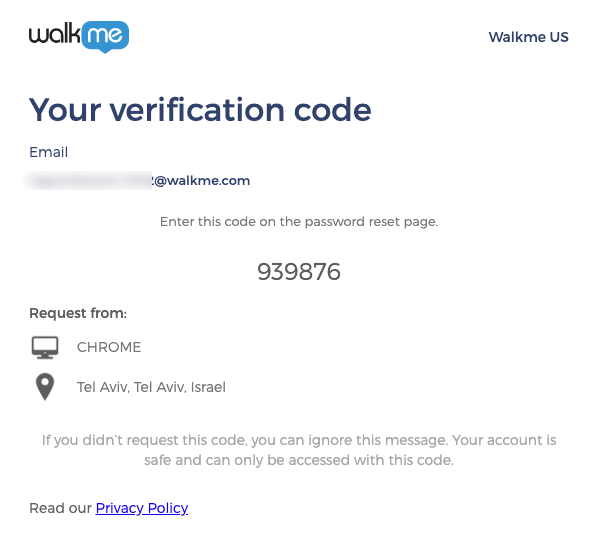
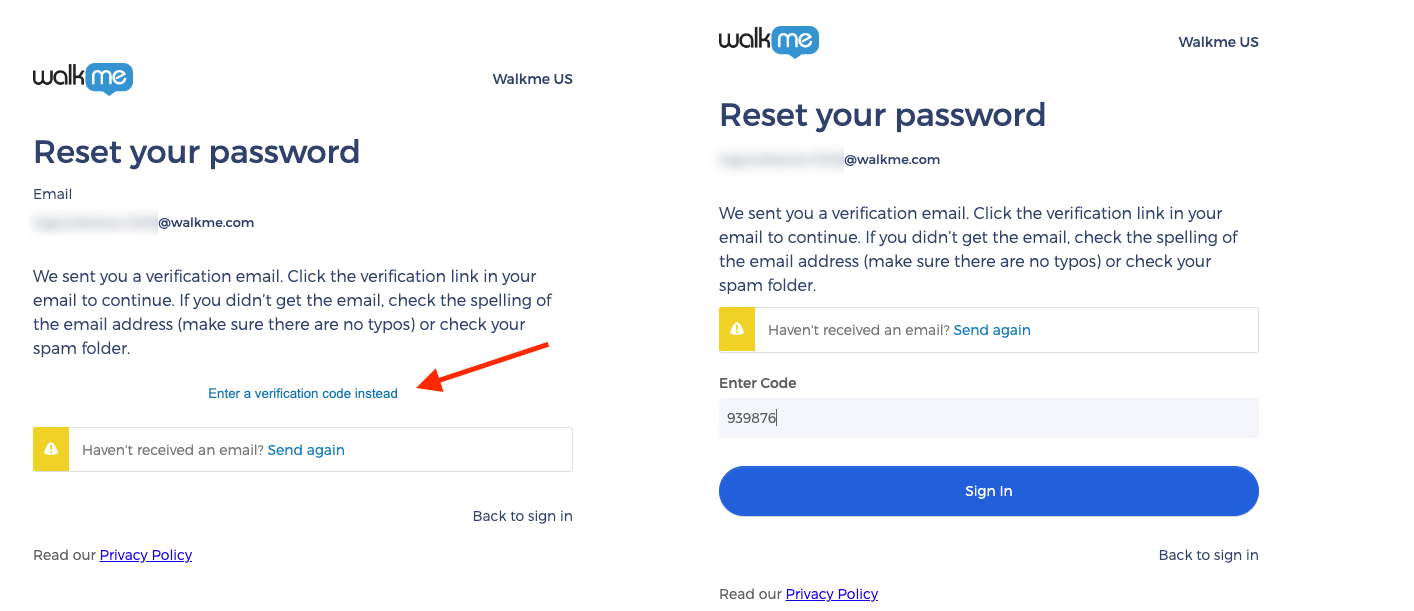
Um dies zu beheben: Kopieren Sie den Verifizierungscode, kehren Sie zum ursprünglichen Browser zurück, wählen Sie stattdessen Verifizierungscode eingeben und setzen Sie Ihr Passwort wie gewohnt zurück.
Anmeldefehler des Editors
Umgeleitete OAuth-Parameter können nicht aus dem Speicher abgerufen werden
Löschen Sie Ihren Browser-Cache und Ihre Cookies und versuchen Sie es erneut.
„Das JWT wurde in der Zukunft ausgestellt“ oder „Das JWT ist abgelaufen, bevor es ausgestellt wurde“
Dieser Fehler wird angezeigt, wenn die Uhr Ihres Computers nicht mit der Uhr von WalkMe übereinstimmt. Die maximal zulässige Differenz beträgt 5 Minuten.
- Wenn Ihre Uhr hinter der von WalkMe zurückbleibt: „Das JWT ist abgelaufen, bevor es ausgestellt wurde“
- Wenn Ihre Uhr vor der von WalkMe ist: „Das JWT wurde in der Zukunft ausgestellt“
Stellen Sie sicher, dass Datum und Uhrzeit Ihres Computers für Ihre Zeitzone korrekt eingestellt sind.
Konnte keine Aktion „Get all Action“ ausführen
Dieser Fehler wird angezeigt, wenn Sie Ihrem Konto kein System zugewiesen haben. Bitten Sie einen Admin, Ihnen ein System zuzuweisen und versuchen Sie erneut, sich anzumelden.


