Pre-requisites
- You must have Visual Builder Studio set up which includes the following:
- Creating a Visual Builder Studio instance
- Assigning users to the correct roles
- Visual Builder Studio configured correctly for building/deploying applications to your chosen environment
Create a project
Note: These instructions assume that you do not have an existing Project set up that you wish to make the modifications in.
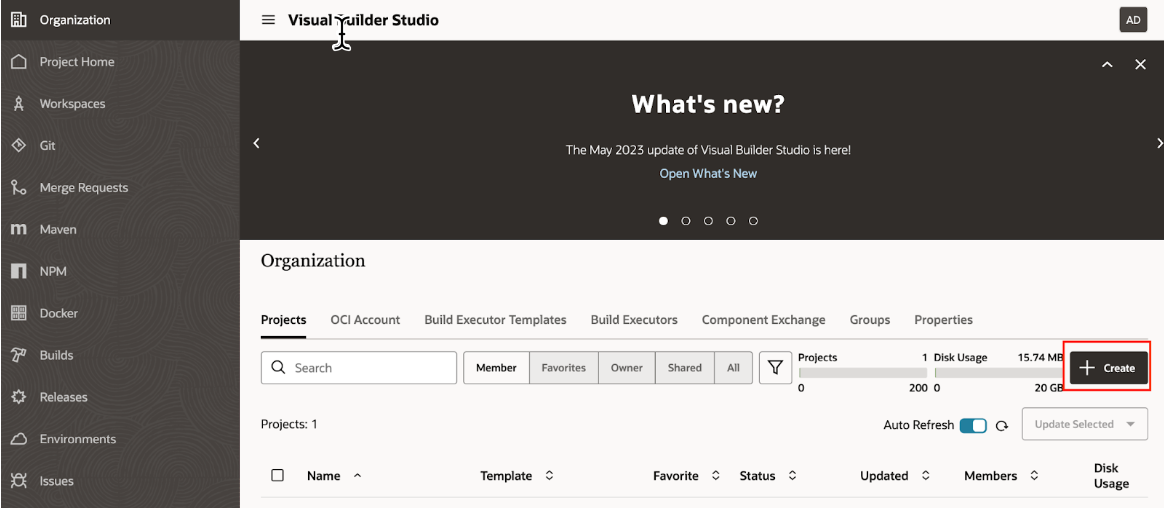
- In the VB Studio Console go to the Organization tab
- Click Create above the list of Projects
- Give your project a name ie “WalkMe Snippet”
- Select Empty Project

- Choose defaults for all others or as direct by your Oracle admin
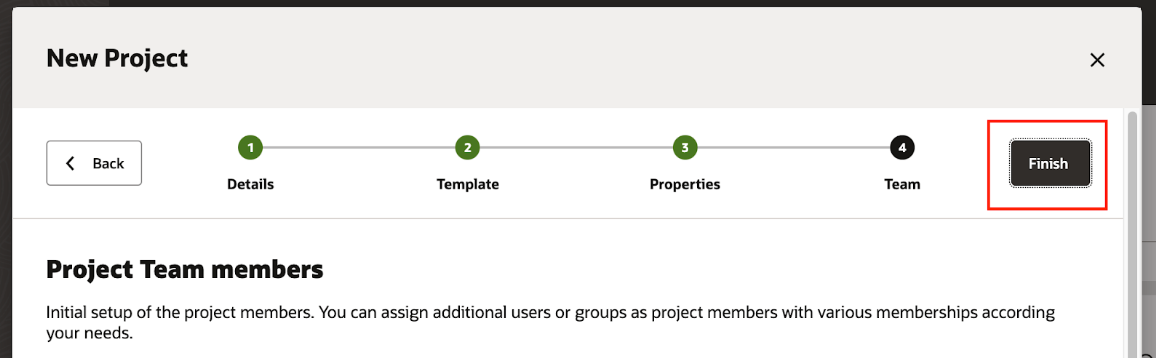
- Click Finish
Create an Environment
- In VB Studio Console, open your project and navigate to Environments tab
- Click Create Environment

- Give your environment a name and (optional description)
- Click Create
- Note: This is a container for an actual Oracle environment. For example: DEV1, TEST, UAT

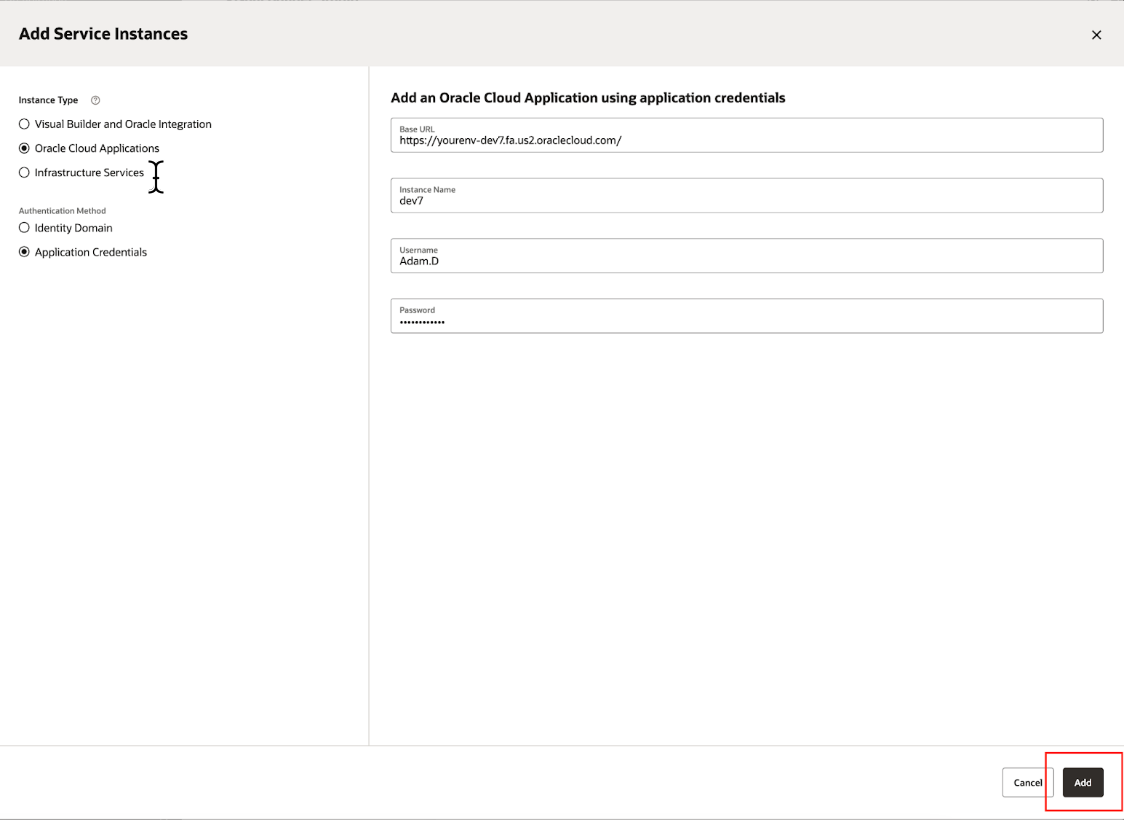
- Open the environment and click Add Instance

- Select the following:
- Instance Type: Oracle Cloud Applications
- Authentication Method: Application Credentials
- Under Add an Oracle Cloud Application using application credentials enter the following:
- Base URL: The URL users use to access the environment
- Instance name: A descriptive name for this environment
- Username: User credentials for an admin with sufficient permissions to develop applications
- Password: password
- Click Add
- Now your instance should be available
Create an Application Extension
- In the VB Studio Console, open your project and go the Workspaces tab
- Click New
- Click New Application Extension

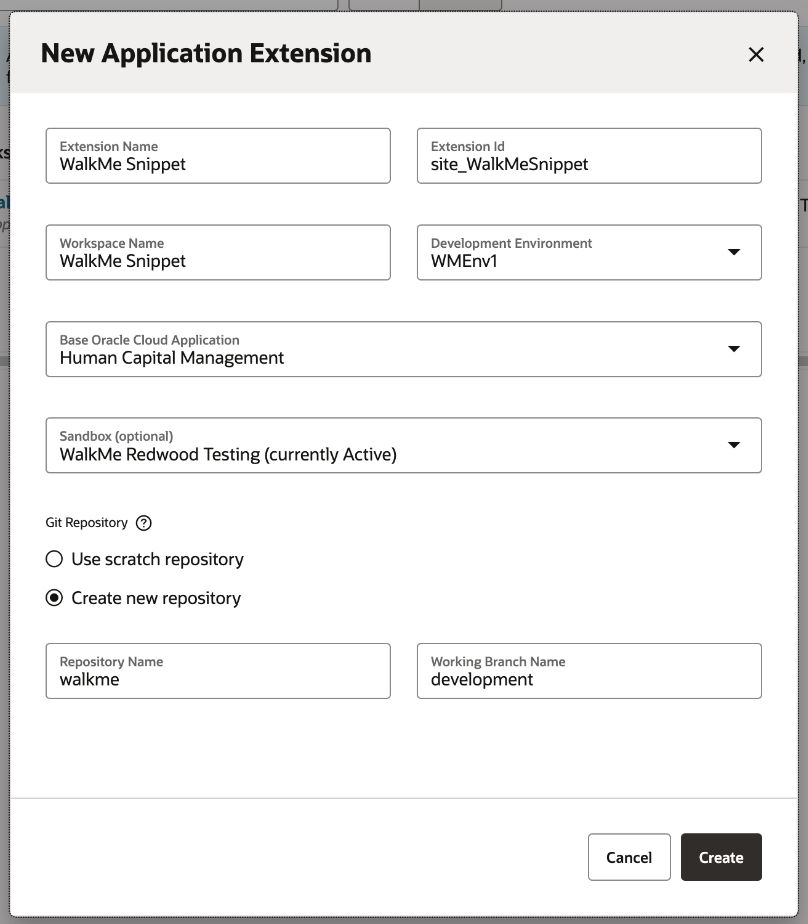
- Enter the following information in the New Application Extension popup
- Extension Name: WalkMe Snippet
- Workspace Name: Leave as default
- Development Environment: Select the Environment you created earlier, or as directed by your Oracle admin
- Base Oracle Cloud Application: Human Capital Management (for the main Oracle HCM Redwood pages)
- Sandbox: As directed by your Oracle Admin
- Git Repository: Create new repository
- Repository Name: walkme (or as directed)
- Working Branch Name: development (or as directed)
- Click Create
Note: Human Capital Management might not be the only application in use where you need WalkMe. If extending this application doesn't cover all areas, see the section at the end of this document: Finding the correct application to extend
Now the Workspace will be automatically opened.
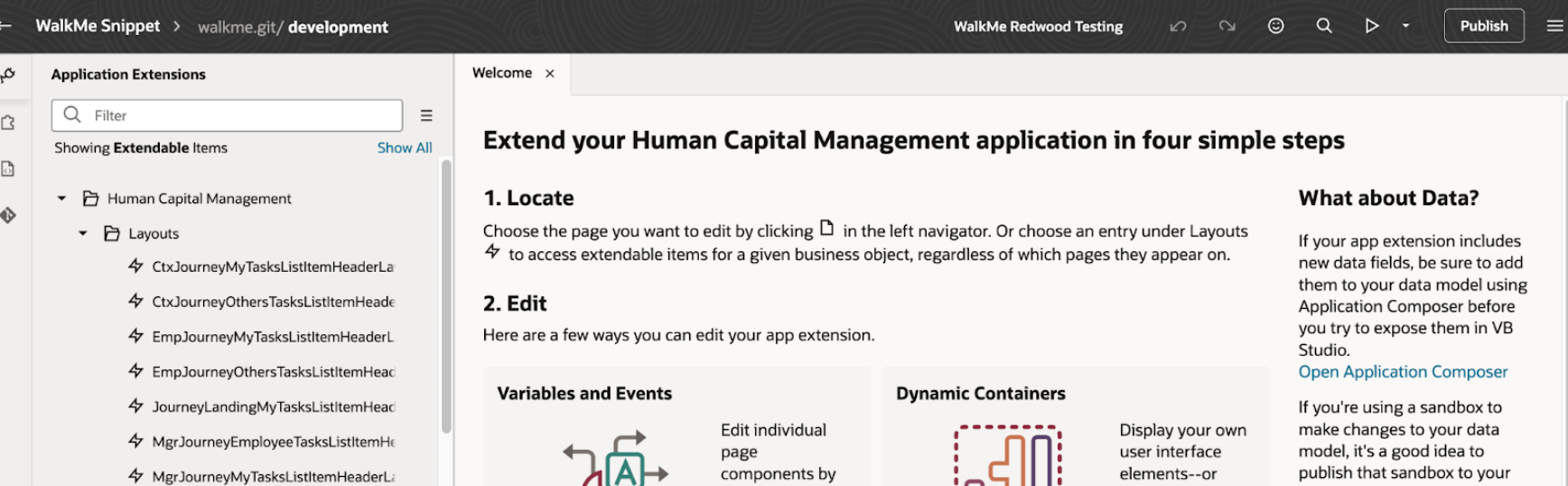
Add the WalkMe Snippet and Deploy
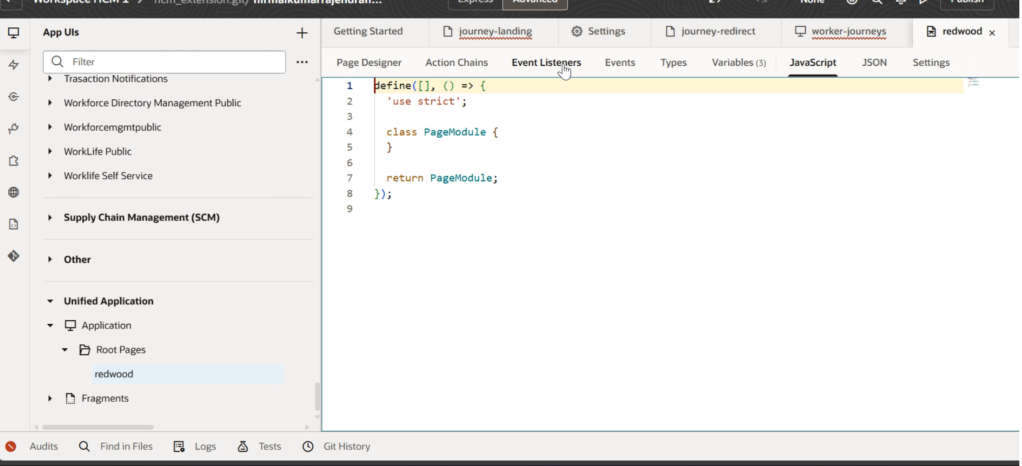
- If you are not already in the Workspace, open the VB Studio Console and go to: Organization > Projects > Your project > Workspaces > Your workspace
- Under App UIs, locate the Unified Application
- Under Unified Application, expect Root Pages and select redwood
- Click JavaScript tab
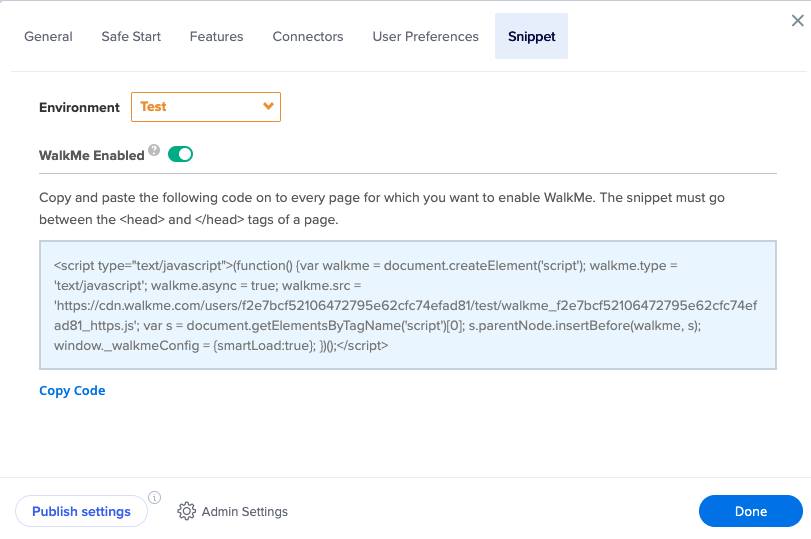
5. Paste the WalkMe Snippet (without the <script></script> tags) inside the define function call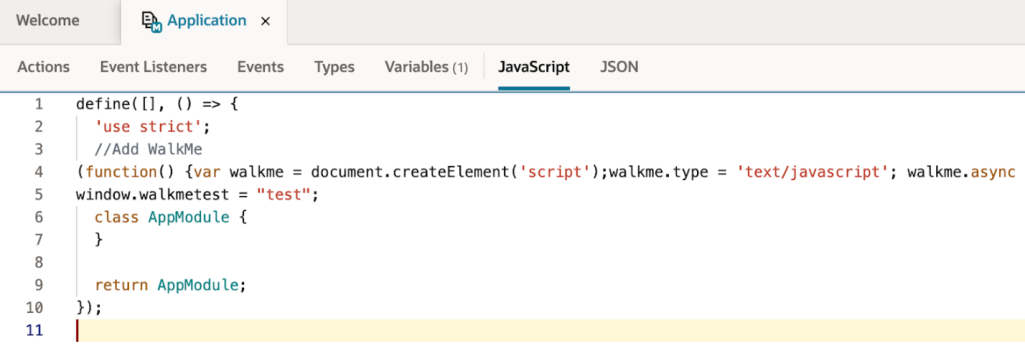
6. Click Publish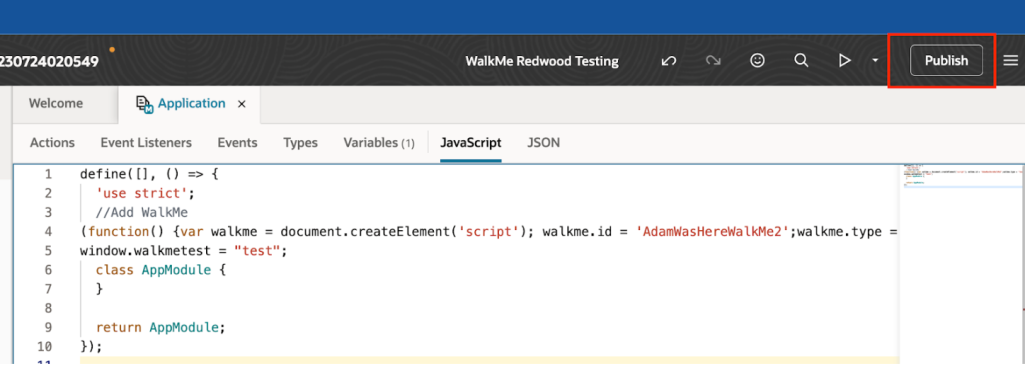
7. Select Merge now or Merge After review (as directed by your Oracle admin)
8. Add a comment for the Commit Message
9. Click Publish Changes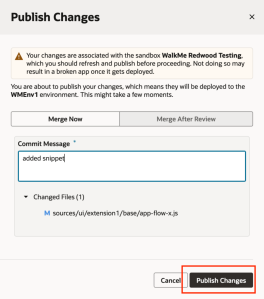
Note: You may get a warning about the sandbox needing a refresh - we advise customers to do as instructed and refresh before publishing. 
10. You should get a confirmation. Click Close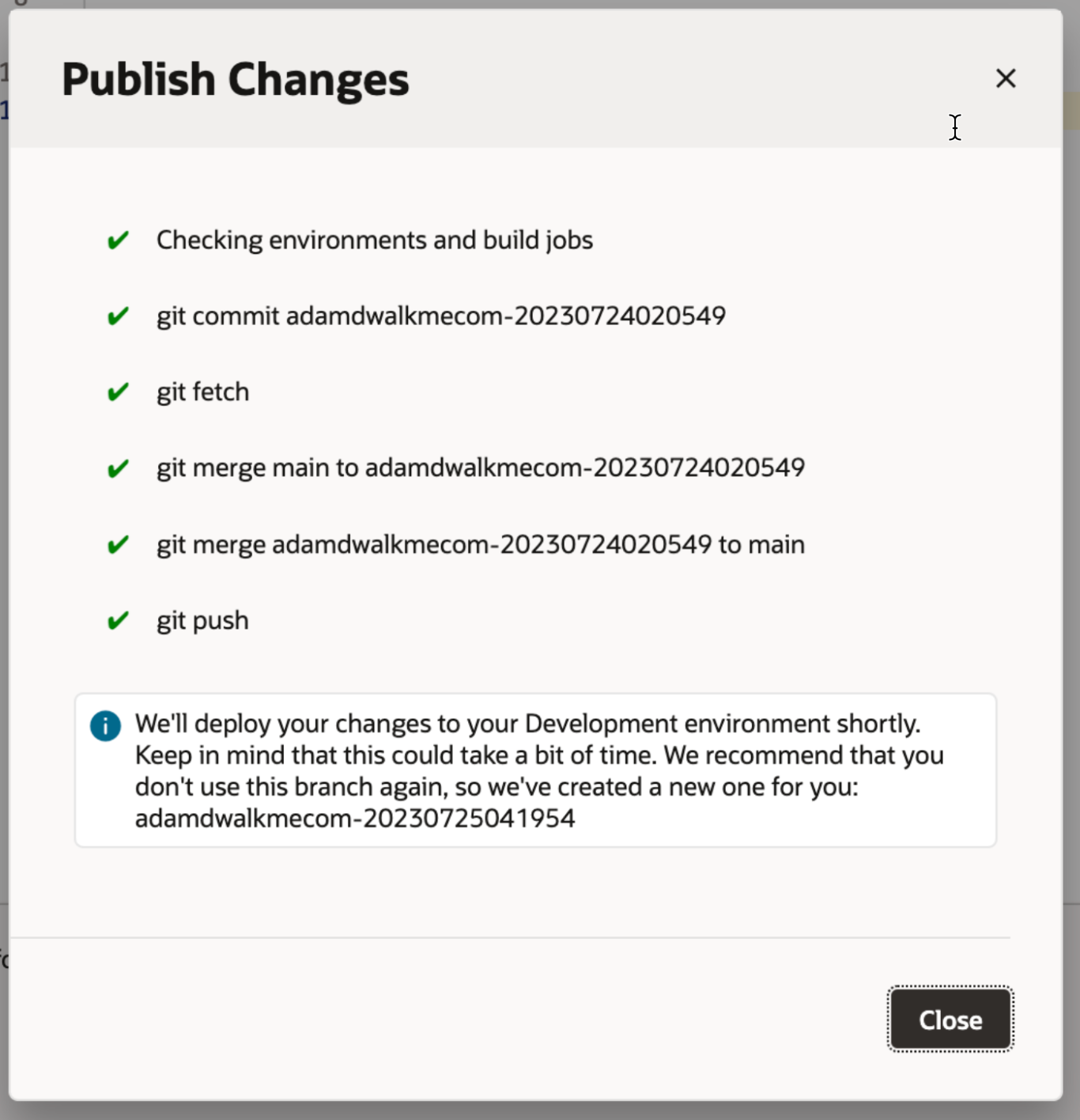
You can check the status of the deployment from VB Studio console > Builds > Job Queue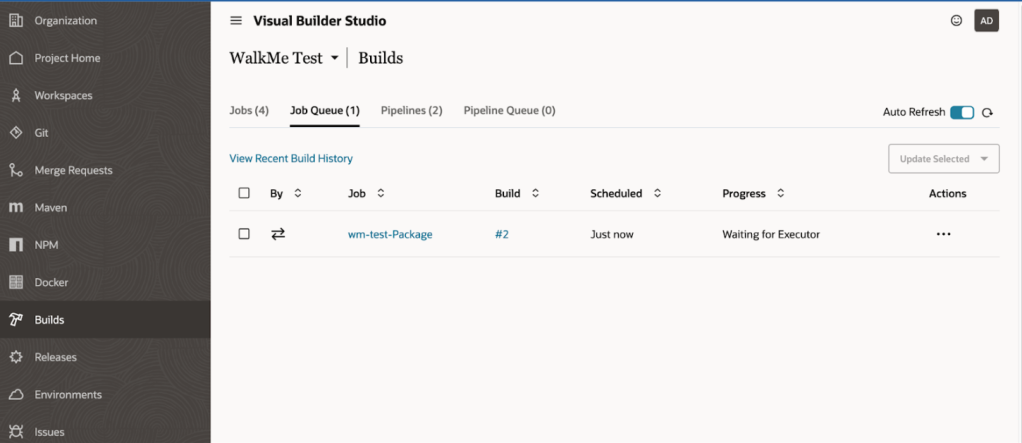
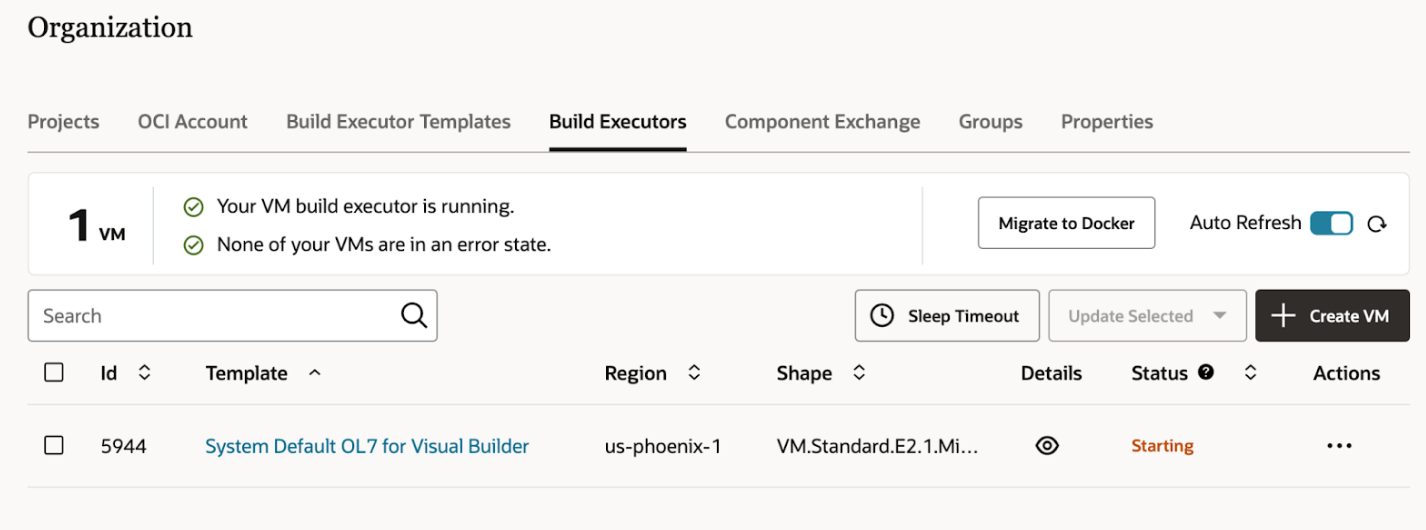
Note: If you see Waiting for Executor in the Progress column, make sure an Executor has been provisioned under VB Studio console > Organization > Build Executor.
You can create one here if directed by your admin, which may take up to 30 minutes to start up. The deploy job will continue automatically once the Executor is created/started.
Remove (back out) an Extension
- If you are not already in the Project, open your VB Studio Console and navigate to your project: Organization > Projects > Your project
- In the navigation menu, click Builds > Builds
- Enter a unique name under the Name field in the New job dialog box
- Enter the job's description in the Description field
- Select System Default OL7 for Visual Builder in Template
- Click Create
- On the Job Configuration page, click Configure > Configure
- Click the Steps tab
- Select Application from Add Step
- Select Delete
- Select the Oracle Cloud Applications instance where the application is deployed in Instance
- In Username and Password, enter the credentials of an IDCS user who is not only an Oracle Cloud Applications user, but one who can connect and undeploy from the Oracle Cloud Application's production instance
- In Base Application, Name, and Version, enter the extension's base application, name, and version
- You can find the details on the Deployments tab of the environment where the extension is deployed
- Click Save
- Click Build Now to run a build
Finding the Correct Application to Extend
Choosing the correct application to extend is key to the successful injection. If you extend the wrong application, nothing will happen (well, SOMEONE will get WalkMe, just not where you expect!)
If the pages the customer wants WalkMe on are not part of the Human Capital Management, you'll need to create an additional extension (or multiple) and perform the same process there.
To get started, navigate to the page where you want WalkMe to inject, and inspect the document:

Search the DOM for a script resource called app.json. On the script attribute data-requiremodule it will contain a URL, in the format …/applications/<application name>/app.json
The <application name> is the name of the application you will want to extend: