Brief Overview
SAML (Security Assertion Markup Language) is an open standard that lets your identity provider authenticate users and pass their attributes to WalkMe for segmentation and analytics. WalkMe supports SP-initiated flow.
For background on how IDP Integration works, supported protocols, use cases, and prerequisites, refer to the IDP Integration article before getting started.
IDP Integration
Prerequisites
Before setting up SAML IDP Integration, complete the following two steps in your identity provider.
The following instructions are generic — locate the equivalent settings in your specific identity provider.
- SSO URL (Single Sign-On URL): The URL at your IdP to which SAML authentication requests are sent
- X.509 Signing Certificate: The certificate WalkMe uses to validate the signature of authentication assertions signed by your IdP. Download the signing certificate from your IdP. If it isn't in .pem or .cer format, convert it before uploading
Note
Before uploading the X.509 signing certificate to WalkMe, convert the file to Base64. Use an online tool or run the following command in Bash:
cat cert.crt | base64
A Sign Out URL is not required.
Add WalkMe as a service provider in your identity provider so it knows how to receive and respond to SAML authentication requests. The following instructions are generic — locate the equivalent screens and fields in your specific identity provider.
- In your identity provider, locate the SAML configuration screens. If your IdP supports uploading a metadata file, upload the WalkMe metadata file directly instead of configuring manually
- Add the Assertion Consumer Service URL for your data center. Your IdP may call this the Assertion Consumer Service URL or Application Callback URL:
- US: https://papi.walkme.com/ic/idp/p/saml/callback
- EU: https://eu-papi.walkme.com/ic/idp/p/saml/callback
- SAP US: https://papi-us01.walkme.cloud.sap/ic/idp/p/saml/callback
- SAP EU: https://papi-eu01.walkme.cloud.sap/ic/idp/p/saml/callback
- Canada: https://papi-ca1.walkmedap.com/ic/idp/p/saml/callback
- FedRAMP: https://papi-walkmegov.com/ic/idp/p/saml/callback
- If your IdP has an Audience or Entity ID field, enter the WalkMe Entity ID for your data center:
- US: https://papi.walkme.com
- EU: https://eu-papi.walkme.com
- SAP US: https://papi-us01.walkme.cloud.sap
- SAP EU: https://papi-eu01.walkme.cloud.sap
- Canada: https://papi-ca1.walkmedap.com
- FedRAMP: https://papi.walkme.gov.com
- If your IdP offers a choice of bindings, select HTTP-Redirect for Authentication Requests
Tip
You can upload WalkMe's information into your IdP as a metadata file instead of copying and pasting each field individually.
Set Up SAML IDP Integration
- Open the IDP Integrations page in the WalkMe Console:
- Select + Add Identity Provider
- Select SAML as the protocol type
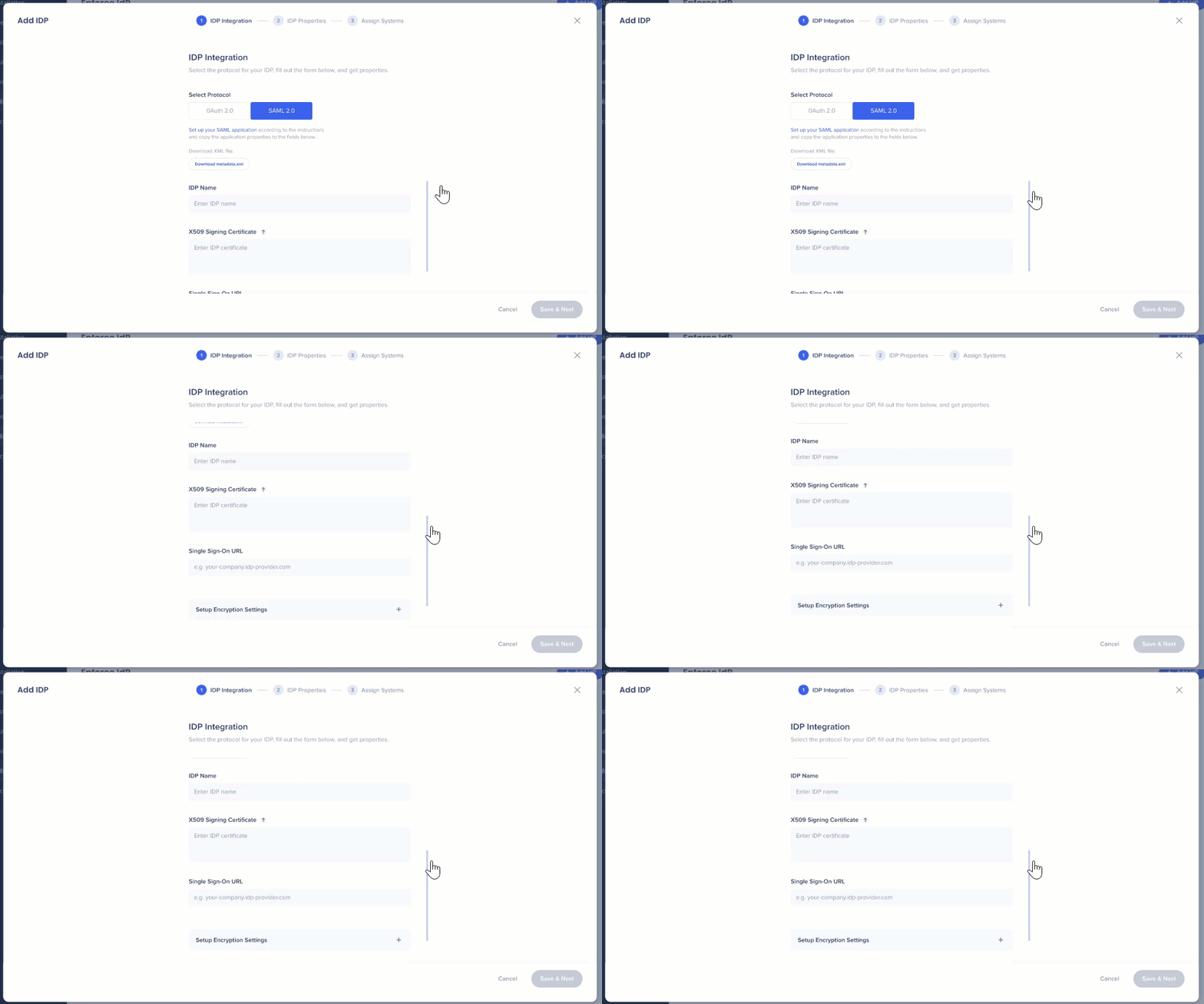
- Fill in the required fields:
- IDP name: Type a name for the connection
- Single Sign-On URL: The Single Sign-On URL from your identity provider
- X.509 Signing Certificate: Upload the certificate you downloaded from your identity provider
- To increase transaction security, optionally configure encryption settings. WalkMe generates a certificate unique to your account — the public key is shared with your IdP:
- AuthnRequest: Signs the SAML authentication request using WalkMe's private key
- Assertion Encryption: Receives encrypted assertions from your IdP. Provide the public key certificate to your IdP, which uses it to encrypt the SAML assertion before sending it to WalkMe for decryption
- Select Save & Next
For the remaining setup steps — including selecting a user identifier, importing properties, assigning systems, and configuring Enforce SSO — refer to the IDP Integration: Getting Started Guide.
IDP Integration: Getting Started Guide


