Brief Overview
The Language and Translations page lets you manage the source language for your learning content, pick default translation languages that every new learning item starts with, control whether learners can translate content in real time, and set the default language learners see in the portal.
Access
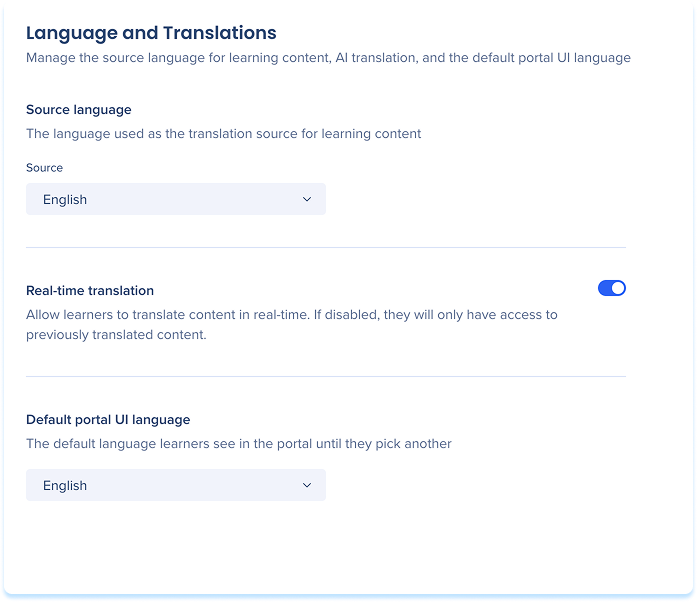
Access Language and Translations in the console:
- Open the WalkMe Console:
- Go to the Content category
- Select Learning Arc and select the Settings tab
Source Language
Set the language used as the translation source for all learning content in the portal.
- Choose a language from the Source dropdown
Notes
- Changing the source language sets the base used for translations and content created with AI. It doesn't change or re-translate your existing learning item's content.
- Changing the default affects new content only. Existing content keeps its source language.
- You can change a single learning item's source language from the Translations drawer or from Content details.
- If you set the source language to a language in Default translation languages, that language is removed from the defaults list.
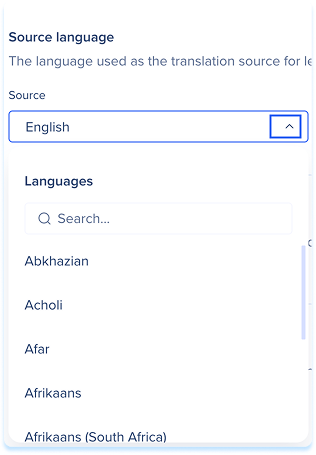
Simulation source language
Default Translation Languages
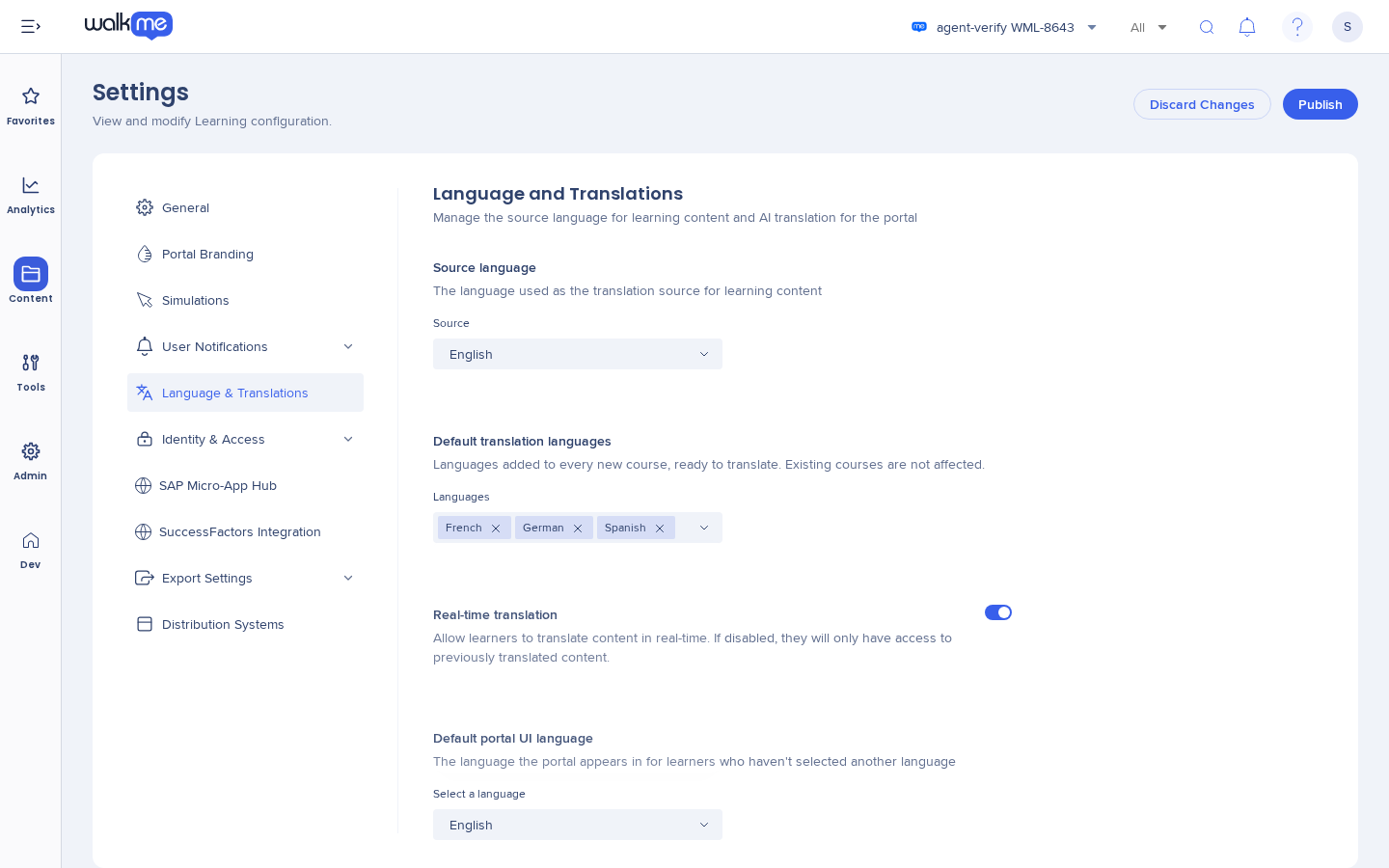
Pick the languages your learning content is always translated into. Every new learning item then starts with these languages in its Translations tab, ready to translate. Nothing is translated automatically.
- Under Default translation languages, open the Languages dropdown
- Select each language to add
- Selected languages show as chips in the field
- To remove a language, select the x on its chip
- Select Publish
Defaults apply only when a learning item is created. To add or remove a language on an existing learning item, see Translate Learning Content.
Notes
- Defaults apply to new learning items only, including learning items created with AI. Existing learning content keeps its languages when you change the defaults.
- Default languages show in a new learning item's Translations tab with the status Not translated. Each row has the usual menu: AI Translation, Publish Language, and Delete Language.
- Learners don't see a default language until you publish a translation in it.
- A duplicated learning item gets exactly the original's languages, with no defaults added.
- A default language that matches a learning item's source language is skipped for that learning item.
- With no defaults selected, a new learning item has only its source language.
Real-Time Translation
- Turn on Real-time translation to let learners translate content into their preferred language in the portal
- Turn it off so learners see only previously translated content. When it's off, the portal offers learners no AI translation languages.
Standalone simulations
Learners can also translate standalone simulations in real time.
- In a standalone simulation, learners select the language button next to Close and choose a language in Language preferences.
- An AI translated label shows while the simulation is translated. Learners select Original language in its hover text to go back.

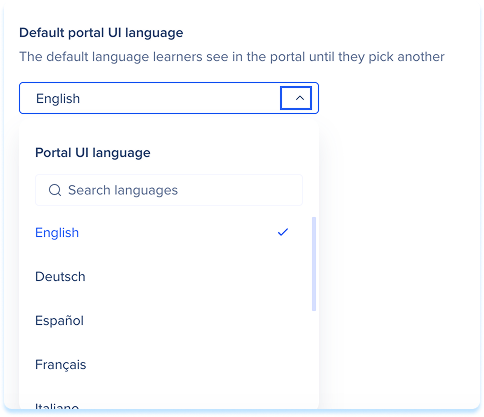
Default Language
Set the language learners see when they first open the portal. It applies to both the portal interface and the learning content.
- Select a language from the Select a language dropdown
Notes
- Learners can change their language in Language preferences in their profile menu.
- The default applies only to learners who have no language stored in their browser. A language a learner picked, or one stored on an earlier visit, stays in place when you change the default.
- A language a learner picks in a learning item's own language menu applies to that item only.
- If a learning item has no published translation in the default language, learners see an AI translation when Real-time translation is on, or the source language when it's off.
Technical Notes
- Real-time translation is not available for FedRAMP environments
- Real-time translation doesn't translate a simulation's success messages, error popups, and their buttons
- learning journey uses the default source language in Settings at the time you create it, and you can't change it later. Each course in the learning journey keeps its own source language.


