Brief Overview
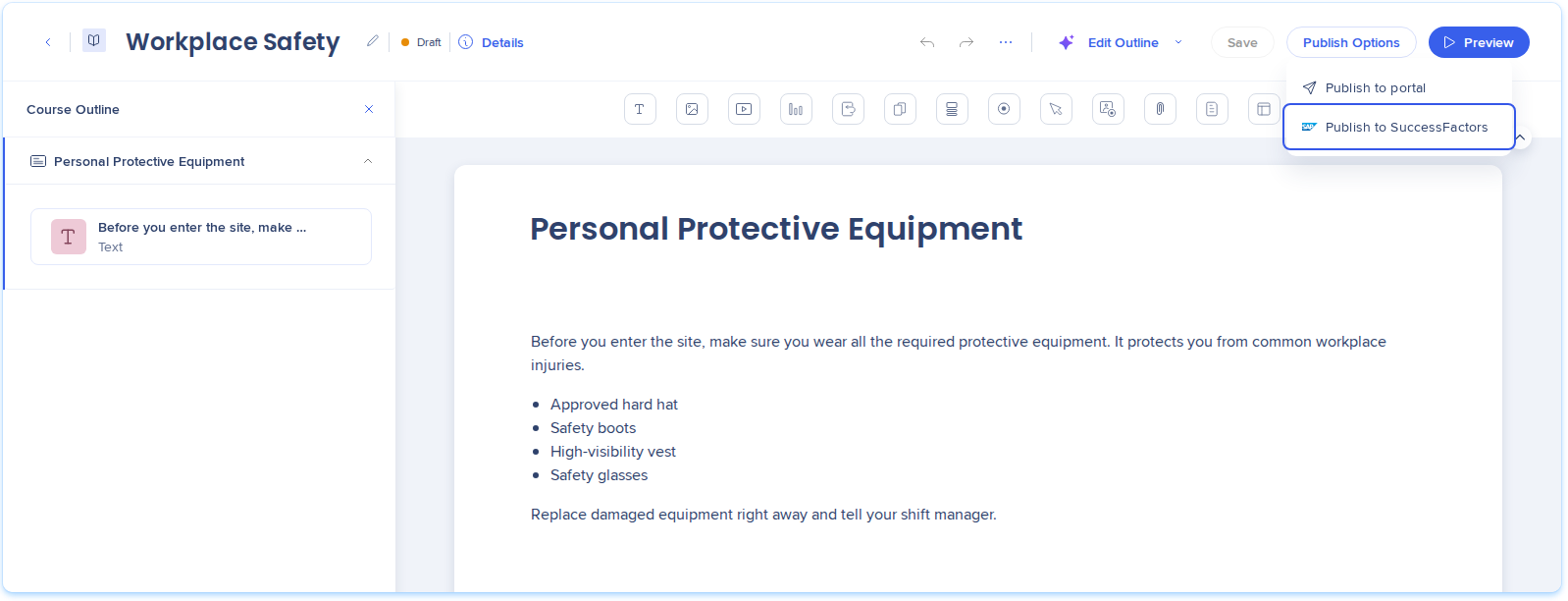
The SAP SuccessFactors integration connects WalkMe Learning Arc to your SAP SuccessFactors Learning tenant. Content creators send a course or microlearning to SuccessFactors from the learning content builder, with no file to download and upload again.
You can send a course in 2 ways:
- Publish to SuccessFactors: Sends the course as a SCORM package, so SuccessFactors tracks completion and score
- Export to SuccessFactors: Sends the course as a PDF, Word, or SCORM file
Use Cases
- Deliver Learning Arc courses to employees who learn in SuccessFactors
- Track course completion and score in SuccessFactors reports
- Keep 1 source course in Learning Arc and update the SuccessFactors copy from there
Setup
Before you start
Have the following ready from SuccessFactors:
- An OAuth2 client registered in SuccessFactors Admin Center, under Manage OAuth2 Client Applications. Registering it gives you an API key and a certificate file (Certificate.pem)
- Your SuccessFactors URL, LMS URL, and company ID
- The SuccessFactors user ID the integration acts as
Connect SuccessFactors
- In Learning Arc, open Settings and then select Integrations
- On the SAP SuccessFactors card, check the status
- Select Connect on the card
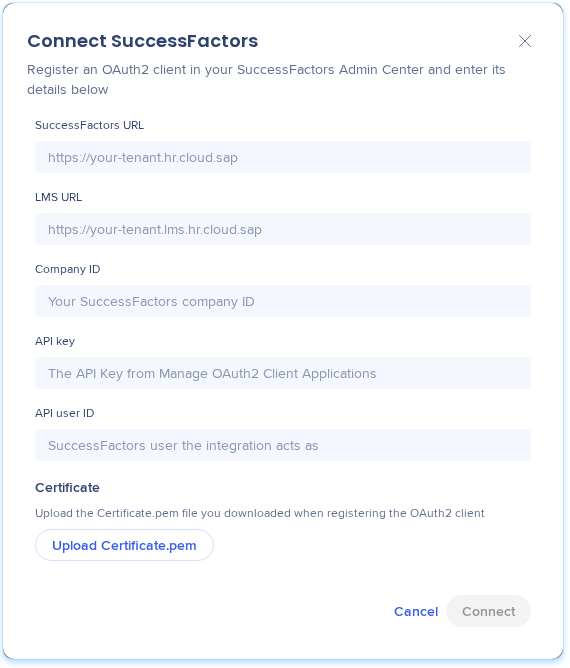
- Fill out the fields:
- SuccessFactors URL: Your SuccessFactors address, for example https://your-tenant.hr.cloud.sap
- LMS URL: Your SuccessFactors Learning address, for example https://your-tenant.lms.hr.cloud.sap
- Company ID: Your SuccessFactors company ID
- API key: The API key from Manage OAuth2 Client Applications
- API user ID: The SuccessFactors user the integration acts as
- Under Certificate, select Upload Certificate.pem and locate the file from your OAuth2 client registration
- Select Connect
Update or delete the integration
- To change the connection details, open the SAP SuccessFactors card and select Update integration
- To disconnect, select Disconnect on the SAP SuccessFactors card, then confirm. The card shows Not connected. Learning Arc stops sending to SuccessFactors and discards the stored credentials. Learning content you already sent stays in SuccessFactors
How It Works
Learning Arc stores 1 SuccessFactors connection per account. After you connect, you send courses from the learning content builder, and SuccessFactors returns a link to finish setting up each course there. Each course goes with its language, time to complete, and cover image.
Publish learning content to SuccessFactors
- Open the learning item in the builder
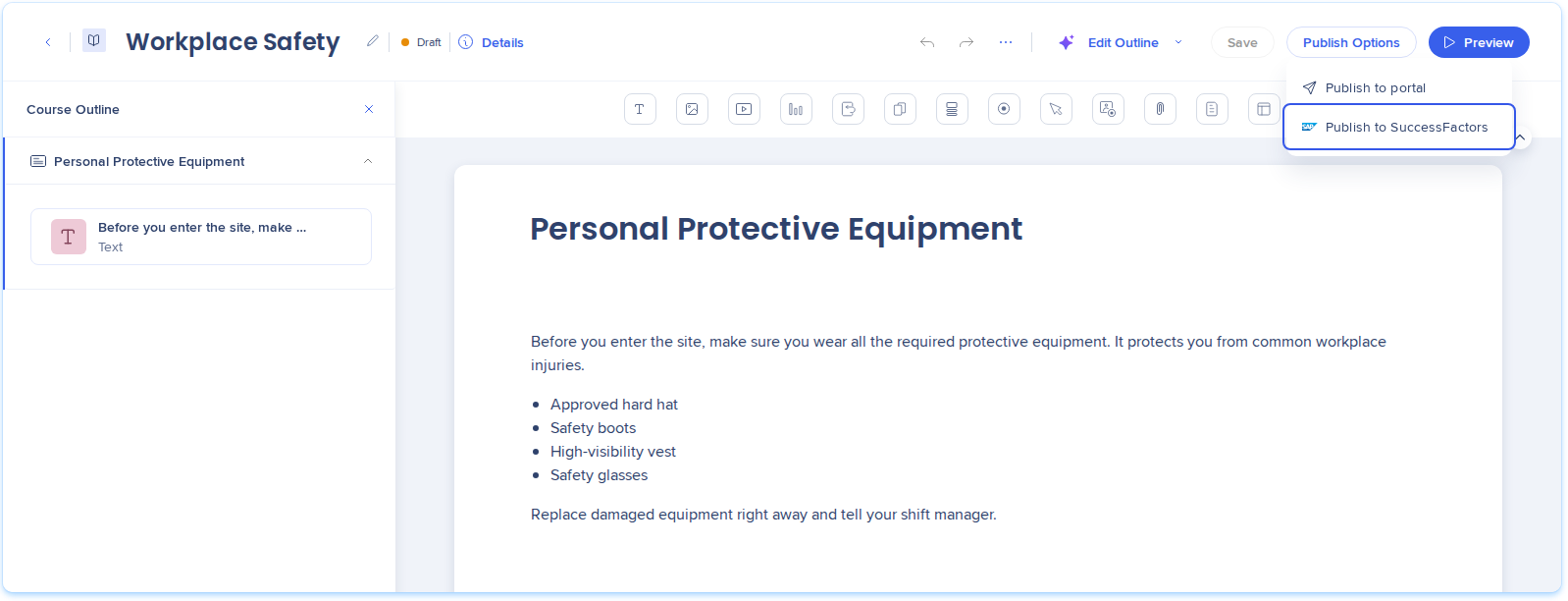
- Open the Publish Options menu and select Publish to SuccessFactors
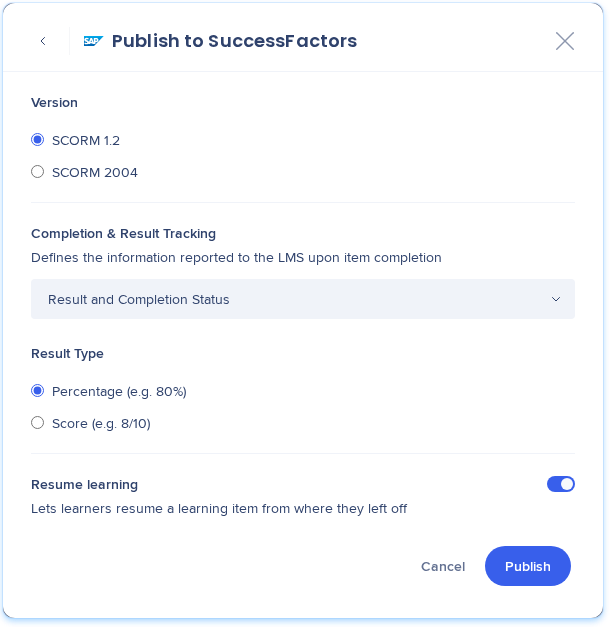
- Choose the SCORM settings:
- Version: SCORM 1.2 or SCORM 2004
- Completion & Result Tracking: Result and Completion Status
- Result Type: Percentage or Score
- Resume learning: Turn on to let learners continue where they stopped
- Select Publish
- After SuccessFactors receives the course, select Open in SuccessFactors to finish publishing there. For the steps in SuccessFactors, see SAP's Creating Online Courses
Note
Publish to SuccessFactors doesn't publish the course to your portal. To do both, also select Publish to portal.
Export learning content to SuccessFactors
- Open the learning item in the builder
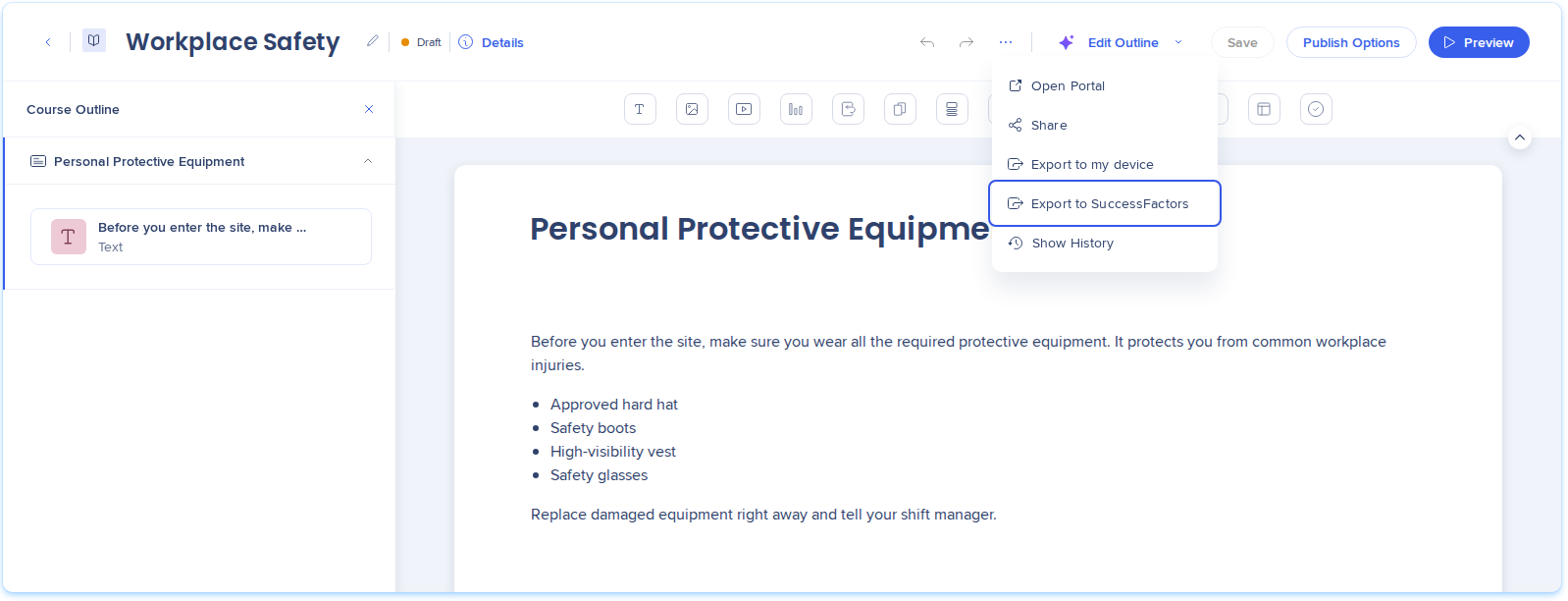
- Open the Options menu and select Export to SuccessFactors
- Under Choose an export format, choose PDF, Word, or SCORM
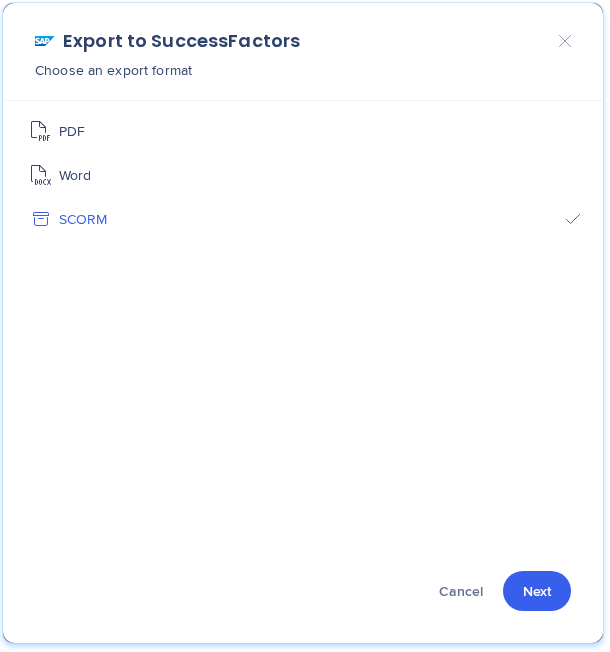
- Select Next and finish the steps for that format
- After SuccessFactors receives the file, select Open in SuccessFactors
While a request to SuccessFactors runs, Publish to SuccessFactors and Export to SuccessFactors are unavailable.
After you send learning content
- In the success message, select Open in SuccessFactors. The new item opens in the SuccessFactors admin center, in a new tab
- Finish setting up the item in SuccessFactors. For the steps, see SAP's Creating Online Courses
- Add the item to a library, so learners can find it. The item arrives with no library assignment
Learning Arc doesn't get anything back from SuccessFactors. For completion and score of a SCORM item, use SuccessFactors reports. The item in Learning Arc shows no sign that it was sent.
Technical Notes
Requirements
- An LMS admin must finish the WalkMe integration setup in SuccessFactors before you can publish courses
- To connect SuccessFactors, you need Settings access. To publish, you need builder rights. For details, refer to Roles & Permissions - WalkMe Learning Arc.
Limitations
-
The learning item package can be up to 10 MB
-
SuccessFactors allows titles up to 255 characters and descriptions up to 4,000 characters, and shortens longer ones. Learning Arc warns you before it sends the learning item
-
PowerPoint export isn't available for SuccessFactors
-
Only SCORM reports completion and score back to SuccessFactors. PDF and Word are documents
-
An imported course has no library assignment. An LMS admin assigns one before learners can find it
-
Publishing an item again doesn't update the copy in SuccessFactors
-
Nothing comes back to Learning Arc. Completion and score stay in SuccessFactors reports, and Learning Arc doesn't mark which items were sent