Brief Overview
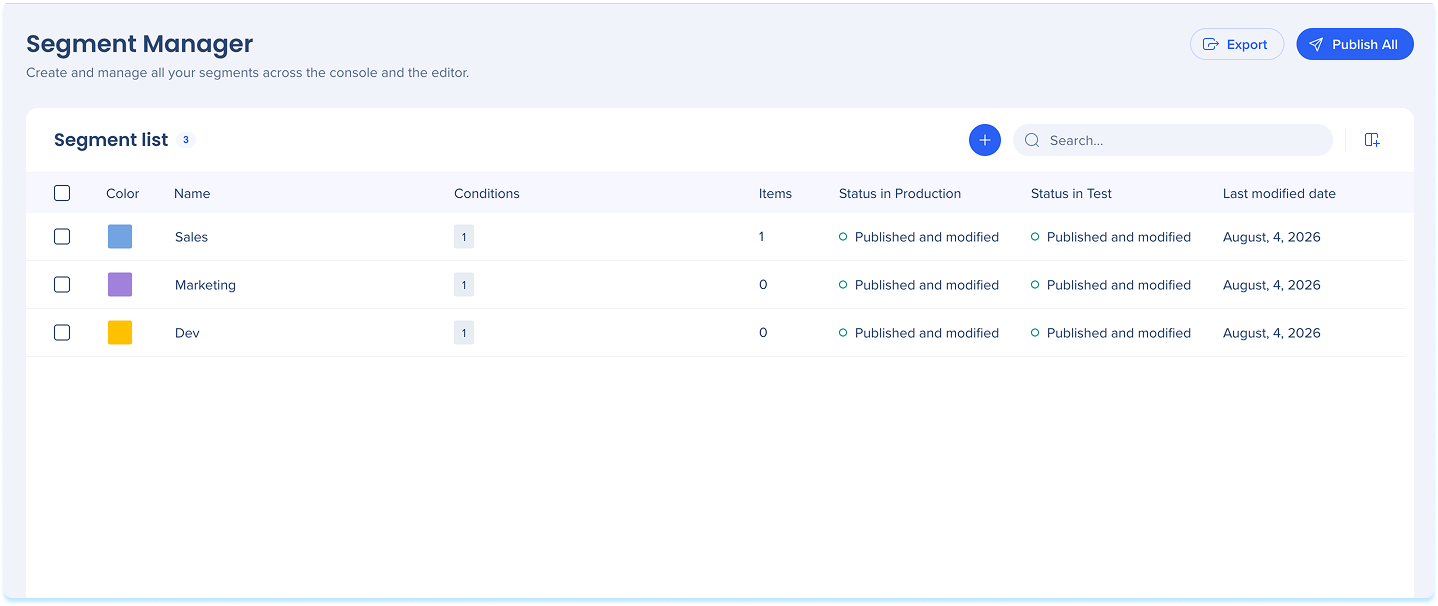
Segment Manager is a console app that brings segment management out of the WalkMe Editor and into one place. From a single list, builders can create segments, set their conditions, connect items, publish to a chosen environment, and review change history — without switching to the Editor for every action. Segments created or edited in the console appear in the WalkMe Editor after you refresh it, and changes made in the Editor appear in Segment Manager the same way.
Use Cases
- A builder needs to see every segment in one place, along with which items each segment is connected to and where it's published.
- An admin wants to publish one segment, or several at once, straight from the list.
- A team lead wants to export the segment list — including connected items — to share with stakeholders outside the console.
- A builder needs to review who changed a segment and when, for an audit trail.
- A builder wants to duplicate an existing segment, keeping its conditions, as a starting point for a similar one.
Access
- Open the WalkMe Console
- Go to the Tools category
- Select Segment Manager
View and Sort Segments
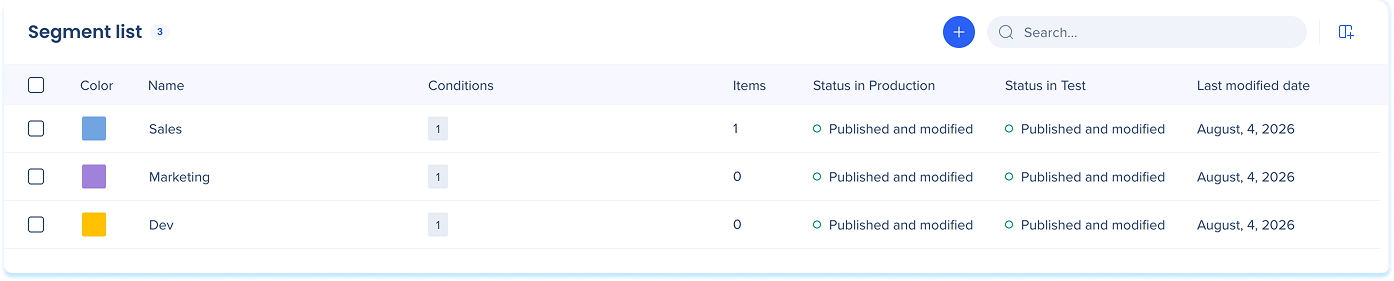
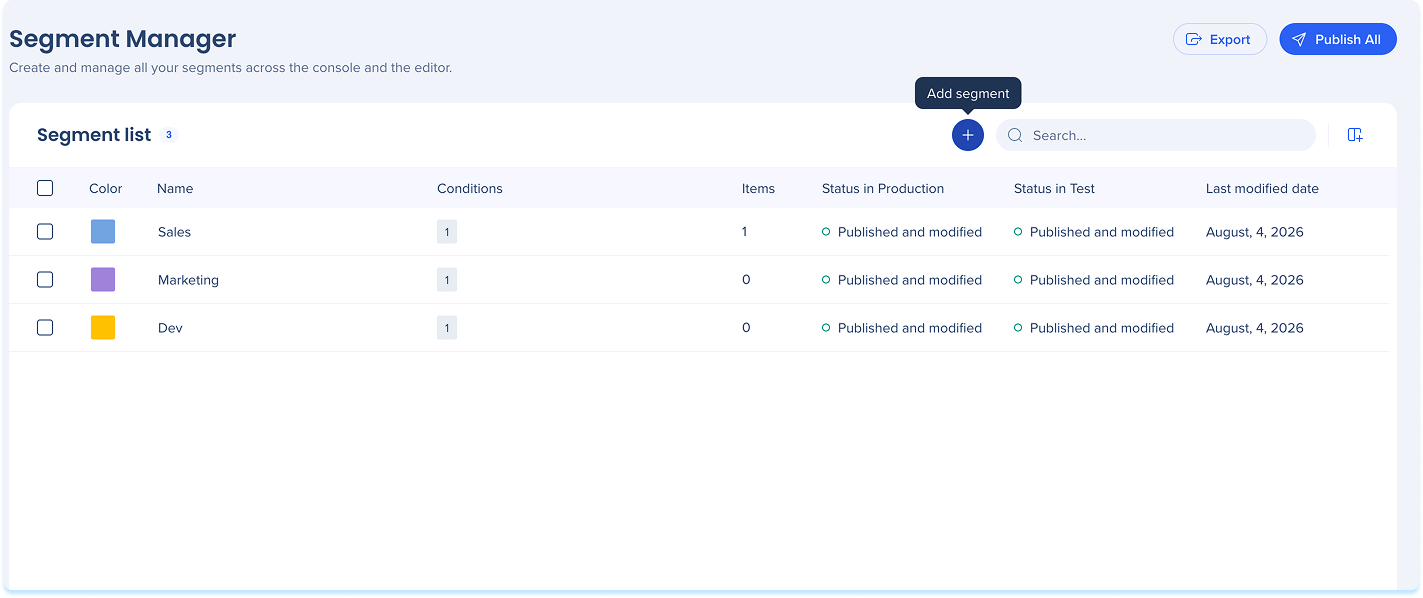
The segment list is the home of the page. Each row is one segment, and the columns show its details and status. Use the toolbar above the list to create, search, choose columns, export, and publish.
Each segment row can show the following columns:
- Color: The color assigned to the segment
- Name: The segment name, which you can edit inline
- Conditions: How many conditions the segment has
- Items: How many items are connected to the segment
- Status in environment: The publish status of the segment in each of your environments
- Last modified date, Last modified by, and Created by: Change history at a glance
Manage columns
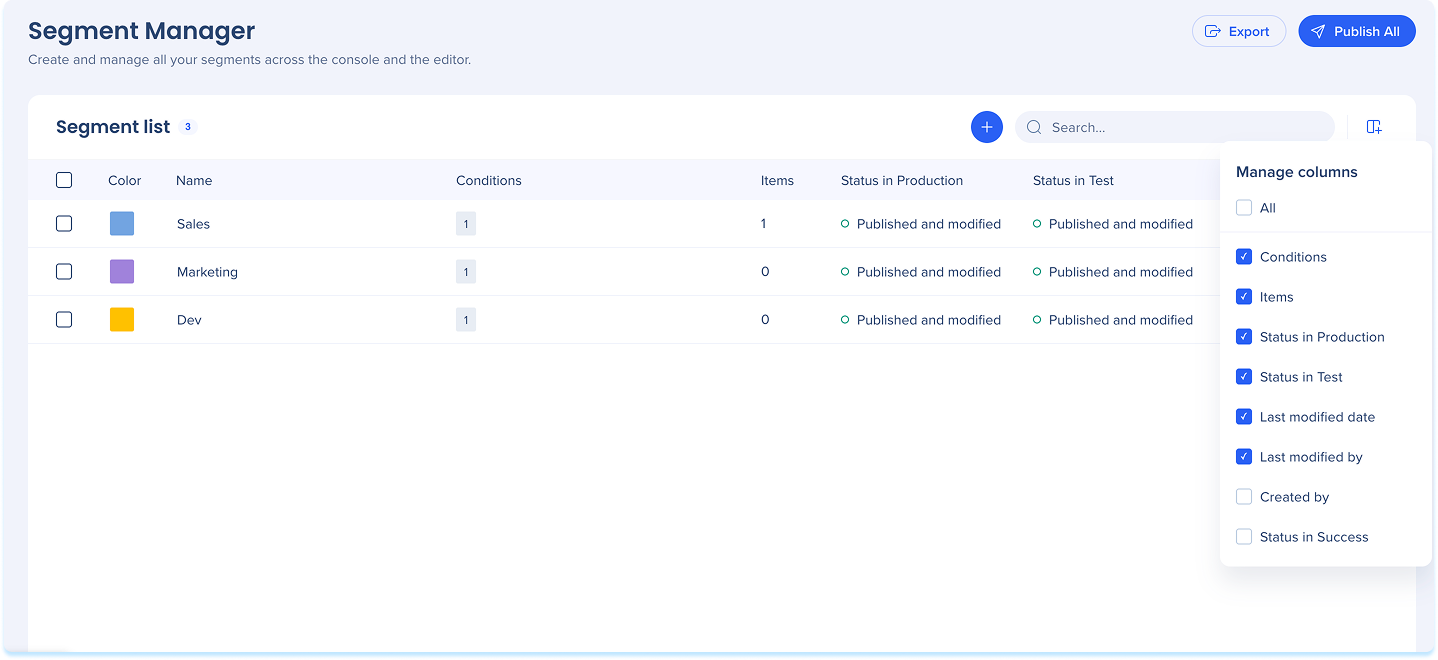
To show or hide columns:
- Select the Manage columns icon and turn each column on or off
- Turn on All to show every column
Find segments
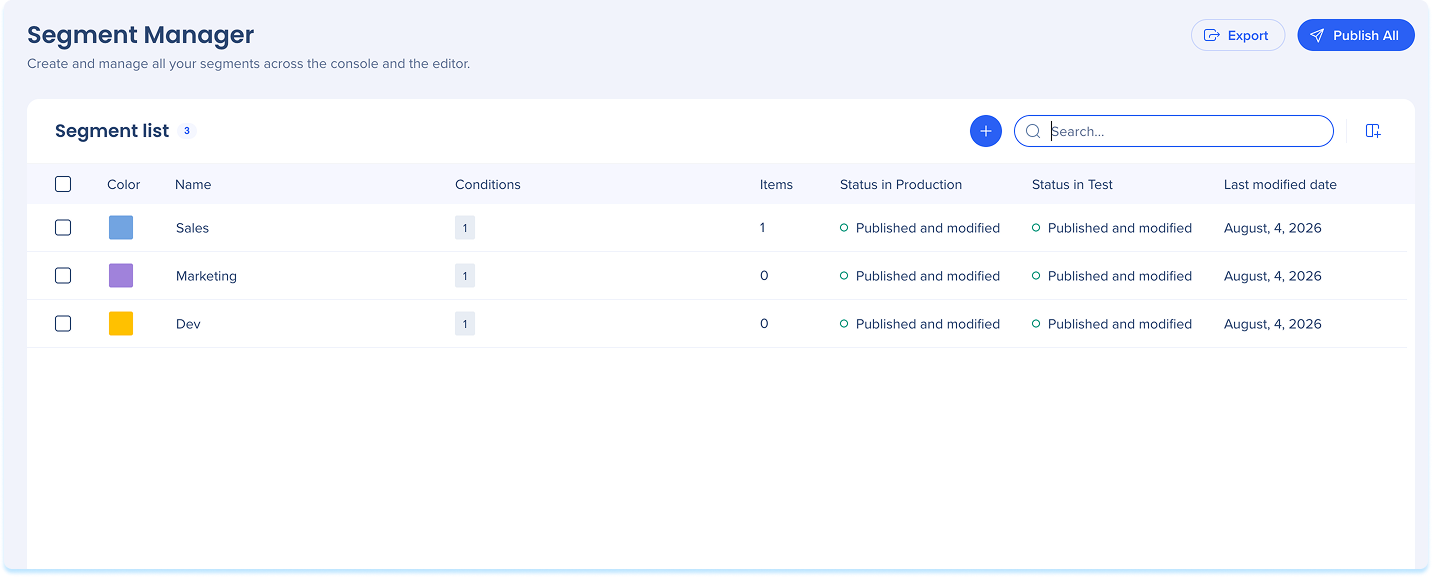
To find a segment, type its name in the Search field
Create a Segment
- In the toolbar, select the Create icon
- Give the segment a name and color
- Add conditions using the condition builder
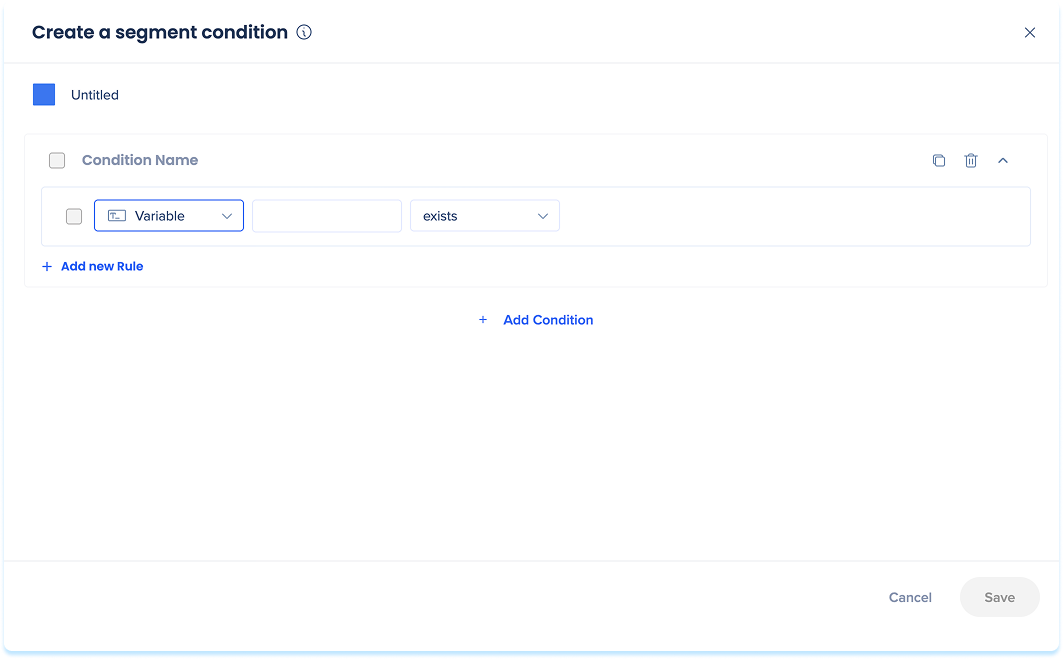
- Select Save to create the segment
Condition Builder
Connect Items to a Segment
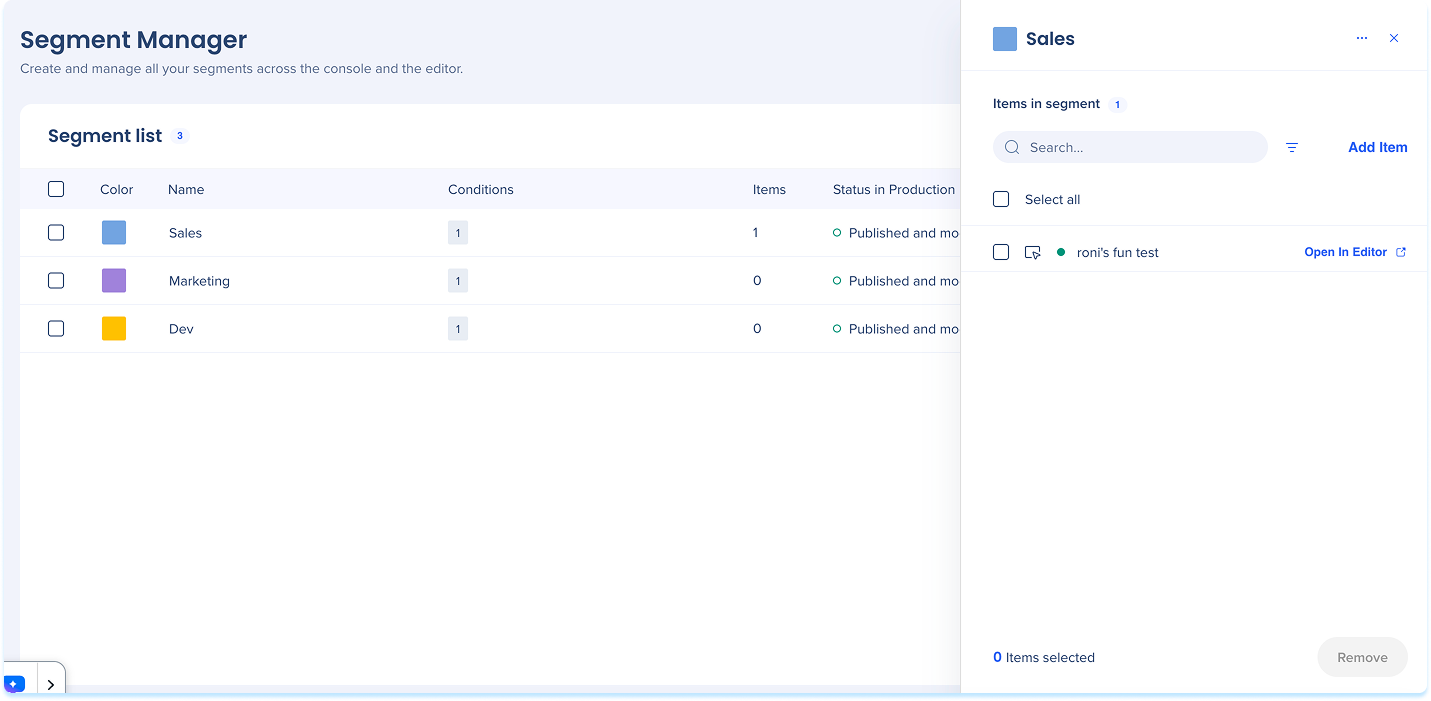
Items are the content — such as Smart Walk-Thrus, Launchers, and ShoutOuts — that a segment targets. Connecting items happens in the segment's side panel.
- Select a segment to open its side panel
- Select Add Items
- In the Add items window, browse the folder tree or use Filter items to narrow the list by type
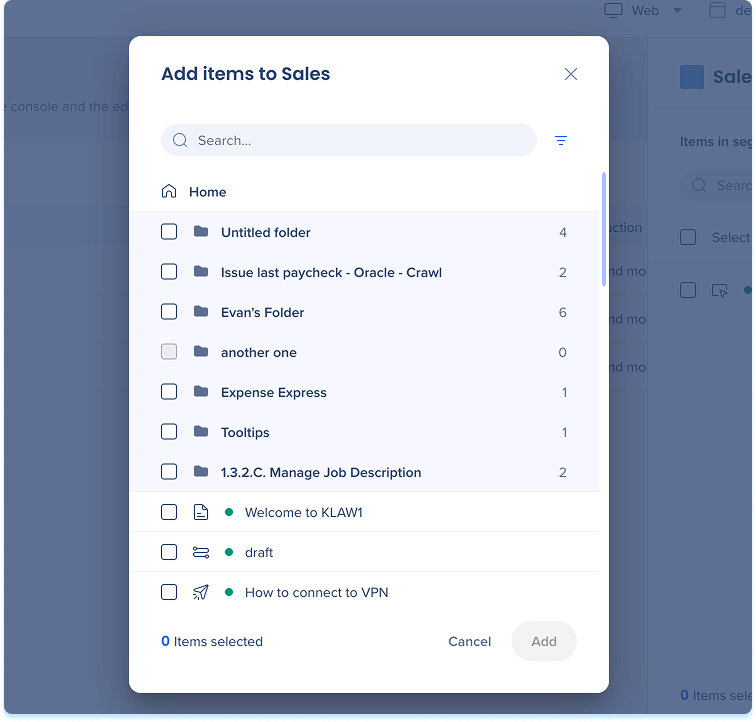
- Select the items to connect, then select Add
From the side panel, you can also:
- Find an item: Type its name in the search field or use the filters
- Remove connected items: Select the items, then select Remove
- Edit an item: Select Open editor to open it in the WalkMe Editor
Publish Segments
Publishing deploys a segment's settings to the environment you choose.
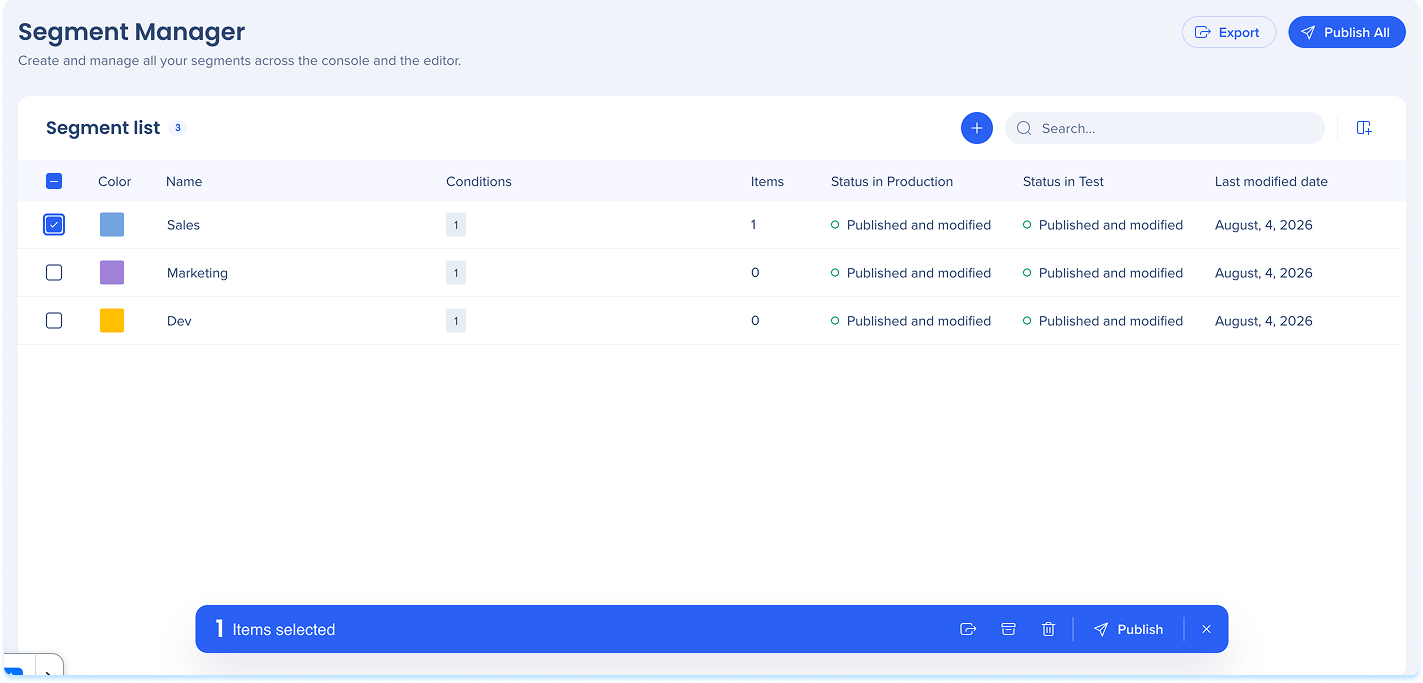
- To publish one or multiple segments, select the segments in the list and then select Publish
- To publish everything, select Publish All
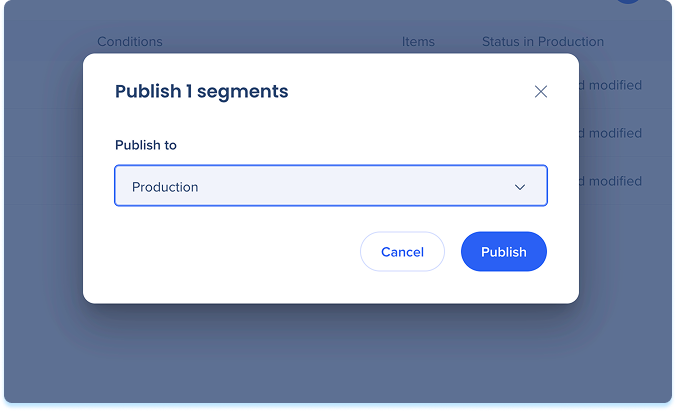
In the Publish popup, choose the environment under Publish to and select Publish
Export the List
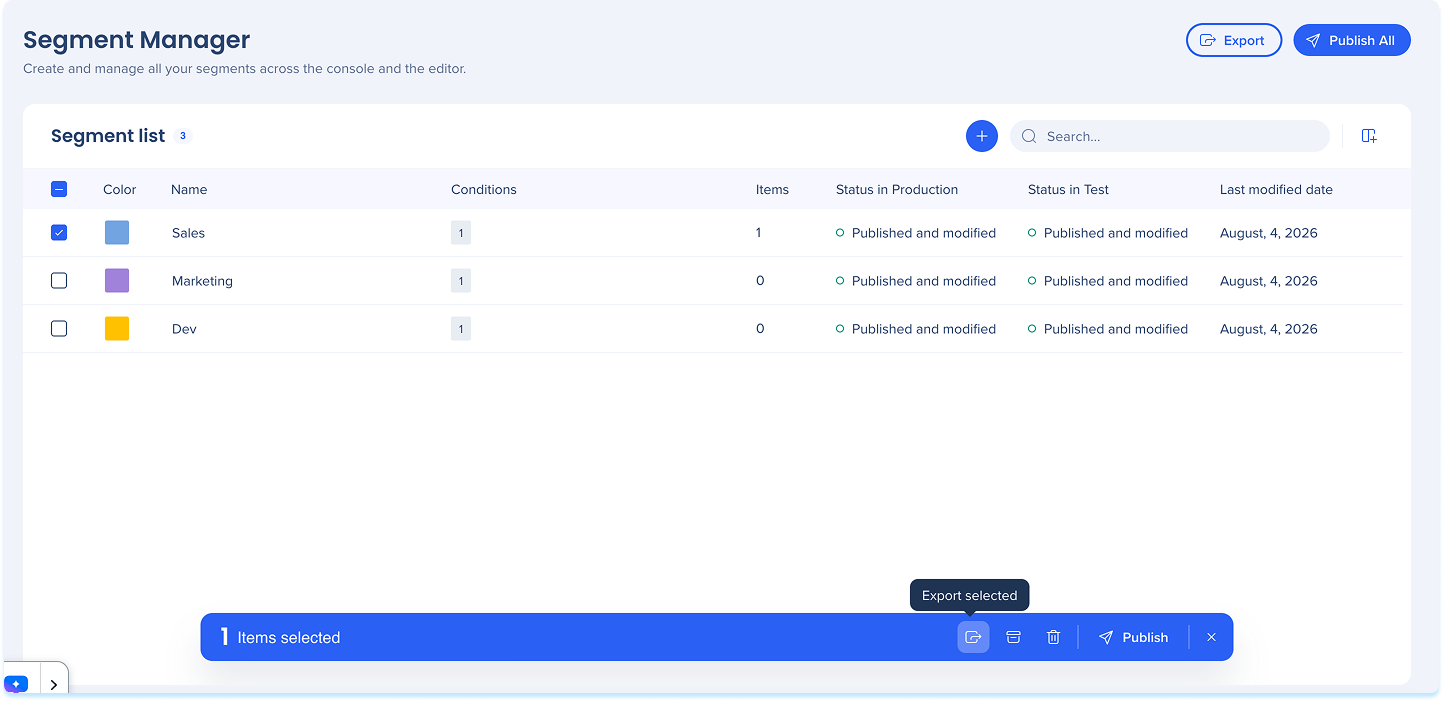
Export produces a CSV file. Two options are available:
- Global export: Select Export in the toolbar to export the whole list, following any active filters and sorting
- Export selected: Select segments with their checkboxes, then select Export Selected in the bulk actions bar to export only those rows
Segment Actions
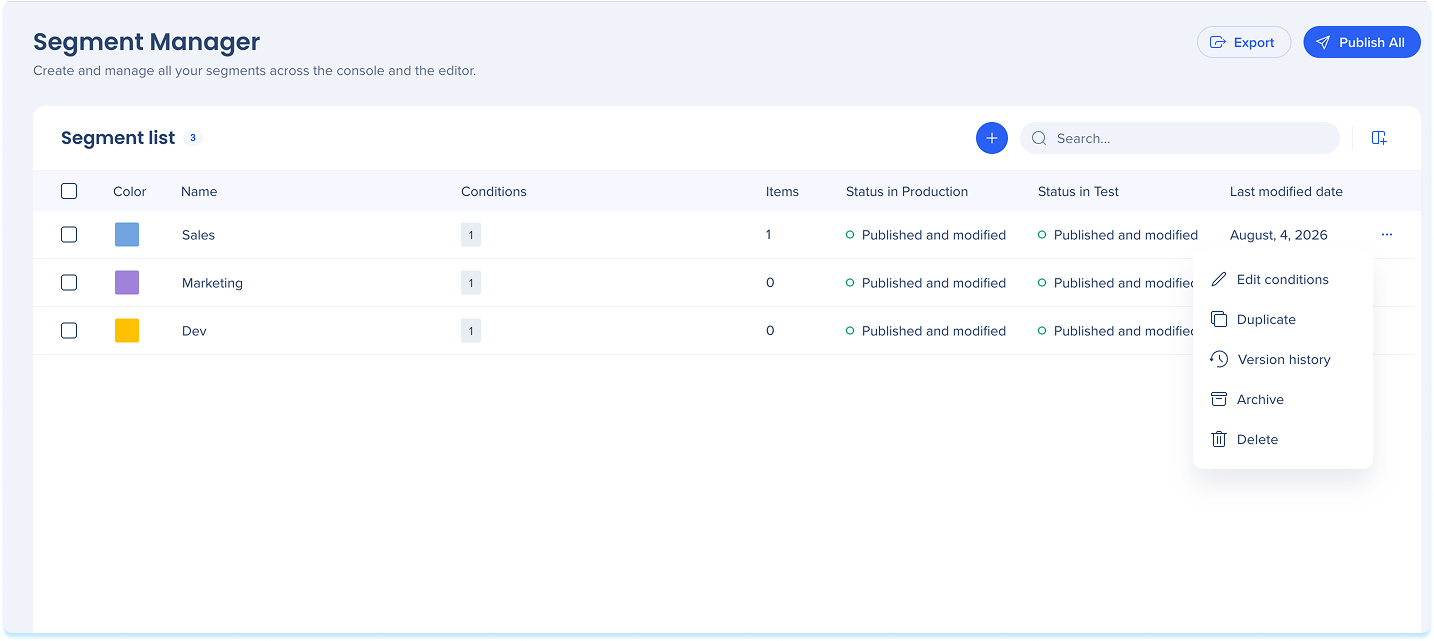
Select the Options menu on a segment row to:
- Edit conditions: Open the condition builder to change the segment's conditions
- Duplicate: Create an editable copy that keeps the original's conditions, so you can tweak them instead of starting over
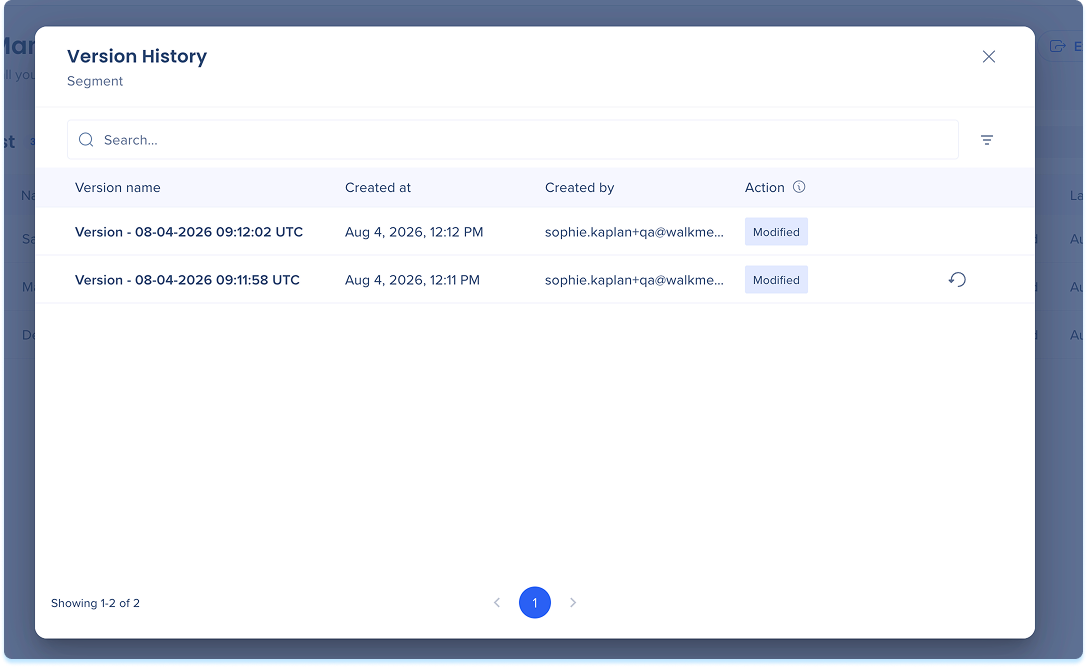
- Version history: Show past versions
- Archive: Move the segment out of the active list
- Delete: Permanently remove the segment
Version history
Version history preserves an accurate record of changes. Each entry shows:
- Version name: Timestamped automatically in UTC
- Created at: Shown in your local timezone
- Created by: The name or email of the person who made the change
- Action: What happened in that version
To restore a previous version, select the Restore icon next to it.
Bulk Actions
Select segments with their checkboxes to act on several at once. The bulk actions bar lets you Publish, Archive, Export Selected, and Delete.
Note
If a segment you archive or delete is connected to items, a message tells you how many items use it and that the change may affect who can view those items. You can review the message and still choose to continue.
Technical Notes
- Segment changes don't sync between the console and the Editor in real time. After creating or editing a segment in one, refresh the other to see the change
- On-screen element conditions can't be created in the console. Use the WalkMe Editor to capture on-screen elements


