Brief Overview
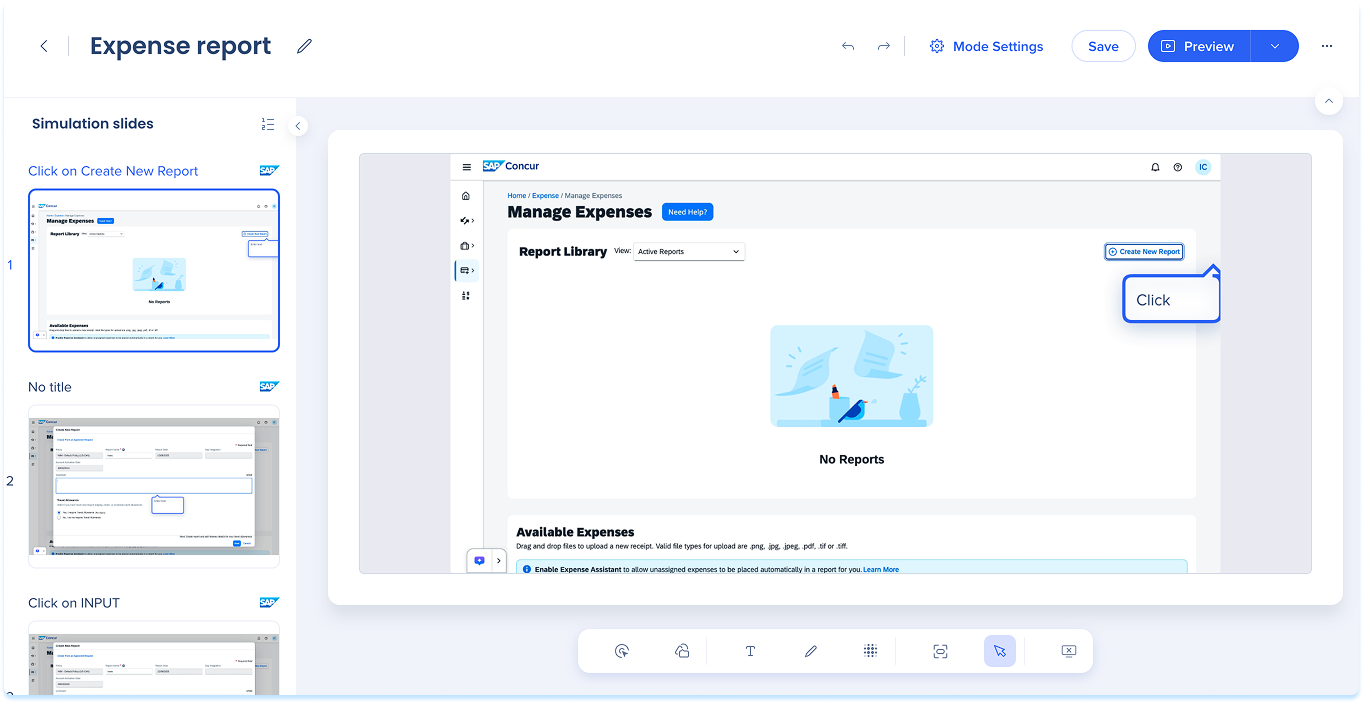
Simulations in WalkMe Learning Arc let you capture real workflows and play them in demo, practice, or test modes. This helps learners understand processes in a guided, controlled environment. Editing a simulation lets you modify slides, add visual annotations, and switch between modes. You can also adjust mode-specific settings and preview the experience from a learner's point of view. Together, these tools make it simple to create detailed, interactive simulations that enhance the learning experience.
How It Works
Access simulation editing
- Go to the simulation element in the learning content builder
- Open the simulation in edit mode using one of these actions:
- Select the simulation element, then select Edit Simulation in the toolbar
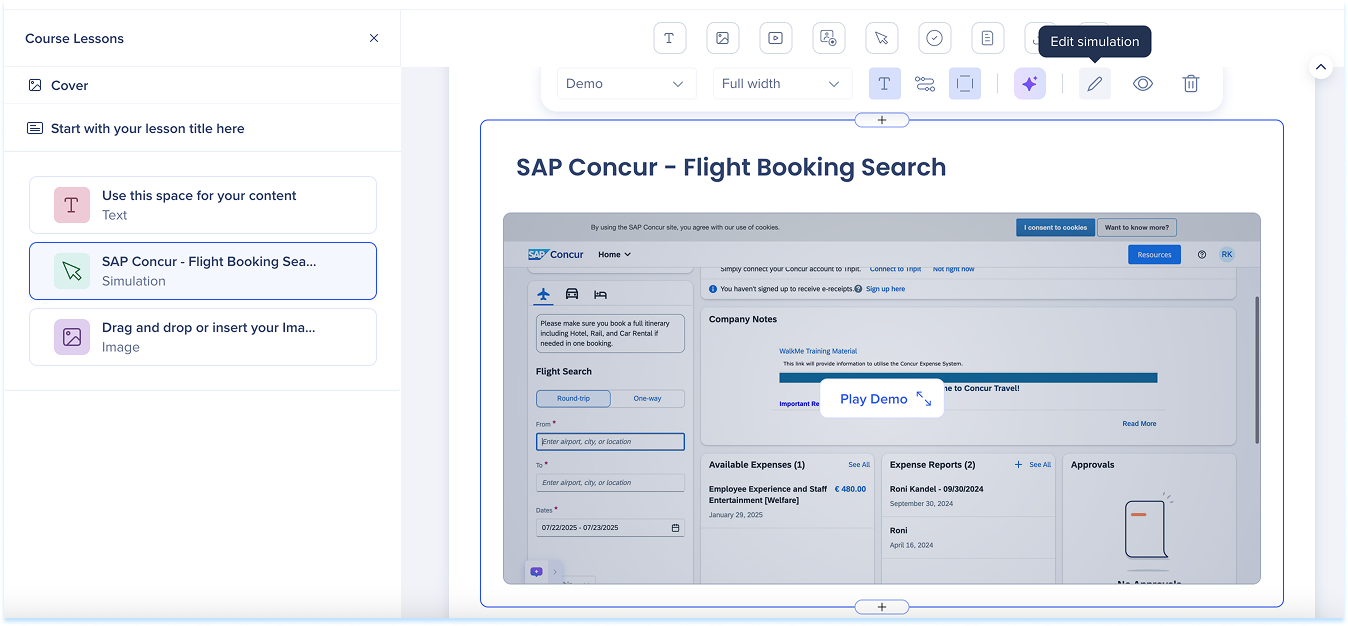
- Hover over the simulation element
- Hover over the simulation element, open the Options menu, and select Edit
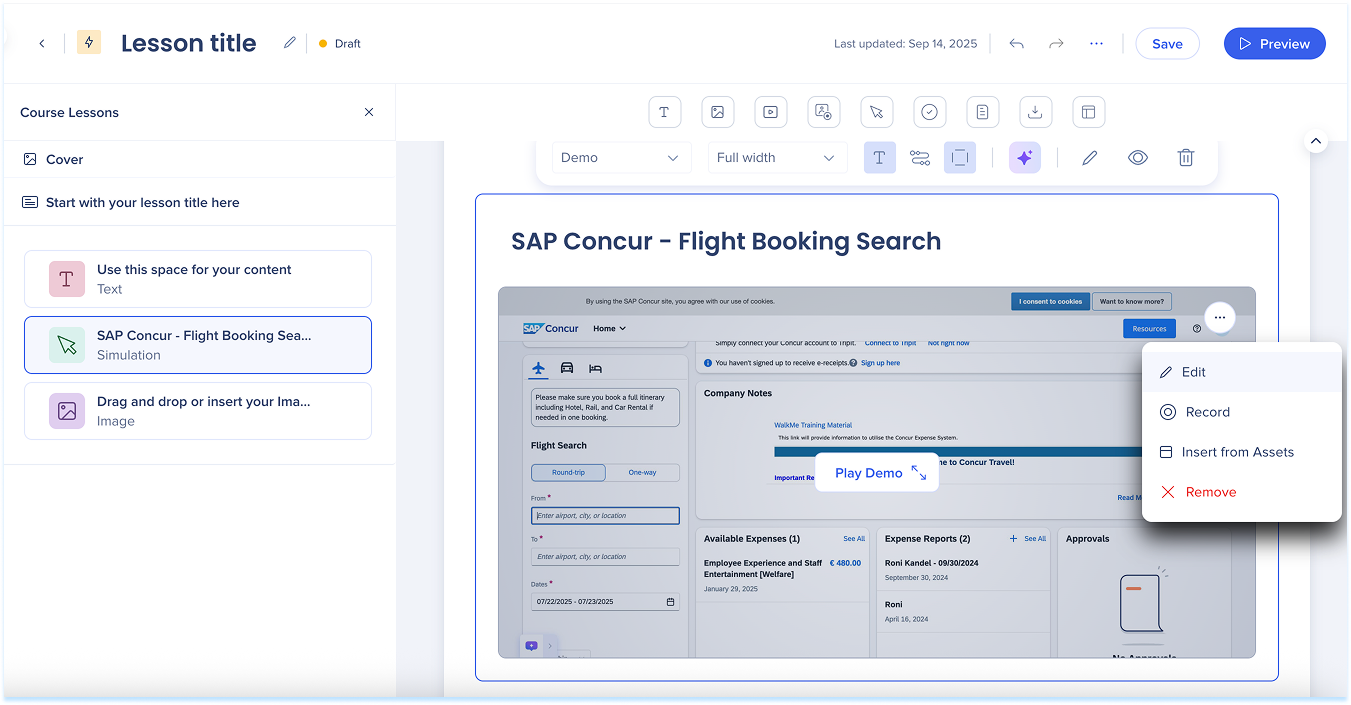
- The simulation opens in edit mode on a new page
Simulation overview
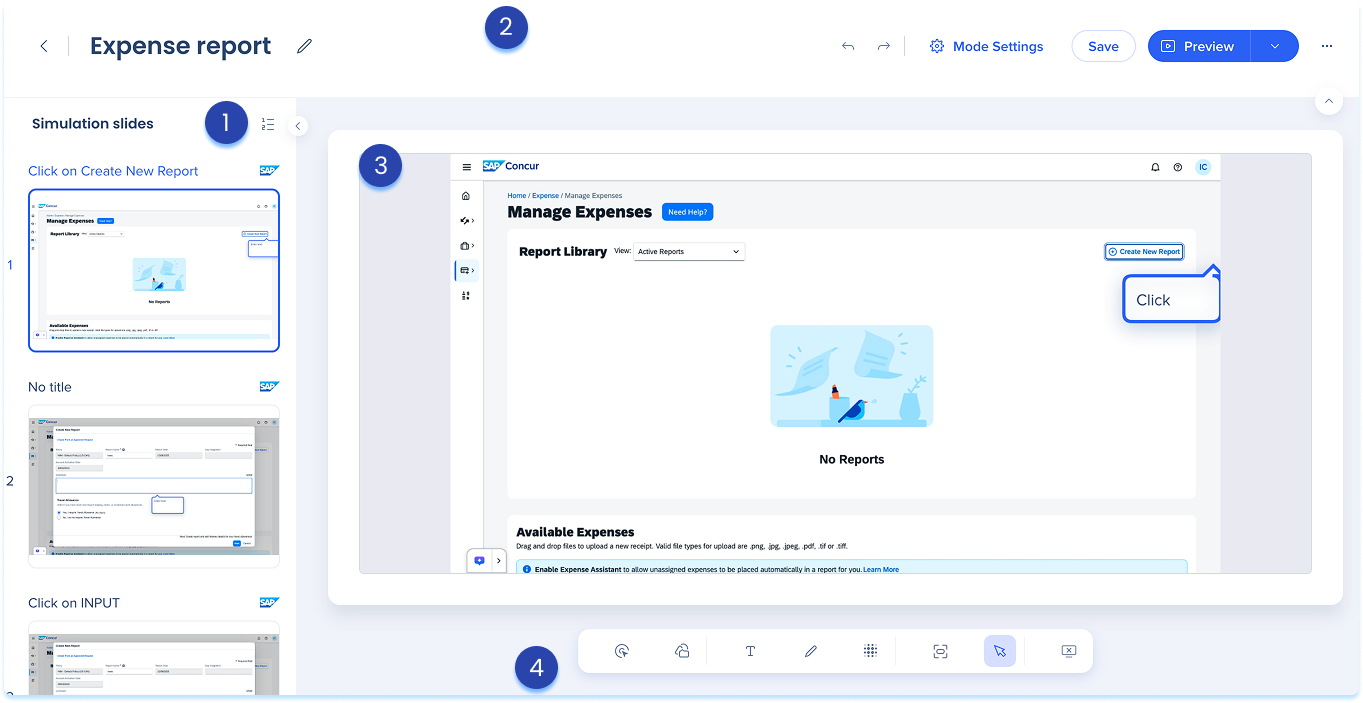
The simulation editing page includes four main areas:
- Simulation slides panel
- Top panel
- Main canvas
- Annotation toolbar
Simulation slides panel
The slides panel appears on the left and shows the simulation's steps in order.
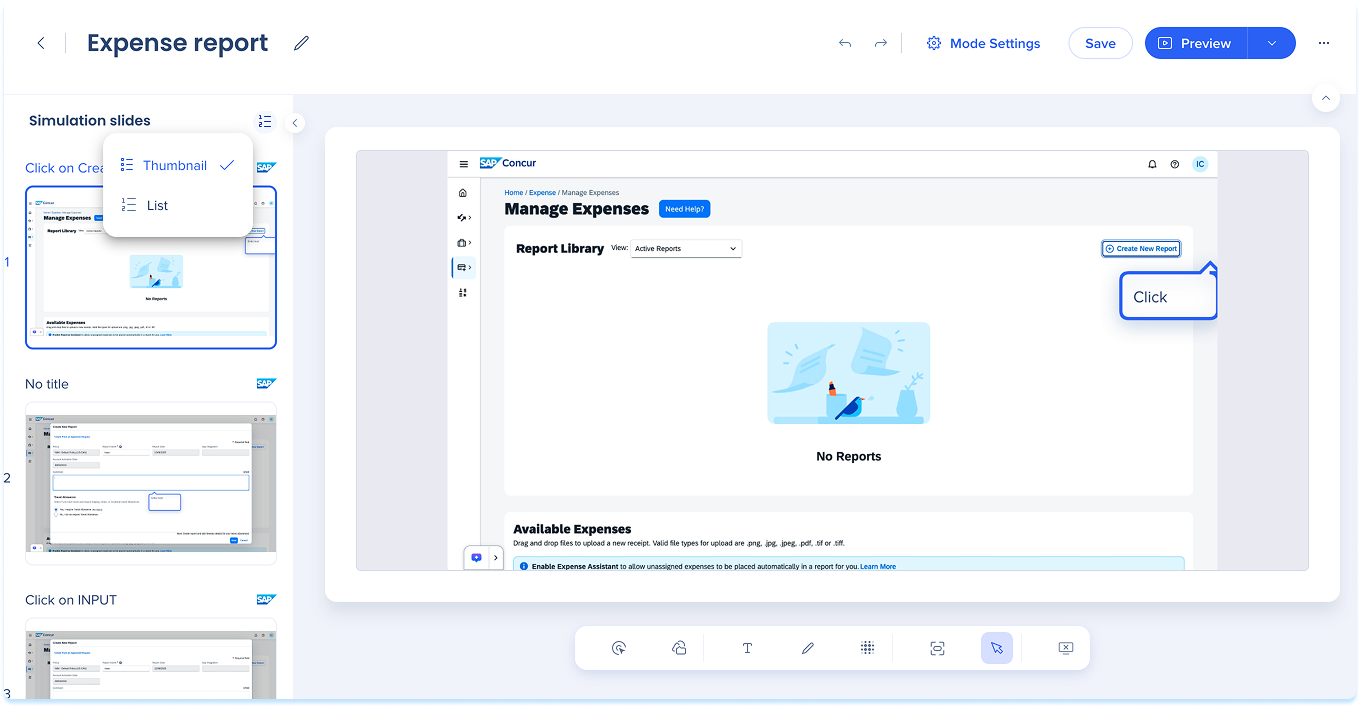
Display mode
-
In the panel header, select the Display mode icon
-
Choose one of the following:
-
Thumbnail: Large image previews of each slide
-
List: Compact view showing step numbers and titles
Slide options
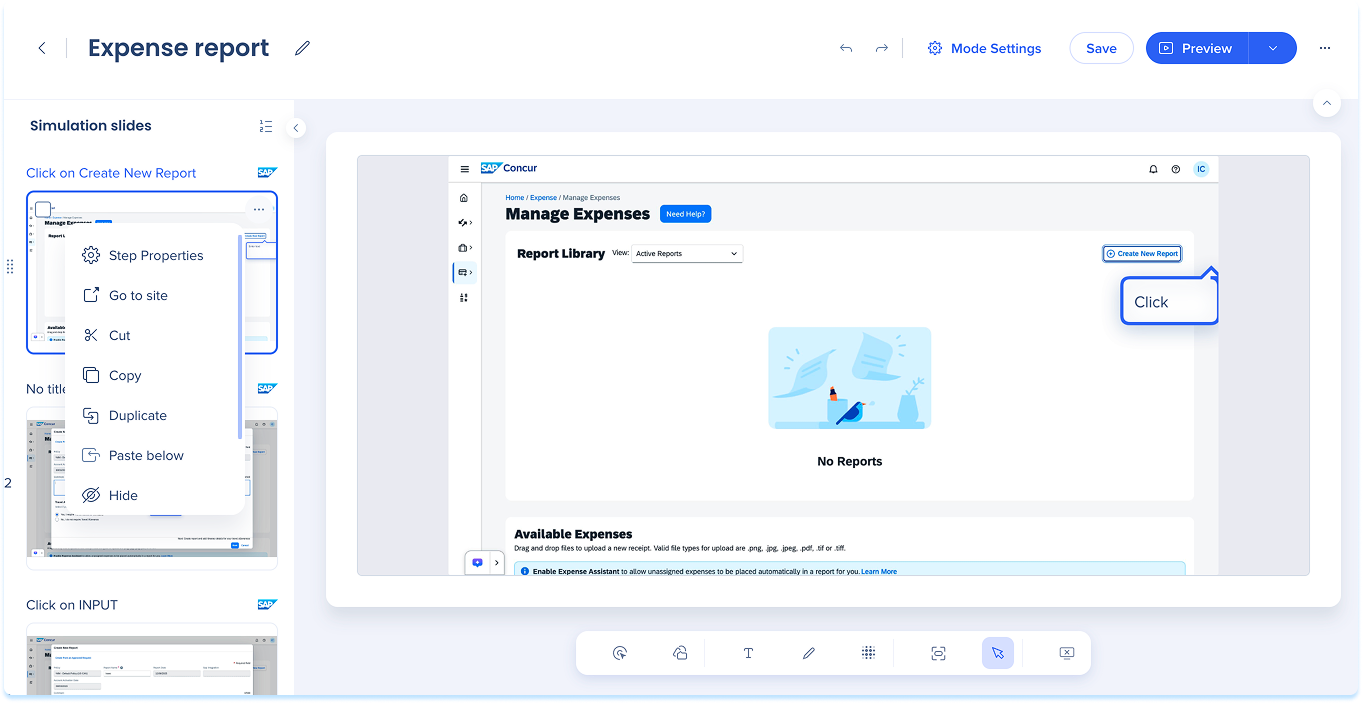
Each slide includes an Options menu with tools for managing steps.
Available actions:
- Step Properties: Edit the step title and description
- Go to site: Open the page where the simulation was captured
- Cut / Copy / Paste below: Move or duplicate slides
- Duplicate: Create a copy directly under the current slide
- Hide: Exclude the step from playback without deleting it
- Download JPG: Save the slide as an image
- Delete: Remove the slide completely
Step properties
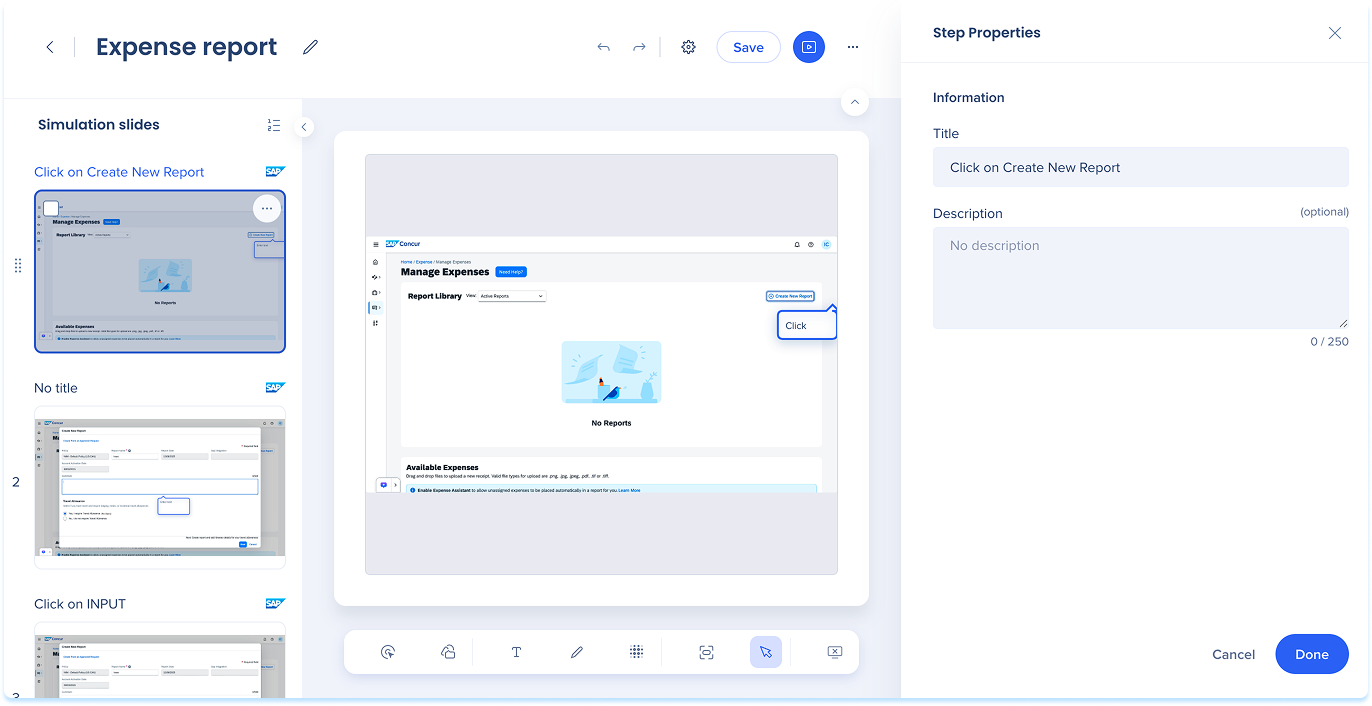
Add details to help learners follow the simulation flow:
- Title: Name the step clearly and consistently
- Description: Add short context or instructions (optional)
Bulk options
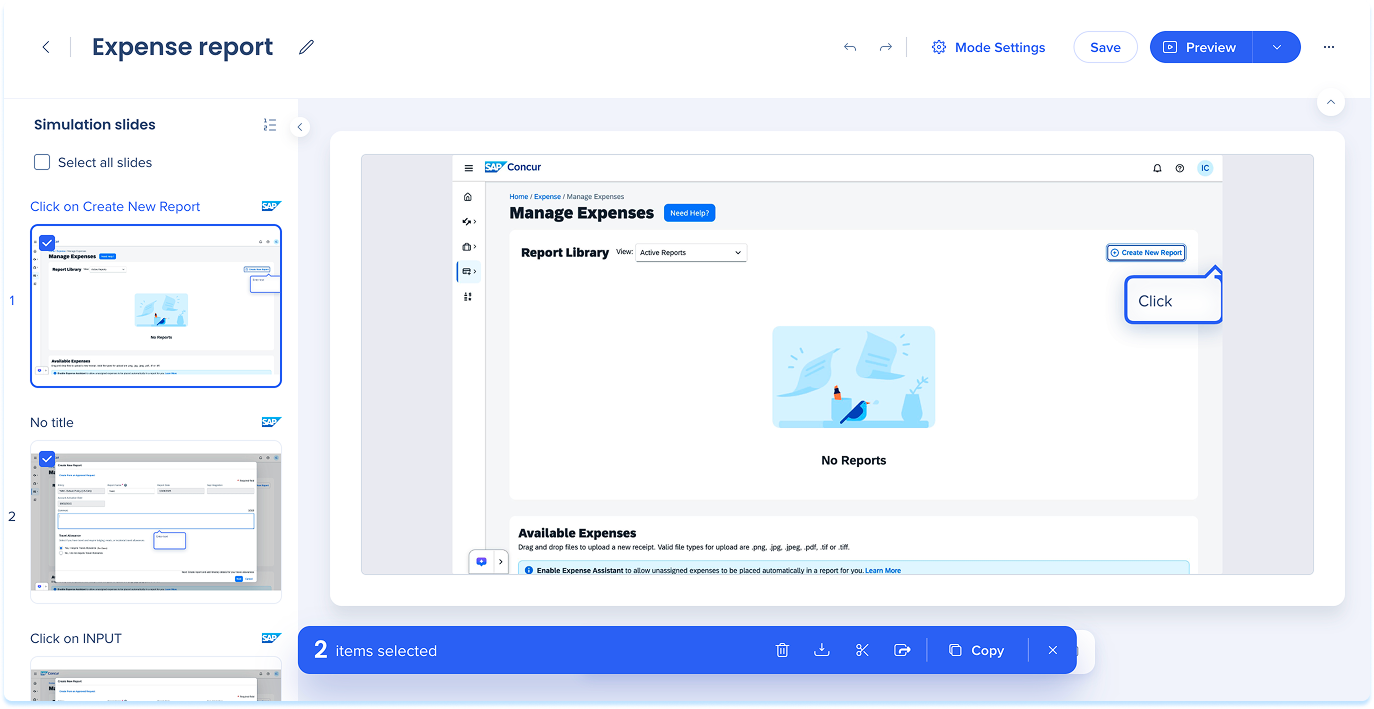
To manage multiple slides:
- Select slides using the checkboxes or select Select All Slides
- A blue toolbar appears with these actions:
- Delete
- Download
- Cut
- Export
- Copy
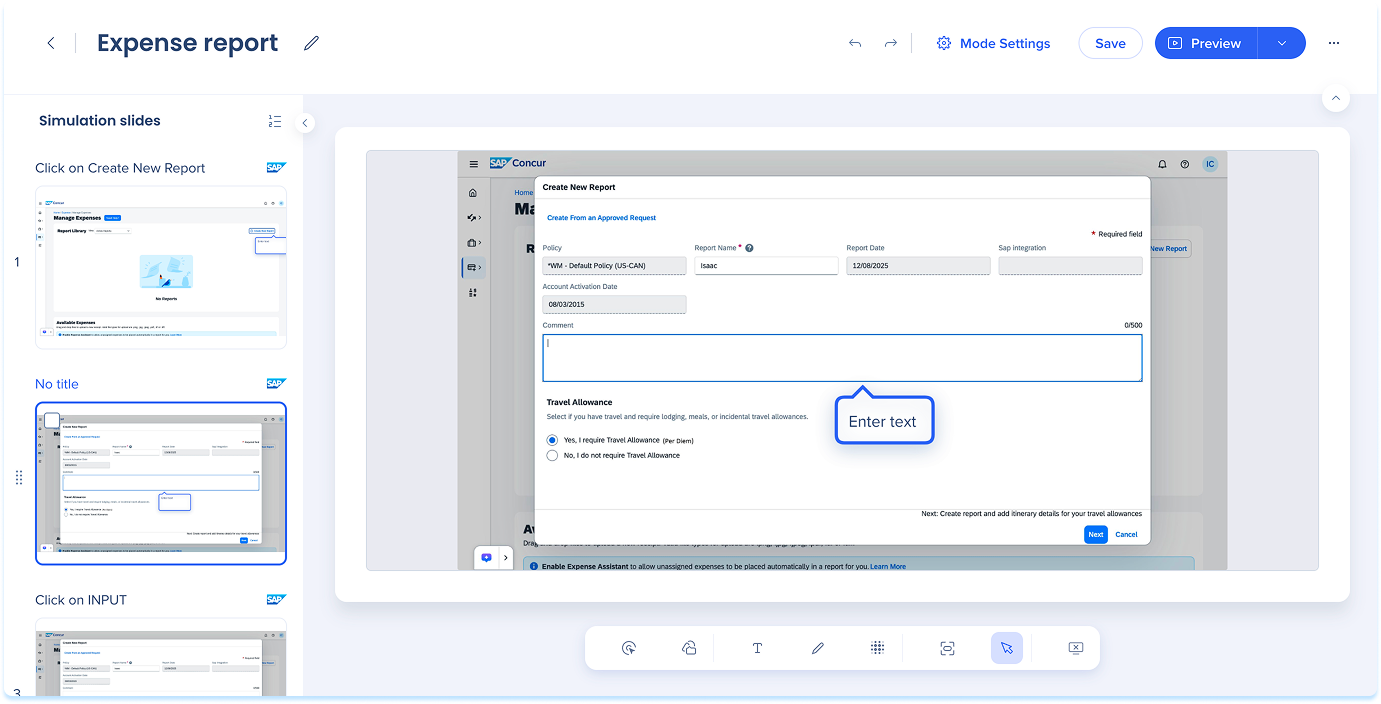
Reorder slides
- Drag a slide to a new position
Add new slide
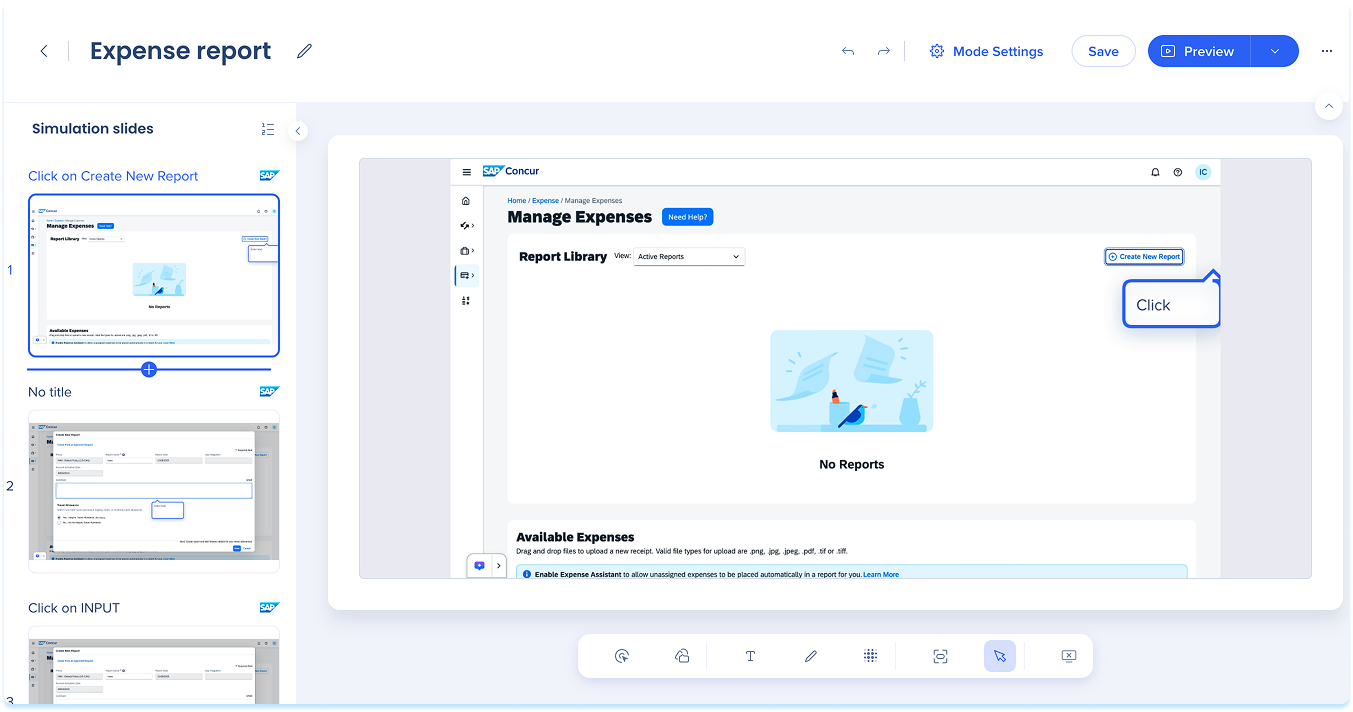
You can insert new slides anywhere in the simulation.
-
Hover between slides to show the + Create divider
-
Select Add Recording
-
Follow the capture flow to record new steps
Top panel
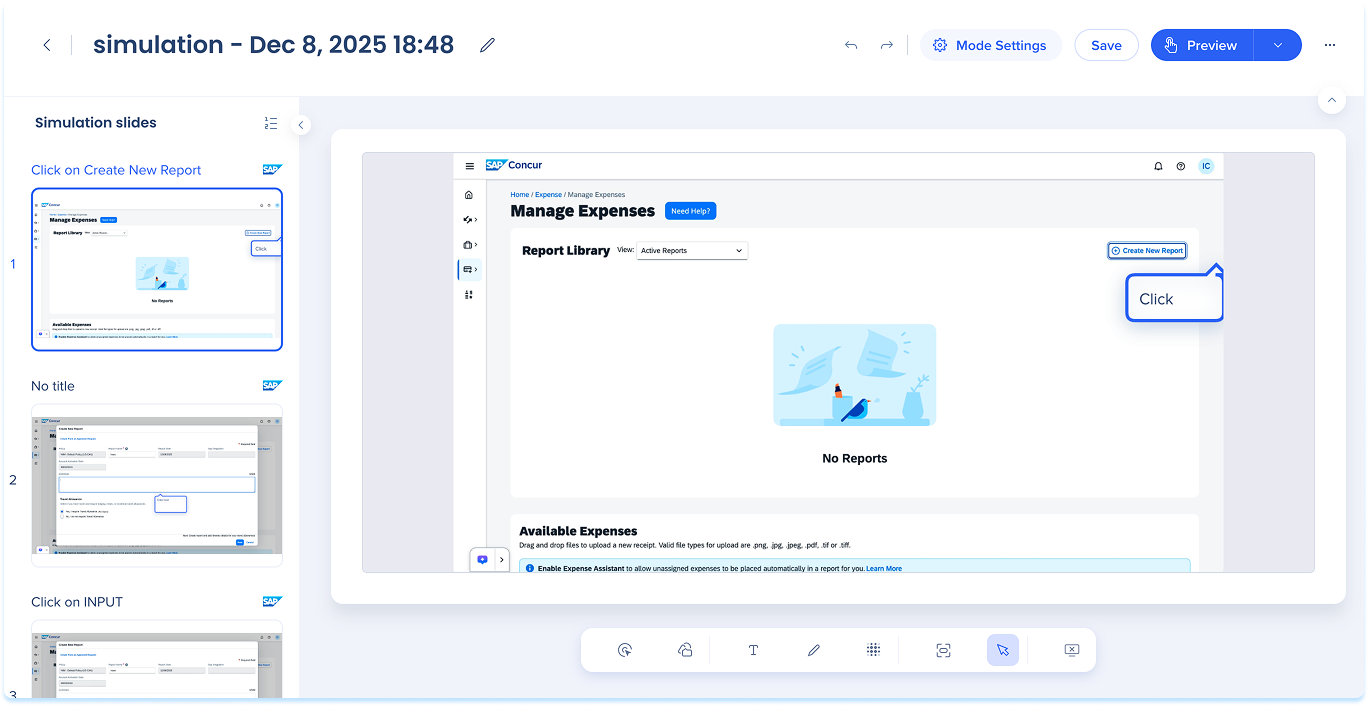
The top panel contains controls for managing the entire simulation.
Includes:
- Simulation title
- Mode selection (Demo, Practice, Test)
- Mode settings
- Undo / Redo
- Version history
- Share
- Comments
- Export
- Preview
- Delete
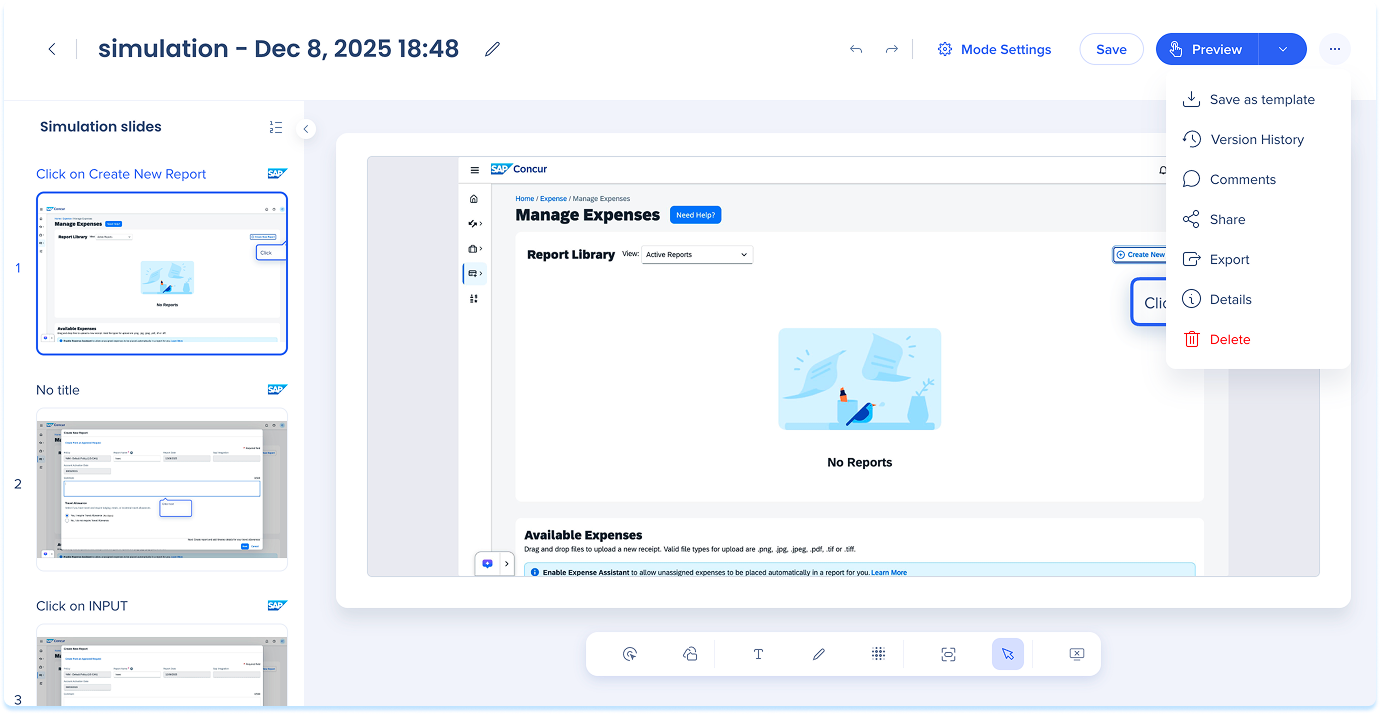
Edit simulation title
-
Select the title field, type a new name, and press Enter

Mode settings
- Select Mode Settings in the top panel
- The settings panel opens on the right side
Note
The simulation is a single asset file. Switching modes changes the editing view only. Any annotations or edits to the simulation will appear in both Demo and Practice modes.
Note
Simulation mode settings override global defaults. Later global updates won't affect custom settings made here.
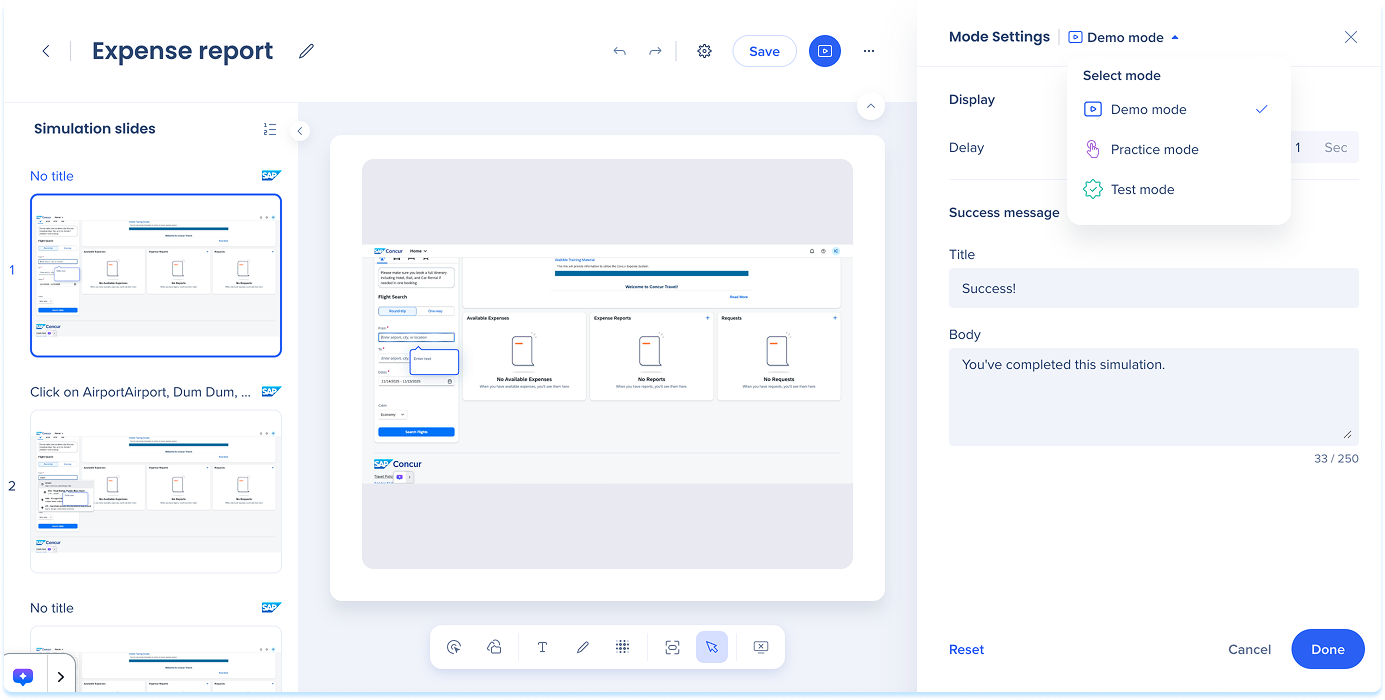
Select mode
-
In the top panel, click the Select mode dropdown
-
Choose one of the following:
-
Demo mode: Plays the simulation in a guided walkthrough format
-
No interaction required
-
Best to demonstrate a process before hands-on learning
-
Practice mode: Lets users try the steps themselves, with optional feedback for mistakes
-
Learners click through the flow
-
Highlights point to the right elements
-
Builds confidence before assessment
- Test mode: Assess understanding without guidance
- Learners complete the flow on their own
- Use for tracking progress or confirming readiness
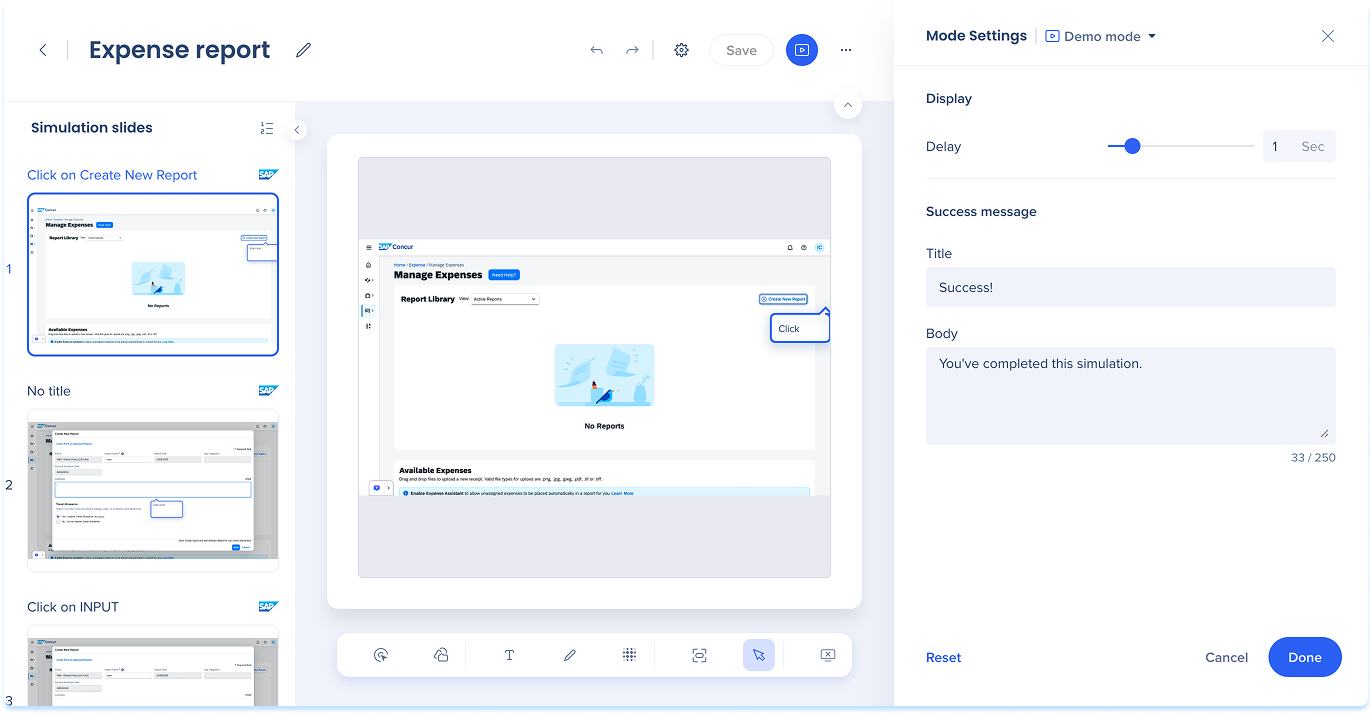
Demo mode settings
-
Display delay: Set how long each slide appears
-
Adjust the slider or enter a value
-
Success message: Add a short title and message shown after the simulation is completed
-
Select Reset to restore defaults (optional)
-
Select Save to apply changes
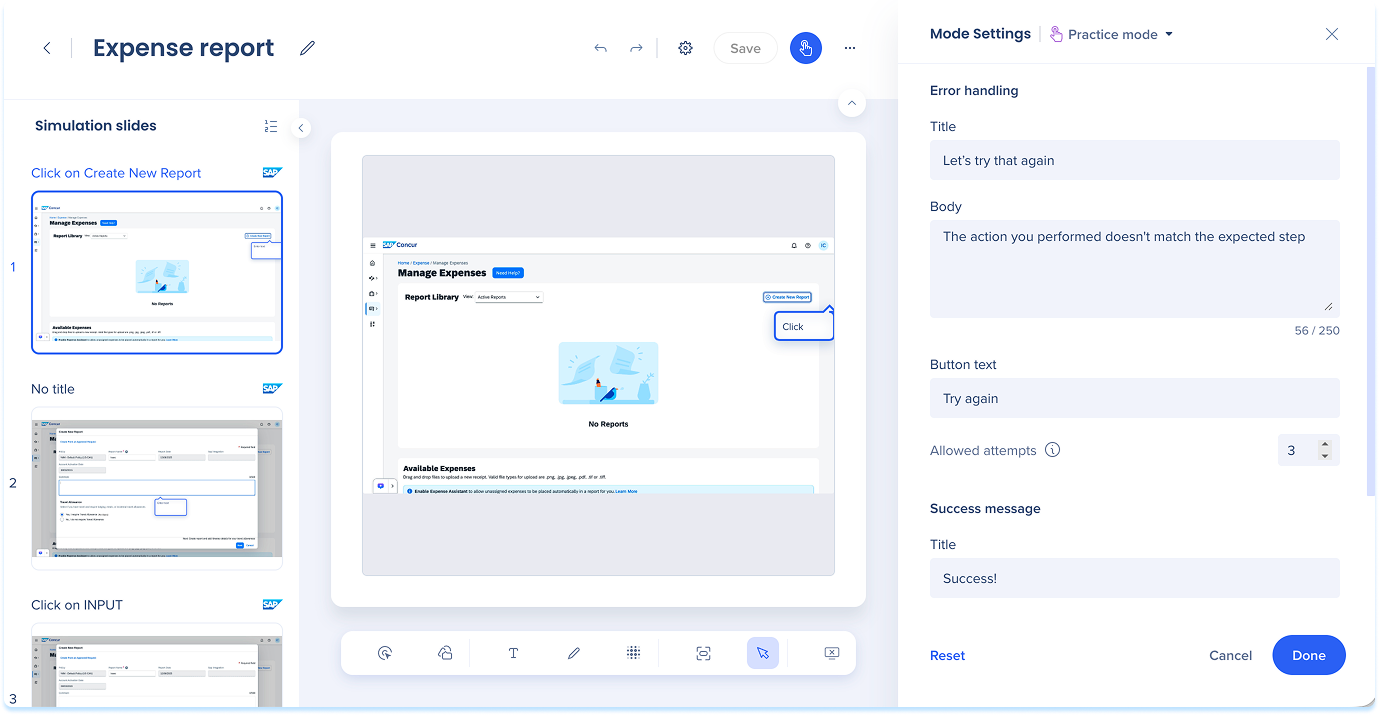
Practice mode settings
- Error handling: Add a short title and message shown when a user clicks incorrectly
- Allowed attempts: Number of retries
- Click Reset to revert to the default error handling (optional)
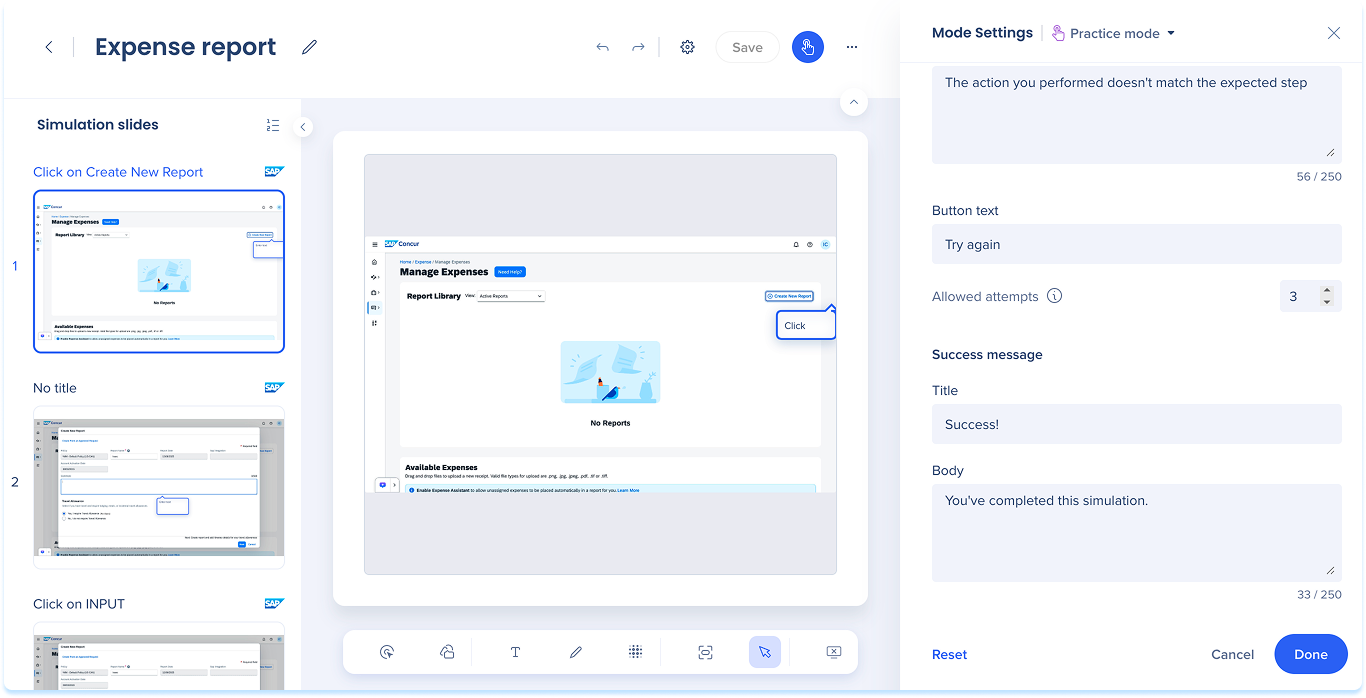
Note
user fails all allowed attempts, the error message will reappear with a Show me button. This button triggers an animation that demonstrates the correct action and moves the user forward to the next step.
- Success messages: Add a short title and message shown after the simulation is completed
- Click Done to apply changes
Test mode settings
- Instructions: Add a title and message shown at the start of the simulation
- Error handling: Add a short title and message shown when a user clicks incorrectly
- Allowed attempts: Number of retries
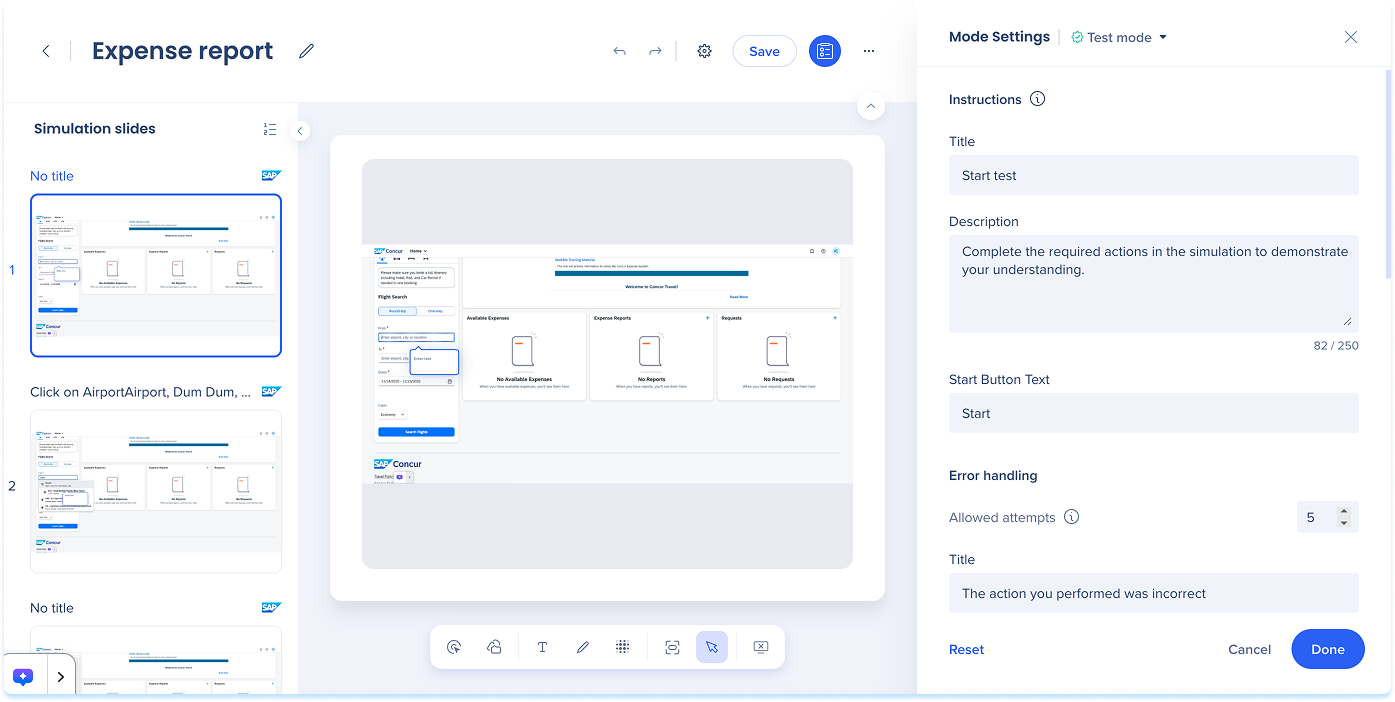
- Scoring: Set the required score to pass the test
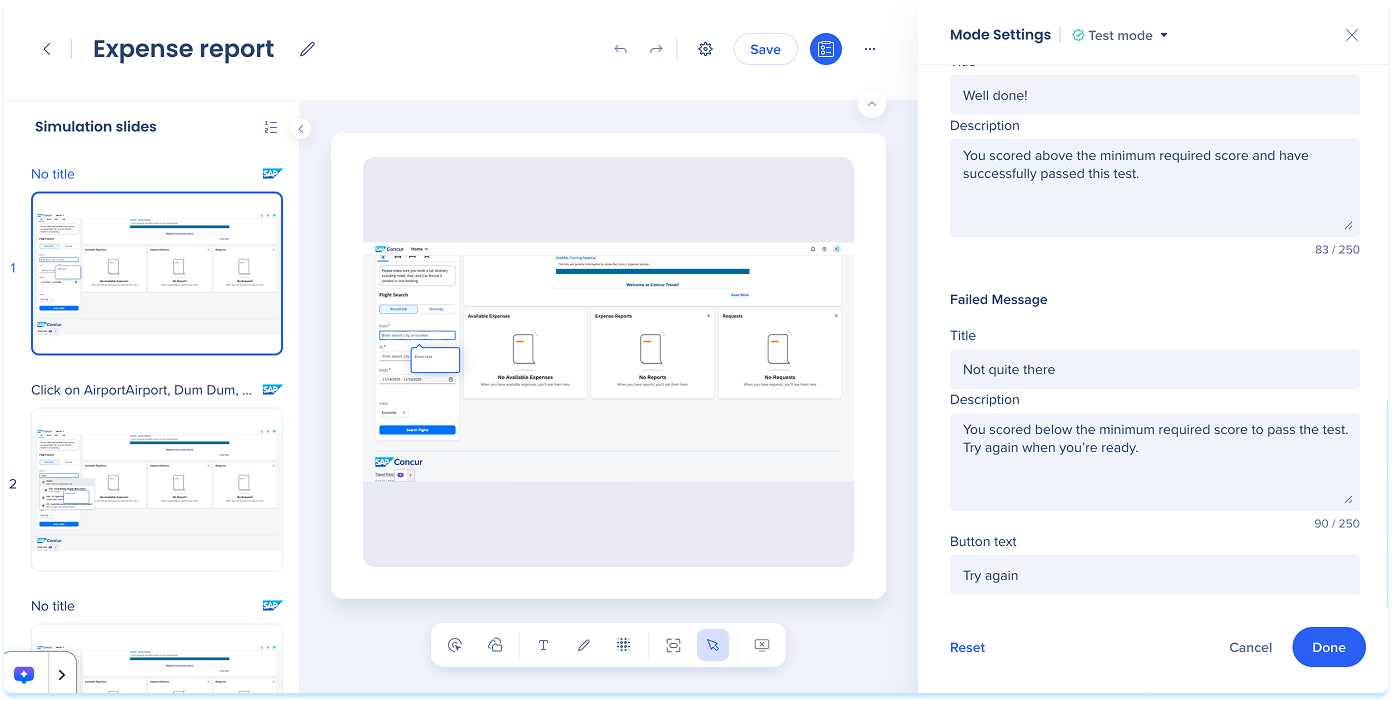
- Passed message: Add a short title and description shown when the learner meets the minimum score
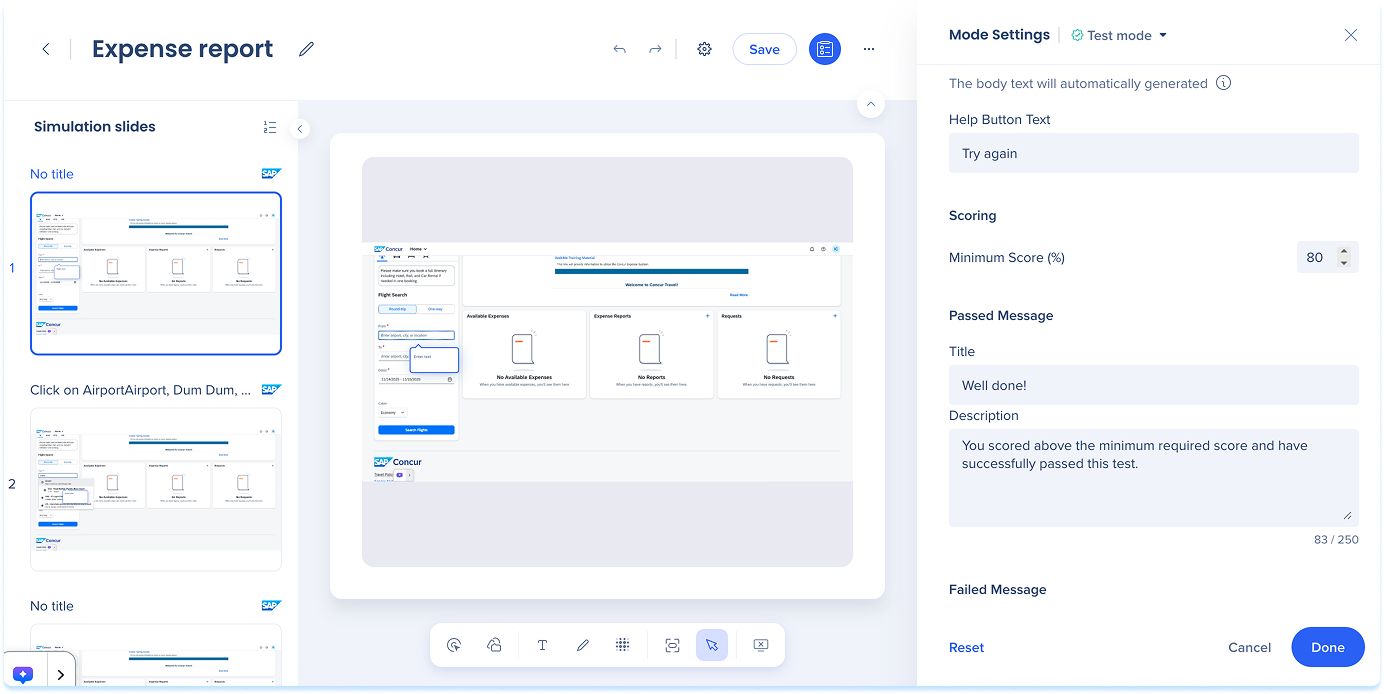
- Failed message: Add a short title and description shown when the learner does not meet the minimum score
- Click Reset to revert to the default error handling (optional)
- Click Done to apply changes
Undo/Redo

Version history
-
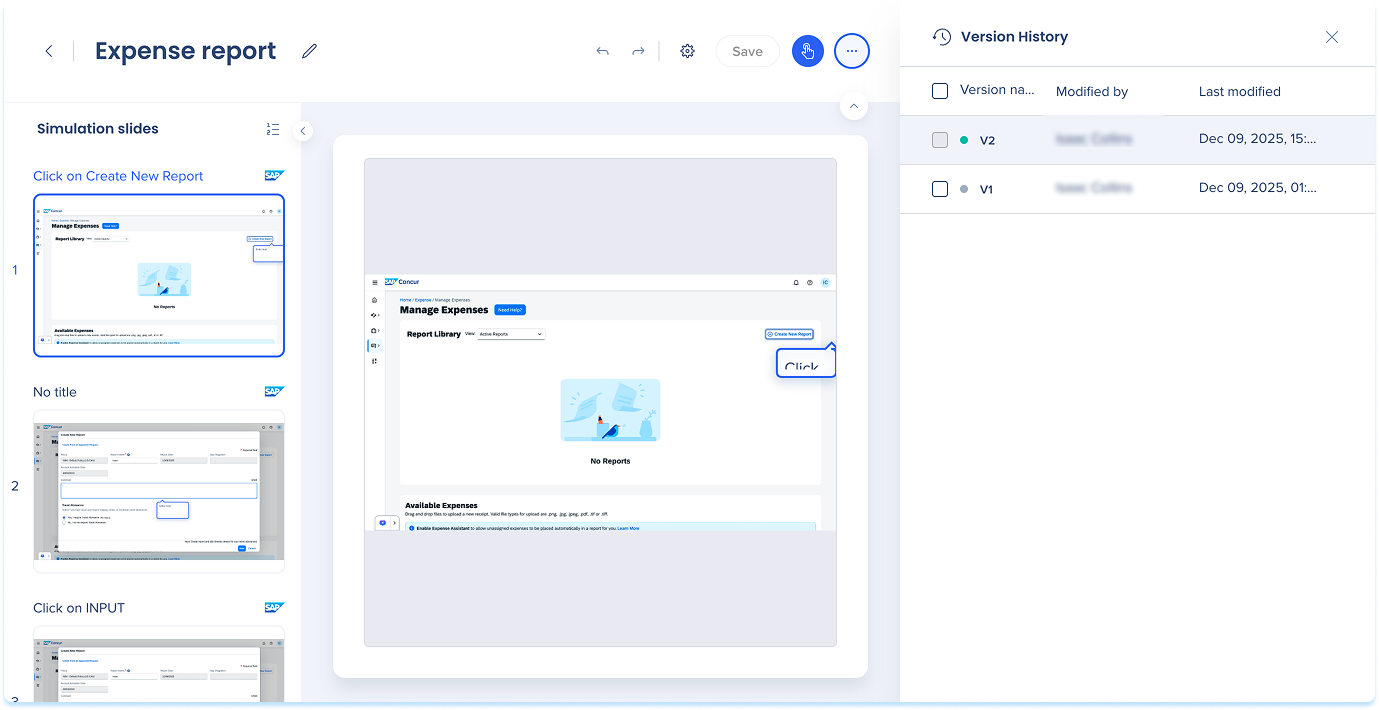
Select Version History to view previous versions
-
The side panel shows:
-
Version name
-
Modified by
-
Modified date
-
To restore, select a version and choose Restore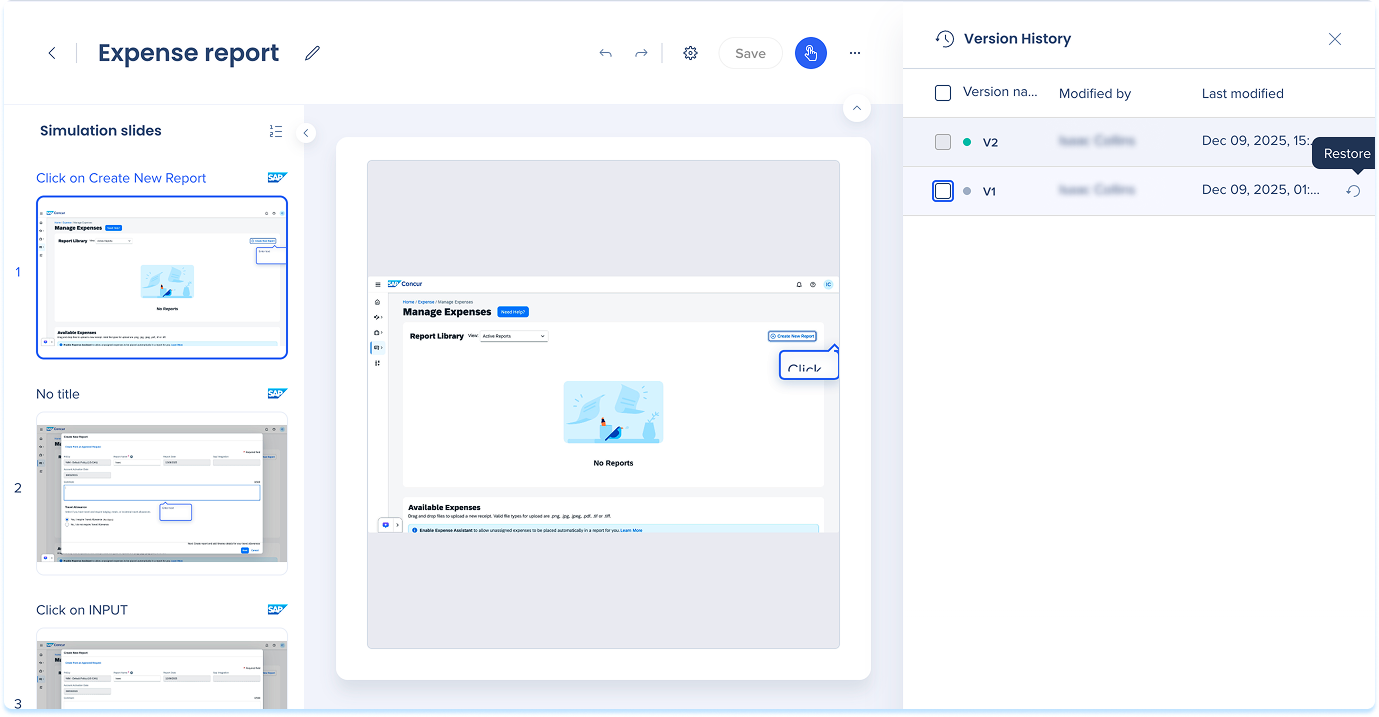
-
To rename, select the version name, type a new one, and press Enter
-
To delete, select versions and choose Delete in the floating toolbar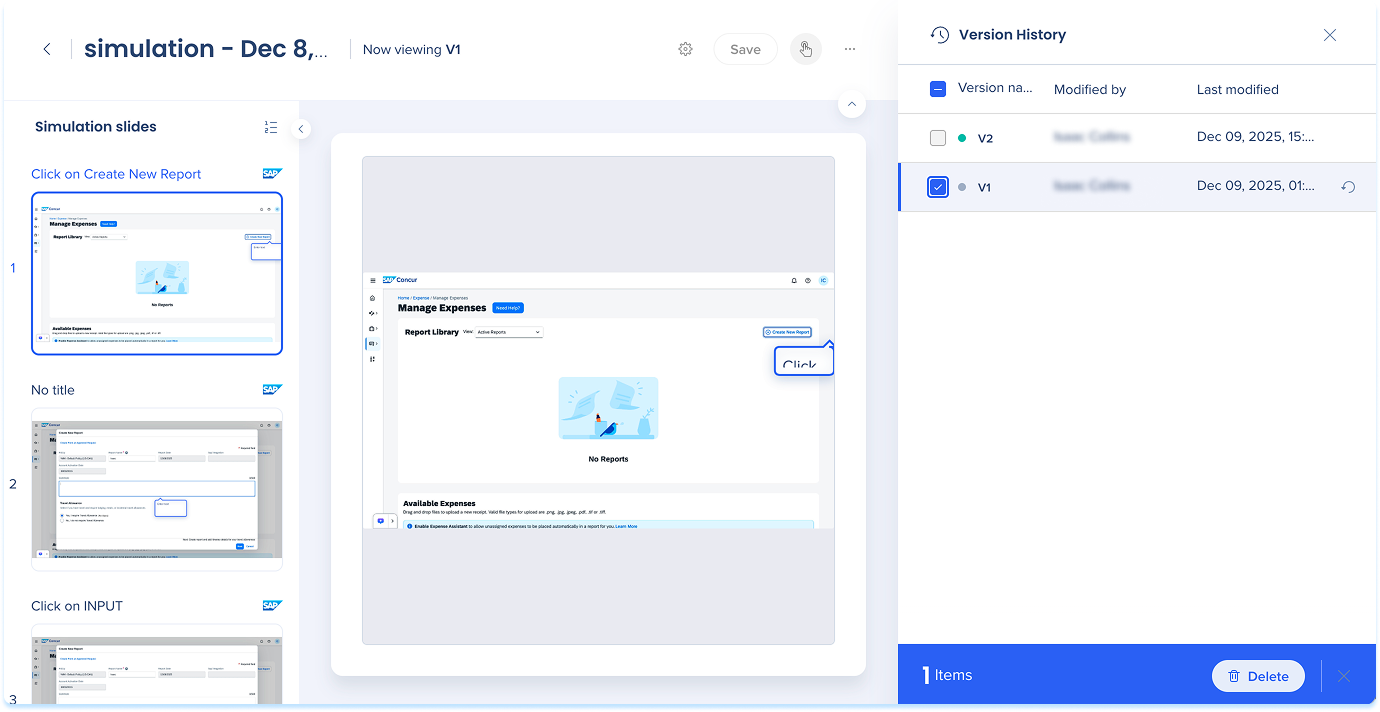
Share
You can share simulations with other users.
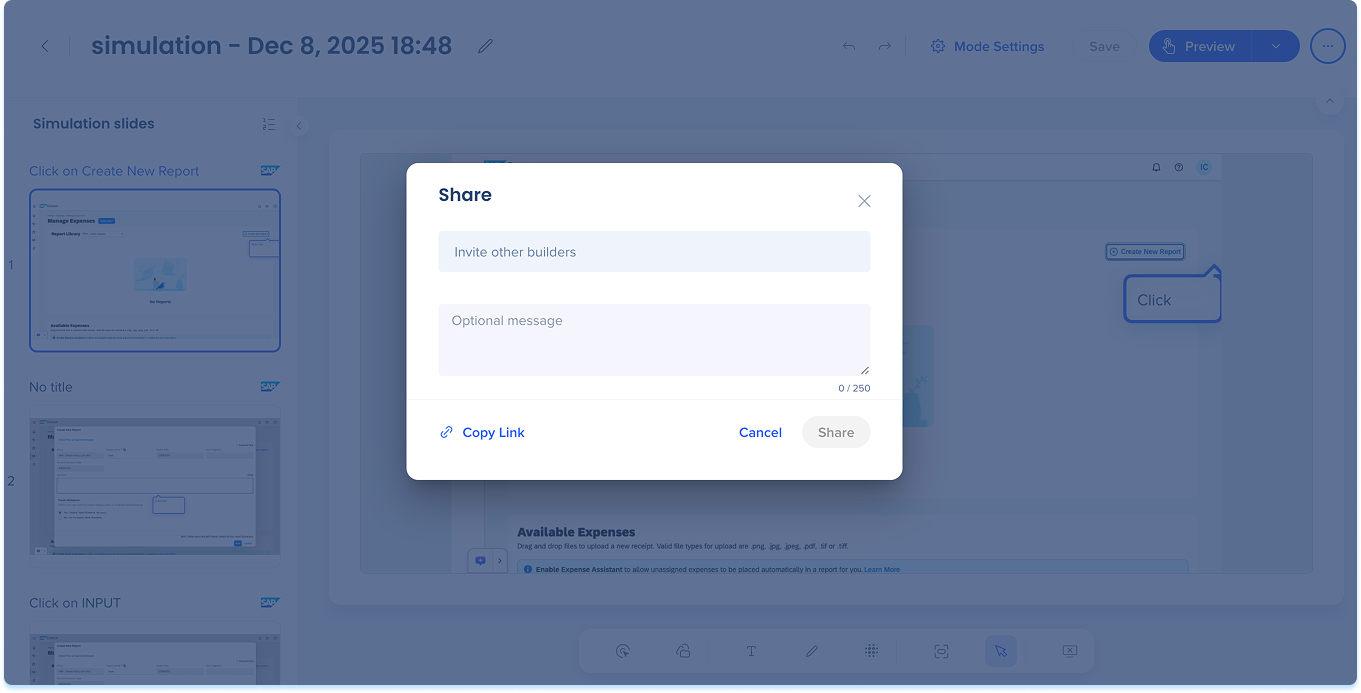
- Click the Share button near the top-right of the page
- A share simulation popup will open
- Add users:Enter one or more email addresses in the text field to share the simulation with specific users
- Add a message (optional)
- Copy Link: Copy the simulation's link and share it manually
- Click Share
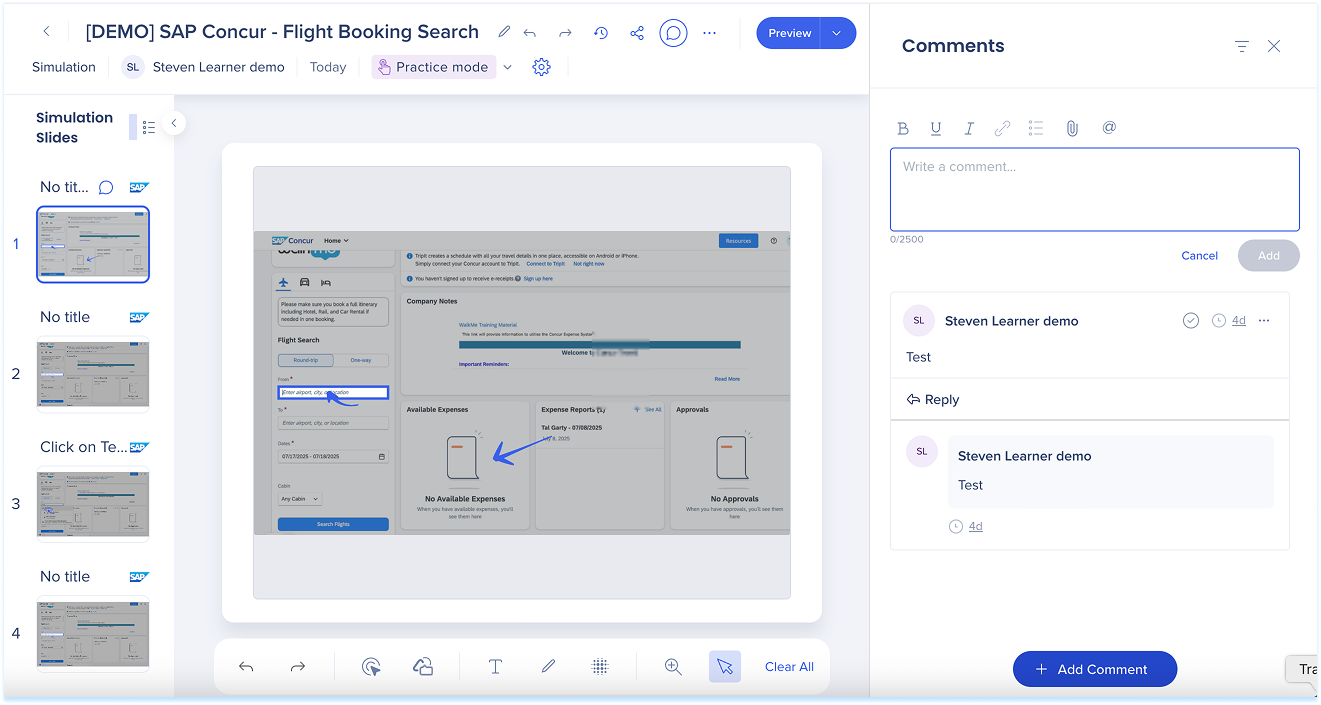
Use comments to collaborate on simulation slides.
View comments
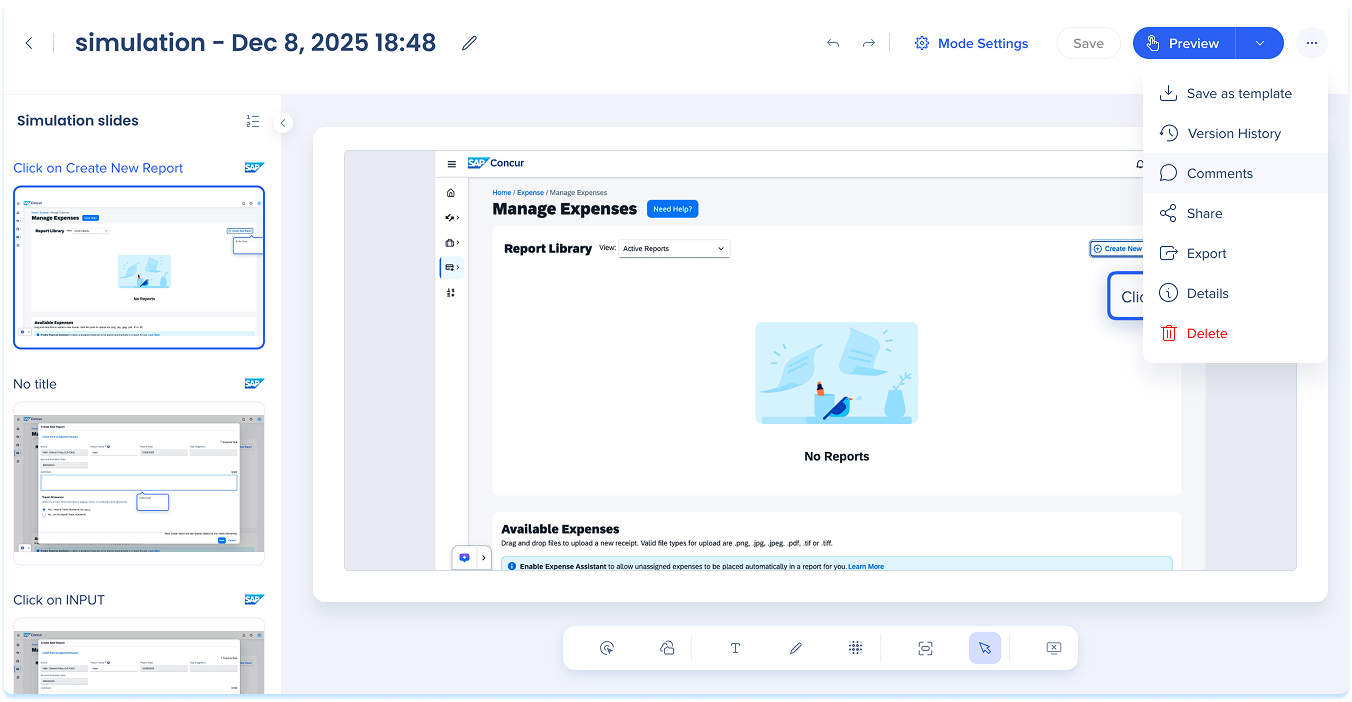
- Click the Comments icon at the top of the page to open the comments panel
Add a comment
- Select + Add Comment
- Type your feedback, then select Add
Manage comments
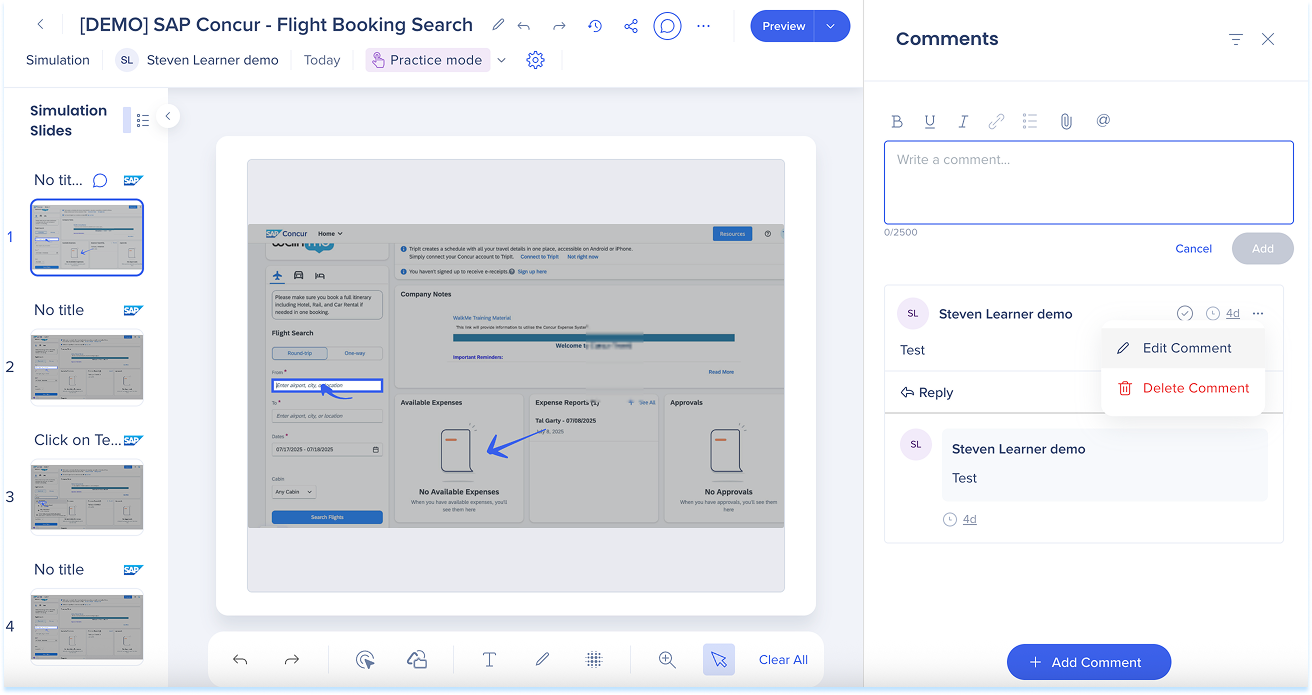
- In the comments panel, open the Options menu next to a comment
- Select Edit Comment or Delete Comment
Resolve comments
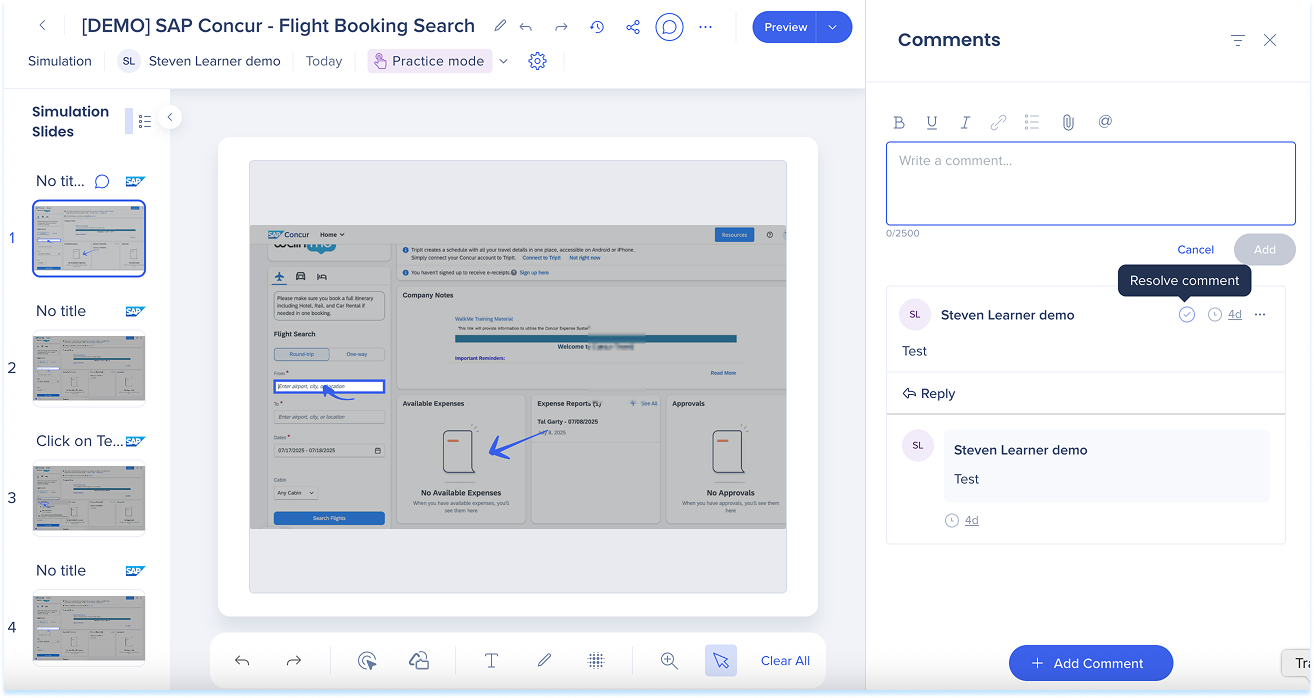
- When feedback is addressed, select the Check icon to mark it as resolved
Filter comments
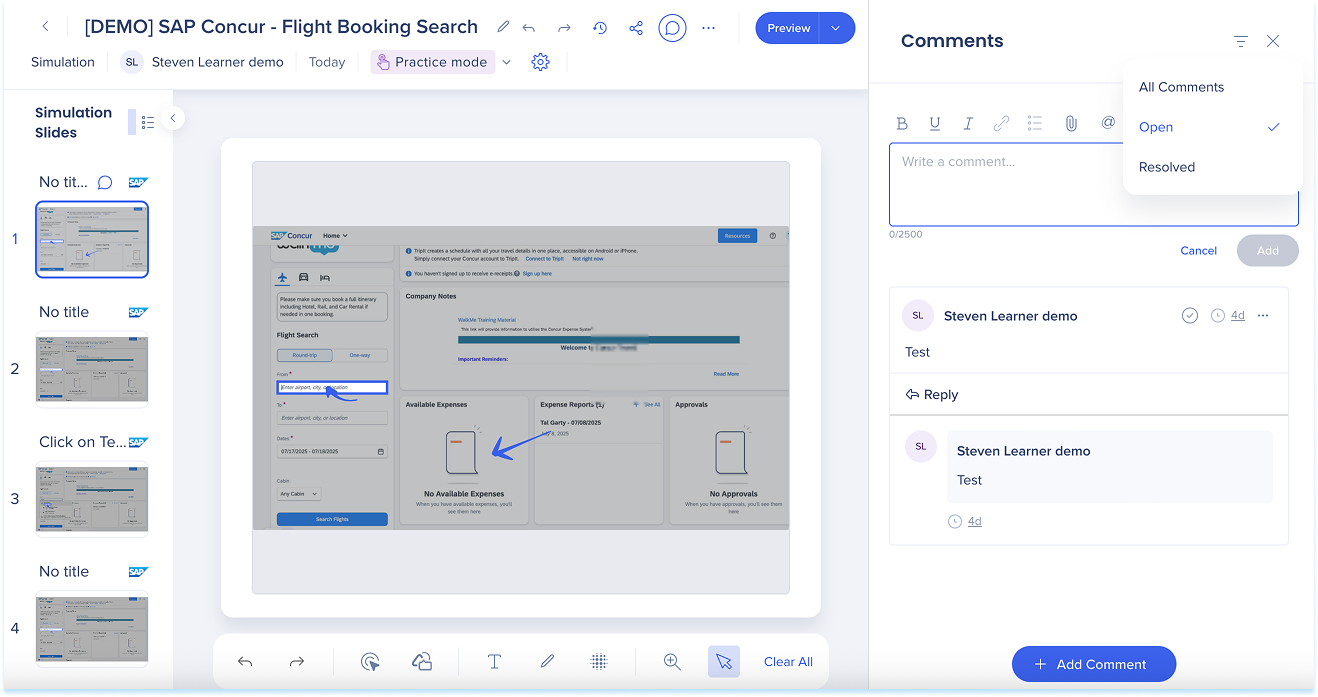
- Select the Filter icon to view:
- All comments
- Open
- Resolved
To filter comments on simulation slides:
- Click the Comments icon
- Click the Filter icon
- Select one of the following options:
- All comments
- Open
- Resolved
Note
By default, the comment filter is set to Open.
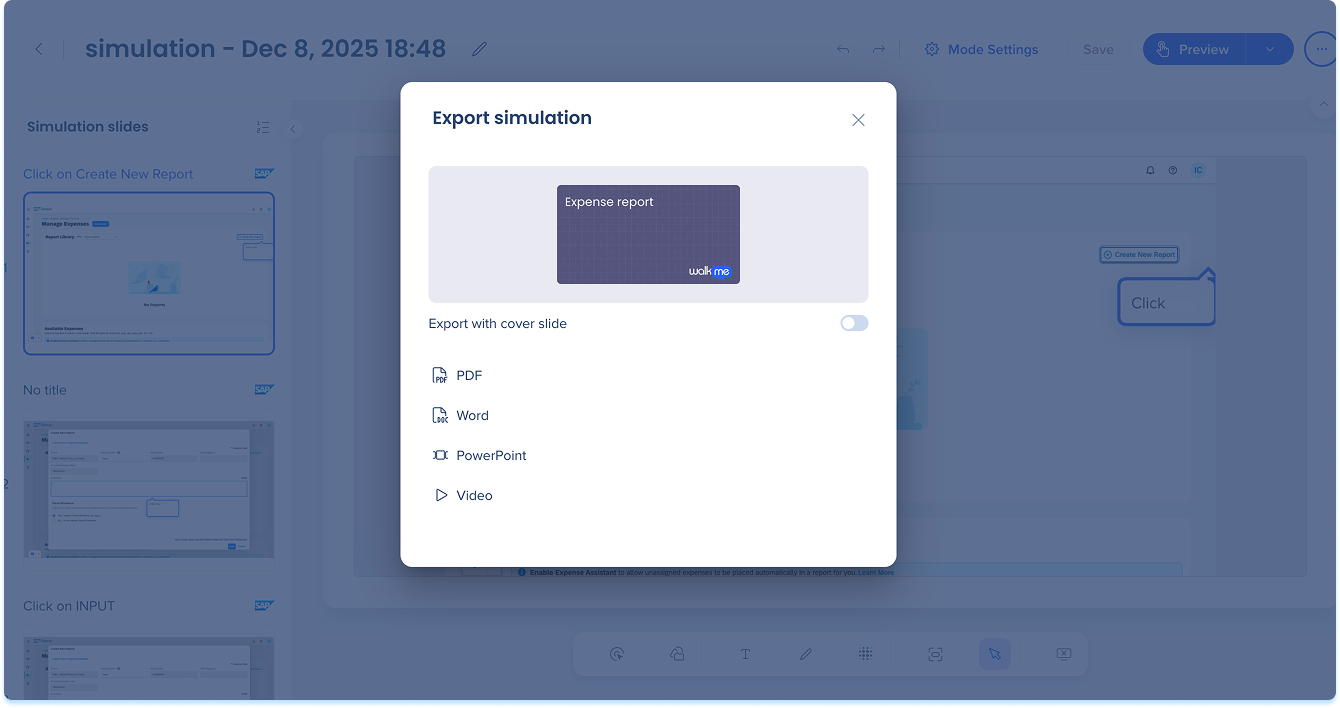
Export
-
Select the Options menu at the top of the page and select Export
-
Turn on Export with cover slide (optional)
-
Choose a format:
-
PDF Document
-
Word Doc
-
PowerPoint
-
SCORM
-
Video
-
HTML: Embed simulation in sites which support HTML formatting
-
Markdown: Embed simulation in sites which support Markdown formatting (i.e. github, notion, sharepoint)
Embed
-
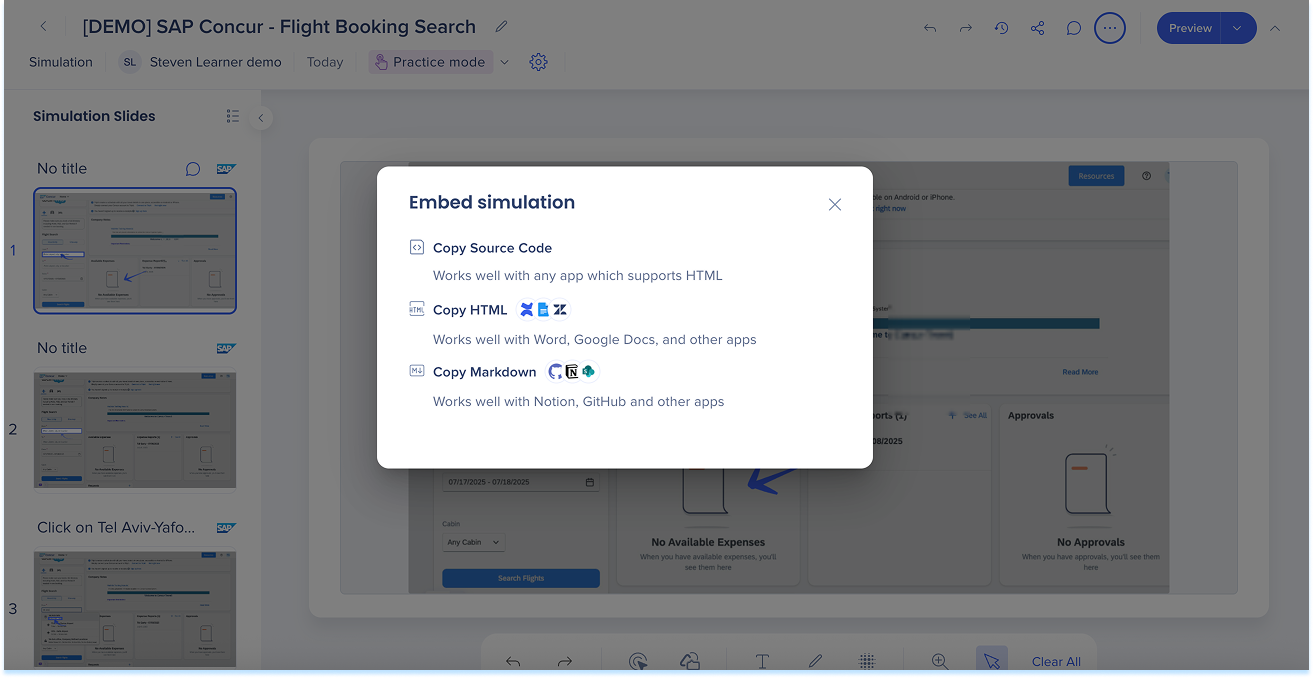
Select the Options menu at the top of the page and select Embed
-
Choose a format:
-
Copy to Source Code
-
Copy HTML
-
Copy Markdown
Details
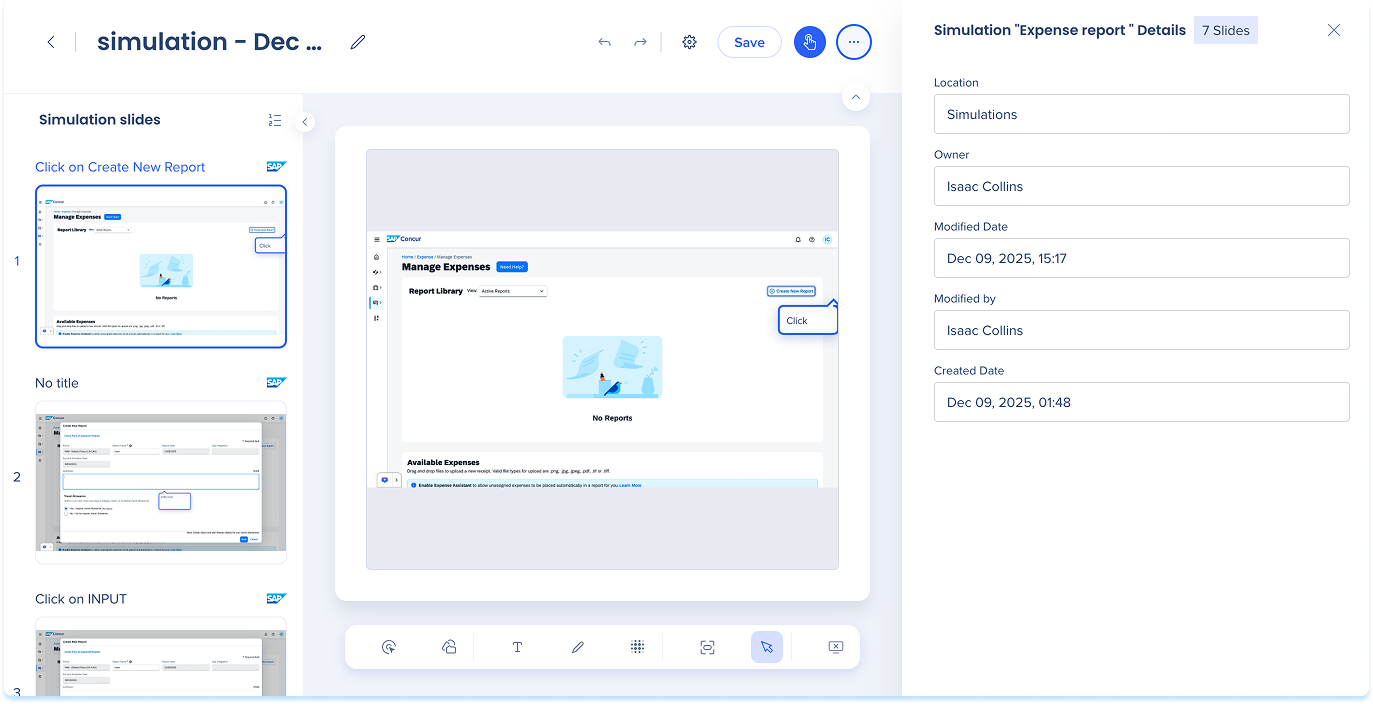
- Click the Options menu at the top right hand side of the page
- Select Details
- The simulation details appear in the right-hand panel
Delete
-
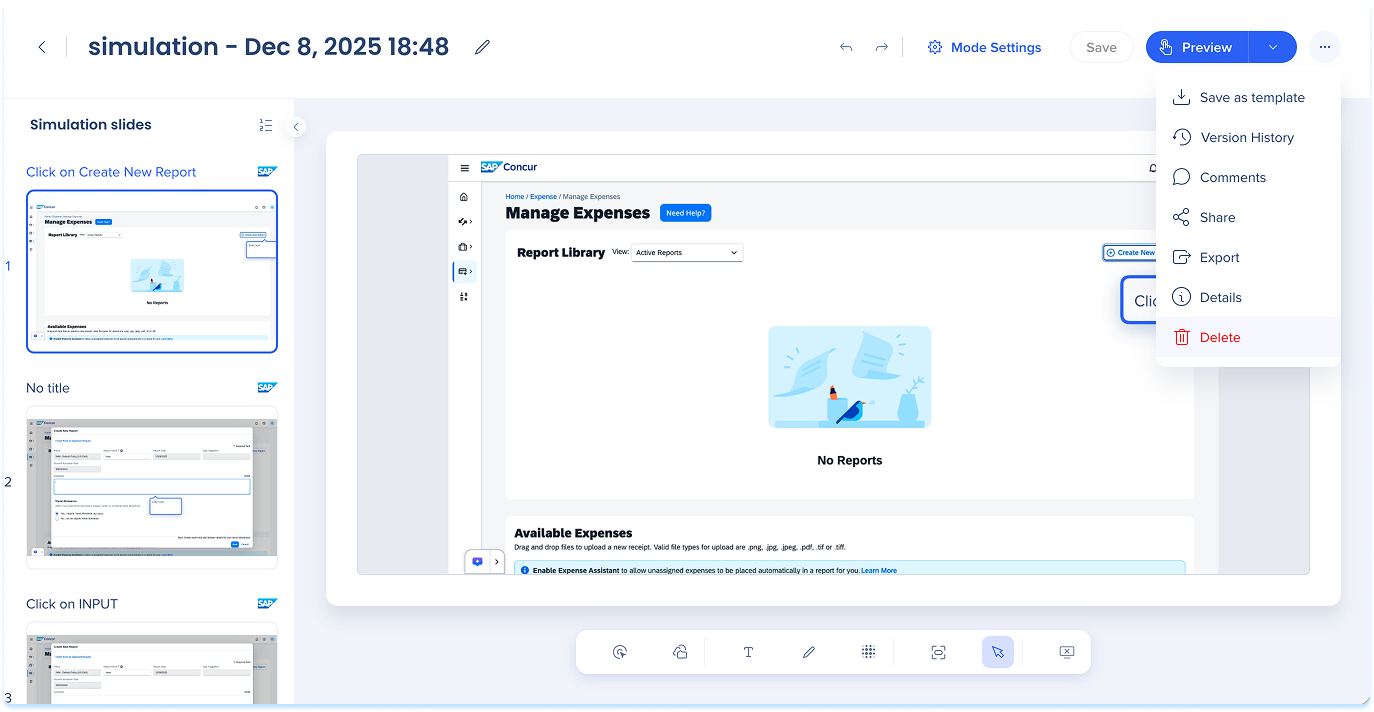
Select the Options menu at the top of the page and select Delete
Preview
-
Select Preview to open the simulation in the selected mode
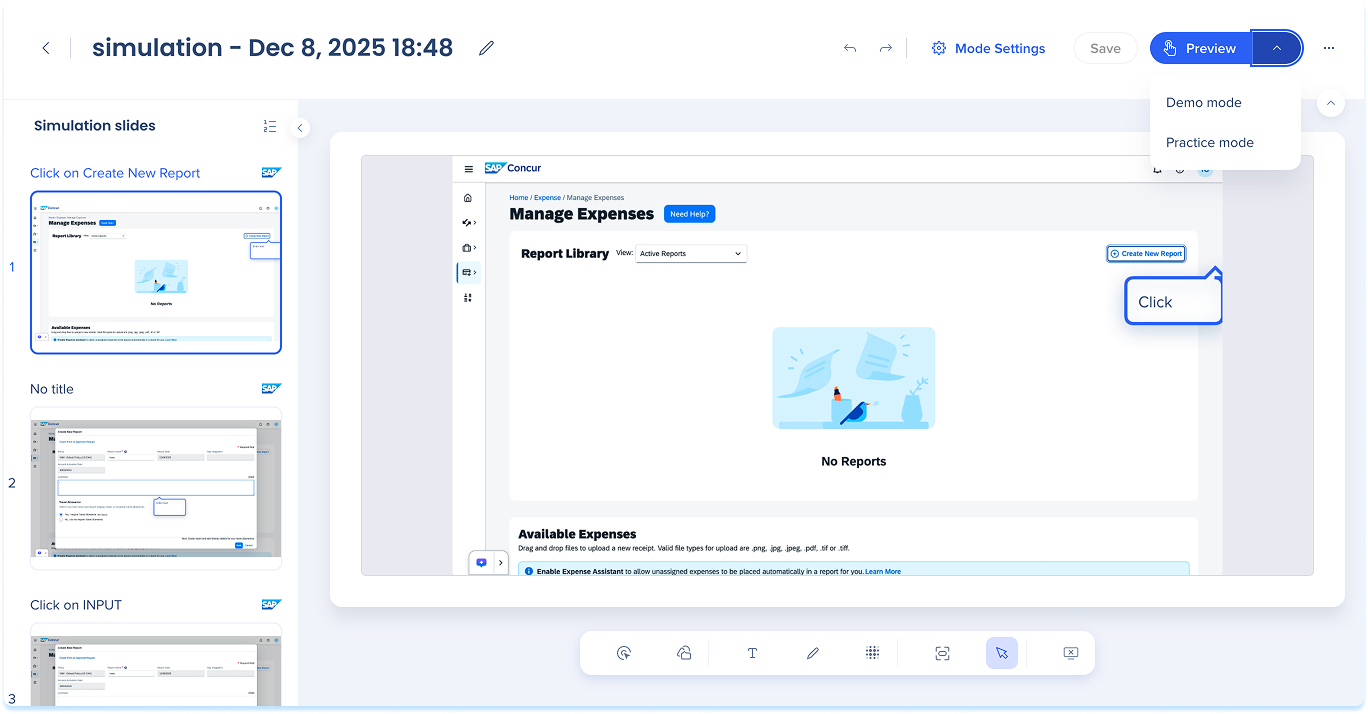
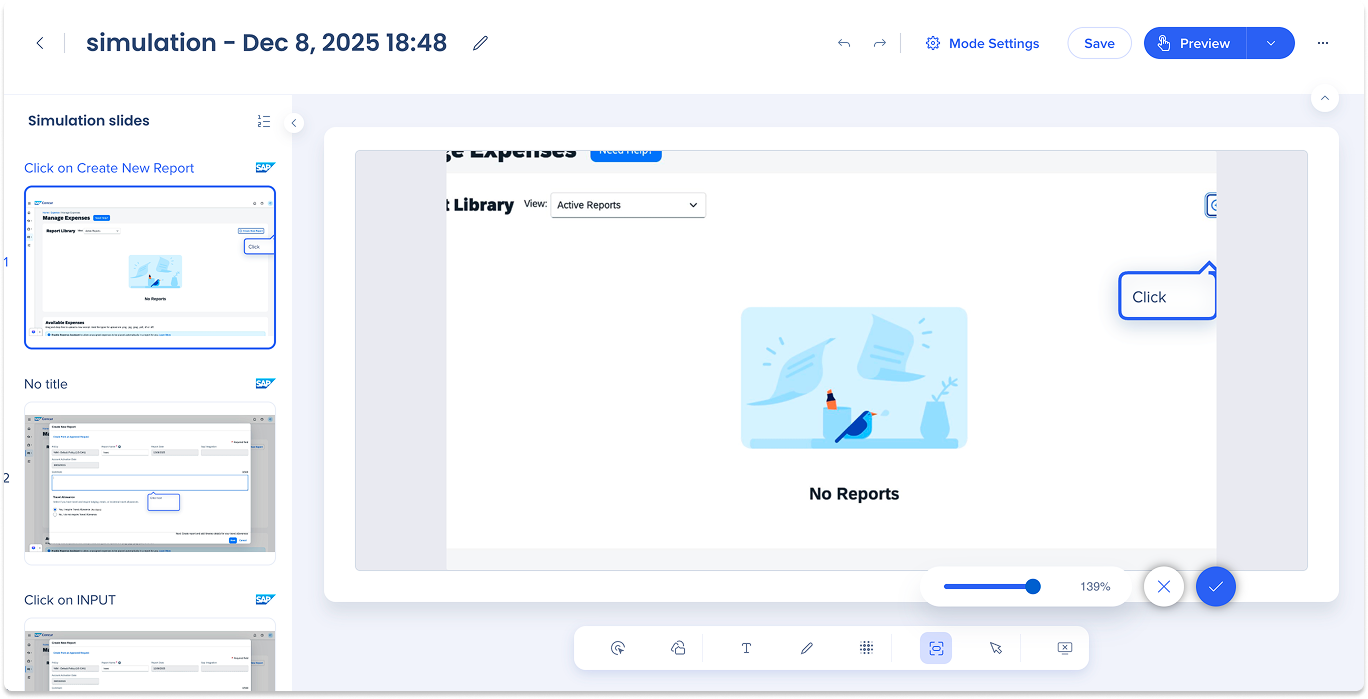
Main canvas
The main canvas displays the currently selected slide at full size for review and editing.
Use the annotations toolbar at the bottom of the page in demo mode to add visual guidance to a slide.
Available annotations:
- Captured element: Highlighted captured UI element to show where to click or type
- Shapes: Add boxes, arrows, or pointers
- Text: Add short instructions or labels
- Pencil: Draw freehand marks
- Blur: Hide sensitive content
- Zoom: Adjust your view
- Clear all: Remove all annotations
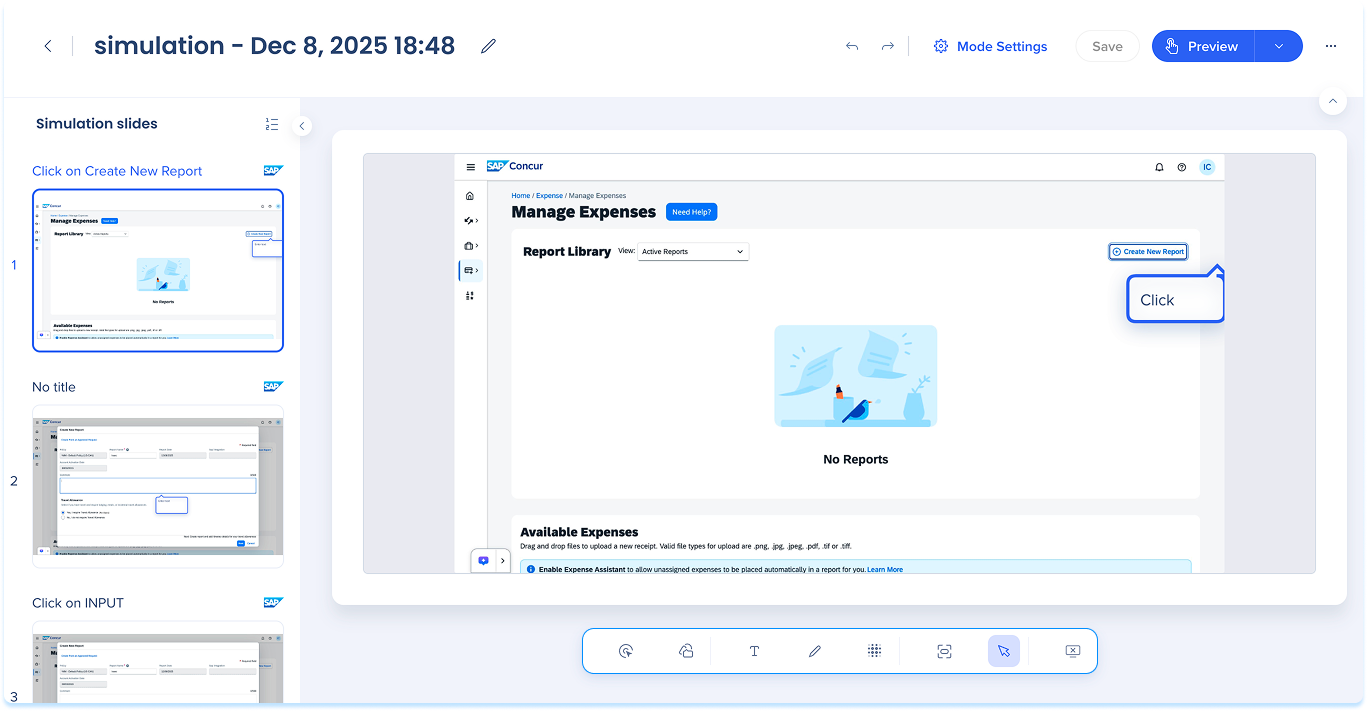
Captured element
-
Select Captured Element in the annotation toolbar
-
Use the inline toolbar to adjust:
-
Overlay: Dim everything except the highlighted element and choose a shade
-
Border: Set the outline color
-
Trigger type: Define the action a learner must perform to progress to the next step (available in Practice and Test modes)
Note
In demo mode, when the simulation plays for the learner, the animation always clicks the captured element, regardless of any added annotations.

Trigger type
Trigger type defines how the learner completes the step. Click-based trigger types require a mouse interaction. Input trigger type requires entering text into a field.
- In Trigger type, select one of the following:
- Click
- Double click
- Right click
- Input
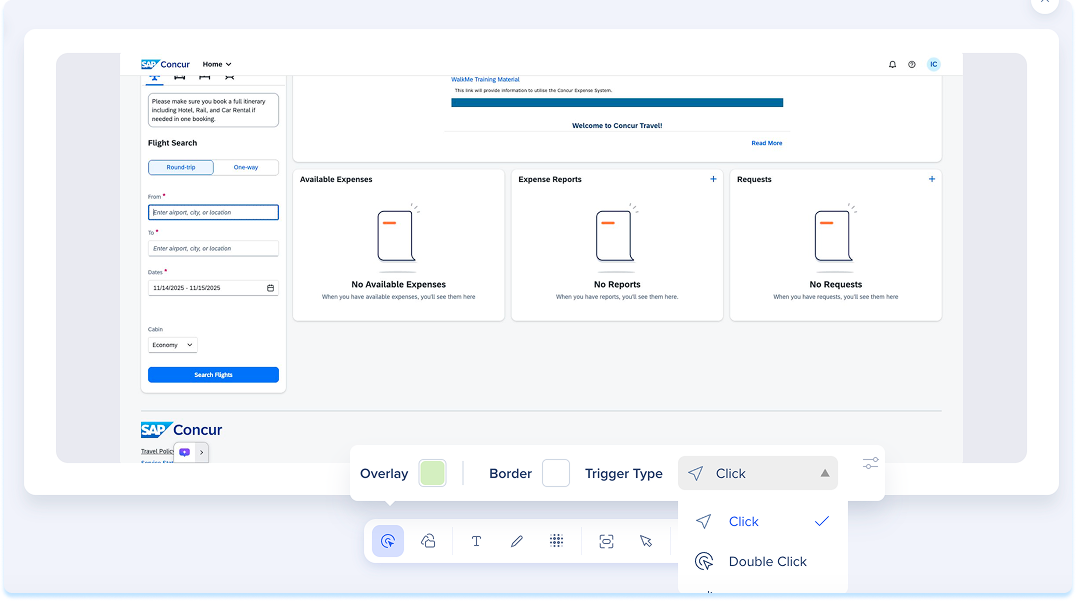
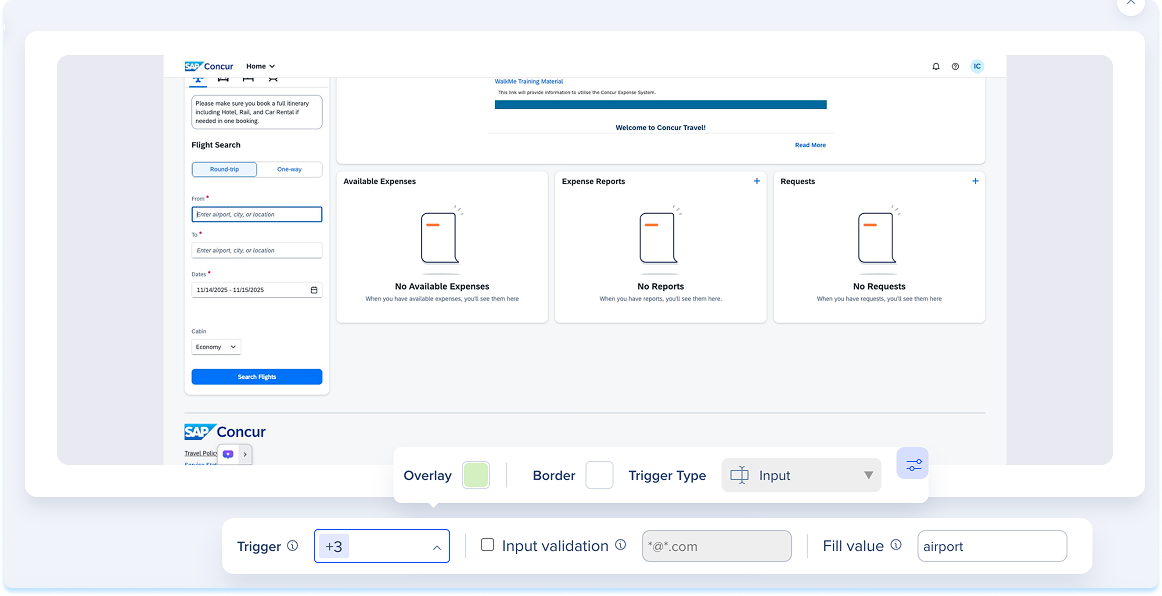
- If you select Input, select the Controls icon to configure additional settings
- In Trigger action, define how the learner completes the input action by selecting one or more of the following:
- All actions
- Tab
- Enter
- Focus lost
- Turn on Input validation to require the learner to enter a specific value or match a regex pattern
- If the field contains a simple string, string matching will be used. If the field starts with /^ and ends with /, it is matched via regex.
- Samples:
| RegEx |
Description |
Accepted inputs |
/^.*/ |
Any input including empty |
"a", "123", "" |
/^.+/ |
At least one character |
"a", "123" |
/^PR_.+/ |
Any string starting with PR_ and at least one more character |
"PR_12345", "PR_Abcd" |
/abc/ |
Any string containing "abc" |
"123abc456", "abcd" |
/^\d{6}$/ |
A string of exactly 6 digits |
"123456" |
- In Fill value, enter the value populated automatically by the player when Show me is selected
- The recorded value is used by default and can be edited
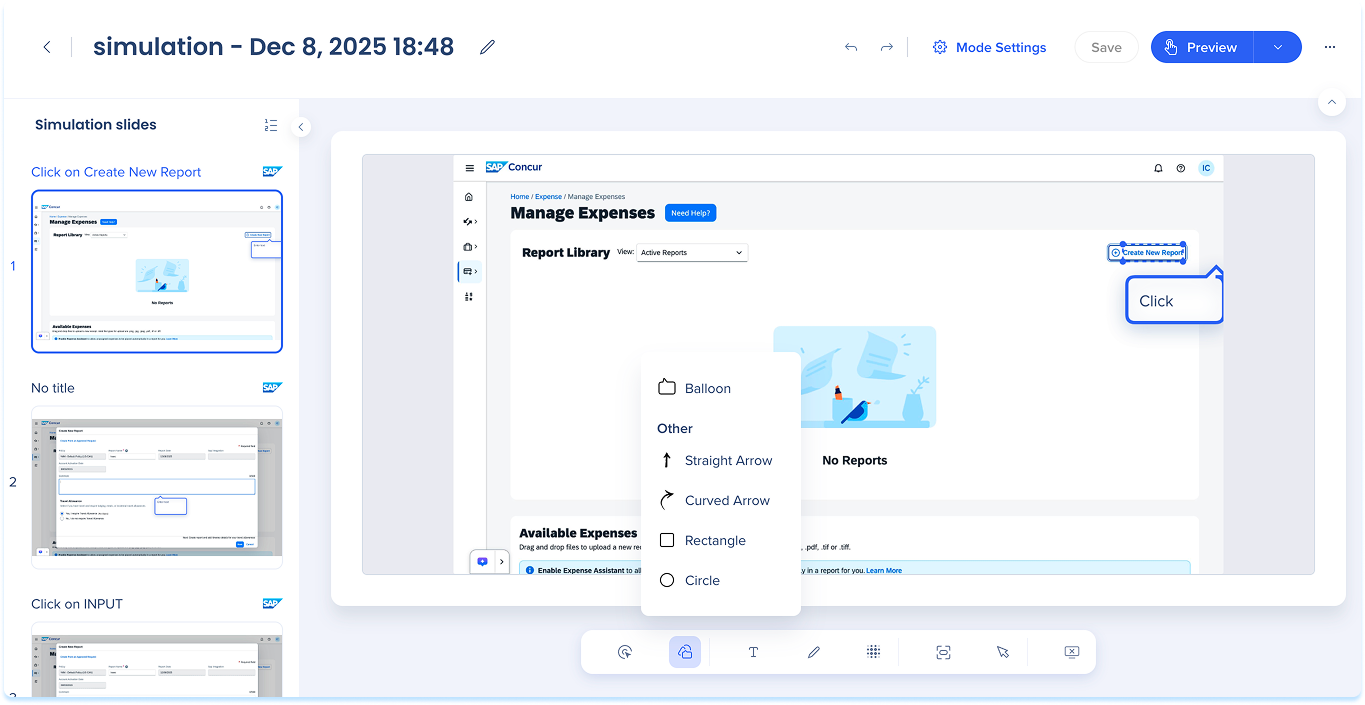
Shapes
-
Select Shapes in the annotation toolbar
-
Choose a shape:
-
Balloon
-
Straight arrow
-
Curved arrow
-
Rectangle
-
Circle
-
Use the inline toolbar to adjust:
-
Fill: Background color (balloon, rectangle, or circle)
-
Stroke: Border or line color
-
Width: Set the border thickness
Note
The Balloon shape supports rich text and links.
Text
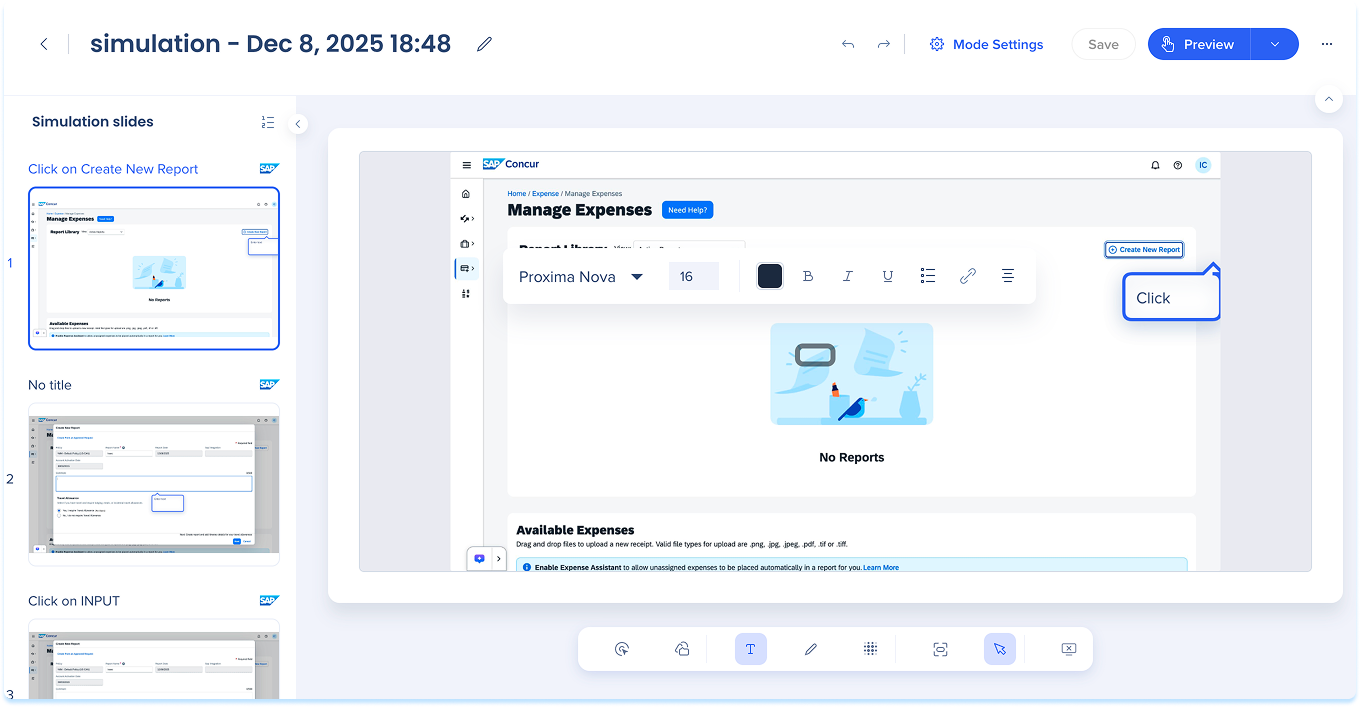
-
Select Text in the annotation toolbar.
-
Click on the slide and type your instruction or label
-
Use the inline toolbar to apply the following formats:
-
Font
-
Font size
-
Color
-
Format text: Bold (B), Italic (I), Underline (U)
-
Lists: Bulleted list or numbered list
-
Link: Add a hyperlink
-
Alignment
Pencil
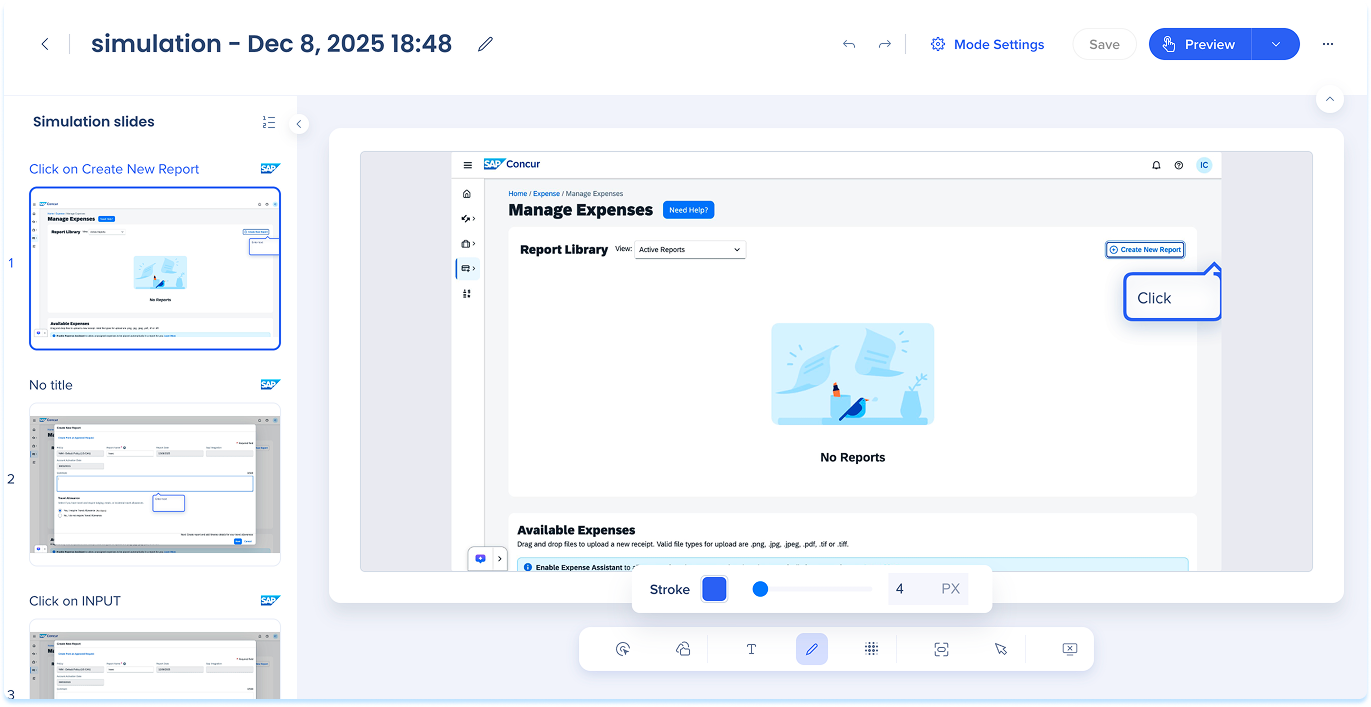
-
Select Pencil in the annotation toolbar to draw freehand on the slide
-
Use the inline toolbar to adjust:
-
Stroke: Line color
-
Width: Line thickness
Blur
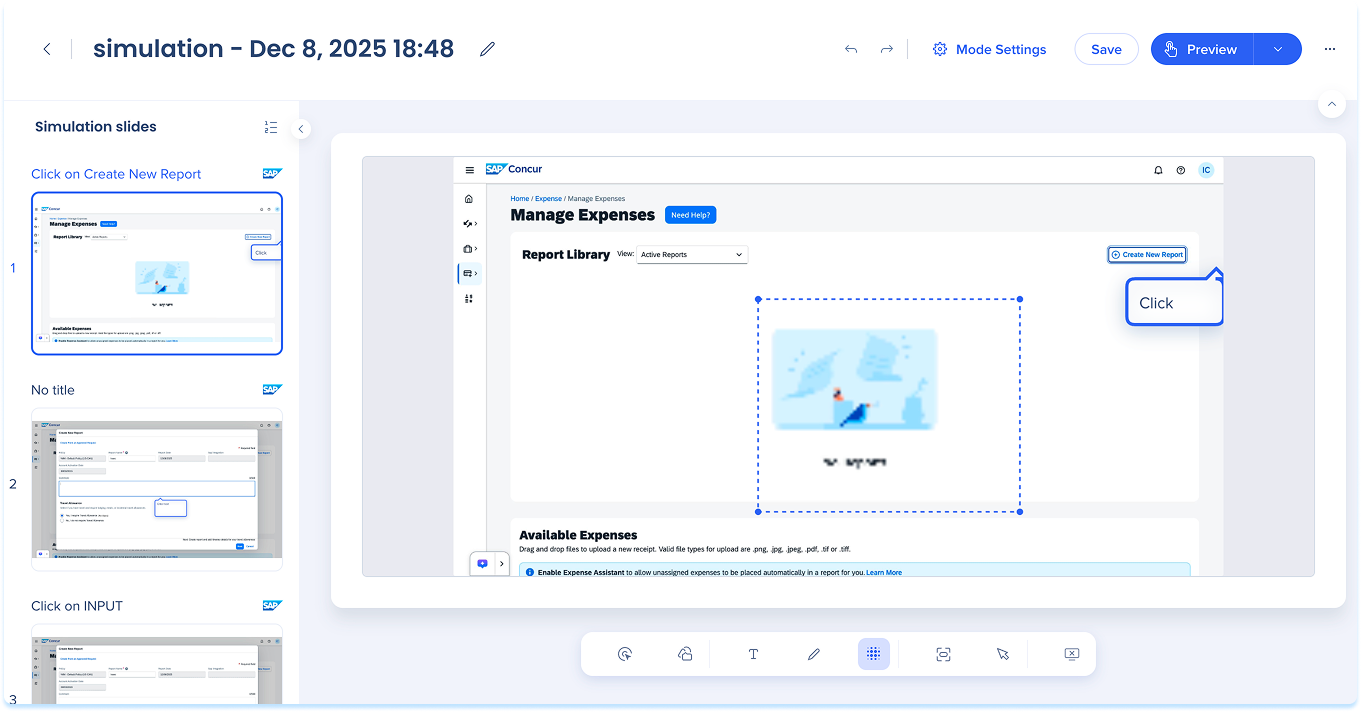
-
Select Blur in the annotation toolbar
-
Drag to draw a blur box
-
Resize or move the box as needed (optional)
Focus area
- Click Zoom in the annotation toolbar
- Use the slider to zoom in or out
Technical Notes
Simulation recording issues on older Google Chrome browser versions
- If you are experiencing any issue with recording simulations, update your Google Chrome browser to the latest version, relaunch Chrome and try again.


