Brief Overview
WalkMe Onboard is a collection of resources and tasks to help admins get started with WalkMe. This guided onboarding flow will equip you with the essential knowledge and tools to get started with WalkMe and Joule integration so you can start seeing results faster.
It includes:
- Self-Serve Resources: Gain confidence with WalkMe through self-paced courses and best practices in the WalkMe Community and Digital Adoption Institute
- Admin Setup Essentials: A clear checklist to configure WalkMe for your system
- A Go-To Resource: Come back to WalkMe Onboard anytime, whether you're just getting started or need a quick refresher
Access
- After the account Provisioning & Proof of Delivery (POD) process is complete - on the effective date of the contract, the Customer WalkMe Admin will receive a welcome email from WalkMe
- Once users click Activate Account in the email and set up their password, they are redirected to the WalkMe Console to start their onboarding
- The initial users will then be able to invite other users to receive the email and start the onboarding process
How It Works
Getting Started with WalkMe
When you first log into WalkMe, you will see a full-screen welcome video. This video introduces WalkMe's Digital Adoption Platform and how it can help maximize the value of your software investments.
The video will only appear once and will not be shown again after you complete it.
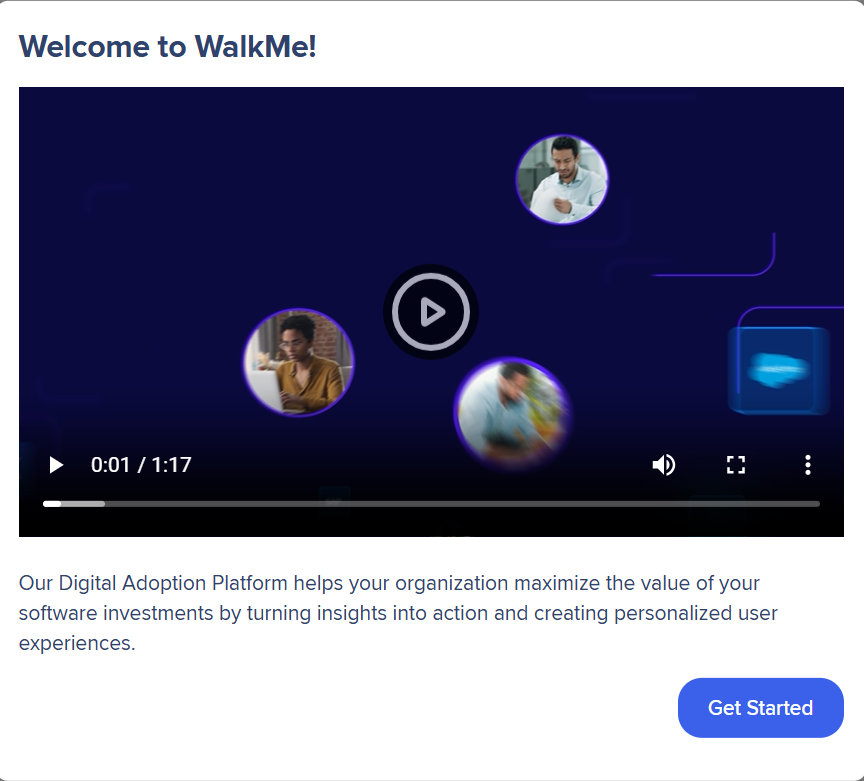
After clicking Get Started, you'll be presented with an overview of WalkMe Onboard:
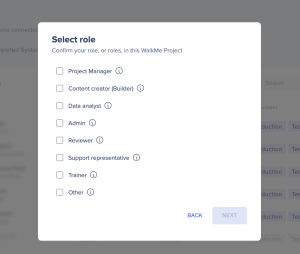
Select role
- Select the role that is closest to what you do, hover over i for a detatiled description
- Only one role can be selected, choose Other if none of the roles fit what you do
- Your selection doesn't impact functionality or onboarding options
Onboard at your own pace
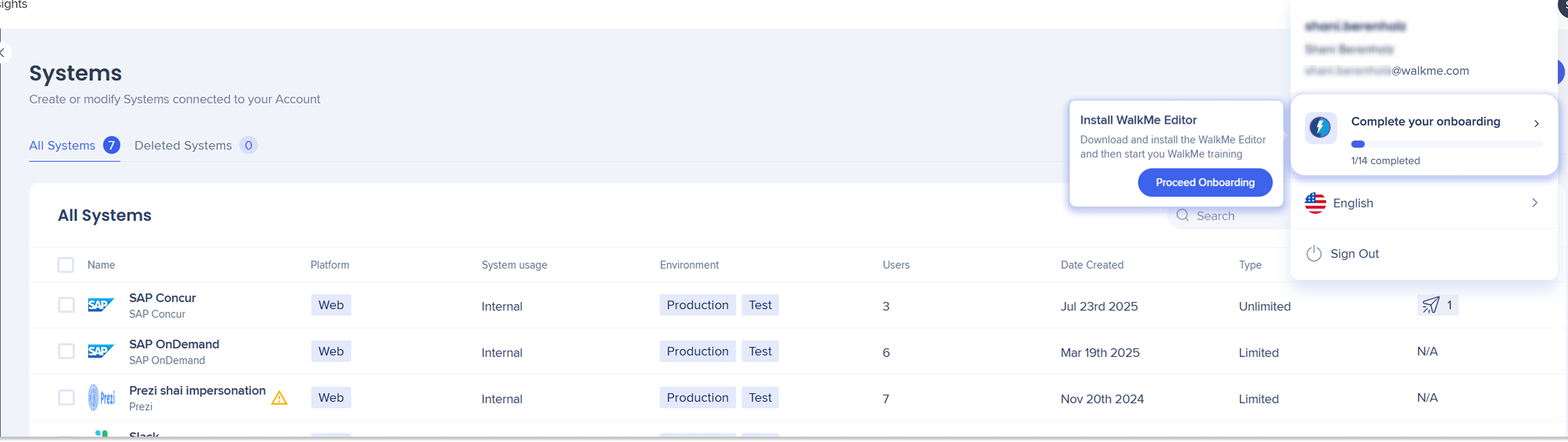
The onboarding experience allows you to return to the main menu to complete your onboarding anytime.
- Click the Profile icon to view onboarding progress
- Hovering over the progress bar shows the next steps and how many steps remain for the user to complete the onboarding process
Invite Users
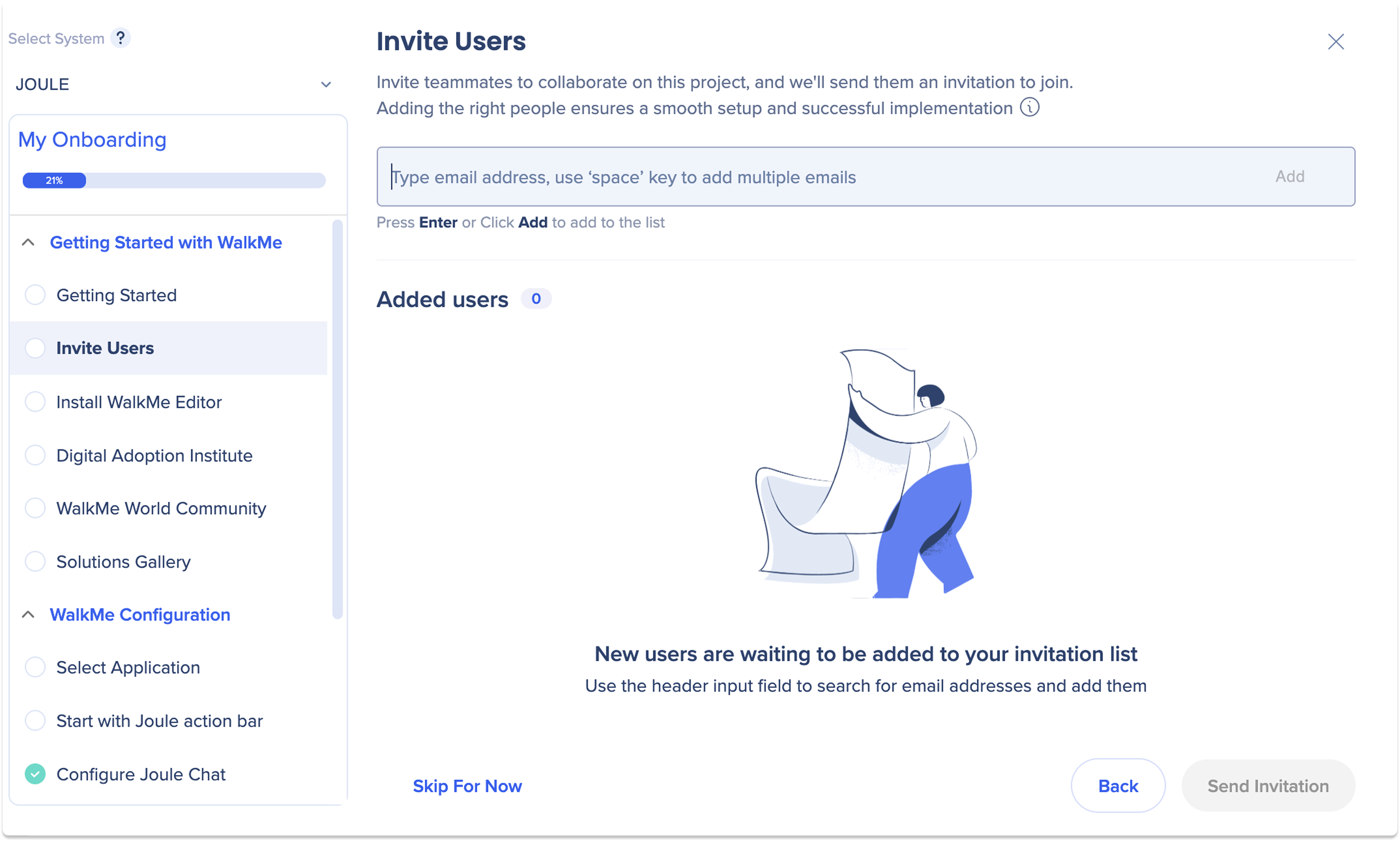
You can invite teammates to collaborate on your WalkMe project.
Typical collaborators may include:
- Developers
- IT team members
- Content creators
- Admins managing WalkMe
Enter the email addresses of the users you want to invite.
Install WalkMe Editor
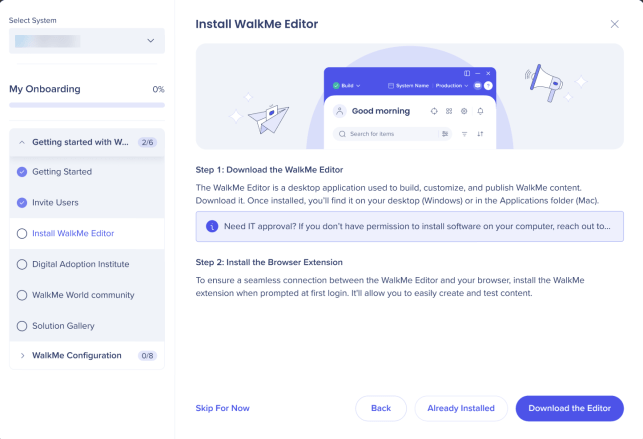
Download the WalkMe Editor for your operating system (Windows or Mac).
Install the application on your computer. If you do not have installation permissions, contact your IT department for assistance.
After installing the editor:
- Install the WalkMe browser extension when prompted to ensure the editor connects properly with your browse
Download
Digital Adoption Institute
Access Digital Adoption Institute with the integrated action bar for self-paced WalkMe training and certifications.
Learning paths include:
- WalkMe Fundamentals
- Builder training
- Project Lead training
- Program Manager training
Log in with your WalkMe credentials to begin your learning journey.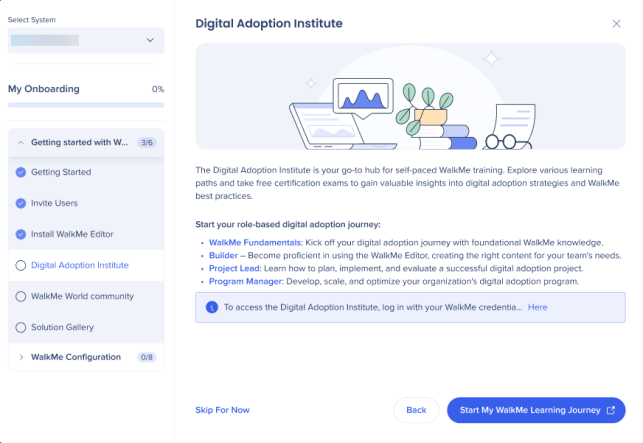
You can join the WalkMe World Community to:
- Browse discussions and feature ideas
- Connect with other WalkMe users and experts
- Participate in forums, groups, and events
Access the community using your WalkMe credentials.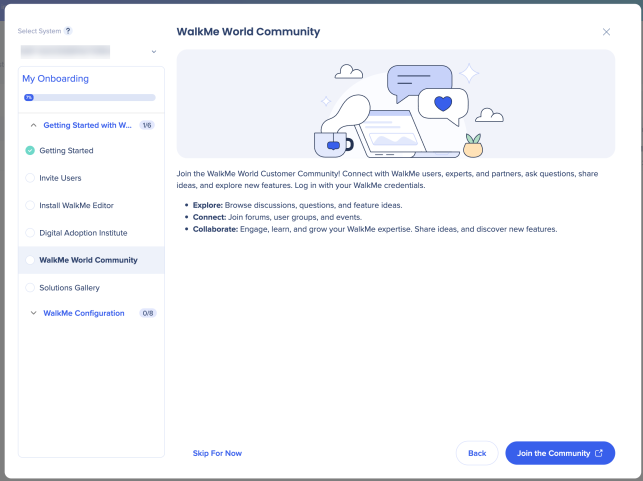
Solutions Gallery
If you are working with SAP systems, you will have access to the Solutions Gallery, which has customizable accelerator templates.
Browse available solutions to speed up deployment and maximize digital adoption.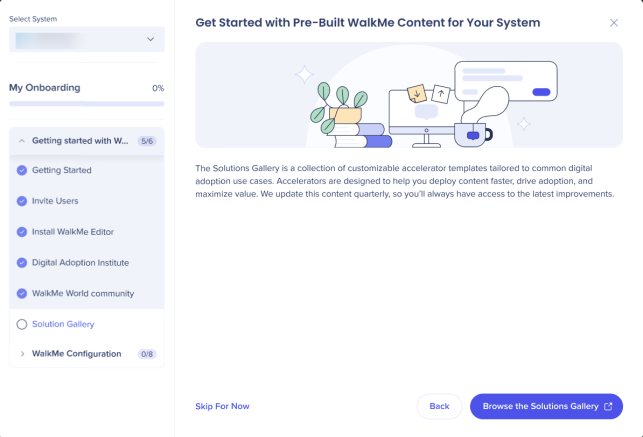
Solutions Gallery: Getting Started Guide
WalkMe Configuration
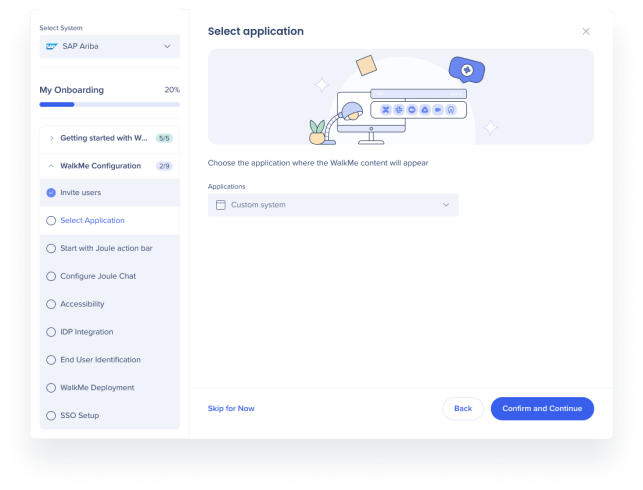
Select Application
To begin using the action bar choose and save your first application.
- Applications containing content can't be selected
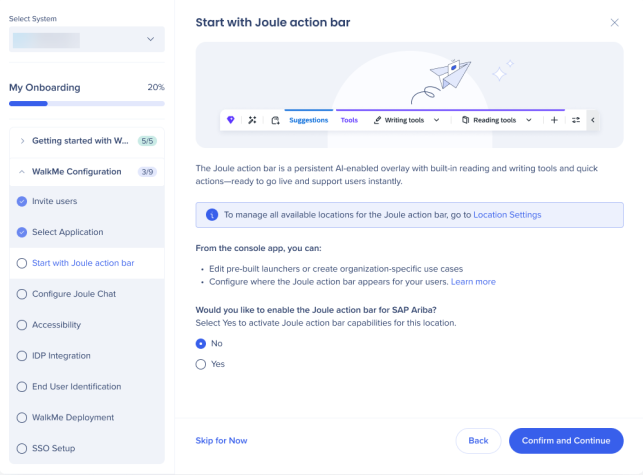
Start with Action Bar
To configure the action bar on your selected application choose Yes when prompted.
Builders can:
- Add and customize organizational launchers
- Configure where the bar appears for employees
- Enable the CX AI Toolkit integration to preload CX launchers
- Launch the console app to select action bar locations
Selecting action bar locations allows builders to control where the action bar can appear for your users.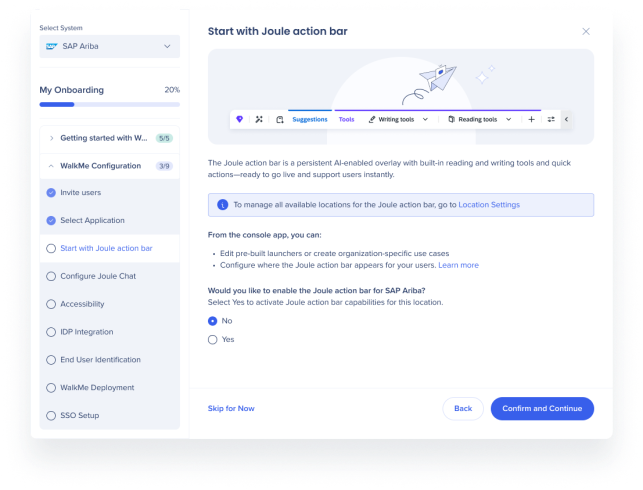
To configure the Joule chat on your selected application, choose Yes when prompted
Builders can:
- Provide smart assistance with fast answers from SAP knowledge sources
- Deliver contextual suggestions and automates processes
- Configure from the AI Chat console app
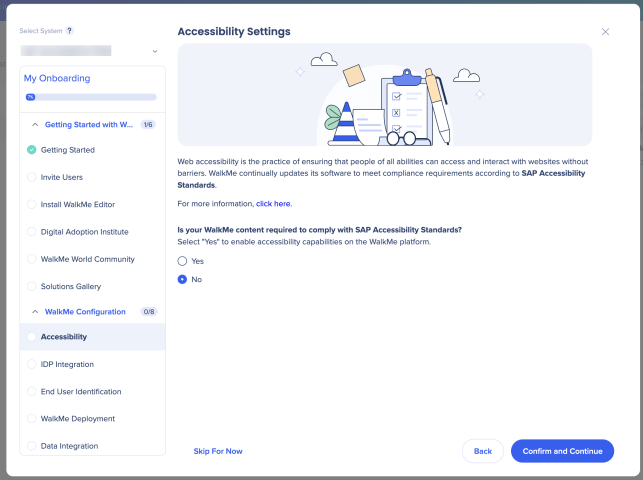
Accessibility
You will be asked whether your WalkMe content needs to comply with accessibility standards (ADA/WCAG).
- Select Yes if accessibility compliance is required
- Select No if accessibility compliance is not required
IDP Integration
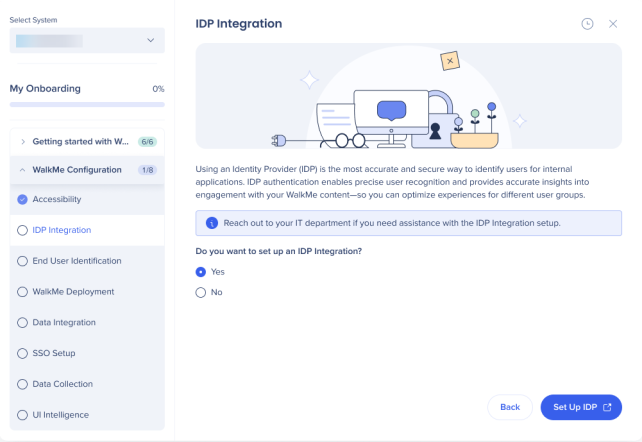
You will be asked whether you want to set up an Identity Provider (IDP) Integration to securely identify users.
- If you select Yes, you will be taken to the IDP configuration page
- If you select No, you will proceed to the next step of the onboarding process
Note
Reach out to your IT department if you need assistance with the IDP Integration setup.
IDP Integration
End User Identification (UUID)
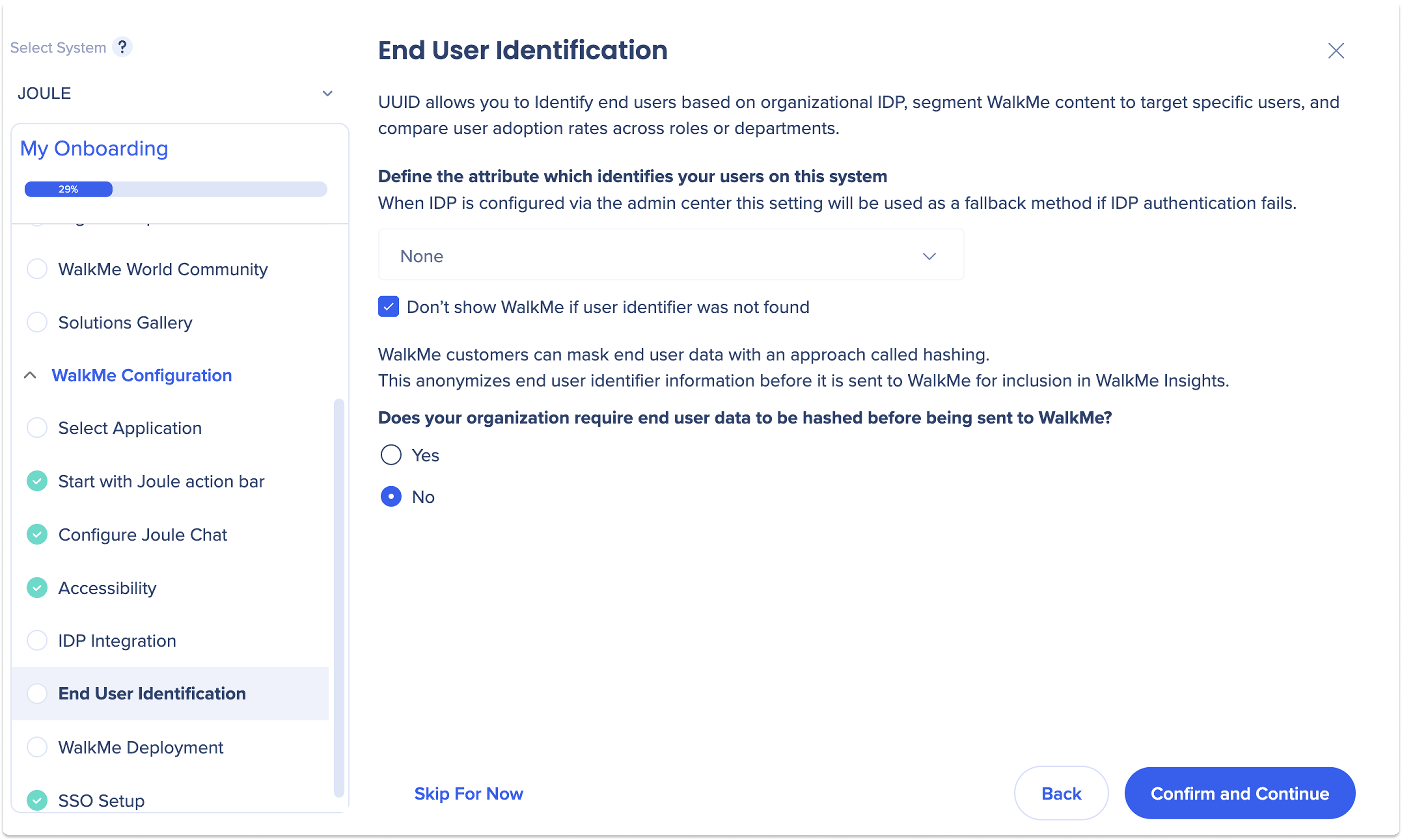
If you do not set up IDP integration, you will be prompted to choose how WalkMe will identify users using a Unique User Identifier (UUID).
- Recommended method: Use a variable for UUID identification
- You can also choose to enable hashing to anonymize user data before it is sent to WalkMe
Select your preferred UUID method from the dropdown menu.
WalkMe Deployment
Deployment for external applications (homegrown)
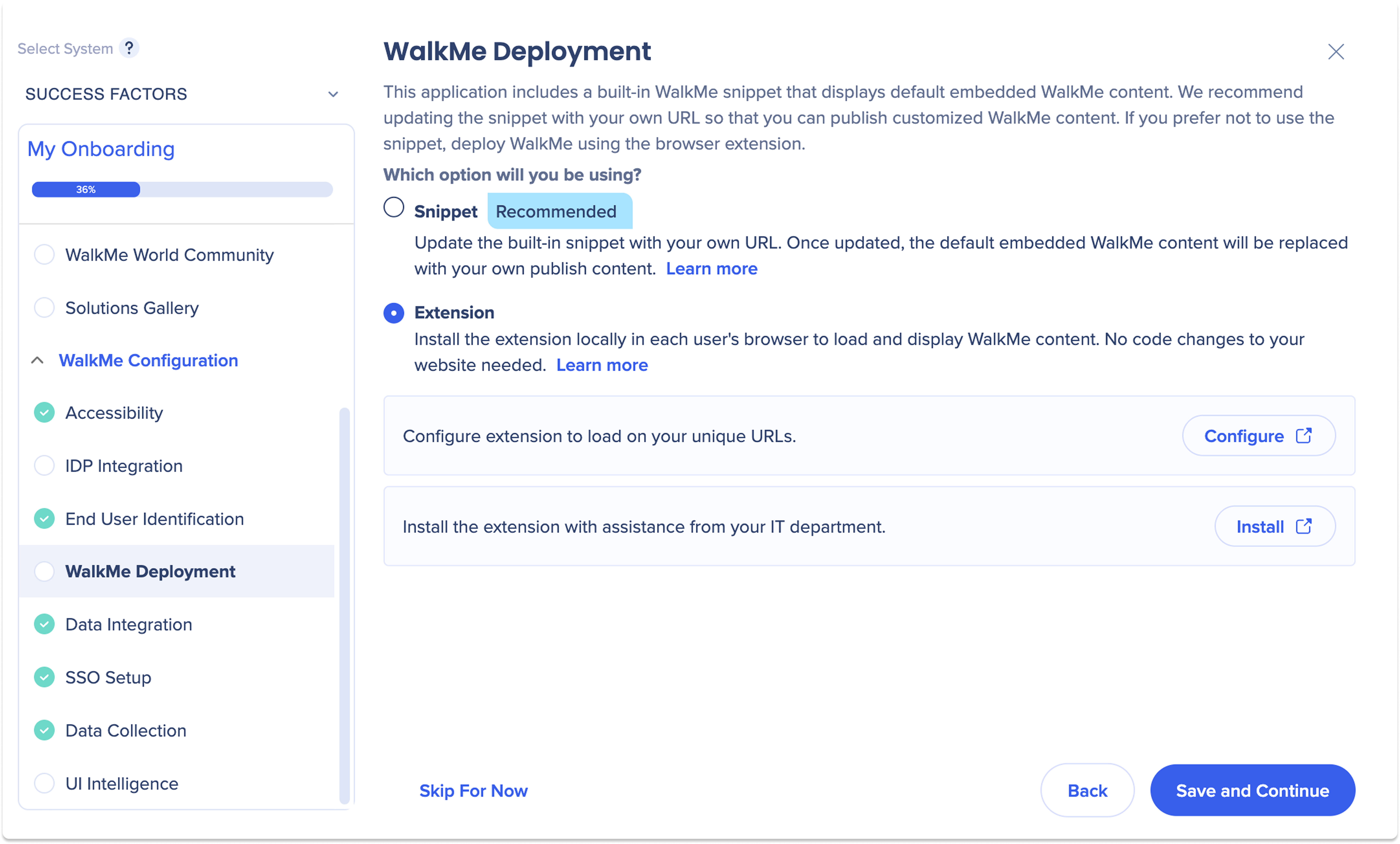
To view WalkMe content on your website, deploy WalkMe using one of two options. If you can access your site's code, deploy WalkMe using the snippet. Otherwise, use the extension.
Snippet (Recommended for SAP applications)
Insert a WalkMe snippet directly into your website's HTML. For best performance and long-term stability, we highly recommend using snippet deployment for SAP applications.
- Fastest deployment method with stable, scalable performance
- Pre-embedded in SAP applications where possible
- Managed and updated automatically with each SAP release
If you select this method, you'll have to copy the snippet of the code for the relevant environment (Test or Production from the Admin Center). To locate the snippet:
- Go to the Admin Center
- Select the relevant system
- Next to Production or Test, select on the Options menu
- Select Show snippet
Extension (Alternative for non-SAP systems)
Use the WalkMe browser extension if you cannot change the site's code.
- Required for applications outside of SAP
- Installation requires IT involvement; customers are responsible for setup
If you select this method, you'll have to configure the extension first – to define the unique URLs on which you want WalkMe to load
- Then you'll have to install the extension by following a step-by-step installation wizard
Best Practice
Start with snippet deployment for SAP applications. Use the extension method only for external or non-SAP use cases.
SSO Setup
You can configure Single Sign-On (SSO) to allow users to log into WalkMe with their existing company credentials. Enabling SSO improves security, simplifies user management, and streamlines access.
Decide whether to set up SSO now or later.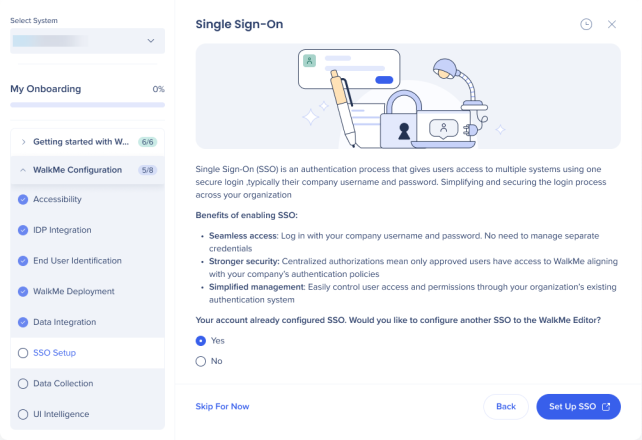
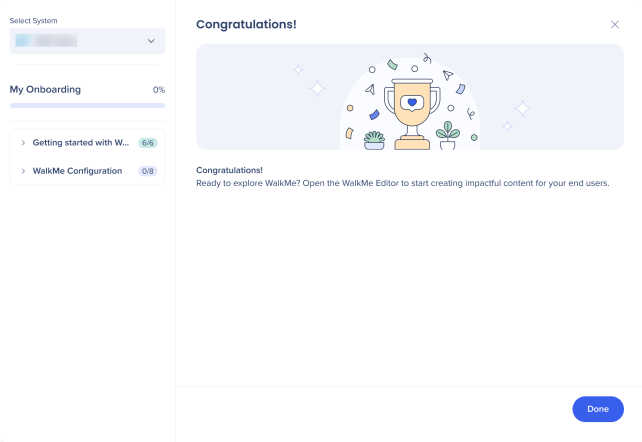
Onboarding Complete!
Now the onboarding is complete you can explore your new tools in the console: