Brief Overview
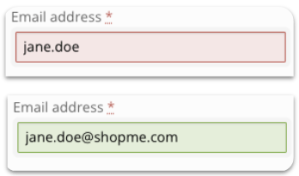
Validation SmartTips catch incorrect field entries before they become support tickets. They check a user's input against a validation rule the moment the user clicks or tabs out of a field, then display a clear correction message right where the user is working. That means fewer bad submissions, fewer "why isn't this working" tickets, and a smoother experience for the people using your content.
Use Cases
- Confirm a phone number field contains 10 digits in a valid US format
- Require a field to contain text before a user can move on
- Confirm an email field includes an @ symbol
- Confirm a date field matches a valid format, such as dd/mm/yyyy
- Confirm a web address field is formatted correctly
How It Works
How validation rules work
A validation rule defines what counts as valid input for a field. WalkMe checks the rule when a user clicks or tabs out of the field:
- If the rule evaluates as false (the input is incorrect), WalkMe displays the Validation SmartTip icon or highlights the element
- If the rule evaluates as true (the input is correct), the icon or highlight disappears
The validation message appears when the user hovers over the icon. You can set the message to appear on the SmartTip icon or directly on the selected field.
Configure validation rules and success messages from the Behavior tab.
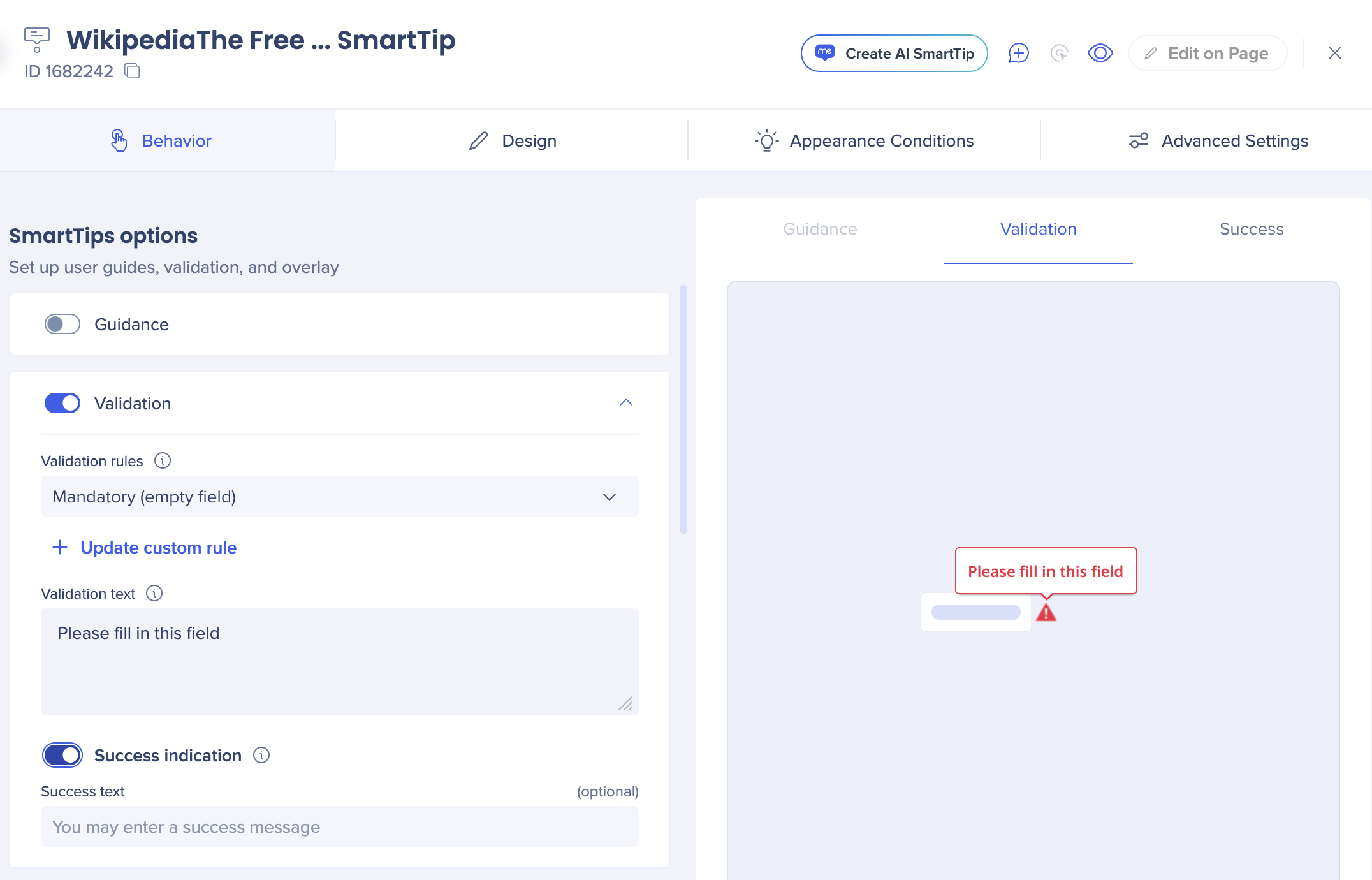
Choose a preset rule or create a custom one:
- Mandatory: Checks that the field isn't empty. An empty field evaluates as false
- Numeric field: Checks that the entry is a numeric value
- Date format: Checks that the entry matches a valid date format, such as dd/mm/yyyy
- Time format: Checks that the entry matches a valid time format, such as 14:00 or 2PM
- US Phone Number: Checks that the entry is a 10-digit US phone number (area code plus number). This rule checks formatting only — it can't confirm the number is real
- Email address format: Checks that the entry includes an @ symbol and matches a valid email format
- Web address format: Checks that the entry matches a valid web address format
To see how a preset is written in the condition builder, select a preset and select Update Conditions. For example, the US Phone Number preset uses this rule:

Technical Notes
Date picker
- When using a date picker, the user must click into the input field and then click out of it for validation to occur
- Set the validation rule on the actual input field, not on a surrounding container element. If a rule targets a container (such as a broader text area wrapper) instead of the inner input field, WalkMe can't read the entered text, and rules like "text is not empty" won't trigger even after the user enters valid text. Re-select the inner input field if validation doesn't fire as expected.


