Brief Overview
You add and manage languages for learning content from the Translations tab of a learning item. Languages are shared across the organization and can be reused for other learning items. This article walks through how to add languages, understand AI translation availability, and manage language-level actions.
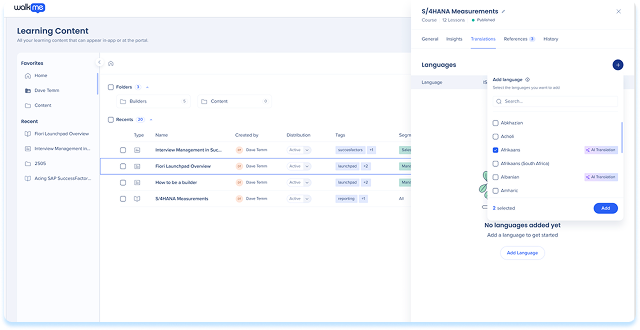
Open the Translations Tab
- Go to the Learning Content page
- You can either:
- Select the Info icon for a learning item
- Select the Options menu in the item row and select Translations
- Select the Translations tab
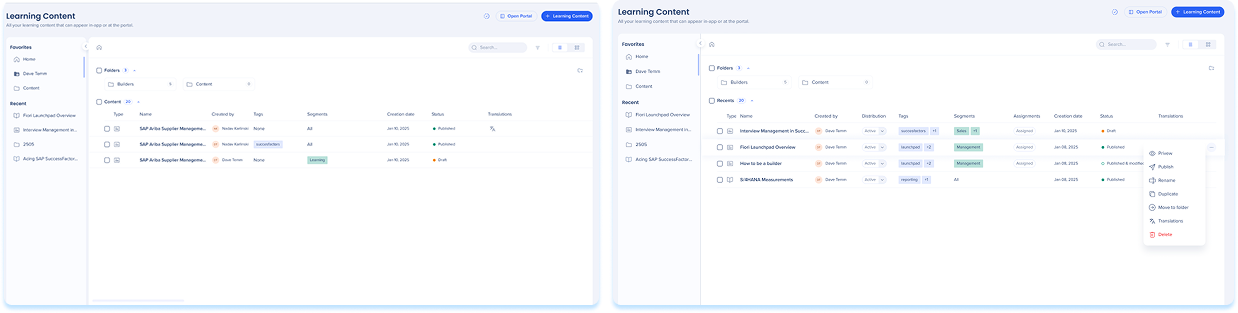
Add Languages
Add languages when you want to create translated versions of your content.
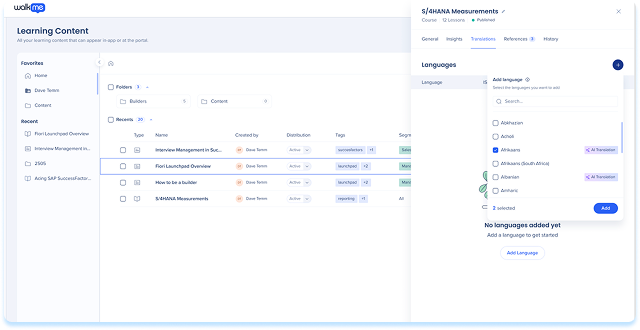
- Select Add language
- Search for and select one or more languages
- Review AI translation availability shown next to supported languages
- Select Add
Note
- Added languages are available across all learning content in the organization
- You need to translate and publish the language for each learning item where it should appear
Languages Table
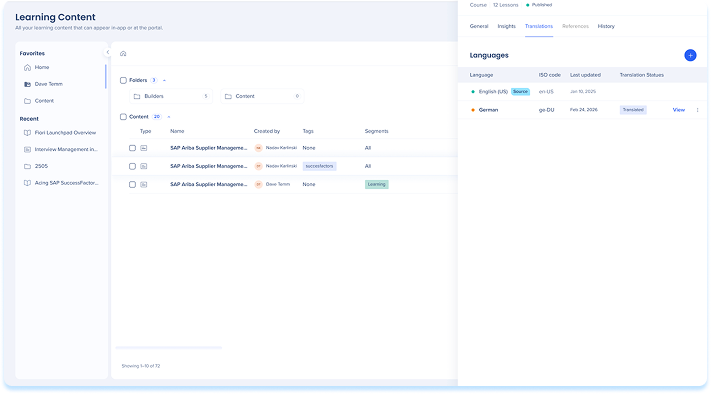
You add and manage languages from the Languages table in the Translations tab. The table shows all languages associated with the learning item and their current state.
Each row in the table represents a language and includes:
- Language: The name of the language
- ISO code: The standardized language code used for identification
- Status: Whether the language is available, translated, or needs attention
- Last updated: The date and time the translation was last updated
- Updated by: The user who last updated the translation
- Translation status: The current state of the translation
Note
The Source language is the original version used to create all other translations. It is identified by a label next to the language name. Updates to this version will trigger a Out of sync status for all other languages.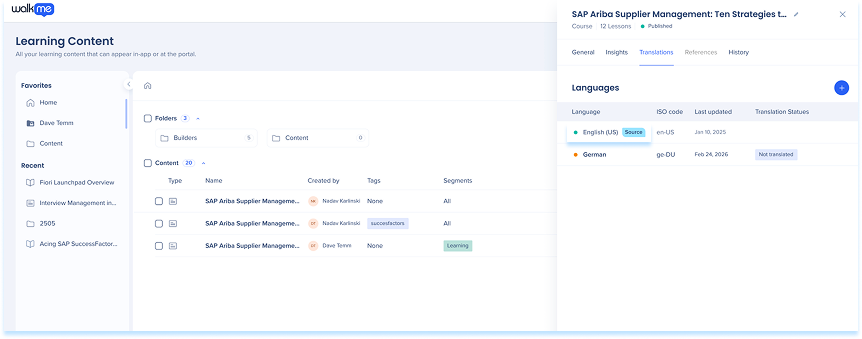
Change the Source Language
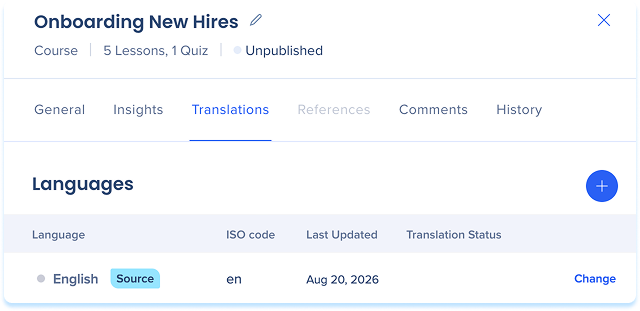
The source language is the version all translations are created from. You can change it from the Translations tab of a learning item.
- In the languages table, select Change next to the source language
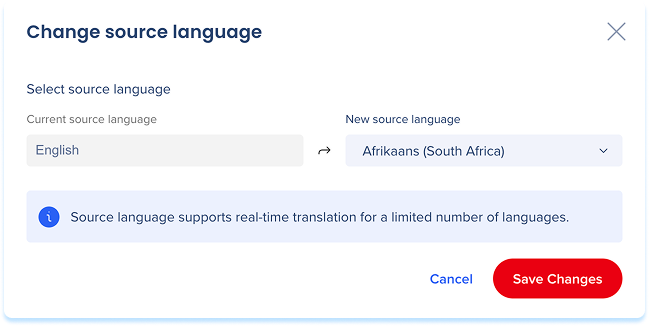
- From the New source language dropdown, choose a language
- Select Save Changes
When you change the source language
-
- The previous source language becomes a translation in the languages table
- The course content isn't rewritten
- If the language you choose already has a translation, a message warns you it will be removed
Translation status
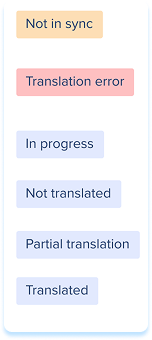
The status column indicates the current state of each localized version:
-
-
- Not translated: No translation has been provided for this language
- In progress: The translation is currently being created or edited
- Translated: The content is translated and matches the current source language version
- Partial translation: Only a portion of the content has been translated
- Not in sync: The source content was updated after the translation was finalized
- Translation error: The system encountered an issue during the translation process
Translate Learning Content


