Brief Overview
In the Admin Center you set up and manage your WalkMe Mobile systems. Each system corresponds to a single mobile app (iOS or Android). From here, you create the system, get the SDK snippet for your developers, and configure all system-level settings.
For an overview of how WalkMe Mobile in console works, refer to:
Mobile in Console
Access
Access the Admin Center in the console:
- Open the WalkMe Console
- Go to the Admin category
- Select Systems Management
How It Works
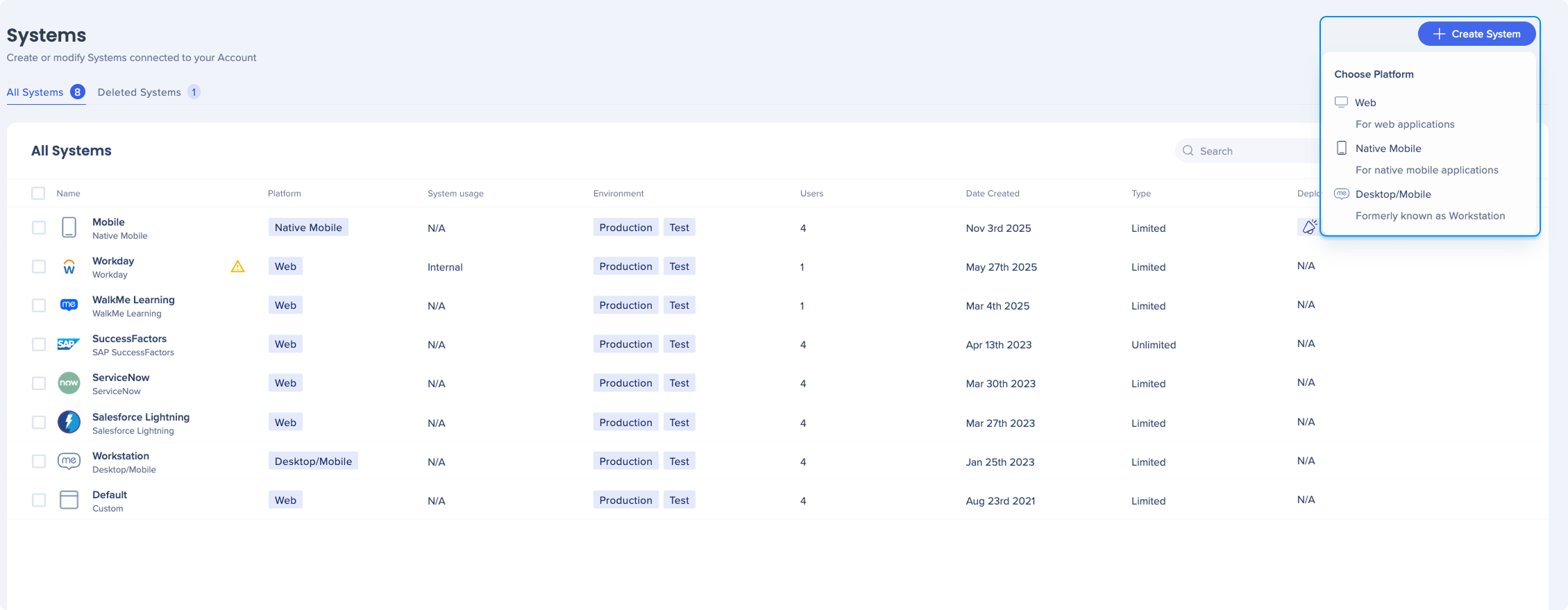
Create a native mobile system
- In the Admin Center, select Systems
- Select + Create System
- Select Native Mobile
- Type a name for the system and select Create
- Open the system you created to begin configuring its settings
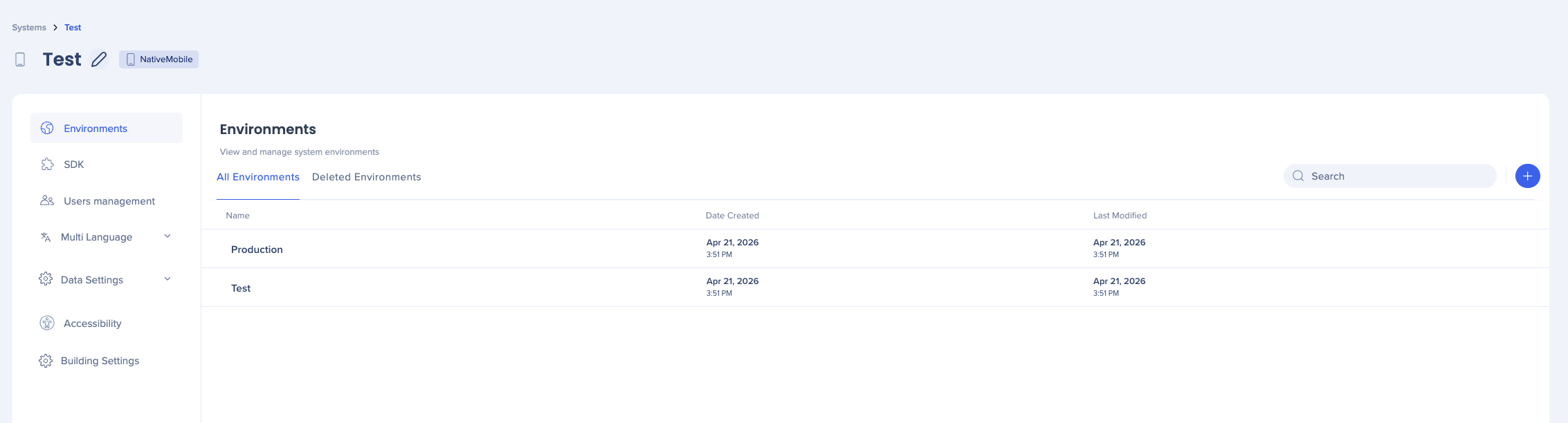
Environments
The Environments page shows all environments connected to your system.
- To create a new environment: Select the + icon and give it a name
- To delete an environment: Select the environment and choose Delete from the options
SDK
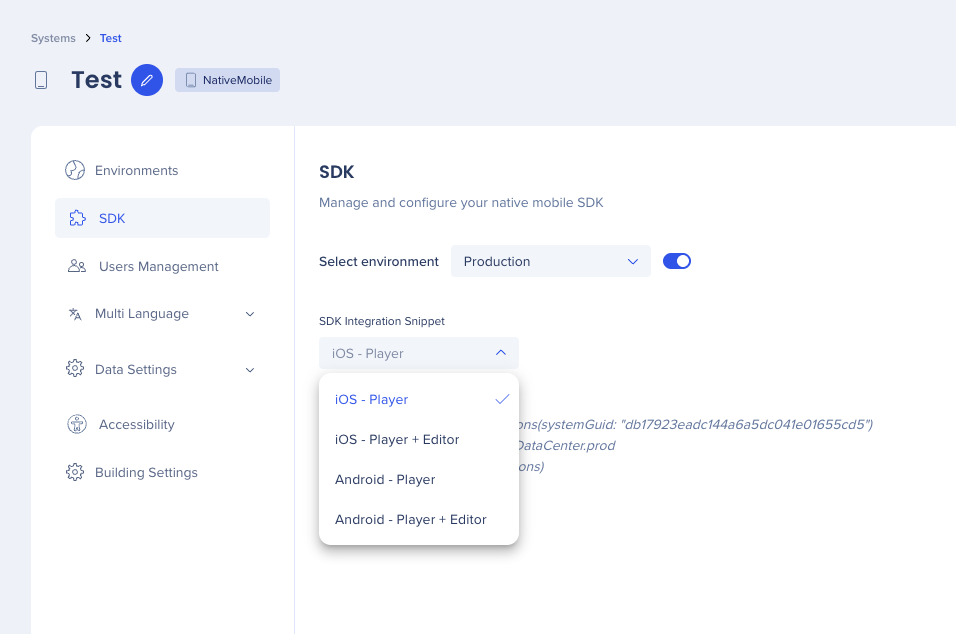
The SDK page provides the integration snippet your development team needs to embed WalkMe in the app. Without SDK integration, WalkMe content won't appear for your users.
Learn more about the WalkMe Mobile SDK:
Mobile in Console
Configure the SDK
- Inside your system, select SDK from the left navigation
- Under Select environment, choose Production or Test
- Under SDK Integration Snippet, choose your platform from the dropdown
- Copy the snippet and share it with your development team
The snippet includes a unique GUID tied to the system and environment. Developers add this to the app's initialization code to start the WalkMe SDK.
User management
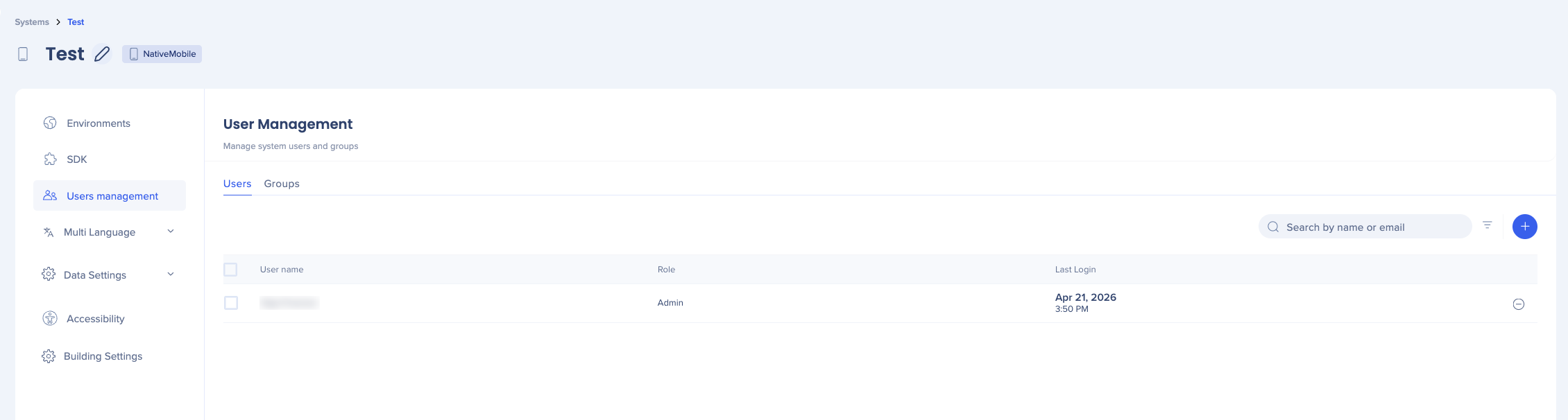
User management controls who can access and build content in this system.
Users
The Users tab shows everyone with access to the system. For each user, you can see their name, role, and the date and time of their last login.
To add a user: Select the + icon, search by name or email, and assign a role.
To remove a user: Select the remove icon next to their name.
Groups
Use groups to manage access for multiple users at once. Assign a group to the system to give all its members the same level of access.
Multi-language
The Multi-language section configures how WalkMe detects the language of the app.
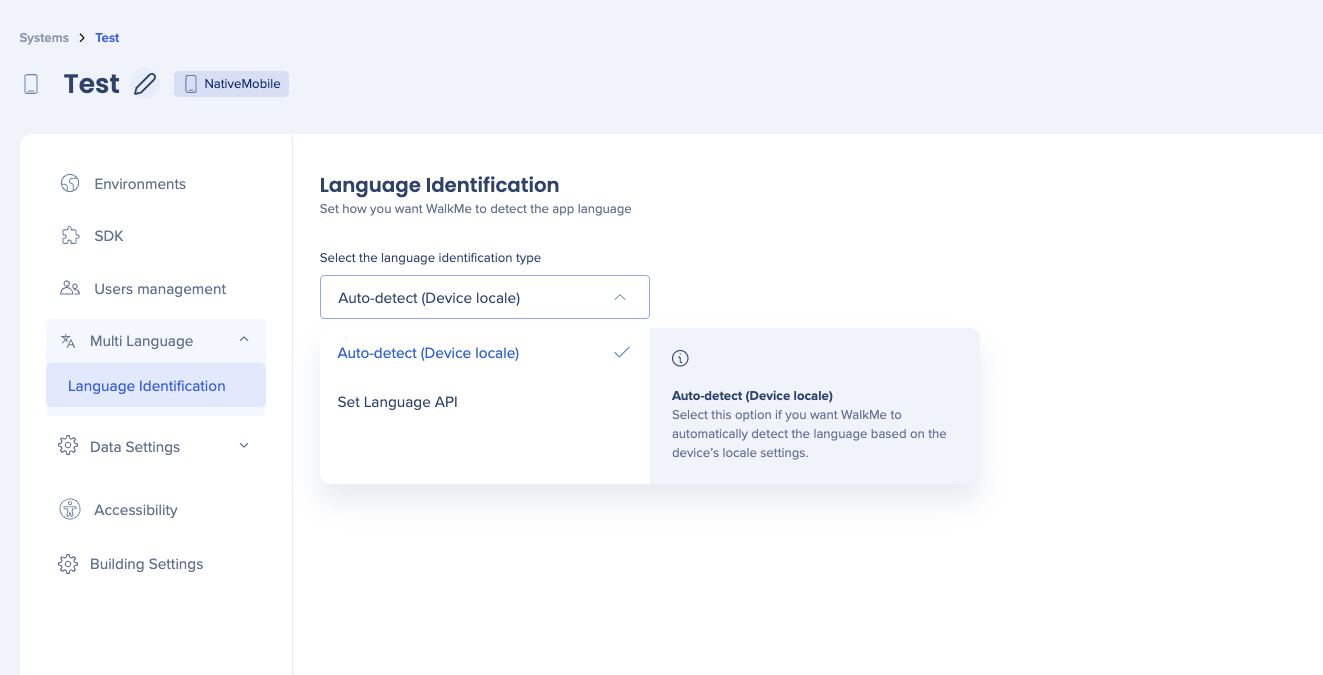
Language identification
Language Identification sets the method WalkMe uses to determine the app's current language. Select the option that matches how your app handles language.
Auto-detect (Device locale): WalkMe automatically detects the language based on the device's locale settings. Use this when the app language follows the device language. This is the default setting and works for most apps.
Set Language API: The application sets the language directly using WalkMe's API. Use this when the app manages its own language independently from the device locale — for example, when users can switch languages inside the app.
Data settings
Data settings control how WalkMe identifies users and what data it collects for analytics.
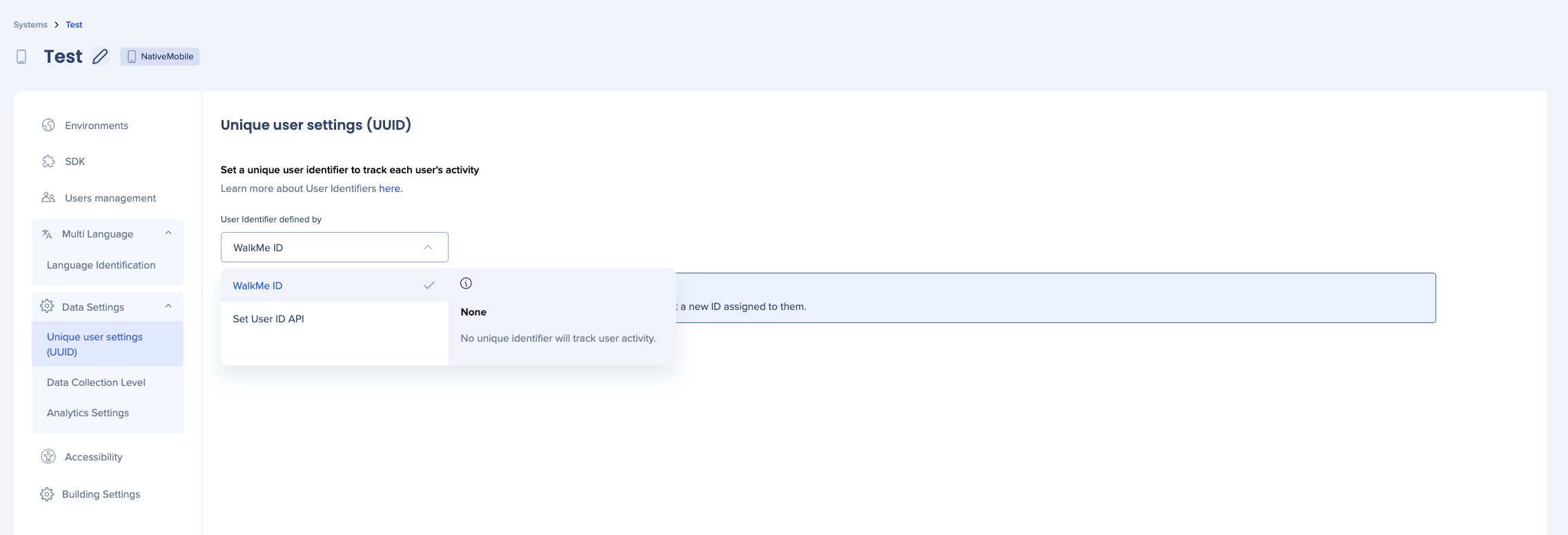
Unique user settings (UUID)
UUID settings determine how WalkMe identifies individual users.
WalkMe ID: WalkMe generates a unique identifier for each user when they launch the app for the first time (for example, 05d44656-c904-e625-f55a-a333bae5d354). This ID is stored in the device's local storage. If a user uninstalls and reinstalls the app, they receive a new ID. Use this when you don't need to tie WalkMe data to your own user identity system.
Set User ID API: The application sets the user ID directly using WalkMe's API — for example, passing your own internal user ID or email address. Use this when you want WalkMe analytics to match your own user data, or when you need consistent identification across devices and sessions.
Data collection level
Data collection level controls the volume and type of behavioral data WalkMe collects from users. Set this to align with your organization's privacy policy and any applicable regulations.
Analytics settings
Analytics settings let you enrich the data collected for this system by enabling an account identifier for filtering and reporting.
Accessibility
The Accessibility page lets you enable WalkMe's accessibility features for this system. When turned on, WalkMe content is built to meet accessibility guideline standards.
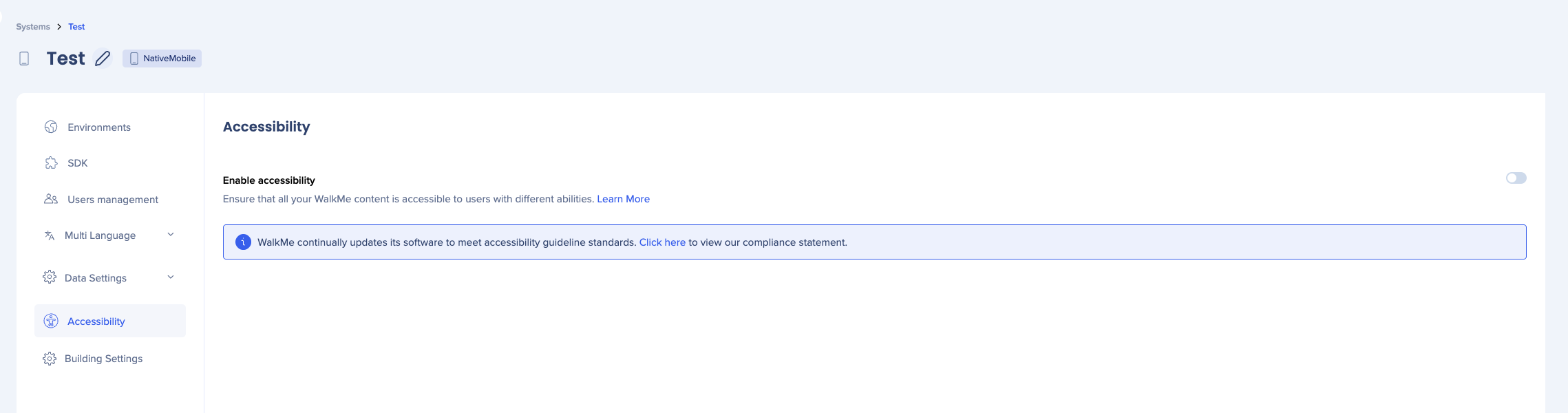
Accessibility in WalkMe
Enable accessibility: Ensures all WalkMe content in this system is accessible to users with different abilities. WalkMe continually updates its software to meet accessibility guideline standards.
Building settings
Building settings control how WalkMe behaves at the system level during content creation and at runtime. Most of these are configured once during initial setup.
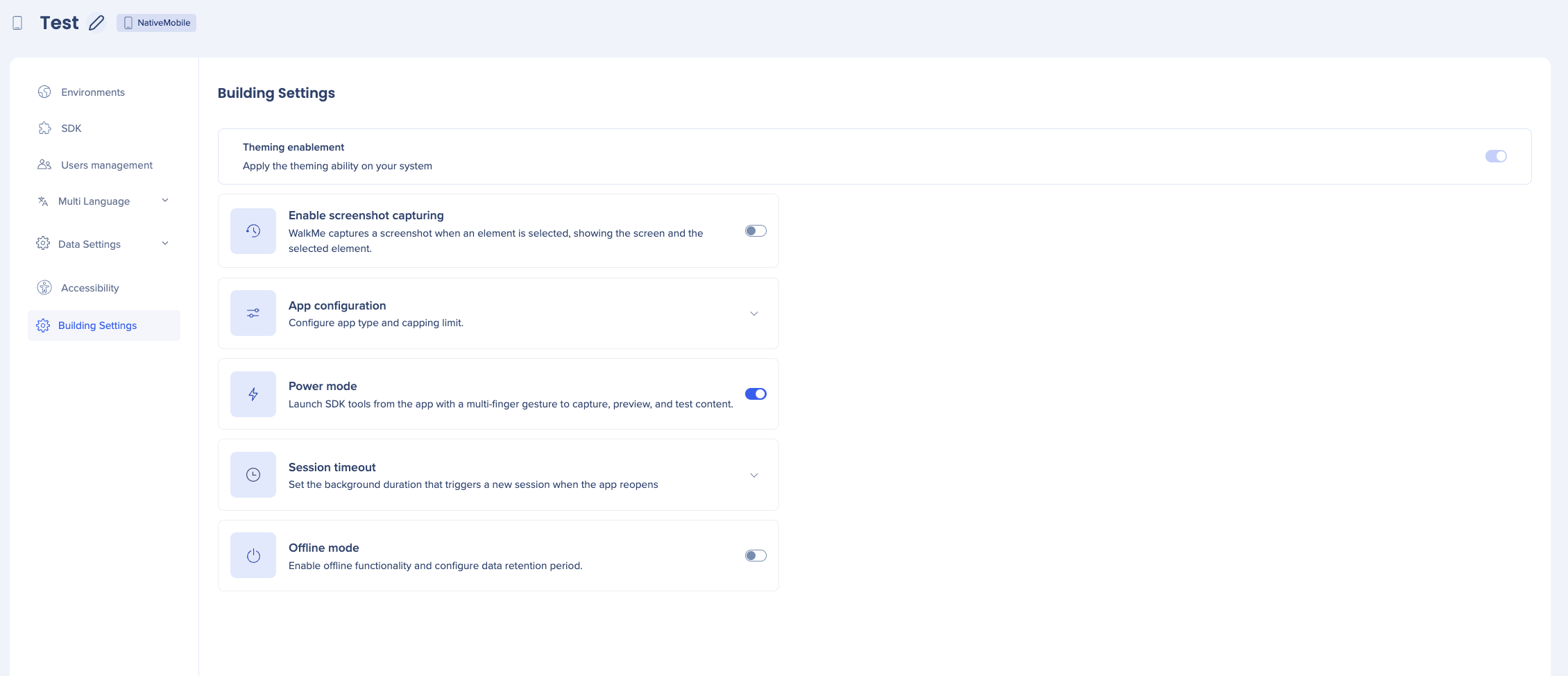
Theming enablement: Turns on Theming for the system, letting builders apply a consistent visual style across all WalkMe content in this system
Enable screenshot capturing: When turned on, WalkMe captures a screenshot when an element is selected during content capture, showing the screen and the captured element
App configuration: Configure the app type and capping limit for this system. The capping limit sets how many times WalkMe content can appear to a user within a single session.
Power mode: Lets builders launch SDK tools from inside the app using a multi-finger gesture. From power mode, builders can capture screens and elements, play and preview content, view app and device info, and manage captured elements.
Session timeout: Sets the background duration after which WalkMe starts a new session when the user reopens the app. If a user backgrounds the app and returns before the timeout expires, WalkMe continues the existing session. After the timeout, WalkMe starts a fresh session.
Offline mode: Enables WalkMe to function when the device has no internet connection. Select for how many days you want WalkMe to cache content locally so it can still appear to users offline.


