Brief Overview
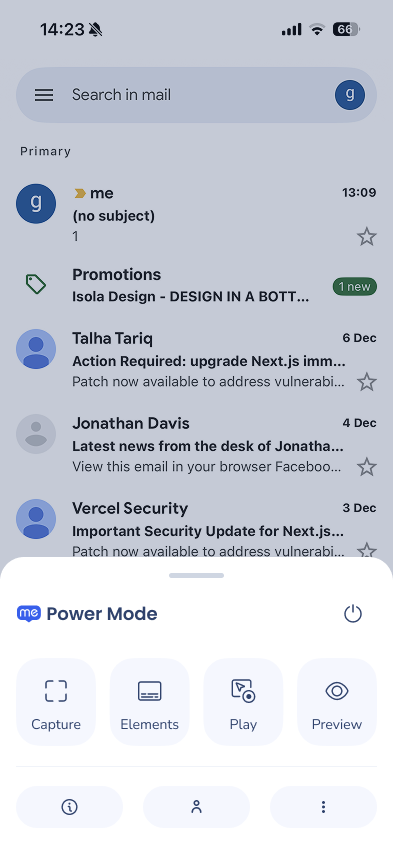
The power mode menu gives you access to all of power mode's tools directly from within your app. It appears as a floating bar at the bottom of your screen once you're logged in. Use it to capture elements, test content, and view app or user information — all without leaving the app.
Use Cases
- Capture screens and elements directly in the app to build Smart Walk-Thrus and connect WalkMe content to the UI
- Play individual items to see exactly what they look like in context before publishing
- Preview multiple items at once to test how they behave together, accounting for segmentation
- View app, SDK, and device information to verify a successful integration or help troubleshoot issues
- Manage captured elements to review and update screens and elements without going back to the console
Access
Log in
By default, you log in to power mode using a five-finger, five-second touch gesture on any screen of your app.
To log in to power mode:
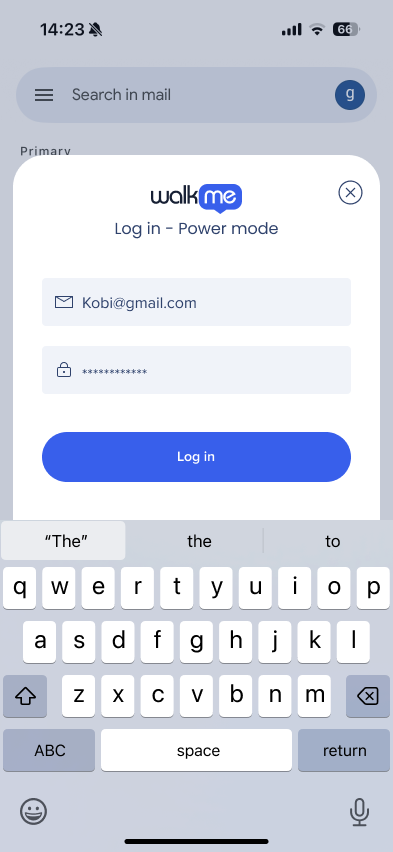
- Touch any screen of your app with five fingers simultaneously for five seconds
- In the popup that appears, type your WalkMe credentials and select Log in
- The Power Mode panel appears at the bottom of your screen
Tip
The default five-finger gesture is configurable. To change it, go to Building Settings in the Admin Center. You can also turn off power mode entirely from there if needed.
After logging in, the power mode menu appears as a persistent bar at the bottom of your screen. It stays visible as you navigate through the app.
The menu has four main action tabs — Capture, Elements, Play, and Preview — and three info options at the bottom: App Info, User info, and Options.
Log out of power mode
Power mode stays active until you explicitly exit or it times out after 24 hours of inactivity.
To log out, select the Power icon in the top right corner of the Power Mode panel.
How It Works
Capture
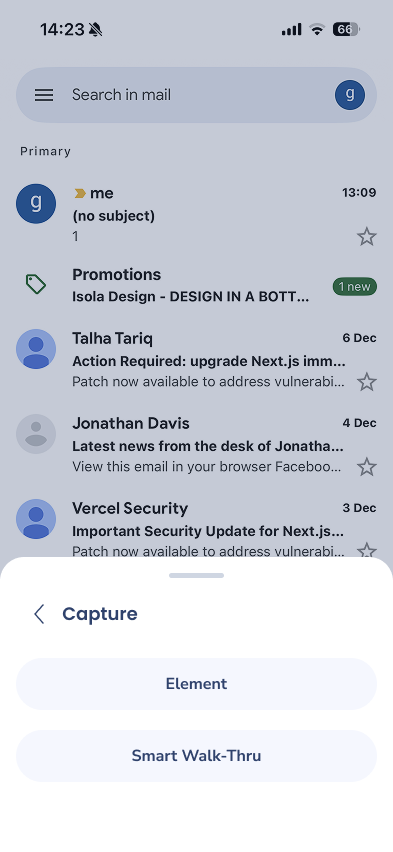
Use Capture to recognize screens and elements in your app so WalkMe can connect content to them. Selecting Capture opens a sub-menu with two options:
- Element — capture a single UI element
- Smart Walk-Thru — capture a sequence of steps for a Smart Walk-Thru
To capture an element:
- Navigate to the screen in your app that contains the element you want to capture
- Select Capture from the power mode menu, then select Element
- You can move between Navigate and Capture modes
- Tap the element you want to capture, or drag the cursor over it
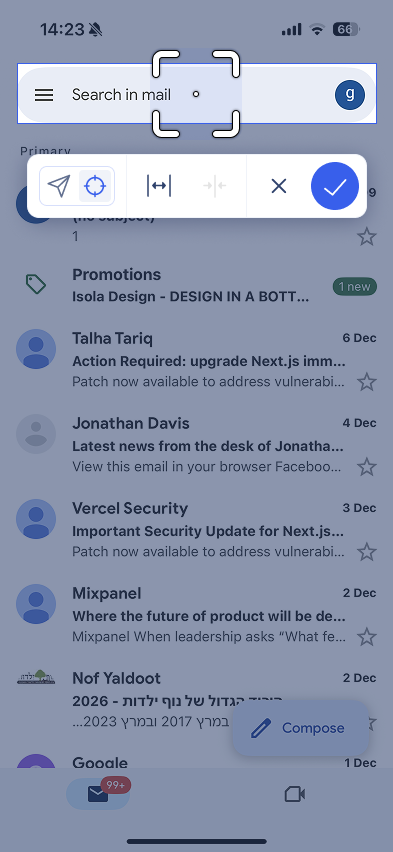
- Select Confirm when you're happy with the selection
- In the Save element dialog, type a name for the element
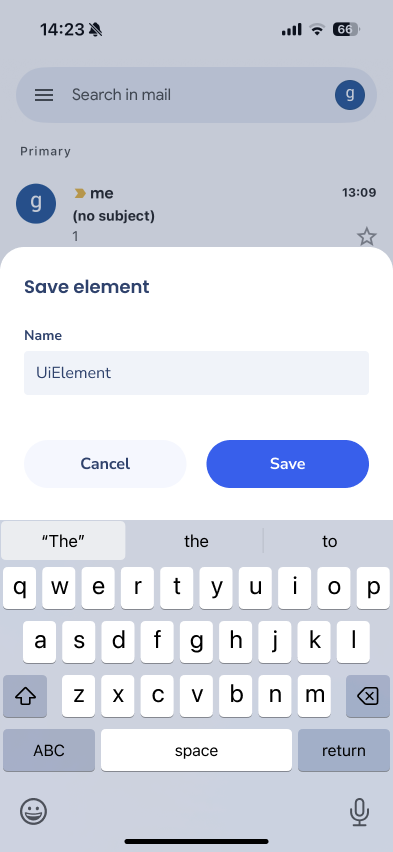
- Select Save
To capture a Smart Walk-Thru:
- Navigate to the screen where the first step of the Walk-Thru should appear
- Select Capture from the power mode menu, then select Smart Walk-Thru
- Tap the element for the first step
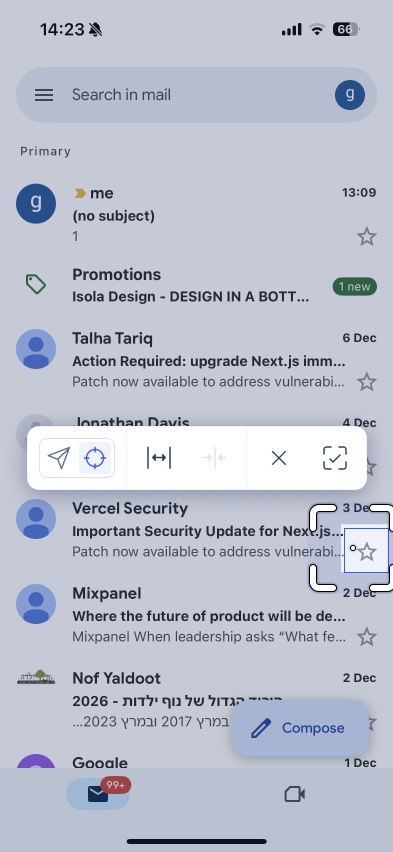
- Select Confirm. A message appears: Tap selected element to continue
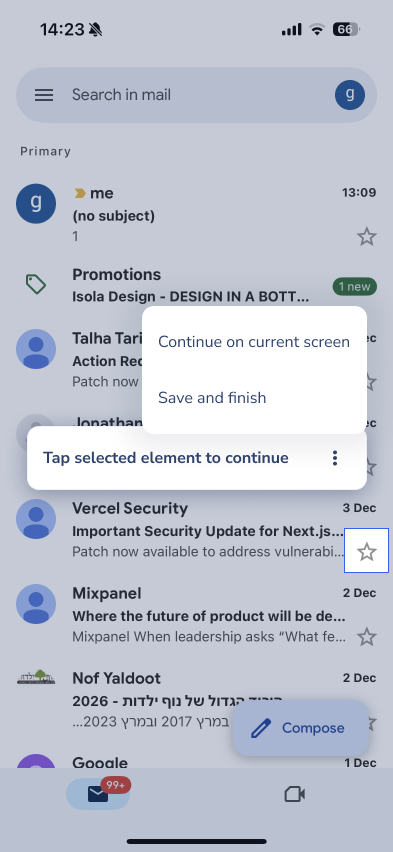
- Choose how to proceed:
- Continue on current screen — capture another element on the same screen
- Save and finish — end the capture and name the Smart Walk-Thru
- When done, select Save and finish, type a name in the Save Smart Walk-Thru dialog, and select Save
Elements
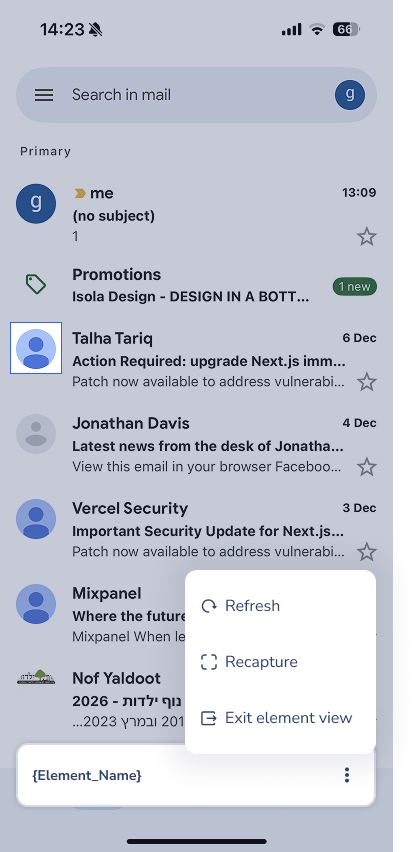
The Elements tab shows all the screens and elements you've already captured for this system. Use it to review what's been captured, check element details, or update a capture if the UI has changed.
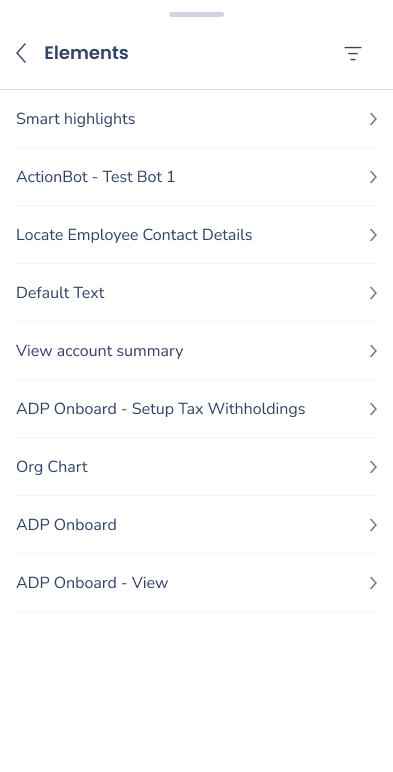
To manage captured elements:
- Select Elements from the power mode menu
- Browse the list of captured screens and elements
- Select an element to view its details or recapture it
Note
If an element no longer matches the UI after an app update, recapture it to keep your content working correctly.
Play
Play lets you run a single WalkMe item inside the app to see exactly what it looks like. Use it for a quick check before publishing.
Play runs the item without applying segmentation rules. To test segmentation, use Preview instead.
To play an item:
- Select Play from the power mode menu
- Find and select the item you want to run
- The sheet closes and Play mode starts
- Navigate through the app and interact with the item as your users would
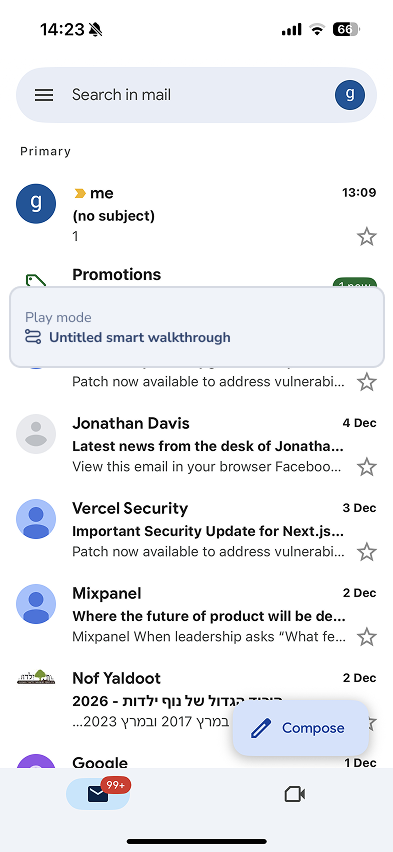
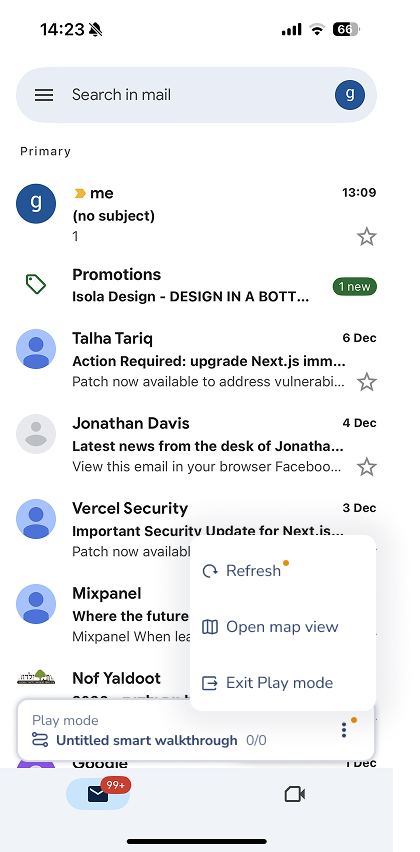
To access Play mode options, select the Options menu on the minimized panel:
- Refresh — reloads the item to pick up any changes made in the console
- Open map view — opens a visual step map for the item (Smart Walk-Thrus only)
- Exit Play mode — stops Play mode and returns to the power mode menu
Map view
Map view gives you a visual overview of a Smart Walk-Thru's steps.
Tap any step to see its options:
- Add steps — add a new step after this one
- Go to step — jump directly to this step in the playing Walk-Thru
- Recapture — recapture the element for this step (available on steps other than the currently playing one)
Preview
Preview lets you test multiple items at once in the actual context you've built them for, including your segmentation rules. It's the best way to validate the full user experience before publishing.
Unlike Play, Preview accounts for the segments you've applied, so you can see exactly what a specific type of user would encounter.
To start a preview session:
- Select Preview from the power mode menu. A screen appears with two tabs: Items and Events.
- Select the items and events you want to include
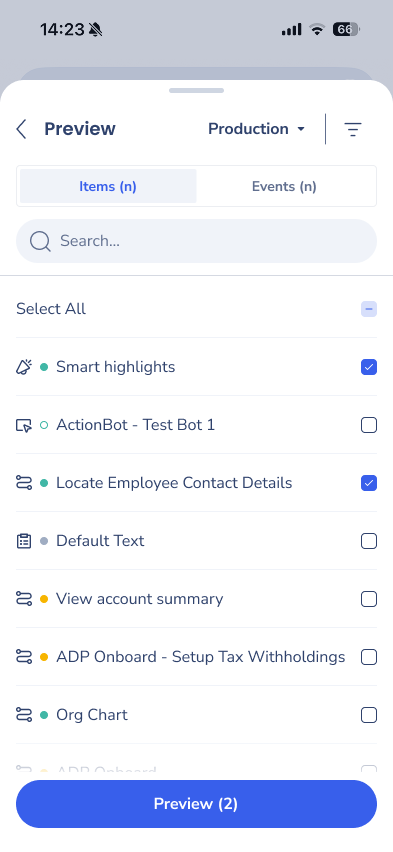
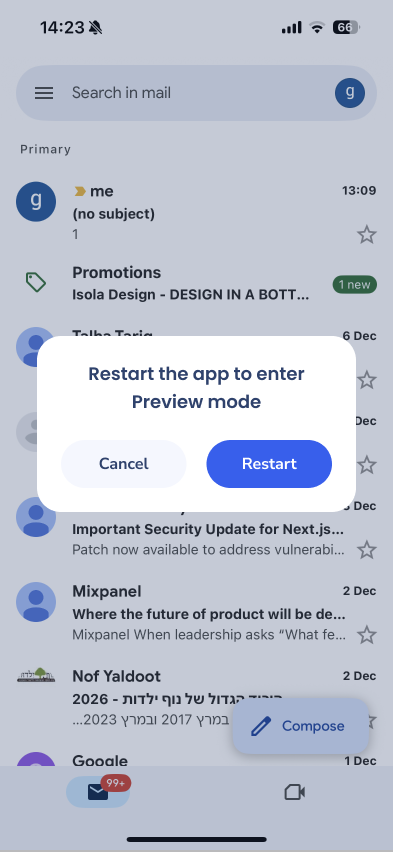
- Select Preview (n). A popup appears: Restart the app to enter Preview mode.
- Select Restart
- Navigate through the app. Items appear based on your rules and segmentation. A minimized panel at the bottom shows the current item and its evaluation status.
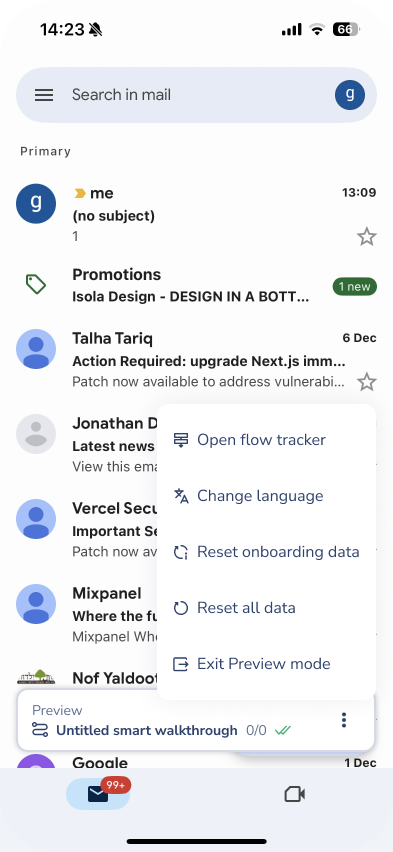
To access Preview options during a session, select the Options menu on the minimized panel:
- Open flow tracker — opens the Flow Tracker to inspect conditions and auto-play rules for each item
- Change language — switches the preview language
- Reset onboarding data — resets onboarding data so you can re-test onboarding flows
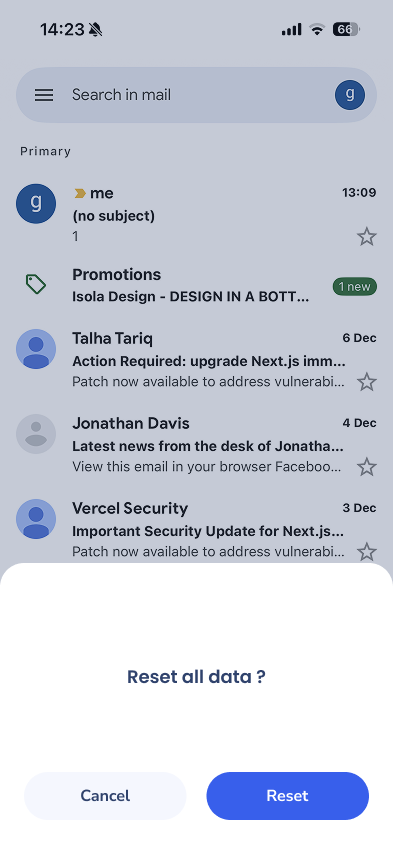
- Reset all data — resets all session data
- Exit Preview mode — stops the preview session
Note
Preview persists through app restarts until you stop it. This lets you test segmentation logic that spans multiple sessions, like rules based on the number of sessions a user has had.
Flow tracker
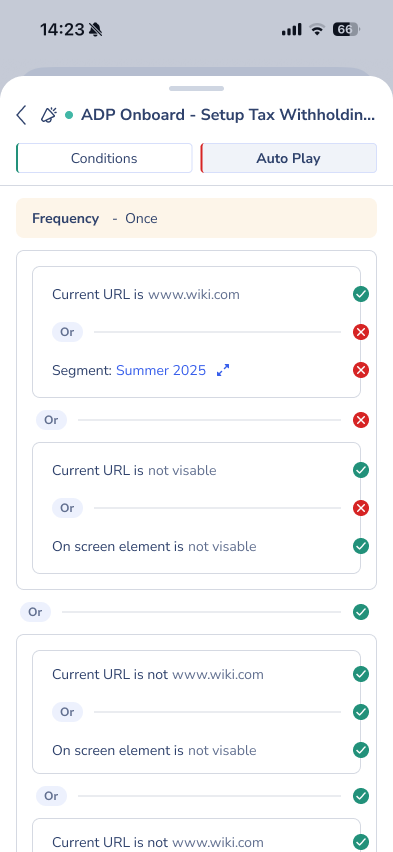
The flow tracker shows each item in your preview session alongside its display conditions and auto-play rules. Use it to understand why an item is or isn't appearing for the current user context.
Each item in the list shows Conditions and Auto-Play tags. Tapping either tag opens the flow tracker detail view, which shows all the conditions and rules for that item, including frequency settings and segment logic.
Change language
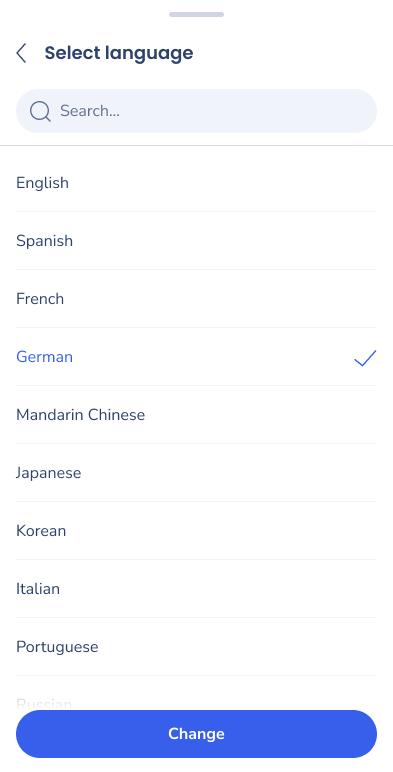
Change language lets you switch the language WalkMe content displays in during the preview session, so you can test multi-language content without changing your device settings.
Select a language from the Select language list — the current language is highlighted — and select Change. The button stays disabled until you choose a different language.
Reset onboarding data and Reset all data
Use these options to clear session data so you can re-test flows from a clean state:
- Reset onboarding data — resets onboarding-specific data only
- Reset all data — resets all data for the current session.
App info
App info shows technical details about the app, the WalkMe Mobile SDK, and the device you're currently using. It's useful for verifying a successful integration and for sharing information with WalkMe Support when troubleshooting.
User info
User info shows the attributes that the app has set for the current user, including both public and private attributes and their current values.
Note
User info shows the attributes set by the app. If an attribute doesn't appear here, it hasn't been set for this user in the current session.
Options
The Options menu gives you access to additional settings and actions like language and SDK logs.
Technical Notes
- Power mode is only available to builders with WalkMe console access — end users can't access it
- All debug logs turn on automatically when power mode is active
- If the default five-finger gesture isn't working, check your power mode configuration in Building Settings


