Brief Overview
The Content Manager is where you create, manage, and publish all WalkMe content for your mobile app. It gives you a centralized view of every item across folders, environments, and segments — all in one place.
Content Manager for mobile works the same way as for web with content types and columns available specific to mobile.
Content Manager: Getting Started Guide
Access
Access the Content Manager in the console:
- Open the WalkMe Console
- Go to the Content category
- Select Content Manager
How It Works
Create a new item
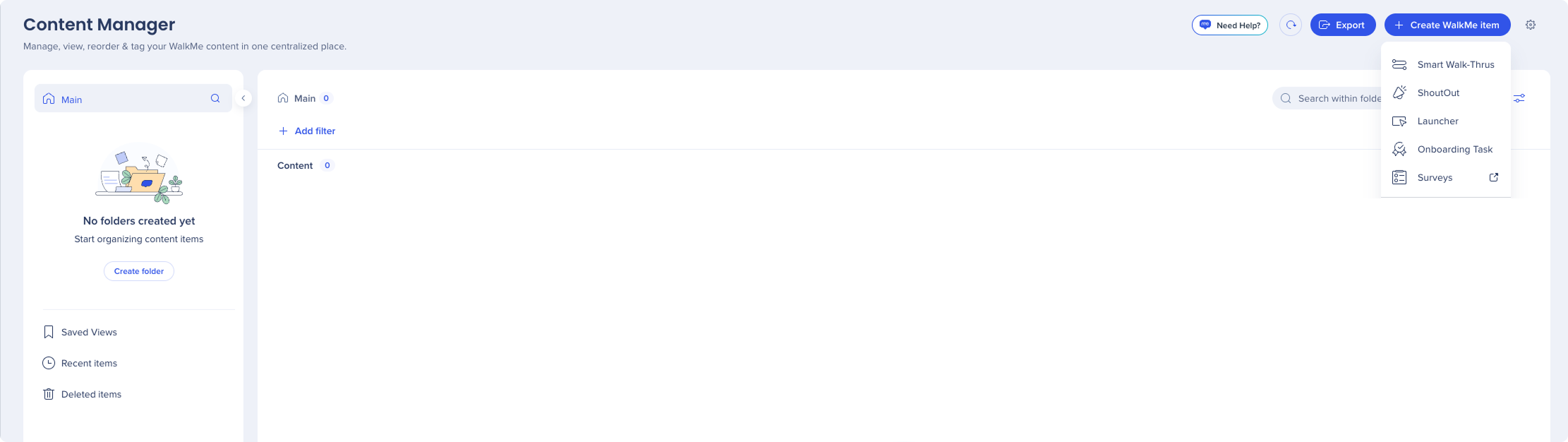
- Select + Create WalkMe Item in the top right
- Choose the content type you want to create:
- Smart Walk-Thru
- ShoutOut
- Launcher
- Onboarding task
- Survey
- The Visual Designer opens — build and customize your content there
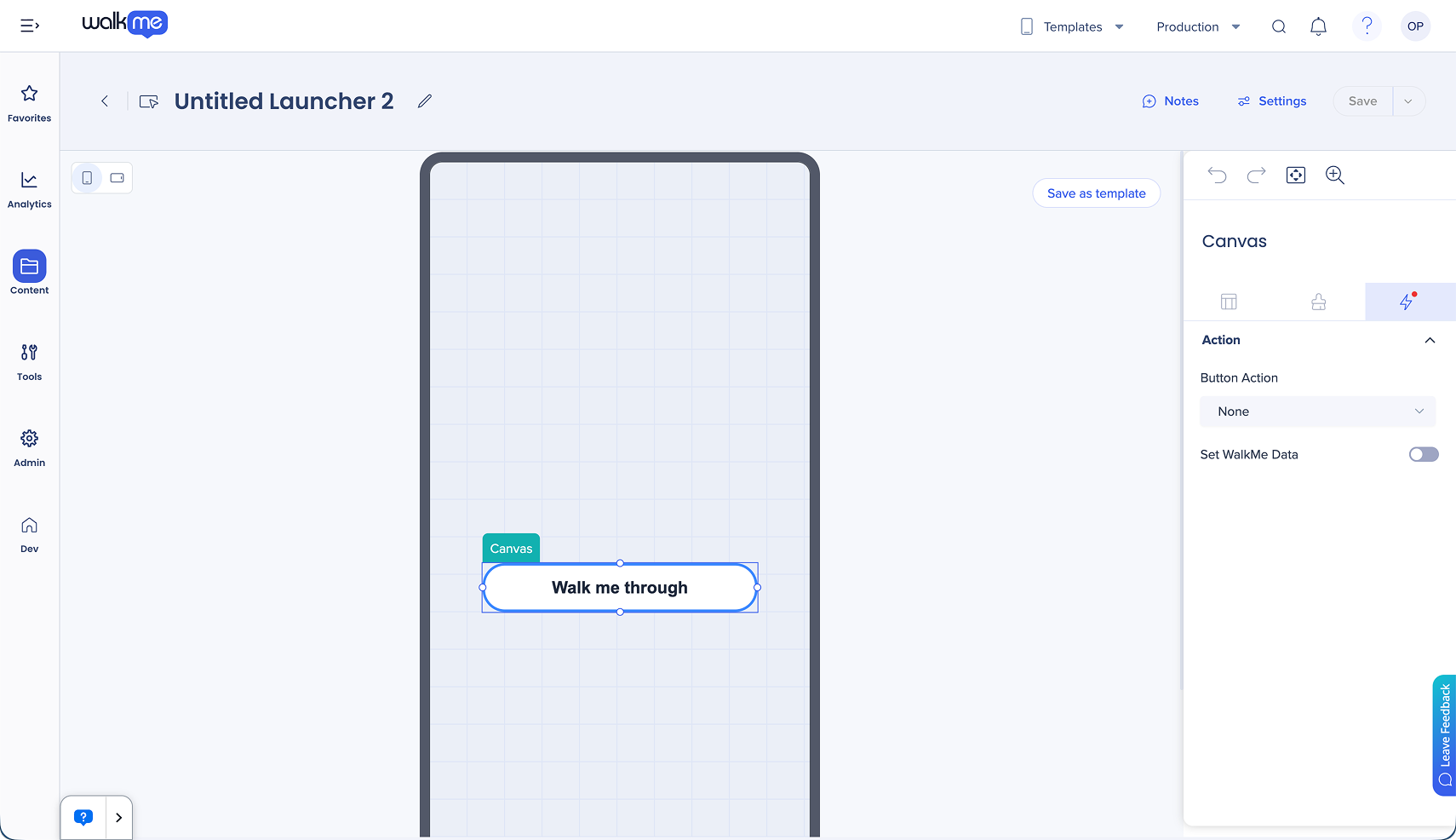
- Select Settings to set auto-play rules and segments in the Appearance tab
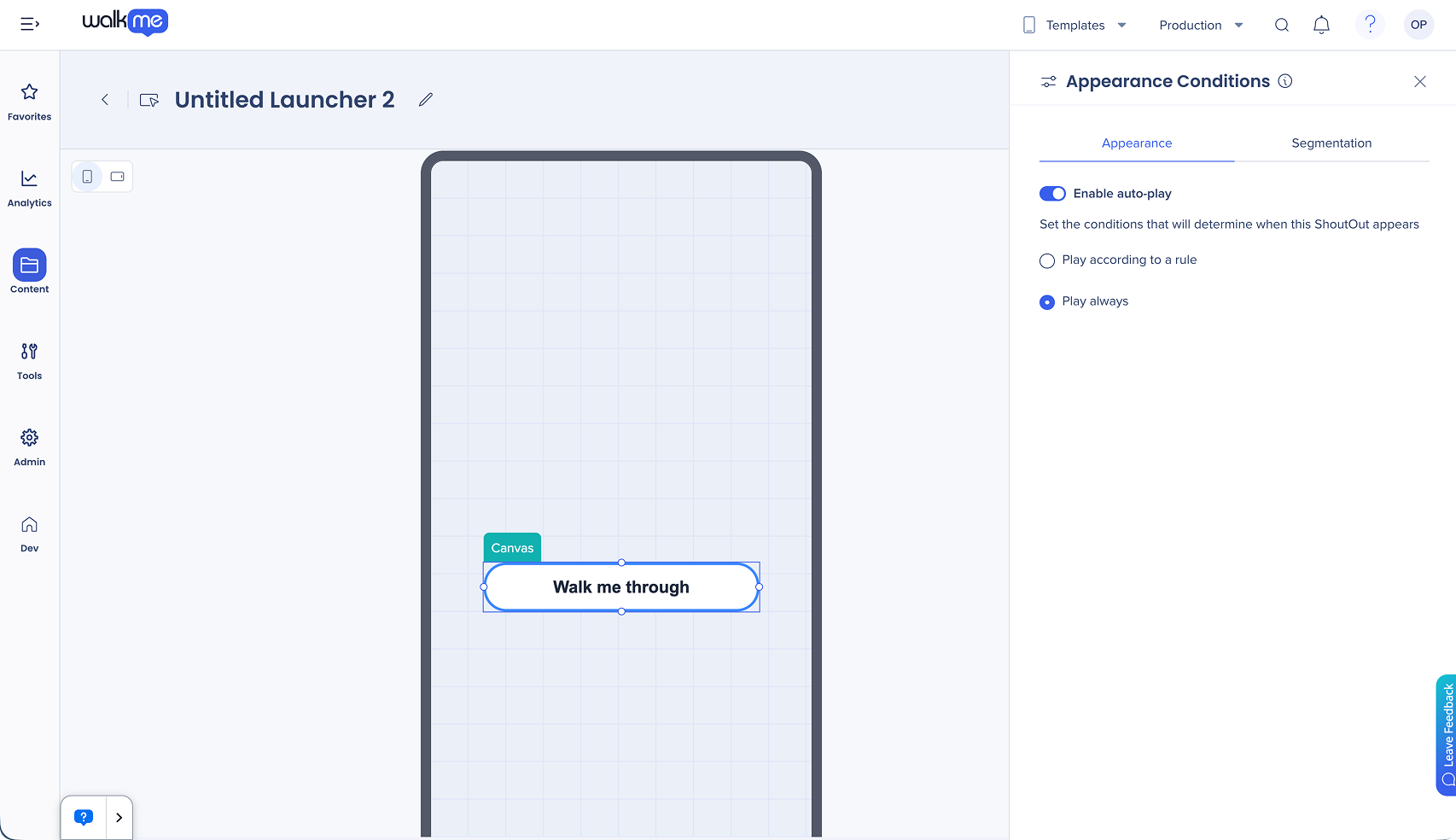
- For Smart Walk-Thrus, ShoutOuts, and onboarding tasks, set goals on the Outcome Tracking tab
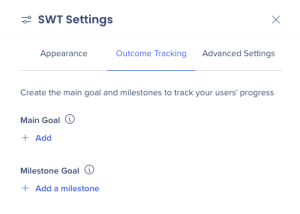
- Select Save
Goals evaluation
-
Goals begin evaluating when the item plays and continue until the app session ends
-
Onboarding goals check continuously from SDK load, independent of SWT playback
-
Use flow tracker in preview mode to test goals and onboarding tasks
-
Surfaces in the Top Goals, Main Goal Completions, and Goal Completion Analysis widgets in Insights
Rule types
Auto-play and segments
-
Captured Element
-
Session Time
-
Number Of Sessions
-
Variable
-
User ID
-
WalkMe Data
-
WalkMe Language
-
App Version
-
OS Version
-
Date
-
Time
-
Network
-
Device Type
-
Location Access
-
Contact Access
-
Camera Access
Split step
-
Step Element
-
Captured Element
-
Session Time
-
Number Of Sessions
-
Variable
-
User ID
-
WalkMe Data
-
WalkMe Language
-
App Version
-
OS Version
-
Date
-
Time
-
Network
-
Device Type
-
Location Access
-
Contact Access
-
Camera Access
Wait for step
Onboarding tasks
Use and combine And and Or operators when building your conditions:
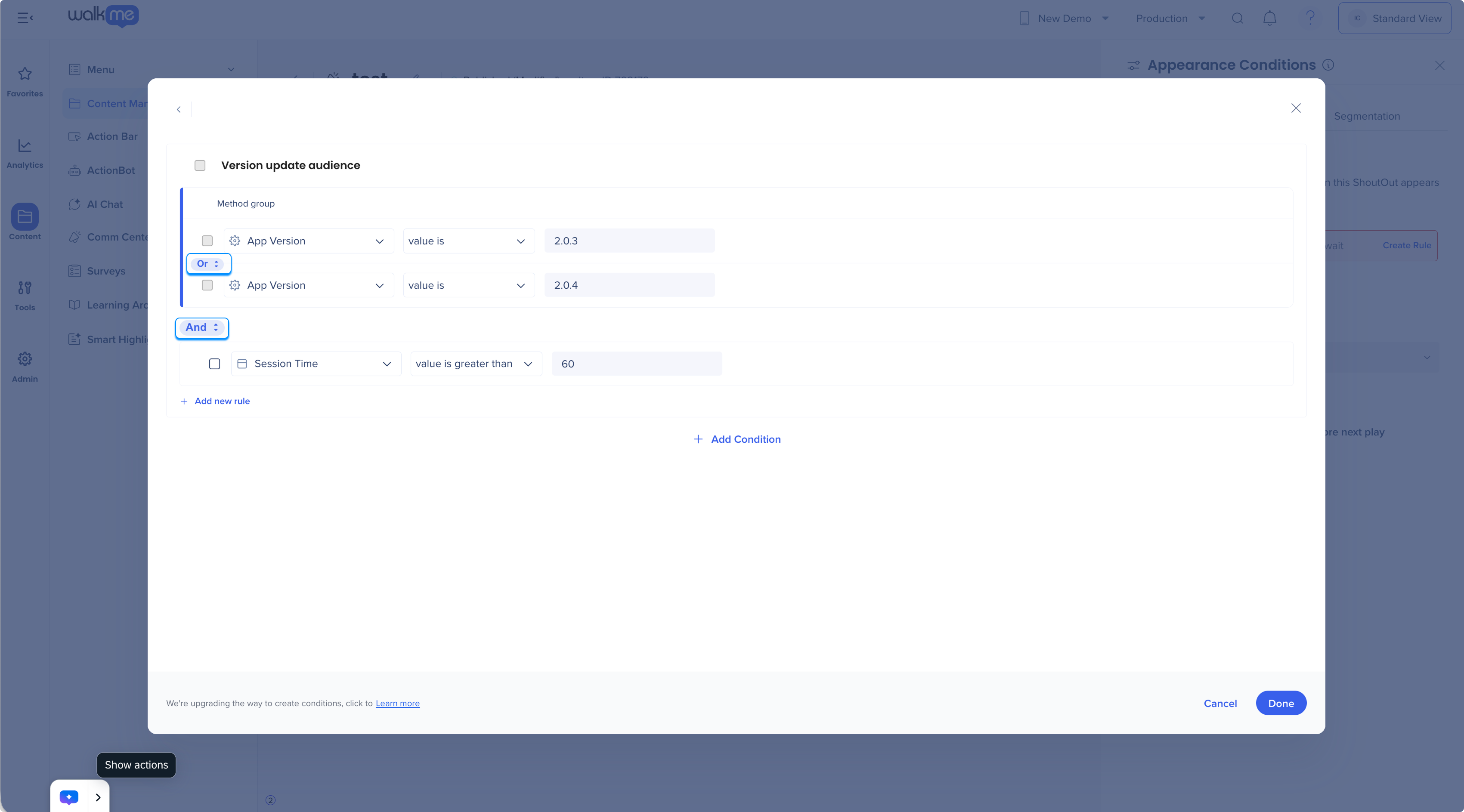
Condition Builder
Frequency settings
Controls how often an item is automatically played for a user. The following options are available:
-
Always: The item plays every time the trigger conditions are met
-
Once: The item plays only once per user, and will never play again
-
Once per session: The item plays once per session. You can also set a cooldown period using the Wait X before next play option, with intervals in days, weeks, months, or sessions.
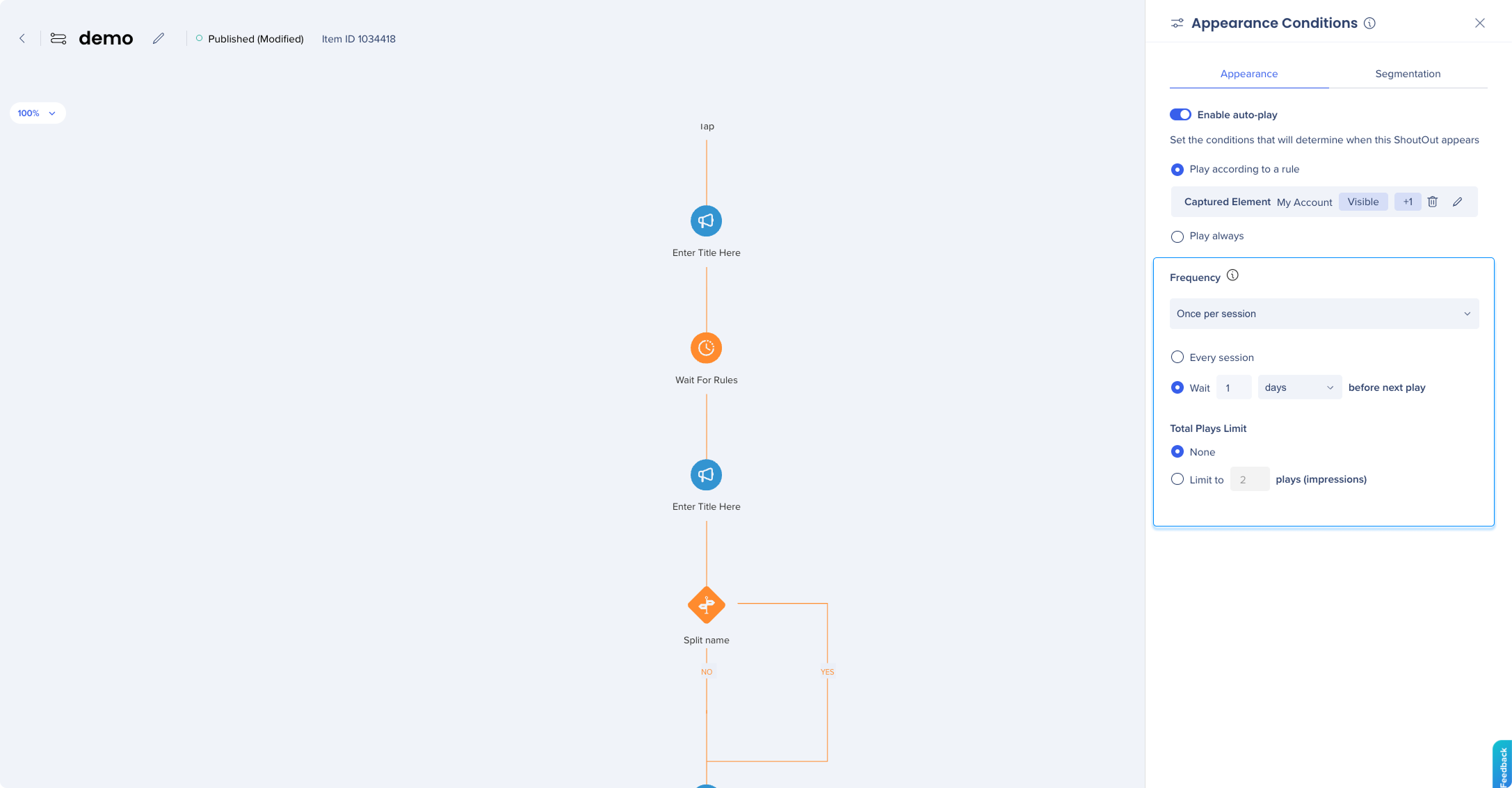
Total Plays Limit
Available for all frequency options. Sets a cap on the total number of times an item can play for a user:
-
None — No cap, plays indefinitely based on the frequency setting
-
Limit to X plays (impressions) — The item stops playing once it has been shown the specified number of times
Priority list
Priority lists let you control the sequence in which content is shown to users when multiple items are eligible at the same time. When the condition for a list is met, WalkMe evaluates the campaigns in order and plays the first one that evaluates to true.
You can create multiple priority lists, each with its own appearance condition.
To create a priority list:
- In the Content Manager, select the + icon in the Priority List column of an item
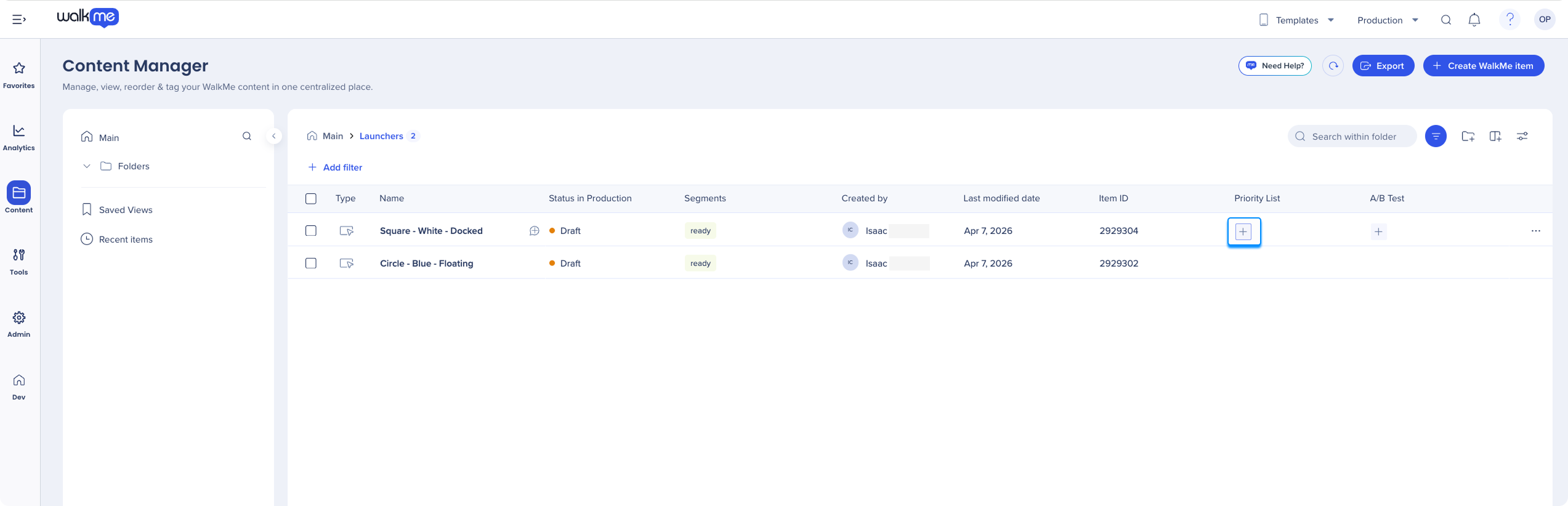
- Select Create Priority List
- Enter a name for the list under List name
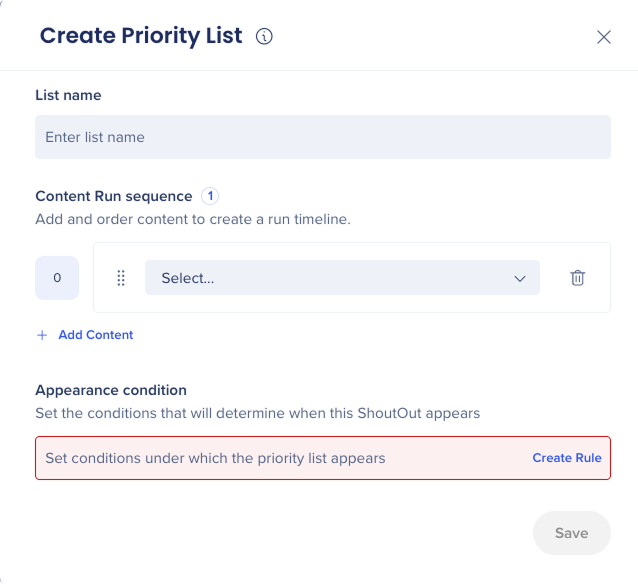
- Select Add Content and choose the content to include
- Drag and drop content to set its play order within the list
- Set the appearance conditions
- Select Save
A/B test
A/B testing lets you run multiple content variations simultaneously and compare their performance. Each A/B test is made up of groups — each group contains one or more content items and is assigned a percentage of your user base. WalkMe randomly assigns users to groups according to those percentages.
To create an A/B test:
- In the Content Manager, select the + icon in the A/B Test column of the item you want to test
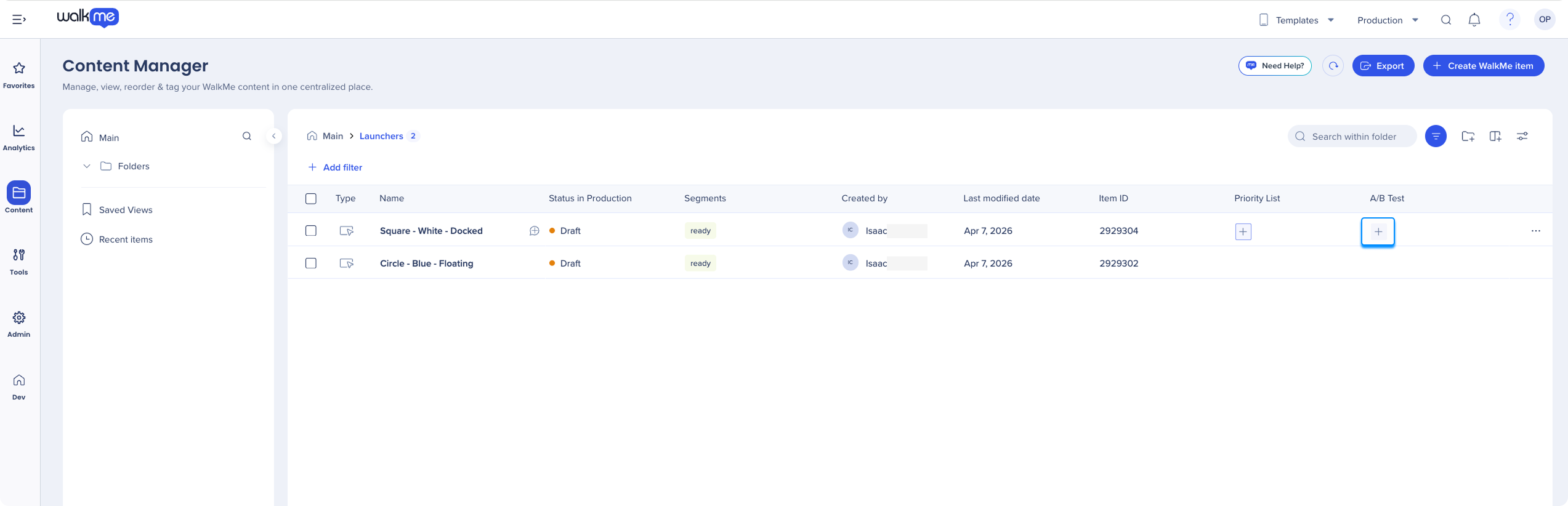
- Select Create A/B Test
- Type a Test name
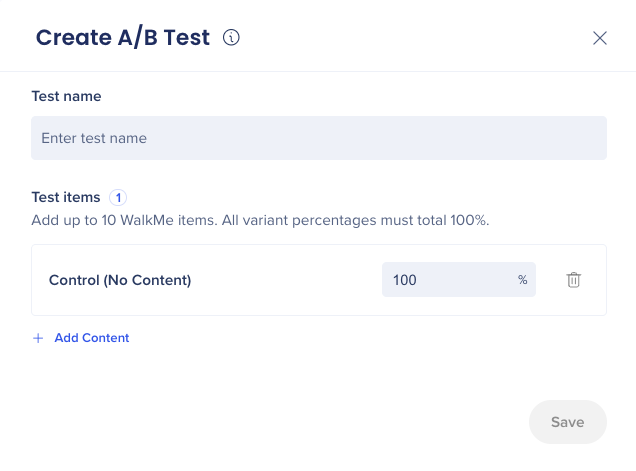
- The Control group is predefined with 100% — adjust its percentage as needed
- Select Add Content to add a content variation — you can add up to 9 entries in total
- Assign a percentage to each group — the sum of all percentages must equal 100%
- Select Save
- Make sure all content items in the test are published
Note
The default maximum number of simultaneous active A/B tests is 5. If the same content appears in multiple A/B groups and a user is assigned to it more than once, the user sees the content only once.
Review A/B test results
Once your test has run, you can compare engagement across groups — including impressions and clicks for each variation. To review results, download the A/B Testing Content Engagement report from the Insights Reports tab.
Content Manager settings
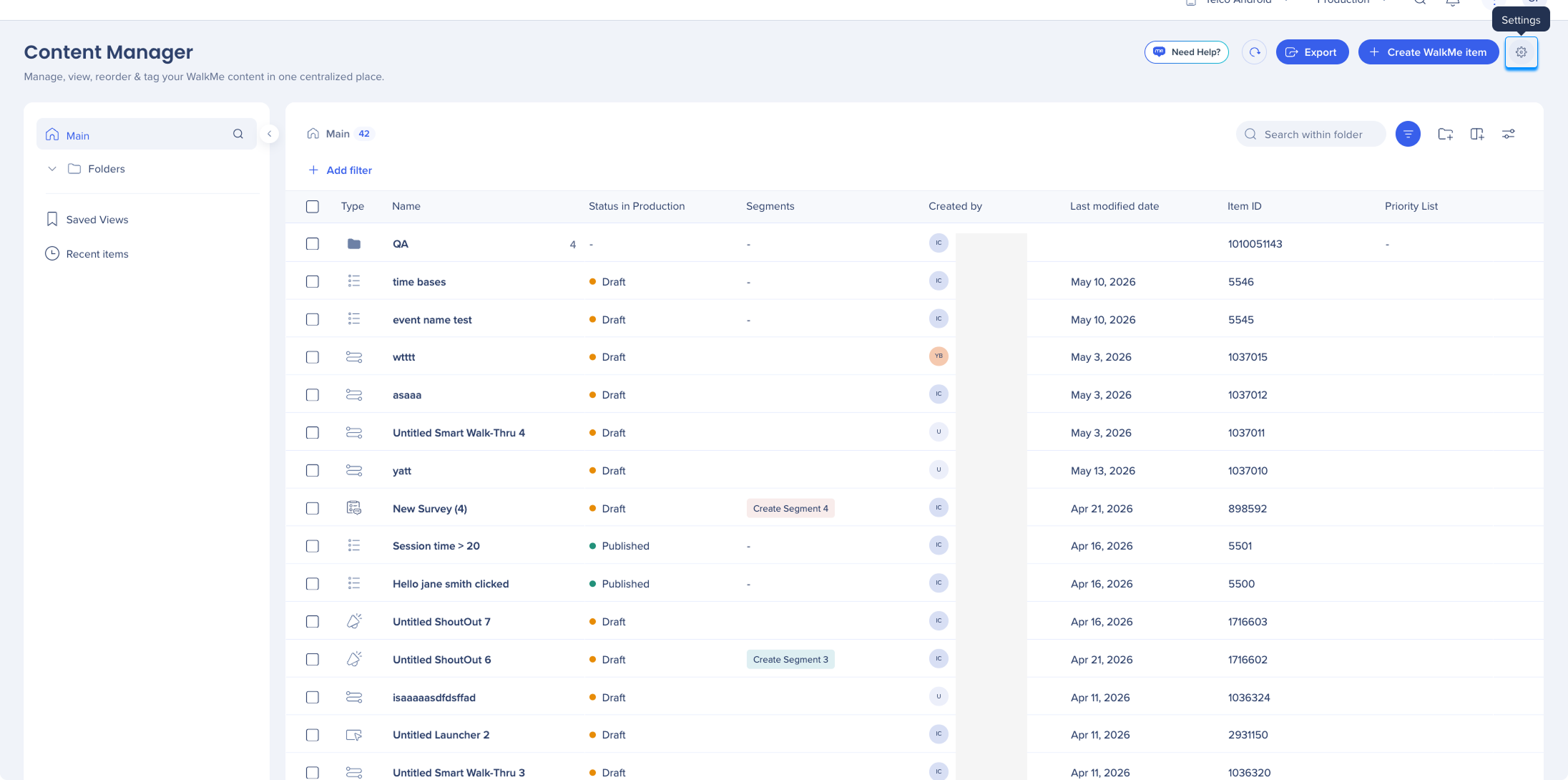
From the Content Manager settings, you can access:
-
System settings
- Onboarding settings
- Dynamic text attributes
-
Types:
-
Methods
-
Variable
-
WalkMe data
-
Constant value
Technical Notes
- Priority list requires SDK version 2.19.0 or later
- A/B test requires SDK version 2.14.0 or later for iOS and Android
- Each priority list plays one content item per session — evaluation resumes from the next content item in the following session
- Content must be published and active to be eligible within a priority list
- The sum of all A/B test group percentages must equal 100%
- Up to 5 A/B tests can be active simultaneously by default


