Brief Overview
Users management settings lets you manage the users and groups that have access to a system. From one place, you can add and remove users, assign groups, and view group members.
Systems Management
Access
To access users management settings in the console:
- Open the Systems page in the WalkMe Console:
- Select a system
- Go to the Users Management tab
How It Works
Users Management is divided into two tabs: Users and Groups.
Users can be assigned to a group from the Groups tab.
This tab displays a list of all users assigned to work on the system.
Info
- All settings under the User management tab apply to both and Desktop/Mobile platforms.
- Users cannot have different roles for different systems
- The role is granted once and applied to all systems to which the user has been added
- Select the + button to remove or add additional users to the system
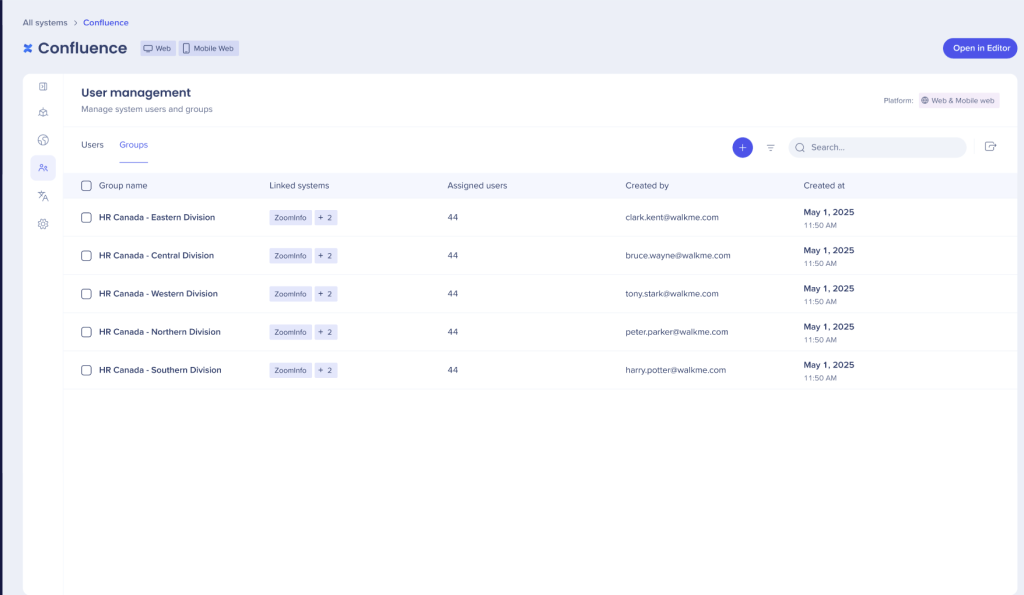
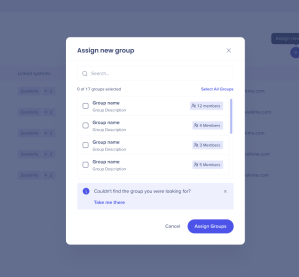
- Select Assign new group either search for the group or click your selection
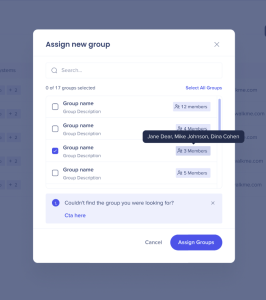
- Members of the group display when hovered over
 A pop up displays when a group is added
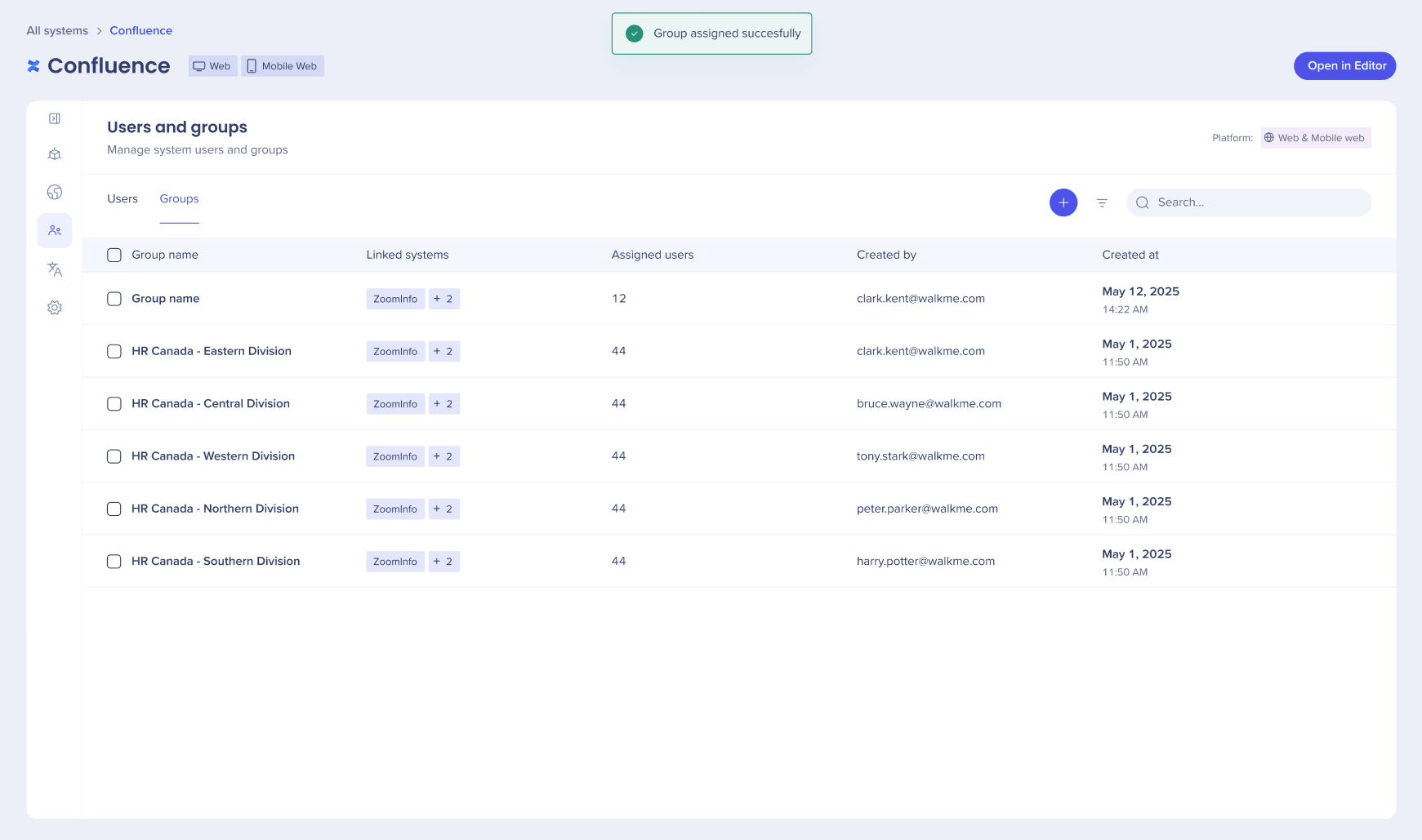 4. Select the icon to remove a group
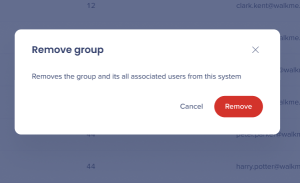
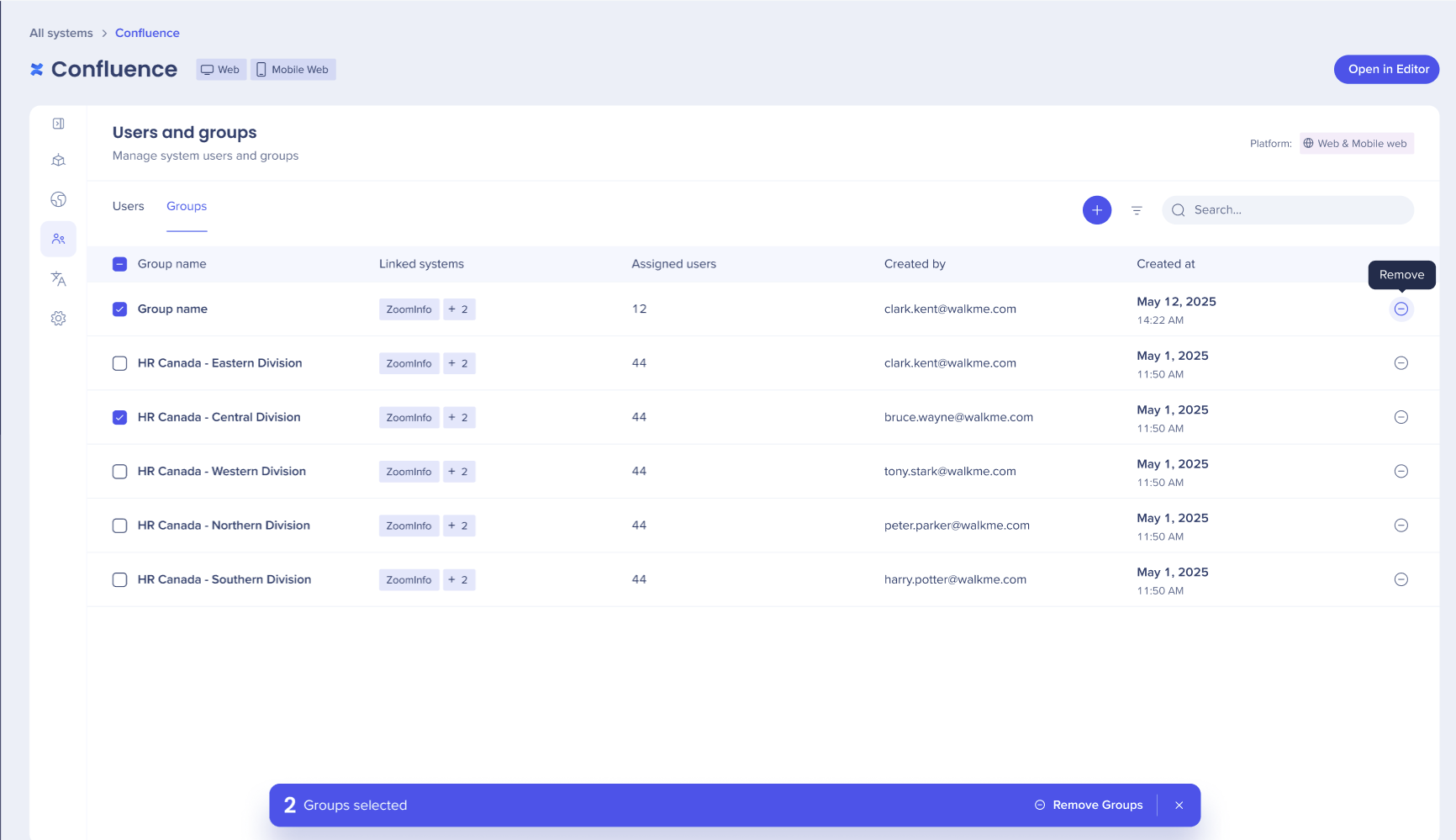 5. A confirmation popup displays, confirm decision to remove group
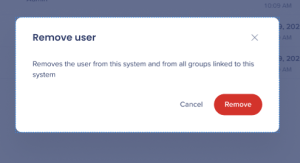
 6. Select the icon to remove a user
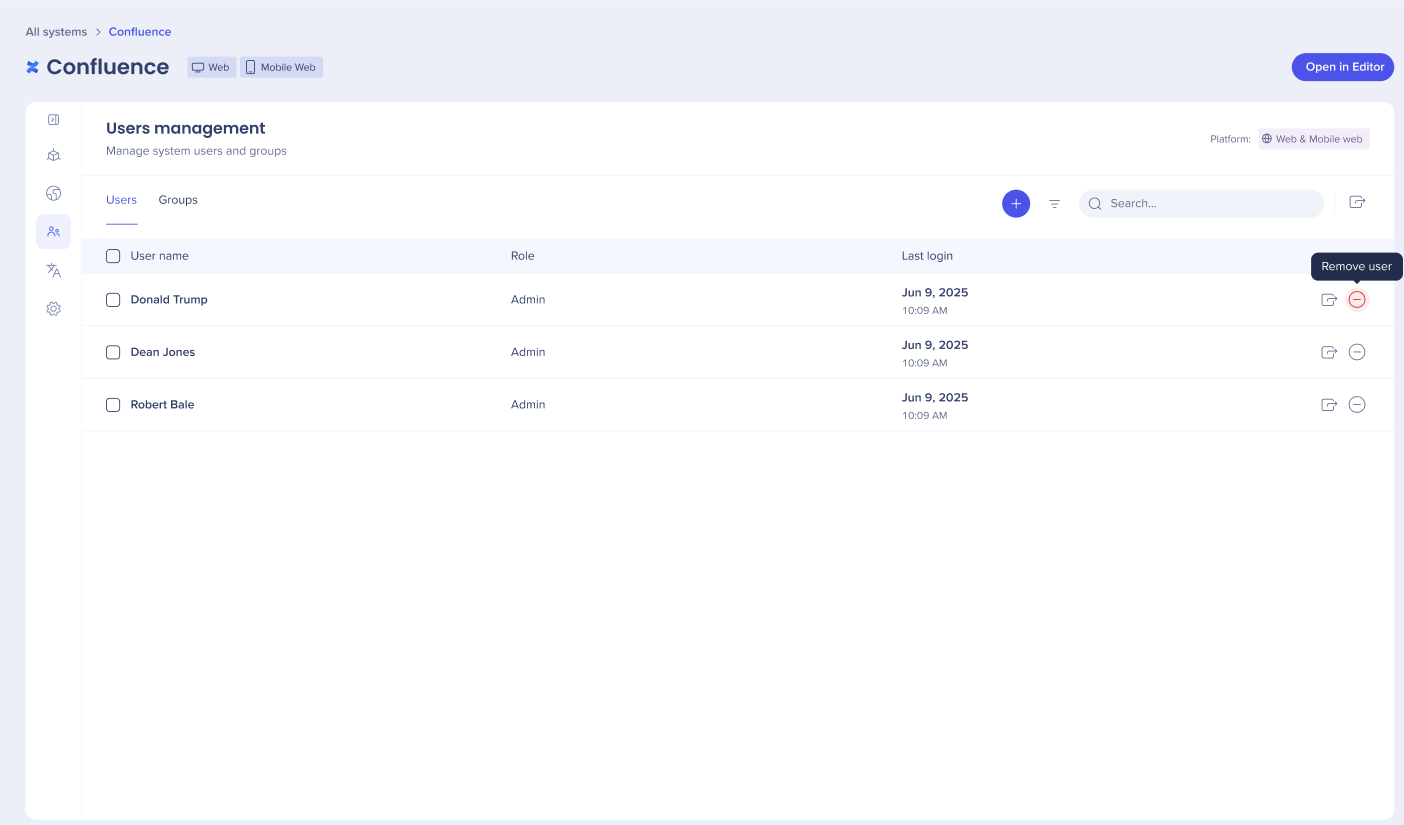
7. A confirmation popup displays, confirm decision to remove a user