Brief Overview
The Smart Highlights Console is where admins connect data sources and set up how highlights appear to users. Connect one or more data sources, choose which entities appear and where, customize the highlight cards (coming soon), and publish — all from the console.
Access
To access got to the WalkMe Console, select the Content category, then select the Smart Highlight page.
Smart Highlights Page Overview
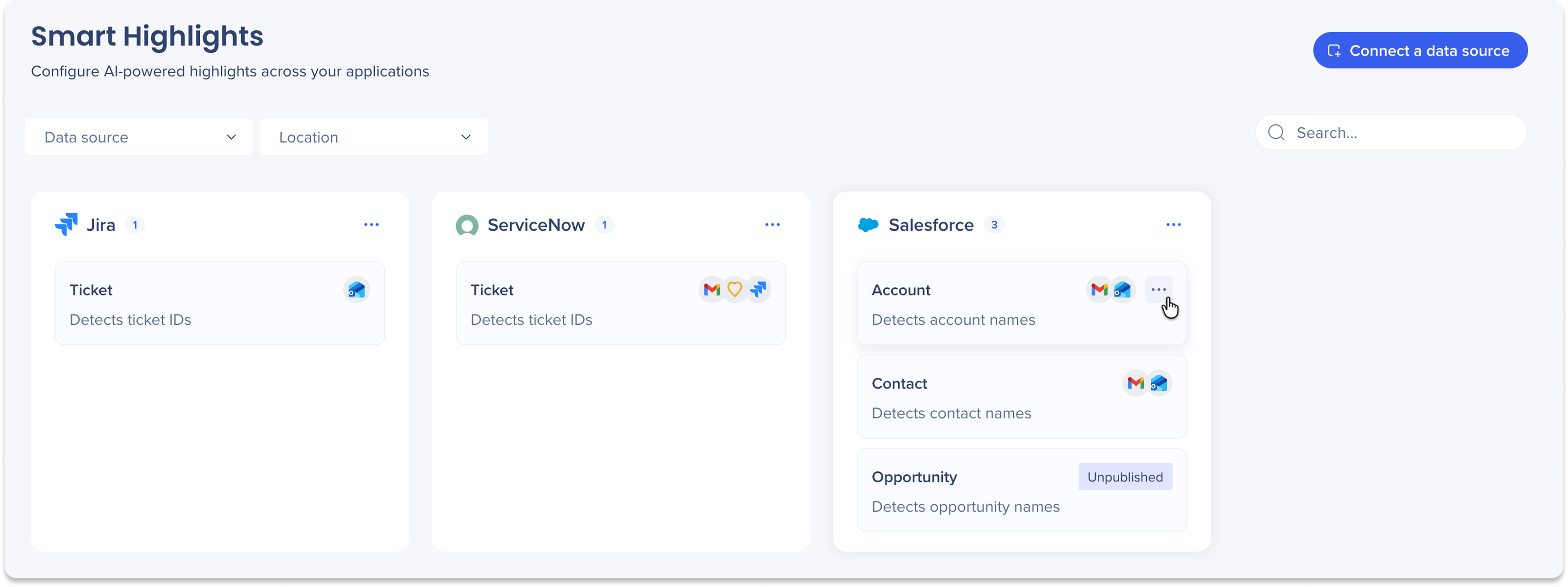
The Smart Highlights page in the console is organized around your connected data sources. Once you have at least one data source connection set up, each connected source application appears as its own section, showing all the entities available for that source and the display locations each one is active on.
Entity cards
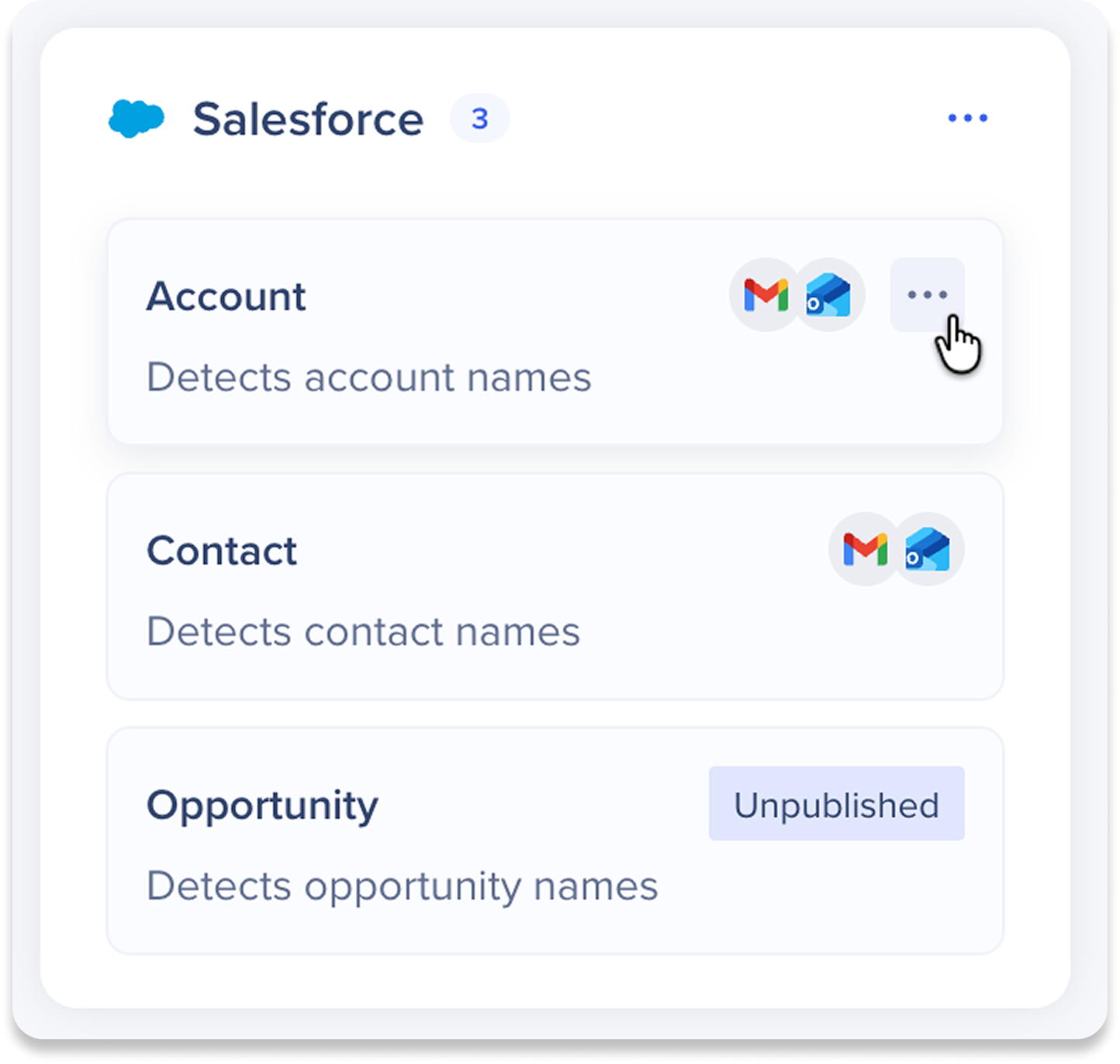
Once a data source is connected, its entities appear as cards grouped under the data source name. Each card shows:
-
The entity name and what it detects (For example, Account: detects account names)
-
The display systems it is currently active on shown as app icons
-
An Unpublished status if the entity has not been activated on any location yet
Manage data source
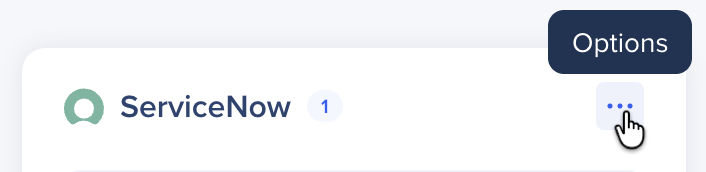
Select the Options icon to perform the following actions:
-
Edit: Update the credentials for your data source
-
Disable: Turn off all entities related to this data source to hide them temporary from your users, and reenable anytime
-
Delete: Remove the data source connection
Manage entities
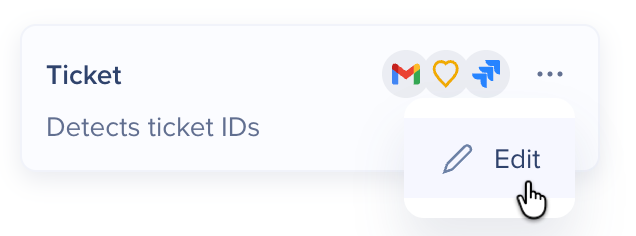
Hover over a specific entity and select the Options icon, then select Edit.
An entity opens with three pages:
-
Card setup: Customize what data appears on the card. Choose the fields to show, set a display name for each, and drag and drop to reorder. Smart Highlights: Entity Card Setup
-
Design: The entity card can now match the your brand and is not restricted to our default look. Design the card so the look feels native to whatever app it appears in.
-
Locations: Choose the locations where this entity appears, and set the environment and segments for each.
Filters and search
- Source application filter: filters by the system the data is coming from, meaning the application where Smart Highlights pulls its data
- System filter: filters by the application the highlight appears on, meaning the tool your users are actually working in when they see the highlight
- Use the search bar on the right to find a specific entity

Connect a data source
Click the Connect a Data Source button to open the connection flow and request a new data source.

How It Works
Getting started
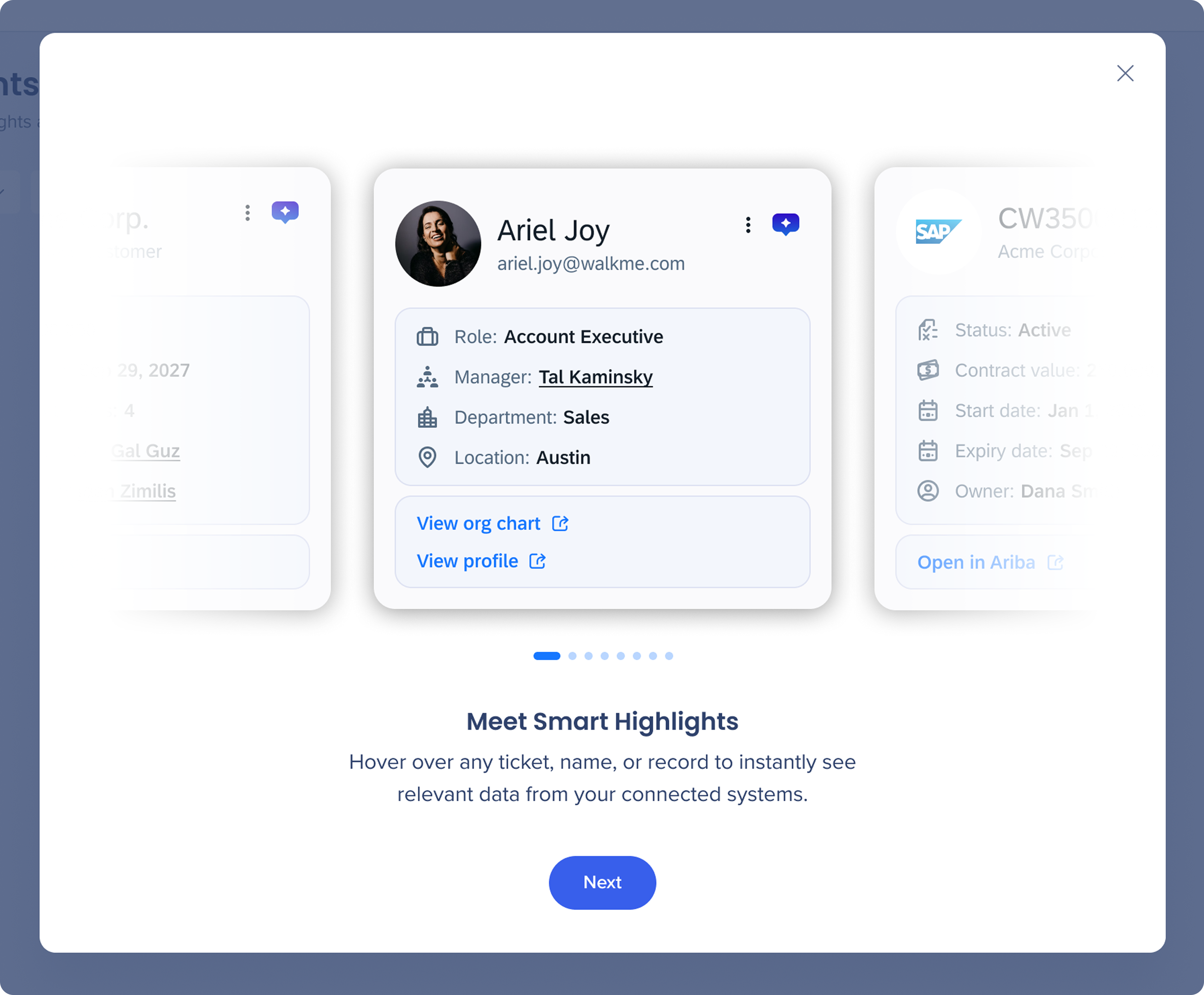
When you open Smart Highlights in the console for the first time, a short onboarding carousel walks you through the available entity types and what to expect from the setup process.
The first screen introduces Smart Highlights with a preview carousel showing the different entity card types your users will see (accounts, employees, contracts, and more).
Click Next to continue.
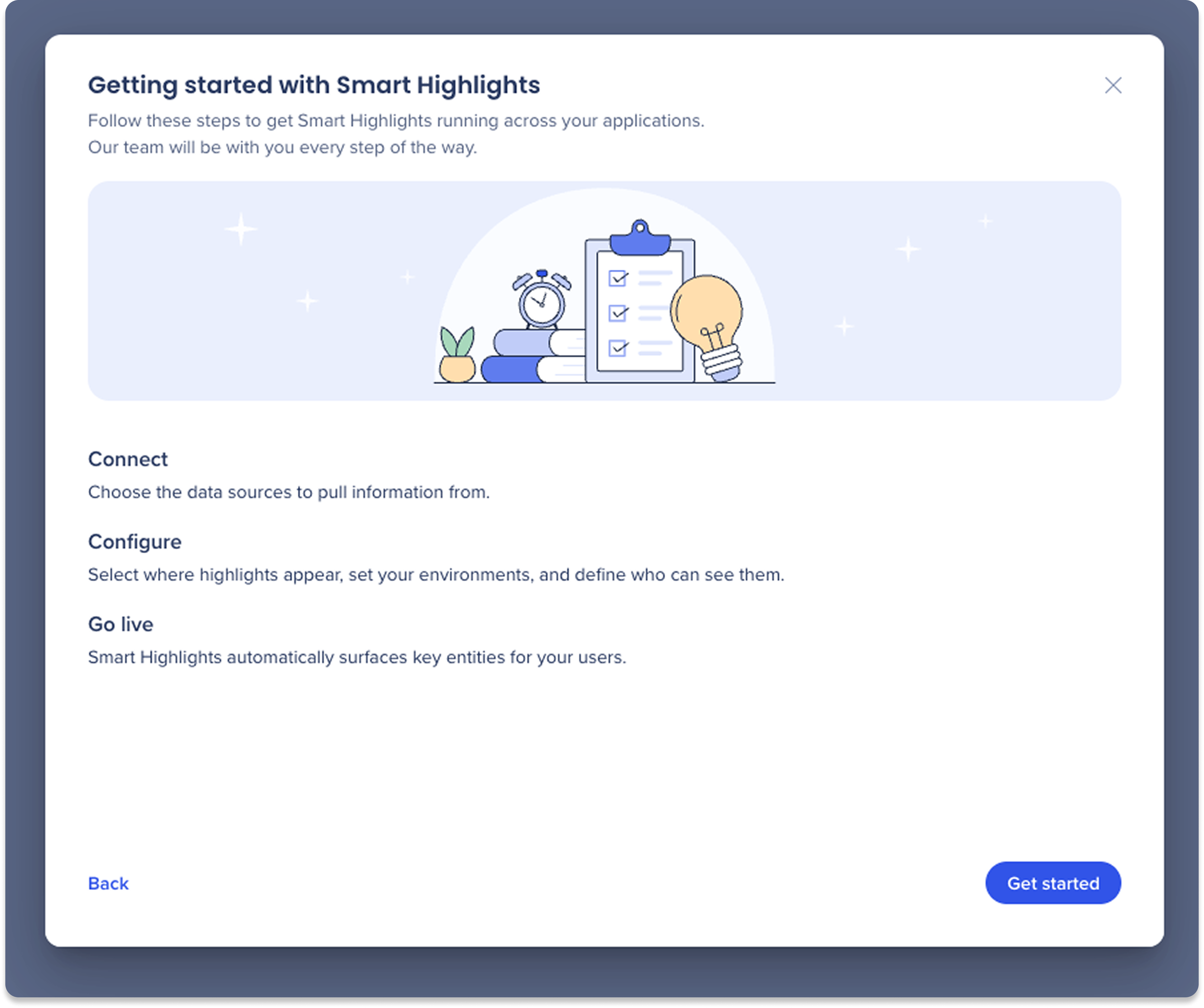
The second screen outlines the four steps to get Smart Highlights running. Click Get started to begin connecting your data sources.
-
Connect: Choose the data sources to pull information from
-
Configure: Select where highlights appear, set your environments, and define who can see them
-
Go live: Smart Highlights automatically surfaces key entities for your users
Connect your data sources
-
Click the Connect a Data Source button configure each data source provider you want to connect
-
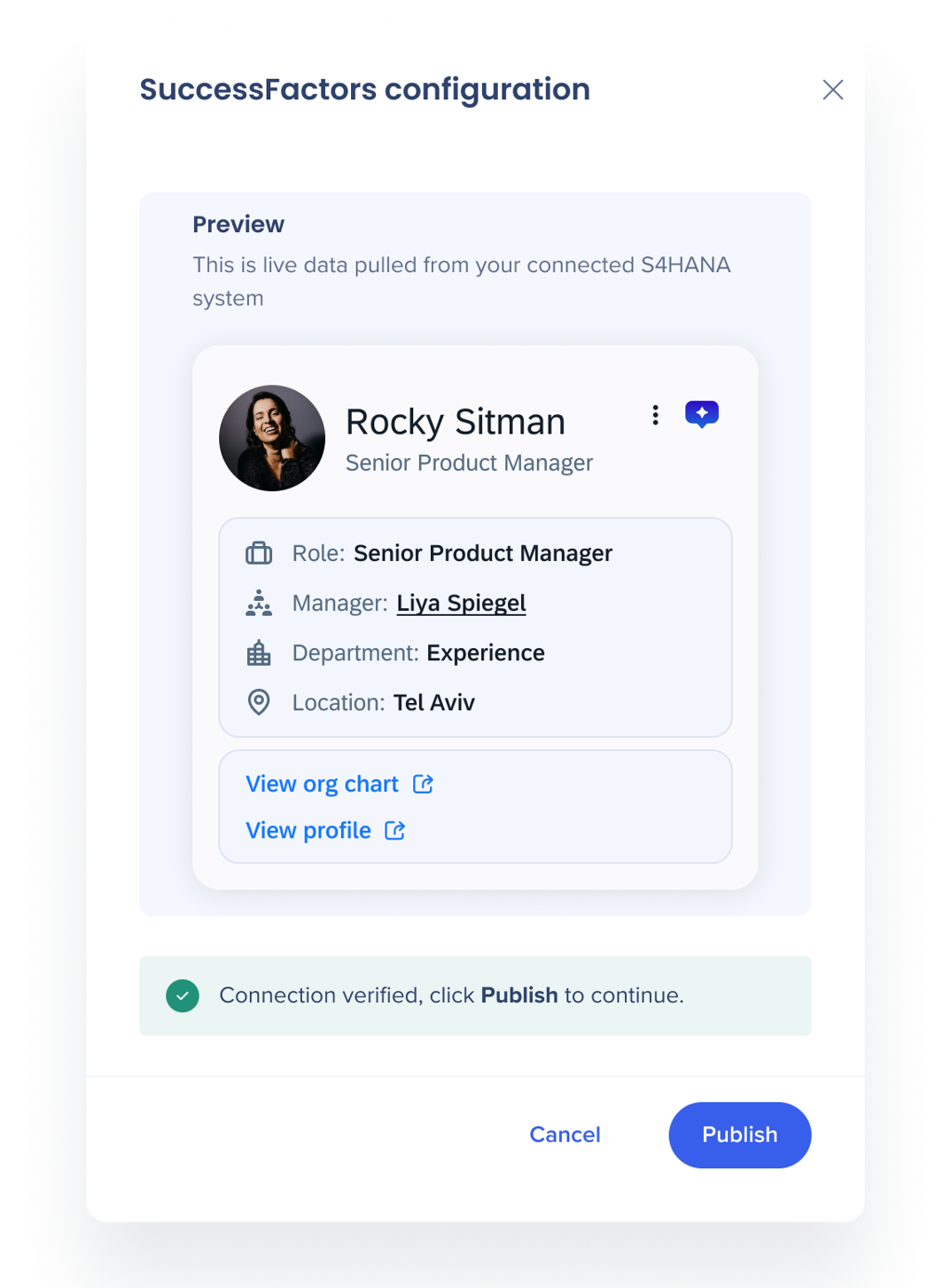
Preview: Shows the highlight cards with sample data for the selected source
-
Supported sources: SuccessFactors, Salesforce, Jira, SAP S/4HANA, ServiceNow
-
Click the + Plus icon to enter credentials and verify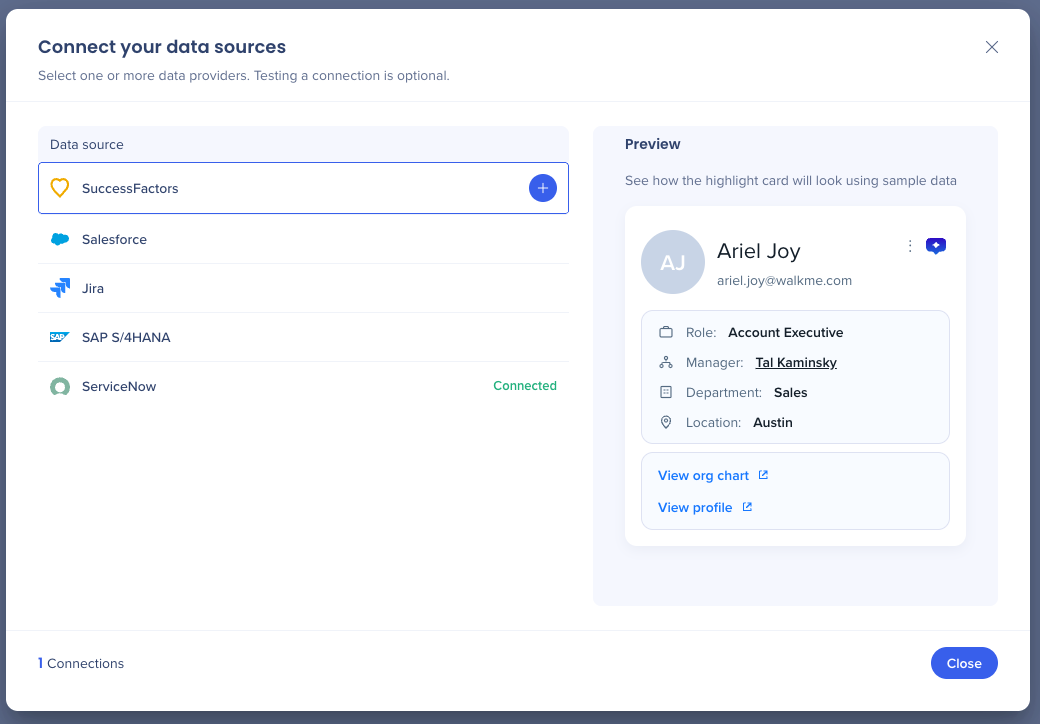
-
Enter the following account details to set up the connection:
-
Connection name: Enter a name for this data source connection for internal use (won't be seen by end-users)
-
Application main URL: The URL used to access your data source environment
-
Advanced settings (optional)
-
SSO login URL: The login URL provided by your identity provider (For example, Okta, Azure AD)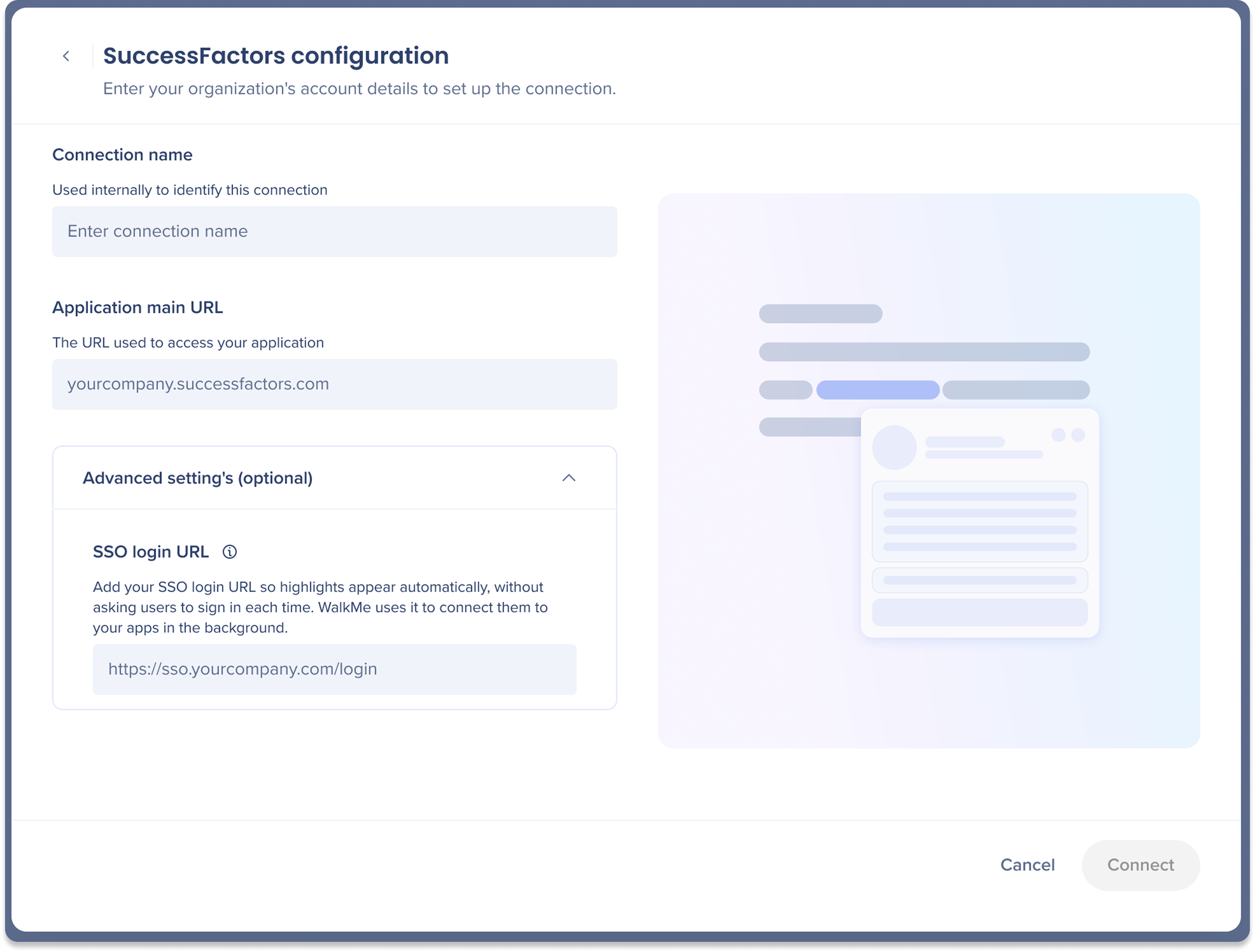
When to add an SSO login URL
Smart Highlights loads data using each user's existing SSO session, so in most setups highlights appear automatically and this field can be left blank. Add your SSO login URL if your identity provider requires a redirect to sign in, or if highlights prompt users to sign in instead of loading automatically.
It tells Smart Highlights where to authenticate in the background so users aren't interrupted, and applies to this background authentication only. It doesn't change how users normally sign in to your applications.
5. Click Connect to verify the connection
6. A confirmation message appears at the bottom when your credentials are valid
7. Click Publish
8. A popup will appear letting you know that publishing will apply your current settings to the extension
9. Click Publish
10. Your connection is now live! Add entities to start showing highlight
Entity settings
Hover over a specific entity and select the Options icon, then select Edit.
Each entity has three tabs:
-
Card setup
-
Design
-
Locations
Card setup
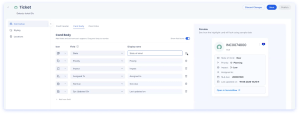
The Card setup tab is where you decide what data appears on a highlight card and how it looks. Each card pulls live data from your connected data source, so it updates automatically for every user and every record it appears on.
You build the card across three tabs, with a live preview on the right:
-
Card header: The top of the card — its image, title, and subtitle
-
Card body: The fields shown below the header. Add up to 6 fields, set an icon and display name for each, and drag and drop to reorder them
-
Card links: Buttons users can open from the card, such as Open in S/4HANA. Set the URL and the label for each link
Learn more about card setup here: Smart Highlights: Entity Card Setup
Design
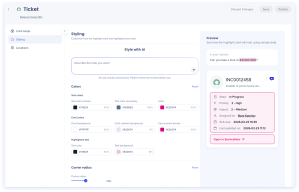
The Design tab lets you customize how the highlight card and highlighted text look, so the card feels native to the app it appears in instead of using the default WalkMe look.
Design with AI
Describe the look you want in plain language and Smart Highlights sets the design controls for you.
Colors
Set colors manually, or adjust the values AI sets for you. Each color has an opacity percentage:
-
Text colors: Set the primary text color, secondary text color, and link color
-
Card colors: Set the card background, card content background, and card content border
-
Highlighted text: Set the text color and text background for the highlighted element on the page
Select Reset to return the colors to their default values.
Corner radius
Drag the Corner radius slider to set how rounded the card corners are. Select Reset to return to the default.
Preview
The Preview panel on the right shows how the highlight card and in-page highlight will look using sample data. It updates as you change the design controls.
Locations
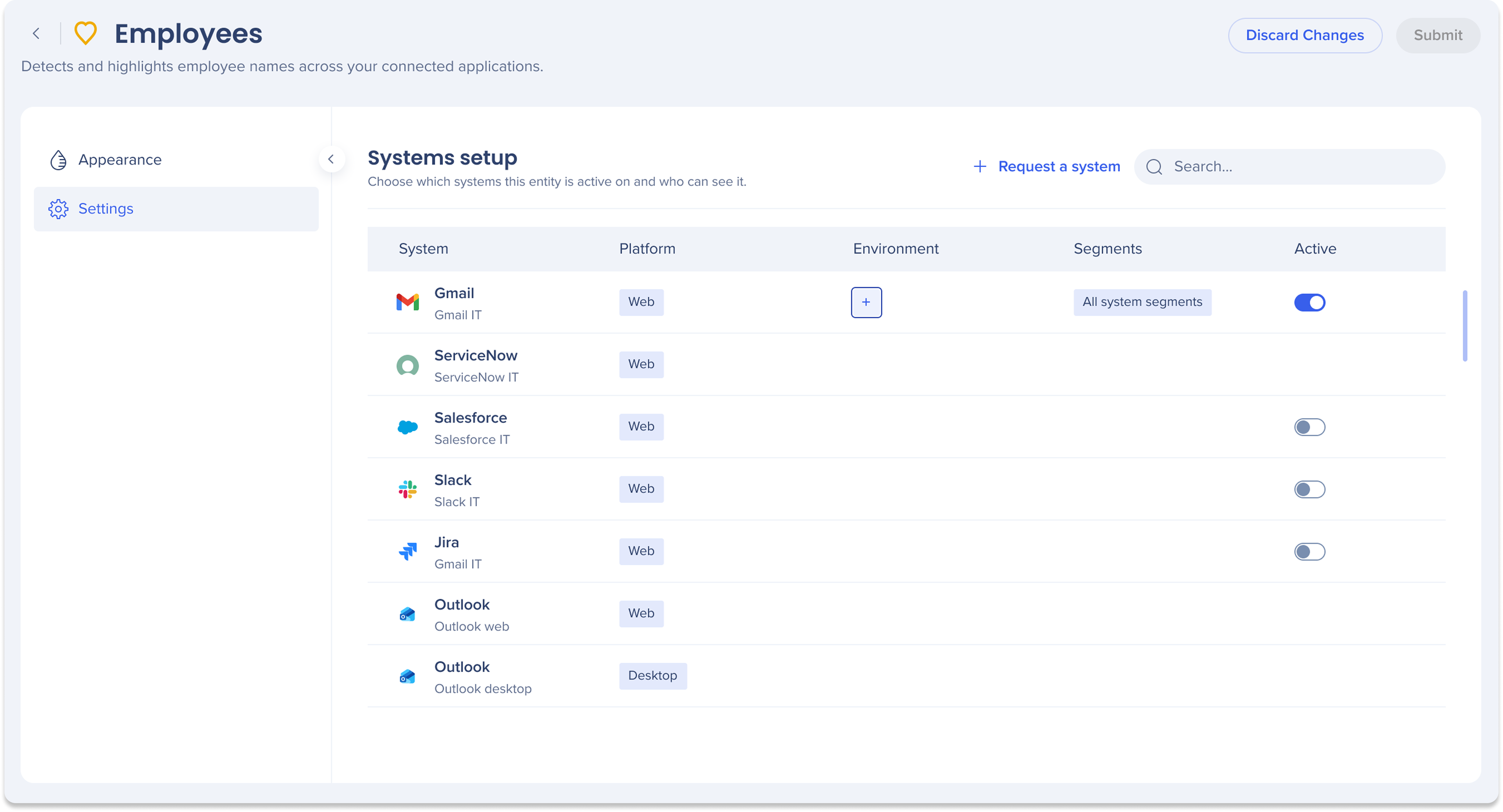
Choose which display systems this entity is active on and who can see it. For each system, configure the following:
-
System: The display application where the highlight will appear
-
Platform: Whether the system runs on Web or Desktop
-
Environment: For each system, select the environment you want this entity to be active on
-
Segments: Which user segments can see this highlight
-
Enable All segments to apply it automatically to all existing and future segments, or choose specific ones manually
-
Note that newly created segments will need to be added manually if you use the specific segments option
-
Active: Turn the highlight on or off per system
Requesting an unsupported system
If a system you need isn't listed, click + Request a system to submit a request. The WalkMe team will review and follow up accordingly.
Technical Notes
- Lite systems: If you are not licensed for a specific display system listed but still want Smart Highlights to appear there, a lite system provides a pathway to enable it.
-
-
Full WalkMe content is not supported on lite systems
-
Who needs it: If you are on an ELA or DAP plan, you can create any system freely and do not need a lite system. For all other account types, the lite system is the required method to enable Smart Highlights on an unlicensed system


