Brief Overview
Smart Highlights brings contextual help into New Outlook. As users read their email, Smart Highlights surfaces relevant data from your data sources right on top of the tickets, names, and records they're already looking at, so there's no switching apps or searching for context.
Smart Highlights for New Outlook connects to your Microsoft account through Microsoft Graph to read email context and show highlights on screen.
This article covers how to set up Smart Highlights in New Outlook, from the one-time setup your IT administrator completes to the sign-in each user does to start seeing highlights.
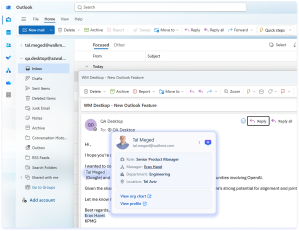
To learn more about using Smart Highlights:
Smart Highlights Overview
How It Works
Setting up Smart Highlights for New Outlook involves two one-time tasks:
- Your IT administrator grants access for the whole organization
- Each user signs in with their Microsoft work or school account to start seeing highlights
WalkMe manages the underlying setup, so your administrator doesn't create or maintain any credentials.
Grant access for your organization
This is a one-time setup completed by your IT administrator:
- Your WalkMe representative sends you an admin consent link
- Open the link and sign in with a Global Administrator account
- Review the requested permissions and select Accept
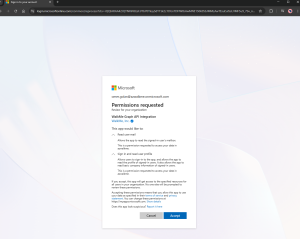
This is an organization-wide grant, so users won't see a consent prompt when they sign in. After you accept, you'll return to walkme.com, which confirms the grant worked.
Your IT administrator can restrict, audit, or revoke access at any time from Enterprise Applications in the Azure portal.
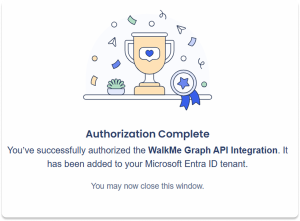
Connect your user account
After your IT administrator completes the setup, each user connects their Microsoft account to start seeing highlights in New Outlook.
- To connect, open the WalkMe Menu and use any of these options:
-
-
Option 1: First menu launch
-
Option 2: Smart Highlights homepage widget
-
Option 3: Integrations tab
-
Choose your work or school account in the Microsoft account picker
-
Review and approve the requested permissions
You only need to approve once. After that, Smart Highlights shows relevant data automatically whenever you're in a supported Microsoft application.
Option 1: First menu launch
The first time you open the WalkMe Menu with desktop, a pop-up prompts you to sign in and choose your Microsoft work or school account.
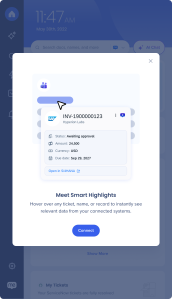
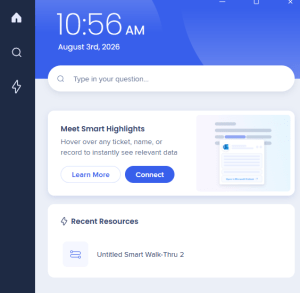
Option 2: Smart Highlights widget
Connect directly from the Smart Highlights widget on the WalkMe Menu homepage.
Option 3: Integrations tab
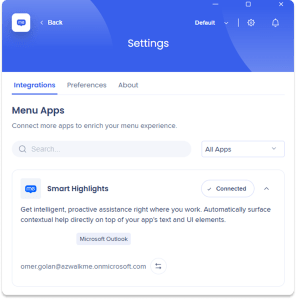
You can also connect from the Integrations tab:
- Open the desktop menu
- Select the Settings icon
- Find the Smart Highlights app in the Integrations tab
- Select Connect
Technical Notes
Prerequisites
- New Outlook (Classic Outlook uses a different setup)
- WalkMe Menu for Desktop version 4.4.0 or higher installed
- A Microsoft work or school account (personal Microsoft accounts, such as outlook.com or hotmail.com, aren't supported)
- Admin consent granted for your organization by your IT administrator (see How It Works below). Without this, users can't sign in
Required permissions
Smart Highlights requests two permissions when a user signs in:
- Sign in and read user profile: Confirms who you are
- Read user mail: Reads email context so highlights can appear
Troubleshooting
If Smart Highlights isn't working after you connect, here are the most common issues and how to resolve them:
-
You see "Sign in required": Your session expired or your access was revoked. Open the WalkMe Menu and select Connect again
-
Sign-in fails: Check your network connection. If you're on a VPN, make sure it's active, then try again once you're back online
-
You can't sign in with your account: Smart Highlights supports Microsoft work or school accounts only. Personal Microsoft accounts (such as outlook.com or hotmail.com) aren't supported. Make sure you're using your work or school account
-
You need to switch accounts: Open the WalkMe Menu, go to the Integrations tab, and select Switch account on the Smart Highlights card
-
Highlights aren't appearing for anyone in your organization: Smart Highlights needs a one-time setup from your IT administrator before anyone can sign in. If no one in your organization can connect, check with your IT admin that setup is complete


