Single Sign-On (SSO)

Last Updated February 18, 2026

Brief Overview

The Single Sign-On (SSO) settings in the Admin Center provide enterprise-grade configuration management to streamline user access. By integrating your Identity Provider (IdP) with the new authentication infrastructure, you can automate user onboarding, enhance security compliance, and provide a frictionless login experience for your entire organization.

Access

Find direct links to assets for your specific data center, including the WalkMe Console, Admin Center, and Insights app.

WalkMe Asset Links Directory

How It Works

  1. Open the Admin Center
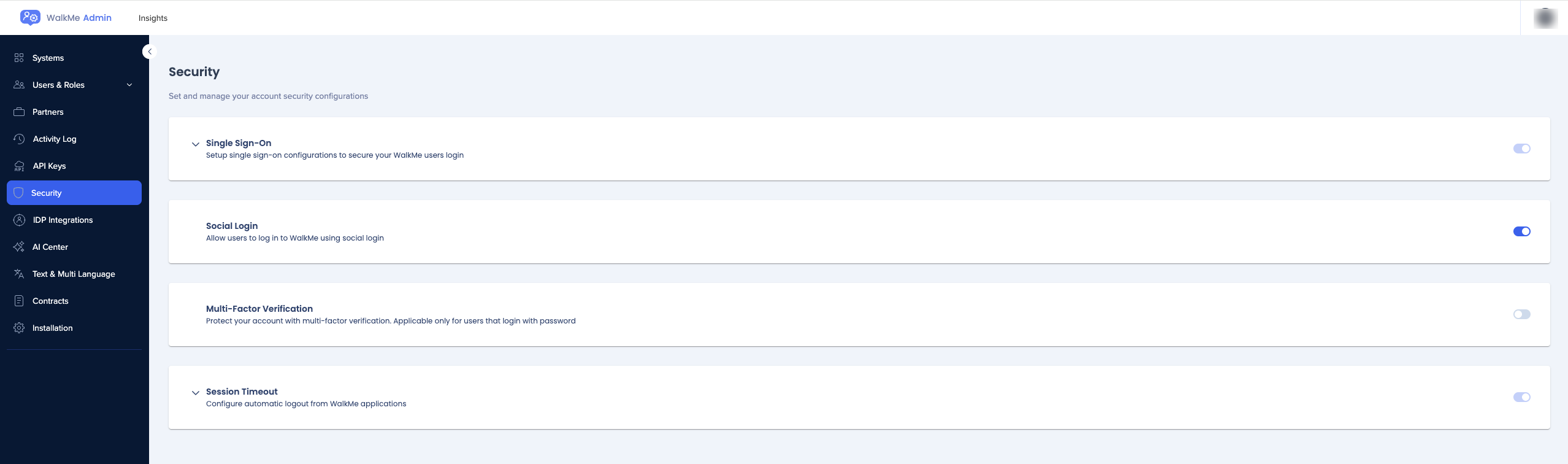
  2. Go to the Security page
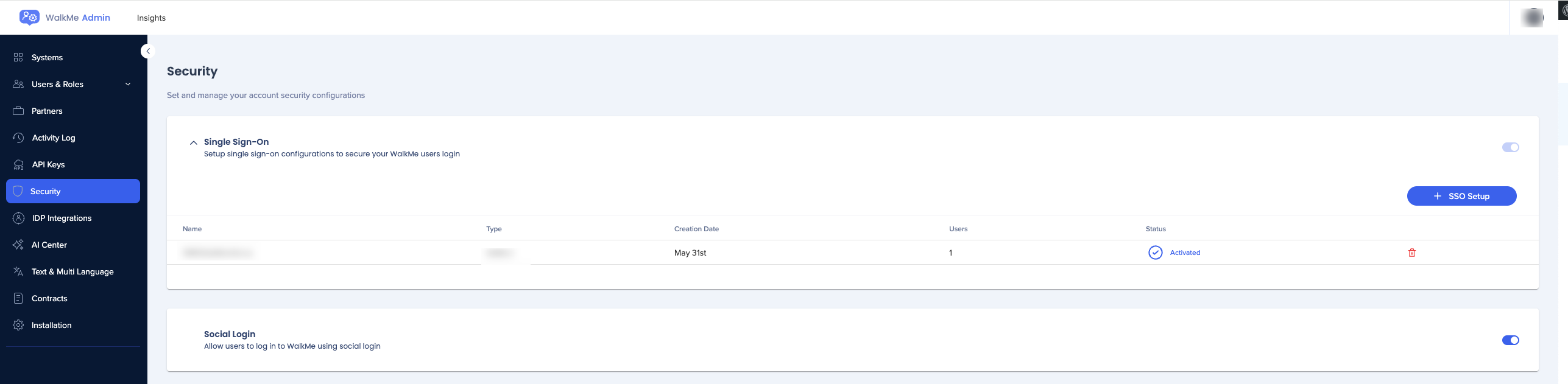
  3. Expand Single Sign-On
  4. Select + SSO Setup 
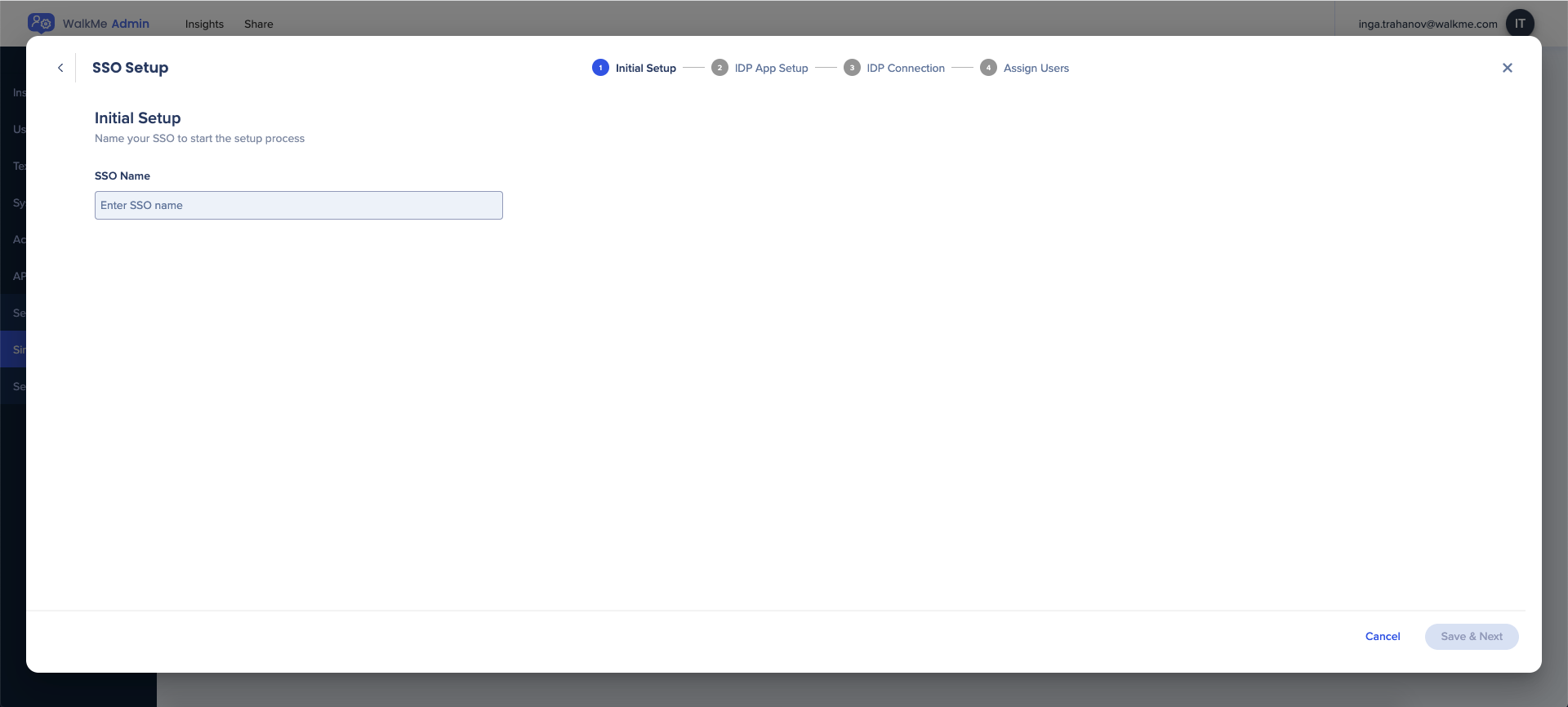
  5. Enter the name of SSO
  6. Select Save & Next
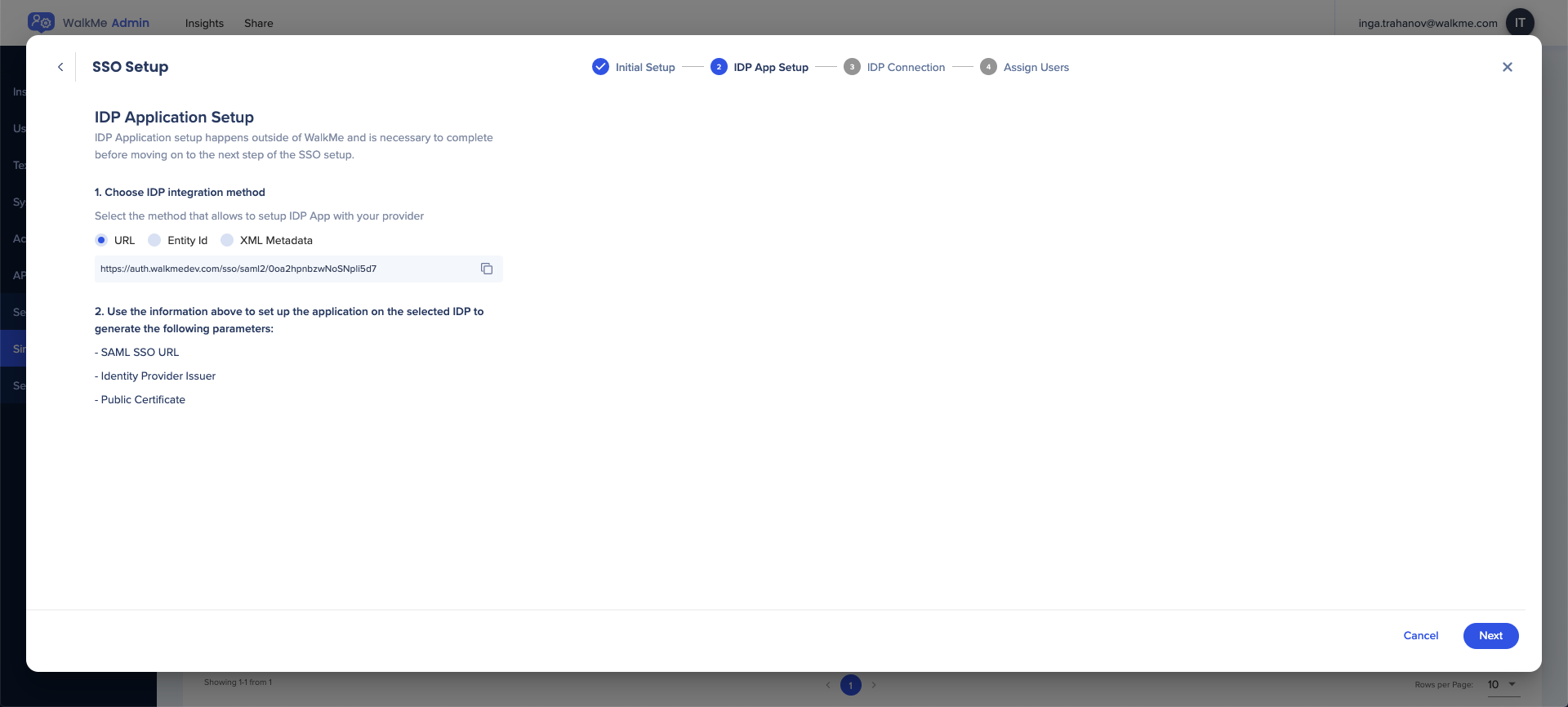
  7. Choose the IDP Integration method:
    • URL
    • Entity ID
    • XML Metadata - When choosing this method you can download the xml as a file
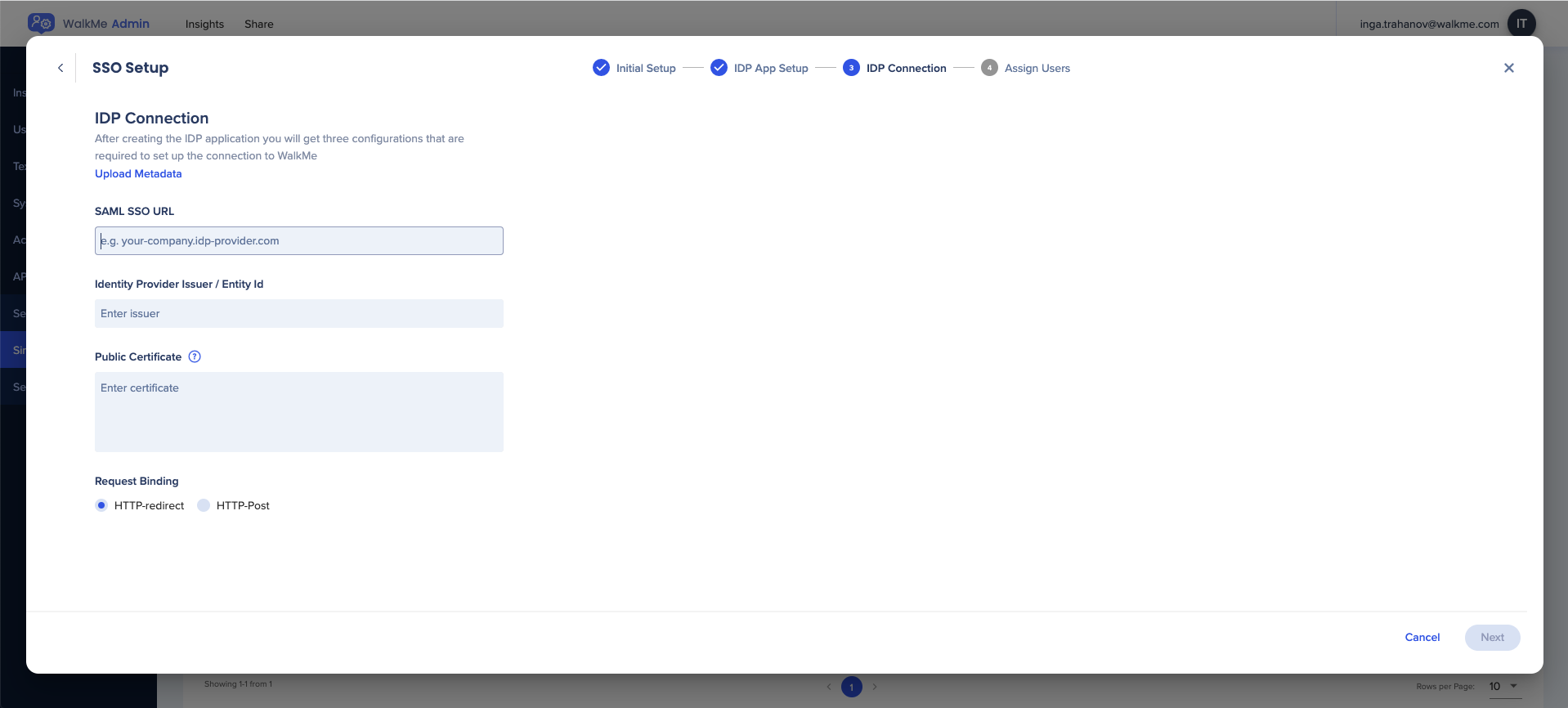
  8. Enter the required details to complete SSO setup:
    • SAML SSO URL
    • Identity Provider Issuer / Entity ID
    • Public Certificate
  9. Choose the relevant request binding
    • HTTP-redirect
    • HTTP-Port
    • 💡 Tip: Select Upload Metadata to automatically fill all relevant fields
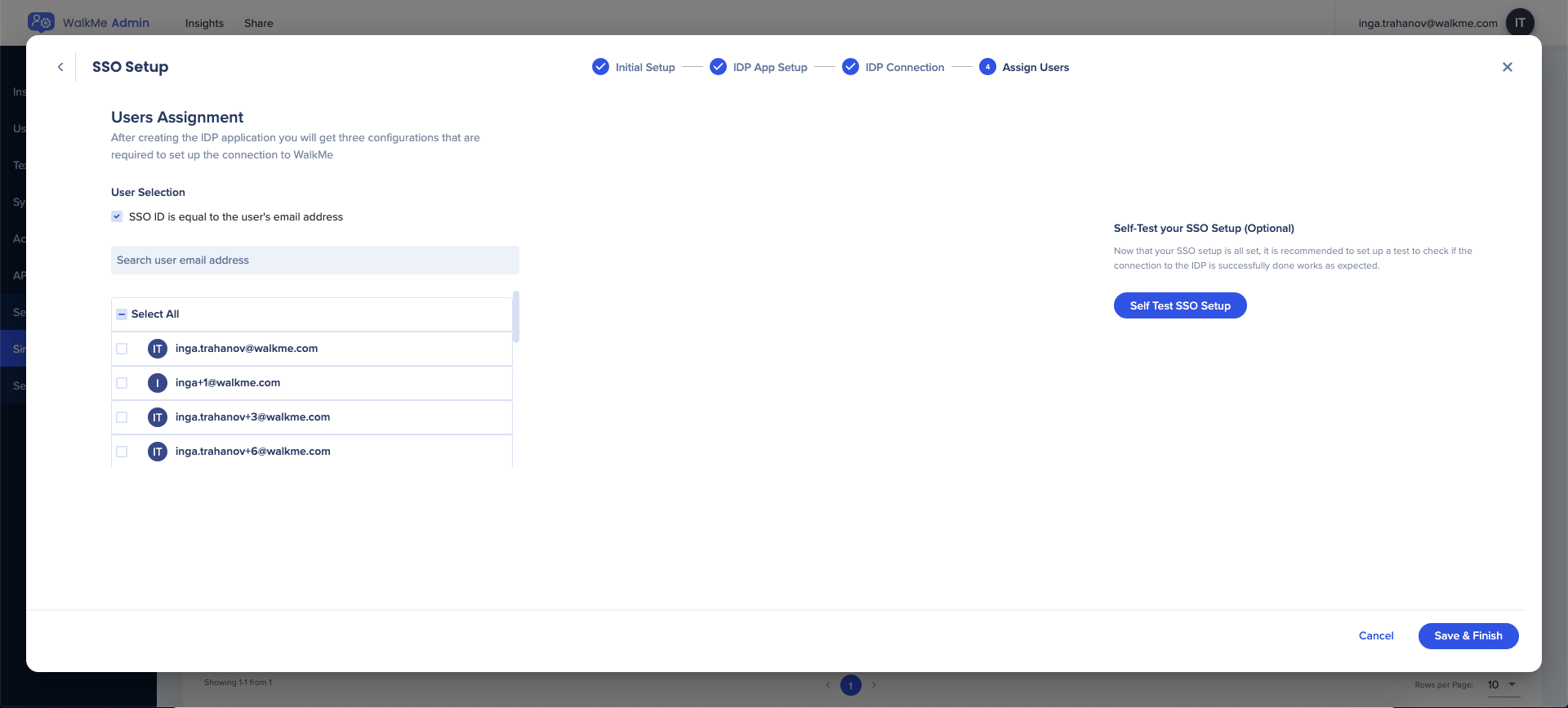
  10. Assign users to the SSO
    • You can search for and assign specific users or Select All
    • The default SSO ID is email, but this can be modified if desired
    • Use the Test SSO Setup button to check the SSO setup
  11. Select Save & Finish

Once the SSO connection was added successfully you will be able to see it on the Single Sign-On settings in the Admin Center.

For more information on configuring SSO for Azure AD, please refer to the following article: Microsoft Tutorial

Update SSO certificate

If you need to update an existing certification for your IDP Connection:

  1. Go to the Security page in the Admin Center
  2. Expand Single Sign On
  3. Select Edit on the SSO integration that needs a new certificate
  4. Add updated certification to IDP Connection section
  5. Select Save

SSO Glossary

Understand the core components of the SAML authentication process:

  • Assertion
    • Data provided by the IdP that supplies statements to a service provider
    • Authentication statements: Verify the user authenticated successfully and provide a timestamp
    • Attribute statements: Supply user values; the NameID attribute is required to specify the username
    • Authorization decision statements: Declare if a request to access a resource is granted or denied
  • Assertion Consumer Service (ACS)
    • The service provider's endpoint (URL) responsible for receiving and parsing a SAML assertion
    • In certain configurations, this is entered in the Single Sign On URL field
  • Attribute
    • A set of data about a user, such as username, first name, or employee ID
  • Audience Restriction
    • A value within the SAML assertion specifying the intended recipient (the service provider)
    • This is typically a URL; if not provided by the SP, use the ACS
  • Default Relay State
    • The URL users are directed to after successful SAML authentication
  • Endpoint
    • The URLs used for communication between Service Providers and Identity Providers
  • Entity ID
    • A globally unique name for an Identity Provider or Service Provider
    • Often referred to as the Identity Provider Issuer in setup instructions
  • Identity Provider (IdP)
    • The authority that verifies user identity and asserts access to the Service Provider
  • Metadata
    • Information exchanged between the IdP and SP in XML format
    • SP Metadata: Provides the ACS, Audience Restriction, and NameID format
    • IdP Metadata: Provides the Single Sign On URL, Entity ID, and the certificate required to decrypt assertions
  • NameID
    • The specific attribute within an assertion used to define the username
  • Service Provider (SP)
    • The hosted resource or service the user intends to access (for example, WalkMe, Salesforce, or Workday®)
  • Single Sign On URL
    • The endpoint dedicated to handling SAML transactions

Troubleshooting SAML Errors

Errors typically occur due to missing or incorrect information in the SAML setup. Review the common error messages below to resolve configuration mismatches.

SAML error messages

  • The SAML Response does not contain the correct Identity Provider Issuer
    • Ensure the Issuer URL in your IdP settings matches the Identity Provider Issuer in the Admin Center
  • These values are often labeled as Issuer URL or Entity URL/ID
    • The SAML Response is not signed
  • Enable signing responses in your IdP settings
    • The SAML Response does not contain the correct Audience
  • Verify the Service Provider Issuer matches the Audience in your IdP settings
    • This may be labeled as SP Entity ID or Relying Party Identifier
  • The SAML Response is missing the ID attribute
    • Ensure the NameID is sent as a claim in the Persistent format
  • Signature validation failed
    • Update the Certificate in the Admin Center to match the certificate sent from your IdP

Common configuration issues

  • IDP-initiated login attempts
    • WalkMe does not support IDP-initiated login (selecting a tile from an IdP dashboard)
    • Solution: Use SP-initiated login by having users enter their email on a WalkMe site to trigger the SSO flow
  • Relay state errors
    • WalkMe does not require a relay state
    • Solution: Remove the relay state from your IdP configuration

Was this article helpful?

Thanks for your feedback!

Be part of something bigger.

Engage with peers, ask questions, share ideas

Ask the Community
×
The trademarks and product names of Workday, Inc., including the WORKDAY® mark, are the property of Workday, Inc. WalkMe is not affiliated with Workday, Inc., nor does Workday, Inc. sponsor or endorse WalkMe, its services or its website.