Brief Overview
WalkMe Filters are an essential tool to help users streamline their search and find specific information faster. Building, applying, and adjusting filters is now more comfortable, and the filtering process has been simplified.
WalkMe has migrated filters to narrow the results shown in all Console Insights dashboards, apart from the Systems Overview tab, making it easier for DAP professionals to find what they are looking for faster. This article provides guidance on how to access and effectively utilize these filters.
How It Works
Add filters
-
Open a system in the Systems Overview tab in Insights in the console, accessible at console.walkme.com/insights/overview
-
Click Add Filter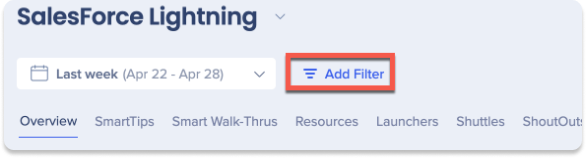
-
Choose an existing filter from the dropdown, or click New Filter to create a new one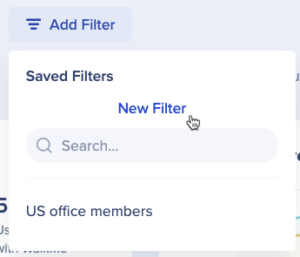
-
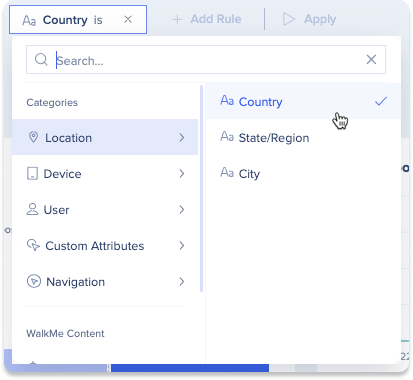
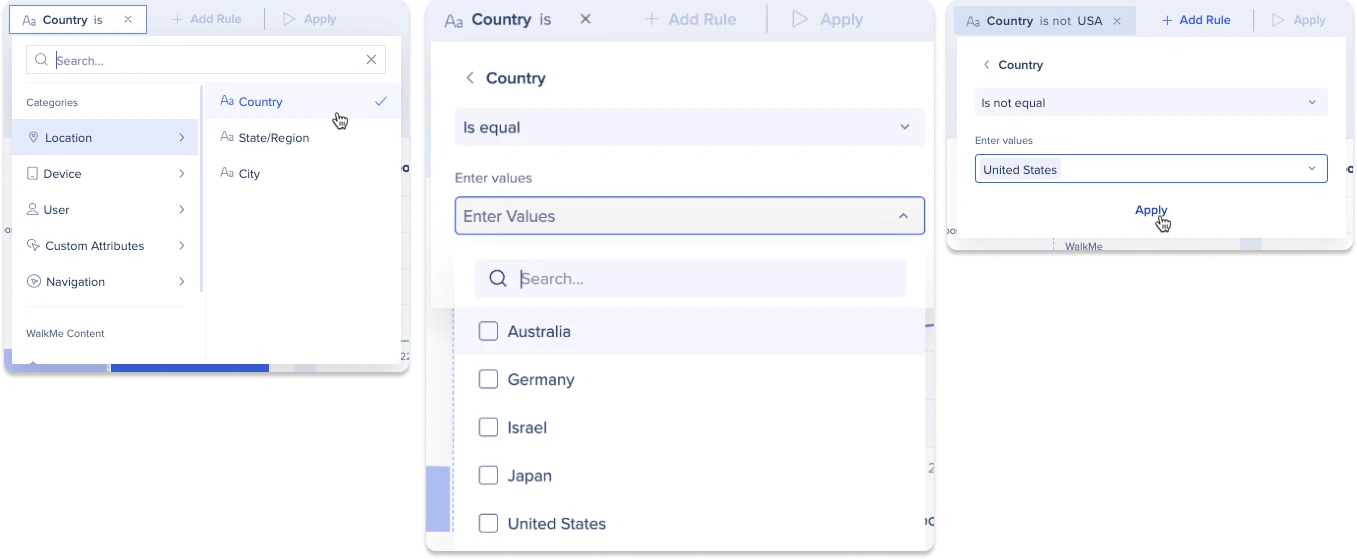
Start creating a rule for your filter by selecting a property from the categories or WalkMe content
-
Once you've selected a property, select values to filter by
-
Click Apply
-
Click + Add Rule to add more
8. Click the Preview Apply button to get a preview of how the filter will appear in the dashboard
-
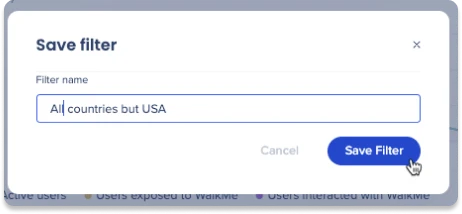
Click Save Filter to save your filter for future
-
Enter a name for your filter
-
Click Save Filter

Edit filters
-
Click the Add Filters dropdown or the currently selected filter
-
Hover over the filter you want to edit
-
Click the Edit icon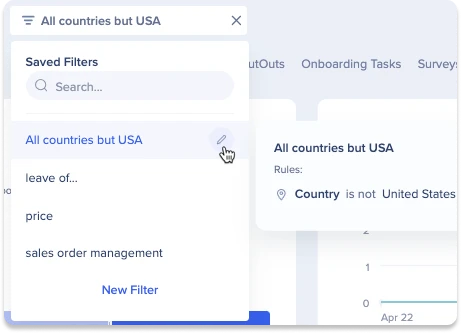
-
From here you can edit any existing rules, or add new rules
-
Click Save Filter once you're satisfied with your edits
-
Click X to close the rule editor
Delete filters
-
Follow steps 1-3 for Editing Filters
-
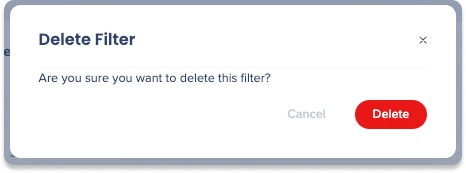
Click the Delete icon
-
Click Delete

View filter content
-
Click the Add Filters dropdown or the currently selected filter
-
Hover over the desired filter to view its rules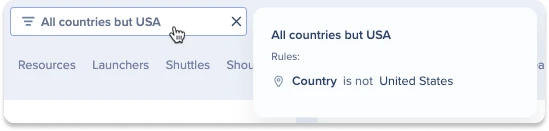
List of Insights Filters
Below is the full list of available filters across Systems Overview (Active Users tab), Systems Overview content tabs (for example, Smart Walk-Thrus, SmartTips), and Sessions widgets.
Section: General
Category: User
Filter Name: User Name
Operators: is equal / is not equal / contains / does not contain
-
Active Users tab: Looks for users whose ID matches the criteria and filters dashboards by those users
-
Content tabs: Looks for users whose ID matches the criteria and filters dashboards by those users
-
Sessions widgets: Returns sessions from users whose IDs match the criteria
Filter Name: User First Seen
Operators: fixed (before / after / on) or relative (more than / less than / exactly)
-
Active Users tab: Filters dashboards by users whose first seen date matches the criteria
-
Content tabs: Same as Active Users – filters by users' first seen date
-
Sessions widgets: Returns sessions from users whose first seen date matches the criteria
Filter Name: User Last Seen
Operators: fixed (before / after / on) or relative (more than / less than / exactly)
-
Active Users tab: Filters dashboards by users whose last seen date matches the criteria
-
Content tabs: Same as Active Users – filters by users' last seen date
-
Sessions widgets: Returns sessions from users whose last seen date matches the criteria
Filter Name: Integration Property
Operators: is equal / is not equal / contains / does not contain
-
Active Users tab: Filters dashboards by users whose integration property matches the criteria
-
Content tabs: Same as Active Users – filters dashboards by users with matching integration properties
-
Sessions widgets: Returns sessions from users whose integration property matches the criteria
Filter Name: User Validity
Operators: is equal
-
Active Users tab: Filters dashboards by users whose validity value matches the criteria
-
Content tabs: Filters dashboards by users whose validity value matches the criteria
-
Sessions widgets: Filters sessions by users whose validity value matches the criteria
Filter Name: Account
Operators: is equal / is not equal / contains / does not contain
Category: Site
Filter Name: URL
Operators: is equal / is not equal
-
Active Users tab: Returns users who have an event with the specified URL
-
Content tabs: Returns events with the specified URL
-
Sessions widgets: Not available
Filter Name: Domain
Operators: is equal / is not equal
-
Active Users tab: Returns users who have an event with the specified domain
-
Content tabs: Returns events with the specified domain
-
Sessions widgets: Not available
Category: Location
Filter Name: City
Operators: is equal / is not equal
-
Active Users tab: Returns users who have an event with the specified city
-
Content tabs: Returns events with the specified city
-
Sessions widgets: Returns sessions with that city
Filter Name: Country / Region
Operators: is equal / is not equal
-
Active Users tab: Returns users who have an event with the specified country
-
Content tabs: Returns events with the specified country
-
Sessions widgets: Returns sessions with that country
Filter Name: IP Address
Operators: is equal / is not equal
-
Active Users tab: Returns users who have an event with the specified IP address
-
Content tabs: Returns events with the specified IP address
-
Sessions widgets: Not available
Filter Name: State / Area
Operators: is equal / is not equal
-
Active Users tab: Returns users who have an event with the specified state or region
-
Content tabs: Returns events with the specified state or region
-
Sessions widgets: Returns sessions with that state or region
Category: Device
Filter Name: Browser
Operators: is equal / is not equal
-
Active Users tab: Returns users who have an event with the specified browser
-
Content tabs: Returns events with the specified browser
-
Sessions widgets: Returns sessions with that browser
Filter Name: OS
Operators: is equal / is not equal
-
Active Users tab: Returns users who have an event with the specified operating system
-
Content tabs: Returns events with the specified operating system
-
Sessions widgets: Returns sessions with that operating system
Filter Name: OS Version
Operators: is equal / is not equal
-
Active Users tab: Returns users who have an event with the specified OS version
-
Content tabs: Returns events with the specified OS version
-
Sessions widgets: Returns sessions with that OS version
Filter Name: Platform
Operators: is equal / is not equal
-
Active Users tab: Returns users who have an event with the specified platform
-
Content tabs: Returns events with the specified platform
-
Sessions widgets: Returns sessions with that platform
Category: Analytical Properties
Filter Name: Name / Type / Role / Status / Info
Operators: is equal / is not equal / contains / does not contain
-
Active Users tab: Returns users who have events with the specified analytical properties
-
Content tabs: Returns events that include the specified analytical properties
-
Sessions widgets: Not available
Section: WalkMe
Category: Segment
Filter Name: Segment
Operators: is equal / is not equal
-
Active Users tab: Returns content that has the specified segment assigned and filters users who interacted with it
-
Content tabs: Returns content with the specified segment assignment
-
Sessions widgets: Not available
Category: Content
Filter Name: Content Type
Operators: is equal / is not equal
-
Active Users tab: Returns users who have events with the specified content type
-
Content tabs: Returns events with the specified content type
-
Sessions widgets: Not available
Filter Name: Content Name
Operators: is equal / is not equal
-
Active Users tab: Returns users who have events with the specified content name
-
Content tabs: Returns events with the specified content name
-
Sessions widgets: Not available
Filter Name: Content ID
Operators: is equal / is not equal
-
Active Users tab: Returns users who have events with the specified content ID
-
Content tabs: Returns events with the specified content ID
-
Sessions widgets: Not available
Filter Name: Initiator
Operators: is equal / is not equal
-
Active Users tab: Returns users who have events with the specified initiator
-
Content tabs: Returns events with the specified initiator
-
Sessions widgets: Not available
Category: Workflow
Filter Name: Business Domain
Operators: is equal / is not equal
-
Active Users tab: Returns content that has the specified business domain and filters events from related content
-
Content tabs: Returns content with the specified business domain
-
Sessions widgets: Not available
Filter Name: Workflow
Operators: is equal / is not equal
-
Active Users tab: Returns content that has the specified workflow and filters users who interacted with it
-
Content tabs: Returns content with the specified workflow
-
Sessions widgets: Not available
Filter Name: Task
Operators: is equal / is not equal
-
Active Users tab: Returns content that has the specified task and filters users who interacted with it
-
Content tabs: Returns content with the specified task
-
Sessions widgets: Not available
Category: User Action
Filter Name: WalkMe Content
Operators: users interacted with / did not interact with / were exposed to / were not exposed to
-
Active Users tab: Returns a list of users who match the interaction criteria with WalkMe content
-
Content tabs: Returns a list of users who match the interaction criteria and filters all dashboards by those users
-
Sessions widgets: Not available
Filter Name: Events
Operators: users interacted with / did not interact with / were exposed to / were not exposed to
-
Active Users tab: Returns a list of users who match the interaction criteria with specific events
-
Content tabs: Returns a list of users who match the interaction criteria and filters dashboards by those users
-
Sessions widgets: Not available
Technical Notes
-
Session based filters are not supported
-
IDP and custom attributes filters are not currently supported
-
Filters created in Insights Classic will not transfer over
-
The Systems Overview page does not support filters
-
Filters are sorted alphabetically
- Active users may not be calculated for certain filters, if that's the case you will see "N/A"
-
A maximum of 10 conditions can be applied to a filter
-
A maximum of 50 items can be applied to a filter


